

Installing a Roundcube email web client for the ISPConfig 3 hosting control panel in Debian. The instructions will be very extensive and detailed.
As we learned from the first article on installing ISPConfig in Debian, we use a domain name. server.locTherefore, we use a standard domain to access the Roundcube email client by name. mail.server.locFor this reason, we simply need to add a new site with a name to ISPConfig. mail.server.locAdd FTP access to the site, add user and Mysql database.
In the instructions, I will describe the installation by 2 methods:
1. Install Roundcube via FTP access to the site
2. Roundcube installation via SSH site access
We will install Roundcube on the domain name mail.server.locTo do this, create in the ISPConfig 3 panel in the tab section Sites name-plate mail.server.loc push Add new website:
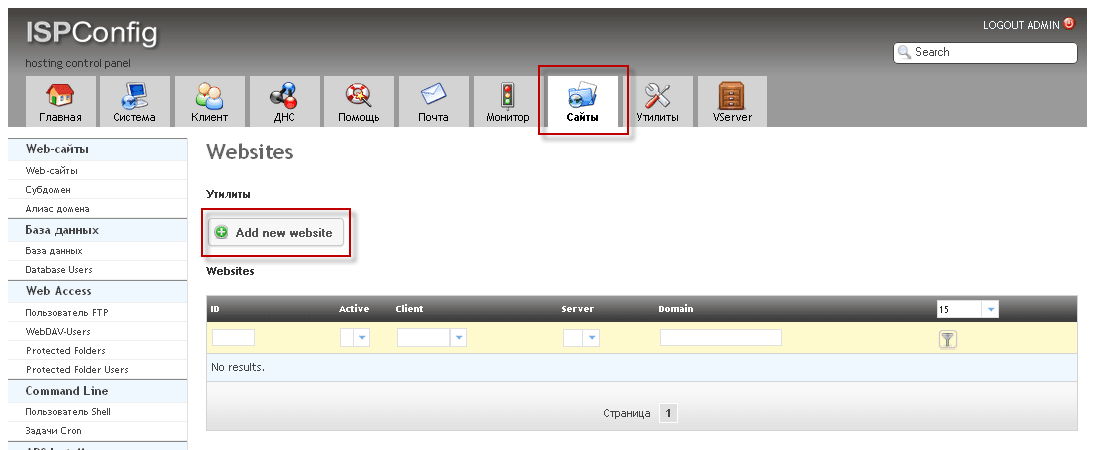
After the window appears, fill in the fields as follows:
- Server: webserver.server.loc
- Client: username
- IP address: *
- Domain: mail.server.loc
- SuEXEC: checkmark
- General Error-Documents: checkmark
- SSL: checkmark
- PHP: fast-cgi
- PHP-Version: Default
- Active: checkmark
After filling in all fields, press the button. Save. add-on mail.server.loc:

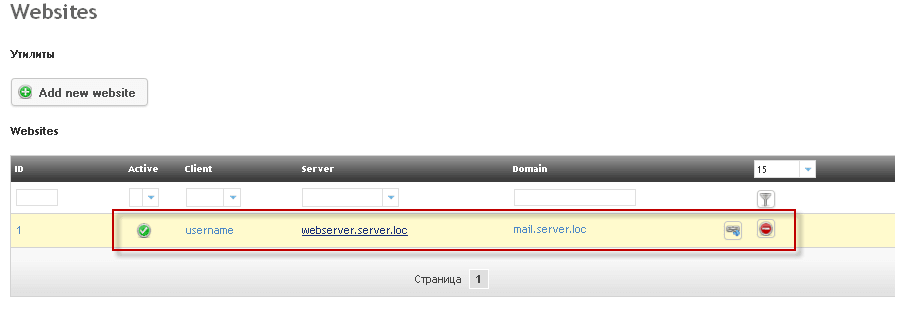
In the ISPConfig 3 panel on the tab Sites The added site will appear mail.server.loc:
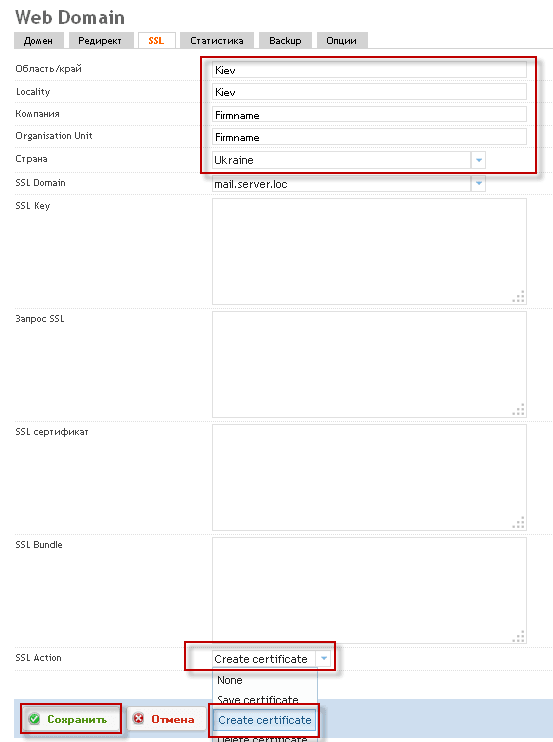
Now on the added site mail.server.loc For Roundcube operation, we will set up a secure entrance so that passwords and browsing email messages cannot be intercepted using SSL, for which we will fill in the fields in the tab. SSL For example, below:
- Area/Edge: Kiev
- Licality: Kiev
- Company: Firmname
- Organisation Unit: Firmname
- Country: Ukraine
- SSL Domain: mail.server.loc
- SSL Action: Create certificate
After filling in all fields, press the button. Save. after ISPConfig will automatically create self-signed SSL certificates for the mail.server.loc domain:
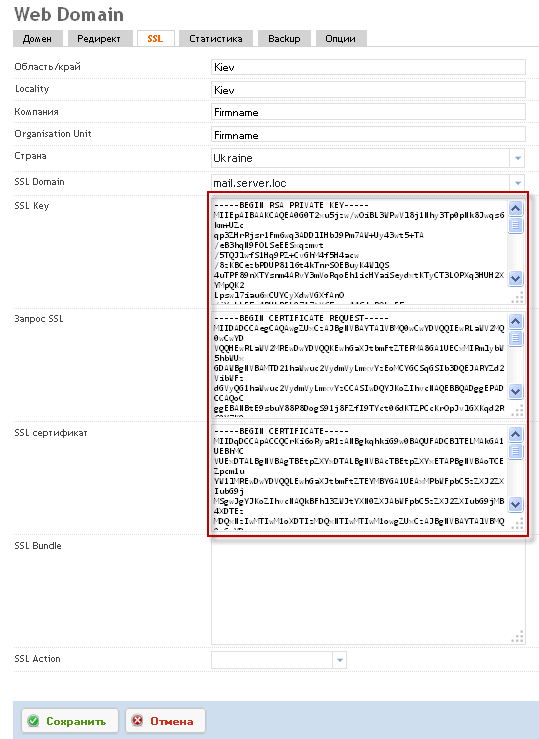
After configuring SSL for Roundcube in ISPConfig 3 to check the creation of certificates, you need to open the added site again after a couple of minutes after saving and go to the tab. SSL And we have to see the fields filled in:
- SSL Key
- SSL request
- SSL certificate
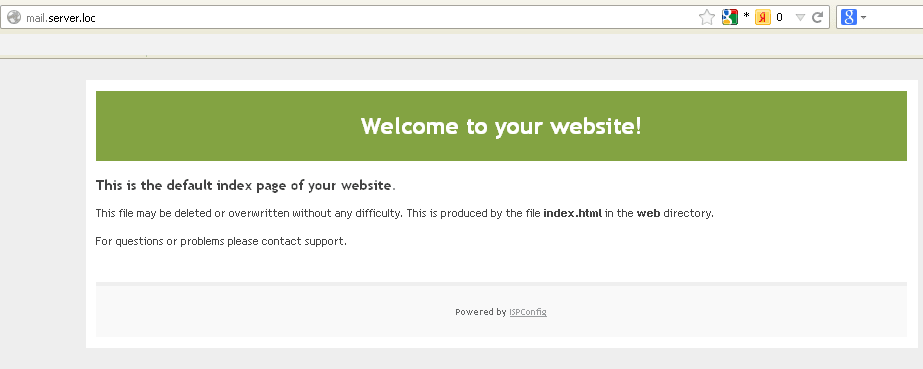
After adding the site mail.server.loc working using ssl encryption to check the operability, you need to open the address in the browser https://mail.server.loc/ A window will open:
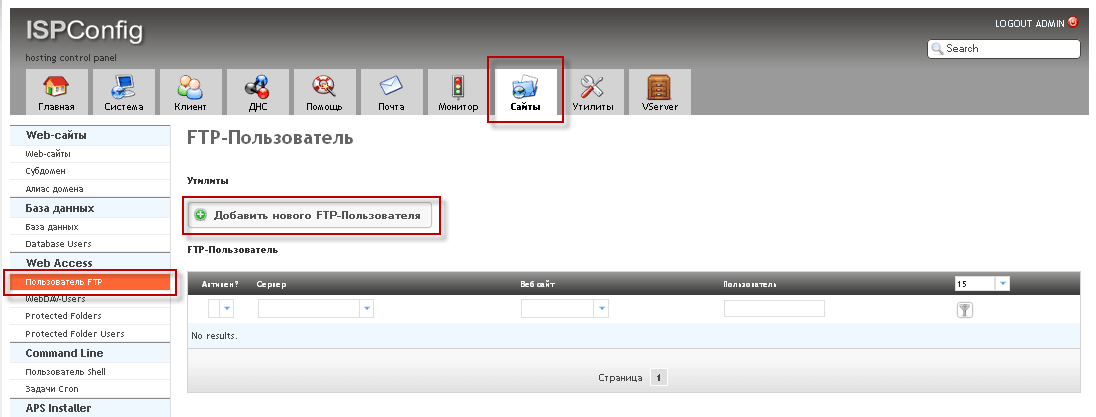
In order to install Roundcube via FTP in ISPConfig 3, you need to create an FTP account for the site. mail.server.locTo do this, you need to enter ISPConfig 3 in the tab. Sites press the button FTP user:
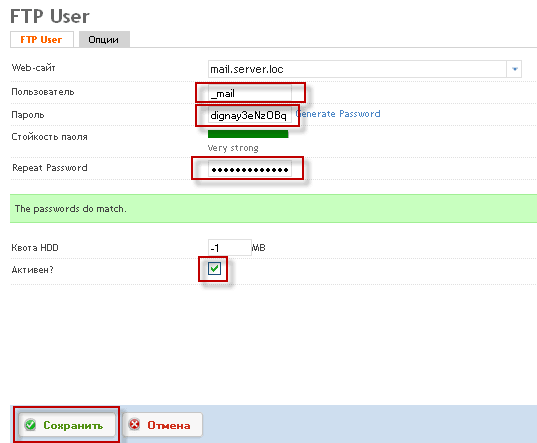
To add an FTP account to ISPConfig 3, you need to fill in the following fields:
- Web site: mail.server.loc
- User: _mail
- Password: dignay3eNz0Bq
- Repeat Password: dignay3eNz0Bq
- HDD quota: -1
- Active? tick off
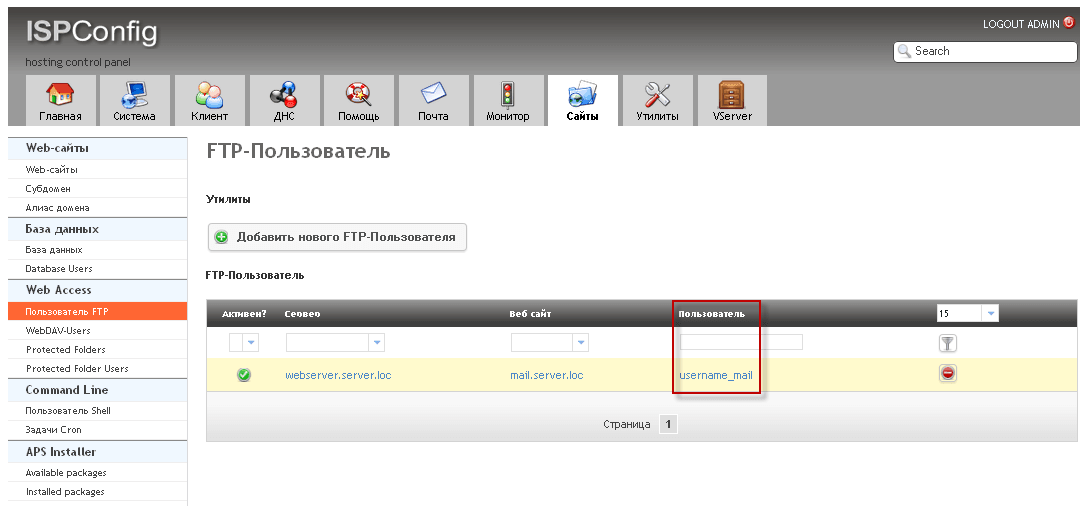
In this screenshot, we see that there was an added FTP account, login FTP account. username_mailThe password is seen in the screenshot above, it is quite complex: dignay3eNz0Bq
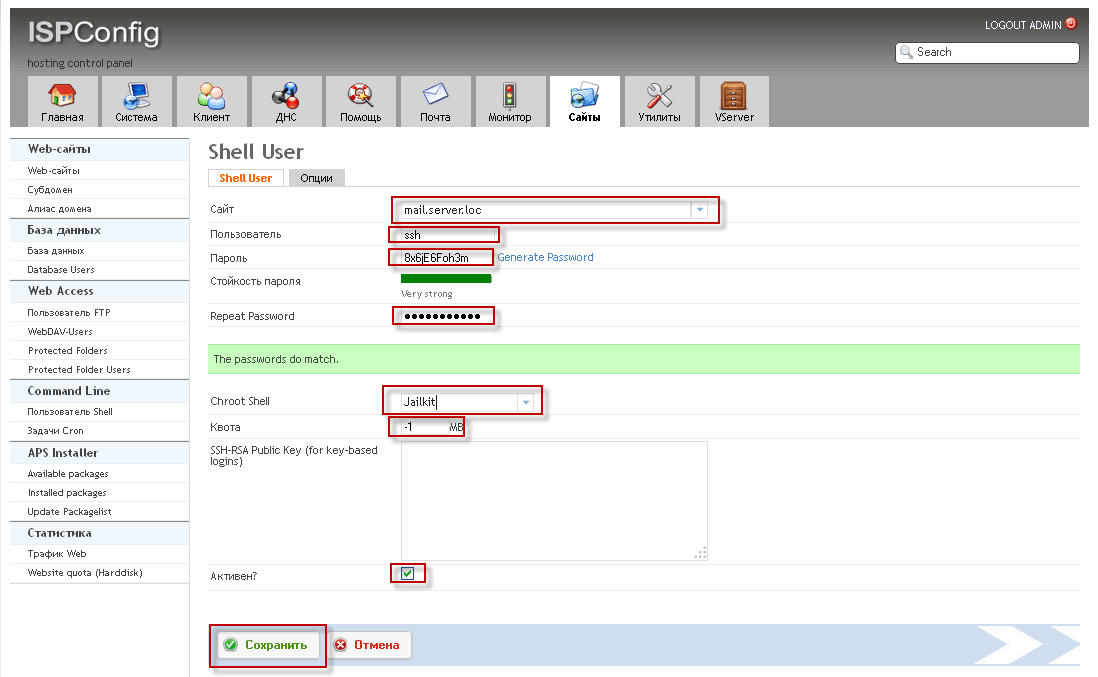
To install Roundcube via SSH, ISPConfig 3 will add an SSH account isolated in the folder of the site mail.server.loc using the program Jailkit
To add SSH access to your site, in ISPConfig 3 in the tab Sites press the button Shell user And in the window that appears, we press a button. Add a Shell user:

Fill in the fields for example below:
- Website: mail.server.loc
- User: ssh
- Password: 8x6jE6Foh3m
- Repeat Password: 8x6jE6Foh3m
- Chroot Shell: Jailkit
- Quota: -1
- Active? checkmark
To add an SSH account, press the button Save.:
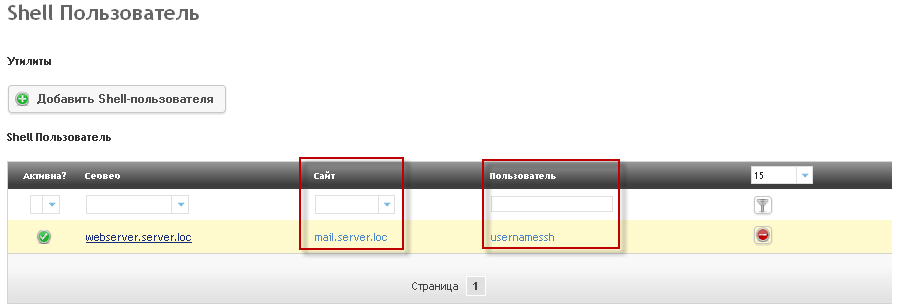
The screenshot below shows the added SSH account in ISPConfig 3. Login for access by SSH: usernamessPassword: 8x6jE6Foh3m
Make changes to the php.ini configuration file on the way /etc/php5/cgi/php.ini to correct the parameters:
vi /etc/php5/cgi/php.ini
was:
...
;date.timezone =
...
post_max_size = 8M
...
upload_max_filesize = 2M
...
became:
...
date.timezone = Europe/Kiev
...
post_max_size = 32M
...
upload_max_filesize = 32M
...
Time zone you're specifying yours, I said. Europe/KievWe save the file.
Now add to the file. /etc/php5/cgi/php.ini parameter suhosin.session.encrypt And then I did the command.
echo 'suhosin.session.encrypt = Off' >> /etc/php5/cgi/php.ini
Reboot the web server to apply changes by the command:
/etc/init.d/apache2 restart
Start installing Roundcube through the ISPConfig 3 hosting control panel.
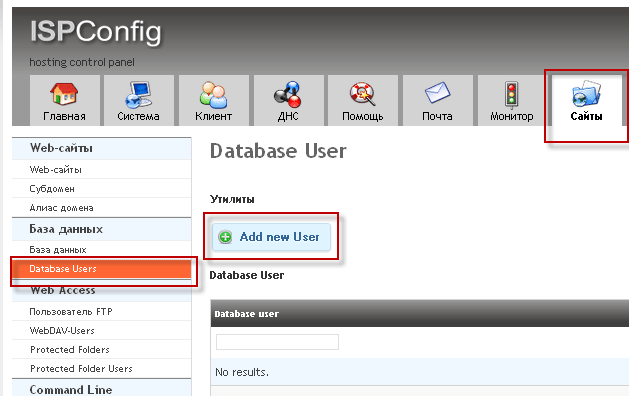
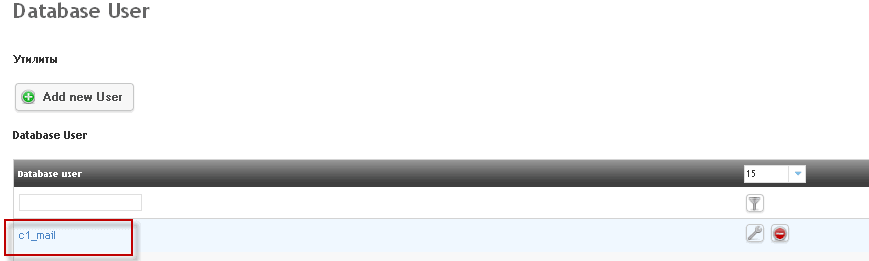
Add the Mysql user, for this you need to go to the tab in the ISPConfig 3 hosting control panel Sites and press the button on the left panel. Database Users and add the user to press the button Add new User:
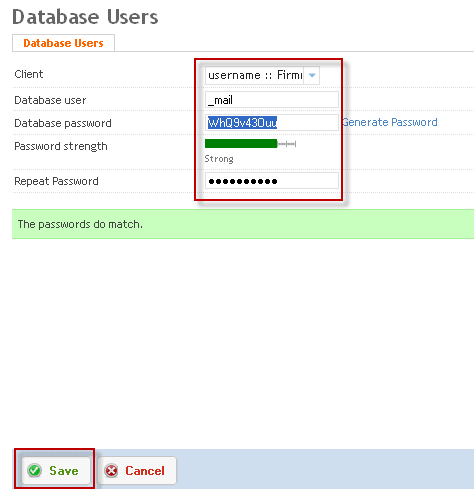
To add a Mysql user, fill in the following fields:
- Client: username
- Database user: _mail
- Database password: WhQ9v43Ouu
- Repeat Password: WhQ9v43Ouu
To add BD Mysql user, click the button Save.:
In the screenshot below, we can see that we have added BD Mysql login: c1_mail, User password: WhQ9v43Ouu
After adding Mysql to the user, add a database for installing Roundcube, for this you need to go to the tab in the ISPConfig 3 panel. Sitespress the button Database press the button. Add new Database:

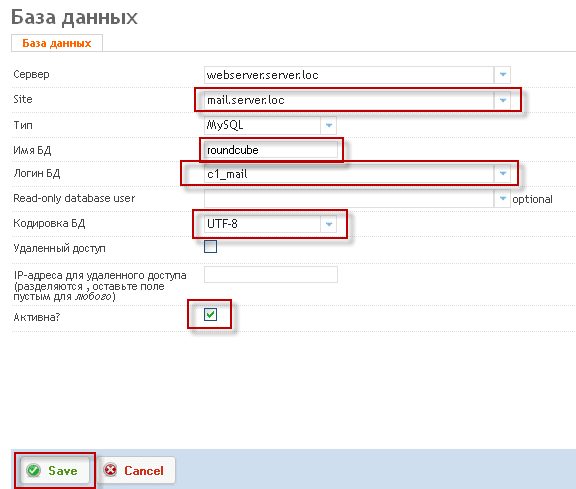
Fill in the fields to create a database, you need to fill in the fields for example:
- Server: webserver.server.loc
- Site: mail.server.loc
- Type: MySQL
- Name of BD: roundcube
- Login BG: c1_mail
- OBD encoding: UTF-8
- Active? tick off
To add a database, press the button. Save.:
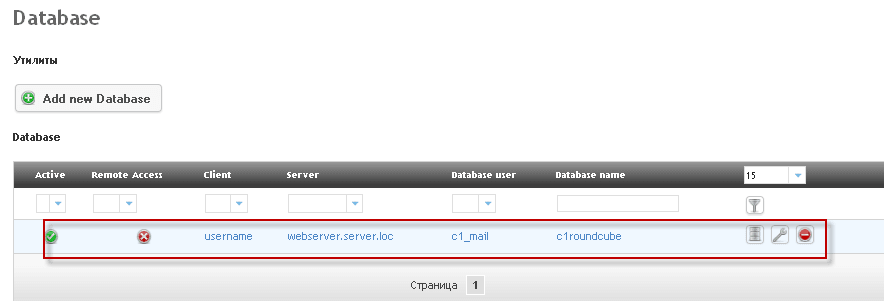
The screenshot below shows the added database for installing Roundcube in ISPConfig 3:
Preparatory work has been carried out, the site mail.server.loc itself is installed, ftp account for the site is added, login and Mysql database are added, now we move on to direct installation.
How to configure a connection to an FTP server using TLS encryption, or a connection using SFTP via the SSH protocol can be found from the instructions:
Connect to FTP server from Total Commander FTP client
Connect to the FTP server from Filezilla’s FTP client
Connect to the FTP server using the login and password that we specified in this instruction above. In the directory. webthere are files that are responsible for displaying from the Internet, a screenshot with the contents of the FTP server directory in the screenshot below:
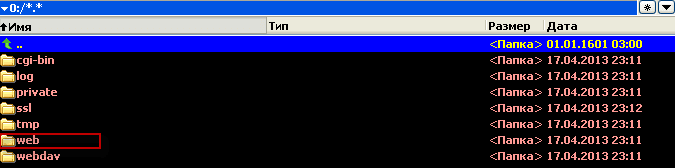
Go to the web directory and delete the allocated files. In a folder. error Error files of the web server are created automatically by the server. In a folder. stats statistics files that are generated by the Awstats program (configured in the tab) Sites ISPConfig panels:

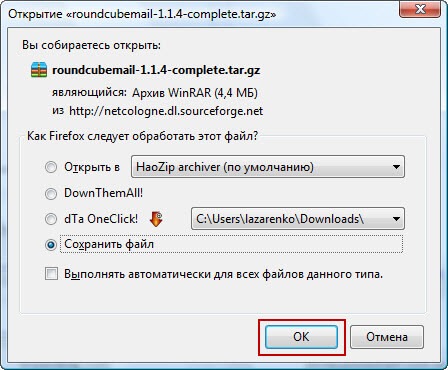
Download the current version of the mail web client Roundcube at the link: Download Roundcube from the official website
After clicking on the link, you will be prompted to save the Roundcube distribution, save to the tmp folder on disk D:

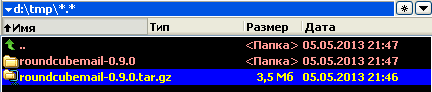
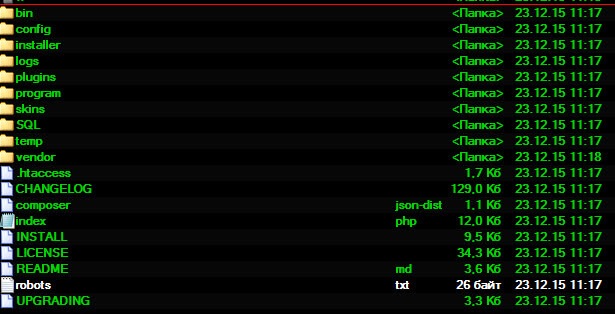
Go to the unpacked folder. roundcubemail-1.1.4and copy the contents of the folder to FTP server:
Start configuring configuration files of the Roundcube email web client for hosting the ISPConfig 3 panel
First, we need to go to the directory on the FTP server. config, which contains configuration files of the mail web client Roundcube. In the directory. config There's a file.
- config.inc.php.sample
We need to rename these files and remove the file name extension .sampleIt should be:
- config.inc.php
Open the file. config.inc.php for editing by clicking on the file with the right mouse button and in the drop-down menu select Editing:
File. config.inc.php opens in the text editor, we need to make connection parameters to the database that we added to the hosting of the ISPConfig 3 panel in this configuration file, for this we need to make changes:
was:
...
$config['db_dsnw'] = 'mysql://roundcube:pass@localhost/roundcubemail';
...
$config['smtp_server'] = '';
...
became:
...
$config['db_dsnw'] = 'mysql://c1_mail:WhQ9v43Ouu@localhost/c1roundcube';
...
$config['smtp_server'] = '%h';
...
After saving and closing the changed file, we will be asked to save the modified file in the FTP client.config.inc.php on the FTP server to which we agree and click Yes.:
Since the same file exists on an FTP server, Total Commander will offer to replace the file. config.inc.php on the modified, to which we respond with consent and press the button Replace.
Open the file. defaults.inc.php for editing by clicking on the file with the right mouse button and in the drop-down menu select Editing:
File. defaults.inc.php opens in the text editor, we need to enter some parameters in this configuration file:
was:
...
$config['create_default_folders'] = false;
...
$config['session_lifetime'] = 10;
...
became:
...
$config['create_default_folders'] = TRUE;
...
$config['session_lifetime'] = 30;
...
After saving the changes in the file defaults.inc.php, same for us as for the file. config.inc.php will be asked to write this file to an FTP server, replacing the existing one with a modified one, to which we agree.
We are starting to create a database of the mail web client Roundcube, for this we need to go to phpmyadmin.
Go to phpmyadmin at:
https://192.168.0.2:8080/phpmyadmin/
Under the user and password that we created for the Mysql database:
- The username of the database: c1_mail
- The database user password: WhQ9v43Ouu
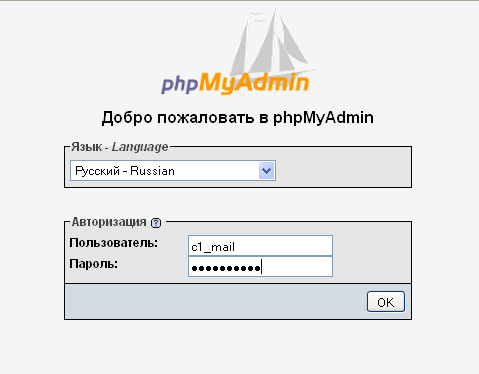
After logging into phpmyadmin, we need to go to the database to which we have configured the connection in the configuration file. db.inc.phpIn order to do this, you need to press c1roundcubeIn the screenshot below is a link that must be clicked:
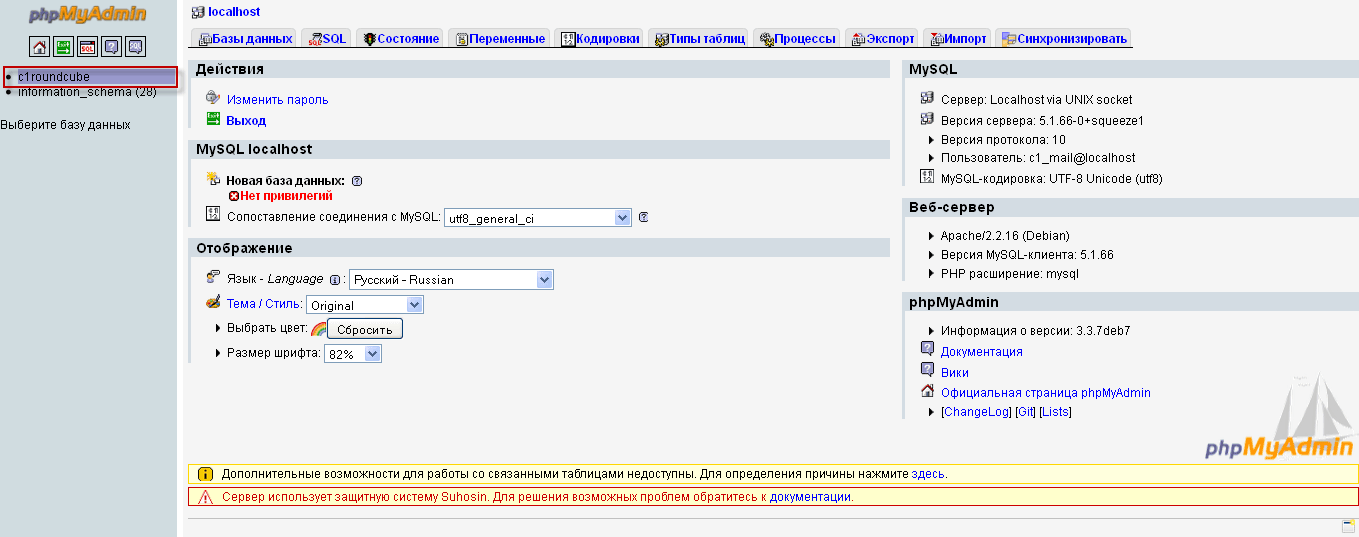
After entering the DB c1roundcube open the tab importPress the button. Review and in a folder d:\tmp\roundcubemail-0.9.0\SQL\open the file mysql.initialTo download the imported file containing the database structure, press the button OK:

In the screenshot below, we see the structure of the Roundcube email web client database, which we created earlier by importing a file. mysql.initial BC c1roundcube:

At this stage, the installation of Roundcube for hosting the ISPConfig 3 panel has been completed.
We just have to open in the Firefox browser email web client Roundcube on our server with installed control panel hosting ISPConfig 3.
If you have our configured server in your computer network settings in the DNS field, which is available at IP address 192.168.0.2, then it will be enough for you to open the address in the Firefox browser (or other):
https://mail.server.loc/
If you have not configured the DNS server, then you need to register a file in the hosts that is located at the address. c:\WINDOWS\system32\drivers\etc\hosts:
192.168.1.1 mail.server.loc
After saving the changes in the file, you can open a roundcube at:
https://mail.server.loc/
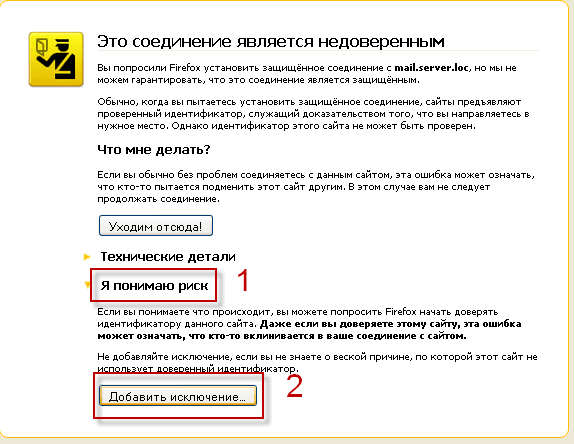
When you first open an SSL encrypted connection, the Firefox browser will tell you that the connection is unreliable, this is because we use a self-signed certificate, we need to click on I understand the risk. press the button Add an exception:
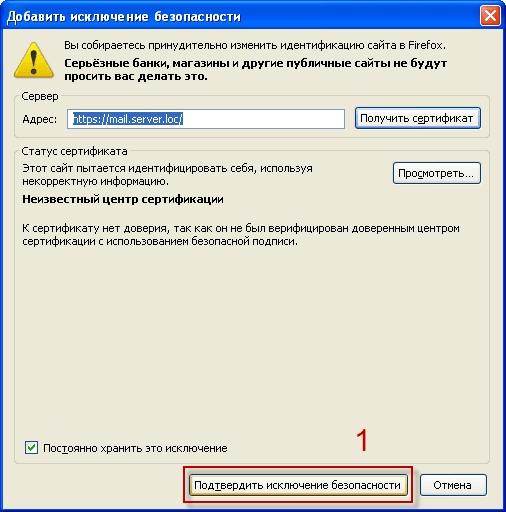
In the window that appears, press the button. Confirm safety exceptions:
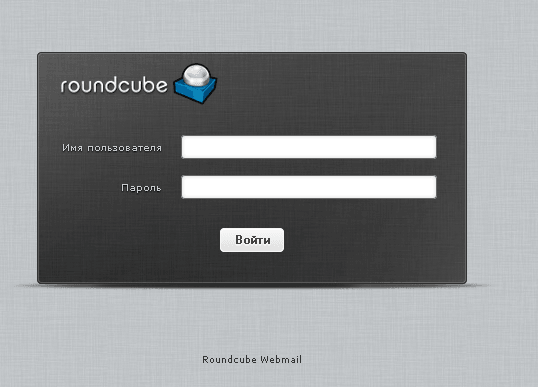
After these actions, you will open a login and password entry window in the browser to the mail web client Roundcube:
SSH installation
If you want to create a database, user and download roundcube directly on the server by connecting via SSH (SSH user for the site we added above in the instructions), if you do not know how to connect over SSH, please read Putty guideYou will need to execute a few simple commands:
We create a database and a user in the server console for the root user, for this we execute commands, you will need to enter the root mysql password of the server:
mysqladmin -u root -p create c1roundcube
Connect to mysql under the root user, you will need to enter the server’s root mysql password:
mysql -u root -p
Execute four commands that will create a user c1_mail database c1roundcube Create a password for this user. WhQ9v43Ouu
GRANT ALL PRIVILEGES ON  c1roundcube.* TO 'c1_mail'@'localhost' IDENTIFIED BY 'WhQ9v43Ouu';
GRANT ALL PRIVILEGES ON c1roundcube.* TO 'c1_mail'@'localhost.localdomain' IDENTIFIED BY 'WhQ9v43Ouu';
FLUSH PRIVILEGES;
quit;
Go to the folder where the Roundcube files will be located by executing the command:
cd /var/www/mail.server.loc/web/
delete the files automatically created by the ISPConfig 3 panel by executing the command:
rm favicon.ico index.html robots.txt .htaccess
Download the latest current version of Roundcube, uncamp and install it by executing commands:
wget http://heanet.dl.sourceforge.net/project/roundcubemail/roundcubemail/0.9.0/roundcubemail-0.9.0.tar.gz
tar xvf roundcubemail-0.9.0.tar.gz
rm roundcubemail-0.9.0.tar.gz
mv roundcubemail-0.9.0/* .
mv roundcubemail-0.9.0/.htaccess .
rmdir roundcubemail-0.9.0/
Next, we rename the configuration files for installation, for this we execute commands:
mv /var/www/mail.server.loc/web/config/config.inc.php.sample /var/www/mail.server.loc/web/config/config.inc.php
And we create a database structure by importing the file mysql.initial.sql in the database c1roundcube by executing one command:
mysql -uc1_mail -pWhQ9v43Ouu c1roundcube < /var/www/mail.server.loc/web/SQL/mysql.initial.sql
In the file. /var/www/mail.server.loc/web/config/config.inc.php We make changes according to the instructions above.
In the file. /var/www/mail.server.loc/web/config/defaults.inc.php We make changes according to the instructions above.
Assign 777 rights to temp and logs directories by executing the following commands:
chmod 777 /var/www/mail.server.loc/web/temp/
chmod 777 /var/www/mail.server.loc/web/logs/
You can now access your inbox using an encrypted SSL connection at the address
https://mail.server.loc/
Roundcube installation in ISPConfig 3 is complete. I can say with confidence that this instruction is one of the most detailed for installing Roundcube in the hosting panel ISPConfig 3, on this example you can install Roundcube in any hosting control panel by analogy. Also illuminated is the installation of Roundcube using a Linux console connected by SSH to the server through the program Putty.
I was with you. Sergey Lazarenko
Work on the instruction was carried out, now you can take a short break, with the benefit of distracting and viewing videos about SEO promotion sites, the course was made by the Training Center "Specialist" at MSTU. N.E. Bauman:

comment