

Update of the instructions from 11.12.2016
Preparation is complete, all necessary programs have been installed. Go to the direct installation of hosting panel ISPConfig, for which we will be enough to execute the commands listed below, these commands download the most current version of the control panel hosting ISPConfig 3 and you will just need to answer the installer questions, which will also be commented in detail and will be attached screenshots of the installation.
Go to the folder to receive the ISPConfig panel distribution, unpack and start the ISPConfg installation:
mkdir -p /usr/src/iserver/
cd /usr/src/iserver/
wget http://www.ispconfig.org/downloads/ISPConfig-3-stable.tar.gz
tar xfz ISPConfig-3-stable.tar.gz
cd ispconfig3_install/install/
php -q install.php
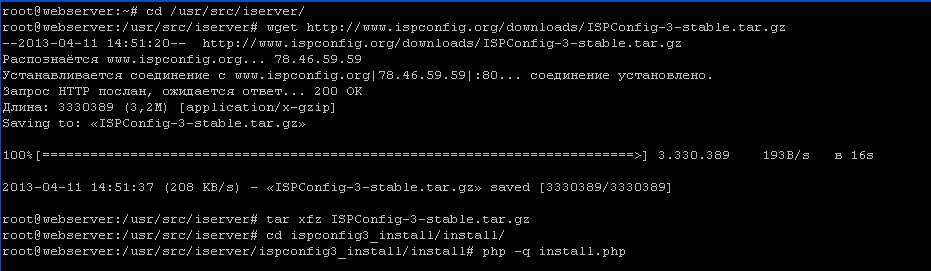
First, it is to choose the language of installation, from the choice, we have only 2 languages: English and German, so choose English:
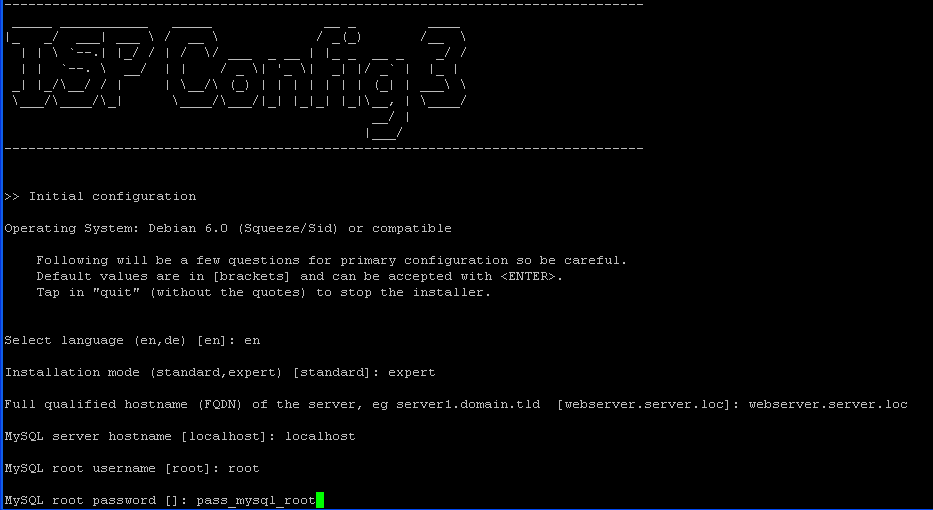
- Select language (en,de) [en]: en
Select the version of the installed installer. expert:
- Installation mode (standard,expert) [standard]: expert
Write the domain name of our server webserver.server.loc:
- Full qualified hostname (FQDN) of the server, eg server1.domain.tld [webserver.server.loc]: webserver.server.loc
To install the hosting panel ISPConfig 3 specify the data of the database Mysql, such as: IP address (in our case, the base on the same server, so write. localhost), administrative user Mysql: root, and the user password root: passwd-root-mysqlwhere passwd-root-mysql - specify your root user password that you entered during the installation of Mysql server according to the instructions: Installation of the necessary programs for installing ISPConfig 3 in Debian - Part 2
- MySQL server hostname [localhost]: localhost
- MySQL root username [root]: root
- MySQL root password []: passwd-root-mysql
If you have an installer error:
sql-mode="NO_ENGINE_SUBSTITUTION"
You need to enter the mysql server settings file, for Ubuntu 16 and above this file. /etc/mysql/mysql.conf.d/mysqld.cnf
was:
[mysqld]
#
# * Basic Settings
...
became:
[mysqld]
sql_mode="NO_ENGINE_SUBSTITUTION"
#
# * Basic Settings
...
Overload mysql server by executing the command:
/etc/init.d/mysql restart
We're re-launching the installer.
php -q install.php
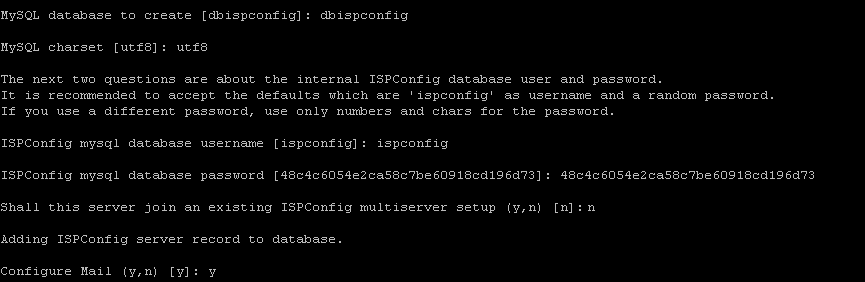
For automatic configuration and installation, that is, creating a database, user, and password, creating the structure of tables created by the database, choose to create a database using dbispconfig:
- MySQL database to create [dbispconfig]: dbispconfig
Specify the encoding in which the database hosting panel will be ISPConfig 3:
- MySQL charset [utf8]: utf8
We specify the user of the created database:
- ISPConfig mysql database username [ispconfig]: ispconfig
Specify the password of the database user hosting panel ISPConfig 3:
- ISPConfig mysql database password [48c4c6054e2ca58c7be60918cd196d73]: 48c4c6054e2ca58c7be60918cd196d73
We refuse to add another server:
- Shall this server join an existing ISPConfig multiserver setup (y,n) [n]: n
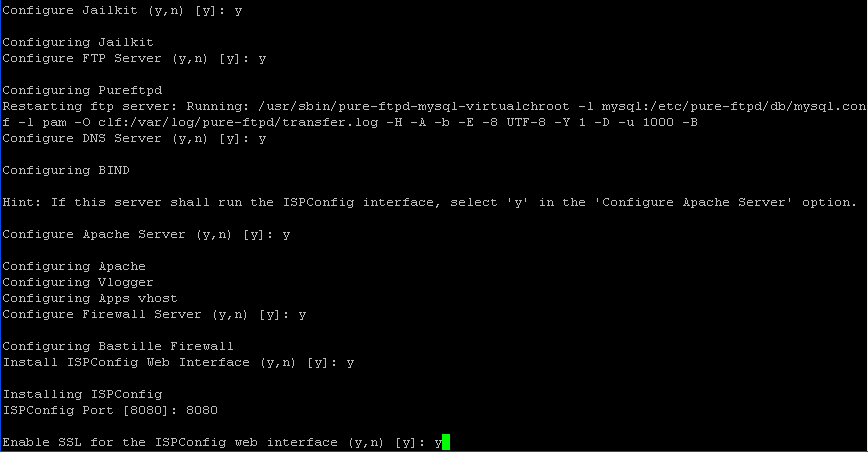
We agree with the configuration of the mail server, after configuration all mail services of the server will be configured automatically:
- Configure Mail (y,n) [y]: y
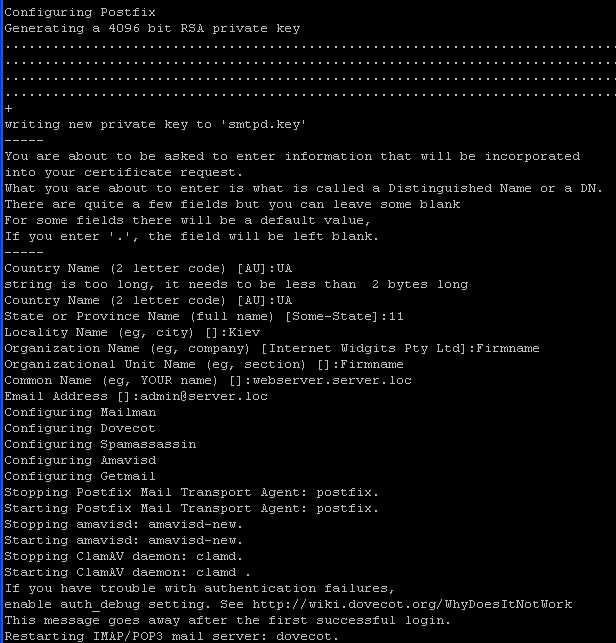
After the agreement to configure the mail system, the installer will start creating a certificate, for the ability to connect to the mail server via an encrypted channel using SSL / TLS, we answer questions by substituting your data for example below:
- Country Name (2 letter code) [AU]: UA
- State of Province Name (full name) [Some-State]: 11
- Locality Name (eg, company) [Internet Widgits Pty Ltd]: Kiev
- Organizational Unit Name (eg, section) []: Firmname
- Common Name (eg, YOUR name) []: webserver.server.loc
- Email Address []: [email protected]
We agree with the program setting Jailkit, which will add to the panel the ability to enable users isolated ssh access to the server:
- Configure Jailkit (y,n) [y]: y
We agree with the setting. FTP server PureFTPd:
- Configure FTP Server (y,n) [y]: y
Configure with the DNS server configuration BIND9:
- Configure DNS Server (y,n) [y]: y
We agree with the configuration of the web server Apache2:
- Configure Apache Server (y,n) [y]: y
We agree with setting up the Iptables firewall, thanks to which we can close all unused server ports:
- Configure Firewall Server (y,n) [y]: y
We agree with the installation. WEB panel-hosting ISPConfig 3:
- Install ISPConfig Web Interface (y,n) [y]: y
Identify the port where it will open. WEB interface panelling ISPConfig 3:
- ISPConfig Port [8080]: 8080
We specify the admin user password for the web interface:
- Admin password [admin]: pass39a2dmin
- Re-enter admin password []: pass39a2dmin
We agree to enable the operation of hosting panel ISPConfig 3 secure SSL protocol:
- Enable SSL for the ISPConfig web interface (y,n) [y]: y
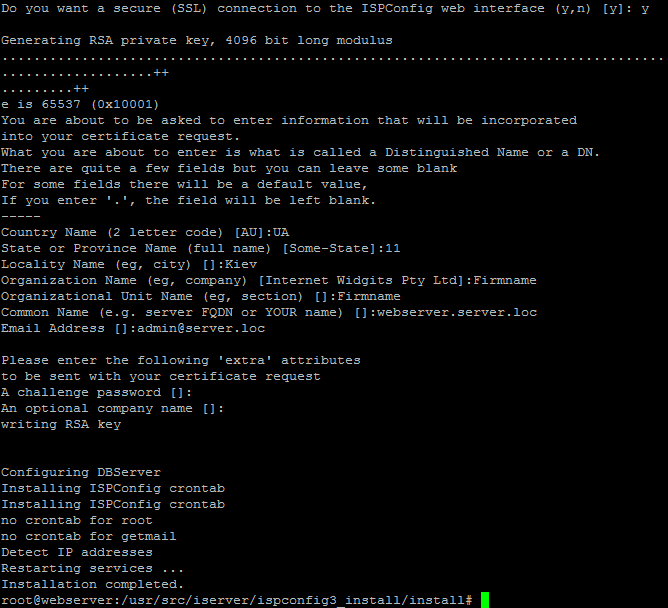
After the agreement to enable the work of hosting panel ISPConfig 3 on a secure protocol, the installer will start creating a certificate, answering questions by substituting your data for example below:
- Country Name (2 letter code) [AU]: UA
- State of Province Name (full name) [Some-State]: 11
- Locality Name (eg, company) [Internet Widgits Pty Ltd]: Firmname
- Organizational Unit Name (eg, section) []: Firmname
- Common Name (eg, YOUR name) []: webserver.server.loc
- Email Address []: [email protected]
To request to enter a password when creating a certificate, the password is not entered, and press Enter 2 times:
After installing the web interface hosting panel ISPCobfig 3, go to https://192.168.0.2:8080 user-only admin password pass39a2dminwhere 192.168.0.2 - The IP address of our server, and 8080 - port on which the hosting panel ISPConfig 3 is opened
Patches for the ISPConfig 3.0.5.3 panel (Not relevant, as a newer version is installed, I leave it for history)
At the time of writing, the current version of the hosting control panel ISPConfig 3.0.5.3To fix some problems that are present in the panel and will be closed with the upcoming update, you need to install some patches:
Nana page You can see the list of all patches, but the most common is a bug.ERROR You have no permission for this domain) when changing the FTP user directory and assigning different versions of PHP to the client.
To install patches, you need to execute command data:
cd /usr/local/ispconfig/server/scripts
wget http://www.ispconfig.org/downloads/ispconfig_patch
chmod 700 ispconfig_patch
chown root:root ispconfig_patch
ln -s /usr/local/ispconfig/server/scripts/ispconfig_patch /usr/local/bin/ispconfig_patch
ispconfig_patch</span>
For the request to enter the patch number, we write on the example of PHP versions:
3053_phpversion
If you need to install a patch for the user's FTP, run the command:
ispconfig_patch
For a request to enter the patch number, enter:
3053_ftpuser
Patches are in place.
Start the initial configuration of ISPConfig3, go to the web interface:

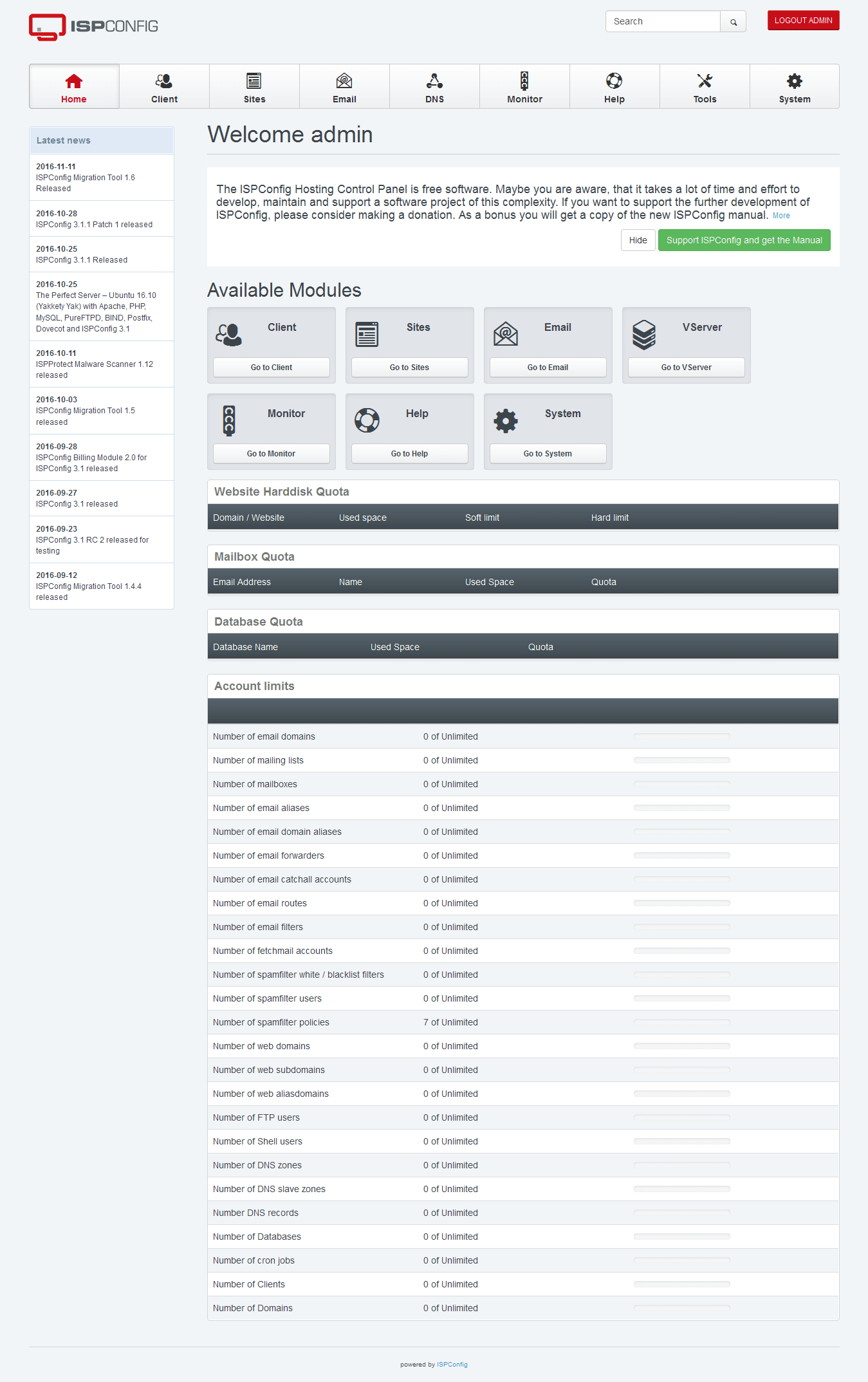
The first thing you need to do is change the password of the administrator of the ISPConfig 3 system if it does not suit you and choose the Russian language of the web interface, for this after opening the web interface hosting panel ISPCobfig 3 go to the tab. Tools And we press the tab on the left. Passaword and LanguageA window opens where we fill in the fields:
- Password: passwd-admin
- Repeat Password: passwd-admin
where passwd-admin is your admin user password: ISPConfig 3 panel hosting administrator
Change the localization of the web interface to Russian:
- Language: ru

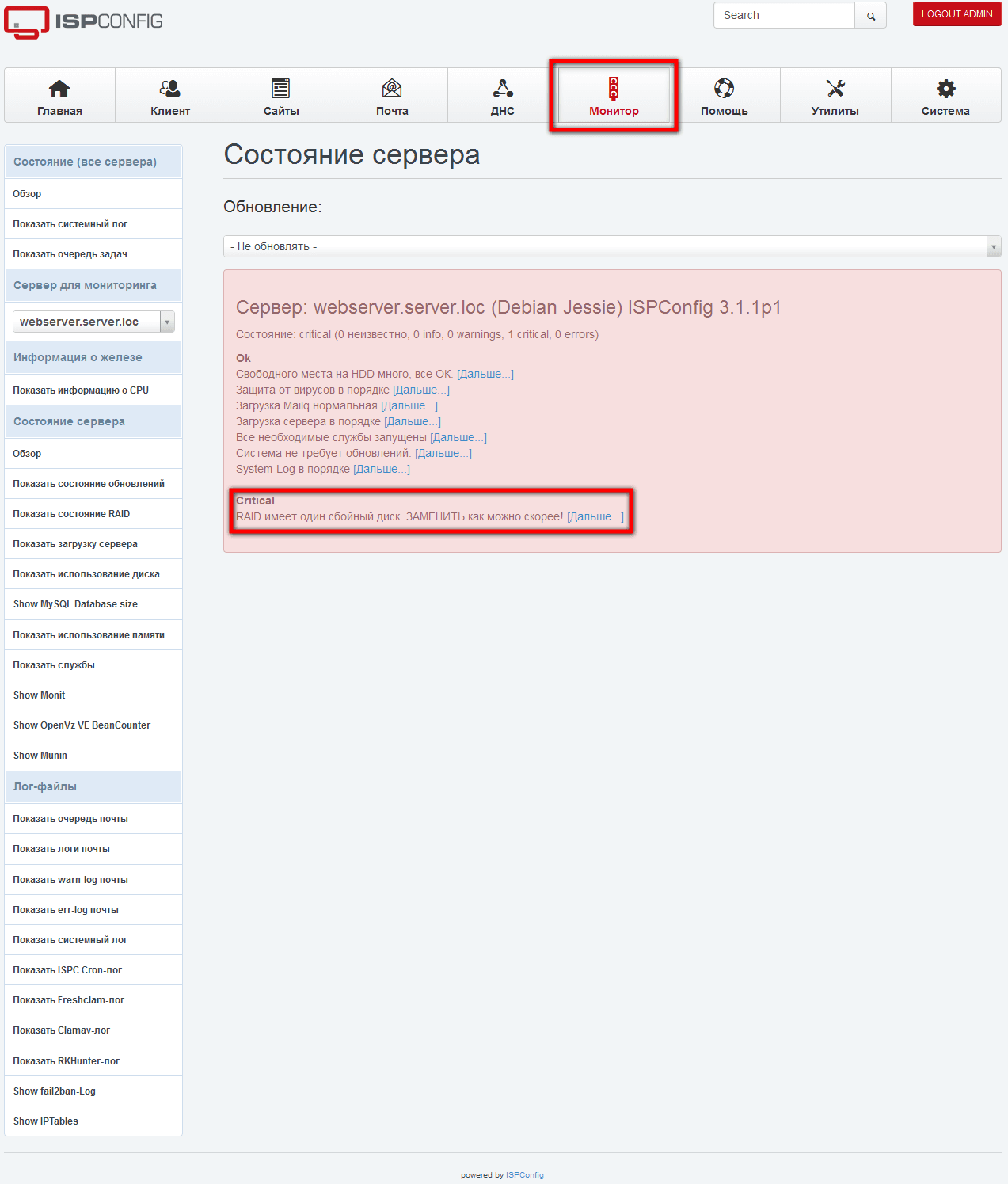
After saving the changes, update the page by pressing the button F5, and we will see the Web interface in Russian by going to the tab Monitor.For example, we will see a notification about an issue with an array raid on the server:
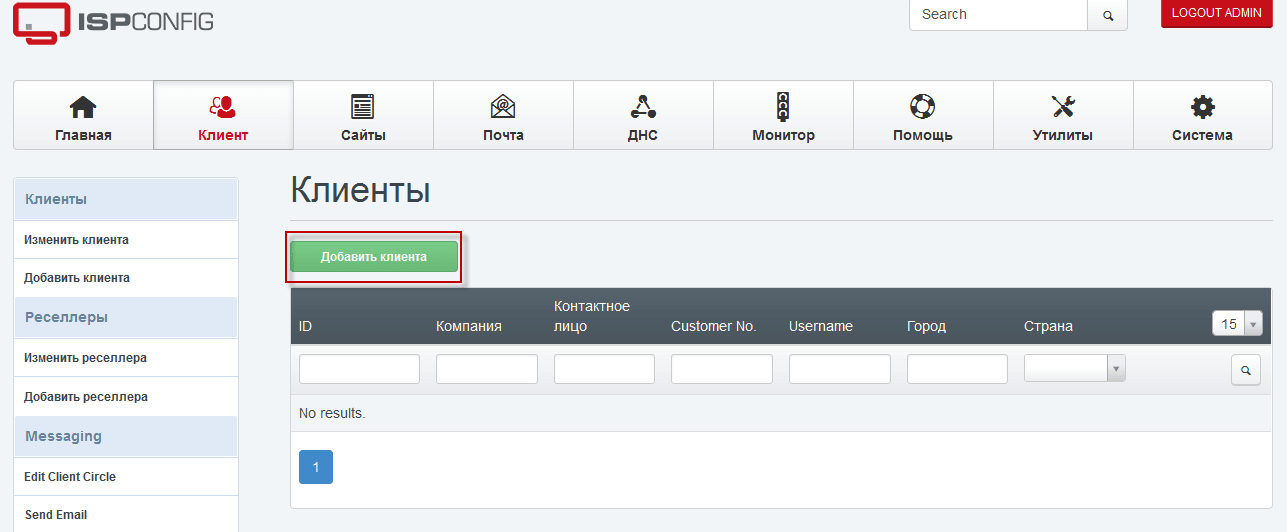
After changing the language of the web interface panel ISPConfig 3, add a user for which we will add sites, DNS, FTP, SSH accesses. So we're going into the tab for that. Client. In the window that opens, press the button. Add a client.:
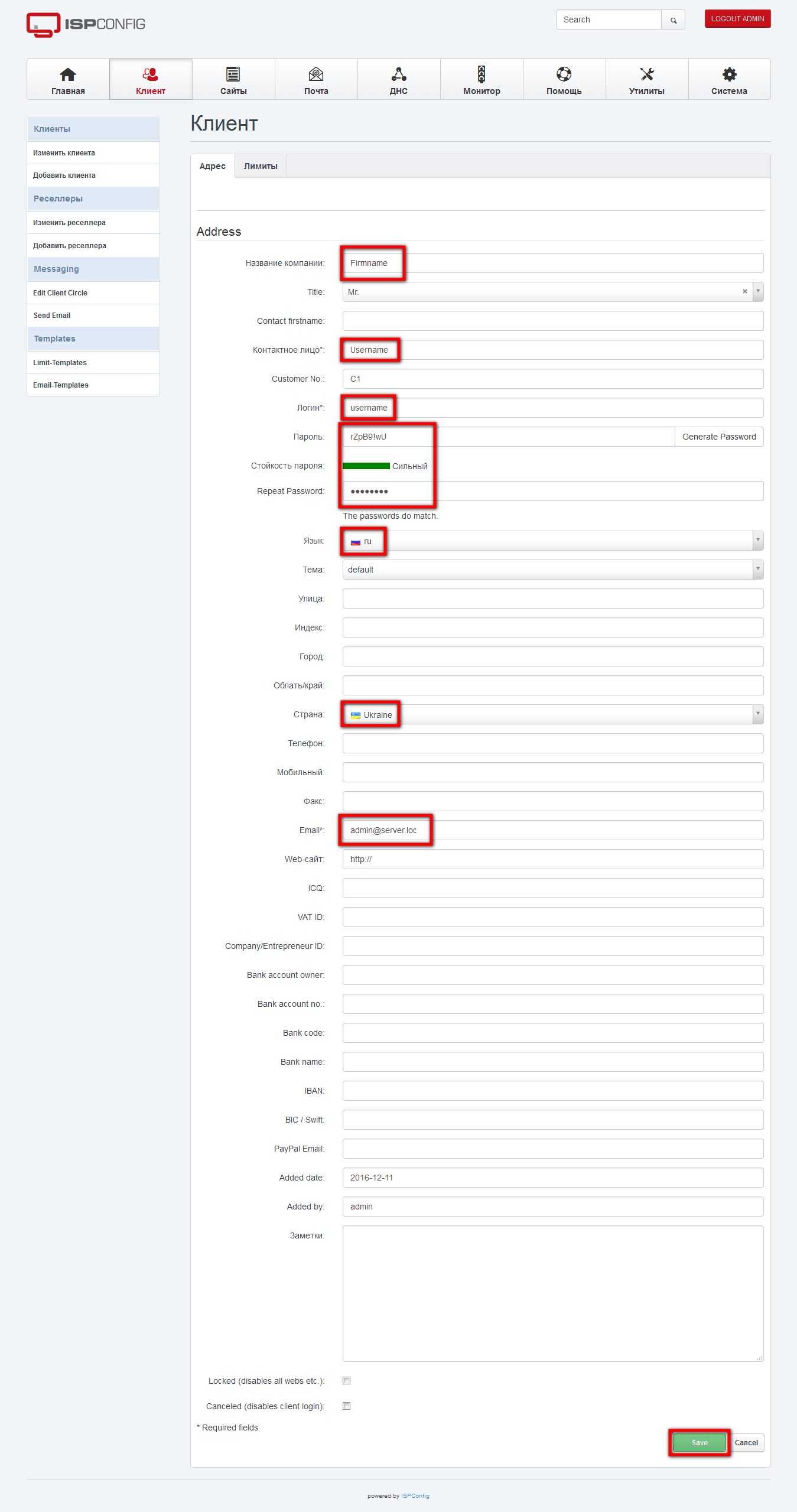
In the window that opens, we need to fill in the necessary fields:
- Company name: Firmname
- Contact person: Username
- Login*: username
- Password: We're giving you our password.
- Repeat Password: Repeat the password.
- Language: ru
- Country: Ukraine
The remaining fields are filled at will.
To save the changes and add the panel user, press the button Save.:
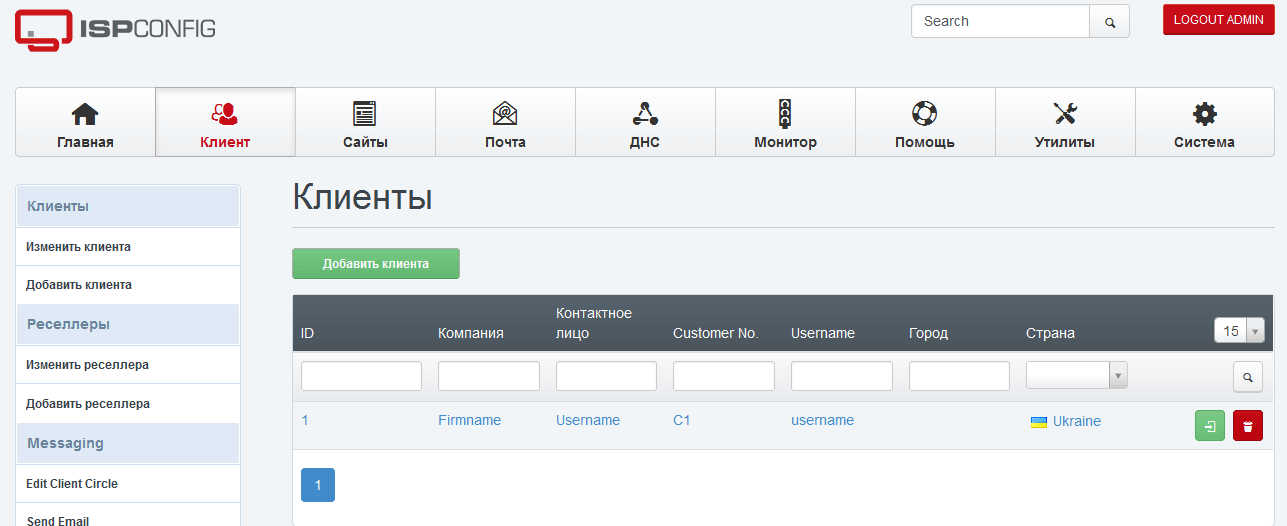
Adding a new user username ISPConfig 3 panel hosting:
At this stage, the very best of ISPConfig 3’s free panel hosting is installed and configured.
I was with you. Sergey Lazarenko
Wait for the other day to continue setting up the ISPConfig 3 panel. In order not to miss new instructions, subscribe to receive notifications about the release of new instructions to your inbox, for this, subscribe to receive articles on the page: Subscribe to the SoftNastroy.COM website
We've worked, and now let's rest and see how we need to climb the rocks for a while. Pity the current talent, Dan Osman died in 1998 in Yosemite National Park (USA), jumping off a cliff on a dynamic rope. The rope broke:


comment