

Update of the instructions from 11.12.2016
Continue to install the hosting panel ISPConfig 3, reminding that the first part of the article is located at: Set up a network before installing ISPConfig 3 in Debian - Part 1.
In this instruction, we will install and make the initial configuration of the necessary software.
- an excellent panel for administration of such services as Postfix, FTP (PureFTPd), SSH (OpenSSH), DNS (Bind9), Web (Apache2)
If you do not need any of these services, then you can not cause the installation of software that you do not need. For example, if you do not configure DNS, you can not install bind9, and during the installation of ISPConfig 3 when the installer asks about setting up the DNS just refuse to install, This is quite possible if you install on a small dedicated virtual server in which every meter of RAM is counted. Then the mail server can not be installed, and on sites to send messages to users using external mailboxes, for example, a mailbox from Google and a connection via SMTP protocol, for example, how I configured the site to Drupal 7 in the instructions: Configure sending mail from Drupal 7 using an external SMTP server - for example, Google mailbox
Here we go.
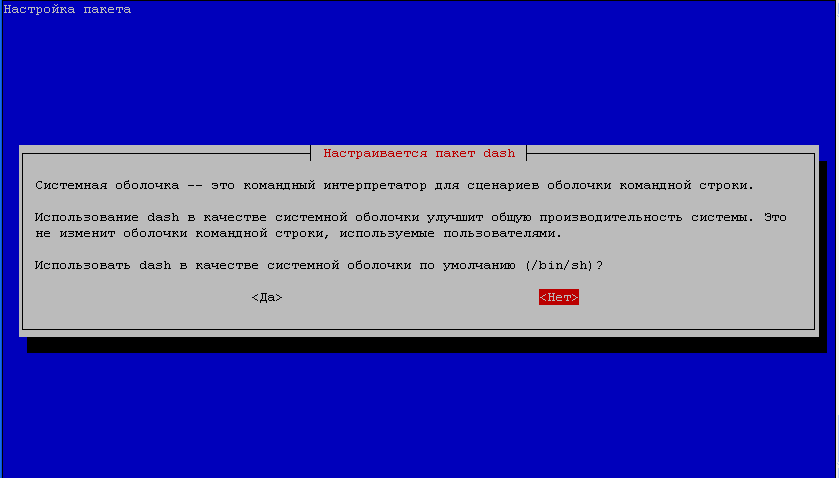
Change the console shell by default, as /bin/sh is a symbolic reference to /bin/dashWe have to /bin/bashnot /bin/dash. Change the configuration of the console by executing the command:
dpkg-reconfigure dash
on the system question:
Use it. dash as the default system shell (/bin/sh)?
Answer us. No.
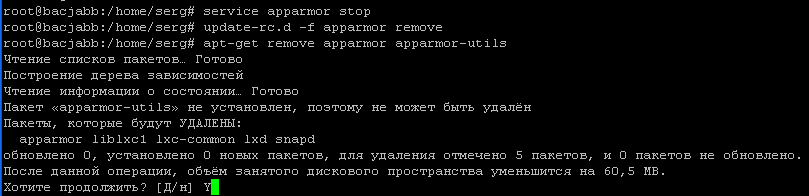
For UBUNTU 16.04 Disable the AppArmor packages for protection after executing commands, they can be installed again after full installation and configuration of the server, when everything is installed and tested. Execute commands to disable and remove:
service apparmor stop
update-rc.d -f apparmor remove
apt-get remove apparmor apparmor-utils
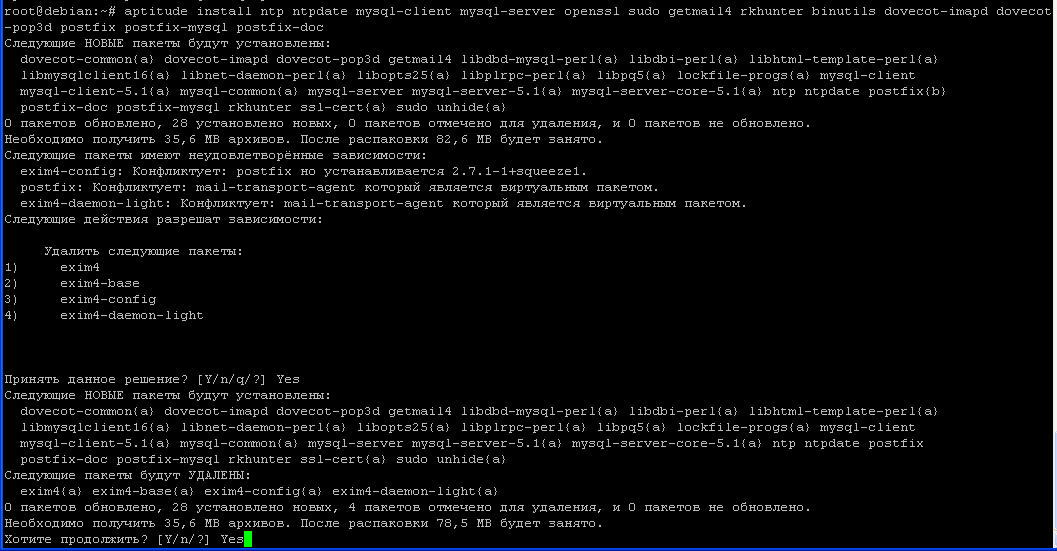
Install NTP, Postfix, Dovecot, Saslauthd, MySQL, rkhunter, and binutils by the command:
aptitude install ntp ntpdate postfix postfix-mysql postfix-doc mysql-client mysql-server openssl getmail4 rkhunter binutils dovecot-imapd dovecot-pop3d dovecot-mysql dovecot-sieve sudo
For Debian 8 Jessie It is preferable to set up a database. MariadbFounded by the original developers of MySQL to provide free status DBMSThis is the result of Oracle’s licensing policy for MySQL. Woo Mariadb Improved performance, more extensions and new features compared to MySQL. D.The installation command will look like this:
aptitude install ntp ntpdate postfix postfix-mysql postfix-doc mariadb-client mariadb-server openssl getmail4 rkhunter binutils dovecot-imapd dovecot-pop3d dovecot-mysql dovecot-sieve sudo
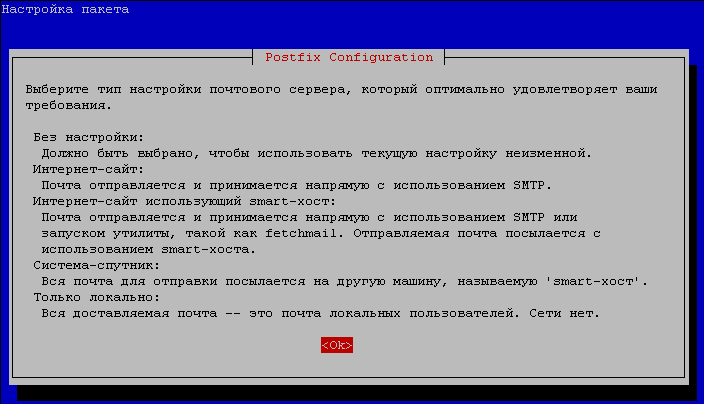
We answer the questions of the system:
- Postfix setup: - Ok
- General type of mail configuration: - choose Internet site
- Postal Name System: - Enter webserver.server.loc
- New password for MySQL user "root": Enter the root password for MySQL
- Repeat the password for MySQL user "root": Repeat the root password for MySQL
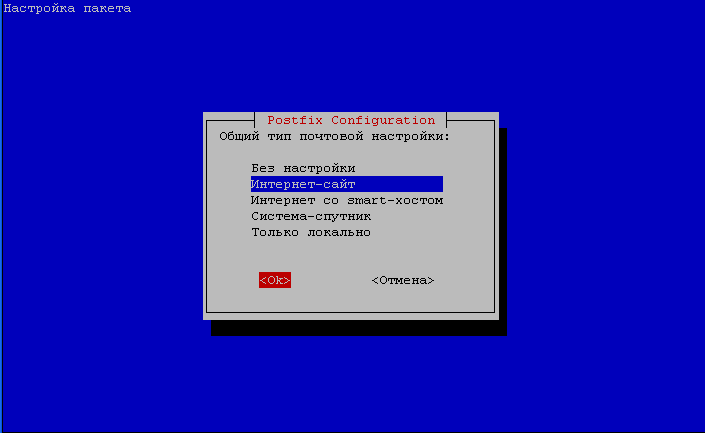

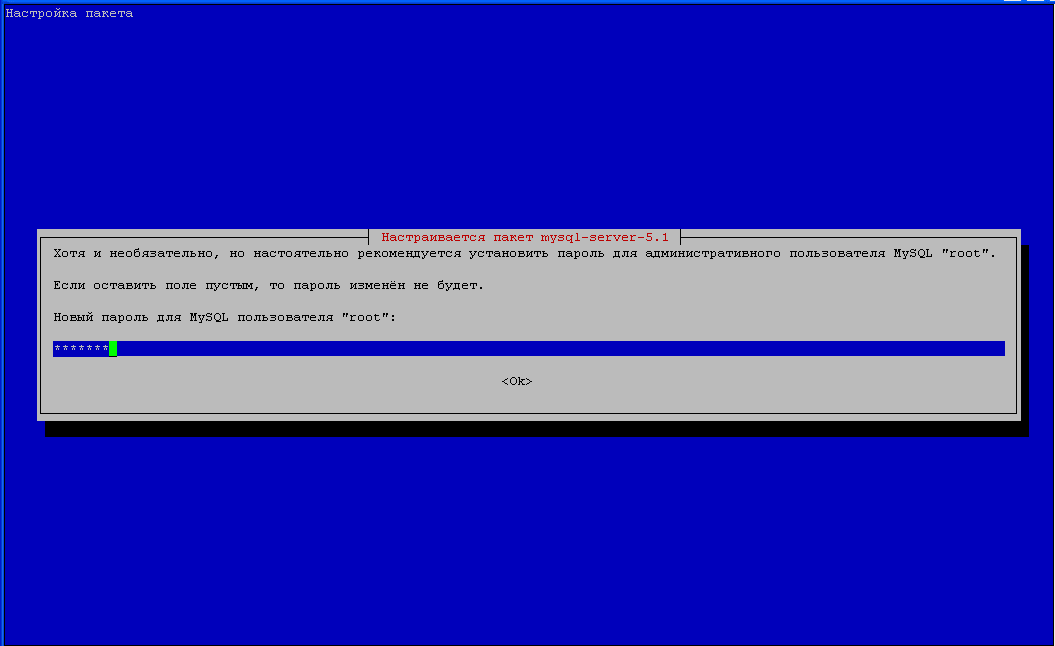
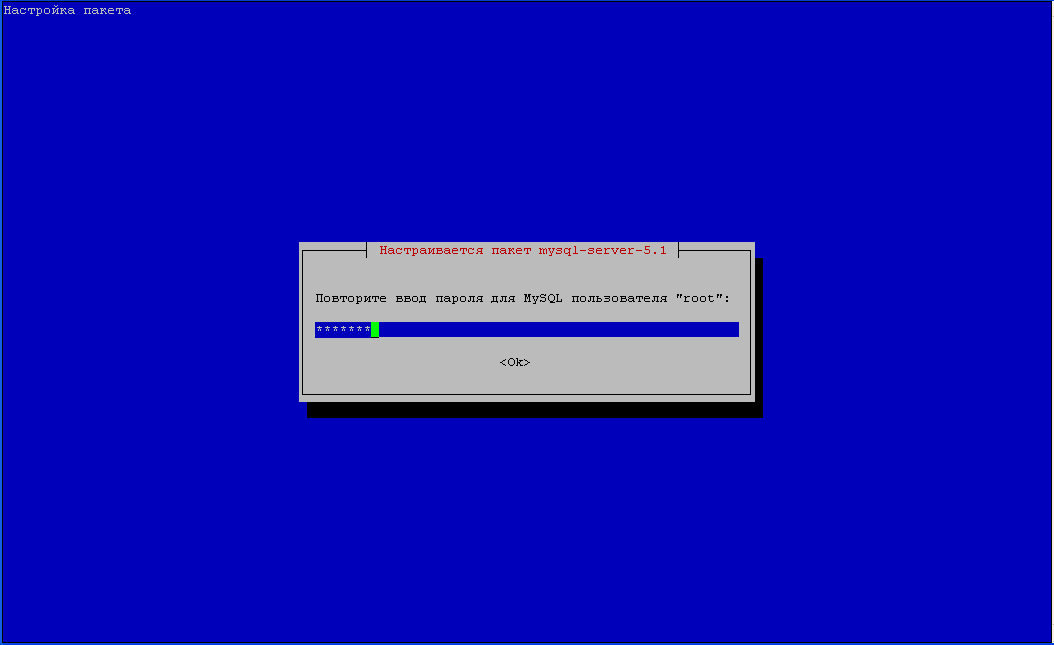
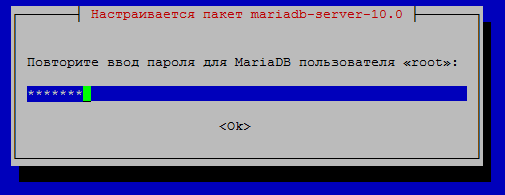
A password request from the MariaDB installer:

Conduct a minimum security setting using the mysql_secure_installation command, disabling non-safe settings by answering the example below:
When starting, you must enter the user password root database that you entered during the installation above.
mysql_secure_installation

Change the root password? [Y/n] n
Remove anonymous users? [Y/n] y
Disallow root login remotely? [Y/n] y
Remove test database and access to it? [Y/n] y
Reload privilege tables now? [Y/n] y
If mariadb lets mysql into the console without a password, you can set the root password (it is better to install after installing the panel). ISPConfig) following the commands:
mysql -u root -p
MariaDB [(none)]> use mysql;
Database changed
MariaDB [mysql]> update user set password=PASSWORD("passroot") where User='root';
MariaDB [mysql]> flush privileges;
MariaDB [mysql]> update user set plugin='' where User='root';
MariaDB [mysql]> quit;
Bye

Перегружаем бд выполнив команду:
systemctl restart mariadb
или
/etc/init.d/mariadb restart
Return as it was before the change:
mysql -u root -p
Enter password:
(вводим пароль passroot)
MariaDB [(none)]> use mysql;
Database changed
MariaDB [mysql]> update user set plugin='unix_socket' where User='root';
MariaDB [mysql]> quit;
Bye

Перегружаем бд выполнив команду:
systemctl restart mariadb
или
/etc/init.d/mariadb restart

Проверяем вход root без пароля:
mysql -u root
MariaDB [(none)]> quit;
Bye

Open TLS/SSL ports in Postfix by making changes to the file /etc/postfix/master.cf:
vi /etc/postfix/master.cf
was:
...
#submission inet n       -       -       -       -       smtpd
#  -o syslog_name=postfix/submission
#  -o smtpd_tls_security_level=encrypt
#  -o smtpd_sasl_auth_enable=yes
#  -o smtpd_client_restrictions=permit_sasl_authenticated,reject
#  -o milter_macro_daemon_name=ORIGINATING
#smtps     inet  n       -       -       -       -       smtpd
#  -o syslog_name=postfix/smtps
#  -o smtpd_tls_wrappermode=yes
#  -o smtpd_sasl_auth_enable=yes
#  -o smtpd_client_restrictions=permit_sasl_authenticated,reject
#  -o milter_macro_daemon_name=ORIGINATING
...
became:
...
submission inet n       -       -       -       -       smtpd
  -o syslog_name=postfix/submission
  -o smtpd_tls_security_level=encrypt
  -o smtpd_sasl_auth_enable=yes
  -o smtpd_client_restrictions=permit_sasl_authenticated,reject
#  -o milter_macro_daemon_name=ORIGINATING
smtps     inet  n       -       -       -       -       smtpd
  -o syslog_name=postfix/smtps
  -o smtpd_tls_wrappermode=yes
  -o smtpd_sasl_auth_enable=yes
  -o smtpd_client_restrictions=permit_sasl_authenticated,reject
#  -o milter_macro_daemon_name=ORIGINATING
...
For Debian Jessie and Debian Stretch:
was:
#submission inet n       -       -       -       -       smtpd
#  -o syslog_name=postfix/submission
#  -o smtpd_tls_security_level=encrypt
#  -o smtpd_sasl_auth_enable=yes
#  -o smtpd_reject_unlisted_recipient=no
#  -o smtpd_client_restrictions=$mua_client_restrictions
#  -o smtpd_helo_restrictions=$mua_helo_restrictions
#  -o smtpd_sender_restrictions=$mua_sender_restrictions
#  -o smtpd_recipient_restrictions=
#  -o smtpd_relay_restrictions=permit_sasl_authenticated,reject
#  -o milter_macro_daemon_name=ORIGINATING
#smtps     inet  n       -       -       -       -       smtpd
#  -o syslog_name=postfix/smtps
#  -o smtpd_tls_wrappermode=yes
#  -o smtpd_sasl_auth_enable=yes
#  -o smtpd_reject_unlisted_recipient=no
#  -o smtpd_client_restrictions=$mua_client_restrictions
#  -o smtpd_helo_restrictions=$mua_helo_restrictions
#  -o smtpd_sender_restrictions=$mua_sender_restrictions
#  -o smtpd_recipient_restrictions=
#  -o smtpd_relay_restrictions=permit_sasl_authenticated,reject
#  -o milter_macro_daemon_name=ORIGINATING
became:
submission inet n       -       -       -       -       smtpd
  -o syslog_name=postfix/submission
  -o smtpd_tls_security_level=encrypt
  -o smtpd_sasl_auth_enable=yes
#  -o smtpd_reject_unlisted_recipient=no
  -o smtpd_client_restrictions=permit_sasl_authenticated,reject
#  -o smtpd_helo_restrictions=$mua_helo_restrictions
#  -o smtpd_sender_restrictions=$mua_sender_restrictions
#  -o smtpd_recipient_restrictions=
#  -o smtpd_relay_restrictions=permit_sasl_authenticated,reject
#  -o milter_macro_daemon_name=ORIGINATING
smtps     inet  n       -       -       -       -       smtpd
  -o syslog_name=postfix/smtps
  -o smtpd_tls_wrappermode=yes
  -o smtpd_sasl_auth_enable=yes
#  -o smtpd_reject_unlisted_recipient=no
  -o smtpd_client_restrictions=permit_sasl_authenticated,reject
#  -o smtpd_helo_restrictions=$mua_helo_restrictions
#  -o smtpd_sender_restrictions=$mua_sender_restrictions
#  -o smtpd_recipient_restrictions=
#  -o smtpd_relay_restrictions=permit_sasl_authenticated,reject
#  -o milter_macro_daemon_name=ORIGINATING
For Ubuntu 16
was:
#submission inet n       -       y       -       -       smtpd
#  -o syslog_name=postfix/submission
#  -o smtpd_tls_security_level=encrypt
#  -o smtpd_sasl_auth_enable=yes
#  -o smtpd_reject_unlisted_recipient=no
#  -o smtpd_client_restrictions=$mua_client_restrictions
...
#smtps     inet  n       -       y       -       -       smtpd
#  -o syslog_name=postfix/smtps
#  -o smtpd_tls_wrappermode=yes
#  -o smtpd_sasl_auth_enable=yes
#  -o smtpd_reject_unlisted_recipient=no
#  -o smtpd_client_restrictions=$mua_client_restrictions
...
became:
submission inet n       -       y       -       -       smtpd
  -o syslog_name=postfix/submission
  -o smtpd_tls_security_level=encrypt
  -o smtpd_sasl_auth_enable=yes
  -o smtpd_client_restrictions=permit_sasl_authenticated,reject
#  -o smtpd_reject_unlisted_recipient=no
...
smtps     inet  n       -       y       -       -       smtpd
  -o syslog_name=postfix/smtps
  -o smtpd_tls_wrappermode=yes
  -o smtpd_sasl_auth_enable=yes
  -o smtpd_client_restrictions=permit_sasl_authenticated,reject
#  -o smtpd_reject_unlisted_recipient=no
...
After saving the file /etc/postfix/master.cf restart the Rostfix server by executing the command:
/etc/init.d/postfix restart
Configure the Mysql database on all interfaces, by default works only on 127.0.0.1:
vi /etc/mysql/my.cnf
was:
...
bind-address           = 127.0.0.1
...
became:
...
#bind-address           = 127.0.0.1
...
After saving the changes, restart the Mysql server with the command:
/etc/init.d/mysql restart
Install anti-spam and antivirus for the mail server Amavisd-new, SpamAssassin and ClamAV team:
aptitude install amavisd-new spamassassin clamav clamav-daemon zoo unzip bzip2 arj nomarch lzop cabextract apt-listchanges libnet-ldap-perl libauthen-sasl-perl clamav-docs daemon libio-string-perl libio-socket-ssl-perl libnet-ident-perl zip libnet-dns-perl
To filter spam emails, ISPConfig3 uses Amavisd, which downloads the internal filters of the SpamAssassin library on its own, so we can stop and disable the booting of SpamAssassin in order not to take up RAM by executing commands:
/etc/init.d/spamassassin stop
update-rc.d -f spamassassin remove
! Attention!!! During the long term operation of the mail server, the Amavisd Collects a huge amount of spam and viruses in the quarantine folder /var/lib/amavis/virusmails/ It grows if you don't clean it. Add in. crown Automatic search and removal of spam and viruses in quarantine over 30 days.
To do this, we'll execute the command:
crontab -e
In the file that opens, add a record:
10 1 * * * find /var/lib/amavis/virusmails -ctime +30 -and -type 'f' -exec rm {} \;So at one o’clock in the morning ten minutes every day will start searching for files older than 30 days and automatically delete.
Install a Web server with support for php Apache2, PHP5, PHPMyAdmin, FCGI, suExec, Pear, FPM and mcrypt by following the command:
aptitude install apache2 apache2.2-common apache2-doc apache2-mpm-prefork apache2-utils libexpat1 ssl-cert libapache2-mod-php5 php5 php5-common php5-gd php5-mysql php5-imap phpmyadmin php5-cli php5-cgi libapache2-mod-fcgid apache2-suexec php-pear php-auth php5-curl php5-mcrypt mcrypt php5-imagick imagemagick libapache2-mod-suphp libruby libapache2-mod-ruby libapache2-mod-python libapache2-mod-perl2 dh-make-php php5-dev build-essential libmagic-dev php5-intl libapache2-mod-fastcgi php5-fpm
For Ubuntu 16, there is php version 7, so the command:
aptitude install apache2 apache2-doc apache2-utils libapache2-mod-php php7.0 php7.0-common php7.0-gd php7.0-mysql php7.0-imap phpmyadmin php7.0-cli php7.0-cgi libapache2-mod-fcgid apache2-suexec-pristine php-pear php-auth php7.0-mcrypt mcrypt imagemagick libruby libapache2-mod-python php7.0-curl php7.0-intl php7.0-pspell php7.0-recode php7.0-sqlite3 php7.0-tidy php7.0-xmlrpc php7.0-xsl memcached php-memcache php-imagick php-gettext php7.0-zip php7.0-mbstring php7.0-opcache php-apcu libapache2-mod-fastcgi php7.0-fpm
If you only install Nginx + PHP-FPM in Debian Stretch:
aptitude install nginx apache2-utils php7.0 php7.0-common php7.0-gd php7.0-mysql php7.0-imap phpmyadmin php7.0-cli php7.0-cgi php-pear php-auth-sasl php7.0-mcrypt mcrypt imagemagick libruby php7.0-curl php7.0-intl php7.0-pspell php7.0-recode php7.0-sqlite3 php7.0-tidy php7.0-xmlrpc php7.0-xsl memcached php-memcache php-imagick php-gettext php7.0-zip php7.0-mbstring php7.0-opcache php-apcu php7.0-fpm
We answer the questions of the system:
- Web server for automatic reconfiguration: - apache2
- Configure a database for phpmyadmin with dbconfig-common? - No.
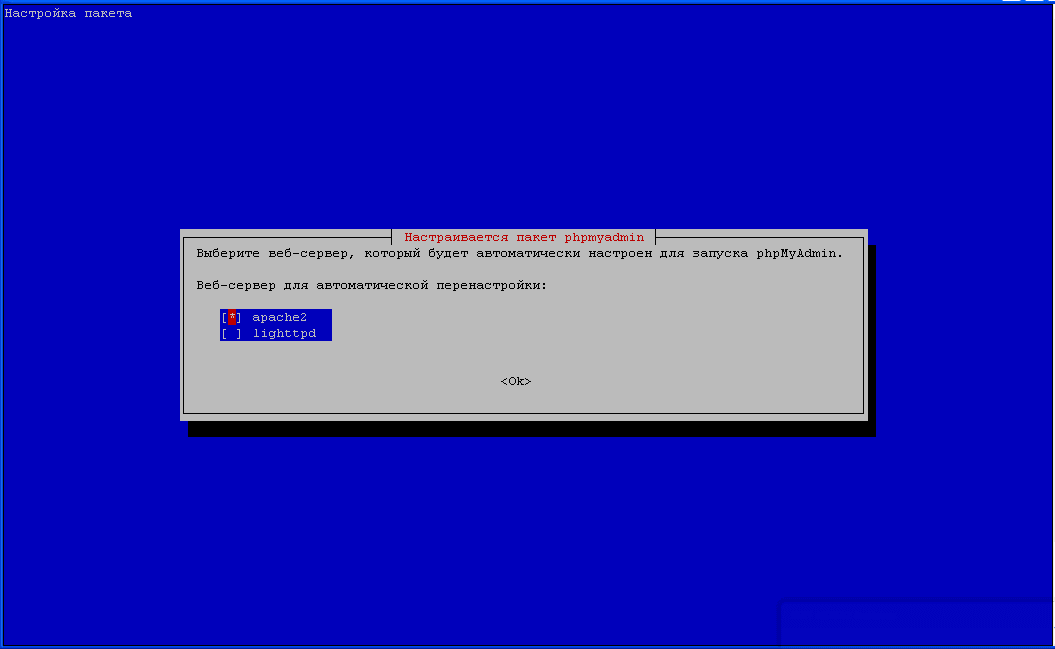
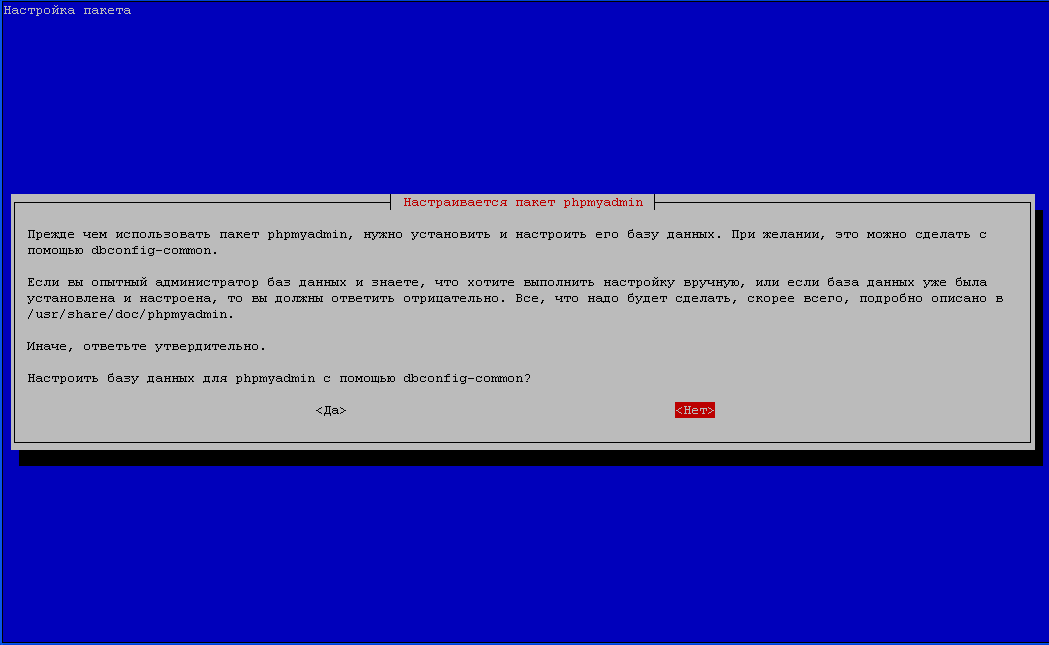
Activate the modules of the web server Apache2 - suexec, rewrite, ssl, actions, dav, dav_fs, and auth_digest And then I did the command.
a2enmod suexec rewrite ssl actions include dav_fs dav auth_digest fastcgi alias fcgid fastcgi alias
After activation of the web server models, it is necessary to restart Apache2 Web server team:
/etc/init.d/apache2 restart
For Ubuntu 16, turn off httpoxy globally so as not to be attacked through the vulnerability of this module, executing commands:
echo '<IfModule mod_headers.c>
    RequestHeader unset Proxy early
</IfModule> ' > /etc/apache2/conf-available/httpoxy.conf
a2enconf httpoxy
/etc/init.d/apache2 restart
To ensure that the server can not be attacked trough the HTTPOXY vulnerability, I will disable the HTTP_PROXY header in apache globally.
We're making changes. suphp configuration-file /etc/apache2/mods-available/suphp.conf (Debian 8Jessie and Ubuntu 16 don’t apply)
vi /etc/apache2/mods-available/suphp.conf
was:
<IfModule mod_suphp.c>
    <FilesMatch "\.ph(p3?|tml)$">
        SetHandler application/x-httpd-suphp
    </FilesMatch>
        suPHP_AddHandler application/x-httpd-suphp

    <Directory />
        suPHP_Engine on
    </Directory>
...
became:
<IfModule mod_suphp.c>
#    <FilesMatch "\.ph(p3?|tml)$">
#        SetHandler application/x-httpd-suphp
#    </FilesMatch>
        AddType application/x-httpd-suphp .php .php3 .php4 .php5 .phtml
        suPHP_AddHandler application/x-httpd-suphp

    <Directory />
        suPHP_Engine on
    </Directory>
...
If you want to use Ruby files with extension .rbIt is necessary to specify the parameter in the file. /etc/mime.types:
vi /etc/mime.types
was:
...
application/x-ruby                             rb
...
became:
...
#application/x-ruby                             rb
...
Install Let's Encrypt to install free certificates on sites from the ISPConfig panel, execute the command:
aptitude -y install letsencrypt
Installable FTP server PureFTPd and Quota quota And then I did the command.
aptitude install pure-ftpd-common pure-ftpd-mysql quota quotatool
We need to make changes to the PureFTPd server ftp configuration file. /etc/default/pure-ftpd-common:
vi /etc/default/pure-ftpd-common
was:
...
VIRTUALCHROOT=false
...
became:
...
VIRTUALCHROOT=true
...
We're saving a modified file.
Now we configure the FTP server to work through a secure TLS protocol and create an ssl certificate:
echo 1 > /etc/pure-ftpd/conf/TLS
Create a folder where our certificate will be stored by executing the command:
mkdir -p /etc/ssl/private/
We generate the certificate itself by executing the command:
openssl req -x509 -nodes -days 7300 -newkey rsa:2048 -keyout /etc/ssl/private/pure-ftpd.pem -out /etc/ssl/private/pure-ftpd.pem
During the creation of certificates, we answer questions:
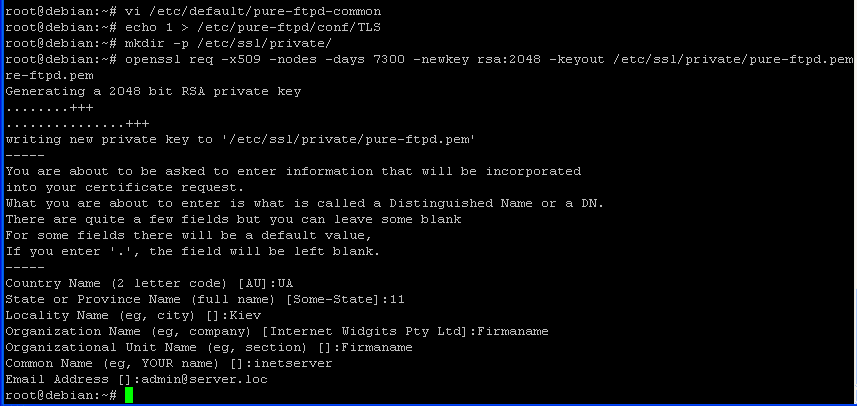
Assign rights to the certificate 600 by following the command:
chmod 600 /etc/ssl/private/pure-ftpd.pem
After making changes and saving the configuration file, creating an ssl certificate is rebooted. FTP server PureFTPd team:
/etc/init.d/pure-ftpd-mysql restart
Modify the file. /etc/fstab to include quotas for our users, parameter ,usrjquota=aquota.user,grpjquota=aquota.group,jqfmt=vfsv0 Which we add for mail and web server in the root section.
Your UUID will be different from mine, making changes to the root partition/system:
vi /etc/fstab
was:
UUID=5deecf34-1354-4a0f-b65c-90abb960433e / ext4 errors=remount-ro 0 1
became:
UUID=5deecf34-1354-4a0f-b65c-90abb960433e / ext4 errors=remount-ro,usrjquota=aquota.user,grpjquota=aquota.group,jqfmt=vfsv0 0 1
Save the file. /etc/fstab.conf
To include quotas on the disk, we need to rewire the root partition by executing the command:
mount -o remount /
And directly include the quotas on the disk by placing commands:
quotacheck -avugm
quotaon -avug
Install the Bind DNS server, which will also be conveniently administered through the ISPConfig panel web interface by executing a command and agreeing:
aptitude install bind9 dnsutils
Install programs for analysis and statistics of web server traffic by executing commands:
aptitude install vlogger webalizer awstats geoip-database
Disable for awstat program automatic start from cron in the file /etc/cron.d/awstats:
vi /etc/cron.d/awstats
was:
*/10 * * * * www-data [ -x /usr/share/awstats/tools/update.sh ] && /usr/share/awstats/tools/update.sh

# Generate static reports:
10 03 * * * www-data [ -x /usr/share/awstats/tools/buildstatic.sh ] && /usr/share/awstats/tools/buildstatic.sh
became:
#*/10 * * * * www-data [ -x /usr/share/awstats/tools/update.sh ] && /usr/share/awstats/tools/update.sh

# Generate static reports:
#10 03 * * * www-data [ -x /usr/share/awstats/tools/buildstatic.sh ] && /usr/share/awstats/tools/buildstatic.sh
Installation of Jailkit
If you will provide users with isolated chroot ssh access to the server, you need to install the Jailkit program. Jailkit must be installed before installing ISPConfig, and Jailkit itself will be installed from the source code, so install the necessary programs for assembly by following the command:
aptitude install build-essential autoconf automake1.9 libtool flex bison debhelper
And we start at the creation of a directory, where we will download, unpack and assemble the Jailkit program. To install the Jailkit program, we execute commands:
mkdir /usr/src/iserver/ && cd /usr/src/iserver/
wget http://olivier.sessink.nl/jailkit/jailkit-2.19.tar.gz
tar xvfz jailkit-2.19.tar.gz
cd jailkit-2.19
./debian/rules binary
dpkg -i /usr/src/iserver/jailkit_2.19*.deb
Installation of Fail2ban
Install the program fail2ban, which will protect our servers, blocking the IP from which an attempt is made to hack open Internet services, if any. If you do not need it, then you can skip the installation and configuration of fail2ban.
Install and configure the program fail2ban by executing the command:
aptitude install fail2ban
Create configuration files to configure the program fail2ban by executing commands (copy everything and paste into the console via Putty):
echo '
[pureftpd]
enabled  = true
port     = ftp
filter   = pureftpd
logpath  = /var/log/syslog
maxretry = 3

[dovecot-pop3imap]
enabled = true
filter = dovecot-pop3imap
action = iptables-multiport[name=dovecot-pop3imap, port="pop3,pop3s,imap,imaps", protocol=tcp]
logpath = /var/log/mail.log
maxretry = 5
' > /etc/fail2ban/jail.local

echo '
[Definition]
failregex = .*pure-ftpd: \(.*@<HOST>\) \[WARNING\] Authentication failed for user.*
ignoreregex =
' > /etc/fail2ban/filter.d/pureftpd.conf

echo '
[Definition]
failregex = (?: pop3-login|imap-login): .*(?:Authentication failure|Aborted login \(auth failed|Aborted login \(tried to use disabled|Disconnected \(auth failed|Aborted login \(\d+ authentication attempts).*rip=(?P<host>\S*),.*
ignoreregex =
' > /etc/fail2ban/filter.d/dovecot-pop3imap.conf
Reboot the program to protect the server fail2ban And then I did the command.
/etc/init.d/fail2ban restart
I was with you. Sergey Lazarenko.
At this point, the basic configuration of the necessary programs for installing the hosting panel ISPConfig 3 is completed. The instructions are large, so we will relax after watching the video, where we find out why Beckham is paid so much money. You can see the talent of a man :
apt-get -y install letsencrypt

comment