

In this manual, we continue the series of articles on installing and configuring the hosting panel ISPConfig 3, today we will install additional PHP programming languages for the control panel ISPConfig 3 installed in Debian Squeeze. Since PHP 5.3 is installed by default from the Debian Squeeze repository, we need to install the missing versions of PHP 5.2 and PHP 5.4, which we will do.
We are starting to prepare and install.
Install the necessary software to build PHP 5.2 and PHP 5.4 versions by following the command:
aptitude install build-essential libapache2-mod-fastcgi build-dep php5 libfcgi-dev libfcg libxml2-dev libbz2-dev libcurl3-dev libjpeg62-dev libpng12-dev libc-client-dev libmcrypt-dev libmhash-dev libmysqlclient-dev libpq-dev libxpm-dev libfreetype6-dev
Installing PHP version 5.2
We create folders where we will collect and install, download, unblock and go to the unarchived folder with the PHP 5.2.17 distribution, for this we execute commands:
mkdir /opt/php-5.2.17
mkdir -p /usr/src/iserver/ && cd /usr/src/iserver/
wget -c -t0 http://softnastroy.com/downloads/php5/php-5.2.17.tar.bz2
tar jxf php-5.2*tar.bz2
cd /usr/src/iserver/php-5.2.17/
Let's start configuring PHP 5.2.17 And then I did the command.
./configure \
--prefix=/opt/php-5.2.17 \
--with-config-file-path=/opt/php-5.2.17 \
--with-pdo-pgsql \
--with-zlib-dir \
--with-freetype-dir \
--enable-mbstring \
--with-libxml-dir=/usr \
--enable-soap \
--enable-calendar \
--with-curl=/usr/bin \
--with-mcrypt \
--with-zlib \
--with-gd \
--with-pgsql \
--disable-rpath \
--enable-inline-optimization \
--with-bz2 \
--with-zlib \
--enable-sockets \
--enable-sysvsem \
--enable-sysvshm \
--enable-pcntl \
--enable-mbregex \
--with-mhash \
--enable-zip \
--with-pcre-regex \
--with-mysql \
--with-pdo-mysql \
--with-mysqli \
--with-jpeg-dir=/usr \
--with-png-dir=/usr \
--enable-gd-native-ttf \
--with-openssl \
--enable-ftp \
--with-imap \
--with-imap-ssl \
--with-kerberos \
--with-gettext \
--enable-cli \
--enable-fastcgi \
--enable-discard-path \
--enable-force-cgi-redirect \
--enable-cgi
After configuration, start building and installing the PHP version language 5.2.17 following the commands:
make
make install
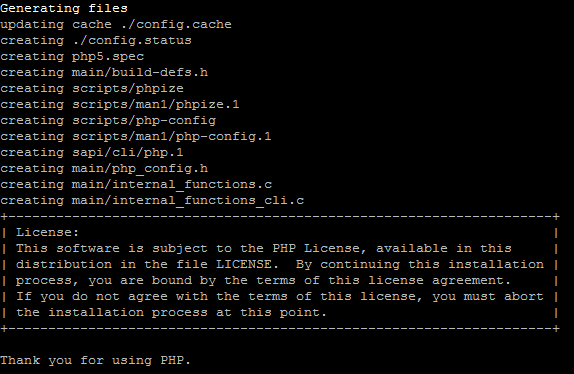
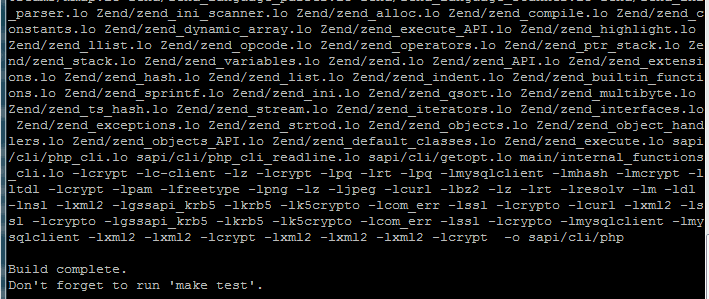
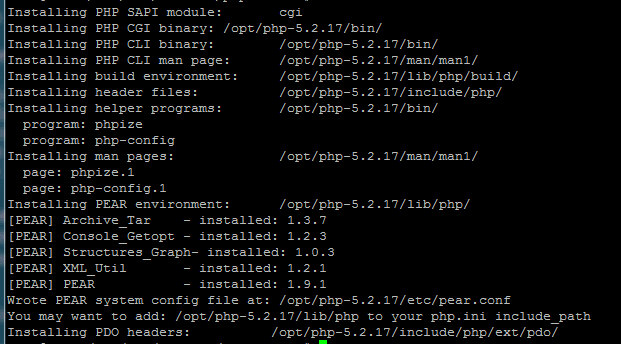
In the screenshots below, you can see the end of each process:
Configuring PHP 5.2:
Build PHP 5.2:
Installation of PHP 5.2:
Create a configuration file php.ini version php 5.2.17 And then I did the command.
cp /usr/src/iserver/php-5.2.17/php.ini-recommended /opt/php-5.2.17/lib/php.ini
Check the version of the installed PHP Interpreter by executing the command:
/opt/php-5.2.17/bin/php -v
system response:
PHP 5.2.17 (cli) (built: Mar 20 2013 10:32:00)
Copyright (c) 1997-2010 The PHP Group
Zend Engine v2.2.0, Copyright (c) 1998-2010 Zend Technologies
Installing PHP version 5.4
We create folders where we will collect and where to install, download, unblock and go to the unlocked folder with the distribution PHP 5.4.13For this purpose, we carry out commands:
mkdir /opt/php-5.4.45
mkdir -p /usr/src/iserver/ && cd /usr/src/iserver/
wget -c -t0 http://ua2.php.net/distributions/php-5.4.45.tar.bz2
tar jxf php-5.4*tar.bz2
cd /usr/src/iserver/php-5.4.45/
Start configuring PHP 5.4.45 by following the command:
./configure \
--prefix=/opt/php-5.4.45 \
--with-config-file-path=/opt/php-5.4.45 \
--with-pdo-pgsql \
--with-zlib-dir \
--with-freetype-dir \
--enable-mbstring \
--with-libxml-dir=/usr \
--enable-soap \
--enable-calendar \
--with-curl=/usr/bin \
--with-mcrypt \
--with-zlib \
--with-gd \
--with-pgsql \
--disable-rpath \
--enable-inline-optimization \
--with-bz2 \
--with-zlib \
--enable-sockets \
--enable-sysvsem \
--enable-sysvshm \
--enable-pcntl \
--enable-mbregex \
--with-mhash \
--enable-zip \
--with-pcre-regex \
--with-mysql \
--with-pdo-mysql \
--with-mysqli \
--with-jpeg-dir=/usr \
--with-png-dir=/usr \
--enable-gd-native-ttf \
--with-openssl \
--enable-ftp \
--with-imap \
--with-imap-ssl \
--with-kerberos \
--with-gettext \
--enable-cli \
--enable-fastcgi \
--enable-discard-path \
--enable-force-cgi-redirect \
--enable-cgi \
--enable-fpm
After configuration, build and install PHP 5.4 for ISPConfig 3 in Debian Squeeze by running two commands:
make
make install
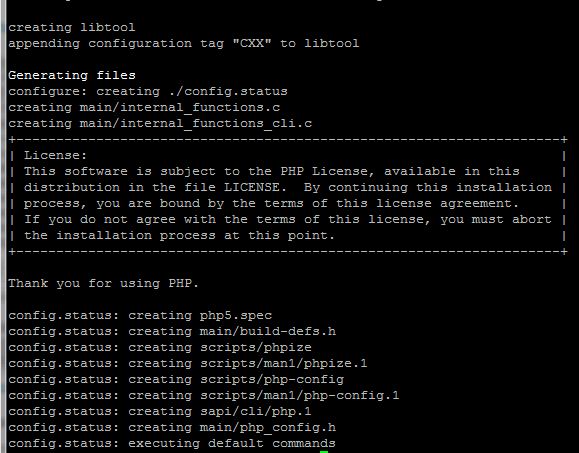
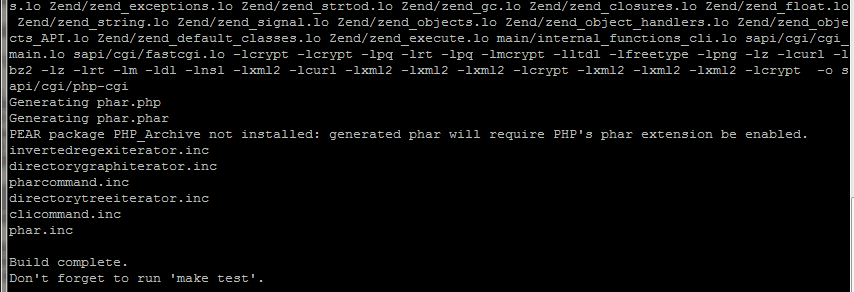
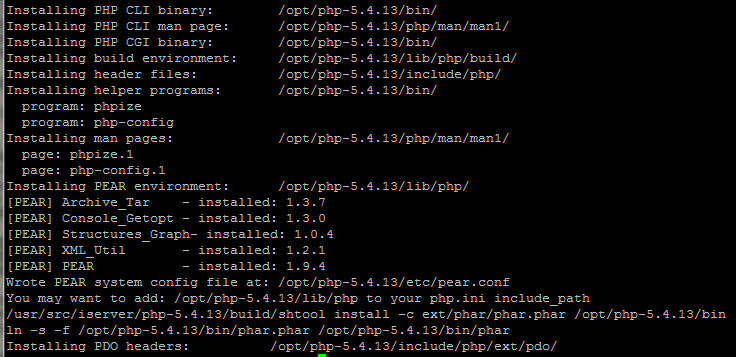
In the screenshots below, you can see the end of each process:
Configuring PHP 5.4:
Assembling PHP 5.4
Installation of PHP 5.4:
Create a configuration file php.iniFor this, we will execute the command:
cp /usr/src/iserver/php-5.4.45/php.ini-production /opt/php-5.4.45/lib/php.ini
Adds PHP 5.2 and PHP 5.4 to ISPConfig 3
To add additional versions of php to the ISPConfig 3 hosting control panel, open the tab in the Web interface browser and go to the folder: Addition PHP Versions - Add new PHP versionIn the screenshot below, you can see the window you need to open:
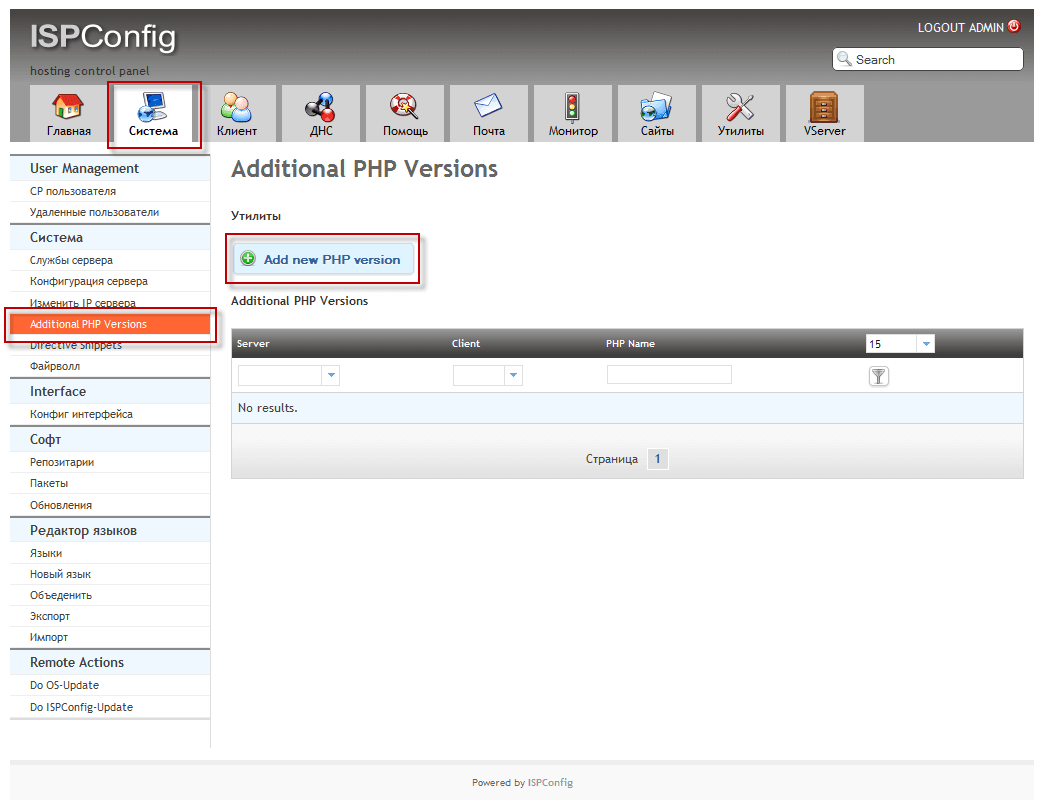
In the field. Client We do not select anything, then all customers will be able to use the selected languages when installing the site.
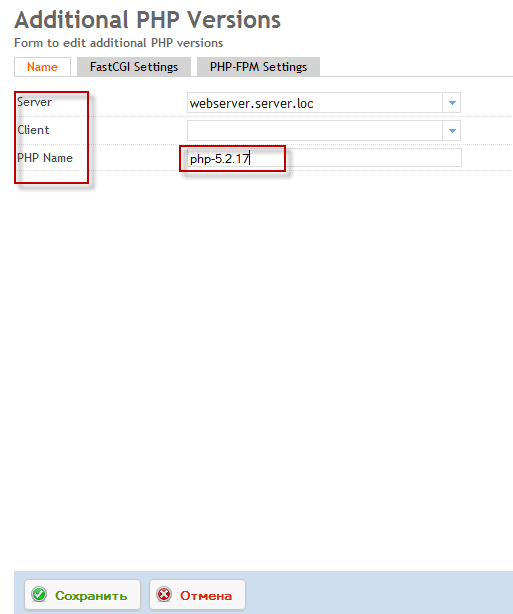
We add PHP 5.2.17 and fill in the fields below:
- Server: webserver.server.loc
- Client:
- PHP Name: php-5.2.17
After filling the fields, press the button. Save.We will adjust slightly below:
Add PHP 5.4.45 to fill in the fields below:
- Server: webserver.server.loc
- Client:
- PHP Name: php-5.4.45
After filling the fields, press the button. Save.We will adjust slightly below:

After saving, we have a window. System: Addition PHP Versions 2 versions of PHP 5.2.17 and PHP 5.4.45 will be added in the screenshot below:
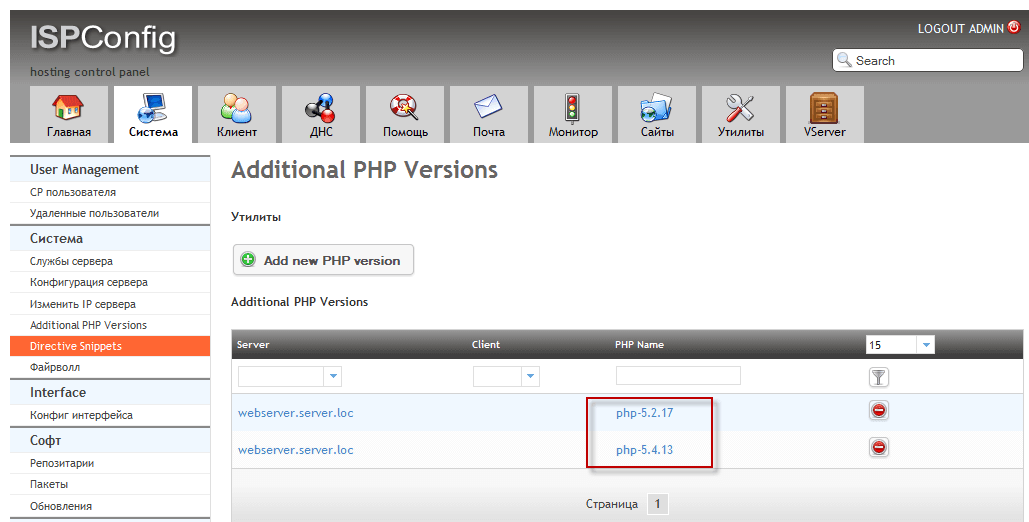
Now we need to open and edit paths for each PHP version added to the executable files and php.ini configuration file.
Open PHP 5.2.17 and in the tab FastCGI Settings Fill in the fields, for example below.
- Path to the PHP FastCGI binary: /opt/php-5.2.17/bin/php-cgi
- Path to the php.ini directory: /opt/php-5.2.17/lib
After filling in these fields, press the button to save the changes. Save.:
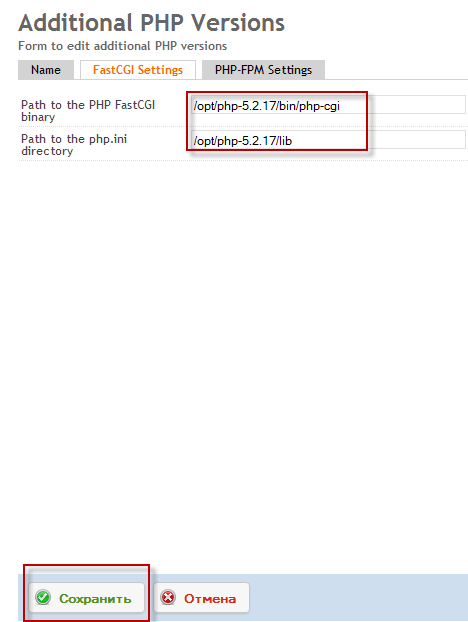
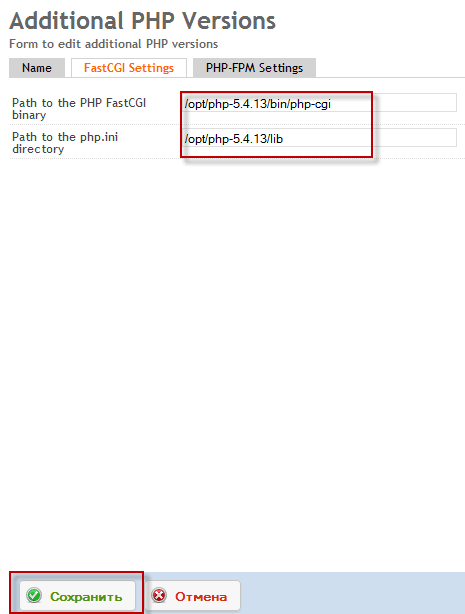
Open PHP 5.4.13 and in the tab FastCGI Settings Fill in the fields, for example below.
- Path to the PHP FastCGI binary: /opt/php-5.4.45/bin/php-cgi
- Path to the php.ini directory: /opt/php-5.4.45/lib
After filling in these fields, press the button to save the changes. Save.:
Check the operability of the installed PHP version of the language
To check the operation of PHP versions of the language, we need to create an i.php file on an existing site, and since we configured in the previous article Roundcube e-mail client for hosting ISPConfig 3that website mail.server.loc and we'll use it.
Create an i.php file in mail.server.loc by running two commands
echo '<?php phpinfo(); ?>' > /var/www/mail.server.loc/web/i.php
chmod 755 /var/www/mail.server.loc/web/i.php
Now it is enough to open the site at the address
http://mail.server.loc/i.php
To enable the necessary version of the installed PHP language, you need to open a website for editing. mail.server.loc field PHP Version In the drop-down list, you can select the desired version of the language, in the screenshot below you can see the available PHP languages:
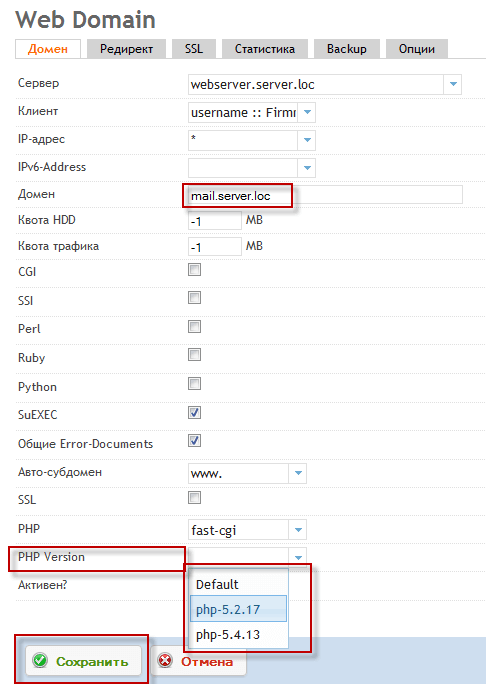
We're checking the version. PHP 5.2.17To do this, you need to open for editing the site, and select in the field PHP Version version php-5.2.17 and keep the changes:
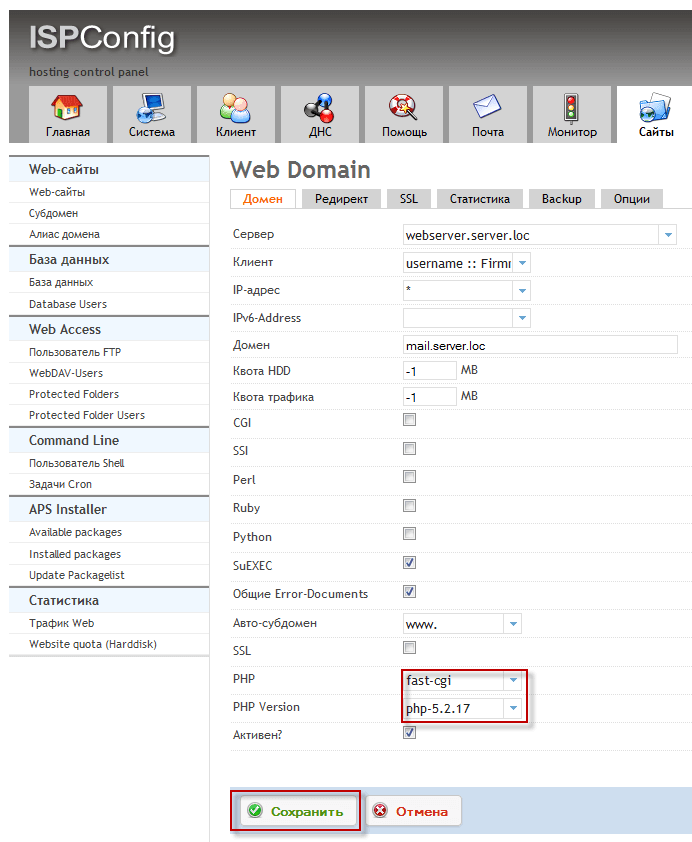
After the changes, in a minute or two, you can check the site's performance on PHP 5.2.17 by opening the address:
http://mail.server.loc/i.php

We're checking the version. PHP 5.4.45To do this, you need to open for editing the site, and select in the field PHP Version version php-5.4.45 and keep the changes:
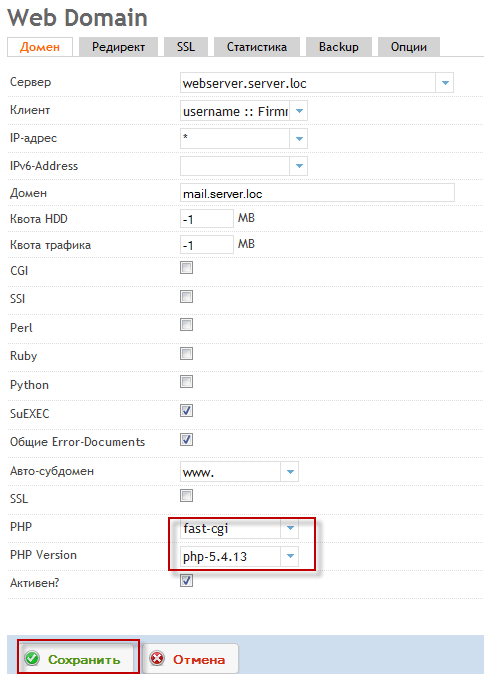
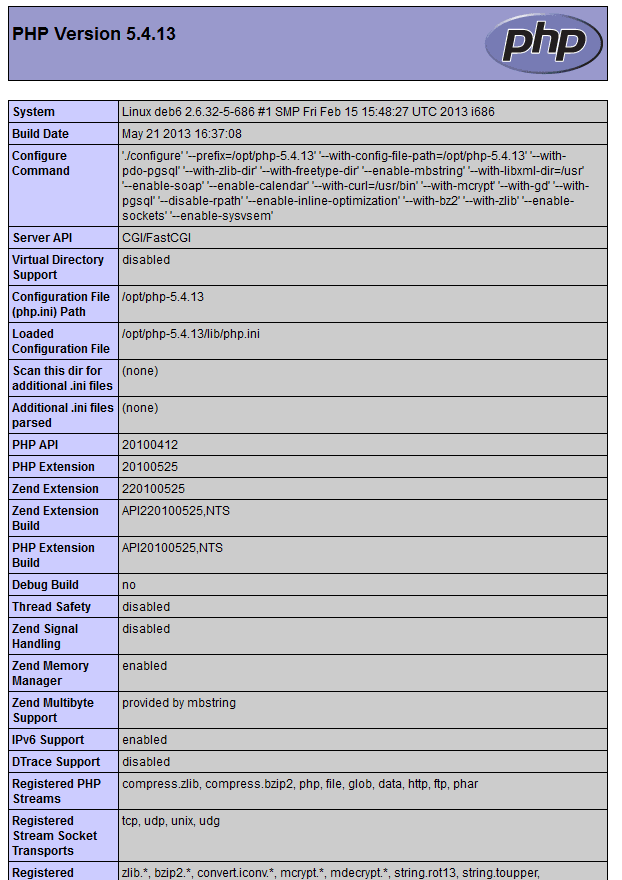
After the changes, in a minute or two, you can check the site's performance on PHP 5.4.45 by opening the address:
http://mail.server.loc/i.php
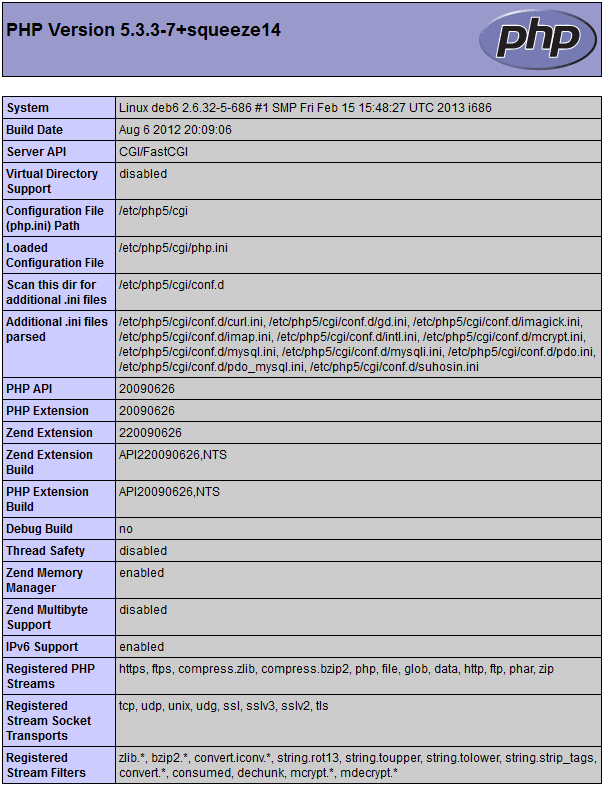
By default, Debian Squeeze installs PHP 5.3.3 from the repository and displays it in ISPConfig 3 as Default:
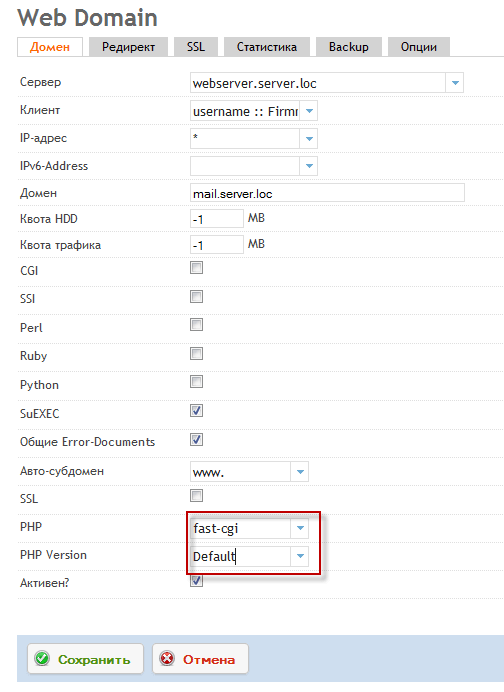
After the changes, in a minute or two, you can check the site's performance on PHP 5.3.3 by opening the address:
http://mail.server.loc/i.php
In this manual, we installed additional PHP 5.2.17 and PHP 5.4.45 languages on the Debian Squeeze server and added them to the ISPConfig 3 hosting control panel. In the ISPConfig 3 panel, these PHP languages are configured to work as CGI.
I was with you. Sergey Lazarenko.
After productive work, we will take a short break and watch a video about SEO optimization of the site:

comment