

In this manual, we continue the series of articles on installing and configuring ISPConfig 3 hosting panel on Debian Squeeze server and today we will add a server.loc domain to the ISPConfig DNS panel.
Of course, the domain can be any name, but since we chose server.loc from the very beginning, we will work with it.
Basically, on your hosting server, if it only has its own sites and there are few of them, then the need for your DNS is as if not enough for the domain registrar to redirect his domain to the IP of his dedicated server and that's all. Another thing is if you have 2 dedicated servers, then you configure dns on them and make one NS1 server, the second NS2 and redirect dns to the registrar's requests, that is, you prescribe from the registrar of the NS server domain on your own and already on them independently manage where anyone :
In this instruction, we will simply add the DNS zone server.loc and add several subdomains to install sites in this area, which will be described in detail in subsequent guides.
We're going to say a lot, so let's get started.
Open the ISPConfig 3 tab in the hosting control panel DNS and run the wizard to add a domain by pressing the button Add new DNS Zone with Wizard:
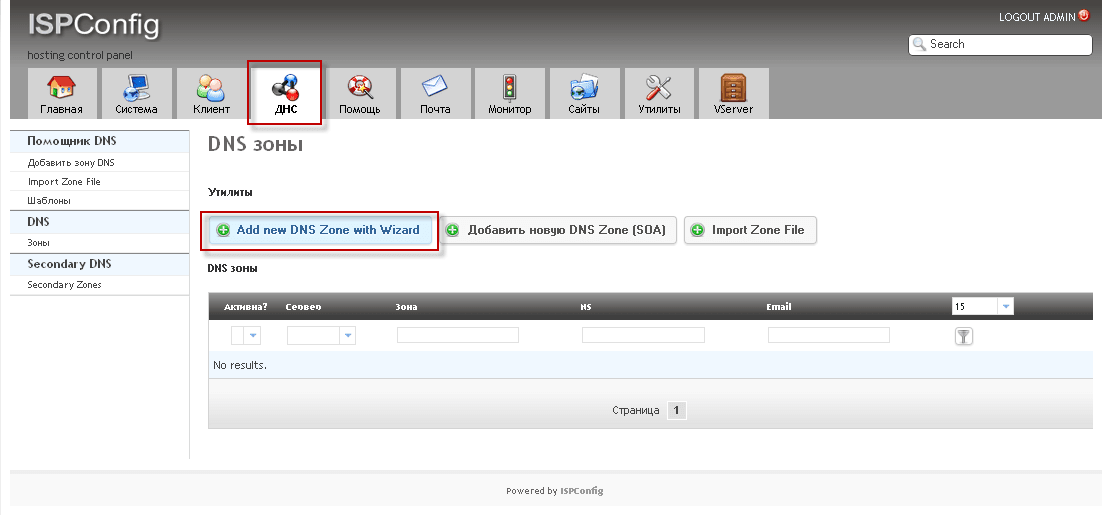
A window of the DNS zone adder wizard will open.
To add DNS server.locWe need to fill in the fields:
- Template: Default
- Server: webserver.server.loc
- Client: username
- Domain: server.loc
- IP address: 192.168.0.2
- NS1: ns1.server.loc
- NS2: ns2.server.loc
- E-mail: [email protected]
After filling in the fields like the above, to add a DNS domain to ISPConfig 3, we only need to click on the button. Create a DNS recordAnd that's what we do.

After the actions taken, an added DNS zone will appear in the ISPConfig 3 DNS tab. server.loc c which we will continue to work on:
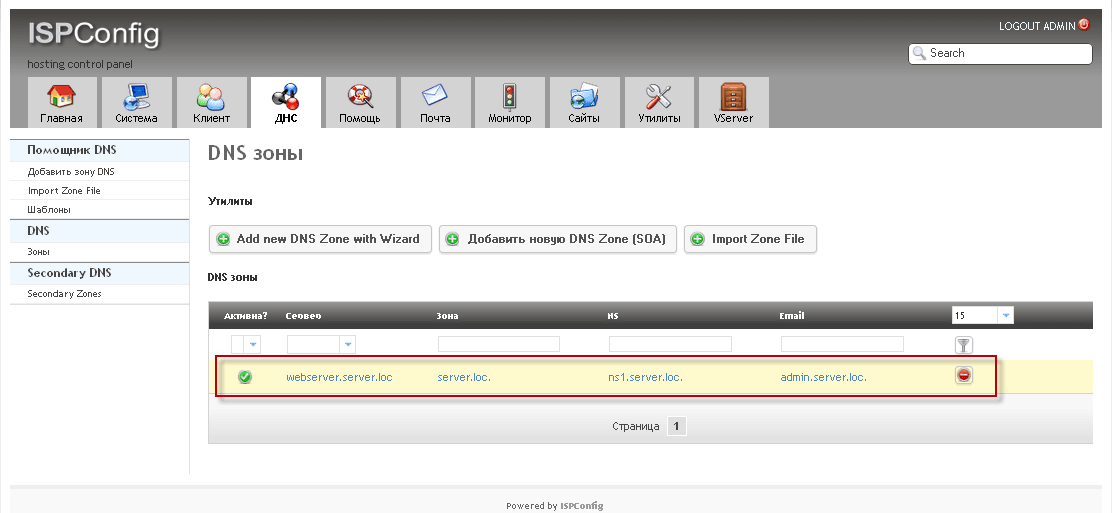
After adding the DNS area server.loc, we need to enter it by clicking on server.loc in the screenshot above and open the tab with records Records:
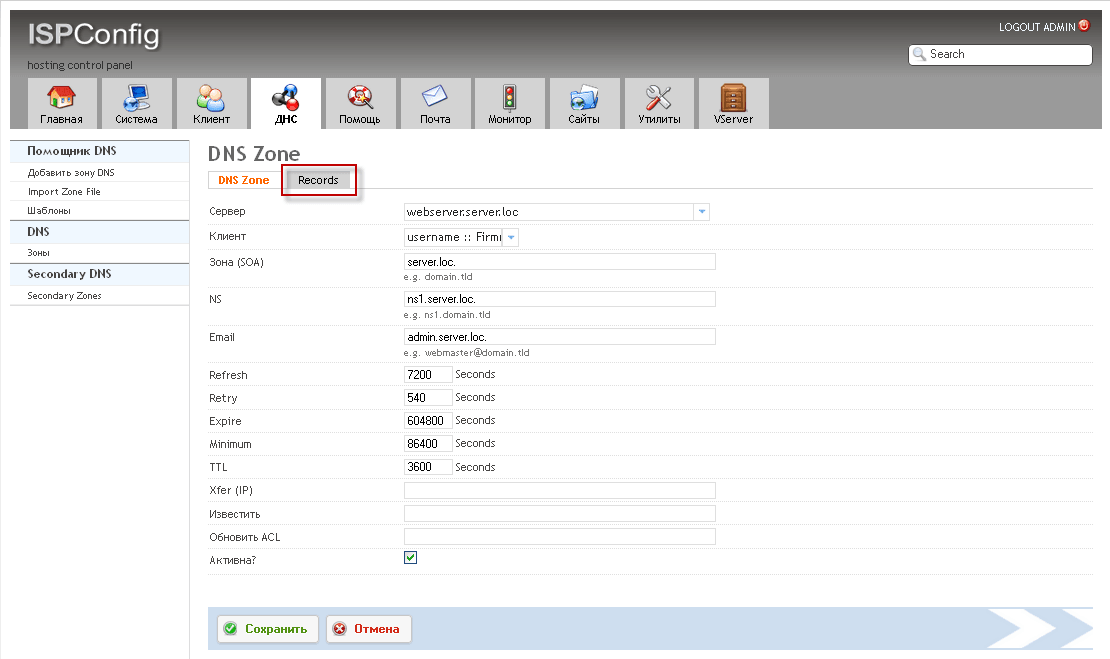
Records tab will open to configure NS DNS zone records server.locIn order to configure NS, we need to add A record. push A:
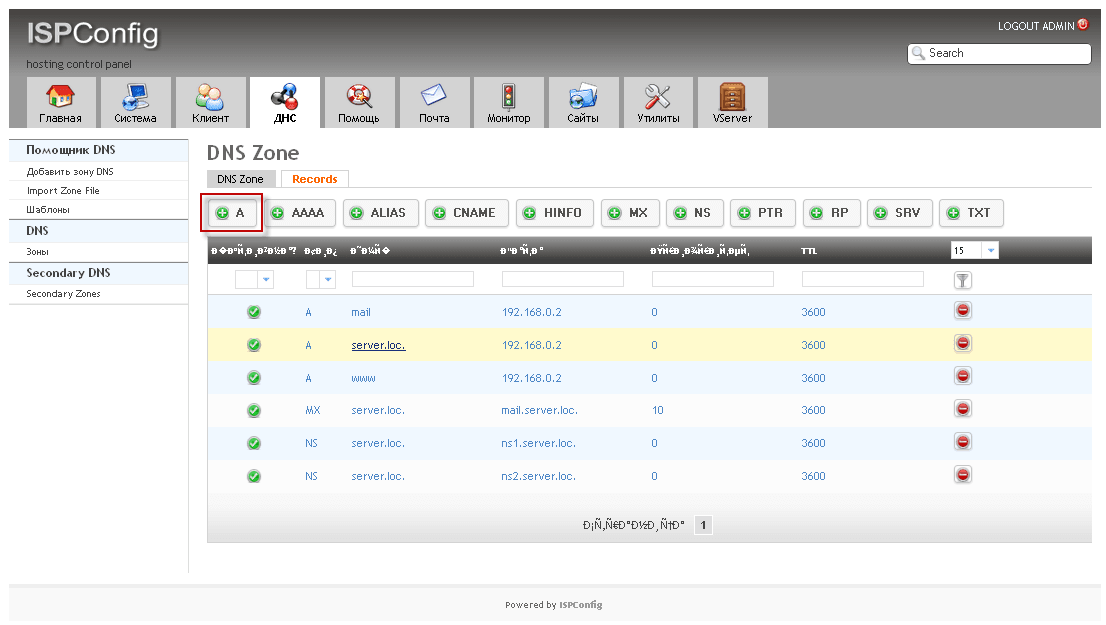
In the open window, fill in the fields for example:
- Node name: ns1
- IP address: 192.168.0.2
- TTL: 86400
- Active? checkmark
After filling the fields, press the button. Save.
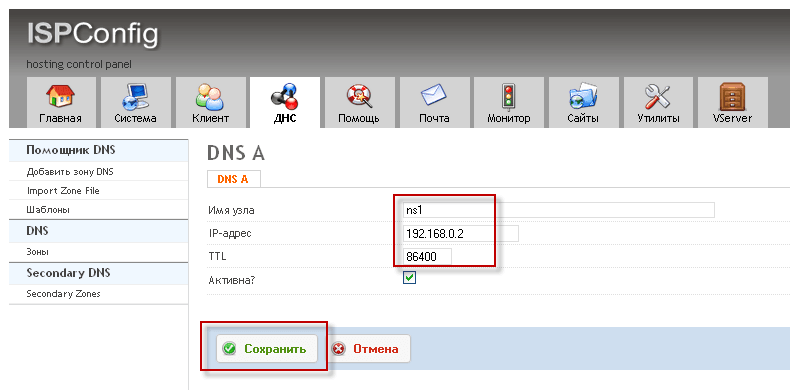
In the same way, add NS2 entry:
In the open window, fill in the fields for example:
- Node name: ns2
- IP address: 192.168.0.2
- TTL: 86400
- Active? checkmark
After filling the fields, press the button. Save.

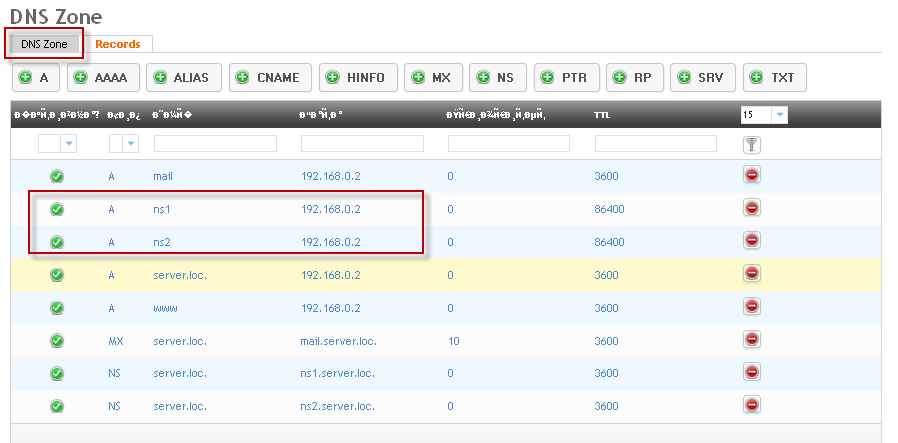
After the actions, we see that NS records for the domain are added. server.loc:
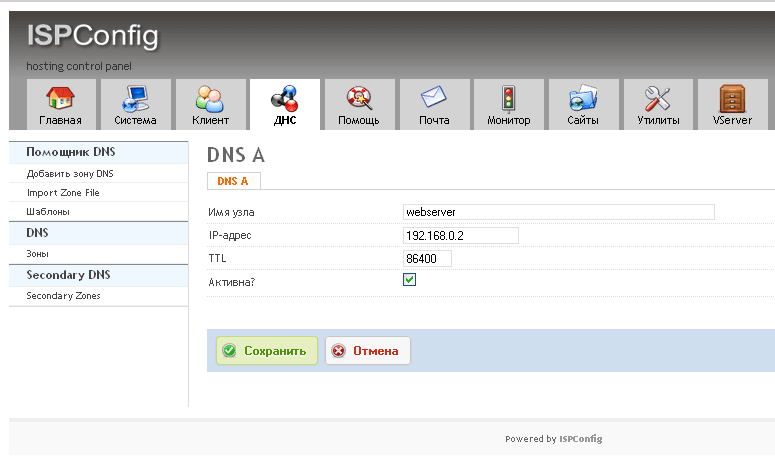
Now we need to add a subdomain of the server webserver.server.loc, for this we also click on the button. A to create a record in the server.loc domain and fill in fields such as:
In the open window, fill in the fields for example:
- Node name: webserver
- IP address: 192.168.0.2
- TTL: 86400
- Active? checkmark
After filling the fields, press the button. Save.
After this action, we move to the tab. DNS Zone and to save all changes in the domain server.loc press the button Save.:

To check the performance of the DNS server, you just need to specify for your computer to use the DNS on our server with IP 192.168.0.2, for example:
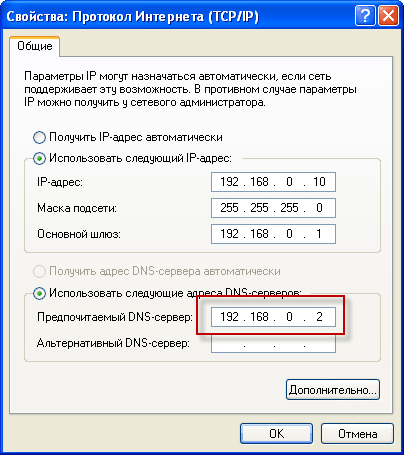
Now to check from windows, it is enough to check ping commands:
ping server.loc
ping webserver.server.loc
ping mail.server.loc
Each command must be pinged on IP 192.168.0.2
To check the work of the DNS server on the server itself via SSH or directly (keyboard and monitor) in the console, you must write in a file located along the way. /etc/resolv.conf:
vi /etc/resolv.conf
nameserver 192.168.0.2
And we also check the ping commands by domain names:
ping server.loc
ping webserver.server.loc
ping mail.server.loc
Or, in order not to prescribe anything, it is enough to execute a command on the server:
nslookup mail.server.loc 192.168.0.2
System response:
Server:         192.168.0.2
Address:        192.168.0.2#53

Name:   mail.server.loc
Address: 192.168.0.2
In this case, the task of this manual is completed, the domain server.loc added to the Debian server with the installed ISPConfig 3 hosting control panel and checked its performance.
I was with you. Sergey LazarenkoSubscribe to updates from the site and comment on the article.
After fruitful work, you need to shake your brain, for this we will watch a video goodbye to a 13-year-old girl who fought for life until the very last, peace to her dust, she balled a decent person, not everyone will be able to hold on to it in the last moment of his short life:

comment