

Today, we will install the JWChat web client to our ejabberd server installed earlier under the article: Install ejabberd with mod_logdb in Debian
This client can be used to connect without installing a jabber client on the user's computer, besides they are very convenient to fill in personal information fields, which is very important for corporate servers, where many departments and users are added centrally, and self-registration is closed.
Ejabber server supports out of the box in new versions displaying in contact sheet of all users of the information that is entered in the field nickname. Although the appearance of the client is not very impressive, and the version is old, but it does its job.
We will install JWChat on the server in two ways: using the built-in capabilities of the Ejabber server jabber, as well as using the capabilities of the ISPConfig hosting control panel.
Start installation using the built-in web server jabber Ejabberd
We believe that on the server with Ejabberd installed there is no other web server, such as Apache2, nginx, lighttpd.
Create a web server folder in the ejabberd direstoria by executing the command:
mkdir -p /var/lib/ejabberd/www/
We're going to the folder that we created.
cd /var/lib/ejabberd/www/
Download the program archive from the official website using wget:
wget http://netcologne.dl.sourceforge.net/project/jwchat/jwchat/jwchat-1.0/jwchat-1.0.tar.gz
If there is no archive available on the official server, then download from my server at the link:
wget http://softnastroy.com/downloads/ejabberd/jwchat-1.0.tar.gz
Unpack the downloaded archive, transfer all files to the current folder and delete excess files:
tar xvf jwchat-1.0.tar.gz
mv jwchat-1.0/* .
rm -rf jwchat-1.0.tar.gz jwchat-1.0/
Russify Jwchat by renaming files, as well as delete unnecessary files by following the commands:
for a in $(ls *.ru); do b=${a%.ru}; cp $a $b; done
rm *.html.* *.js.*
We grant rights to this folder and files by following the command:
chown -R ejabberd:ejabberd /var/lib/ejabberd/www/
Change the client configuration files.
vi config.js
was:
...
var SITENAME = "localhost";
...
became:
...
var SITENAME = "server.loc";
...
was:
...
var BACKENDS =
[
                {
                        name:"Native Binding",
                        description:"Ejabberd's native HTTP Binding backend",
                        httpbase:"/http-bind/",
                        type:"binding",
                        servers_allowed:[SITENAME]
                },
                {
                        name:"Native Polling",
                        description:"Ejabberd's native HTTP Polling backend",
                        httpbase:"/http-poll/",
                        type:"polling",
                        servers_allowed:[SITENAME]
                },
                {
                        name:"Open Relay",
                        description:"HTTP Binding backend that allows connecting to any jabber server",
                        httpbase:"/JHB/",
                        type:"binding",
                        default_server: SITENAME
                },
                {
                        name:"Restricted Relay",
                        description:"This one let's you choose from a limited list of allowed servers",
                        httpbase:"/JHB/",
                        type:"binding",
                        servers_allowed:[SITENAME,'jabber.org','jwchat.org']
                }
];
...
became:
...
var BACKENDS =
[
                {
                        name:"Native Binding",
                        description:"Ejabberd's native HTTP Binding backend",
                        httpbase:"/http-bind/",
                        type:"binding",
                        servers_allowed:[SITENAME]
                },
];
...
vi /etc/ejabberd/ejabberd.cfg
was:
  {5280, ejabberd_http, [
                         %%{request_handlers,
                         %% [
                         %%  {["pub", "archive"], mod_http_fileserver}
                         %% ]},
                         %%captcha,
                         http_bind,
                         http_poll,
                         web_admin
                        ]}

 ]}.
became:
...
  {5280, ejabberd_http, [
                         {request_handlers,
                          [
                           {["web"], mod_http_fileserver}
                          ]},
                         %%captcha,
                         http_bind,
                         http_poll,
                         web_admin
                        ]}

 ]}.
...
Reboot the ejabberd server by executing the command:
/etc/init.d/ejabberd restart
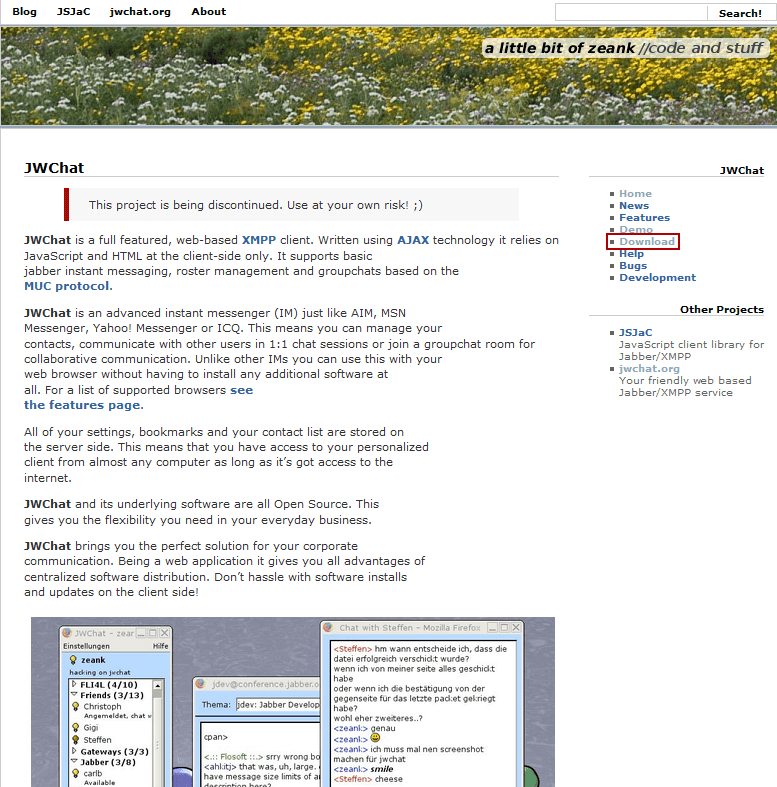
If you want to download a web client from the official website via jabber browser, Go to the JWChat website. And click on the button. Download:
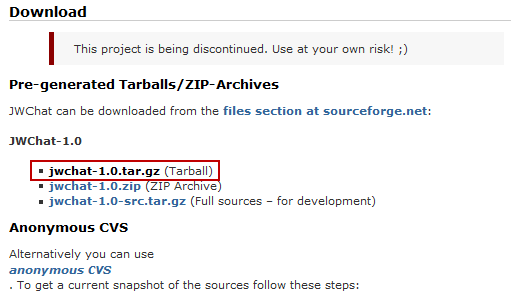
A window will open where we click on the archive. jwchat-1.0.tar.gz:
The download will start after the transition to SOURCEFORGE:
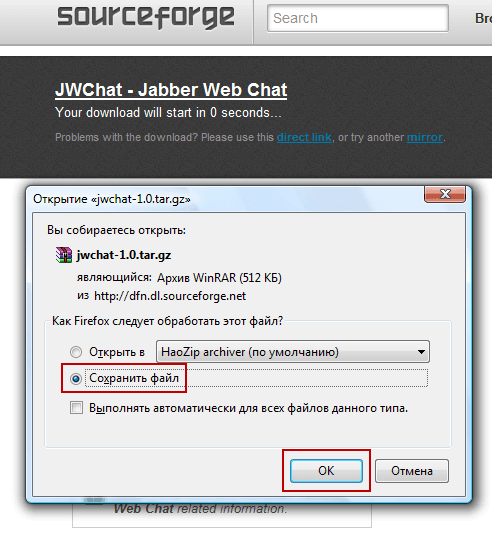
We save the downloadable archive to a local disk, in my case it is downloaded to disk. D folder tmp and there's a folder jwchat:

Download the program archive to the server in any convenient way, or through Putty using the pscp program according to the instructions: Instructions for Putty and PSCP, or if you have an ISPConfig hosting control panel installed by ftp using the instructions: Connect to the FTP server from Filezilla’s FTP clientIf you choose SSH instead of FTP, then you can use Filezilla to fill in ssh. After pouring, we transfer to the folder with a web server that was created earlier and unpack and configure according to the instructions above.
Installation using the hosting panel ISPConfig
Assume that the server is installed ISPConfig hosting control panel according to the instructions: Install and configure hosting panel ISPConfig 3 in Debian
Website j.server.loc We created instructions following the example: Installation of Roundcube email client in Debian - Part 5
We're in the tab site settings. Options. The following data should be added to the Apache2 field:
AddDefaultCharset UTF-8
ProxyRequests Off
ProxyPass /http-bind/ http://127.0.0.1:5280/http-bind/
ProxyPassReverse /http-bind/ http://127.0.0.1:5280/http-bind/
Alias /jwchat /var/www/clients/client1/web13/web
RewriteEngine on
RewriteRule http-bind/ http://127.0.0.1:5280/http-bind/ [P]
Go to the site folder on the server:
cd /var/www/j.server.loc/web/
Download the distribution of the program and make further configuration and according to the instructions above.
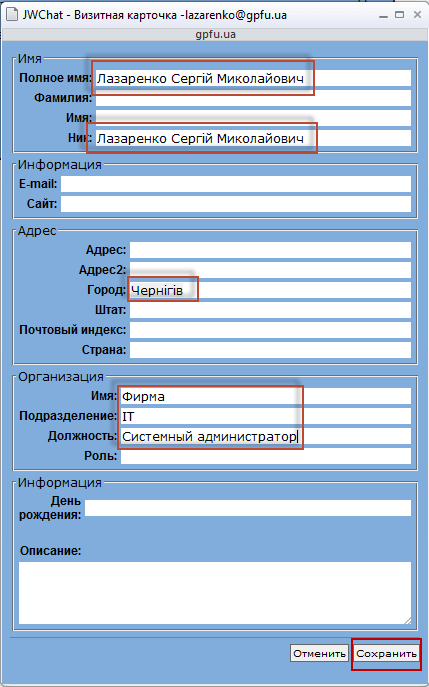
As I said above, when using an instant messaging server in a corporate environment, department groups are added to add users. In centralized user input, it is also necessary that users in groups are displayed, for example. 618 Ivanov Ivan Ivanovichwhich stands for 6th floor, 18th room and full name; or Ivanov Ivanovich 618-23-23After the name, the phone number is displayed. In the jabber server installed on the Debian Wheeze server, the use of NICA for display in the roster (group) was sewn into the program, and for Debian Lenny it was necessary to patch the source programs, collect and install. To centrally enter user data during registration, you can use a script in the server console or Jabber client (for example, PSI installed on your computer), insert a new user into your client, fill in the fields of nickname, department, phone, save and delete from your PSI. This is all very long and inconvenient, because I use the JWChat web client: go under the client with his password and click on the user name in the window that opens, enter the necessary data, save everything.
In total, the user is added through the Ejabberd web interface, there we add the user to the desired group, connect to the web client and fill in the necessary fields, save and all.
Open the Jwchat program when you install ejabberd as a web server using a web browser at:
http://server.loc:5280/web/index.html
! Attention. You need to specify the name of the domain on which Jabber was made in the address, if you specify IP, then there will be a 404 Not Found error, if you did not configure DNS, then write an entry in the hosts file (replacing the values with your own):
192.168.1.10 server.loc
Open the Jwchat program when installed on ISPConfig using a web browser at:
http://j.server.loc/
Sign in to JWChat, enter login without @server.loc, as this server is specified in the JWChat settings above in the instructions:
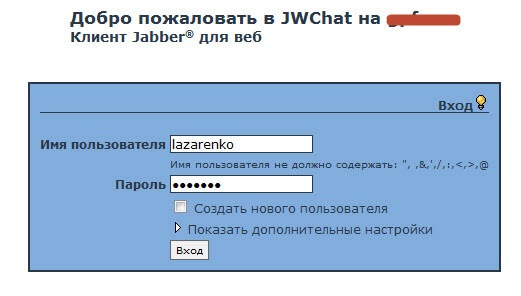
An example of an open client window:
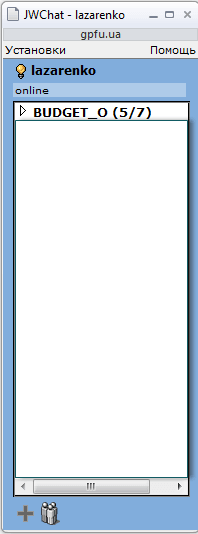
Click on lazarenkoA window with user data will open:
Installation of the JWChat web client to connect to Ejabberd is complete, I hope the instruction was useful for you.
I was with you. Sergey Lazarenko.
Let’s take a short break and watch an interesting and informative video about crossing the river:

comment