

 The previous one. article We have installed Ejabberd server with mod_logdb module, then we need to configure our newly installed server and module.
File in. /etc/ejabberd/ejabberd.cfg We're making changes.
was:
...
%% Admin user
{acl, admin, {user, "", "localhost"}}.

%% Hostname
{hosts, ["localhost"]}.
…
became:
...
%% Admin user
{acl, admin, {user, "admin", "jabber.local.ua"}}.

%% Hostname
{hosts, ["jabber.local.ua"]}.
…
was:
...
%% language: Default language used for server messages.
%%
{language, "en"}.
…
became:
…
%% language: Default language used for server messages.
%%
{language, "ru"}.
...
was:
...
%%%   ============
%%%   ACCESS RULES
…
became:
…
%%%   ============
%%%   ACCESS RULES
%%This allows admins to change module/users settings via ad-hoc commands:
{access, mod_logdb_admin, [{allow, admin}]}.
...
was:
…
%%%   =======
%%%   MODULES

%%
%% Modules enabled in all ejabberd virtual hosts.
%%
{modules,
[
 {mod_adhoc,    []},
...
became:
…
%%%   =======
%%%   MODULES

%%
%% Modules enabled in all ejabberd virtual hosts.
%%
{modules,
[
 {mod_logdb, [
 {dbs, [{mysql5, [{user, "userlogdb"},{password, "passlogdb"},{server, "localhost"},{port, 3306},{db, "logdb"}]}]}, {vhosts, [{"jabber.local.ua", mysql5}]}
 ]},
 {mod_adhoc,    []},
...
Now you need to add a database for mod_logdb.
To do this, open in the browser phpmyadmin on our Debian server at the http://192.168.0.1/phpmyadmin
When authorizing, we specify the login root and the password that we entered during the installation of mysql server
A window will open:
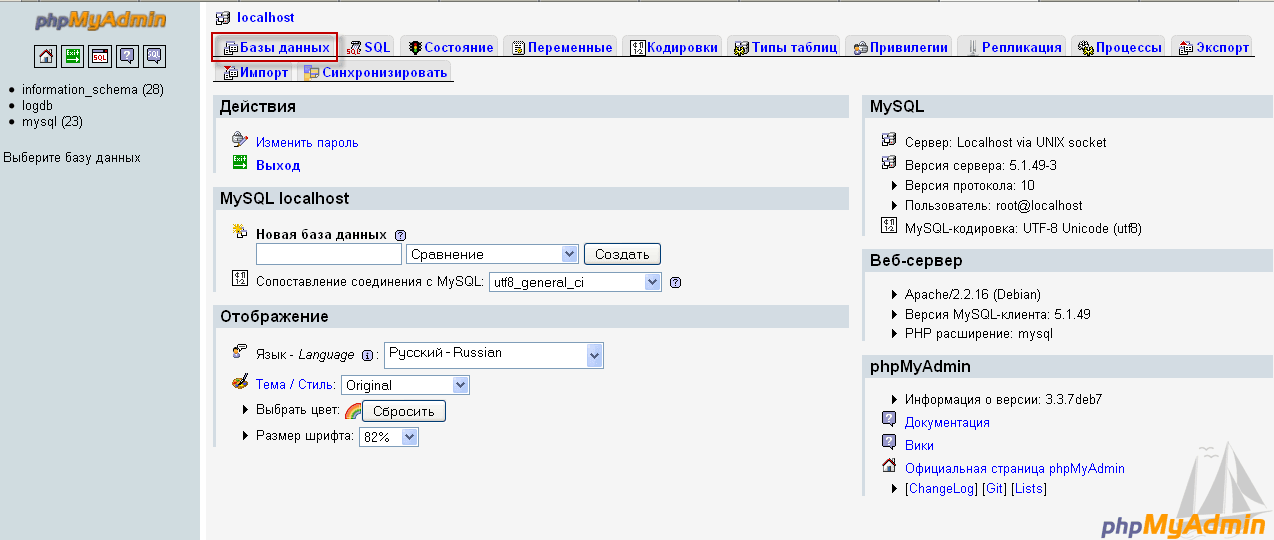
Create a database in utf8 encoding:
Click on the link Databases
A database addition window will open.
Write the name of the base. logdb press the button. Create:
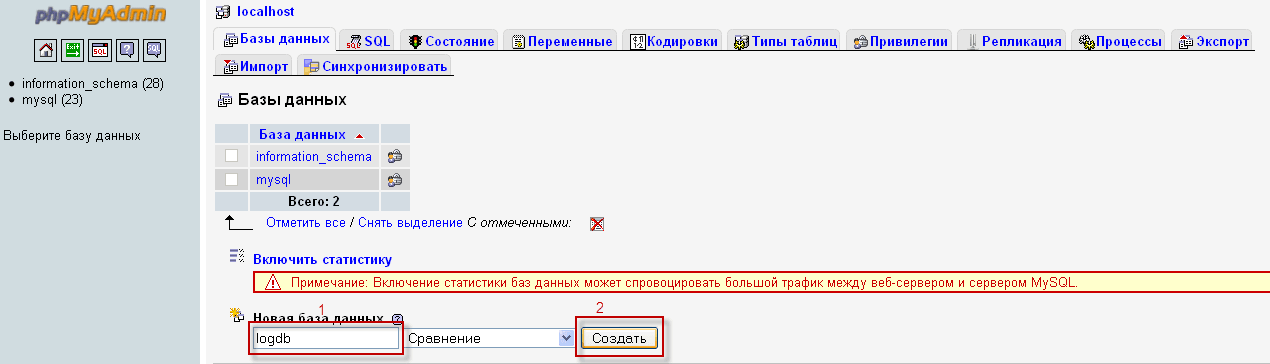
Next, create a user to access the database:
Push it. Privileges and follow the link Add a new user

Filling in: User name prescribe userlogdbin host choose localhostin Password We will give you our password (you will change it to yours) passlogdb. Celebrate Don'tDatabase (we have already created with the desired name) OK:
Further, in order to link the created database to our user and give the user all the rights to the base, you need to click on the link. localhost and then press the button. Privileges:
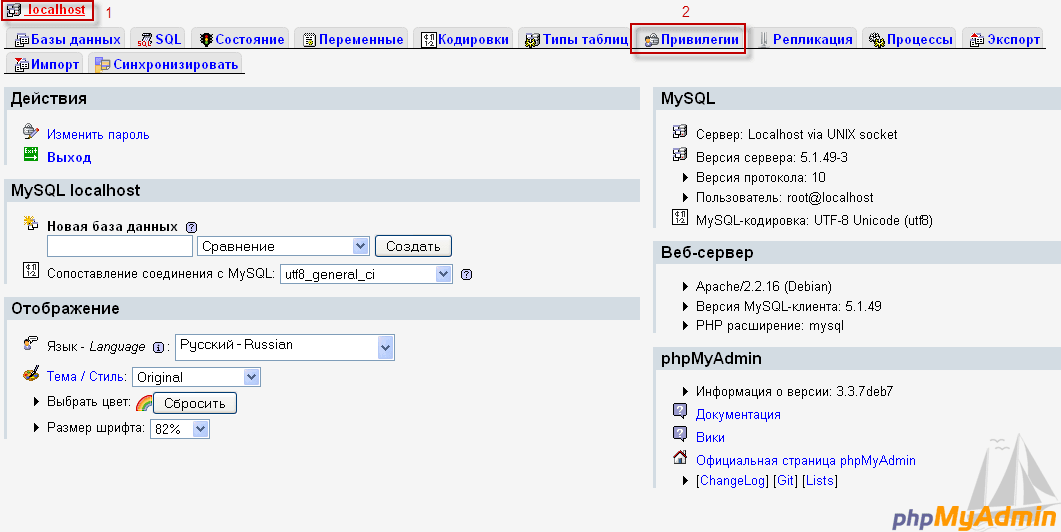
In the window that appears in front of our user, press the button. Action:

In the field. Database level privilegesYou need to select our database in the drop-down list. logdb press the button. OK:
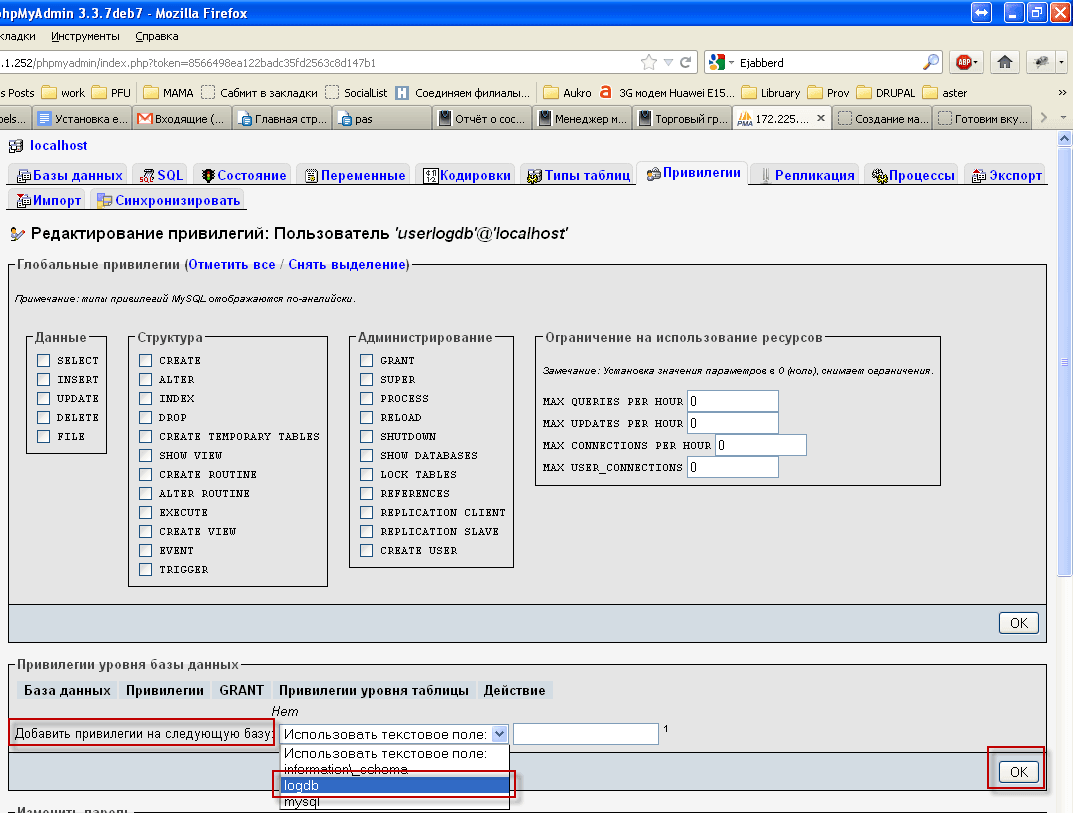
In the window that opened :
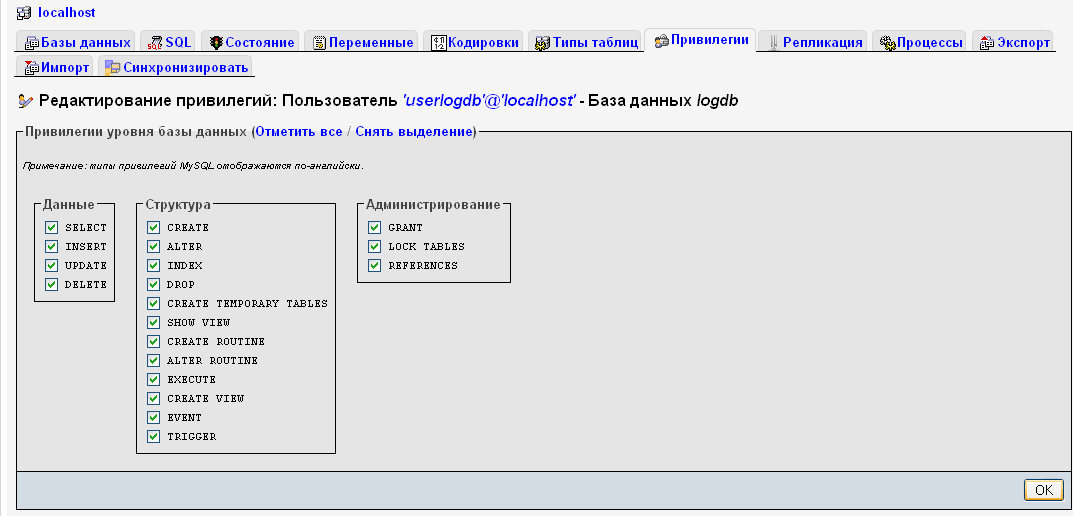
The database user and the database itself for use by the mod_logdb module are created and above in the Ejabberd server configuration file connected.
Now you need to restart ejabberd with the command:
/etc/init.d/ejabberd restart
Check if our server is working with a team:
ejabberdctl status
Team conclusion:
The node ejabberd@jabber is started with status: started
ejabberd 2.1.5 is running in that node
You need to create an administrator user, which we also registered in the configuration file earlier with the command:
ejabberdctl register admin jabber.local.ua 777
The conclusion of the team should be:
User [email protected] successfully registered
We registered the user. admin passwordd 777 Now under this user we can go to the web interface of our server and administer both our server and our users with their correspondence.
In order to enter the web interface, you need to open the address. http://192.168.0.1:5280/admin
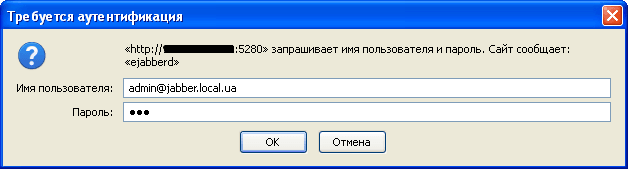
When you open the web interface, the system will ask you to enter a login and password, we enter into the login. [email protected] a in password 777, click OK and get to the web interface of Ejabberd server:

Click on the link Virtual Hosts And we're going through the window.

In this window we see a list of registered virtual hosts, in our case we have one. jabber.local.uaClick on it and go through the window:
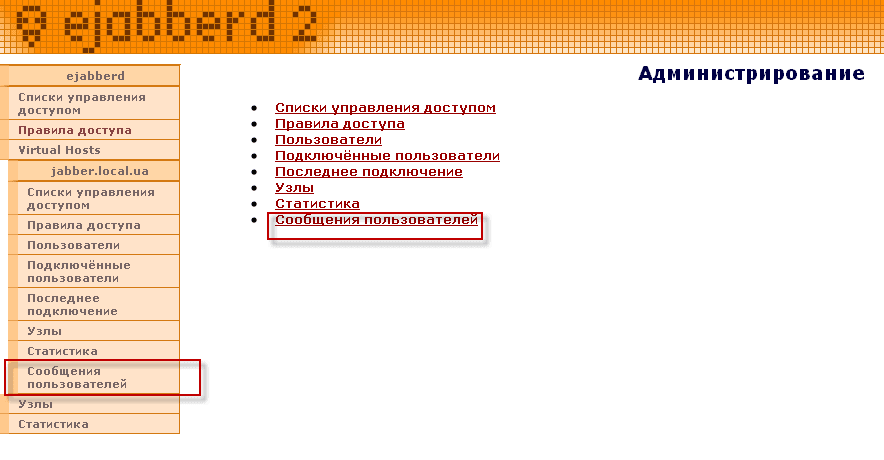
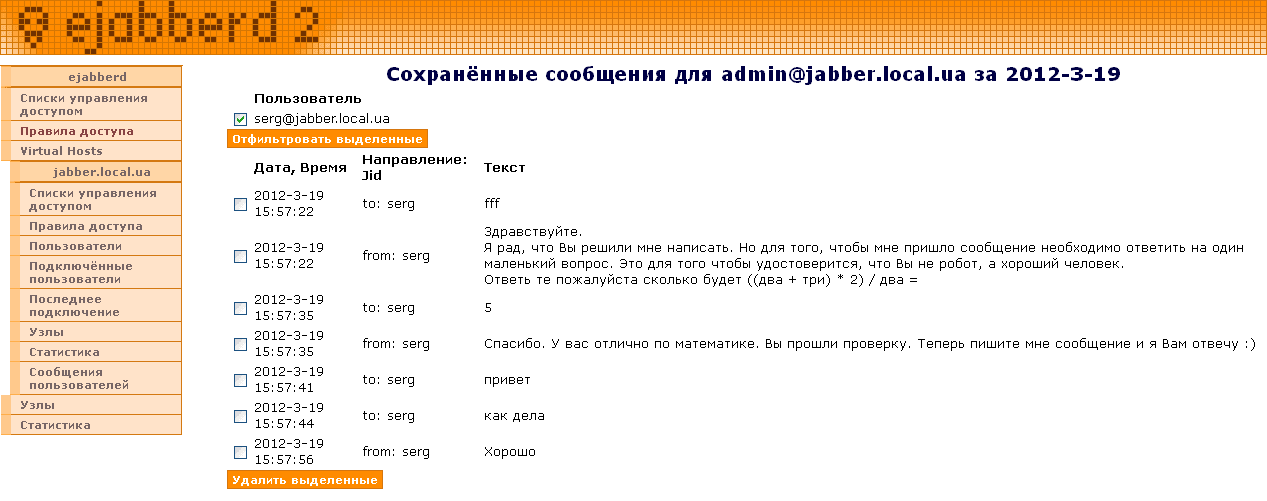
In virtual hosting, we see the added section User communications.
User messages are grouped by date, and within the date are grouped by usernames:

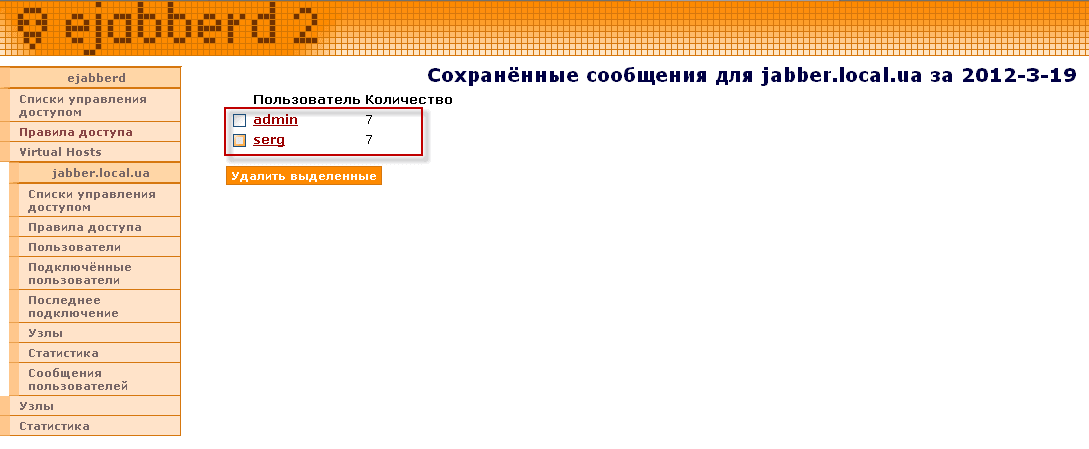
I was with you. Sergey Lazarenko.

comment