
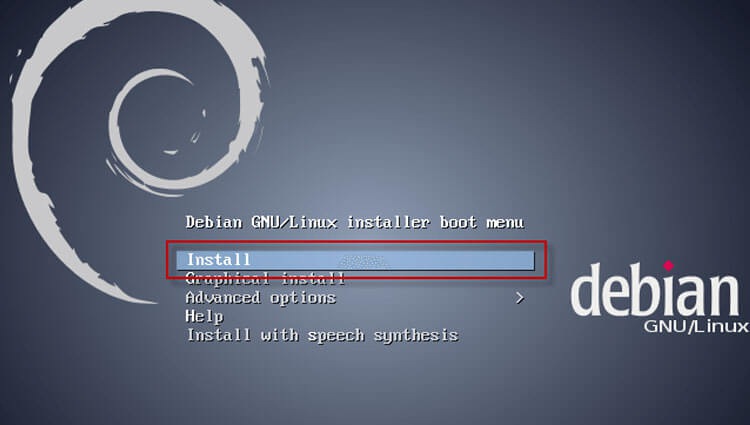
Installation of the Debian Wheezy server begins with writing an image of the Debian installation disk to the disk, which you need to download on the official website Debian.org by selecting the architecture for your server from the links:
Download Debian Wheezy CD1 32bit
Download Debian Wheezy CD1 64bit
It happens that after recording the disk during utanatoka, the installer swears that he can not read any of the files, so writing the disk at low speed can help, or if this does not help, then download and write the installation image of the nontinstall:
Download Debian Wheezy Netinstall 32bit
Download Debian Wheezy Netinstall 64bit
To install the past stable Debian Squeeze, a CD1 disk was enough to install the system with an installed SSH server whether the machine had internet or not.
In the new stable distribution, CD1 without internet can only install a standard system without selecting SSH and other server services, so I would advise installing the system on a server without Internet if you need to install one of the services using a DVD1 installation disk.
The installation will be carried out on the entire hard drive, with the creation of a new partition table of the hard drive.
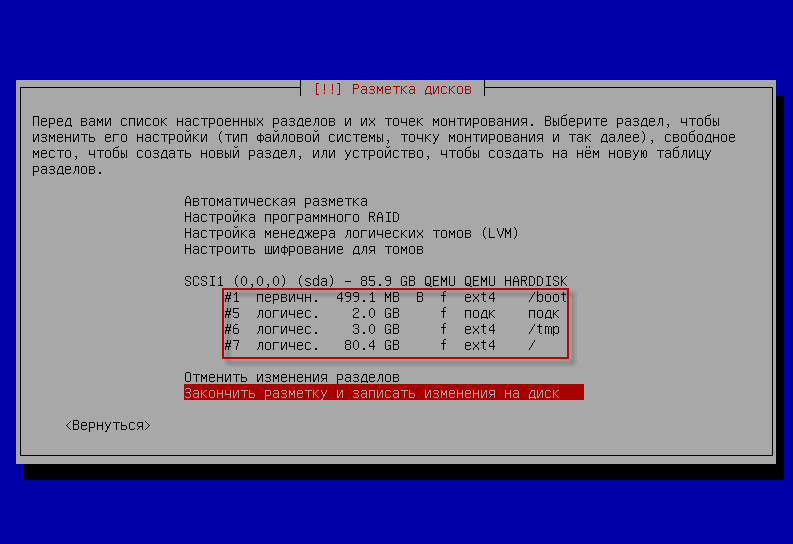
The screw will be divided into such sections:
- /boot - 500 mb The boot partition in which the Linux kernel will be located, and from which the operating system will be loaded.
- swap - 2 gb - partition paging, the size of science is made 2 times more RAM of your server, but if you have on the server 16GB RAM sense to do partition paging in 32Gb there is no.
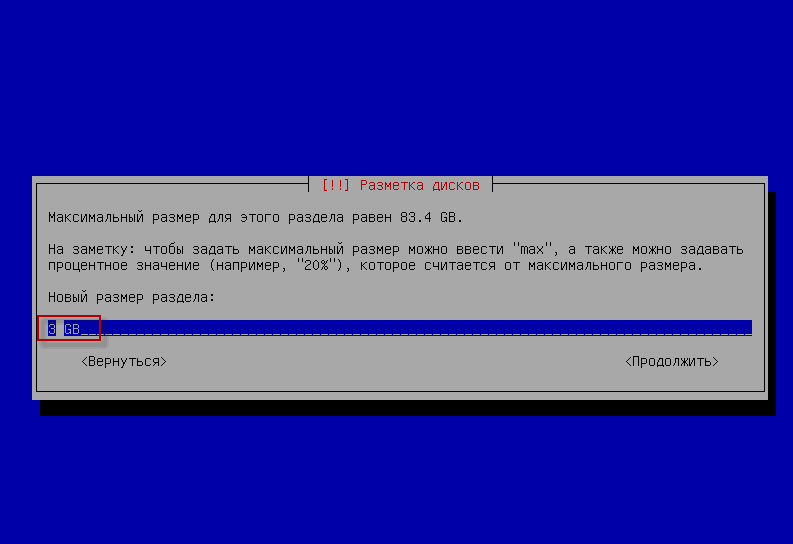
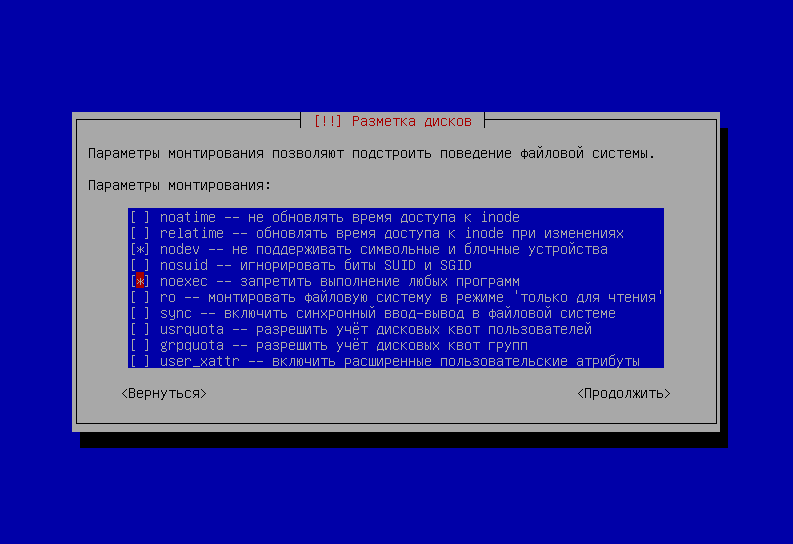
- /tmp - 3 gb - partition for temporary files with the mandatory noexec mounting option. Noexec prohibits the execution of any programs from the time partition.
- / The rest of the place, the root of the system, that is, everything is mounted in the root.
This breakdown suits me, as it is convenient to use hosting management systems such as ISPmanager or ISPConfig using quota, and for them this is a more optimal breakdown, or rather, developers require all but everything. swap root /But I prefer to do 2 more sections: /boot and /tmp.
Start of installation:
Push. Install:

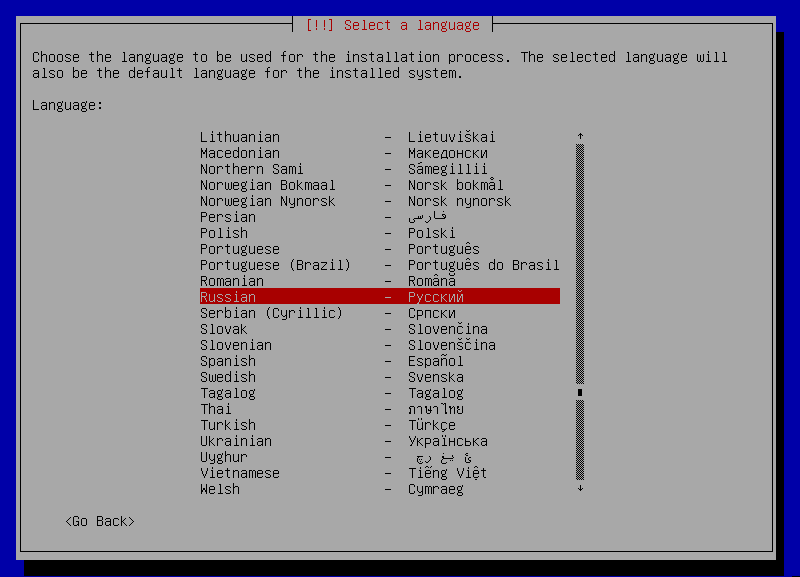
Select the installation language:
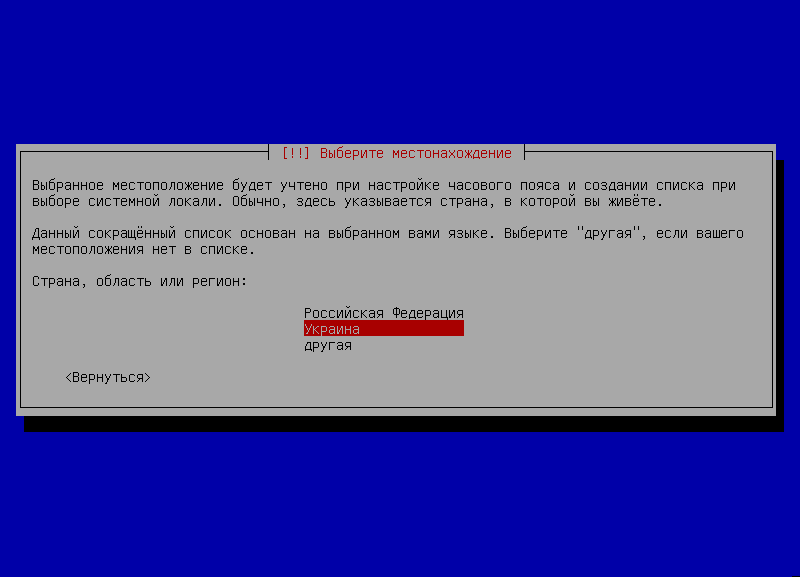
Select a country to set up the time zone:
Choose the keyboard language:

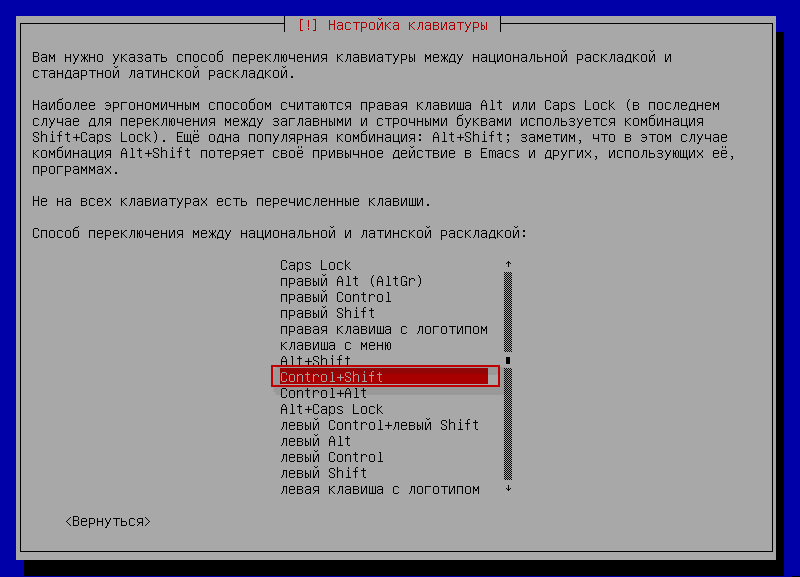
Choose the key combination to switch the keyboard:
If the server is on a network with a DHCP server installed and configured, the server will receive an IP automatically and in the future it will be possible to configure the server network according to the instructions: Set up an Internet connection, as well as configuring network cards on the server in Debian, Ubuntu and their derivatives.
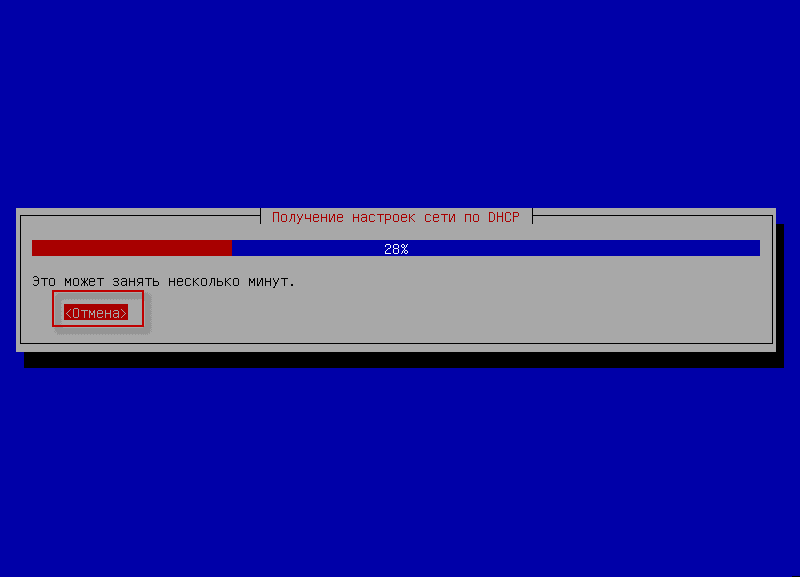
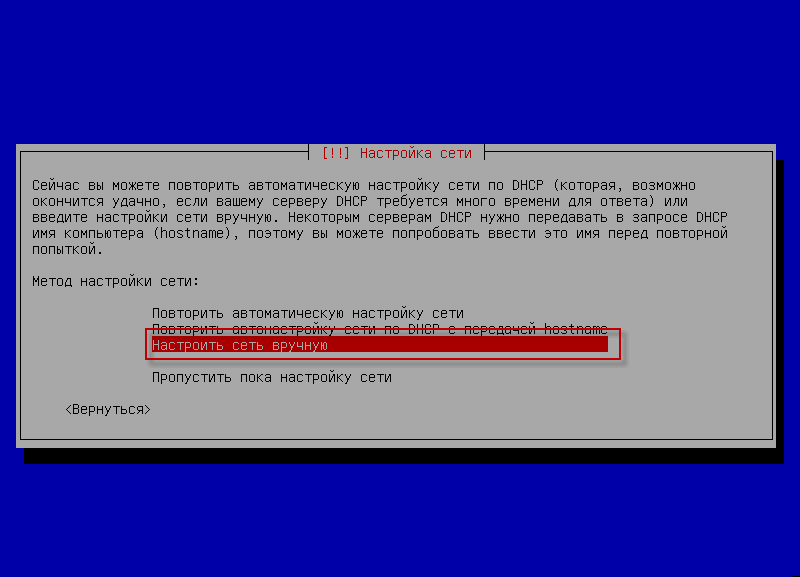
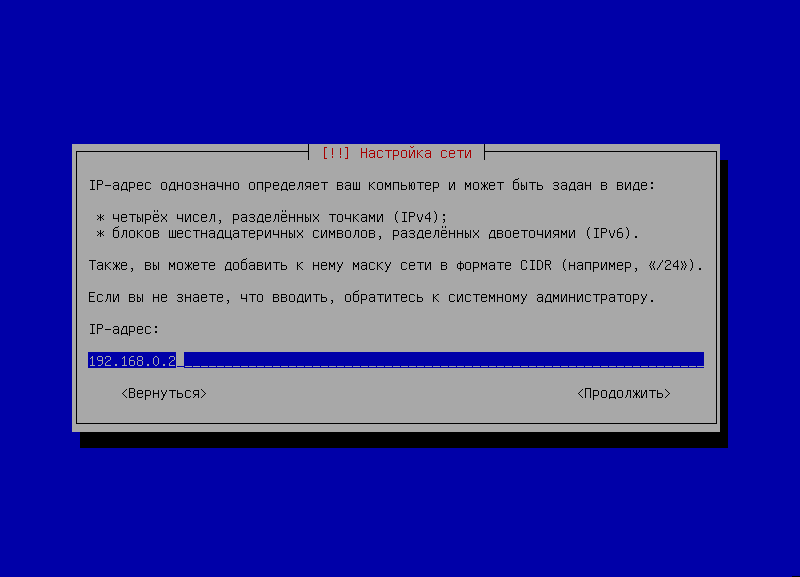
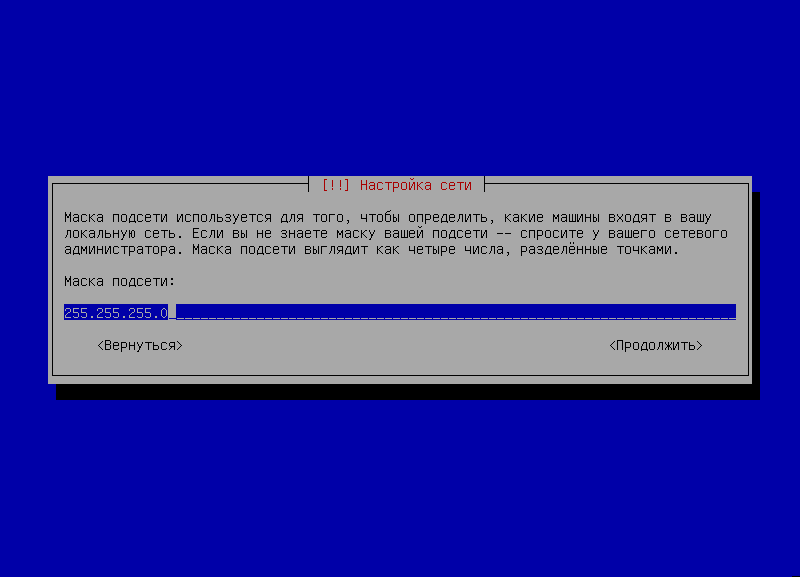
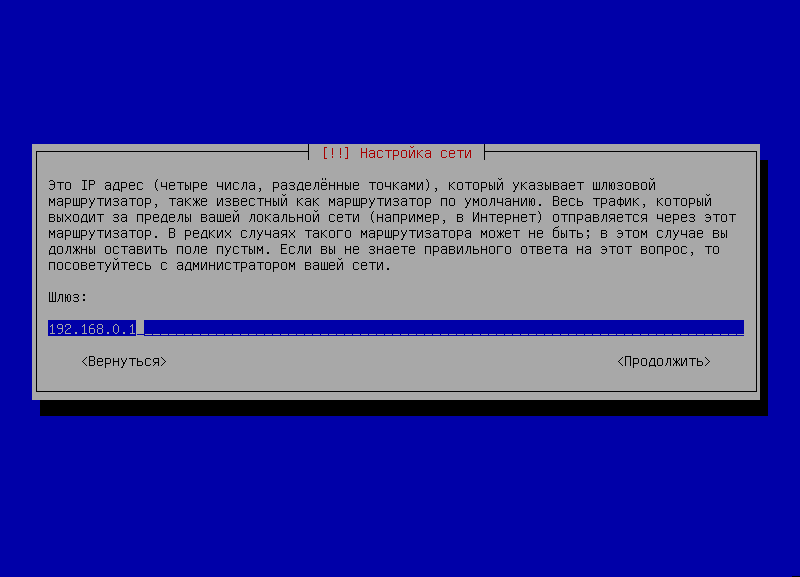
In order to configure a static IP on the installed server, you need to press Cancellation to interrupt the receipt of an IP address automatically and fill in a static IP, for example:
- IP address: 192.168.0.2
- Mask: 255.255.255.0
- Gateway: 192.168.0.1
- DNS server: 192.168.0.1 8.8.8.8
Below in the screenshots you can see the installation of the server with a static IP address setting:


Write the name of the computer:

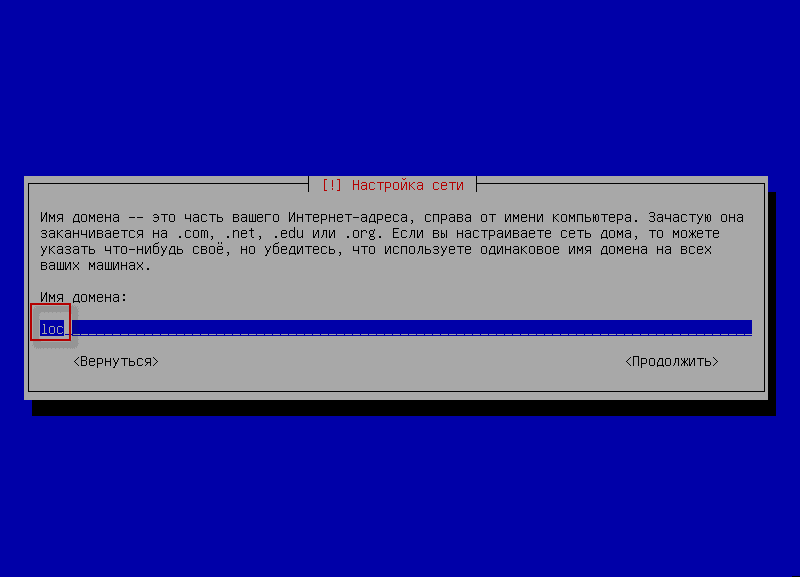
Indicate the domain name loc either server.locAll this can be changed after installation, but you can also leave the field empty:
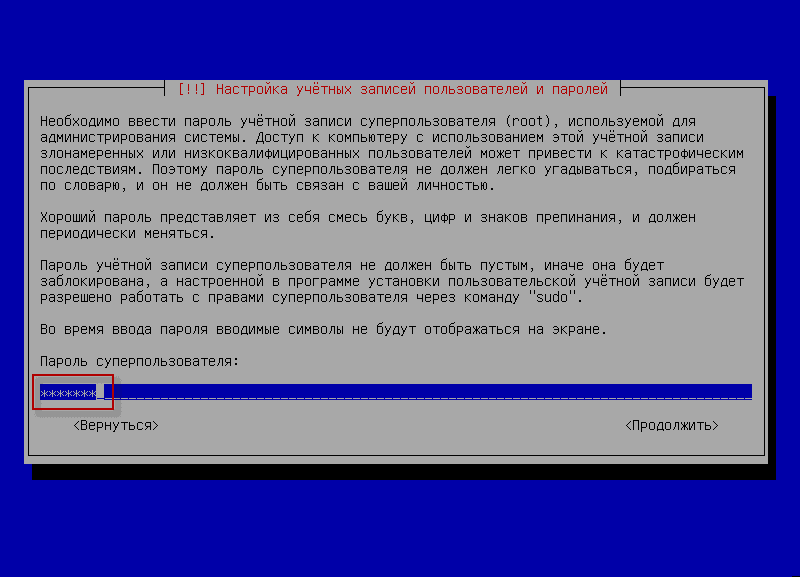
Enter the password. root user:
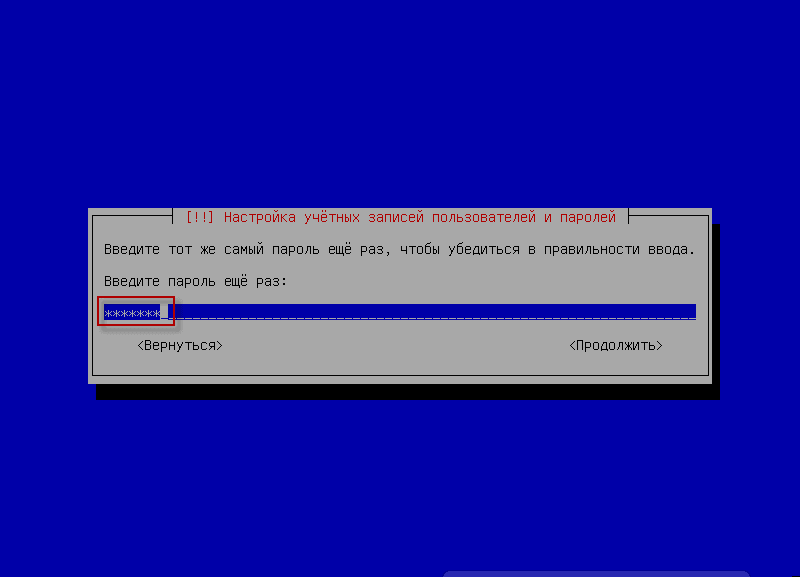
Repeat the password. root user:
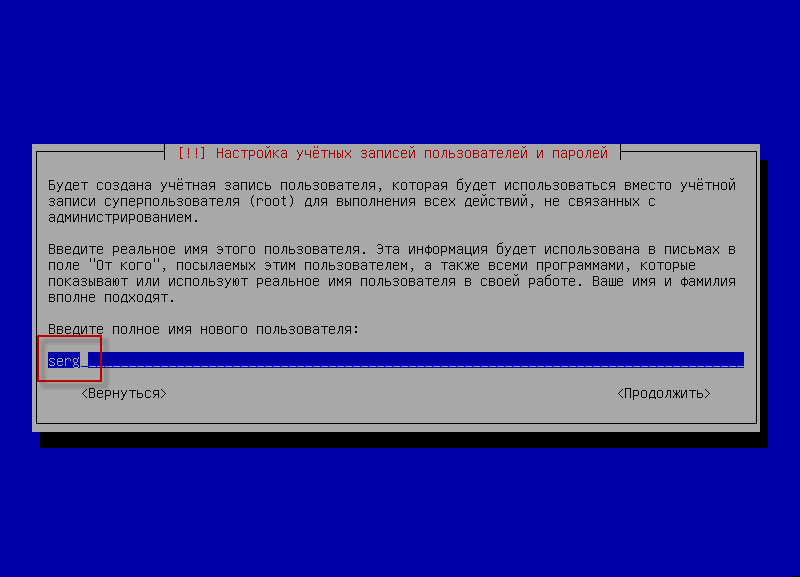
Enter the full name of the new user of the system:
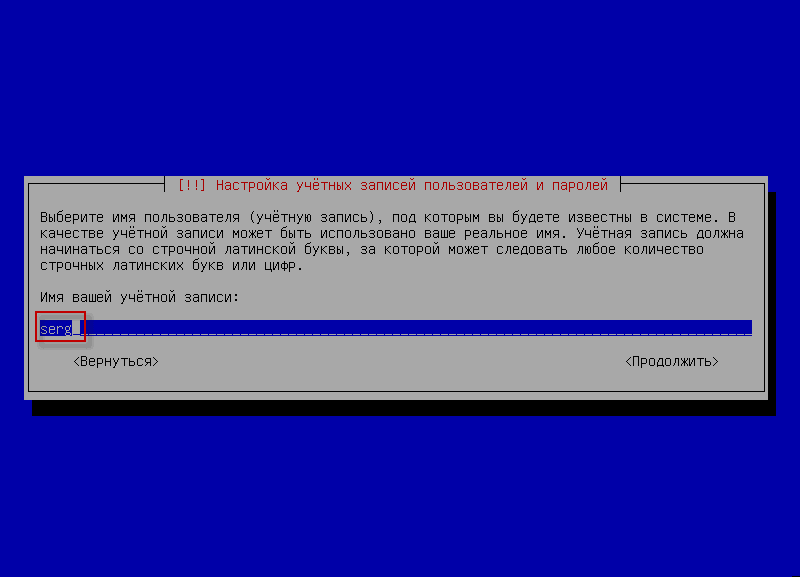
Enter the name of the new user of the system:
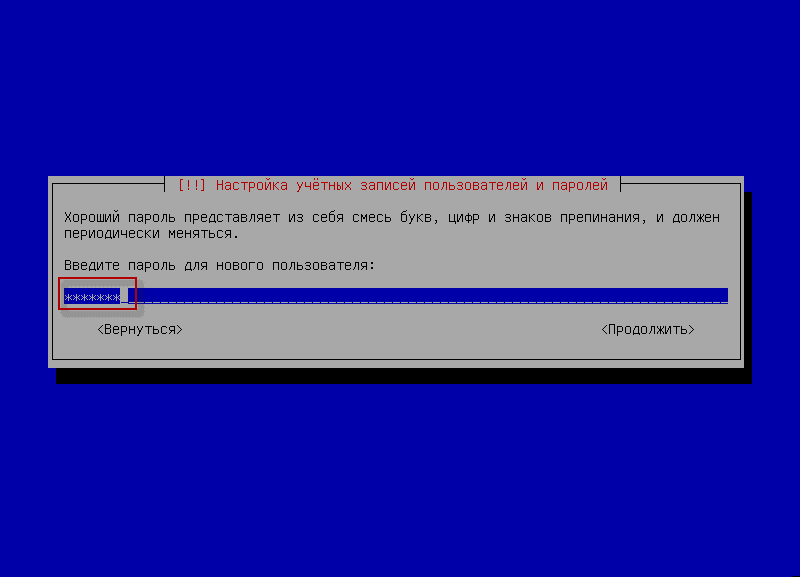
Enter the password of a new user of the system:
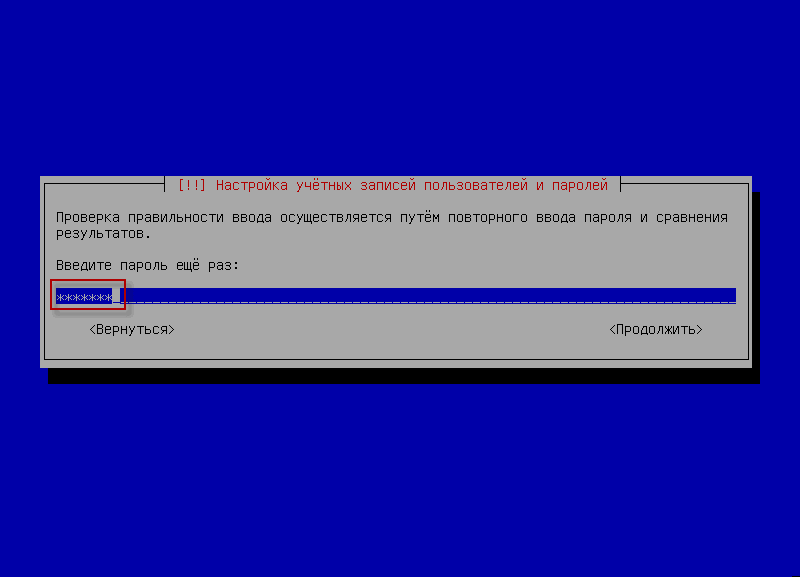
Repeat entering the password of the new user system:
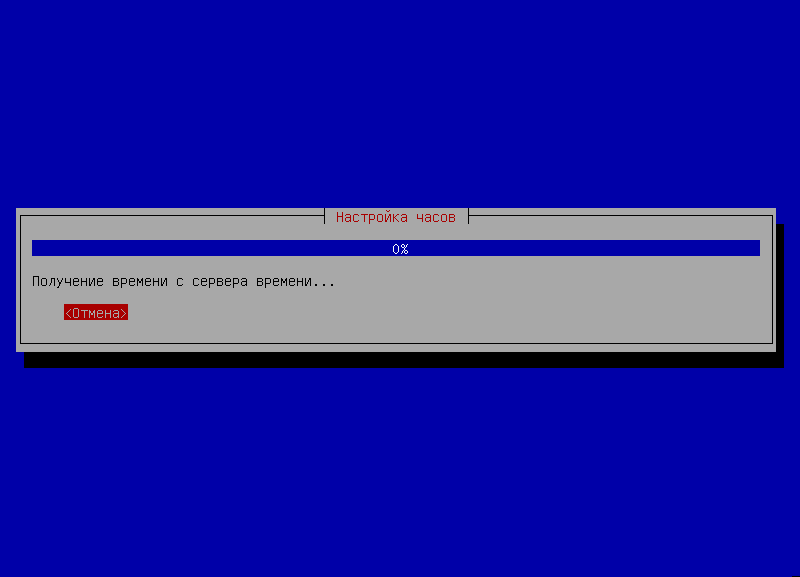
The system tries to configure the server time automatically by receiving the settings from the Internet:
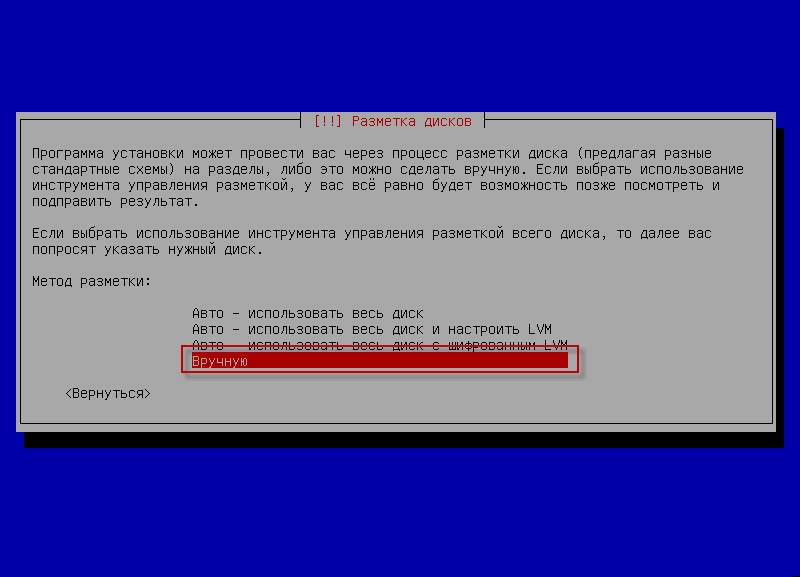
We proceed to the breakdown of the hard drive, choose the manual method of marking up the hard drive:
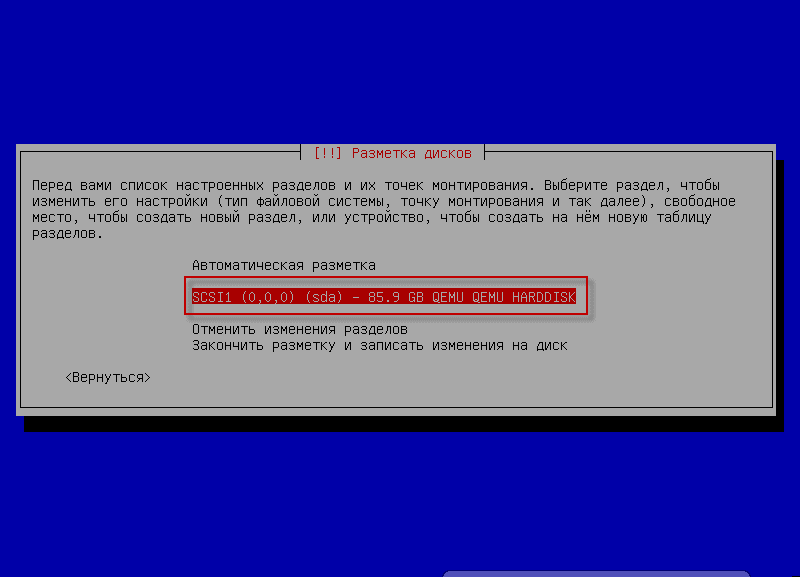
On the Winchester, press. Enter To create a new Winchester structure:
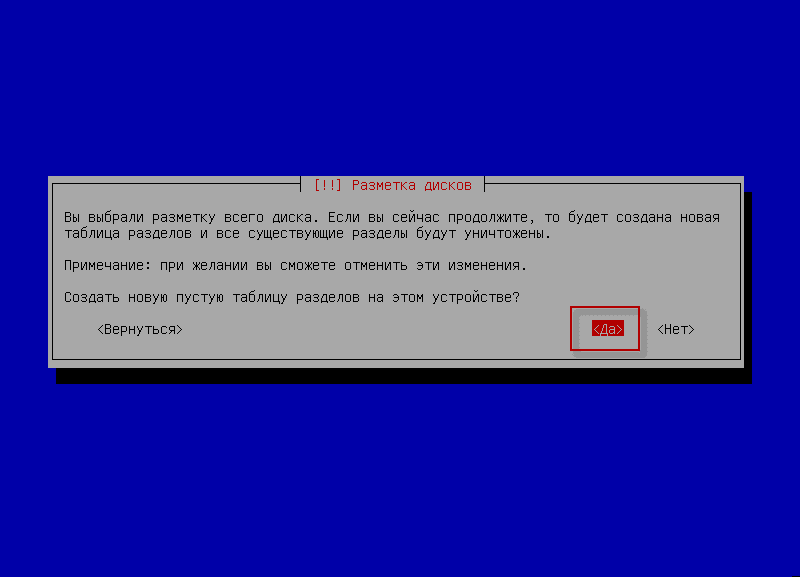
We agree to create a new partition table if you have a new hard drive. If you need to install the system on one of the hard drive sections with data, it (section) can be removed and create the necessary disk markup for installation in the vacant place:
If you need to leave any of the data sections unchanged, or create a section for storing archival copies (which must be stored in another place), you need to choose the desired partition, select the mounting point (for example write to the following article). /data Then the disk section will be on the way. /data) and in no case choose the formatting of the section (unless you create this section from scratch).
We will break down and install the operating system on a new hard drive.
We stand in a free place and press. Enter:
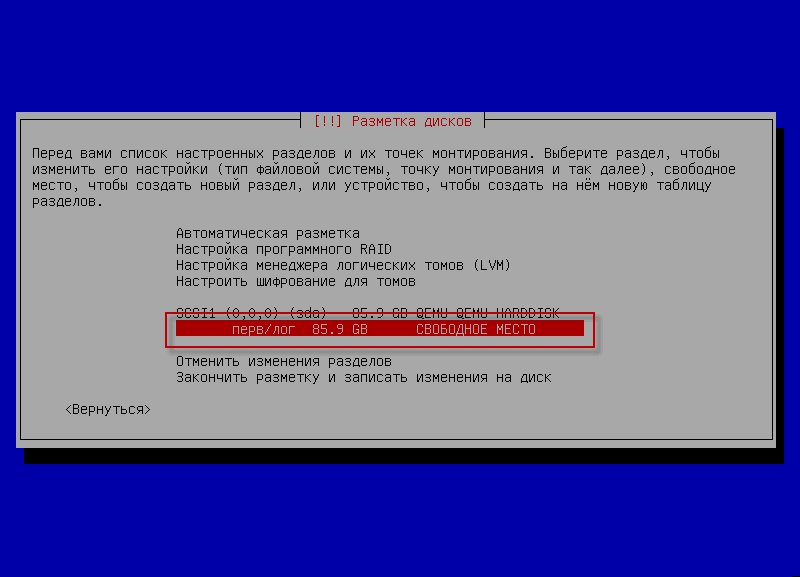
Choose. Create a new section:
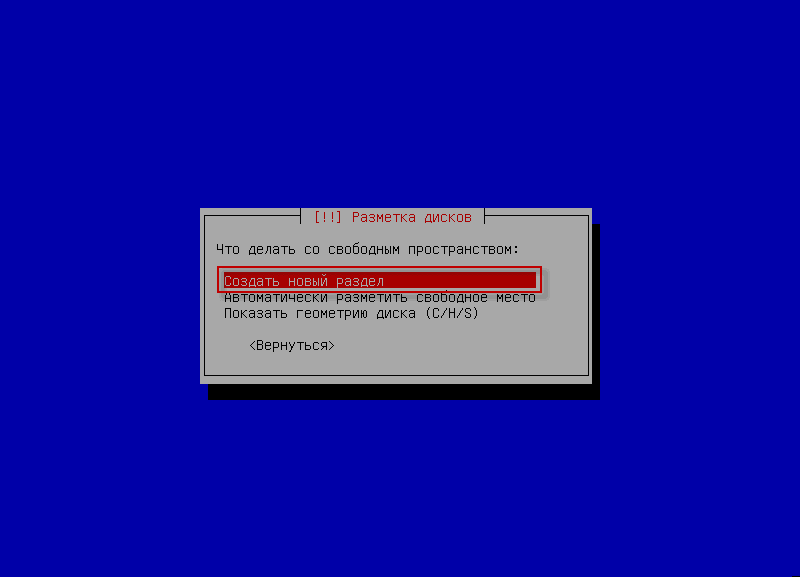
Indicate the size of the boot section0.5 GB
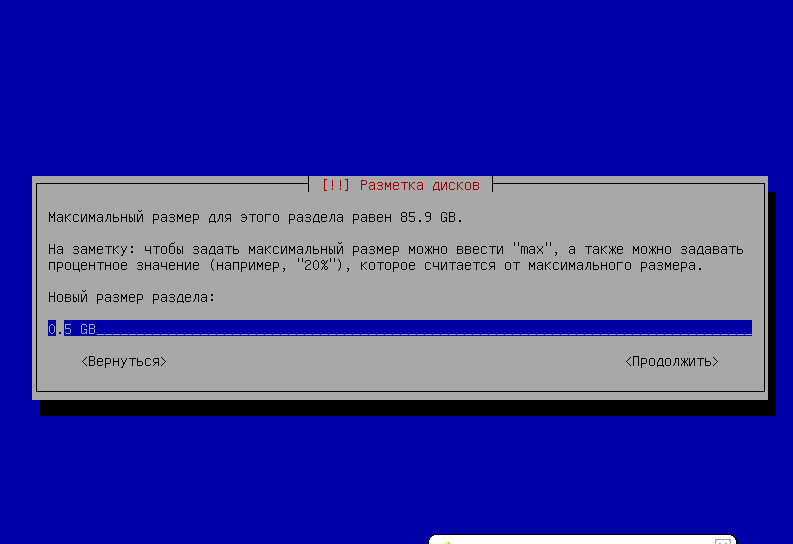
Choose. Primary section:
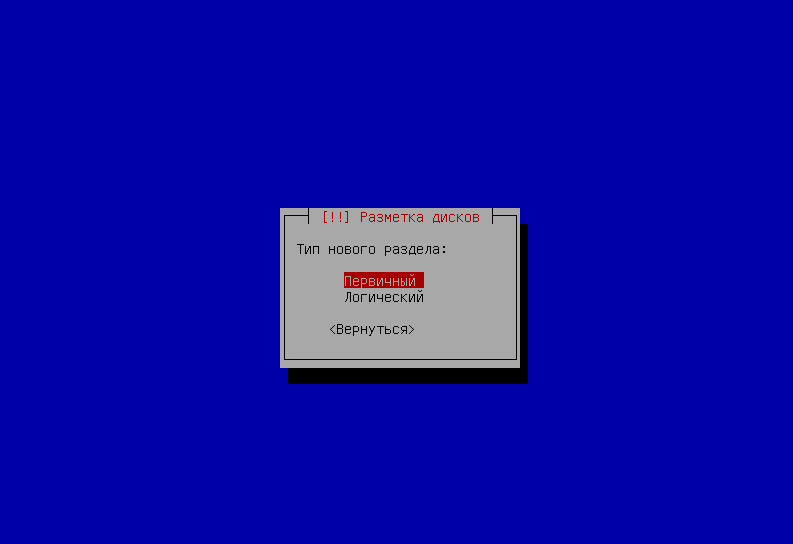
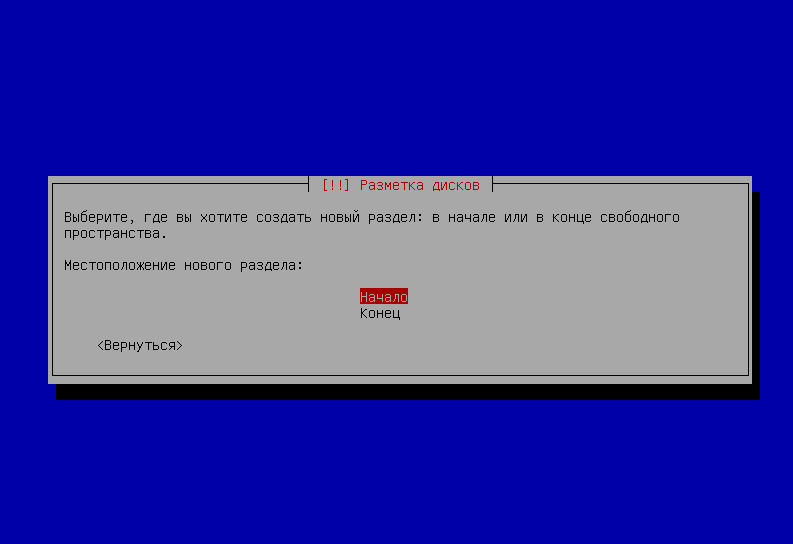
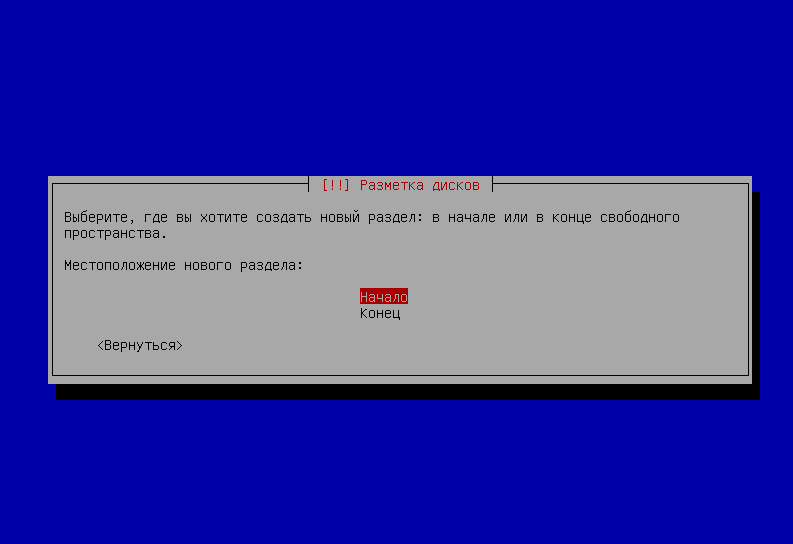
Push. Beginning:
Choose a file system Ext4, indicate the point of installation /bootNote that the section is loading and we stand on Set-up section is complete pressed Enter

After the creation of Free space. press Enter:

In the window that appears, we stand on Create a new section pressed Enter:
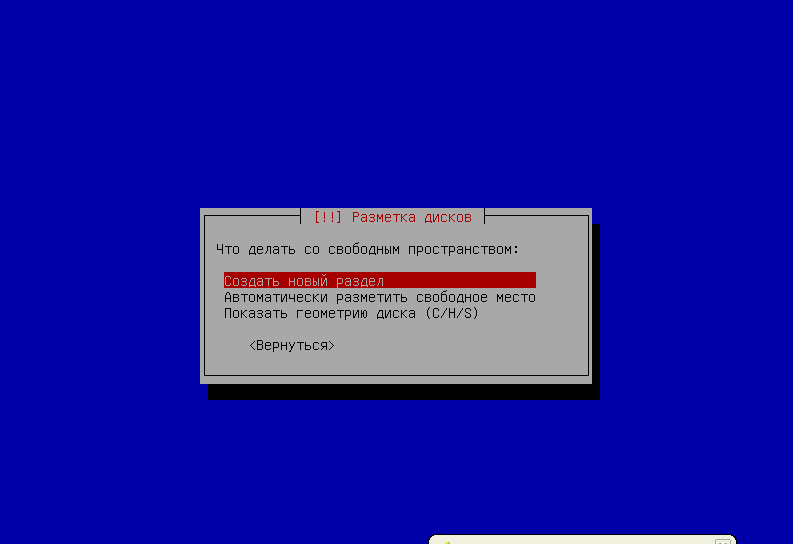
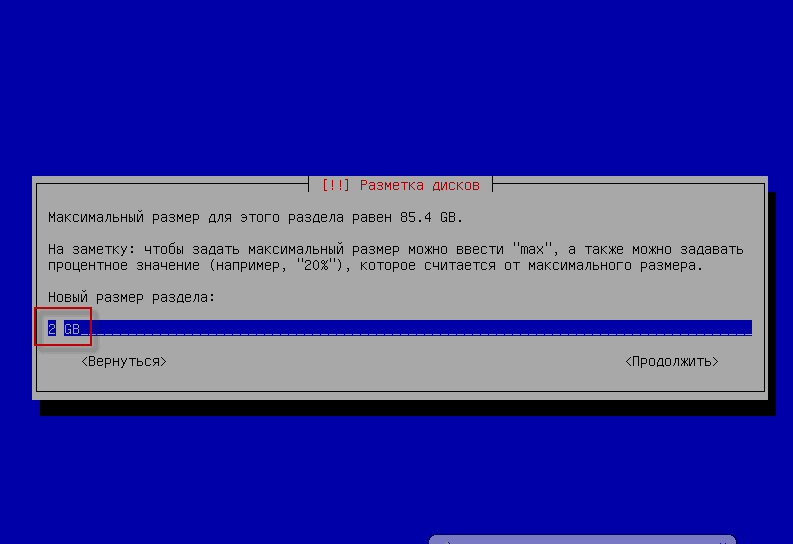
Indicate the size of the section in 2 GB:
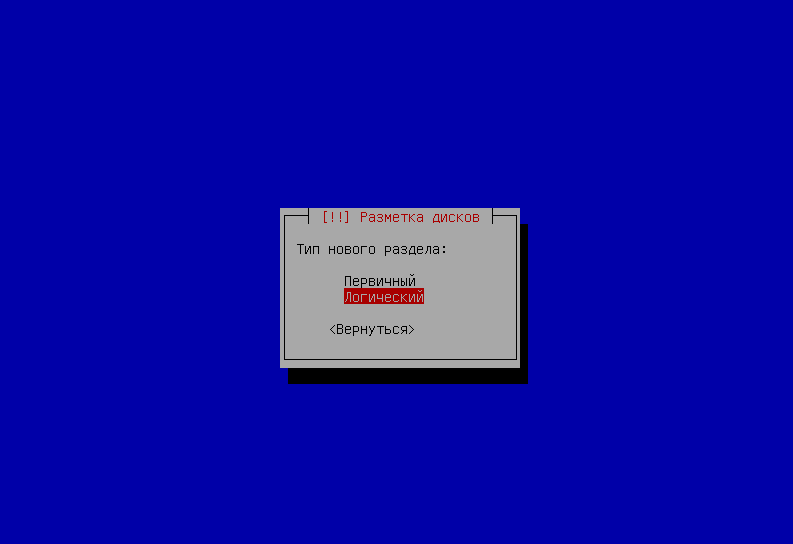
Select the type of new section - Logical pressed Enter:
Choose. BeginningAnd press. Enter:
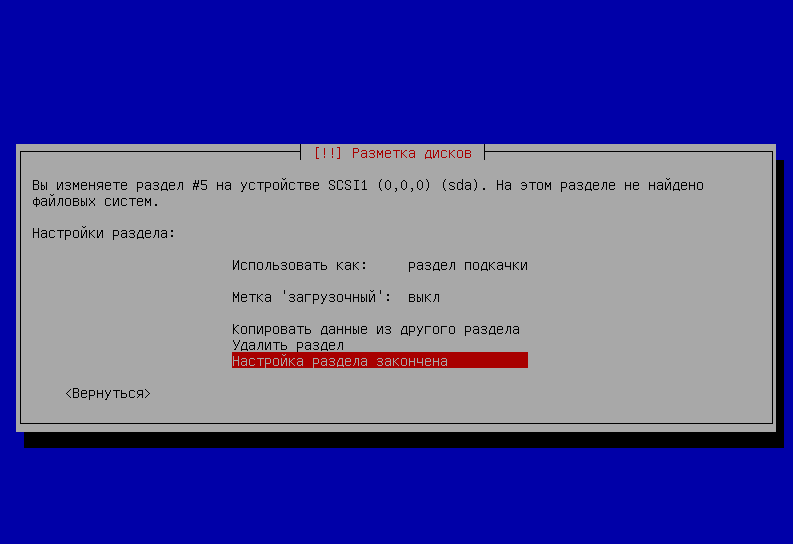
Specify the file system for swap - pumping-pieceThat's why we're on the field. Use it aspress Enter And in the open window, we stand on the field. pumping-piece pressed Enterto create swap The only thing left to do is stand on the field. Set-up section is complete press Enter:
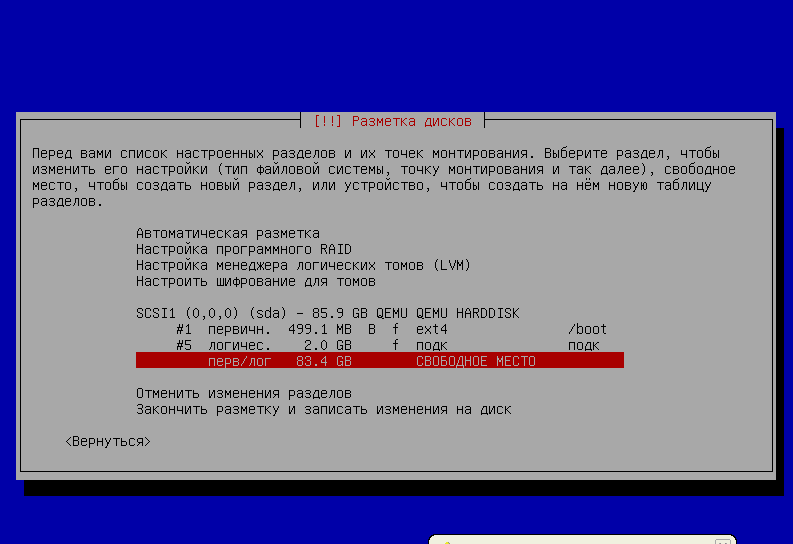
Creating a temporary section /tmp size 3 GBTo do this, we press in a free place. Enter:
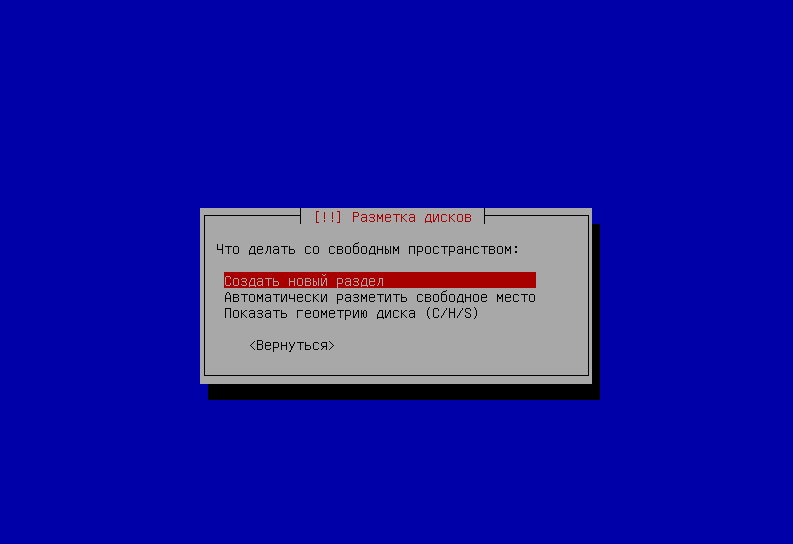
In the open window, select Create a new section:
Indicate a section /tmp - 3 GB:
Choose. Logical section pressed Enter:

Choose. BeginningAnd press. Enter:

Specify the file system for partitioning temporary files /tmp - Ext4
Specify the mount point /tmp
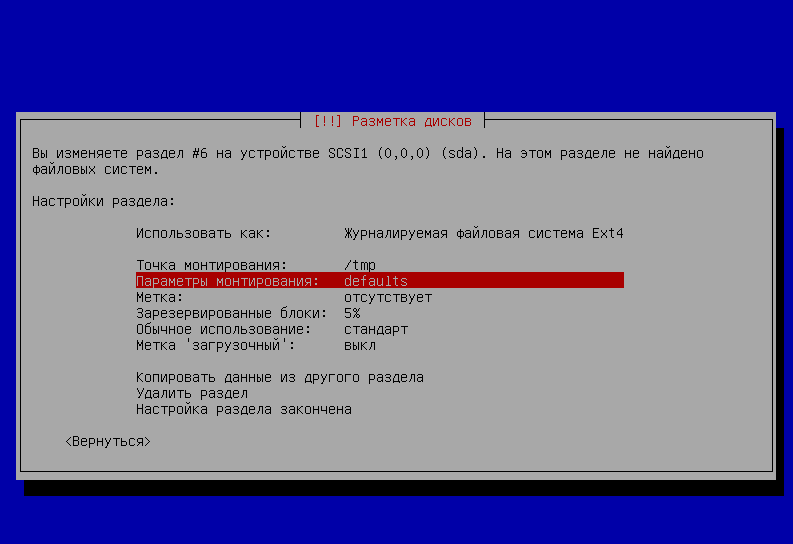
In the mounting parameters, you must choose a parameter: noexec, nodev:
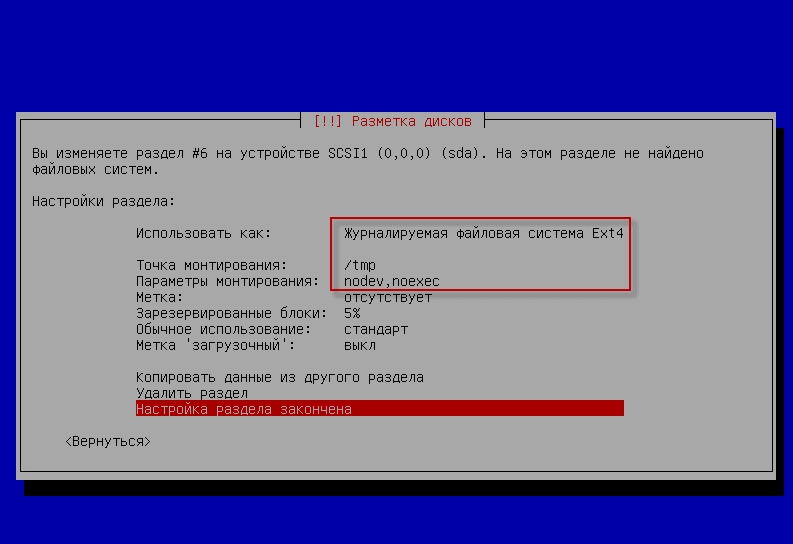
In the disk markup window, you must select Set-up section is complete press Enter:
The remaining free space is allocated under the root section /To do this, we become a cursor on the free place and click Enter:
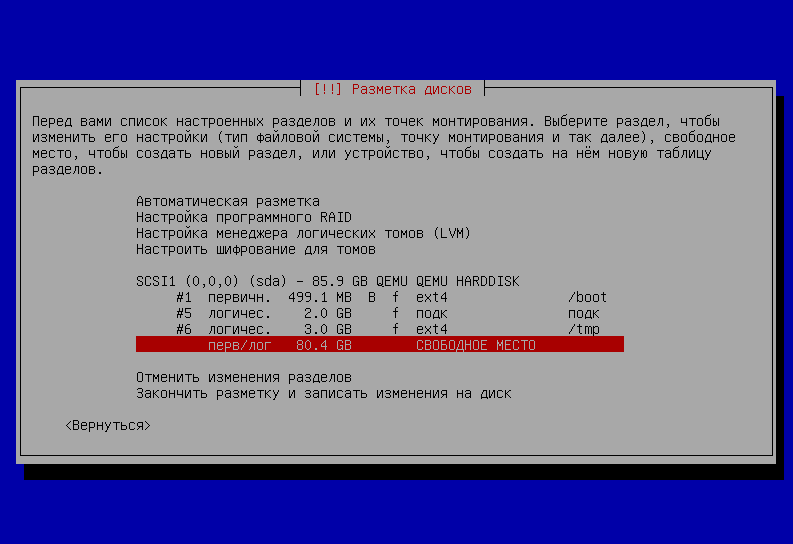
Let's get on. Create a new section pressed Enter:
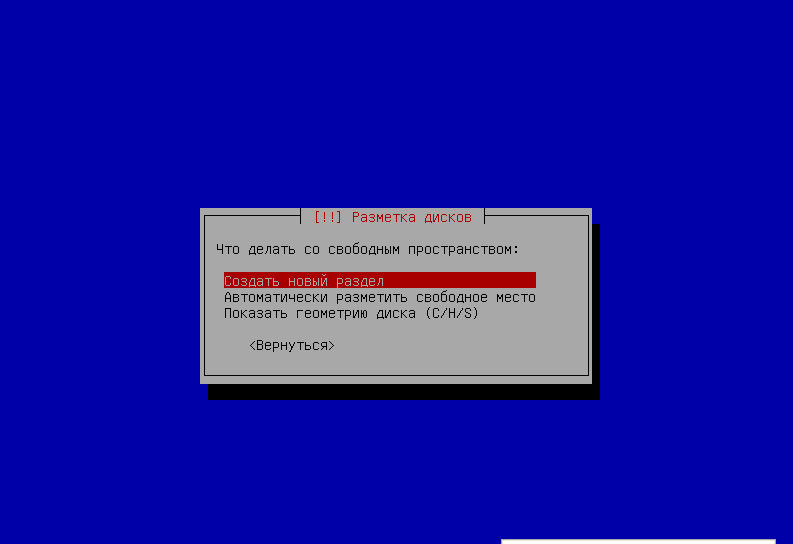
Indicate the size of the remaining size for the root partition, in our case 80.4 GB pressed Enter:
Choose. Logical section pressed Enter:

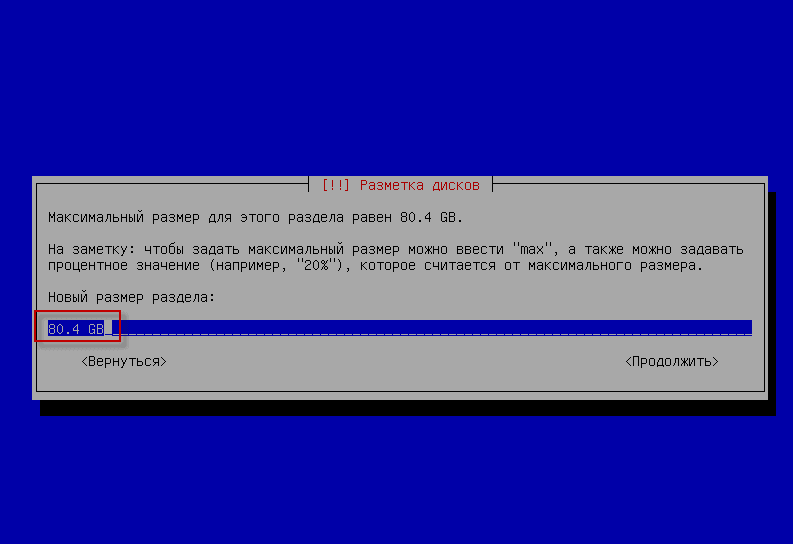
For the root partition, we also select a file system. Ext4Select the mounting point /
To complete the breakdown of the root section, stand on the field Set-up section is complete press the button. Enter:
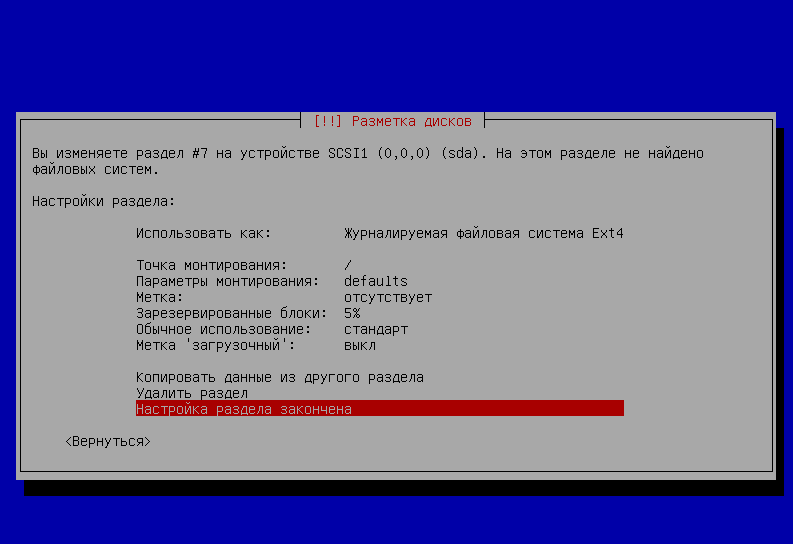
After breaking down and following the previous steps to complete the breakdown of the hard drive, we stand on the field. Finish the markup and record changes to disk and press the button Enter:
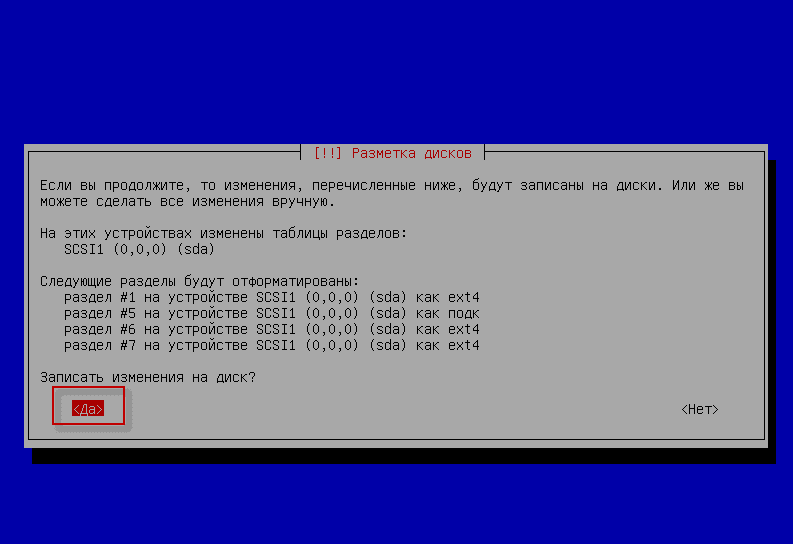
Press the button. Yes. to record changes in the breakdown by disk:
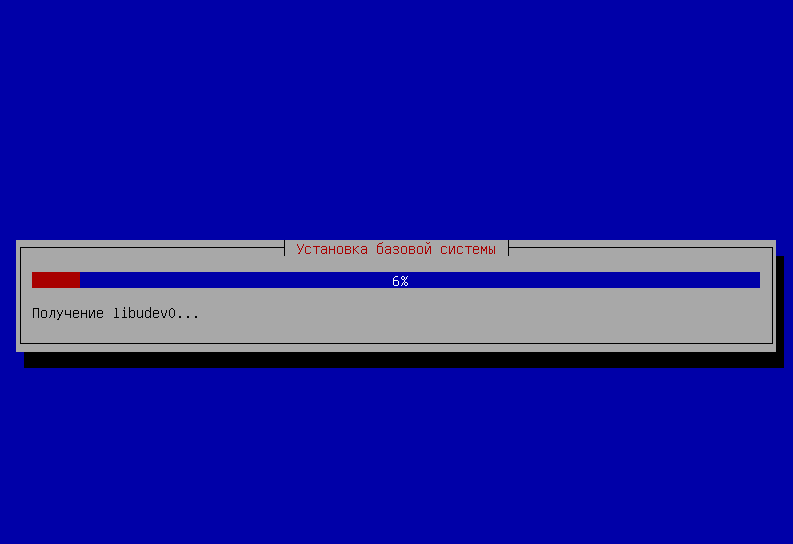
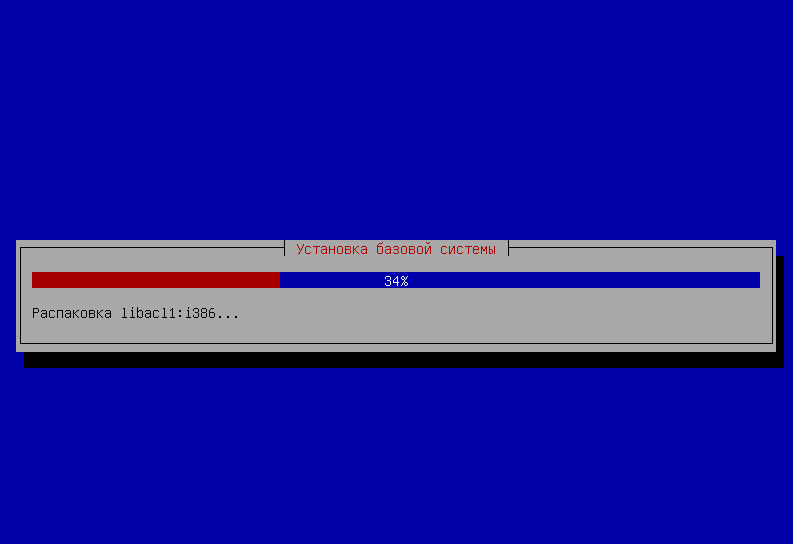
Installation process of Debian Wheezy server:
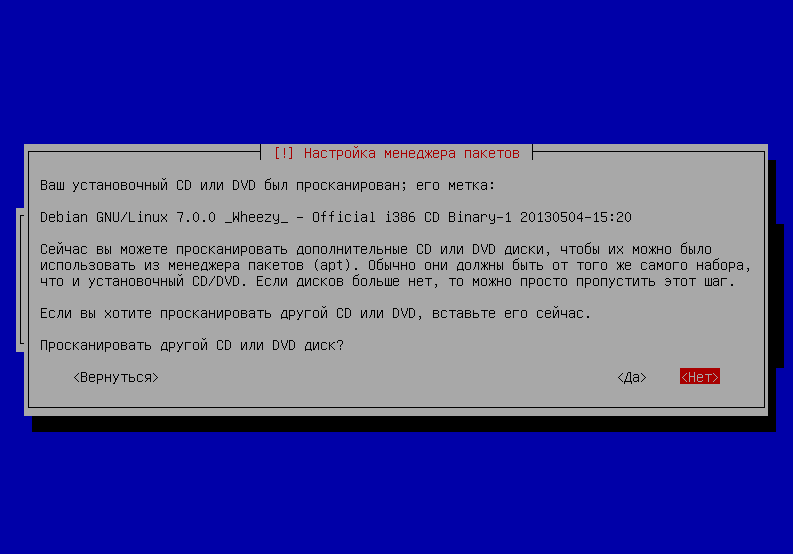
Asked if it was necessary Scan another CD or DVD disc? answer No.:
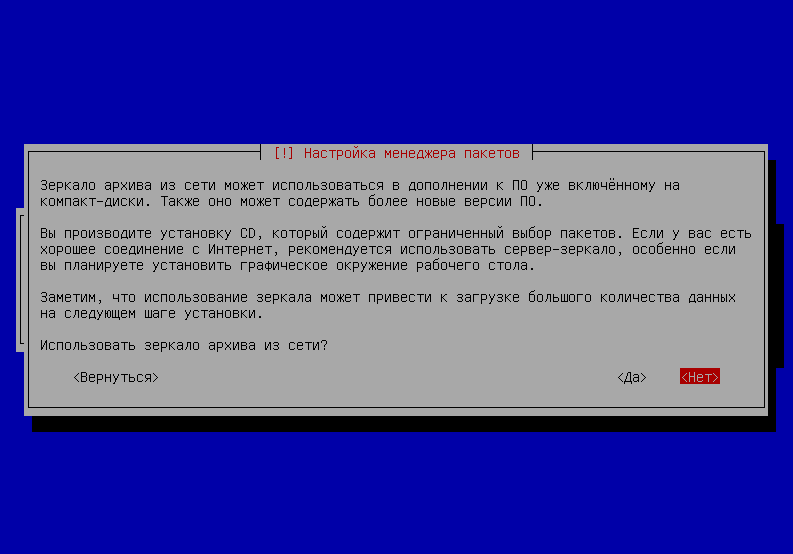
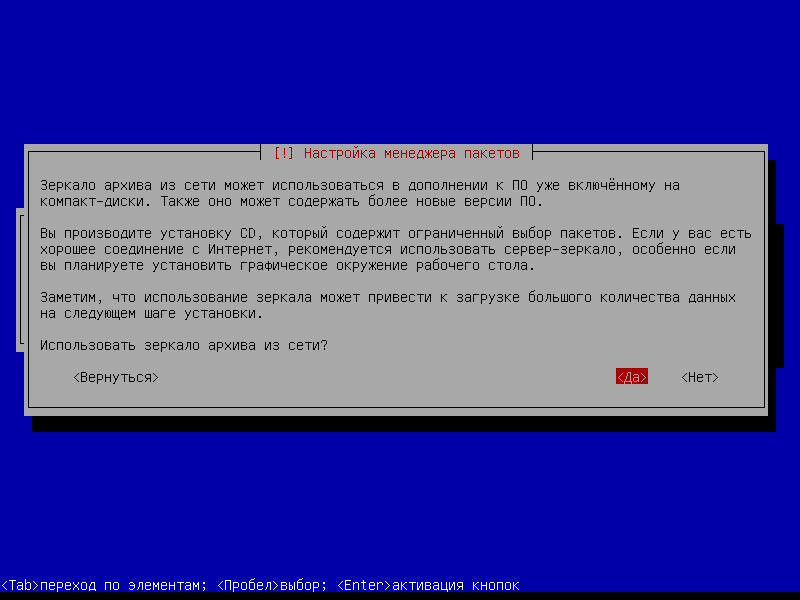
Asked if it was necessary Use a mirror archive from the network? And since I'm installing Debian Wheezy server from CD1 and there's no Internet connection on the server, I say, No., We will install the necessary programs later after we connect to the Internet:
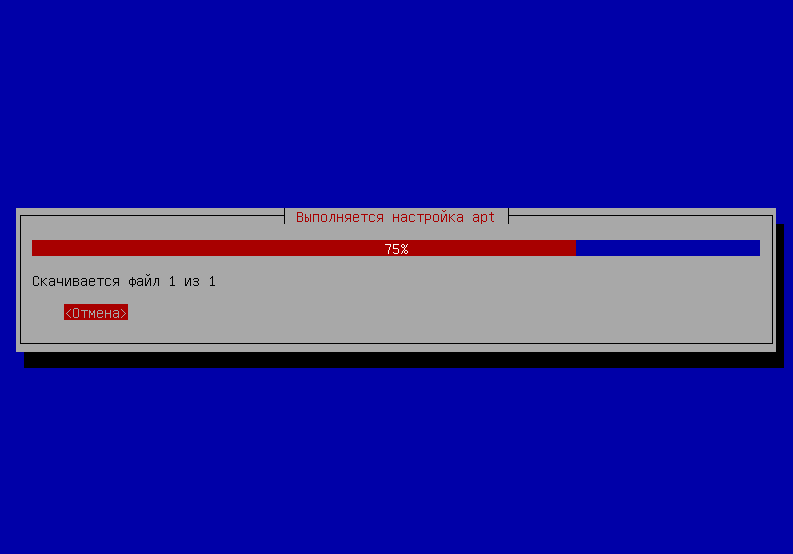
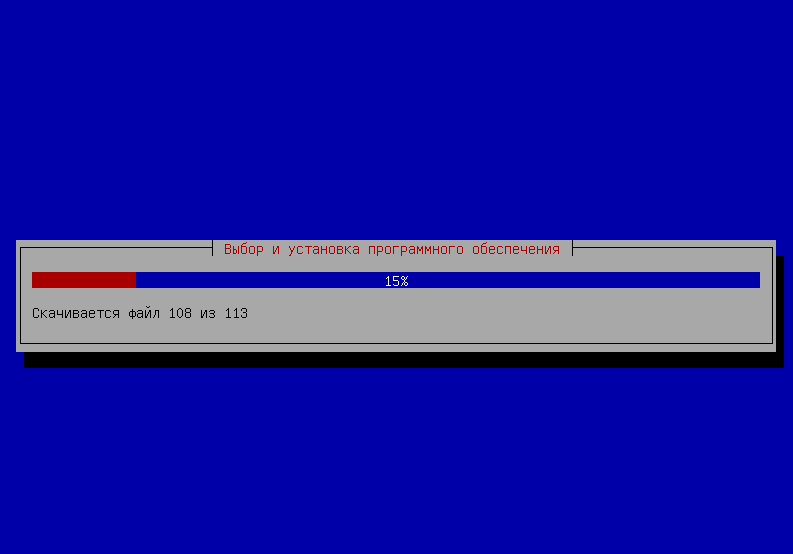
We observe the process of installing Debian Wheezy server:
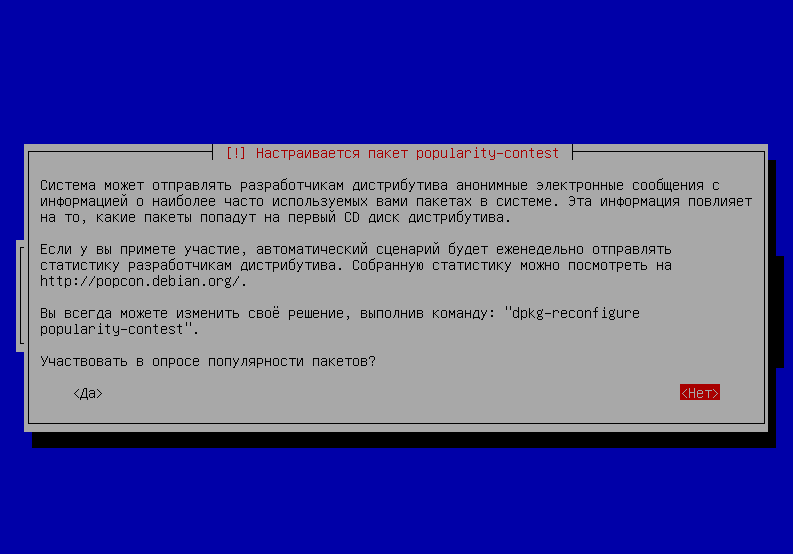
Question. Participate in a survey of the popularity of packages? answer No.:
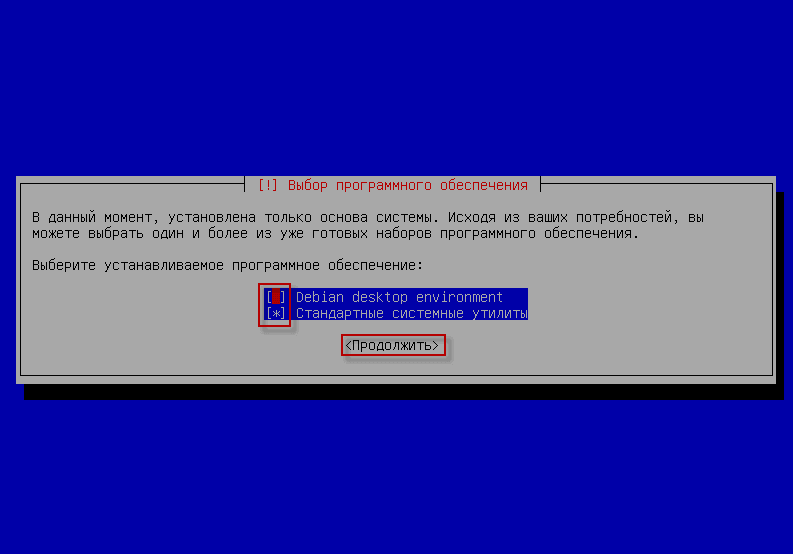
On the question of choosing packages, you need to remove the tick from the box. Debian desktop environment checkmarking Standard system utilities pressed Continue.:
Observe the process of installing the server Debian Wheezy:
As mentioned above, the Debian Wheezy CD1 installation disc does not have the ability to install additional packages such as SSH, DNS and others without having internet during installation.
If you install Debian Wheezy from DVD1, then to install additional services, you do not need access to the Internet and you can safely click. No..
To install SSH or other service from a CD1 disk during installation, you need an Internet connection on the server. Then you need to answer the question about using a mirror from the network. Yes.:
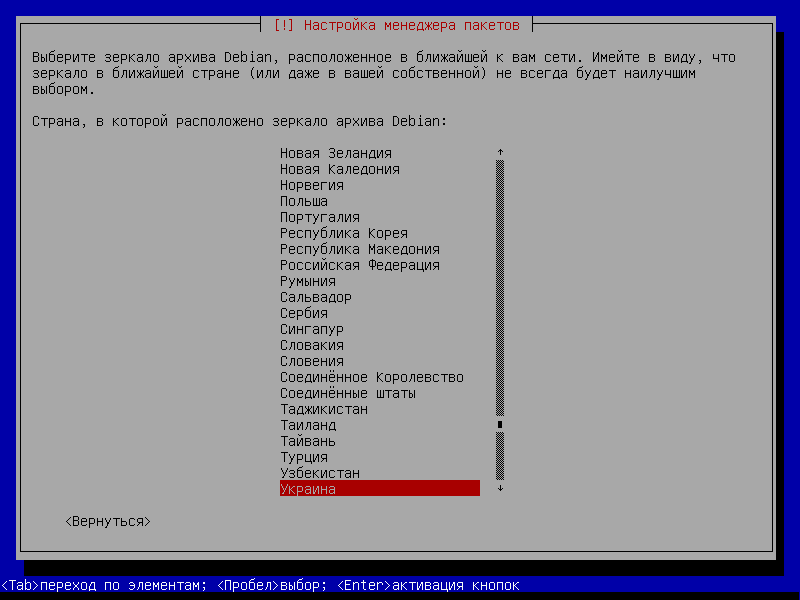
Select the country of connection repository, in our case choose Ukraine:
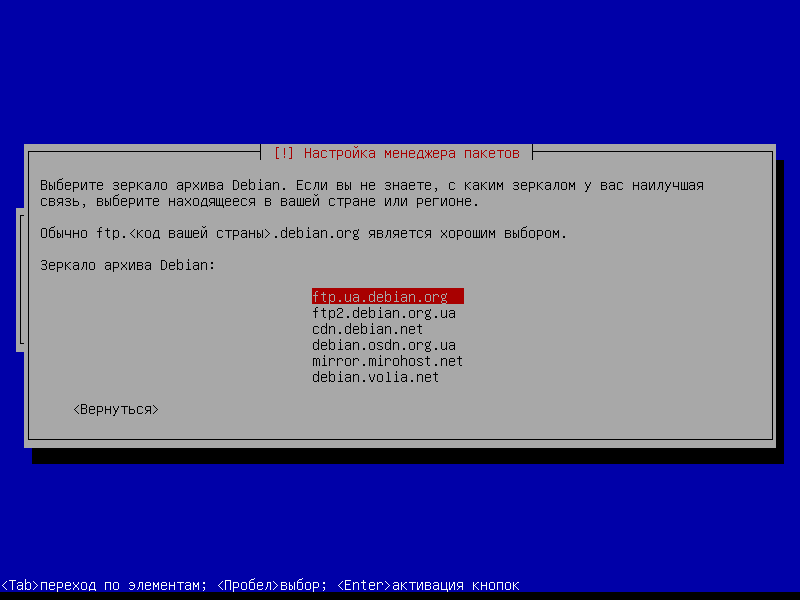
Choose the server you like, I left the first server which is selected by default and click Enter:
If you have an Internet connection used through a proxy server, you need to register the address of the Internet connection via a proxy, if you do not use a proxy, then leave the field blank:

The basic system is being installed:
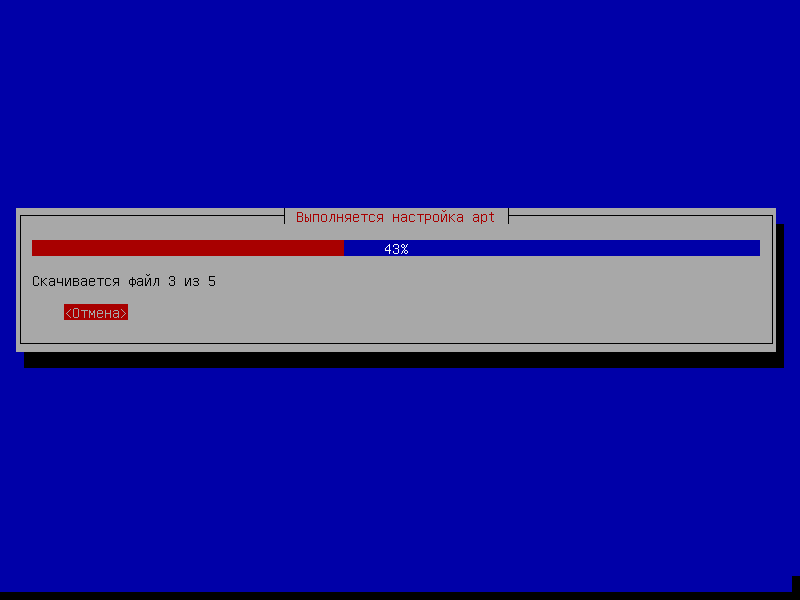
An example of a standard package selection when installing Debian Wheezy from DVD1 is the following software installation window:
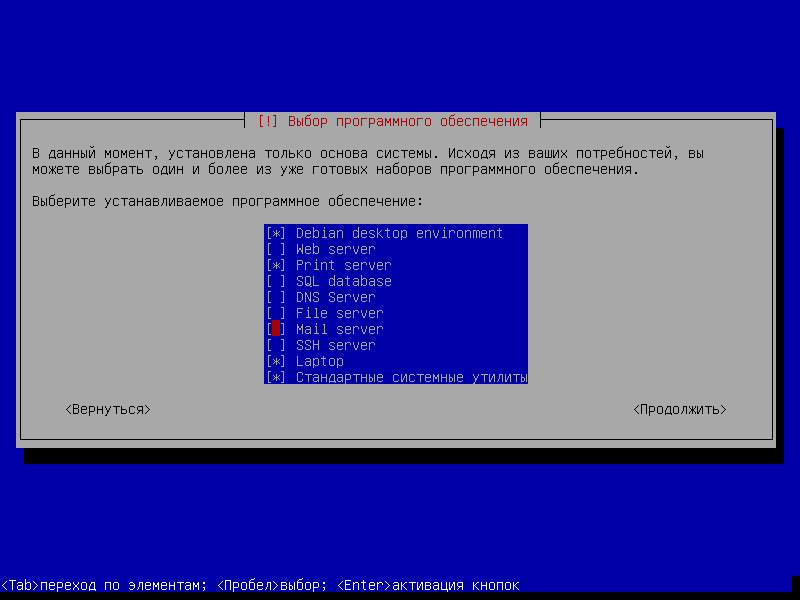
For the Debian Wheezy server, we only need to tick:
- SSH server
- Standard system utilities
To start the installation, you need to press a button. Continue.:

We see the process of preparing for the installation of grub2:

To the question about installing Grub2 in the main boot record, we answer Yes.:

At the end of the installation, the system will give a window that the installation is completed, click Enter:

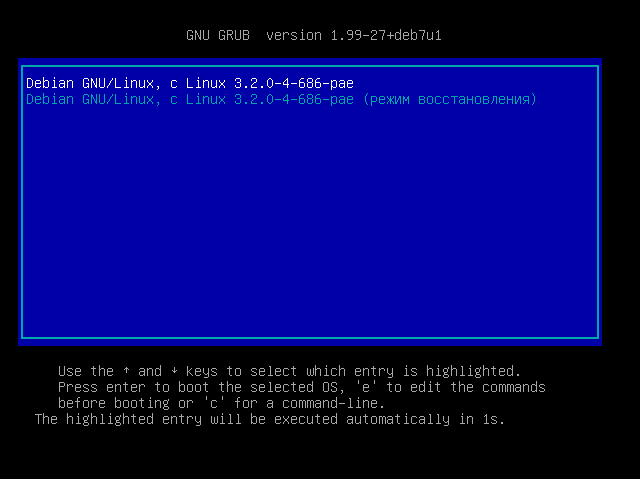
After restarting, the Debian Wheezy server will start loading and you can see the window with the system cores installed:
We see the login window:
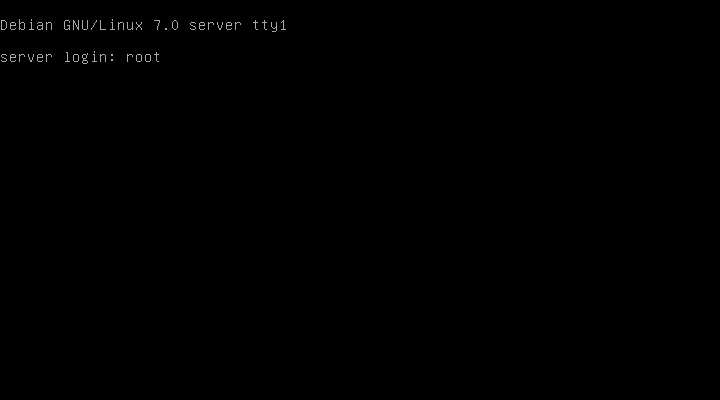
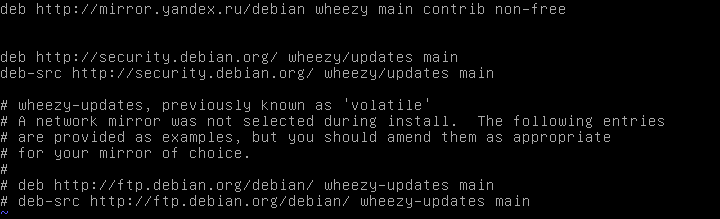
You need to add a repository to the file. /etc/apt/sources.list record deb http://mirror.yandex.ru/debian wheezy main contrib non-free You can add this record by following the command:
echo 'deb http://mirror.yandex.ru/debian wheezy main contrib non-free' > /etc/apt/sources.list
If you installed Debian Wheezy server from CD1, you must configure the Internet according to the instructions: Set up an Internet connection, as well as configuring network cards on the server in Debian, Ubuntu and their derivativesand then install an SSH server to remotely access the server.
Update the repository and install some programs by executing commands:
aptitude update
aptitude install vim ssh mc

The Debian Wheezy server installation is complete, I hope this guide is useful for you.
I was with you. Sergey Lazarenko.
Let’s take a few minutes off from work and watch this funny video:

comment