

 Installation of Debian Squeeze begins with the recording of an image of the Debian Squeeze installation disc on disk, which can be downloaded from the official website Debian.org on the website Debian.org. page. A CD1 disc is sufficient for installation.
The installation will be carried out on the entire hard drive, with the creation of a new partition table of the hard drive.
The screw will be divided into such sections:
/boot - 250 mbThe boot partition in which the Linux kernel will be located, and from which the operating system will be loaded.
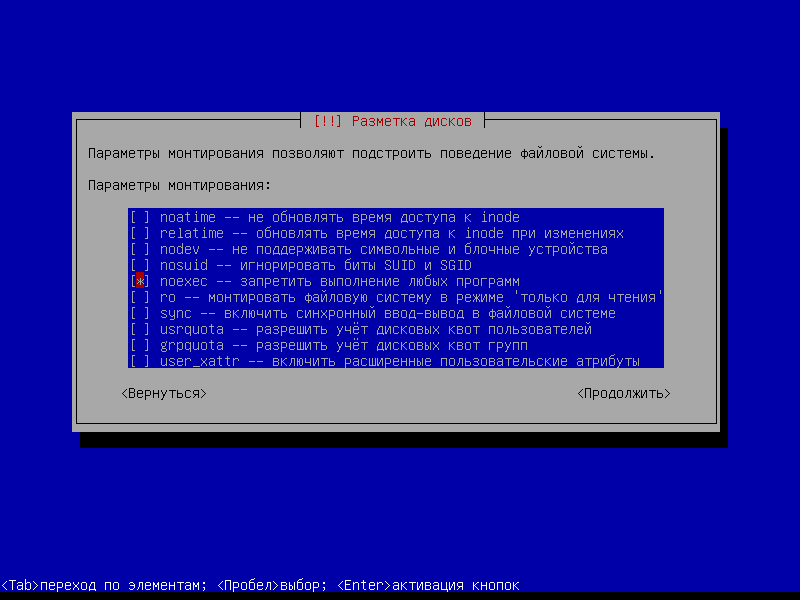
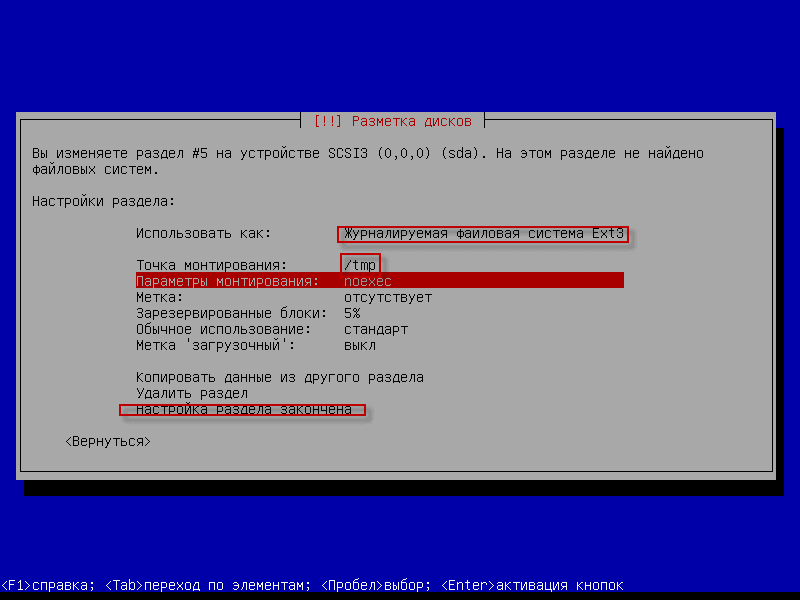
/tmp - 2 gbPartition for temporary files with mandatory mounting parameter noexec. Noexec prohibits the execution of any programs from the section.
swap - 2 gb, partition paging, size is mainly made by 2 times the amount of RAM your server.
/ The rest of the place, the root of the system, that is, everything is mounted in the root.
This breakdown suits me because I really like to use the ispmanager hosting control panel and for it this is a more optimal breakdown, or rather, developers require everything to be put at the root /, but I prefer to do additional 2 sections: /boot, /tmp (without advertising to pay about $ 18 for a perpetual license and use a convenient panel, convenient archiving built into the panel, convenient administration from the web interface is something) You can of course put ispconfig, play with the setup and everything will work no worse and free, but this will not be convenient. You need to draw archiving scripts, do something. It if you configure everything works well, but you want to use a cool and convenient panel for a small price, where everything works out of the box.
For greater reliability and security, 3 more sections can be made. It's /home, /var, /usr - but for the first server, and subsequent ones, you can completely do without them.
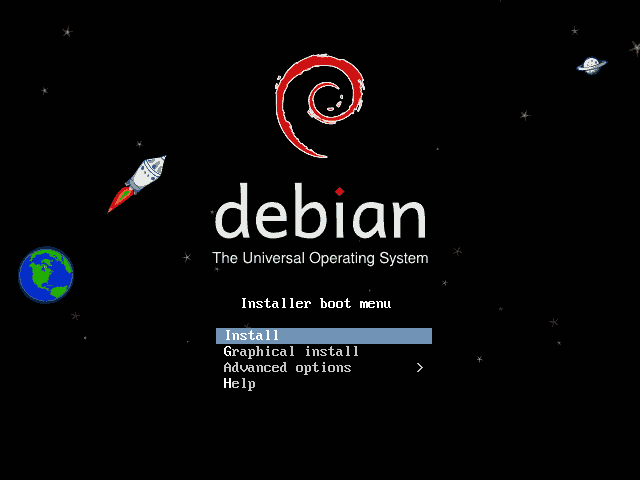
Start of installation:
Push. Install:
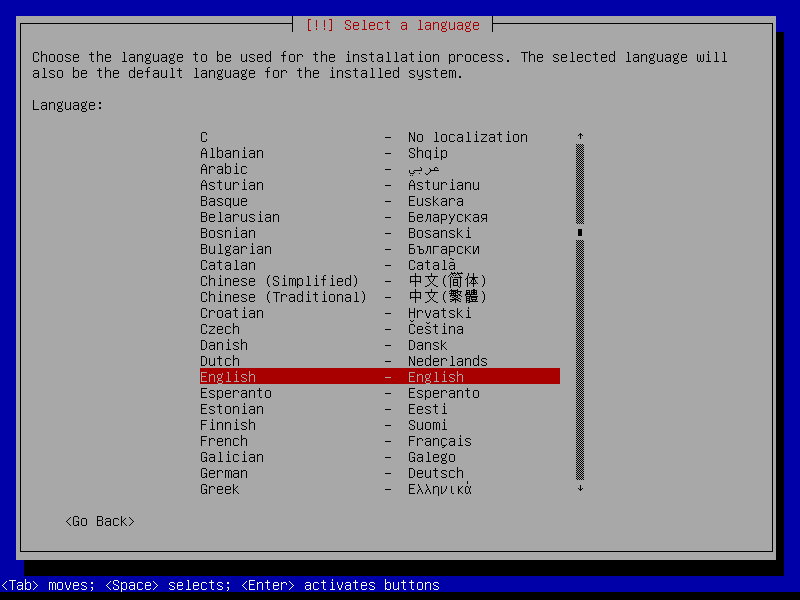
Select the installation language:
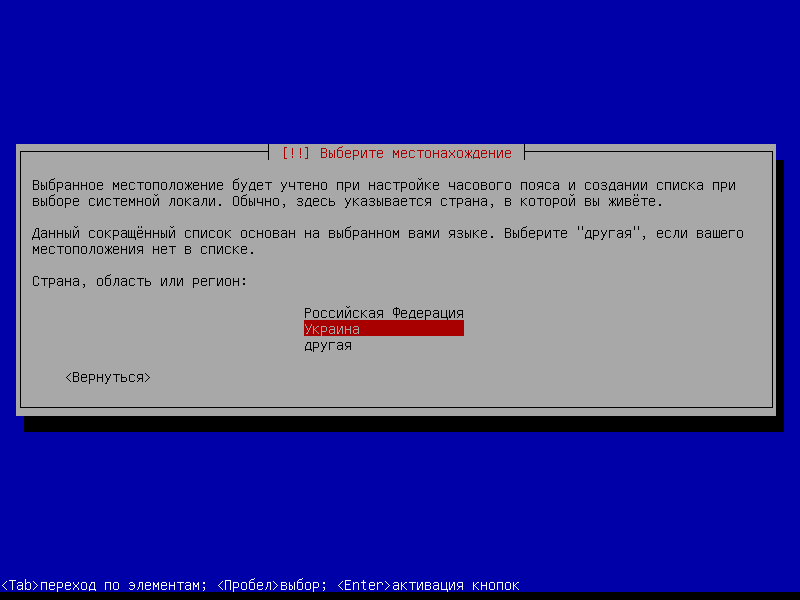
Select a country to set up the time zone:
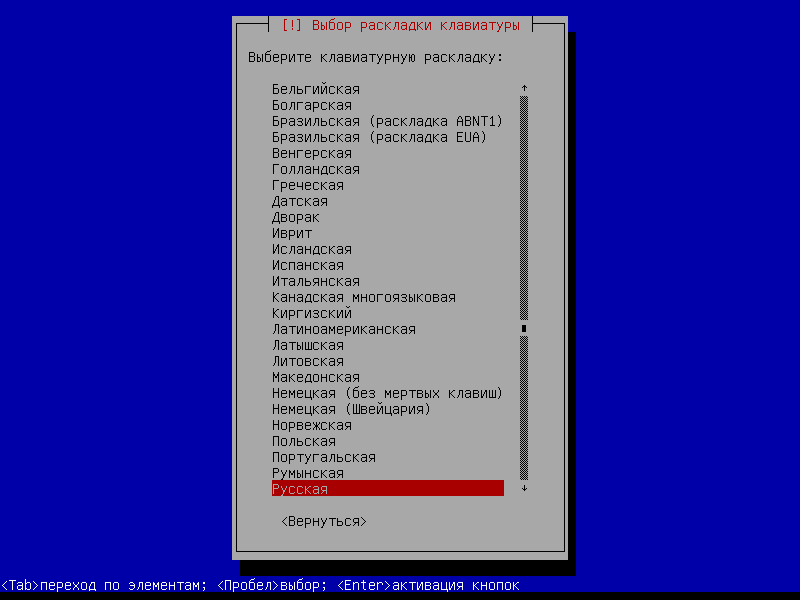
Choose the keyboard language:
Write the name of the computer:
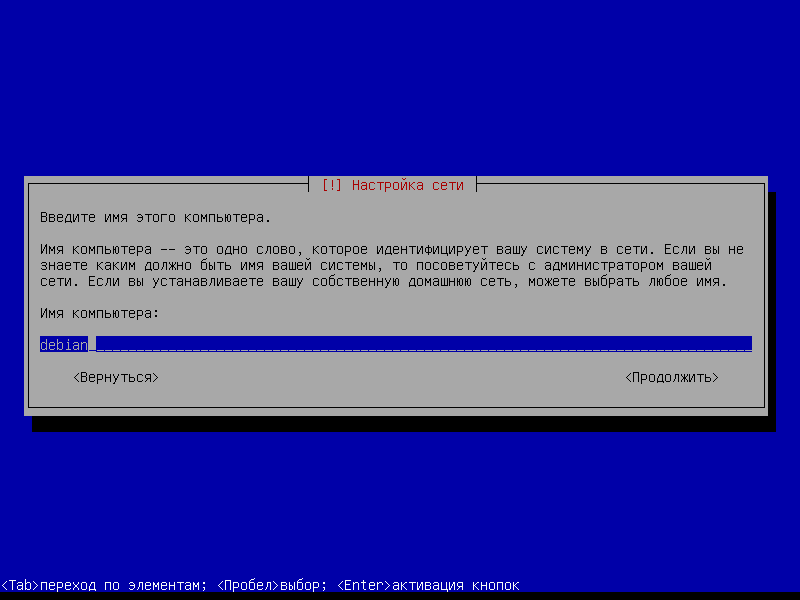
We provide the domain name, but you can leave it empty:

Enter the password. root user:
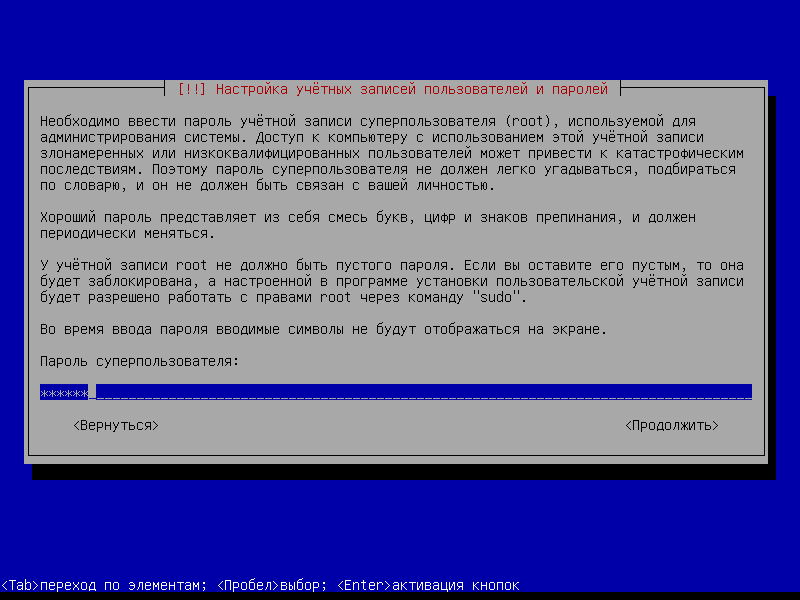
Repeat the user’s root password:

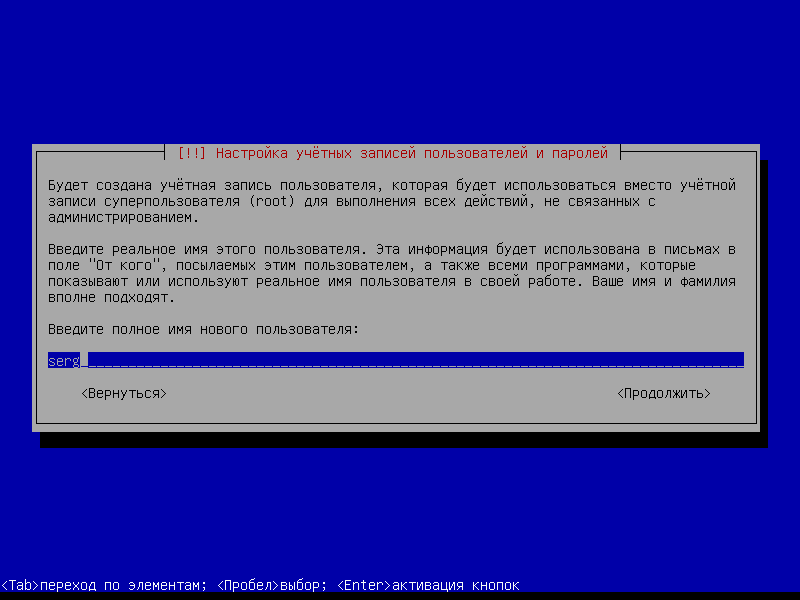
Enter the full name of the new user of the system:
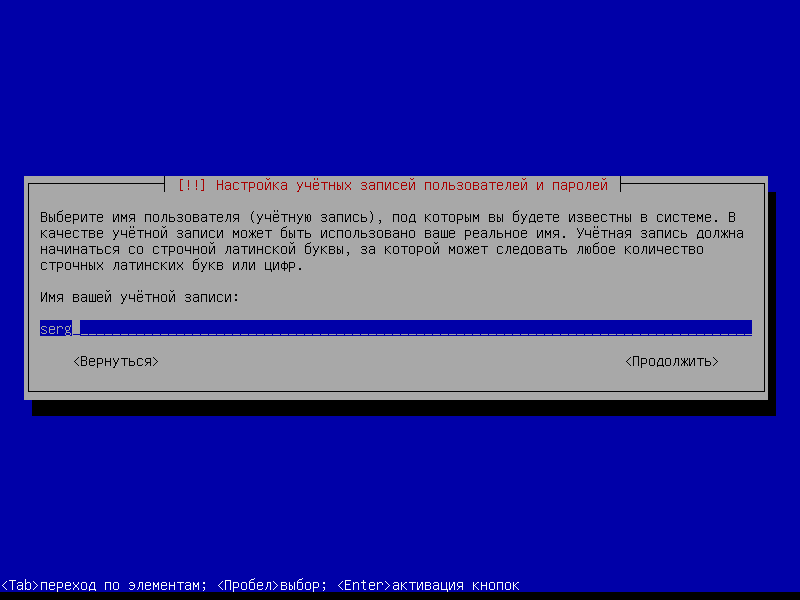
Enter the name of the new user of the system:
Enter the password of a new user of the system:
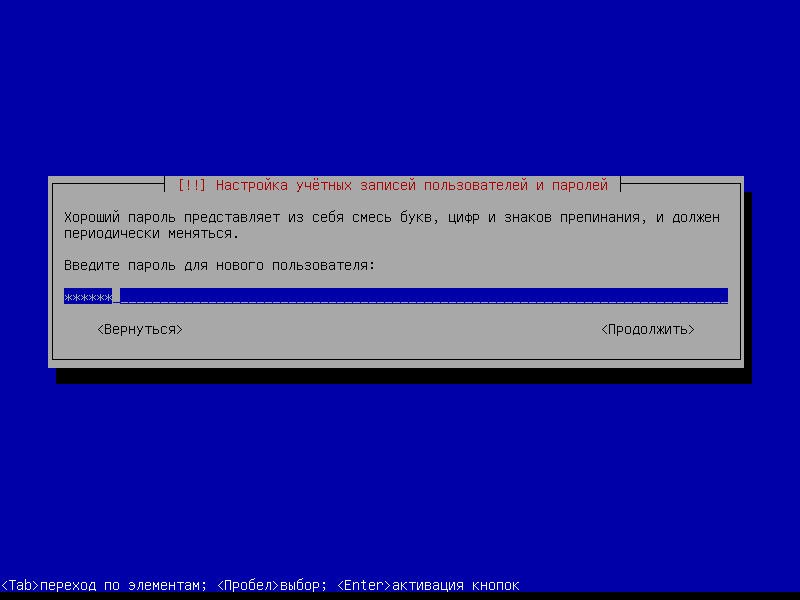
Repeat entering the password of the new user system:

Choose a manual method of marking the hard drive:
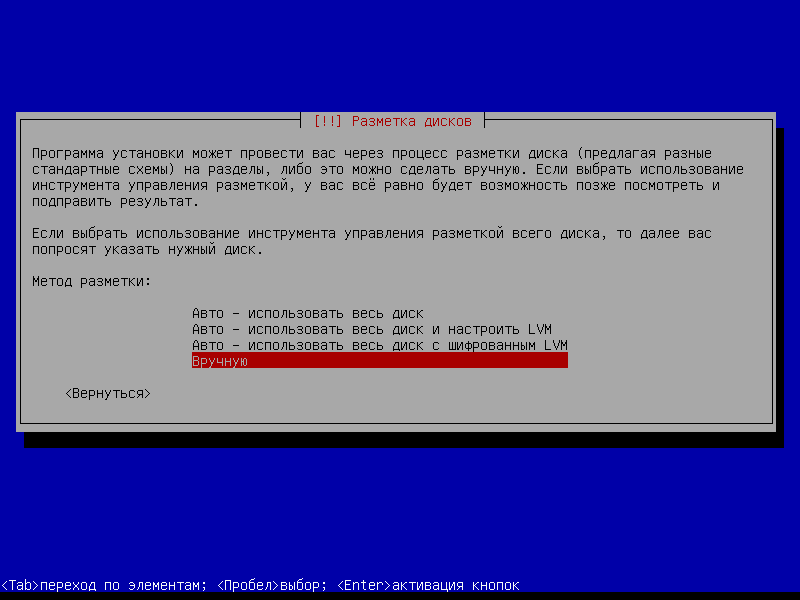
On the hard drive, press Enter:
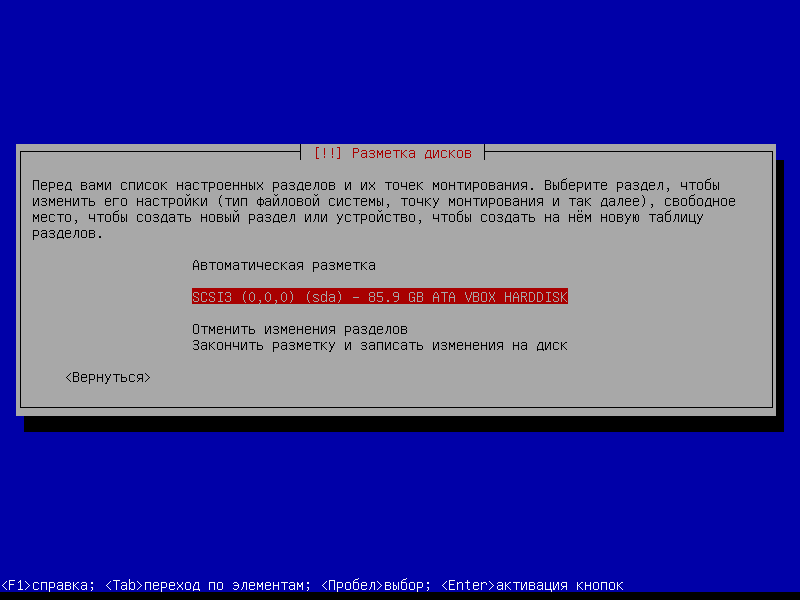
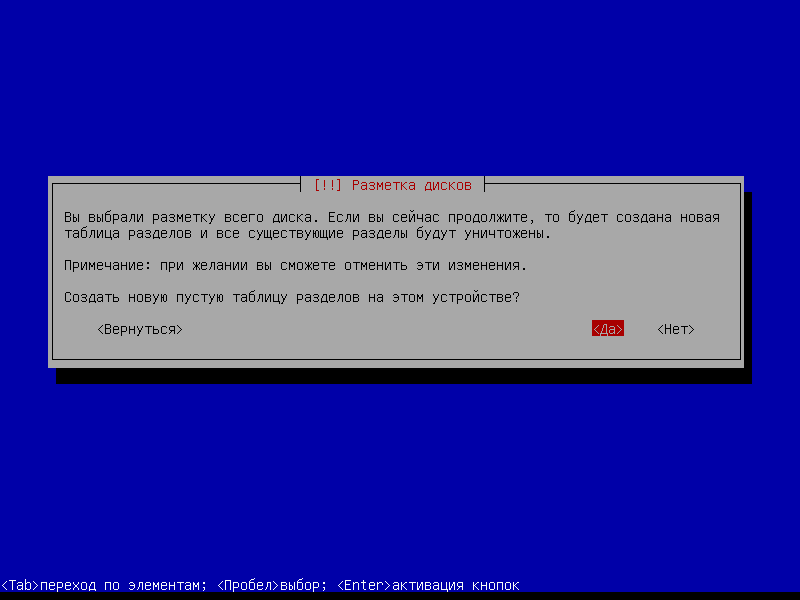
We agree to create a new partition table if you have a new hard drive. If you need to install the system on one of the hard drive sections with data, it (partition) can be removed and create the necessary disk markup for installation:
If you need to leave any of the data sections unchanged, or create a section for storing archival copies (which must be stored in another place), you need to choose the desired partition, select the mounting point (for example write to the following article). /data Then the disk section will be on the way. /data) and in no case choose the formatting of the section (unless you create this section from scratch).
We will break down and install the operating system on a new hard drive.
We stand in a free place and press. Enter:
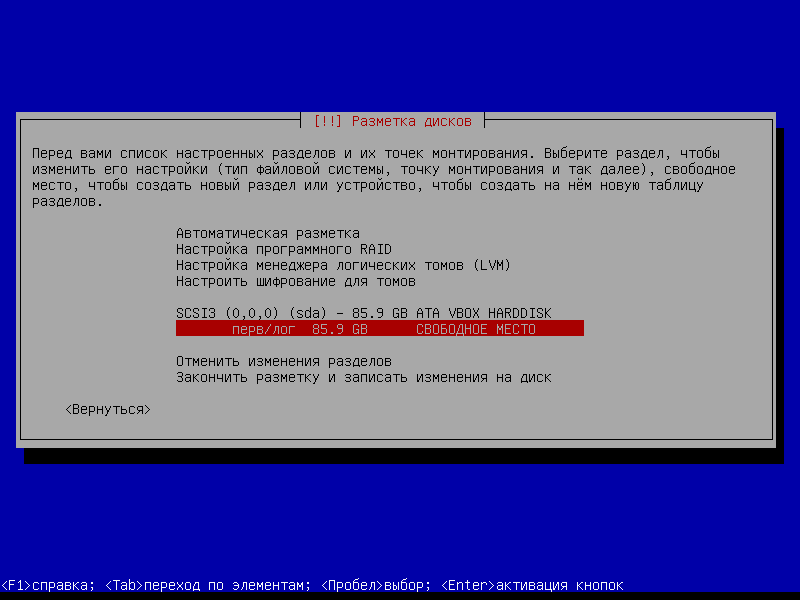
Choose. Create a section:
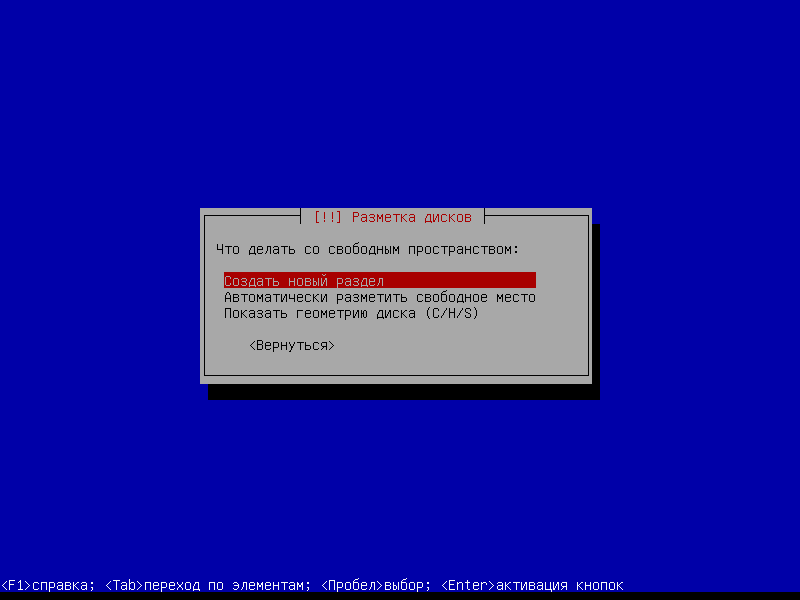
Indicate the size of the boot section /boot 250mb

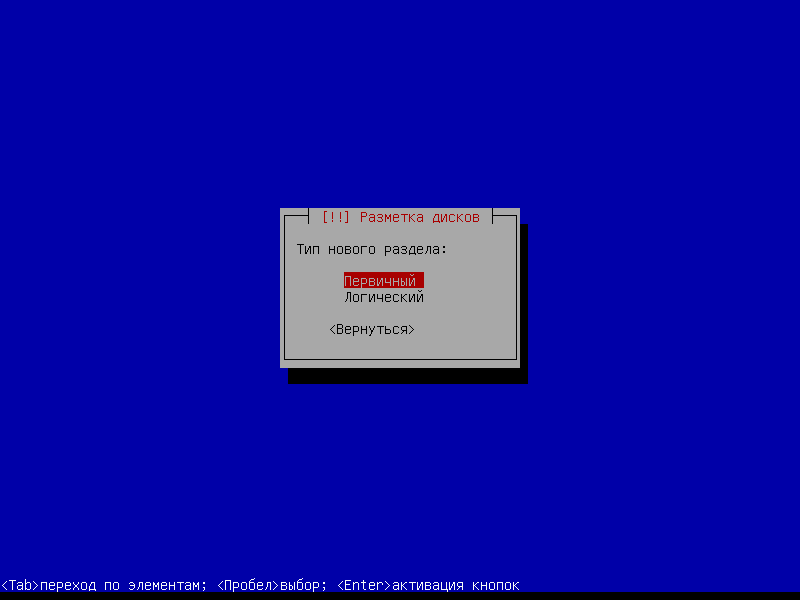
Choose. Primary section:
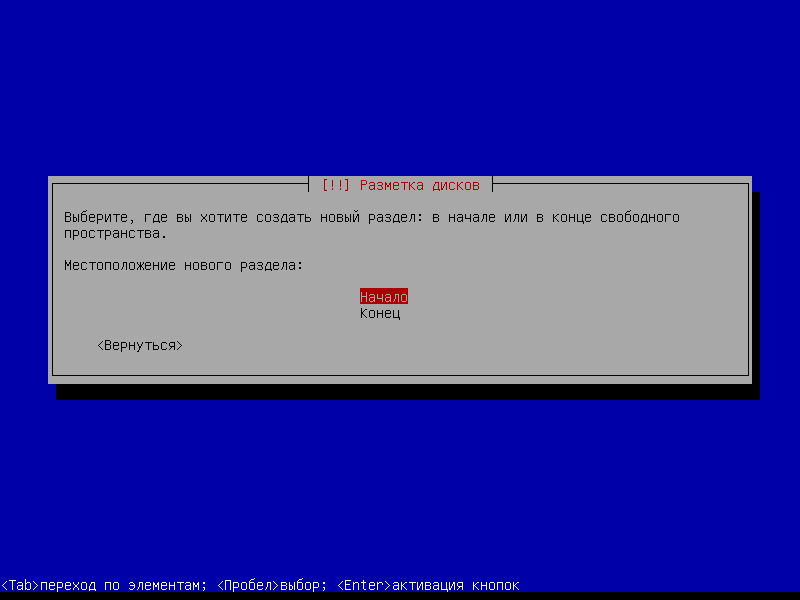
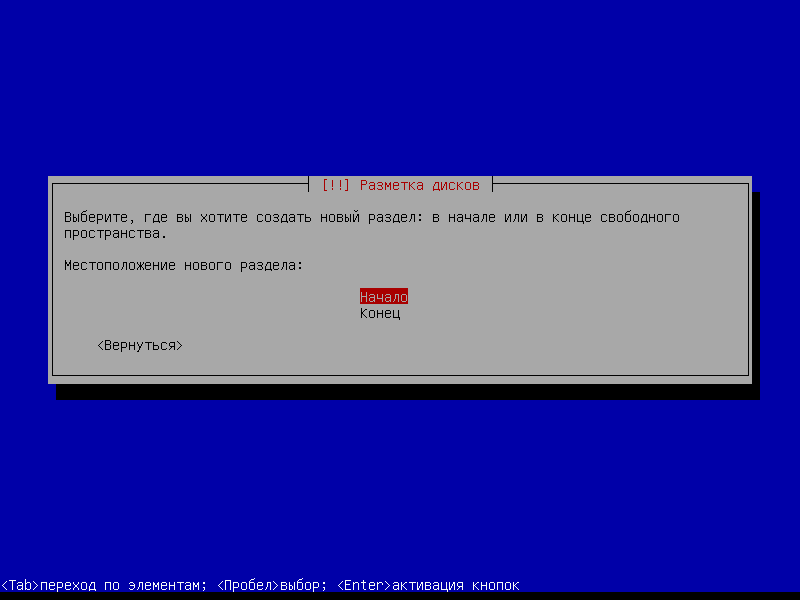
Push. Beginning:
Choose a file system Ext3, indicate the point of installation /bootNote that the section is loading and we stand on Set-up section is complete pressed Enter
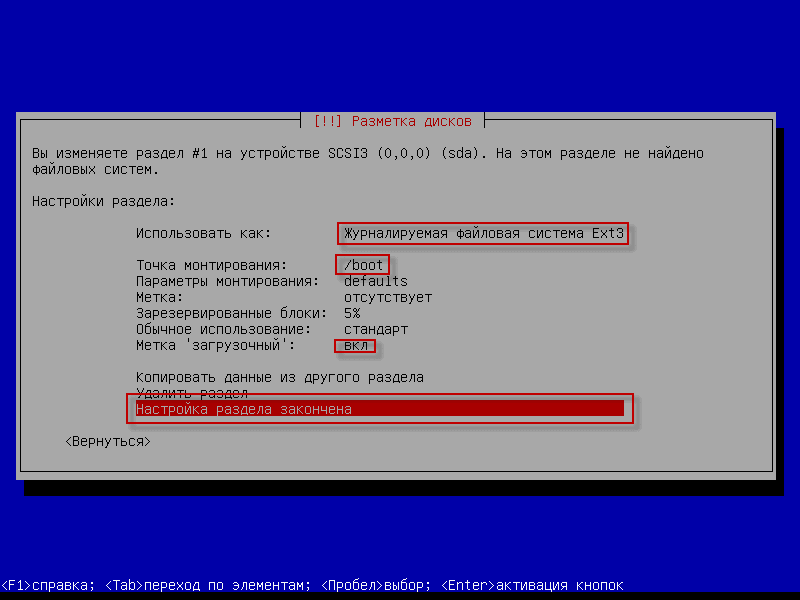
After the creation of Free space. press Enter And we create a section:
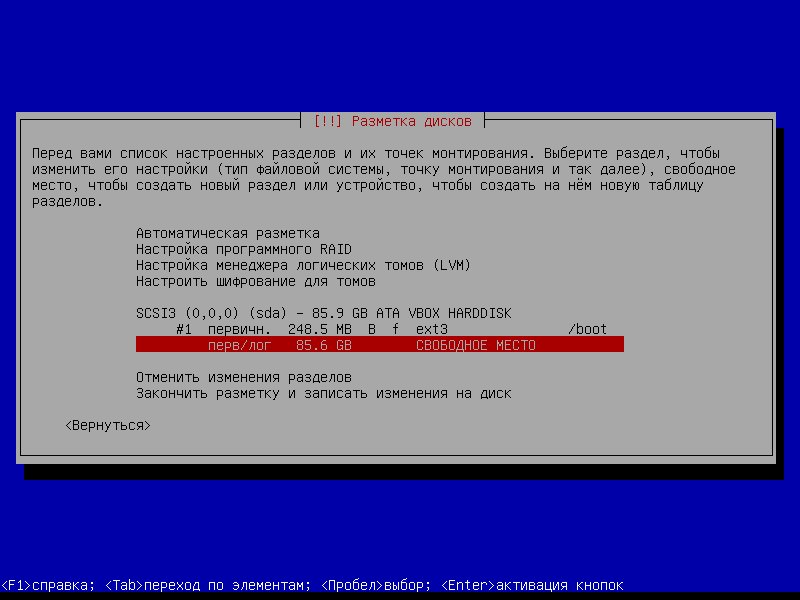
Let's get on. Create a new section pressed Enter:

We specify the section we want to allocate for temporary files. /tmp - 2 gb
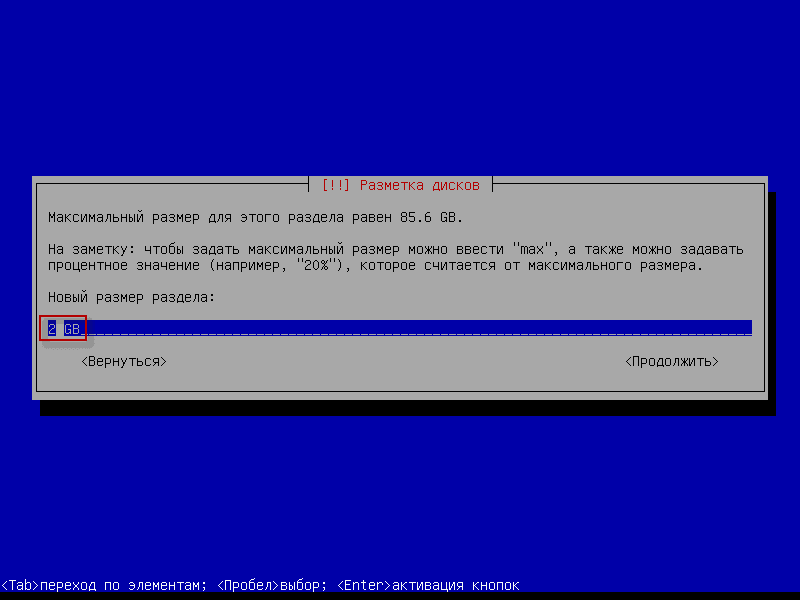
Choose. Logical section pressed Enter:
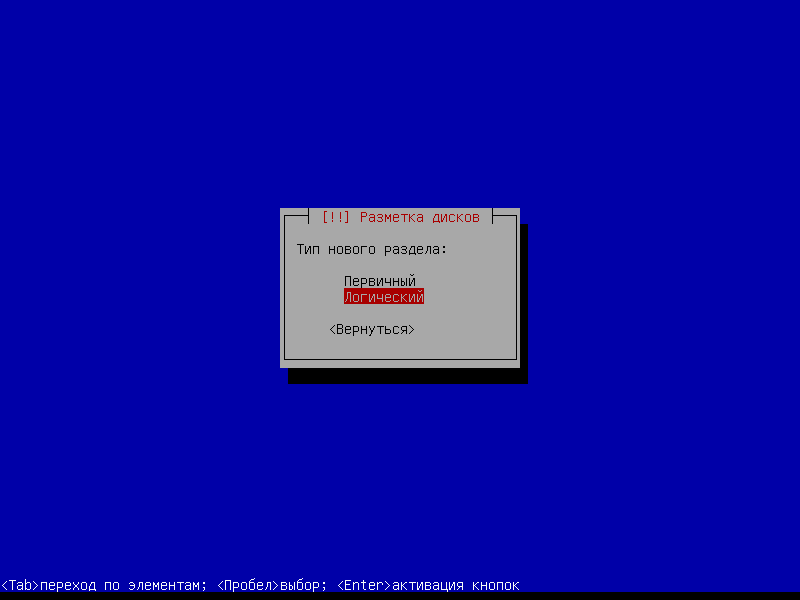
Choose. BeginningAnd press. Enter:
Specify the file system, which will be in the section. I prefer the tested. ext3But you can choose and ext4 - it is tested and stable, indicate the mounting point /tmp And in the settings of mounting necessarily note noexec:
On the remaining place, we need to create 2 sections, this is the swap section (swap) and the root section (/). We stand at the Free Place on the hard drive and click Enter:
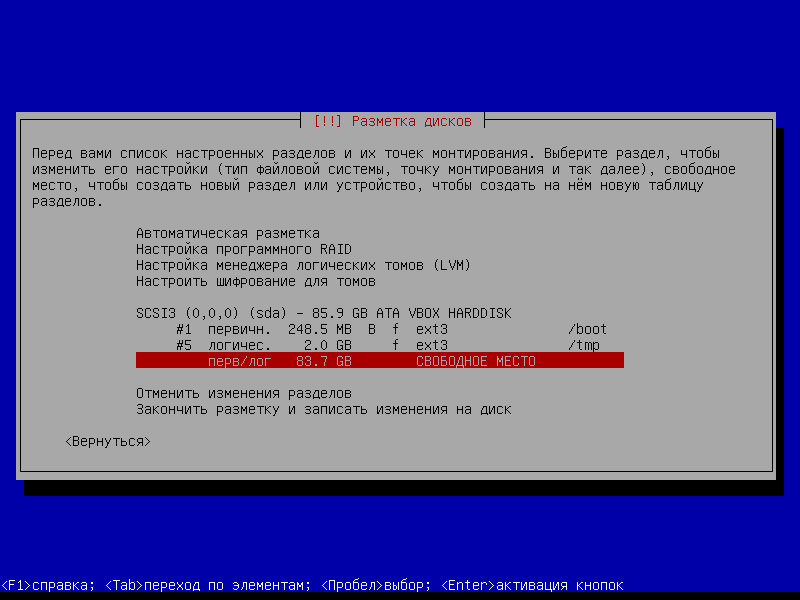
Let's get on. Create a new section pressed Enter:

Please indicate the size of the section, in our case. 2 GB pressed Enter:

Choose. Logical section pressed Enter:
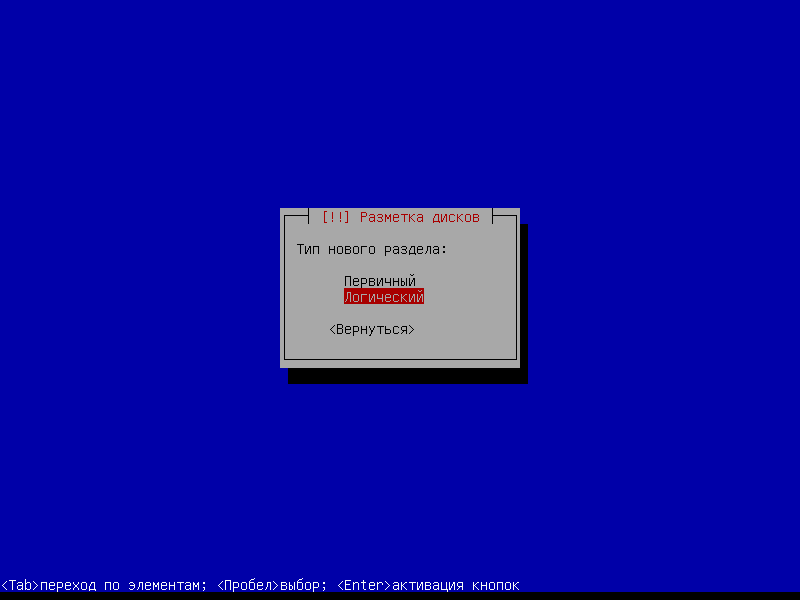
Choose. BeginningAnd press. Enter:
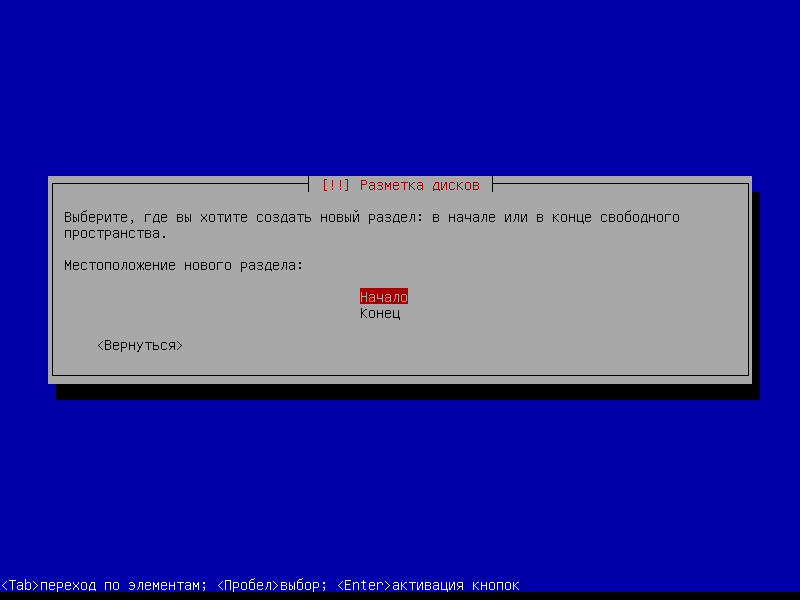
Select the created partition instead of the file system pumping-piece pressed Enter:
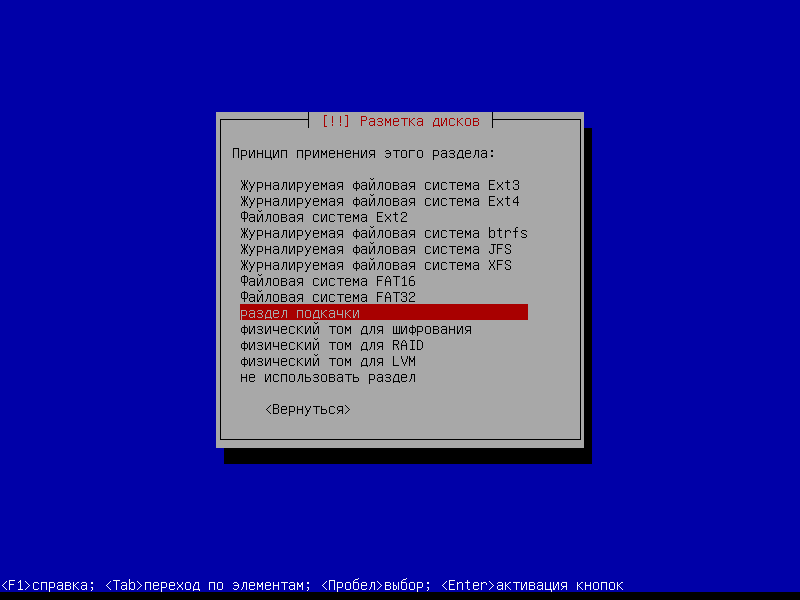
Let's get to the point. Set-up section is complete pressed Enter:
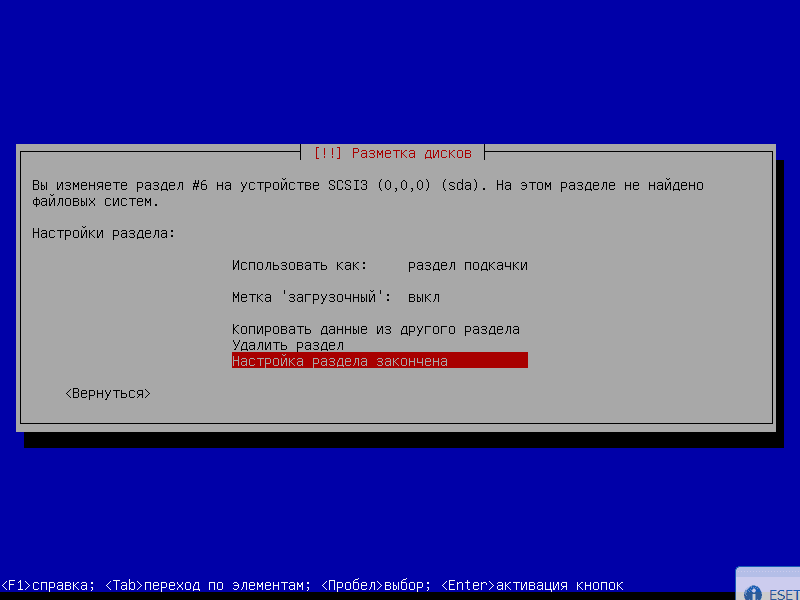
And we create the last section, which is / (root) Let's get on Create a new section pressed Enter:
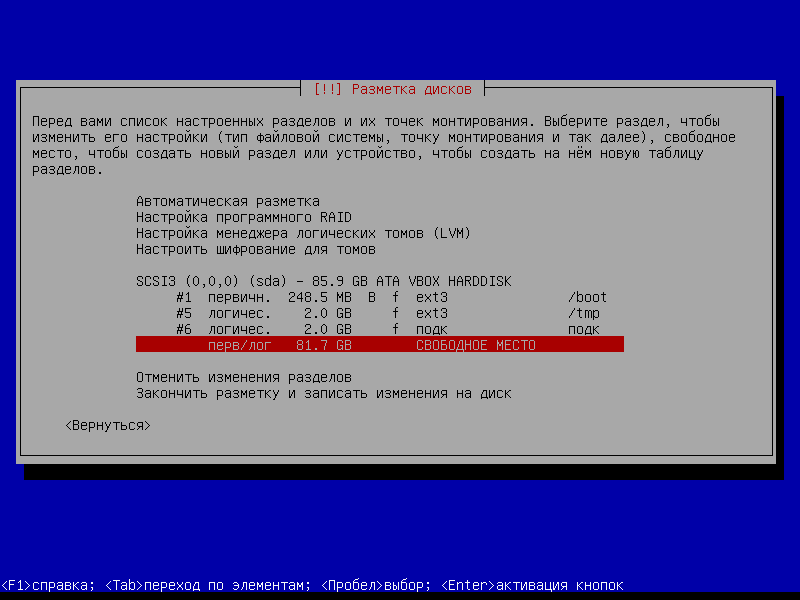
Let's get on. Create a new section pressed Enter:

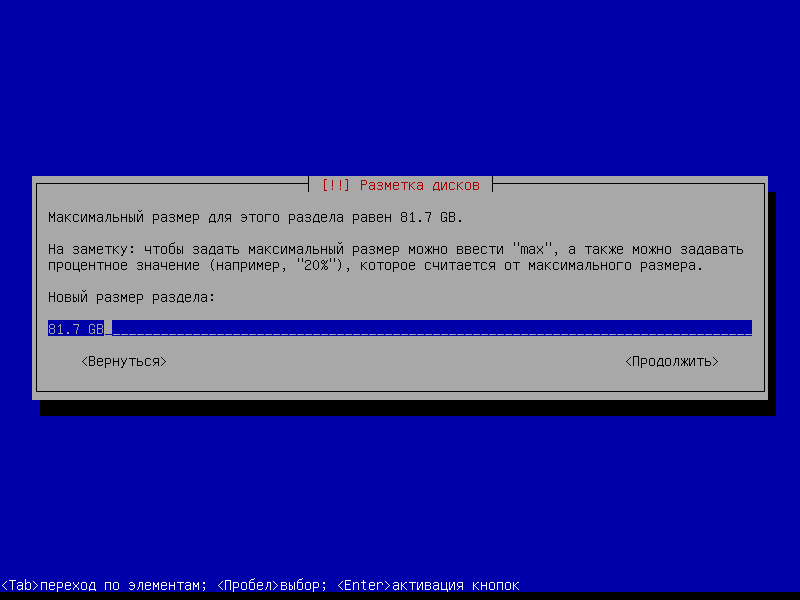
Specify the size of the partition, in our case leave the maximum size of the partition unchanged and click Enter:
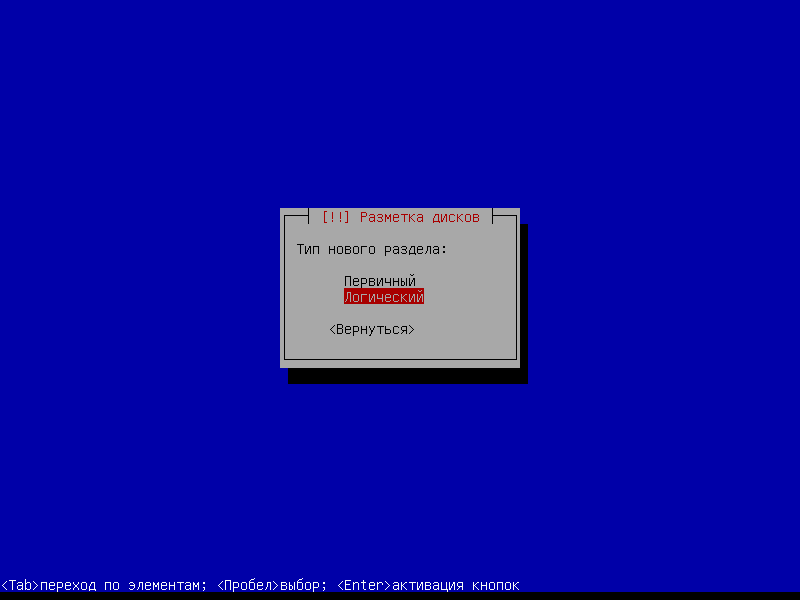
Choose. Logical section pressed Enter:
The file system is selected ext3 or ext4 - at your discretion, we indicate the installation point. / :
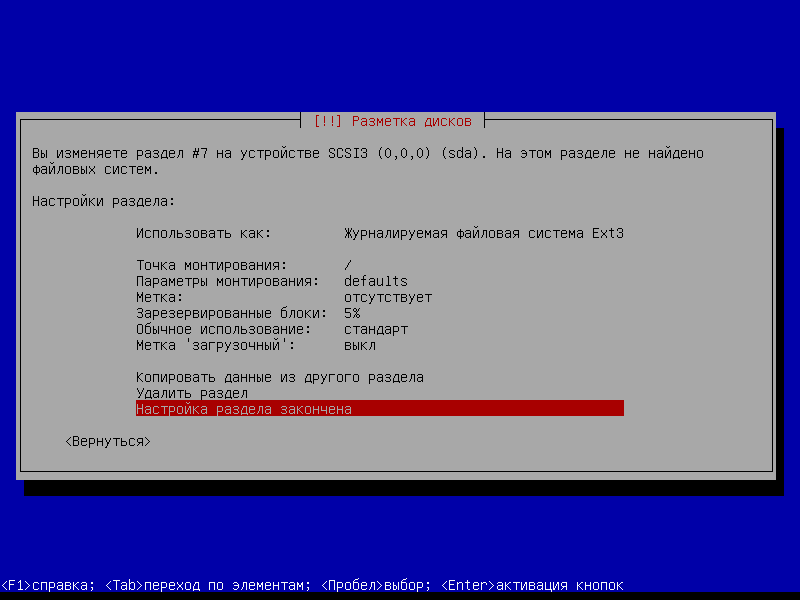
After we broke the hard drive, we're on Finish the markup and record changes to disk pressed Enter:

Question. Write the changes to disk We agree, we become Yes. pressed Enter:

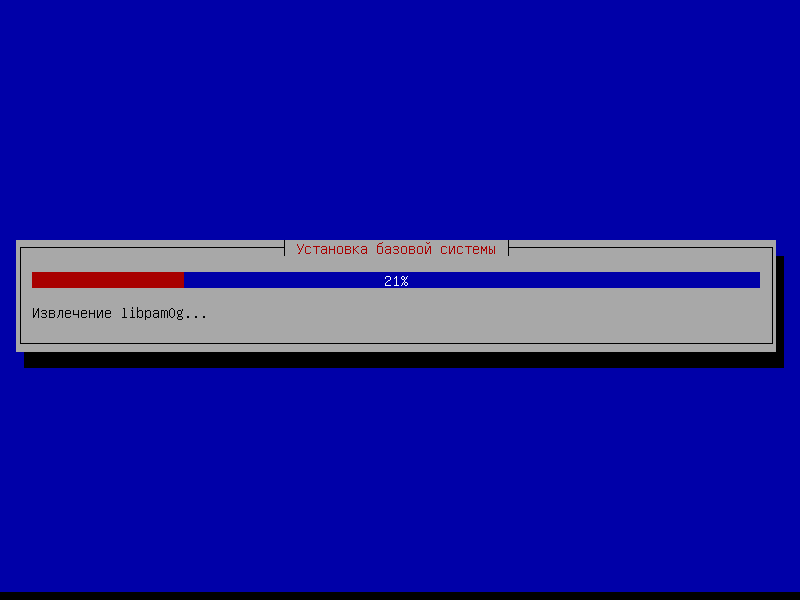
The basic system is being installed:
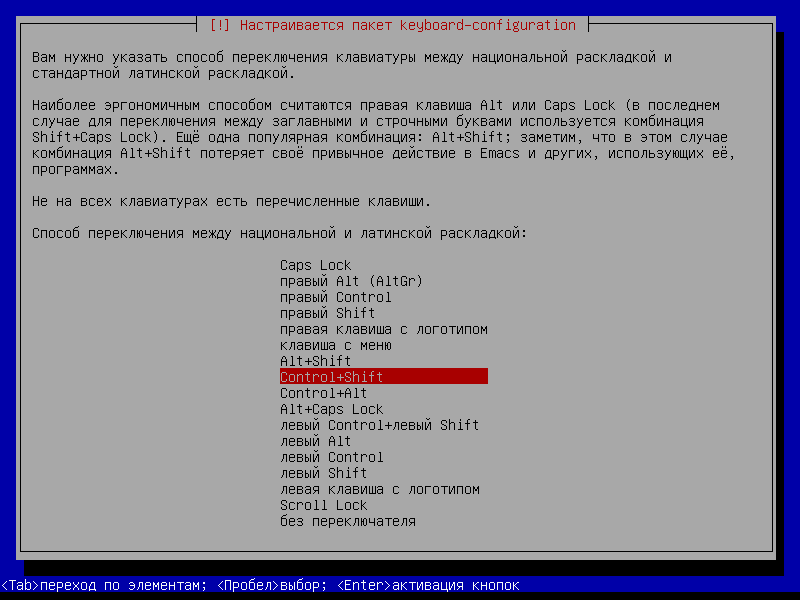
Choose a way to switch the keyboard Control + Shift and press Enter:
Question. Scan another CD or DVD disk - Getting on. No. pressed Enter:

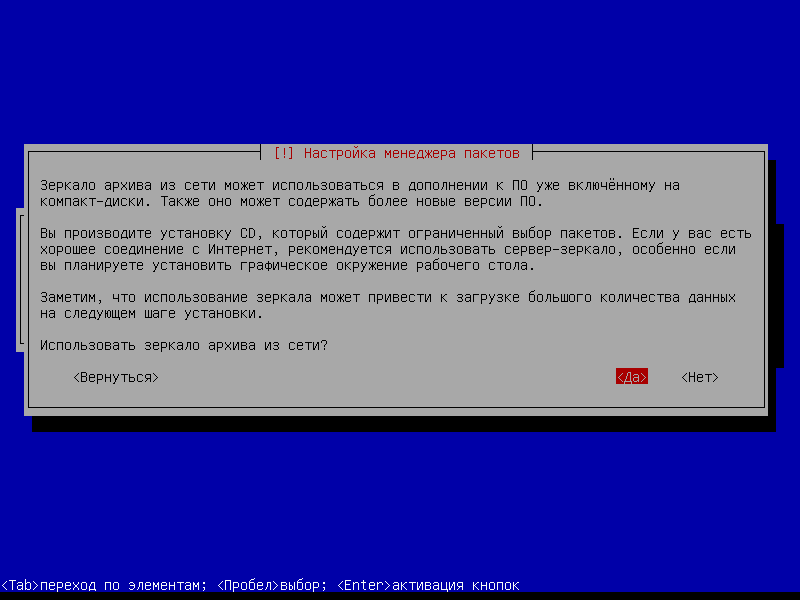
Use a mirror archive from the network? If you install from a CD1 or DVD1 disk and the server is connected to the Internet, you can agree and the system will independently check the installed packets for updates. When there is no Internet, then you can and will not agree with the use of a mirror, if you make an installation with an image.network install" (180 MB) or "business card-size" (40 MB) you must agree and choose your preferred repository:
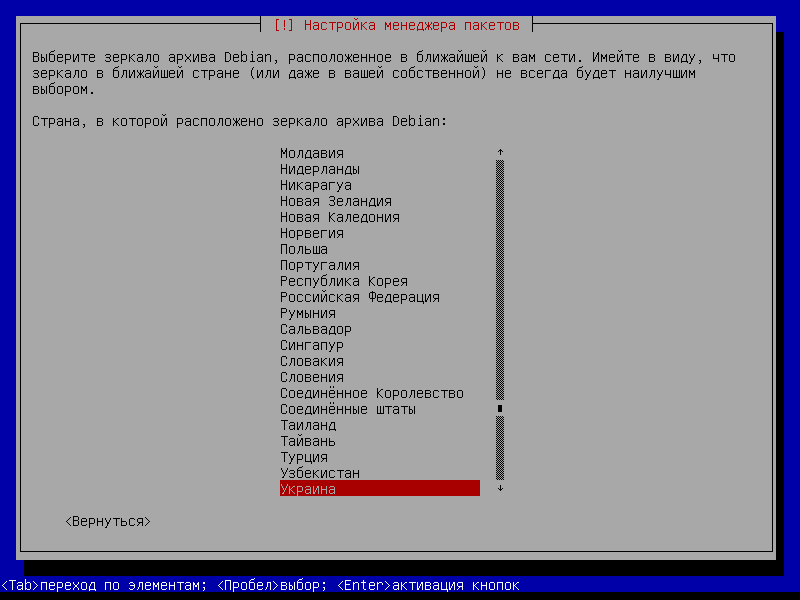

If you have an Internet connection through a proxy server, we specify the proxy server:

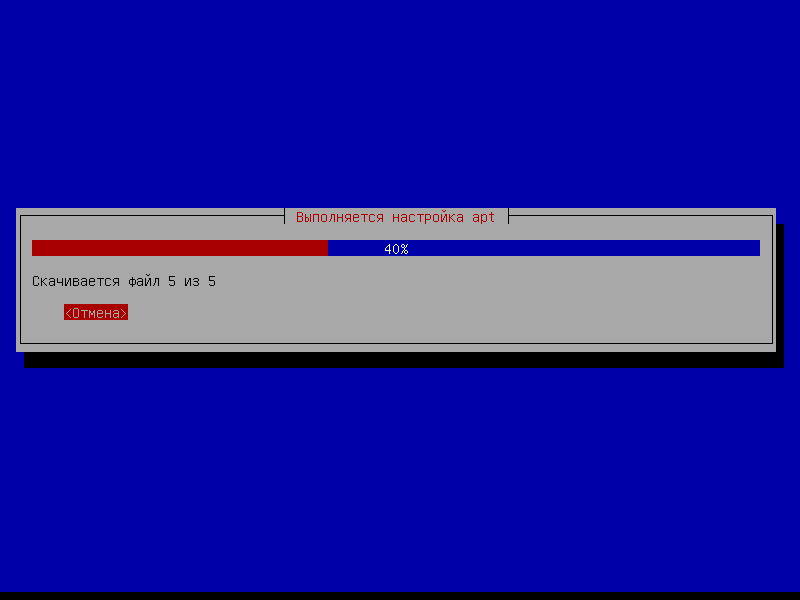
Installation of the system:
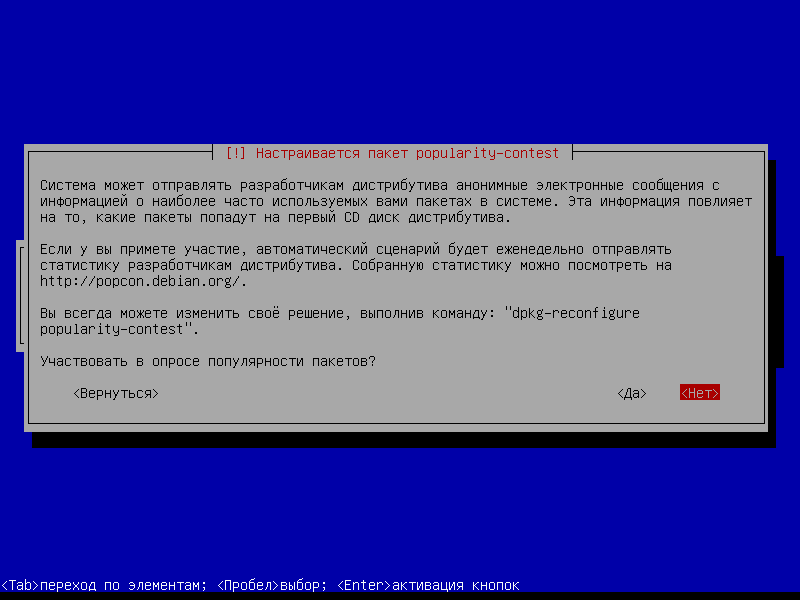
Participate in a survey of the popularity of packages? - I choose. No. and press Enter:
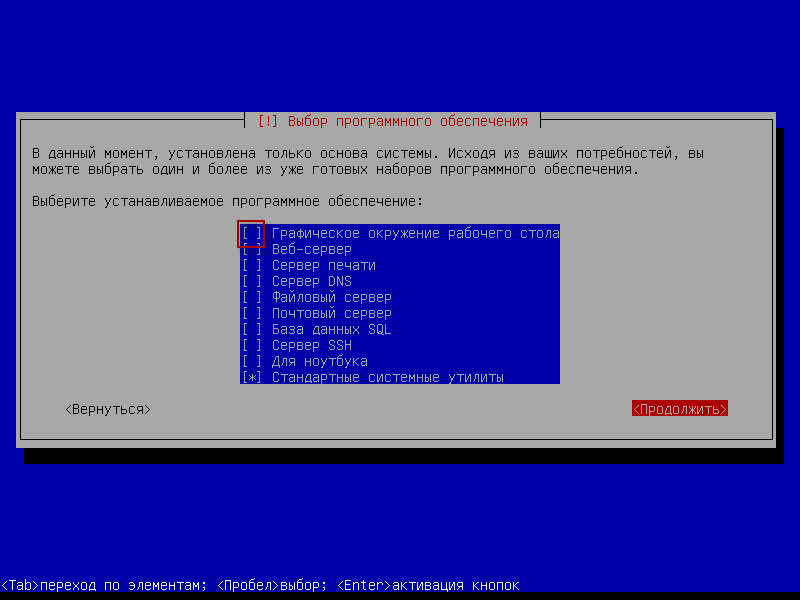
Put the mark down. Graphic environment of the desktop And leave a mark on the standard system utilities become Continue. pressed Enter:
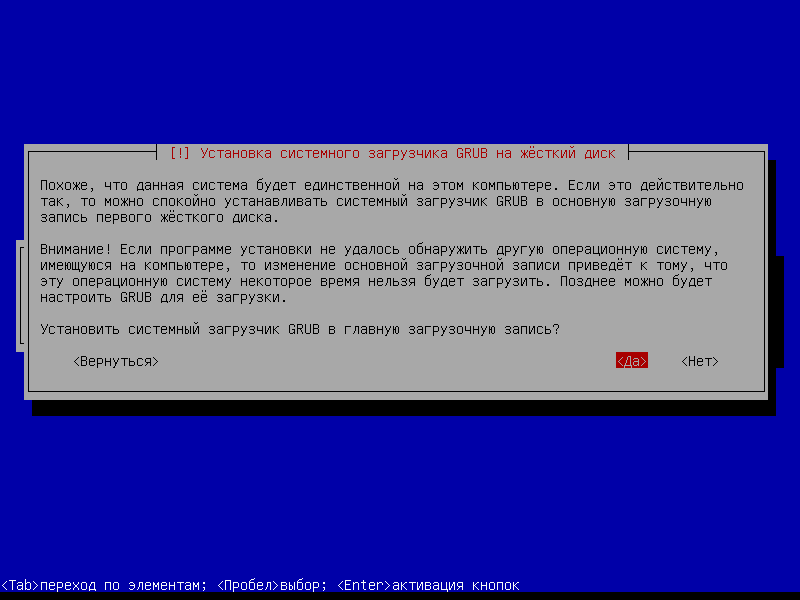
We agree with the installation of a system loader Grub to the main boot record and pressed Enter:
We agree to complete the installation by pressing Enter:
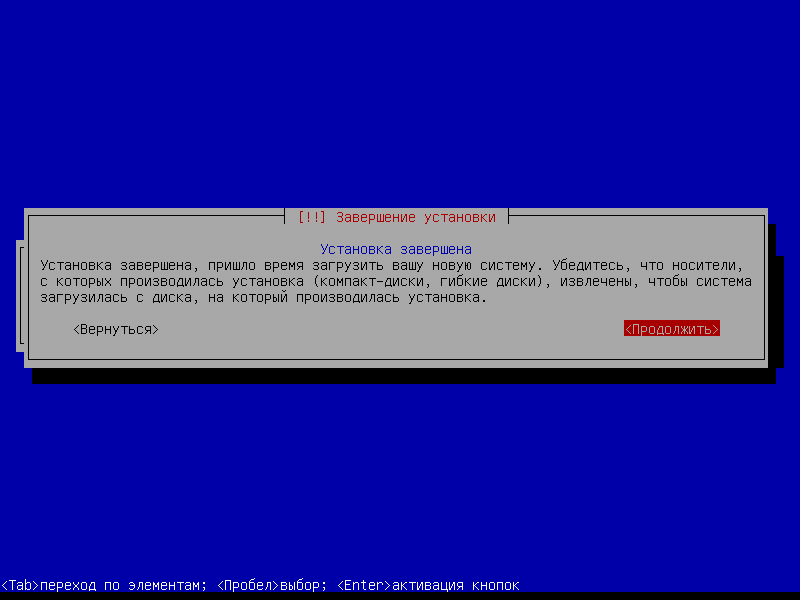
The Debian Squeeze installation is complete. The process of splitting the hard drive can be changed to suit their needs and requirements.
Next, set up the network by article
If you need to configure the Internet gateway, use the instructions from 4 parts: piece, piece, piece, chunk
Video screencast for this instruction:

comment