

 Today we will install Debian Wheezy or Debian 8 Jessie on a single board computer Raspberry Pi. I bought this computer to install a mini home server with Asterisk and Huawei E1550 modem. The advantages of this solution is passive cooling, and since I additionally glued large radiators to heat adhesive, the mini server will work perfectly in the summer heat, while a full-fledged server overheats at a temperature of 35C degrees in the room and it is rushing to leave working in the closet especially during vacation.

Download Win32diskimager from the official websiteIf for any reason the program cannot be downloaded from the official website, Download the Win32diskimager distribution from my cloudI repackaged the program with the 7Zip archiver for maximum compression, save the downloadable installation file to the computer disk:
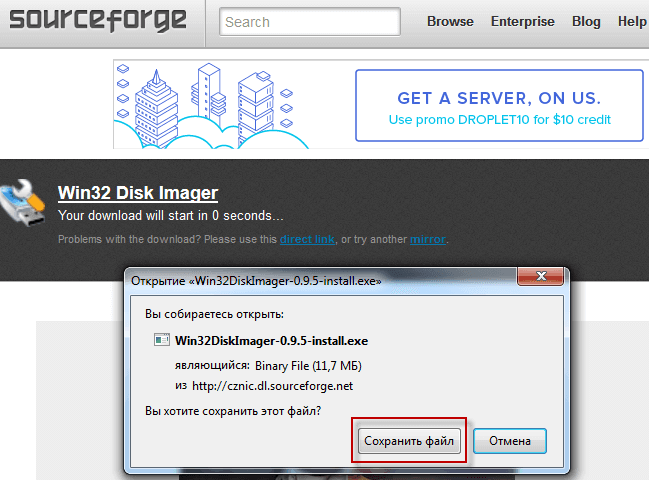

Start installing the program by clicking on the downloaded installation file of Win32diskimager:
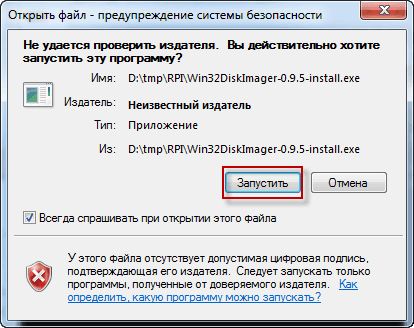
Click the Next button in the Win32diskimager installer window:
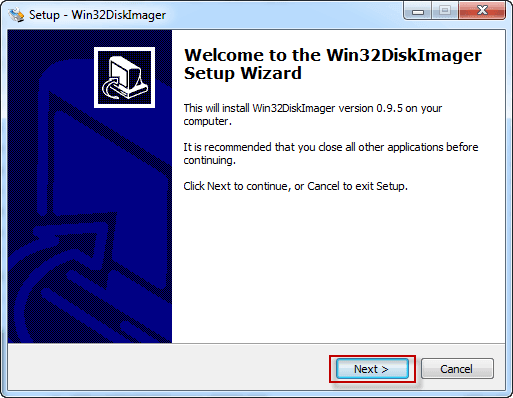
We agree with the license agreement marking field I accept the agrement:

If necessary, select the installation folder, by default I am satisfied with the installation path, so click the button. Next:
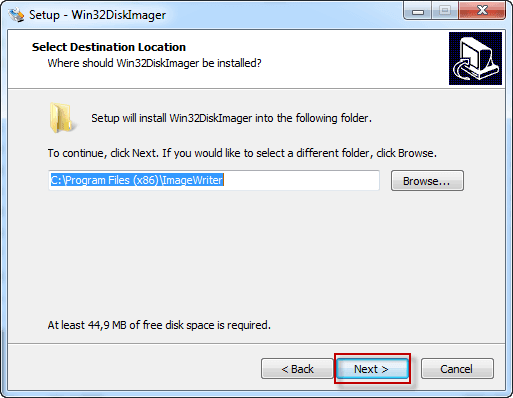
In the next window, we also click the button. Next to continue installation:
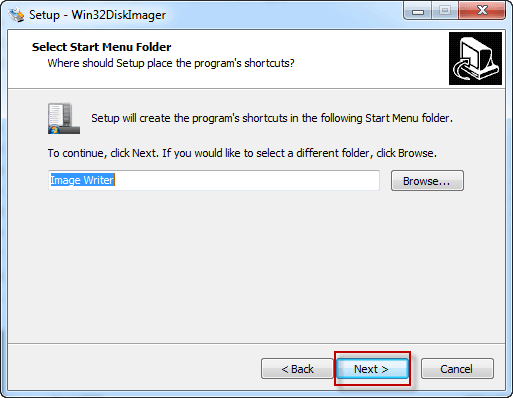
If you want the program to create a shortcut for running win32diskimager on the desktop, tick the box. Create a desktop icon Click the Next button to continue installing:

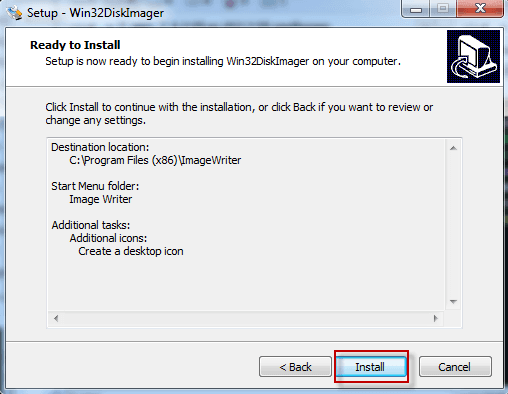
If everything fits the installation, click on the button. Install and wait for the installation of the program win32diskimager to write a disk image on a flash drive:
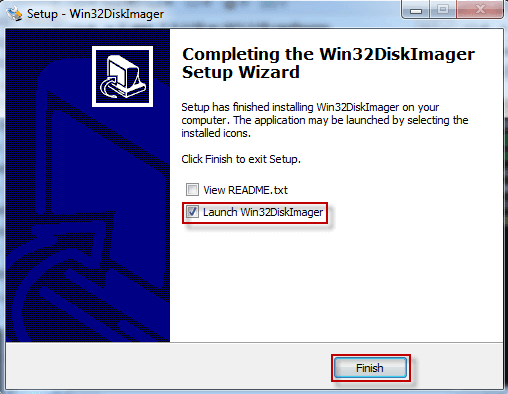
Win32diskimager program is installed, tick the field Launch Win32DiskImager And click the button. Finish, After the installer is closed, the program will automatically start. Win32DiskImager:
Install Debian 7 Wheezy on the Raspberry Pi
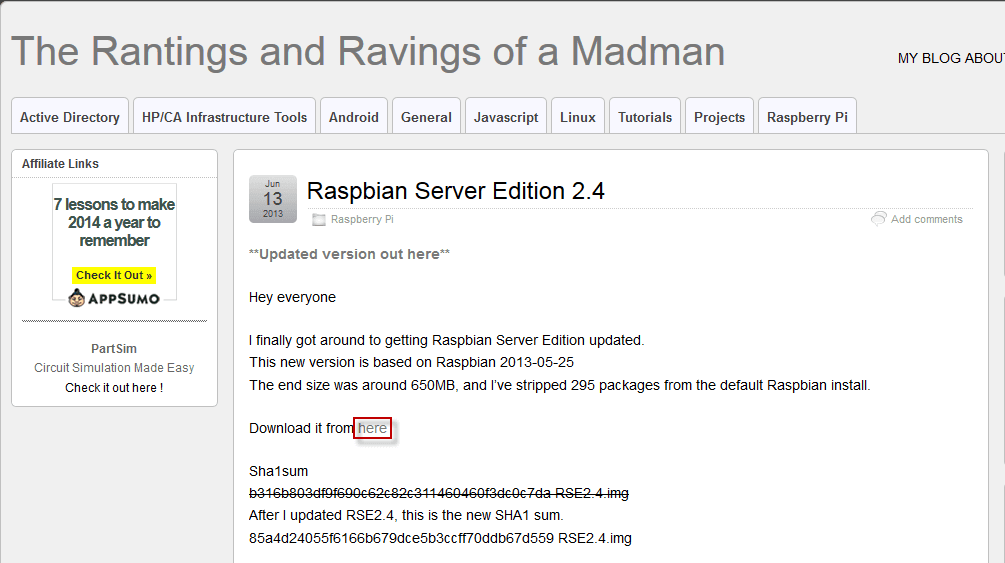
Open the page for downloading the distributionDownload Raspbian Server Edition 2.4 with the operating system Debian 7 Wheezy posture address, which is highlighted in the screenshot below, if for any reason the distribution cannot be downloaded from the official website, Download Raspbian Server Edition 2.4 with Debian 7 Wheezy from my cloudI repackaged the program with 7Zip for maximum compression. Click on the download link highlighted in the screenshot.
! Attention. If you need to use a 1GB flash drive, you can Download Debian Wheezy image for the Raspberry Pi mini server on 1Gb from my cloud
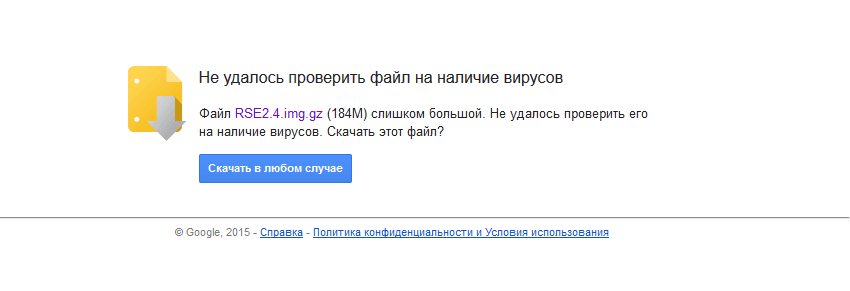
In the open window, click on the button. Download anyway:
Let’s unblock the downloaded archive of the distribution:
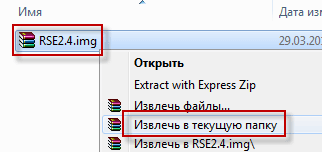
Unpacked image of the Debian Wheezy distribution:

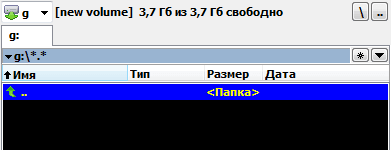
The flash drive is formatted, in my case it is on the section G 4Gb size:
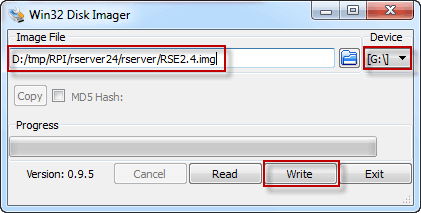
Open the Win32 Disk Imager program and click on the folder icon, select the distribution image that you need to deploy to the flash drive:
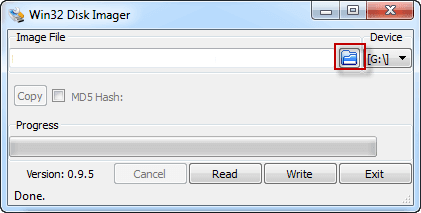

After selecting the image and drive, click the Write button to record the image on the flash drive:
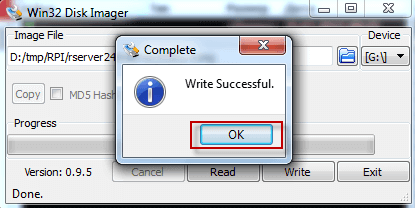
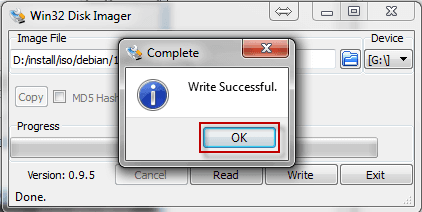
The Debian distribution is recorded on a flash drive for the Raspberry Pi mini server:
Install Debian 8 Jessie on the Raspberry Pi
Open the page for downloading the distributionDownload Raspbian Server Edition 2.5 with the operating system Debian 8 Jessie posture address, which is highlighted in the screenshot below, if for any reason the distribution cannot be downloaded from the official website, Download Raspbian Server Edition 2.5 with Debian 8 Jessie from my cloudI repackaged the program with 7Zip for maximum compression.
Click on the download link highlighted in the screenshot:

In the open window, click on the button. Download anyway, Save the downloadable distribution to the computer disk:

Open the previously installed Win32diskimager program and click on the folder icon select the downloaded image of the distribution Debian is the version you need.I'm also choosing a flash drive. G press the button. Write:

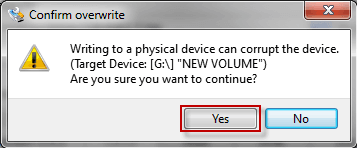
Agree with the destruction of data on a flash drive in the program Win32diskimager click Yes:
Distribution recording process Debian on mini-server Raspberri Pi:
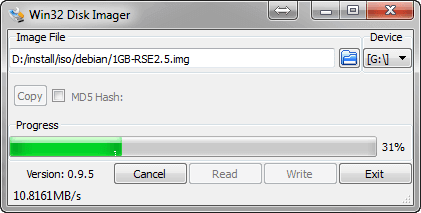
Distribution recording process Debian Raspbian Server Edition 2.5 On the flash drive Raspberry Pi mini server:
!! Attention.: The downloaded Debian Jessie distribution from the official website has a small problem - ssh access does not work. This problem can be solved in two ways:
1. After recording the image on a flash drive, connect Raspberry Pi to the monitor and keyboard, wait for the operating system to load, and log in:
Login: pi
Password: raspberry
When you enter the password, the password itself will not be displayed. Then log in as root by executing the command:
sudo su
We execute commands to create rsa, dsa and ecdsa keys, restart ssh and reboot our mini server:
ssh-keygen -f /etc/ssh/ssh_host_rsa_key -N '' -t rsa
ssh-keygen -f /etc/ssh/ssh_host_dsa_key -N '' -t dsa
ssh-keygen -f /etc/ssh/ssh_host_ecdsa_key -N '' -t ecdsa
/etc/init.d/ssh restart
reboot
After that, by connecting to the mini server via SSH, you can proceed to further configuration.
2. I downloaded and recorded the Debian distribution on my USB drive, executed these commands and recorded the image of the flash drive. I have a 4GB drive, so you can deploy it to the same or larger size.
The corrected image can be downloaded from the cloud.The downloaded file must be decommissioned and then written to a flash drive in the same way as the instructions above.
Go to the server previously installed on SSH
Today we downloaded and installed the Win32DiskImager program, downloaded the distribution Debian Raspbian Server Edition And we recorded the distribution on a flash drive from a Raspberry Pi mini server.
I was with you. Sergey Llazarenko.
Let’s take a short break and watch the video of how to make fire:

comment