

In this manual, we will install Active Directory for a Linux office using the Zentual distribution, which is based on the Ubuntu Server distribution. The Zentual 4 distribution only works on 64bit architecture.
Active Directory is an LDAP-compatible implementation of the Microsoft directory service for Windows operating systems. Active Directory allows administrators to use group policies to ensure uniform customization of the user work environment, deploy software on multiple computers through group policies. Active Directory stores data and environment settings in a centralized database. Active Directory networks can be of various sizes, from a few tens to several million objects.
The Zentual 4 distribution uses the fourth version of Samba, which includes a full implementation of the domain controller and Active Directory service, compatible with the implementation of Windows 2000 and able to serve all Microsoft-supported versions of Windows clients, including Windows 8. Samba 4-based Active Directory servers can be connected to existing Microsoft Active Directory domains, and vice versa, Microsoft product-based domain controllers can be connected to Samba 4-based Active Directory servers.
Download the distribution on Zentual.org, or Download Zentual 4.2 at the direct link
At the time of writing the current version of Zentual 4.0, you will naturally check and download the current version of the distribution. Nana 24.03.2016. new version has a number Zentual 4.2 named
Opening the site zentual.org click Download :
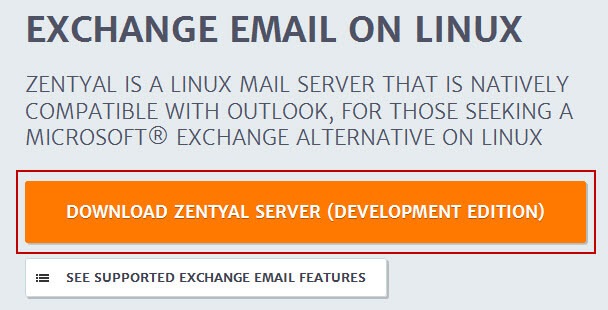
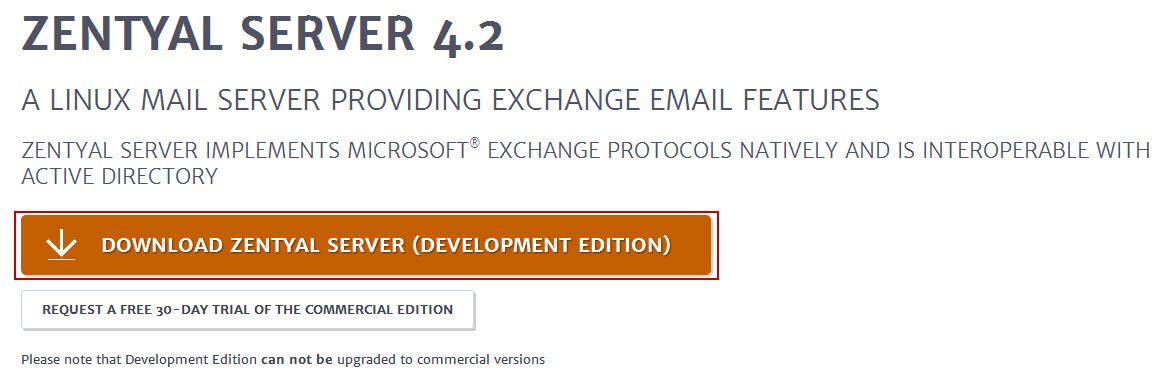
In the open window we click under the inscription GET your FREE copy of Zentual Linux Server! button Download Zentyal Server Community Edition:
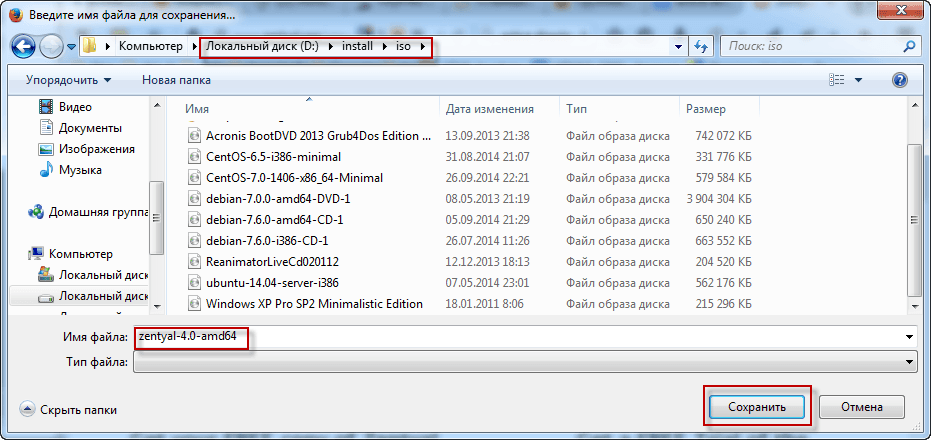
The browser will offer to save the downloadable distribution, save the file to the computer disk:
Write the downloaded Zentual distribution to a DVD, download from it:
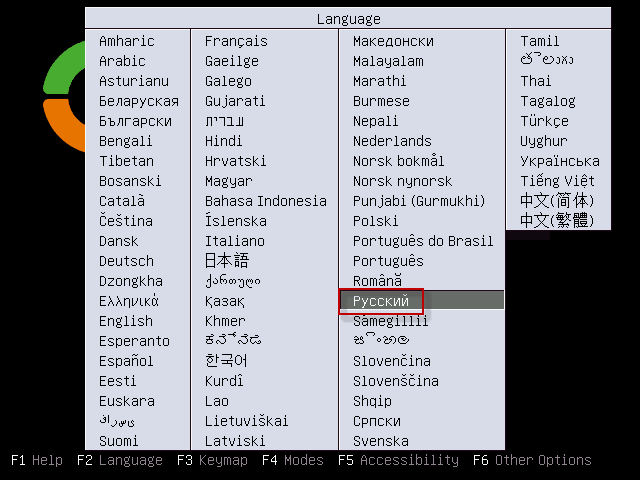
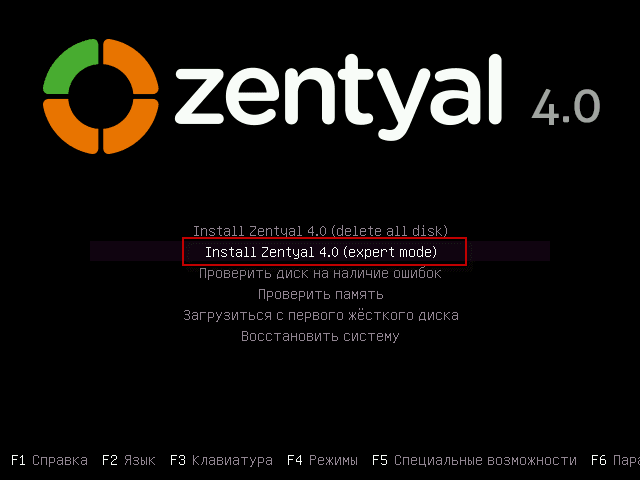
Choose an expert version of the distribution installation Install Zentual 4.0 (expert mode):
Choose a country, in our case I choose. Ukraine:

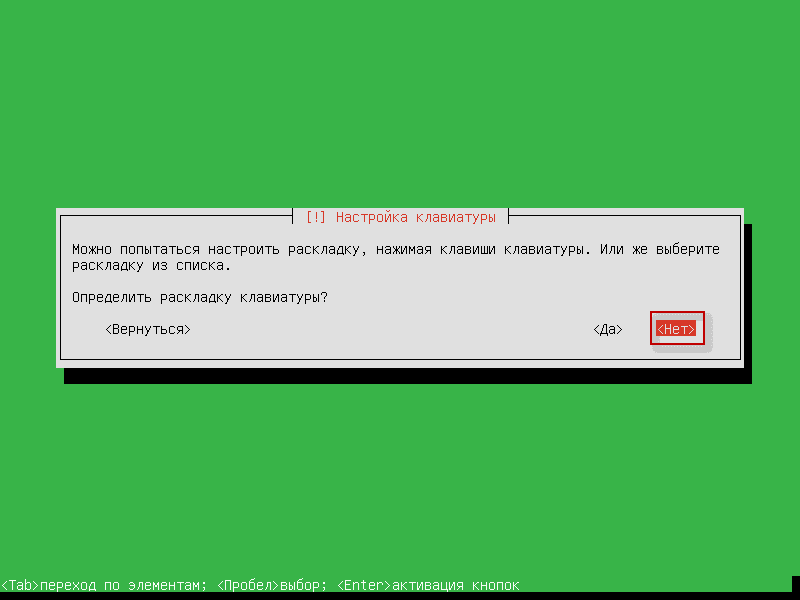
Refuse to automatically determine the layout of the keyboard:
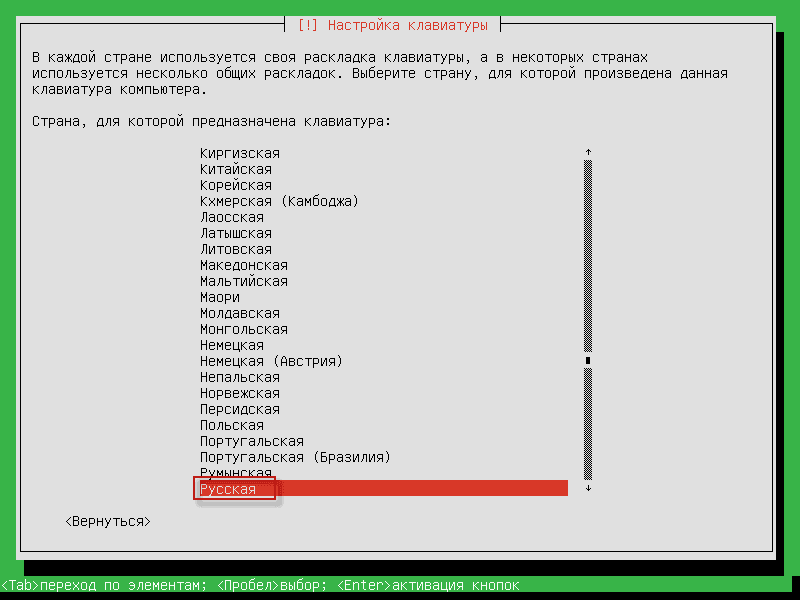
Select the country of keyboard layout:
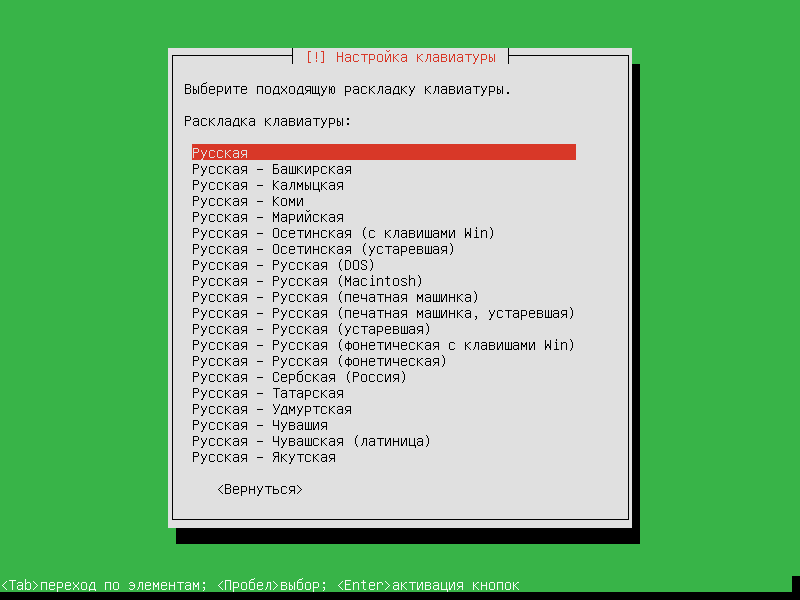
Choose the appropriate keyboard layout:
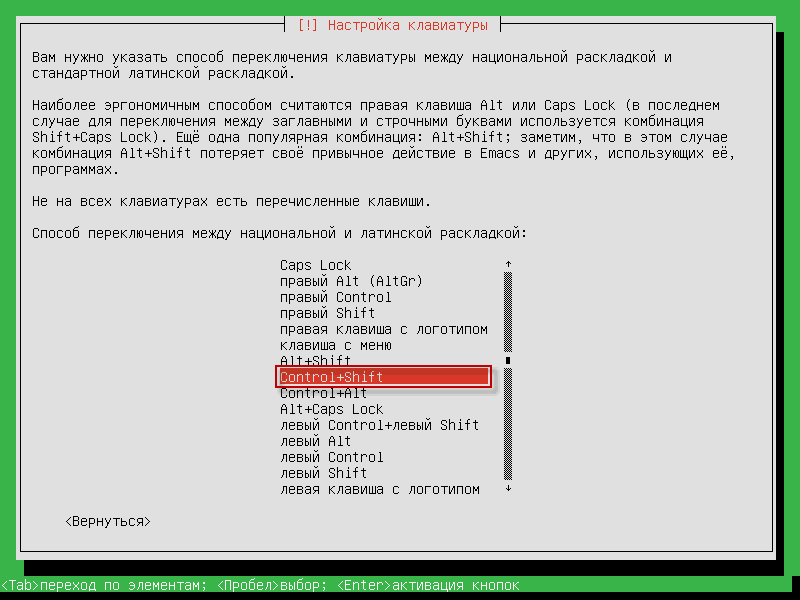
Choose a way to switch the keyboard when you press on Ctrl+Shift:
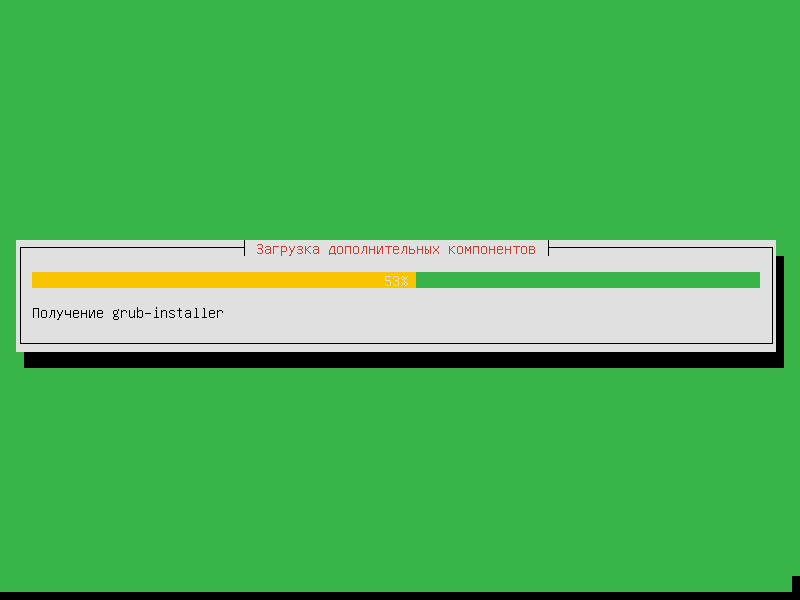
The process of installing the Zentual distribution:
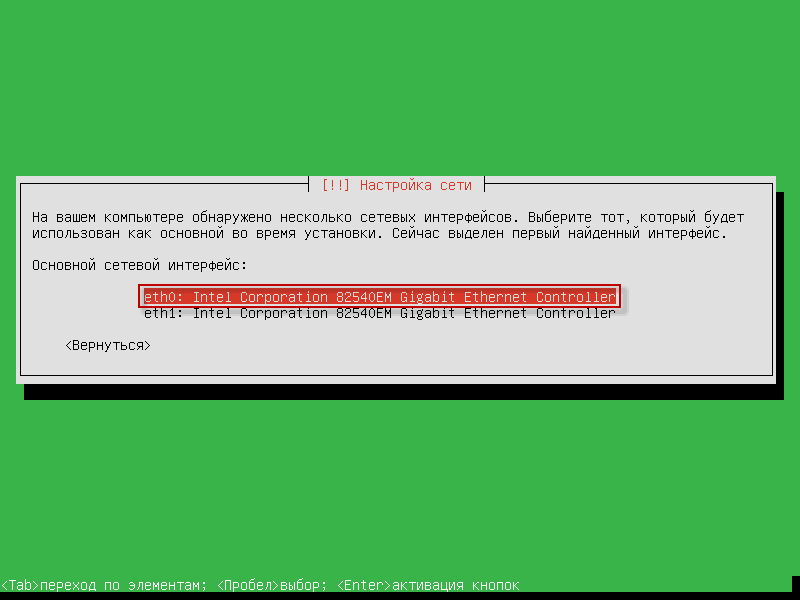
If you have several network cards, you need to select the desired network card:
By default, the network card will try to get the settings automatically from the installed DHCP server in the network, in our case I want to specify the necessary parameters myself, for this purpose, when receiving the settings by DHCP, press Enter to activate the button. CancellationIf you did not have time and automatically received the parameters, press the button. Esc and in the window that opens, select Network setup:
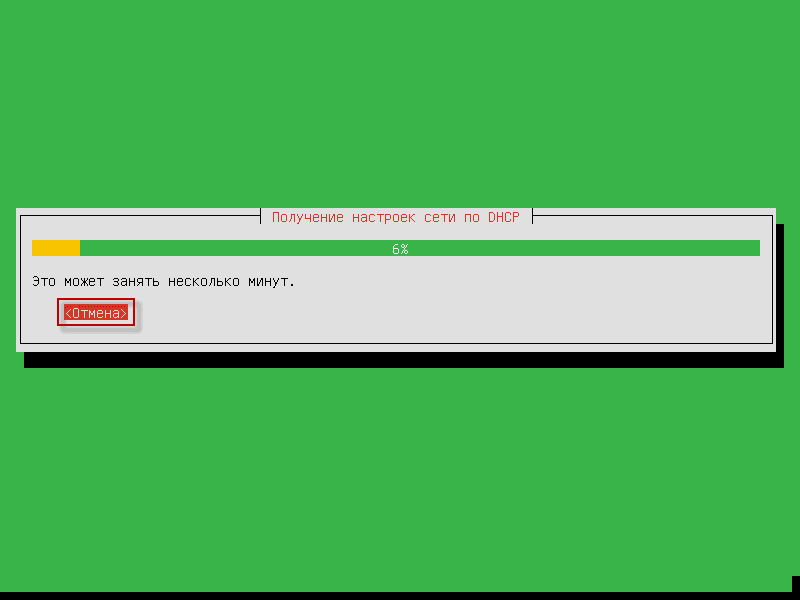
If you successfully cancel receiving automatic settings in the opened window, click on the button Continue.:

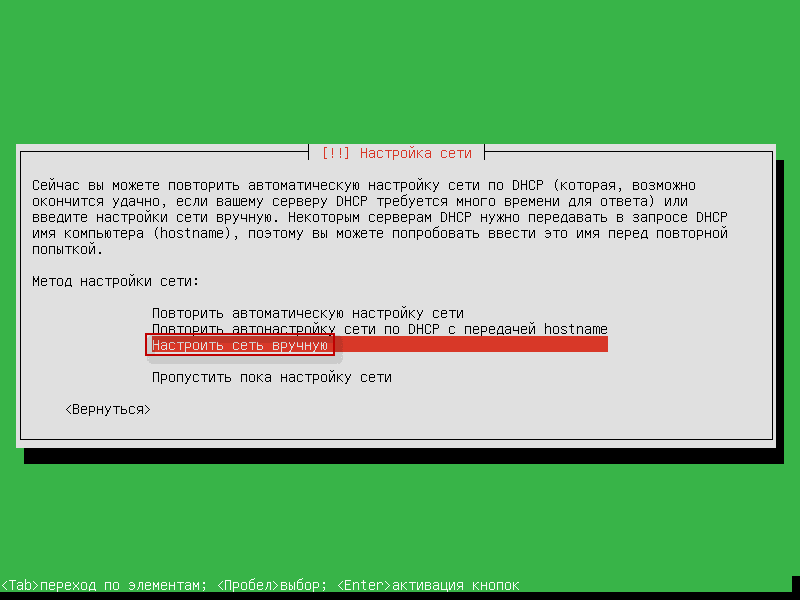
Select a point Set up the network manually:
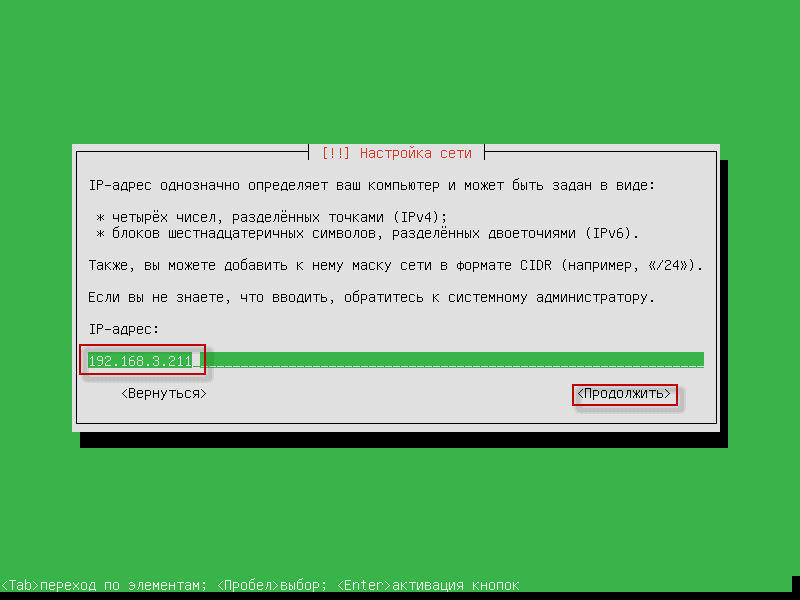
Specify the IP address 192.168.3.211 press the button. Continue.:
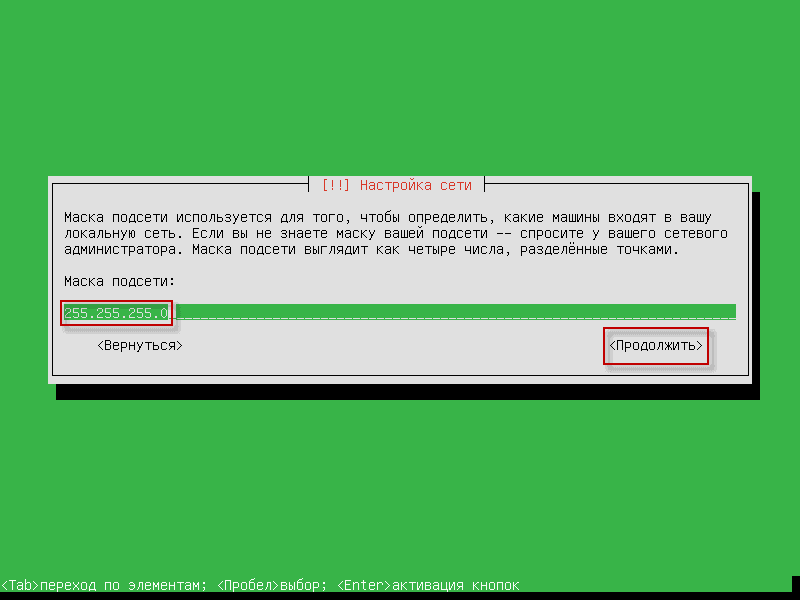
Specify the network mask 255.255.255.0 and press the button Continue.:
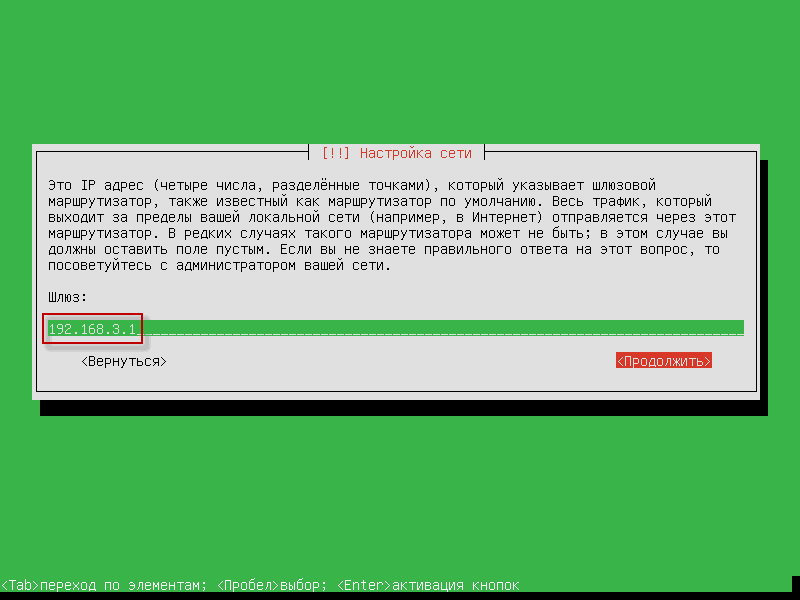
Specify the IP address of the network gateway 192.168.3.1 and press the button Continue.:
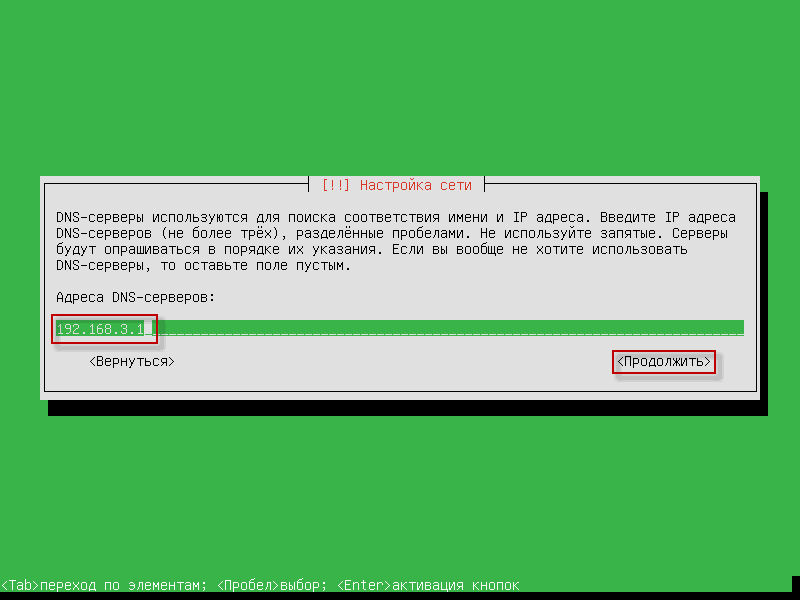
Specify the IP address of the DNS server 192.168.3.1 and press the button Continue.:
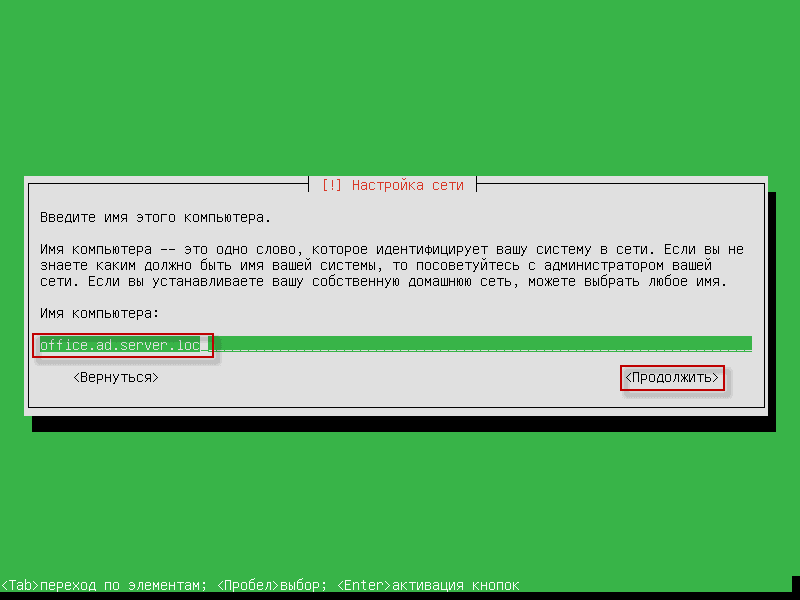
Enter the computer name. office.ad.server.locwhere office is the name of the computer, and ad.server.loc This is the domain name that you create on our network, click Continue.:
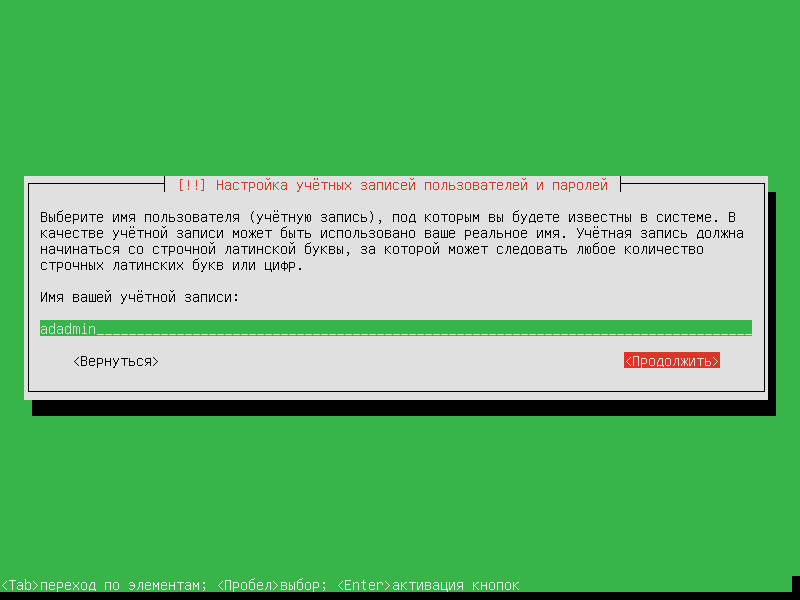
We give you the name of the account, I give you the name. adadminTo continue the installation, press the button Continue.:
We specify the user password, strongly advise you to specify a complex password and write it down in a notebook, but in this case I indicate a stale weak password. qwerty:

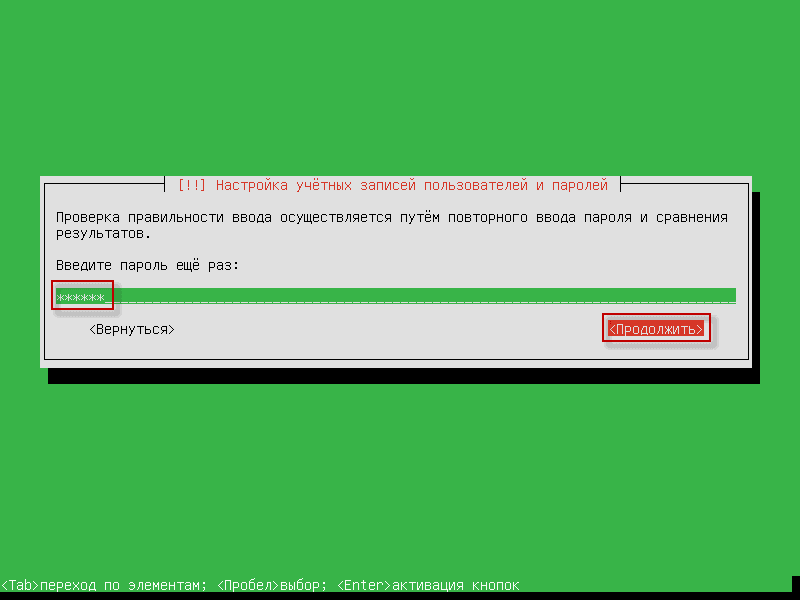
Repeat the user password, press the button to continue installation Continue.:
Since I use a weak password in this installation, the system will ask if you need to use a weak password, I say Yes, but in your case on the combat server I advise using complex passwords:

Confirm the selected time zone by pressing the button Yes.If necessary, change the time zone by pressing the button. No.:

Opens the hard drive splitting window, choose the manual method Manually. pressed Enter:
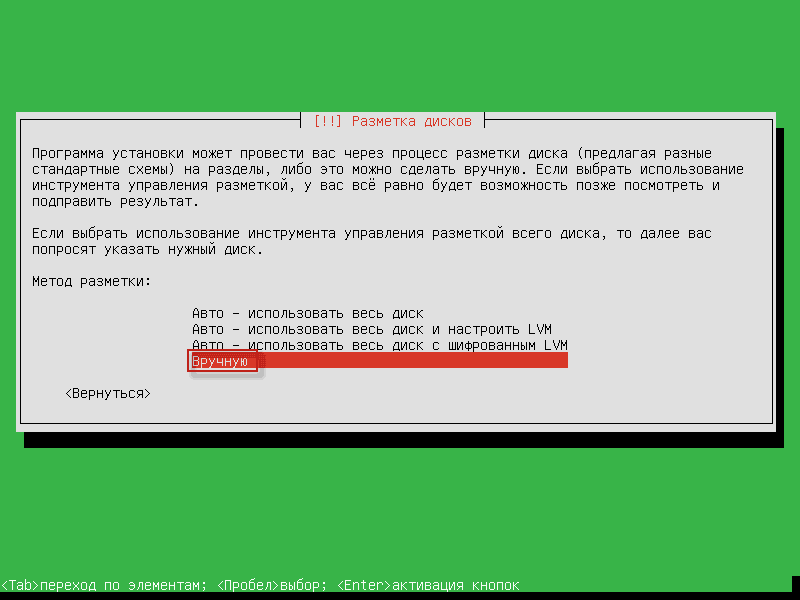
In the disk marker window we see a new hard drive, click on the screw and press Enter:
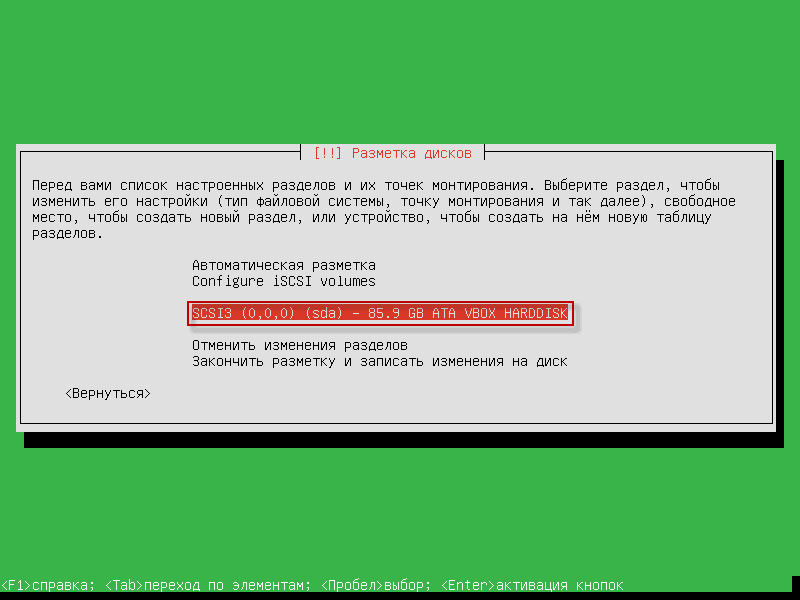
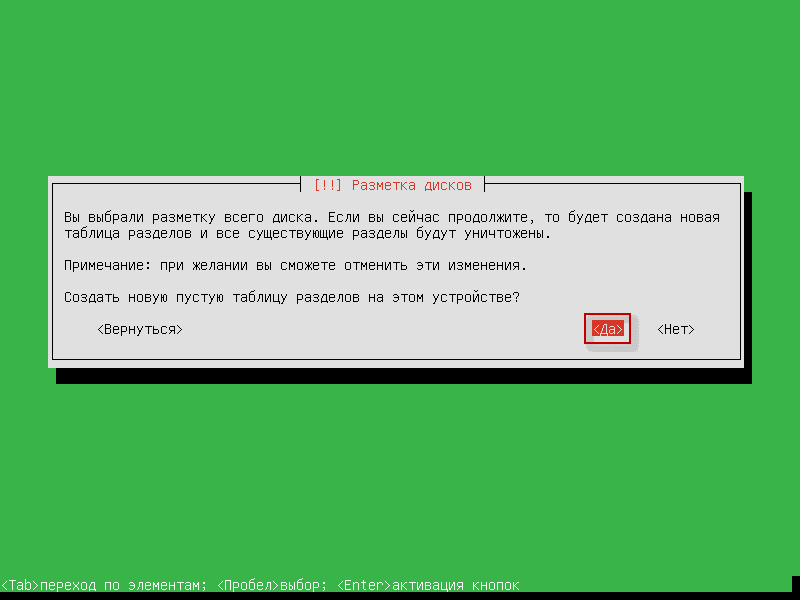
In the window that opens, we agree to create a new partition table on the hard drive:
Create a section. /boot size 512mbTo do this, we stand in a free place and press. Enter:
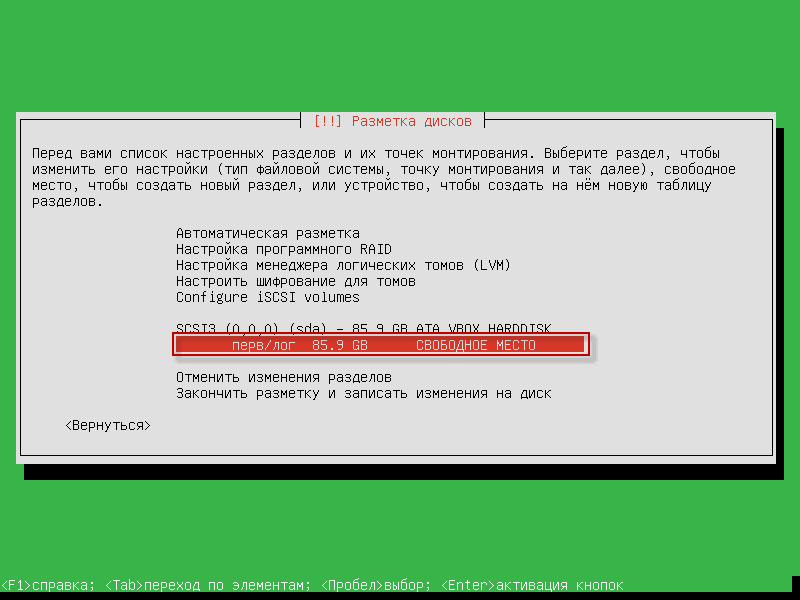
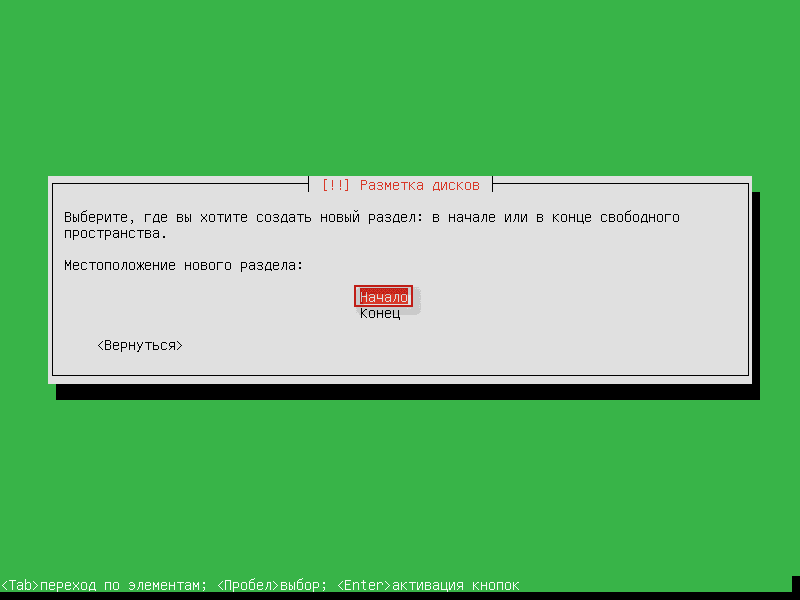
Click. Create a new sectionpress Enter:
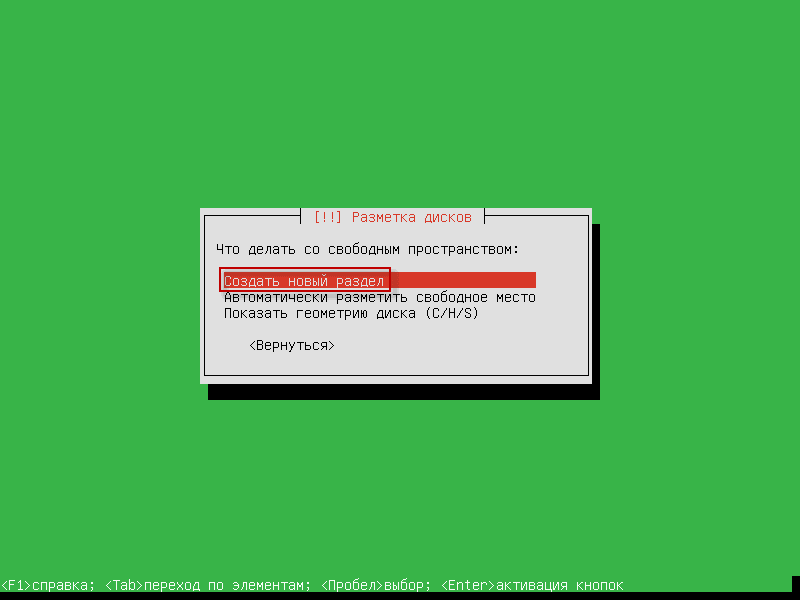
Indicate the size of the section 512mb pressed Continue.:
Select the type of new section Primary and click Enter:

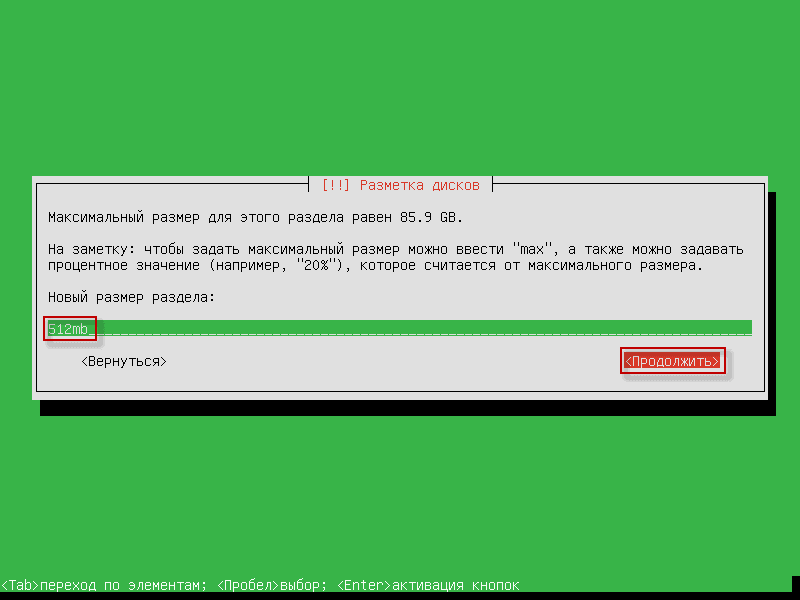
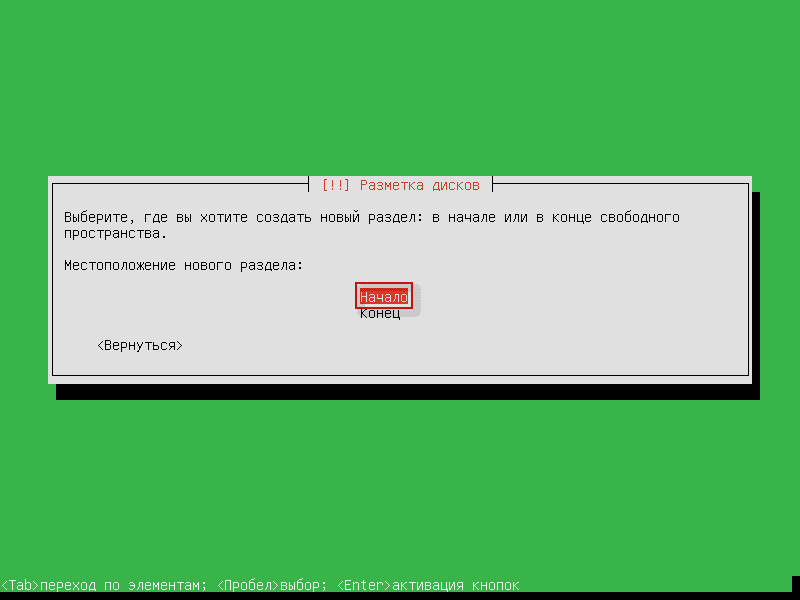
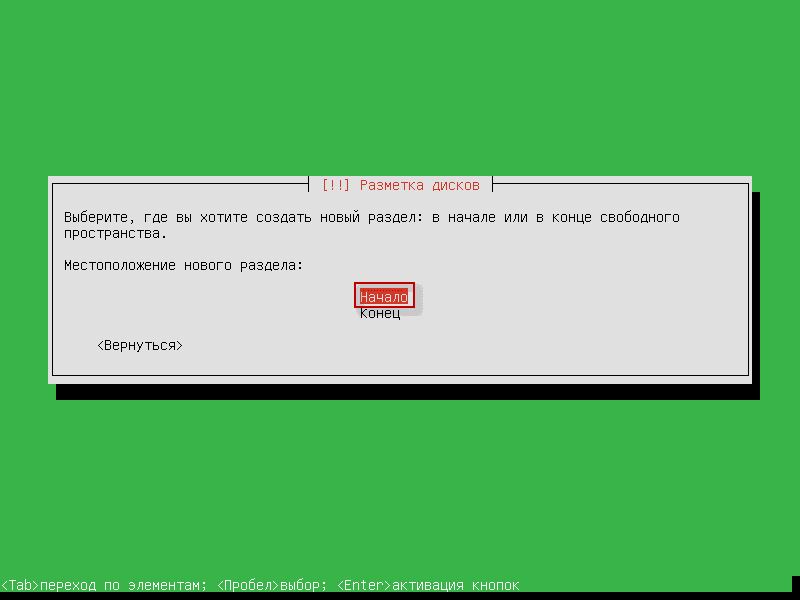
Select the location of the new section: Beginning and click Enter:
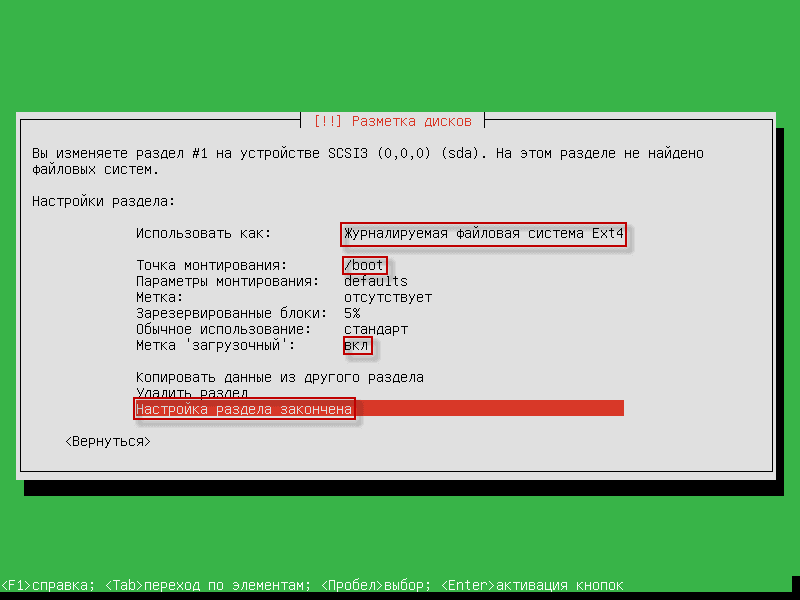
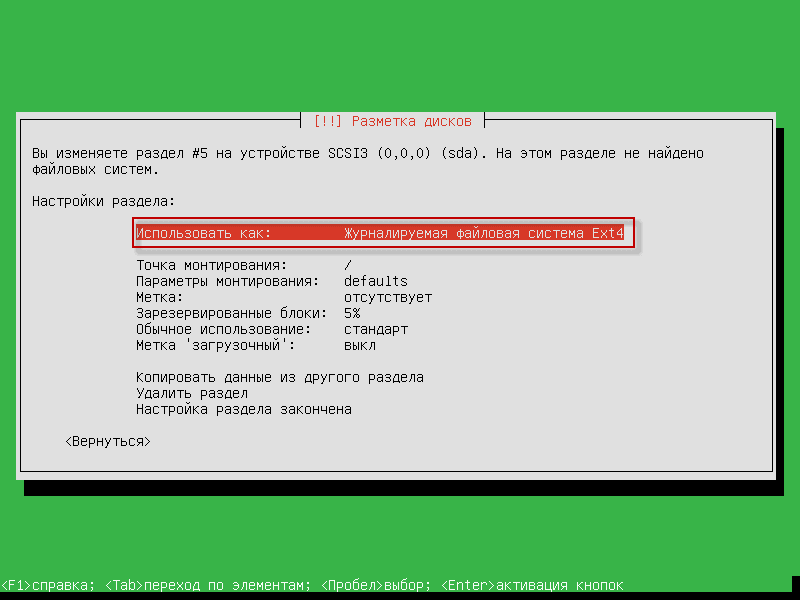
Configure the section by example below:
- Use it as: Journaled file system Ext4
- Mounting point: /boot
- Label 'booting': part-time
To save and add the partition, we start at the Setup of the partition is finished and click Enter:
Create a swap section. swap size 2gbTo do this, we stand in a free place and click. Enter:
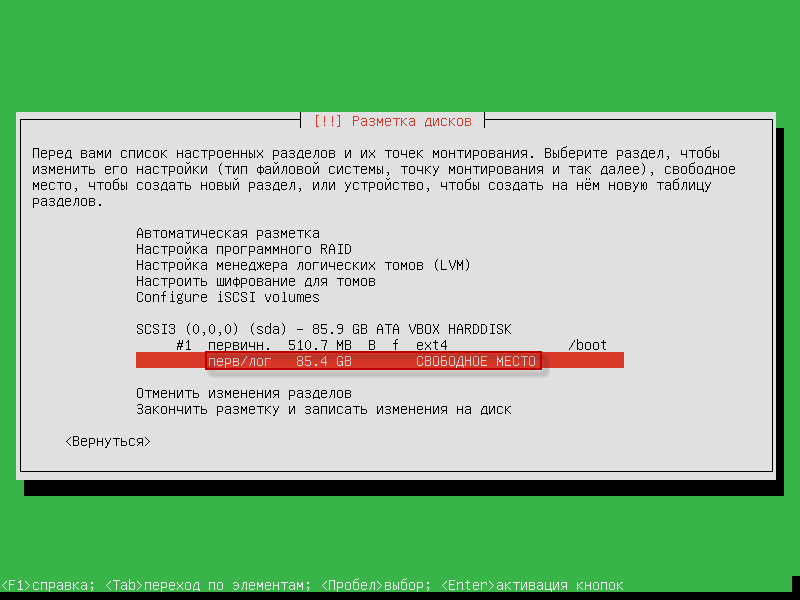
Choose. Create a new sectionclick Enter:
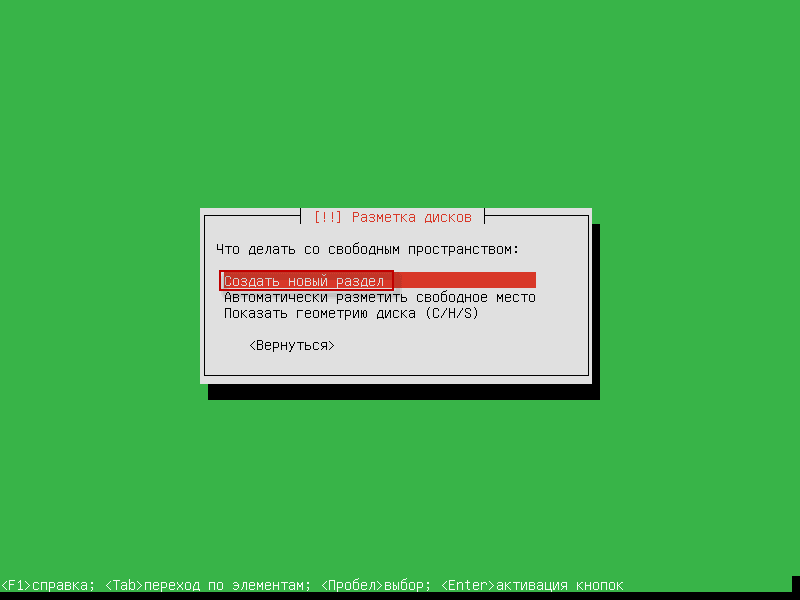
Indicate the size of the swap section 2gbclick on Continue.:
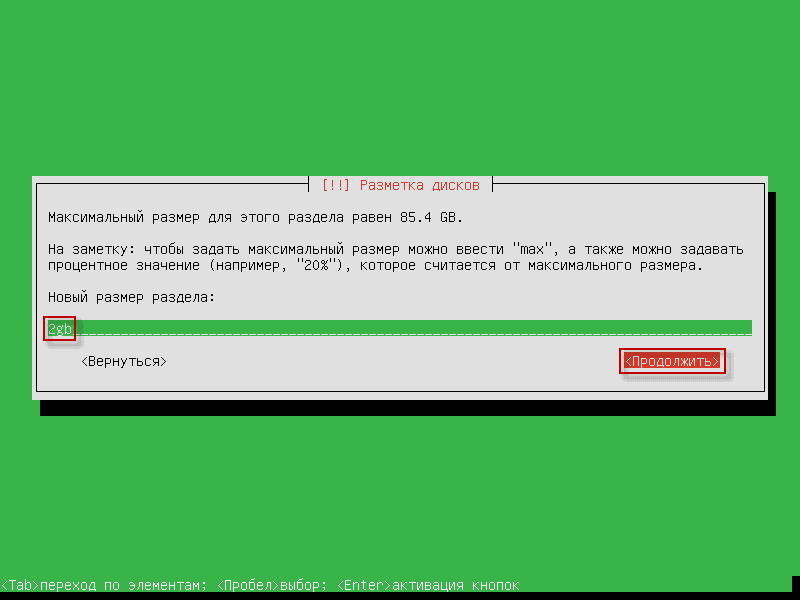
Select the type of new section Logicalclick Enter:
Select the location of a new section Beginningclick Enter:
Change the file system in the section with Ext4 on pumping-pieceThat's what we're doing. Journaled file system Ext4 pressed Enter:
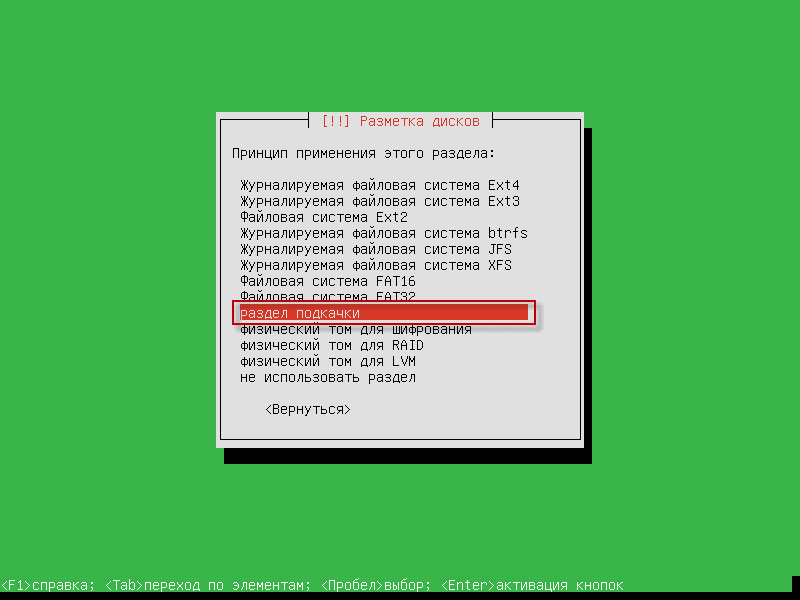
In the open window of the installer, we stand in position. pumping-piece pressed Enter:
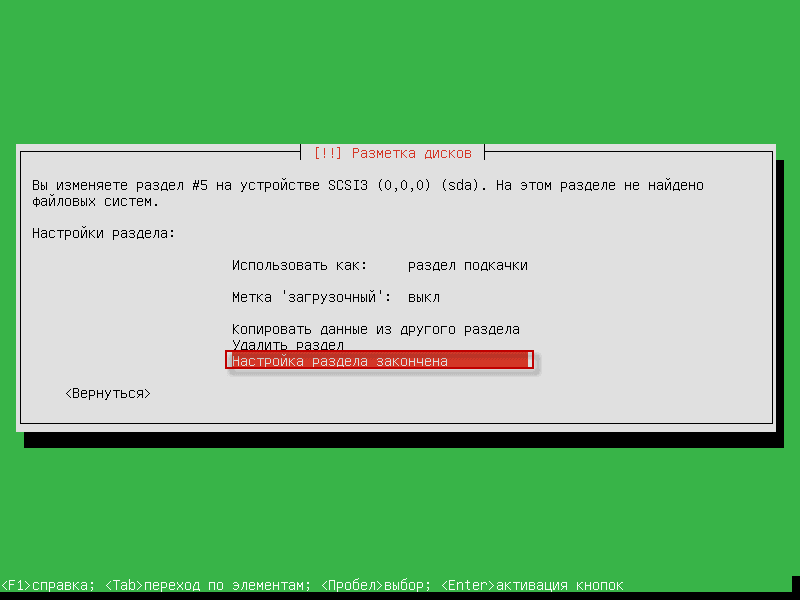
To save the changes created by the swap section, we stand on the position Set-up section is complete pressed Enter:
We create a root section, for this we stand on the free place of the hard drive and click Enter:
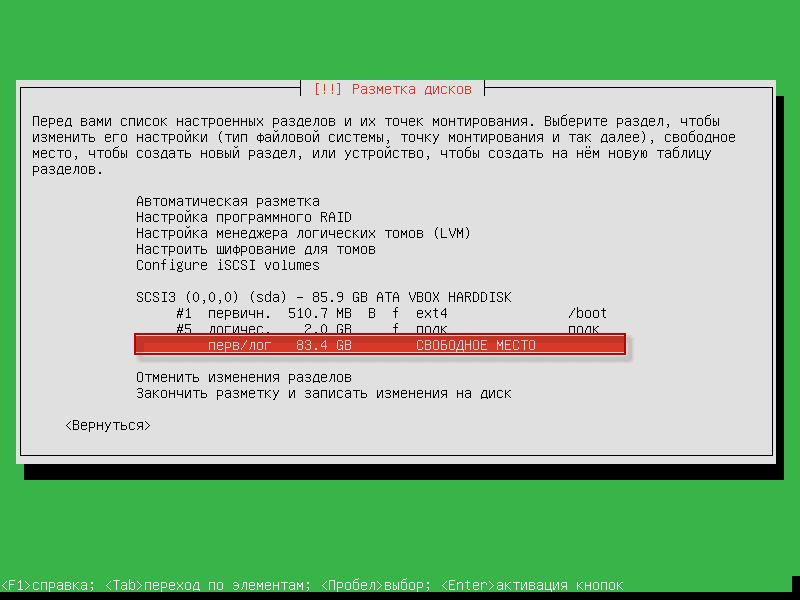
In the window that appears, select Create a new section pressed Enter:
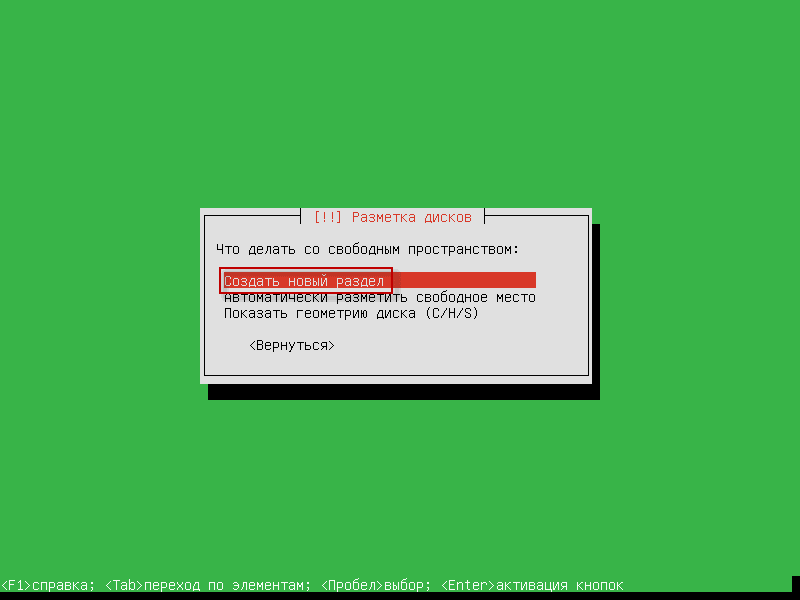
Indicate the size of the root section 12gbThen we go to the button and click. Enter:
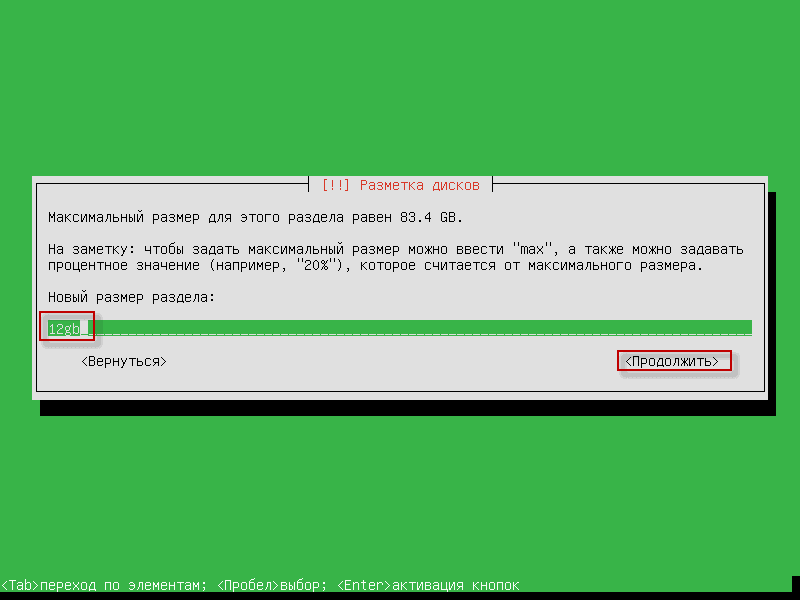
Select the type of new section Logical and click Enter:
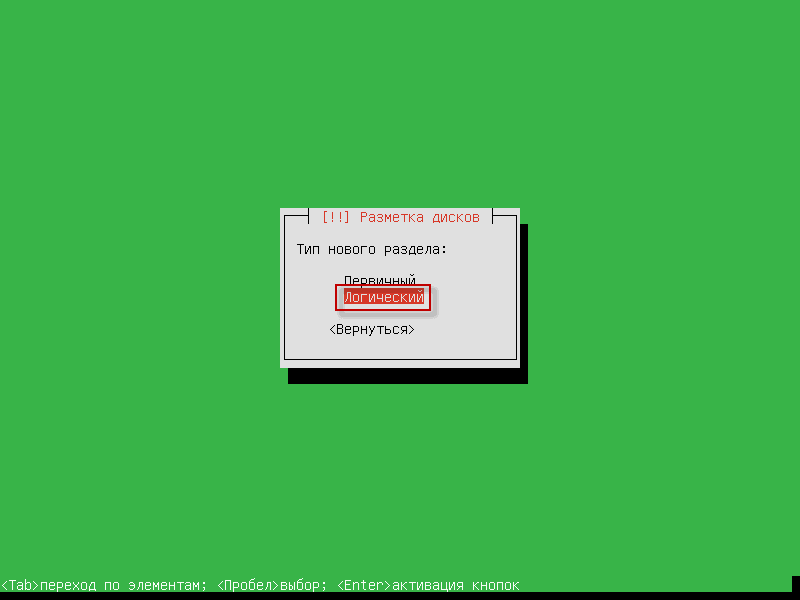
Select the location of a new section Beginning:
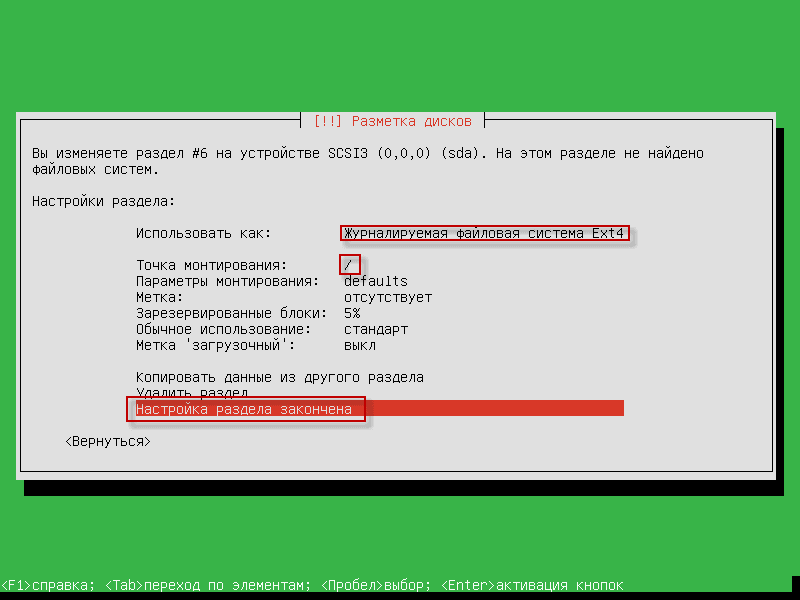
Set up the root section for example below:
- Use it as: Journaled file system Ext4
- Mounting point: /
To save and add the section, we are Set-up section is complete pressed Enter:
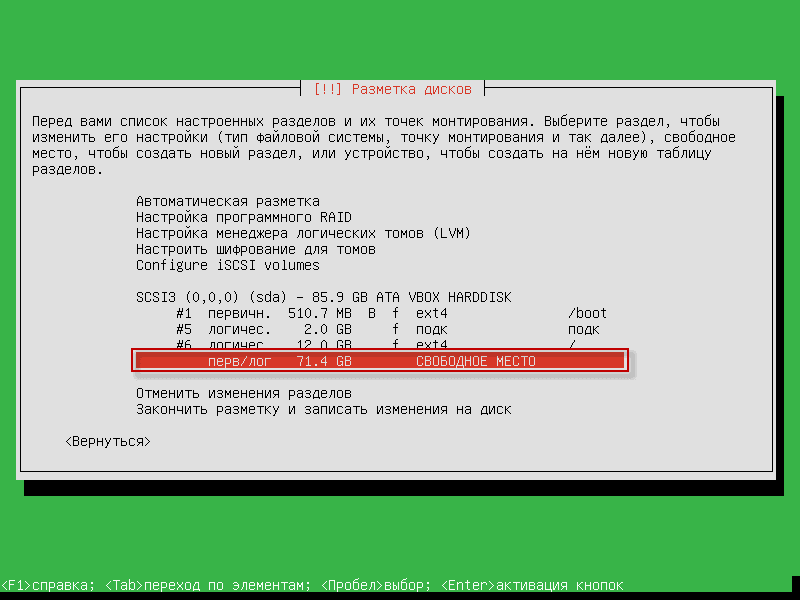
Creating a home section /homeTo do this, we stand on the free place of the hard drive and click Enter:
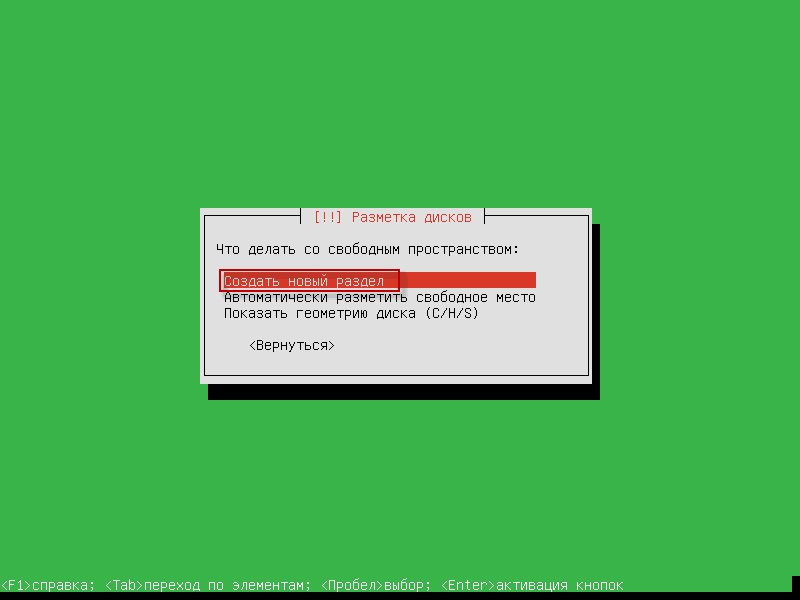
In the window that appears, select Create a new section pressed Enter:
Indicate the size of the home section /home size 71.4 GBAll free space, we stand on the button. Continue. and click Enter:

Select the type of new section Logical and click Enter:

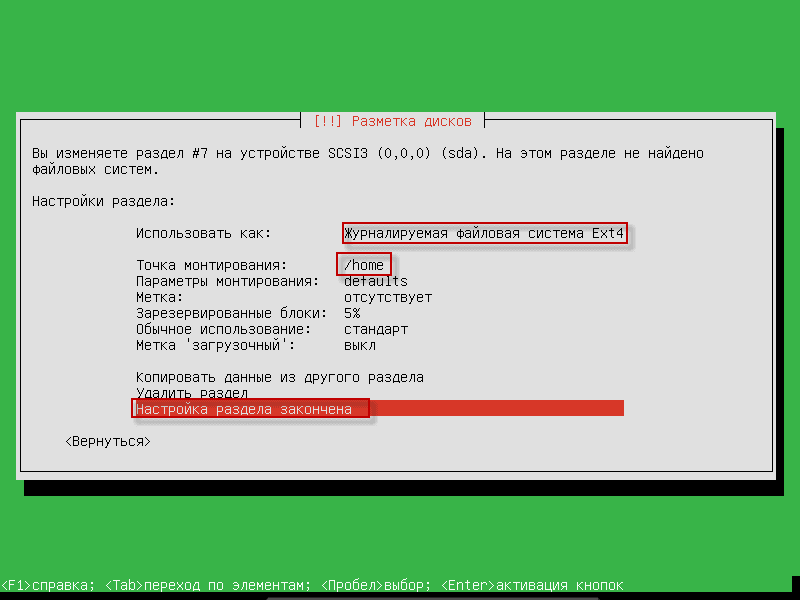
Set up the home section for example below:
- Use it as: Journaled file system Ext4
- Mounting point: /home
To save and add the home section, we become Set-up section is complete pressed Enter:
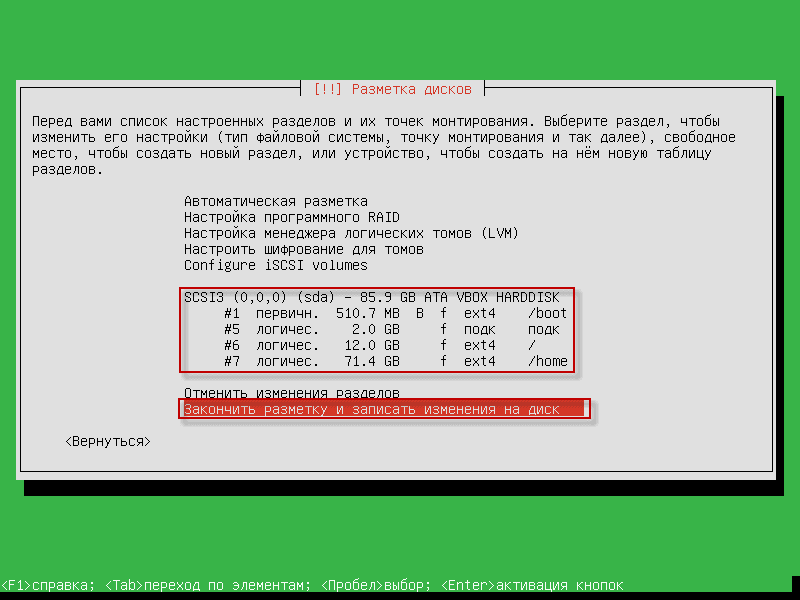
In the screenshot below you see a ready breakdown of the hard drive, to continue the installation we stand on Finish the markup and record changes to disk and click Enter:
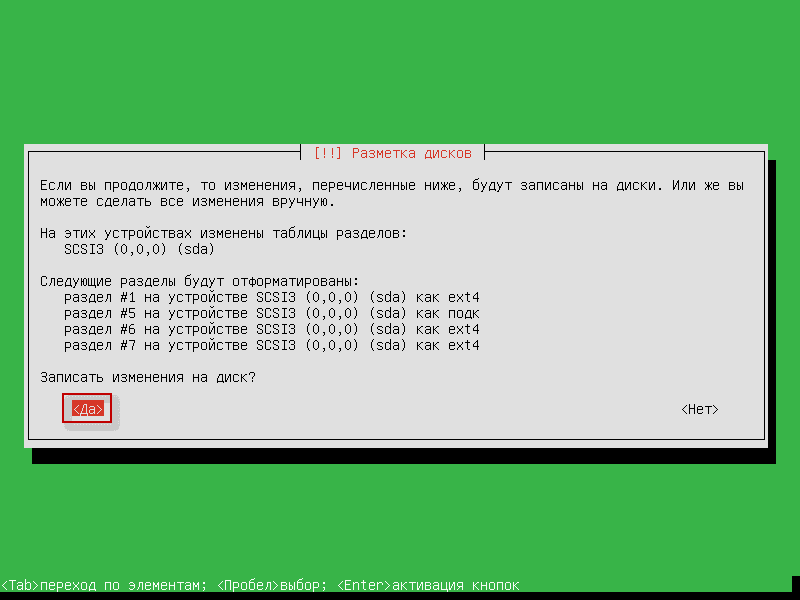
We agree to notify the system of formatting and click Enter:
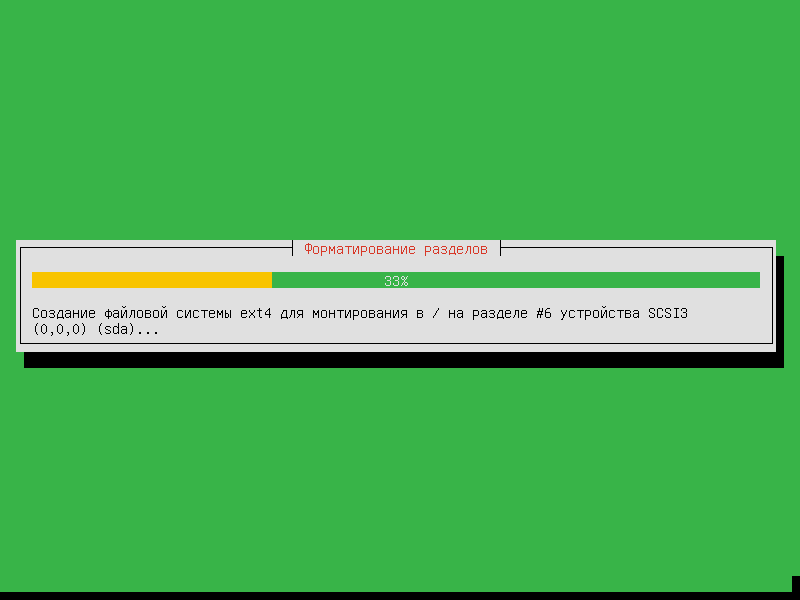
Installation of the operating system:
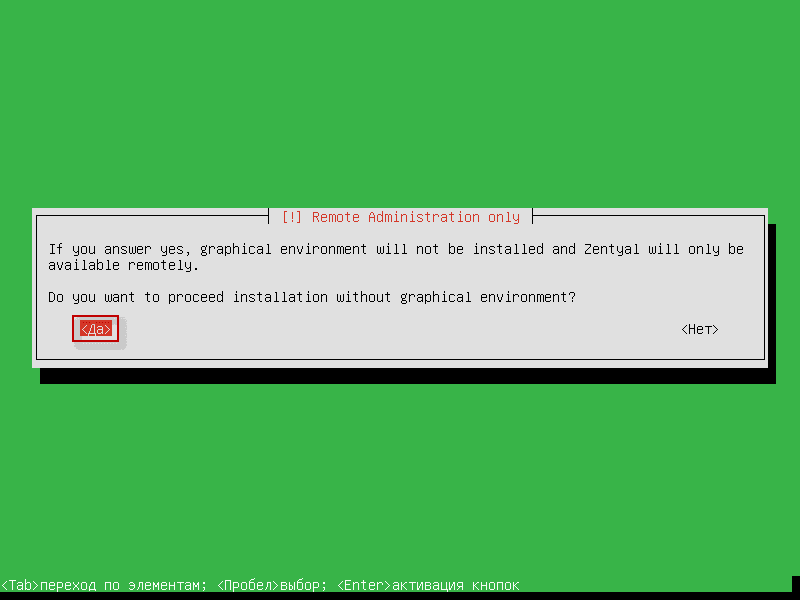
In the window that opens, the installer will offer to continue the installation with two options with graphics and without graphics. I prefer to put servers only without graphics, I do not see any sense in using server resources on a graphical system, for the server only console. I choose. Yes., confirming the installation without a graphics system and console, and scrape will be through the web interface and click the button Enter:
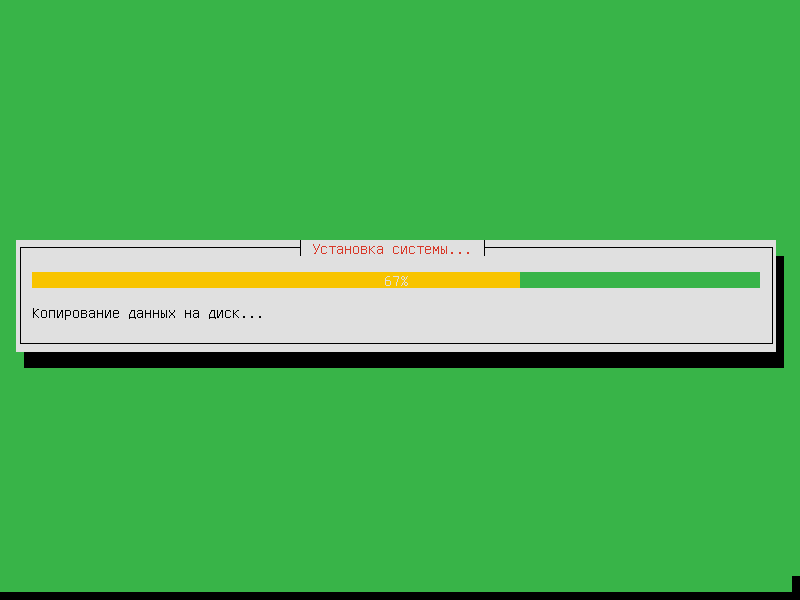
Installation of the operating system:
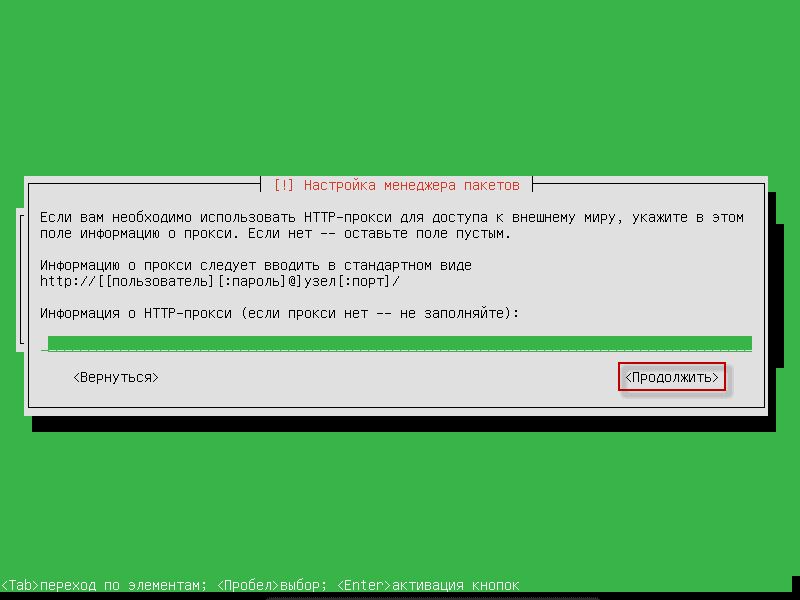
If you have the Internet on the network works only through a proxy server, then in the next window you need to specify the address of the proxy server for example as in the screenshot, if not used, then we do not write anything, stand on the screen. Continue. and click Enter:
We agree with the installation of the GRUB boot loader in the main boot record:

Please note that the watch is not shown in UTC:
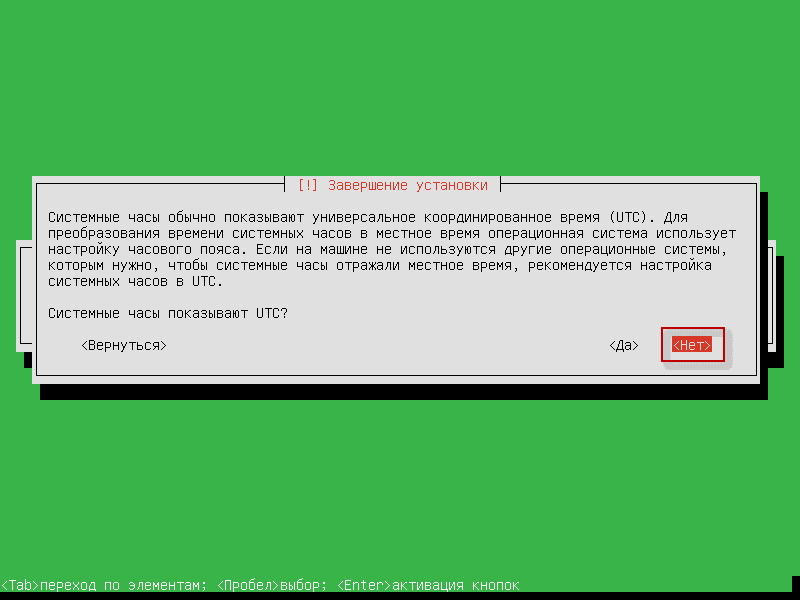
Installation of Zentual is completed, we are going to Continue. and click EnterThe installer will throw away the installation disk and restart the server:

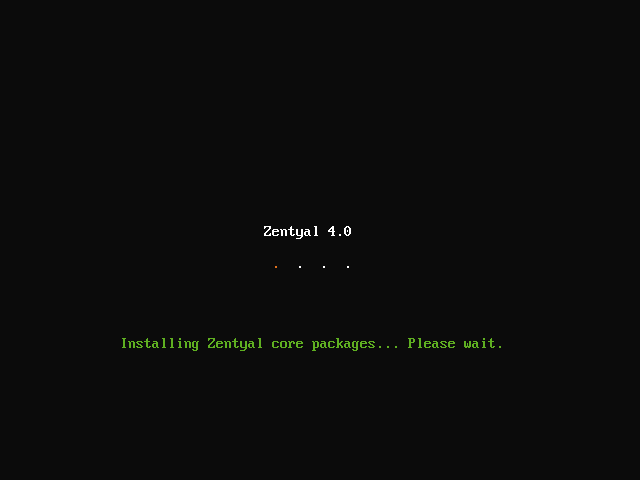
After booting the system, the initial configuration of Zentual packages continues:
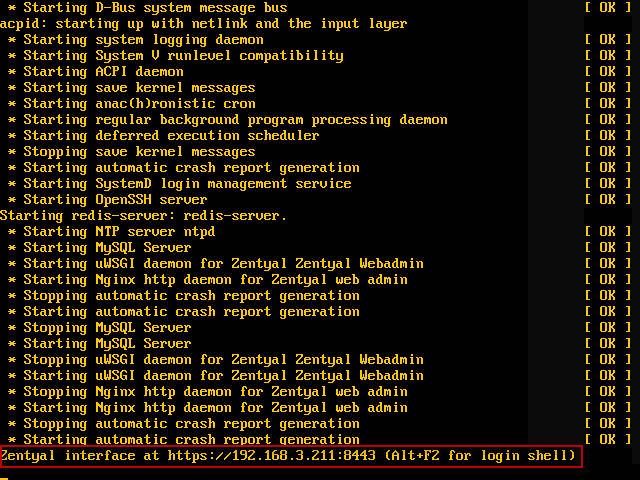
Press the button. F2, will open a detailed output in the system boot console, as soon as there is a record with an address for entering through the browser, overload the server by clicking on the key combination Ctrl+Alt+Del:
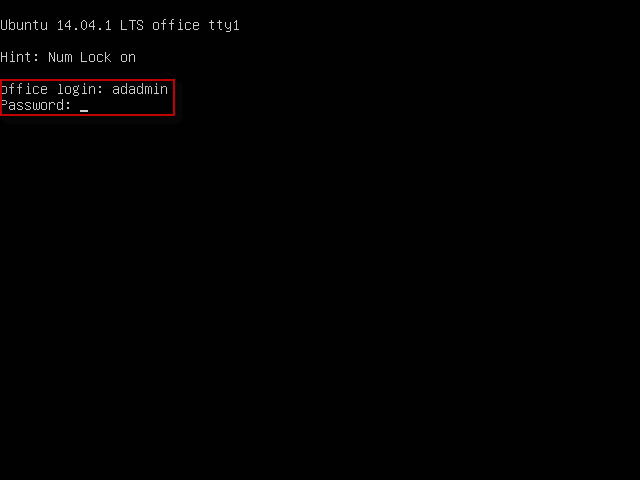
After restarting the server, the server console will open:

By logging in to the server by entering the adadmin login, or the one you specified during installation and password, the password itself is not displayed during installation:
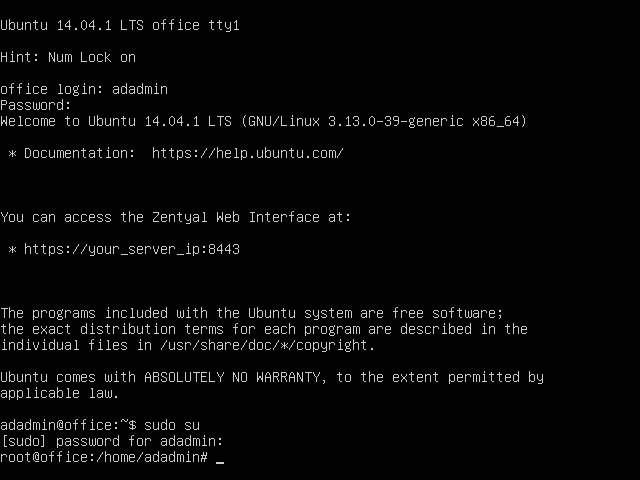
If you need to configure the server, you can use sudo for each command, but I just log in under the root user to save money by executing the command sudo su I enter the password and set up.
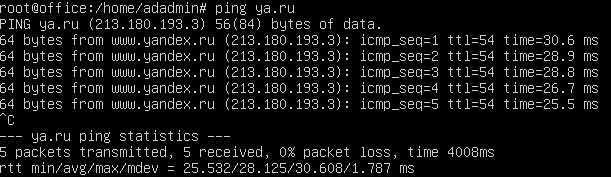
Check the availability of the Internet on the server by ping:
ping ya.ru
To interrupt the ping, you need to press the key combination Ctrl+c
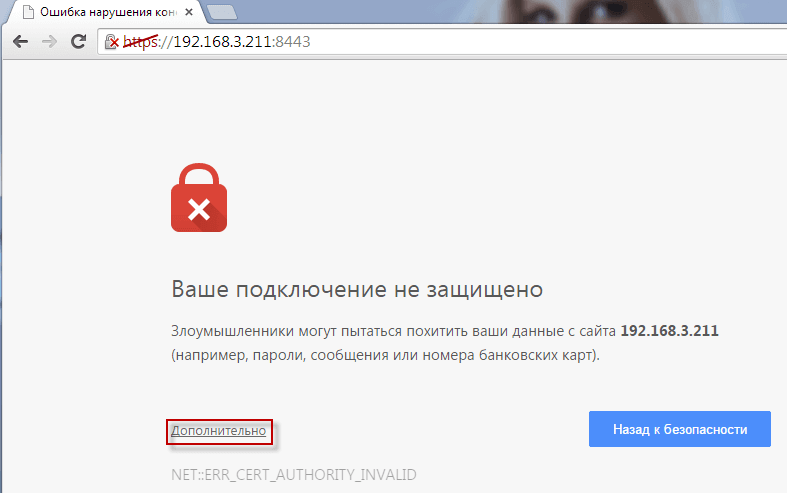
We proceed to continue installing the system through the browser, so I do not recommend closing the browser or interrupting the installation process. Open the browser connection and since an encrypted connection is used by https, the Chrome browser will swear, however, like Firefox, you need to click on In addition:
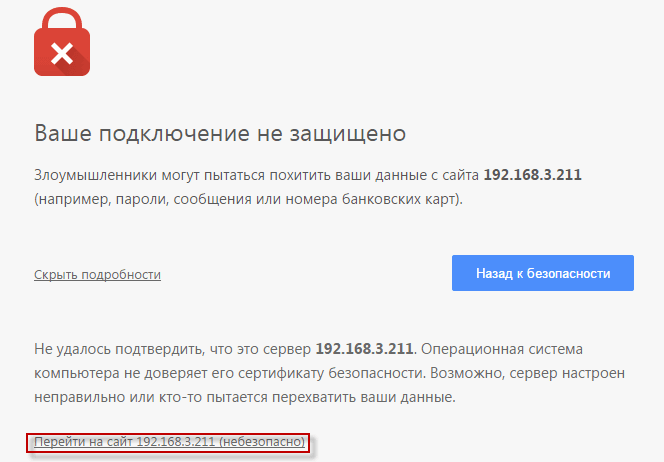
And press on Go to 192.168.3.211 (not secure):
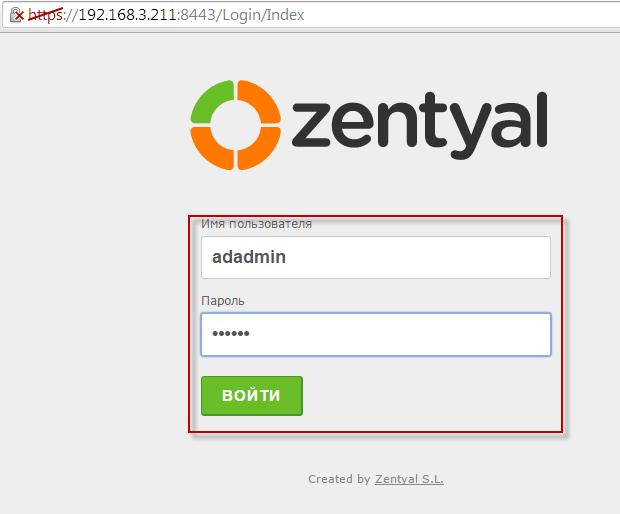
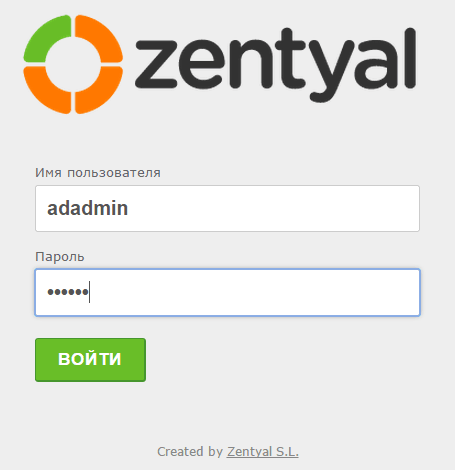
A web interface window will open to authorize and continue installing the necessary packages and settings. Active Directorylogin to the system by entering a login adadmin and password that was specified during the installation earlier and press the button Come in.:
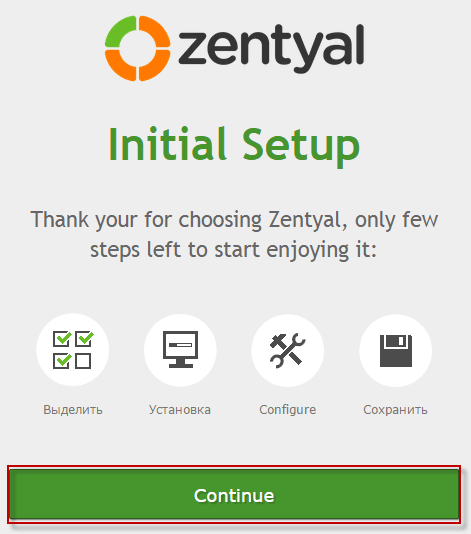
The installation wizard will open, press the button to continue the installation. Continue:
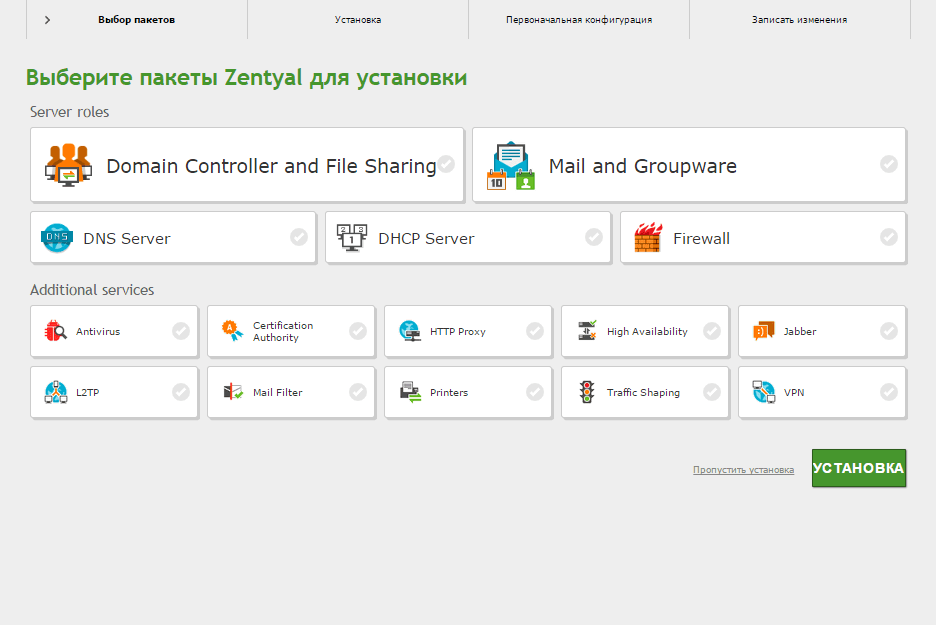
In the window that opens, you need to select the necessary packages by clicking on them with your mouse and putting a green tick:
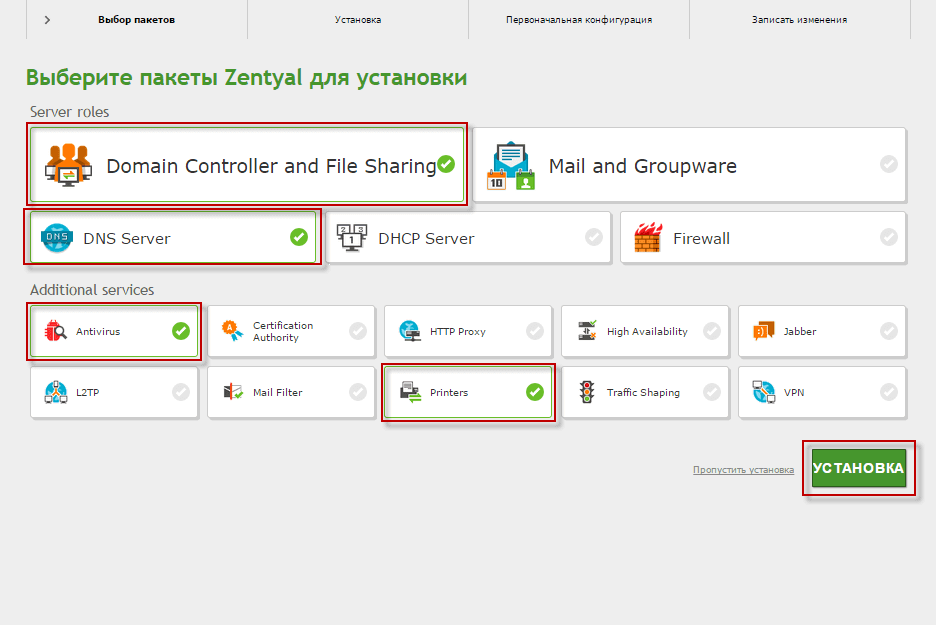
Activate packets:
- Domain Controller and File Sharing
- DNS Server
- Antivirus
- Printers
To install the selected packages, click the button Installation:
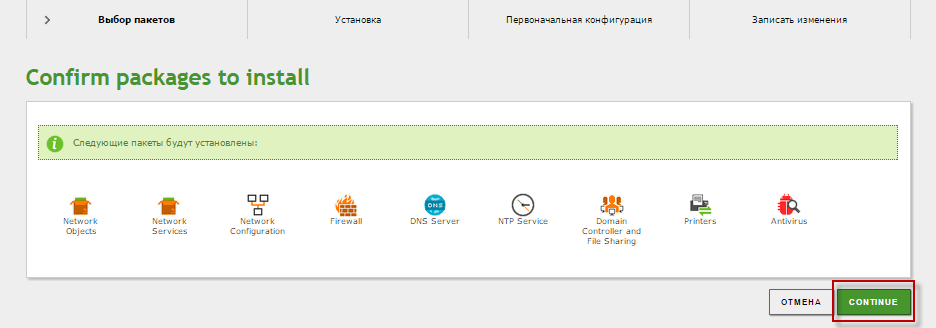
Make sure all the necessary packages are selected and click the button. Continue:
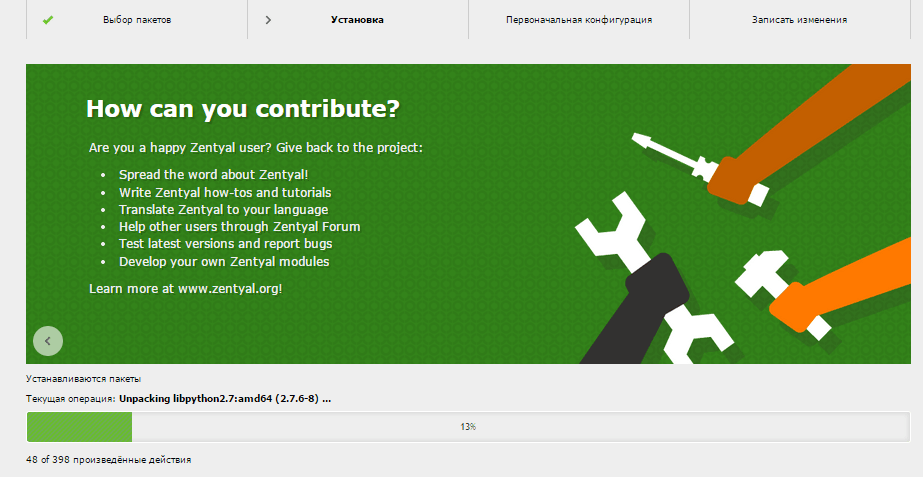
We see the installation process:
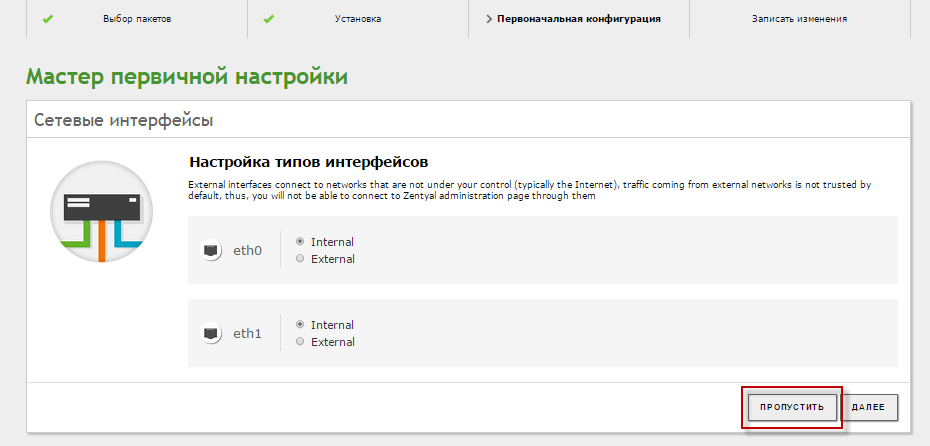
The Master of Primary Configuration is opened. Configure network interfaces, as we configured the network interface during the installation of the operating system setting skip, click Let go.:
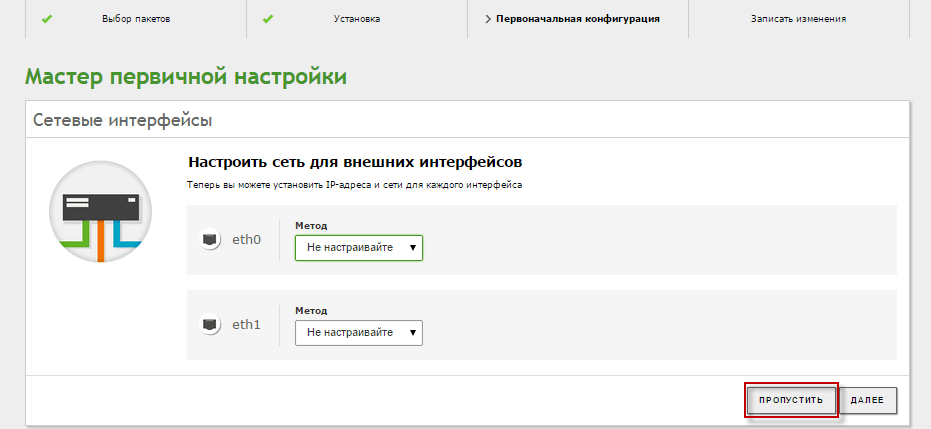
Skip the network setting in the next window by clicking on the button Let go.:
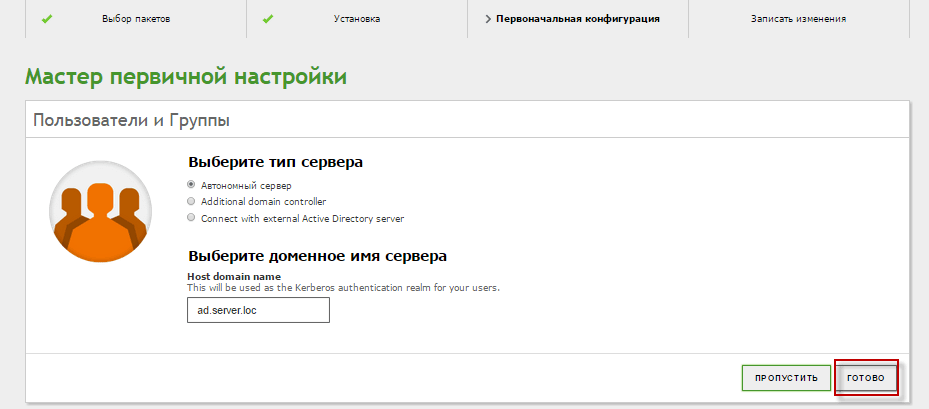
During the installation of the operating system, we specified the domain name. office.ad.server.locwhere office It's the server name. ad.server.loc domain Active Directory and press the button to complete Ready. :
The process of installing system packages:

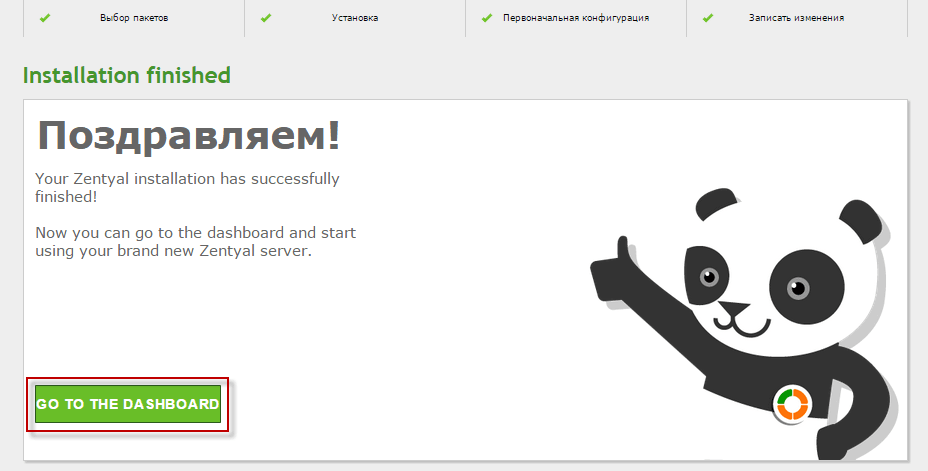
Installation of server Active Directory systemically Zentual and go to the web interface by clicking on the button GO TO THE DASHBOARD:
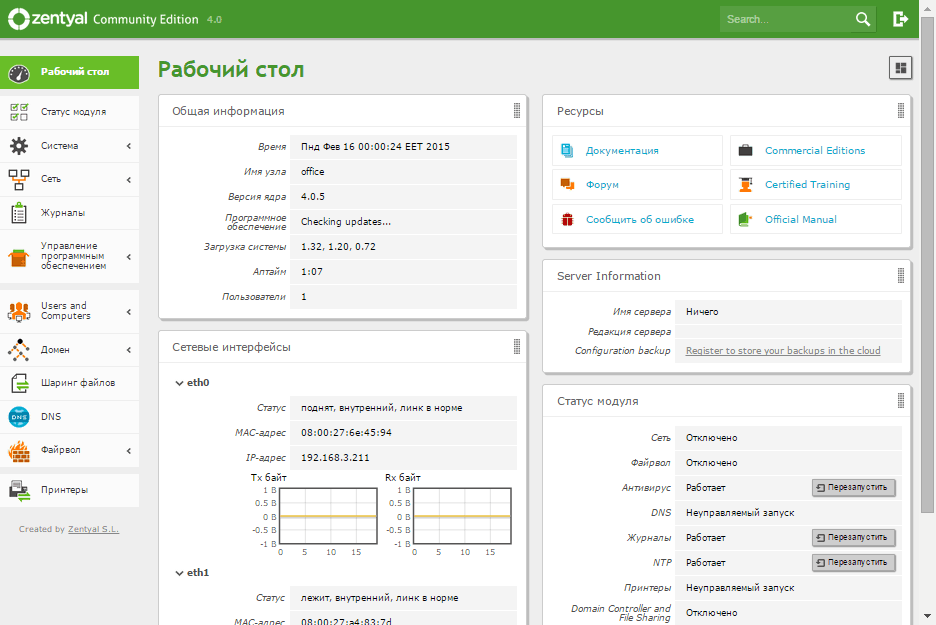
The settings workbar Active Directory systemically Zentual:
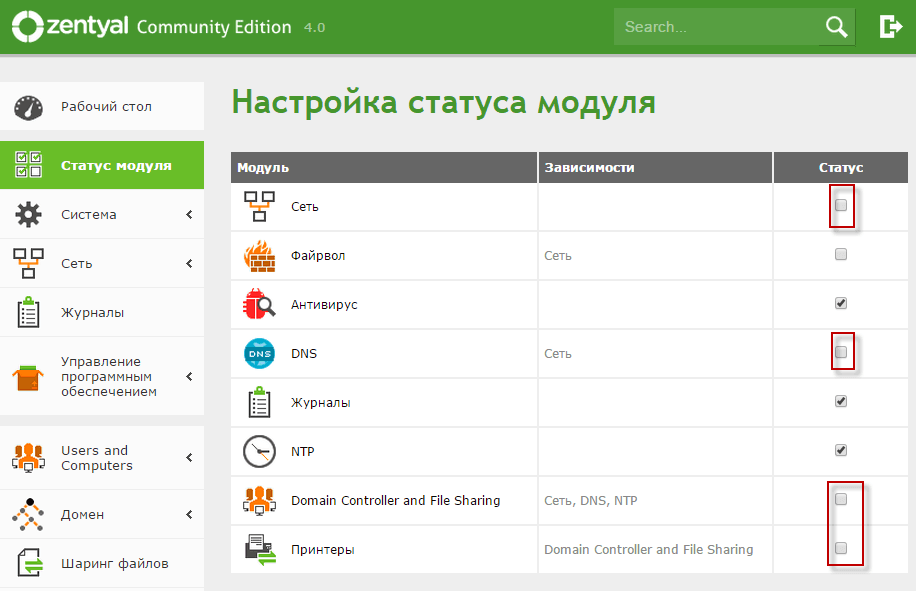
Go to the Module Status tab, see non-activated modules Network, DNS, Domain Controller and File Sharing, Printers.You need to activate them by ticking the checkbox:
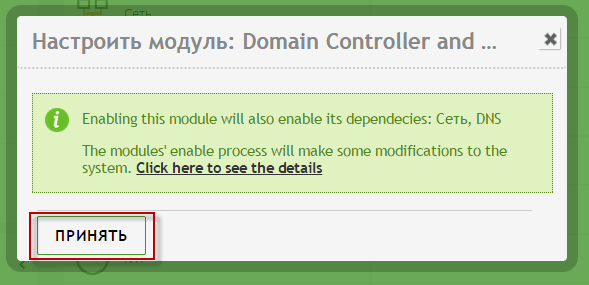
Agree with activation of the module Domain Controller and File Sharing click Adopt:
Agree with activation of the module Printers. click Adopt:

Changes are made by clicking on the button Preserve the changes:

We agree to save the changes by clicking on the button. Preserve:

Log in to the Zentual web interface:
In this manual, we installed the Zentual Server distribution and installed all the necessary modules for Active Directory to run on a Linux server. The following instructions will continue to add users, user groups, shared folders, group policies and administer our Windows domain.
Sergei Lazarenko was with you.
To distract from work and a little rest, we will watch a short video. The guys made an interesting video about people's responsiveness to another person's distress:

comment