
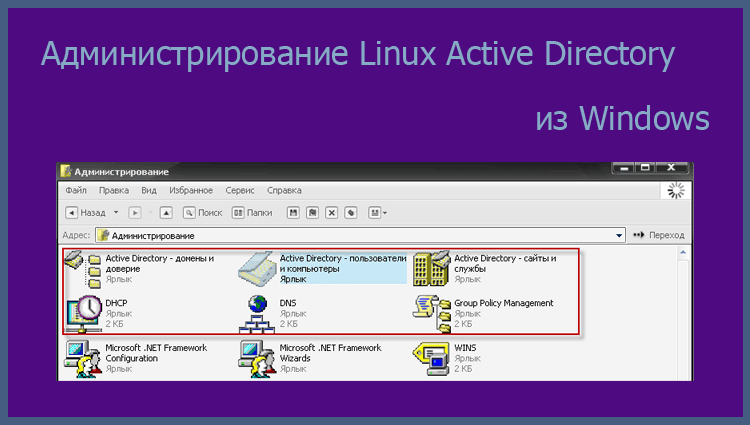
Greetings dear visitor, today we will install on Windows software to administer our Active Directory server on Linux.
For administration, I use a virtual machine with the Windows XP operating system installed, using the distribution. Windows XP Pro SP2 Minimalistic Edition215mb in size. This version of Windows XP uses a minimum amount of virtual computer resources, so you can install such a virtual machine even on a not very powerful server, for example, an organization gateway using a virtual environment. Virtualbox with a web-based virtual machine management interface PHPVirtualbox.
If you haven’t installed a Virtualbox from phpvirtualbox on the server, here is an instruction: Install Virtualbox on Debian server with phpvirtualbox web interface. In this manual, I do not see any point in telling how to install Windows on a computer or virtual machine, if there is such a need, then please unsubscribe in the comments below. So let’s assume that you installed the operating system, now you need to install several programs to add functionality to manage users, user groups and group policies of the domain controller. And then enter our computer into a Linux domain controller.
Download files to your virtual computer: gpmc.msi, WindowsServer2003-KB340178-SP2-x86-RUS.msi, dotnetfx.exeAnd we set them up:
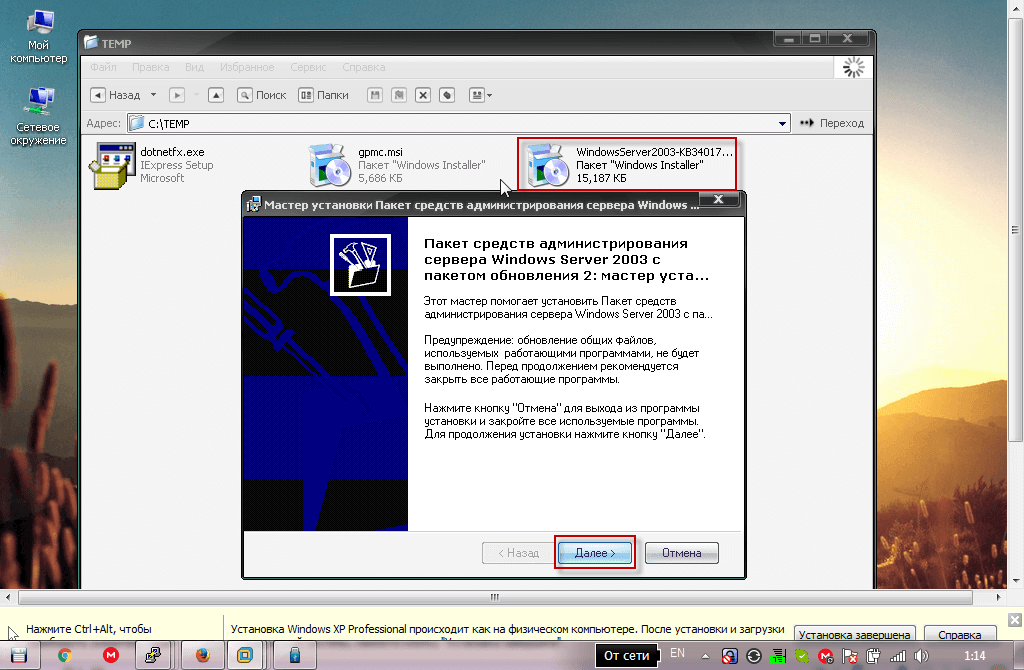
Install the Microsoft .NET Framework by running a downloaded file dotnetfx.exe:
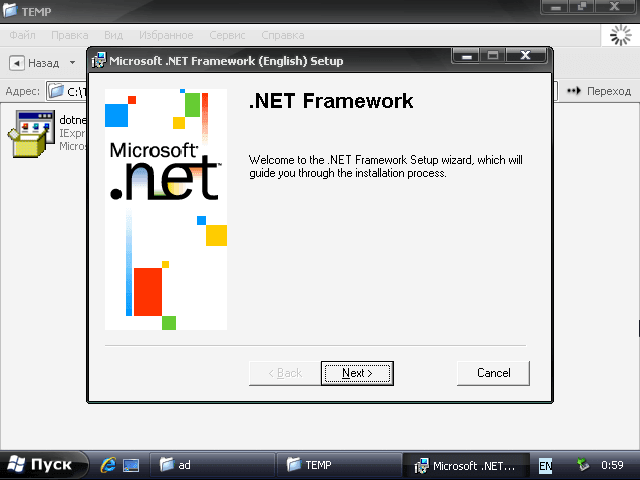
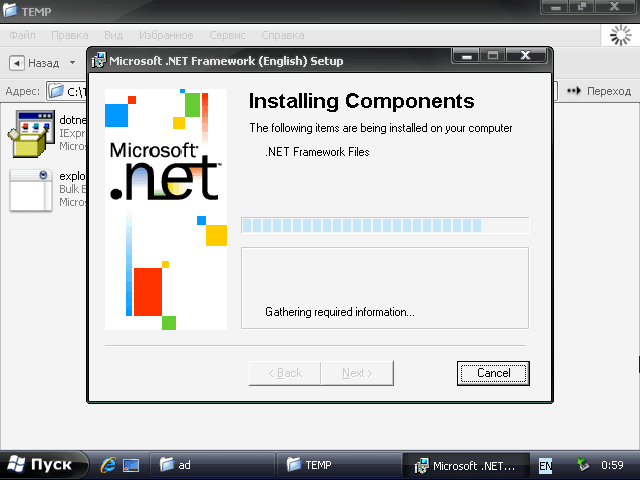
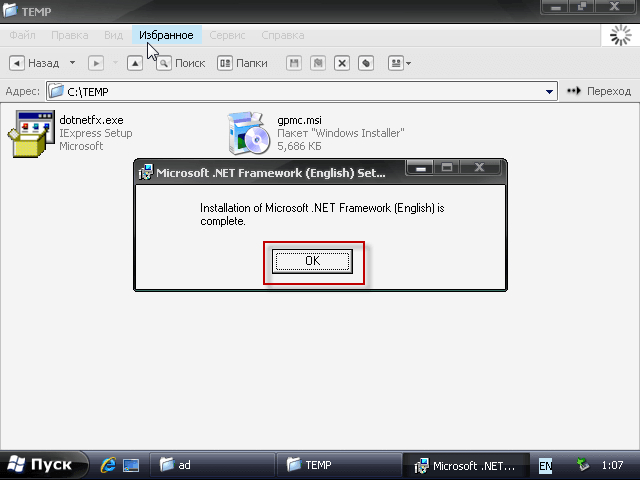
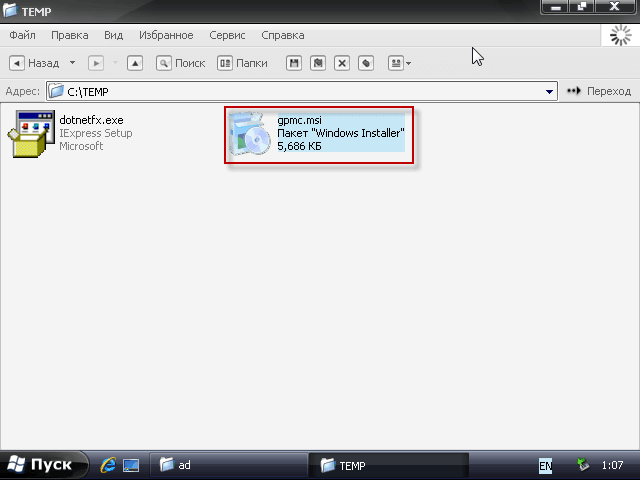
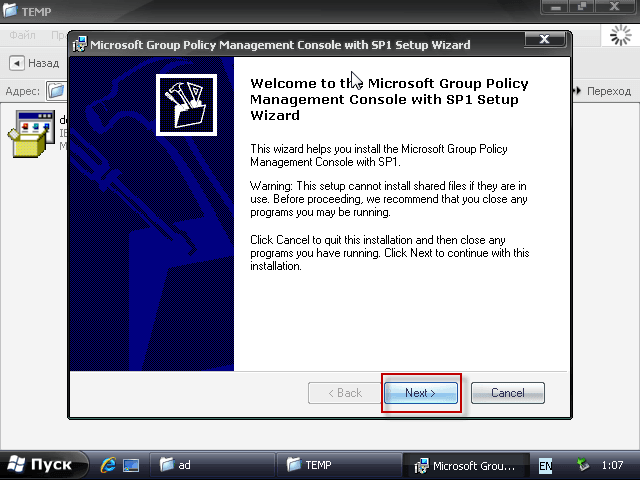
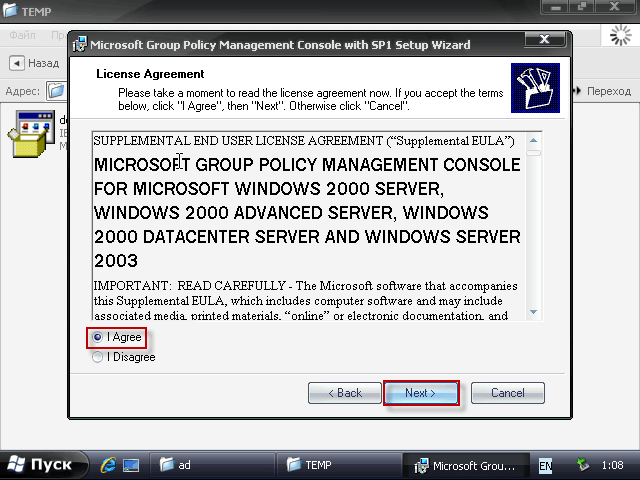
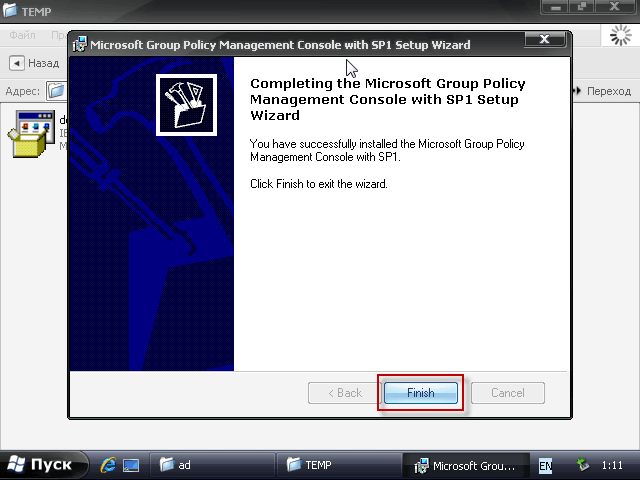
Install the downloaded file gpmc.msi Manage Group Policies in Linux Active Directory
Install the Windows Server 2003 server administration toolkit to manage Linux Active Directory:
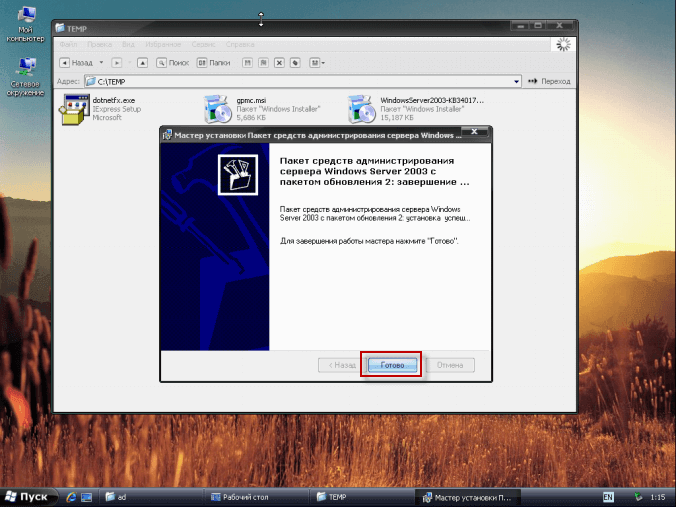
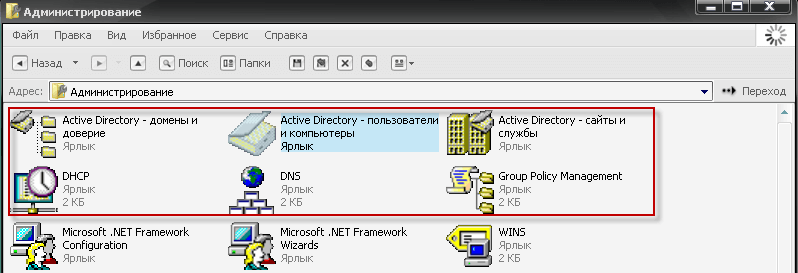
When everything is established, we can see that in Launch. - Control panel - Administration Linux Active Directory Administration Launch Labels:
- Active Directory - Domains and Trust
- Active Directory - Users and Computers
- Active Directory - Sites and Services
- Group Policy Management
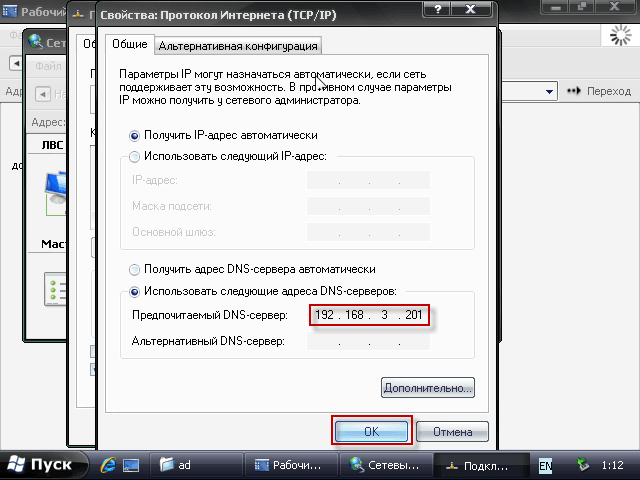
Add Linux Active Directory server DNS to the virtual machine network settings:
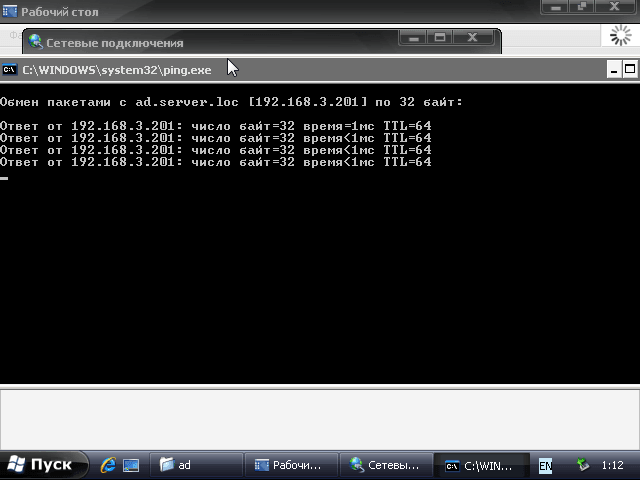
Check if the domain name with the DNS Linux Active Directory server is resolute by ping:
ping ad.server.loc
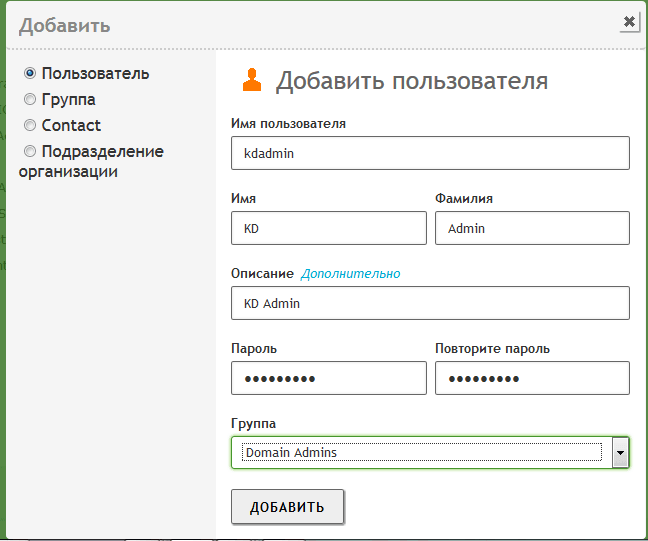
Added to the web user interface kdadmin the administrator of the Linux Active Directory server domain controller, fill in your data for example below:
- User name: kdadmin
- Name: KD
- Last name: Admin
- Description: KD Admin
- Password: Enter your password and password confirmation
- Group: Domain Admins
Add the user by clicking on the button Add:
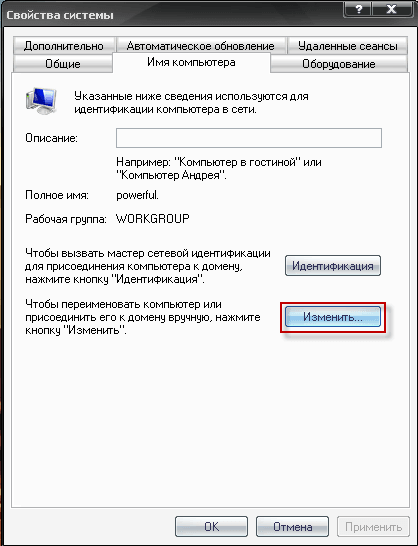
Now enter our virtual machine with Windows in Active DirectoryTo do this, in Windows, right-click on My computer. pressed PropertiesIn the open window, go to the tab. Computer name - Change.:
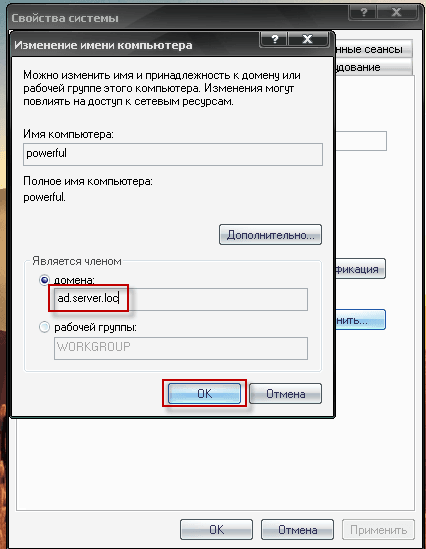
Check the box. Is a member of the domain and enter the domain name: ad.server.loc press the button. OK:
In the window that appears, you need to enter the domain administrator’s login and password:

Enter the computer into the domain, press OK and confirm the information about the need to restart and restart the computer:


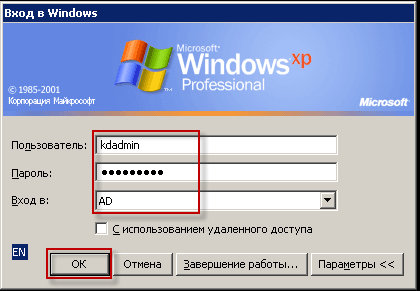
After restarting the computer, fill in the fields:
- User: kdadmin
- Password: give me your password.
- Entrance to: In the drop-down list, select AD.
Enter the domain at the push of a button OK:
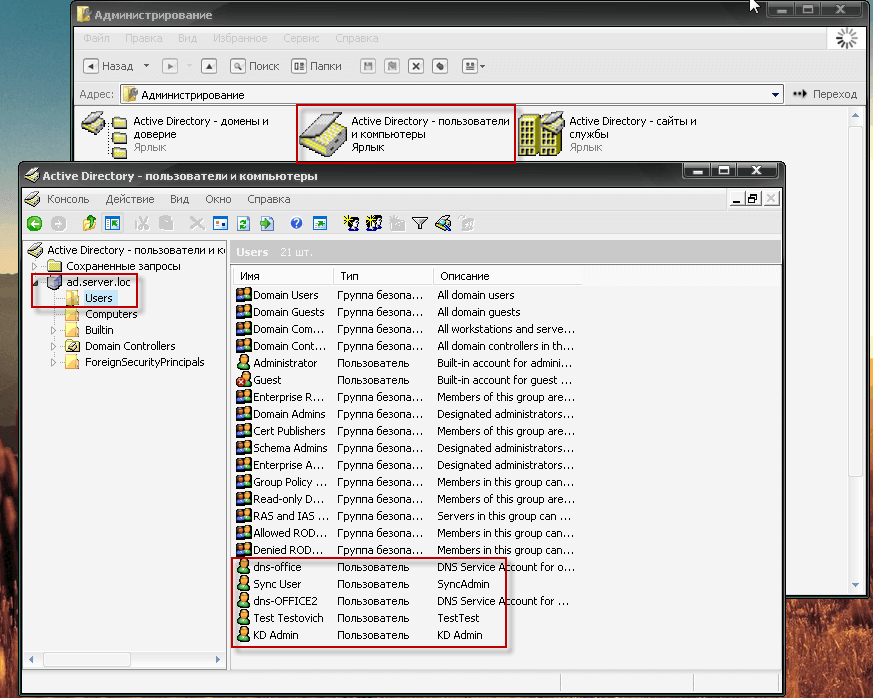
After loading the computer, we open it. Launch. - Control panel - Administration open the link Active Directory - Users and ComputersIn the open window, we can add groups and users:
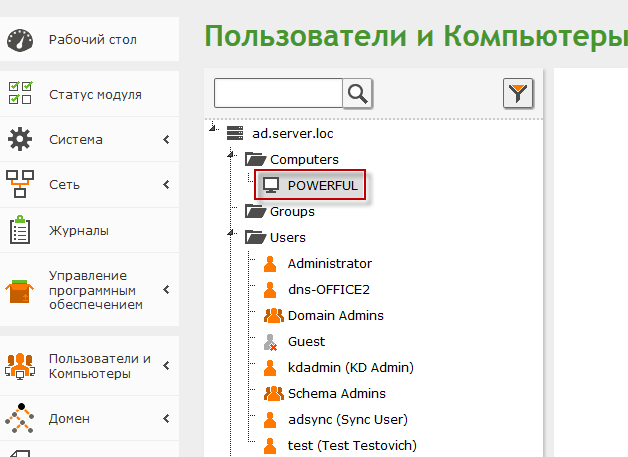
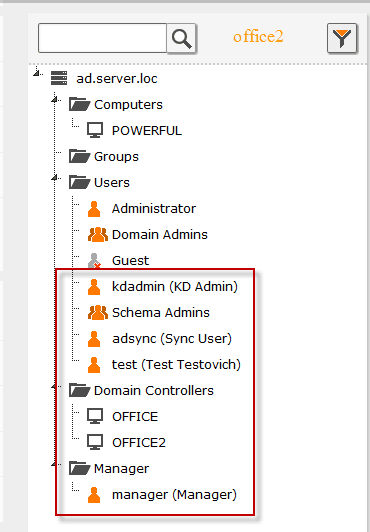
In the Zentual Linux Active Directory web interface, we can also see a computer entered into the domain:
Add a user and group through Linux Active Directory administration from Windows

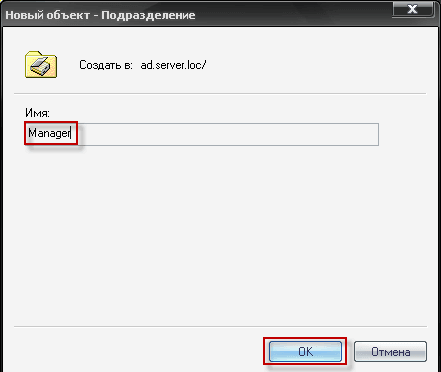
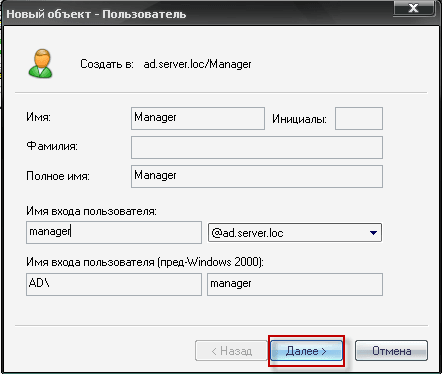

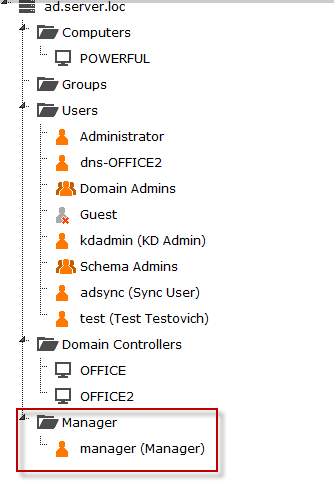
Now go to Windows under the added user manager:
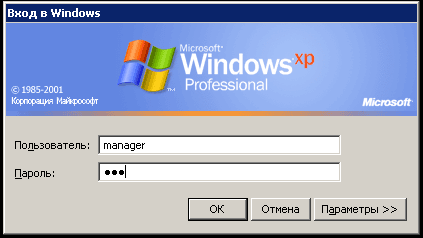

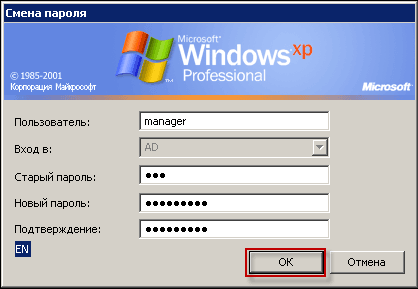
Today we have installed a software for administration. Linux Active Directory server. Later, we will add instructions on how to add shared folders with delimited access for users and groups.
Sergei Lazarenko was with you.
Let’s take a short break and watch a video of how in a private house you can save on heating:

comment