

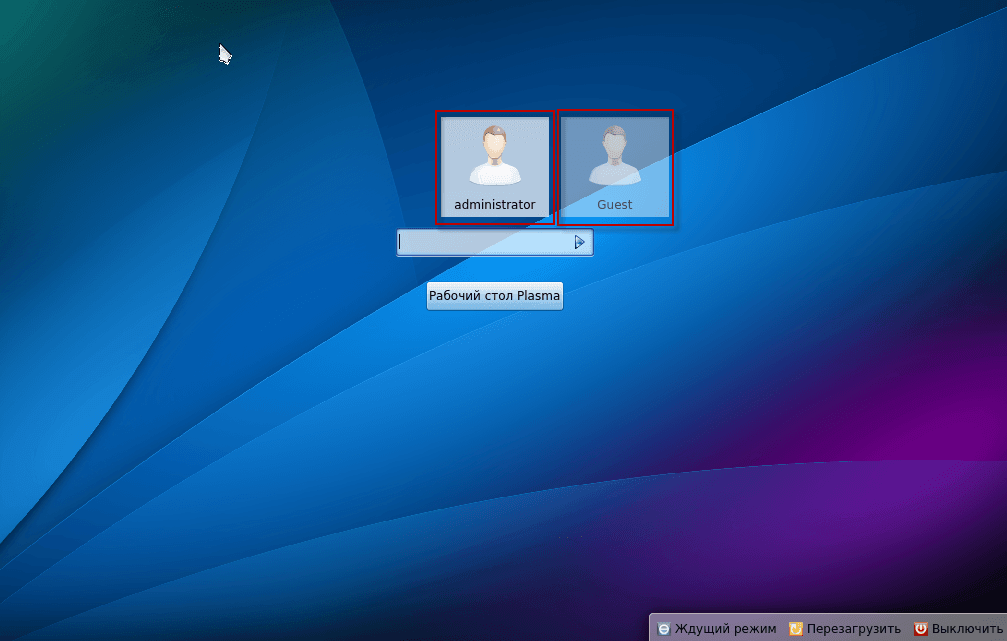
After selecting the user, entering his password, we boot for the first time to the Kubuntu system with the KDE4 desktop:

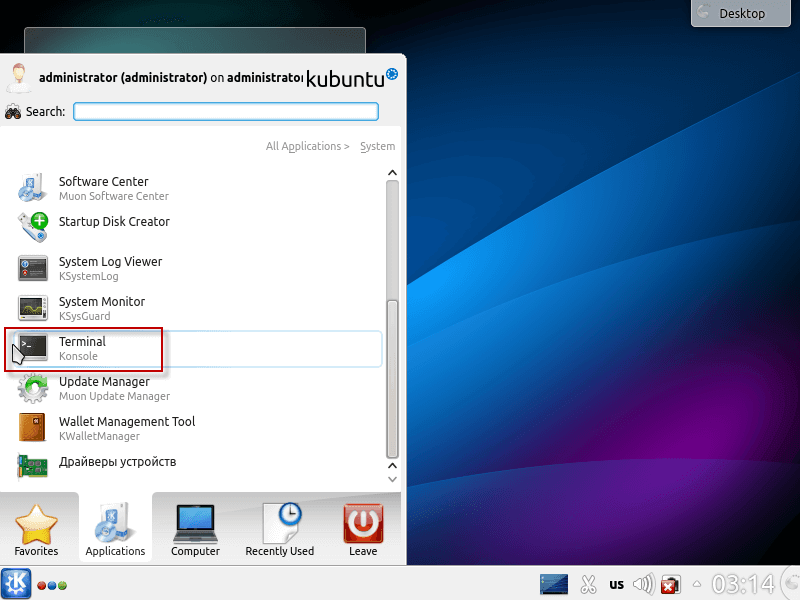
The first thing we will do is decomment the repositories of ubuntu partners. To do this, we need to start the terminal - press the menu launch button - Applications - System:

Let's start the program. Terminal:
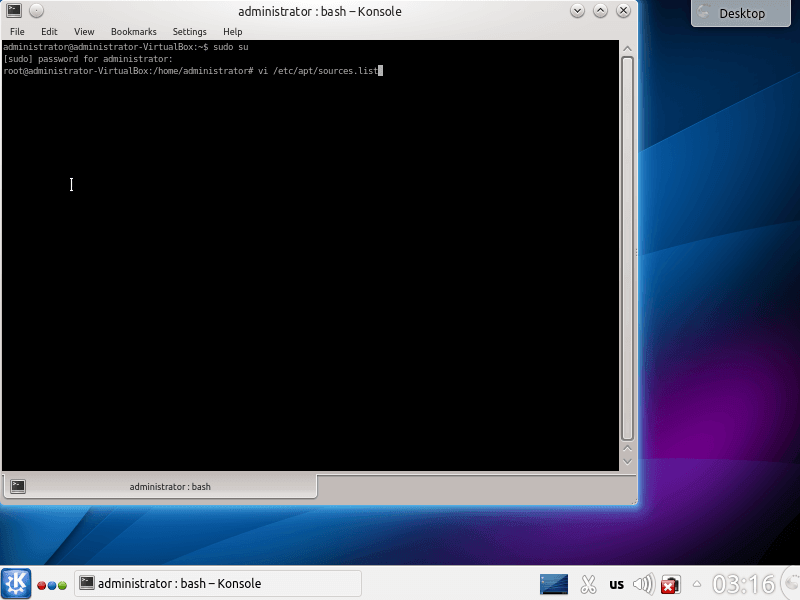
In the open window, we need to edit the file. /etc/apt/sources.listWe will use a wonderful editor for this. vi And then I did the command.
vi /etc/apt/sources.list
A small educational program for the editor vi
- Translate the program into editing mode by clicking in the English layout letter i at the bottom of the document will appear the inscription - Insertion --
- After editing the necessary data in the file to exit the editing mode, press the button Esc
- To save changes and exit the file, you need to type a combination :wqpress Enter
- To leave the file without saving the change, you need to type a combination :q! press Enter
In the file that opens, we need to go down to the bottom and edit the lines:
was:
# deb http://archive.canonical.com/ubuntu raring partner
# deb-src http://archive.canonical.com/ubuntu raring partner
became:
deb http://archive.canonical.com/ubuntu raring partner
deb-src http://archive.canonical.com/ubuntu raring partner
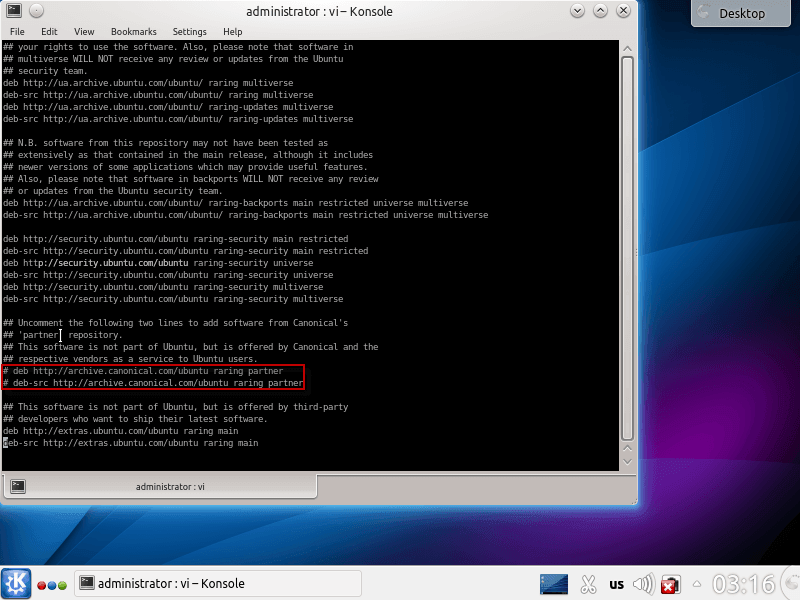
Below in the screenshot you can see the edited file:

After making changes, you need to save the changes and exit the file.
Next, we need to edit the file. /etc/fstab, since by default, added users on the computer will not have rights to use a disk with an NTFS file system mounted in a folder /mnt/d
Open the file. /etc/fstab And then I did the command.
vi /etc/fstab
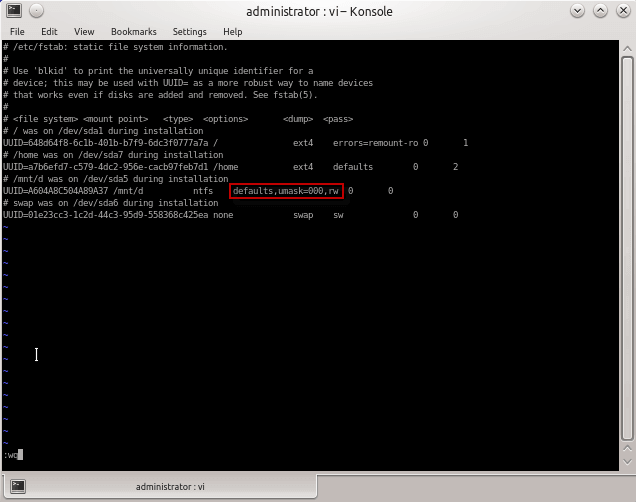
We make changes and save the file (UUID will be different for you):
was:
UUID=BCE86218E861D166 /mnt/d ntfs defaults,umask=007,gid=46 0 0
became:
UUID=BCE86218E861D166 /mnt/d ntfs defaults,umask=000,rw 0 0

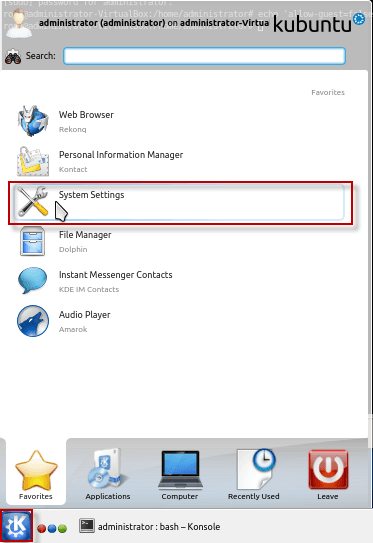
We add the user under which the user will work, for this we open Menu - System Settings:
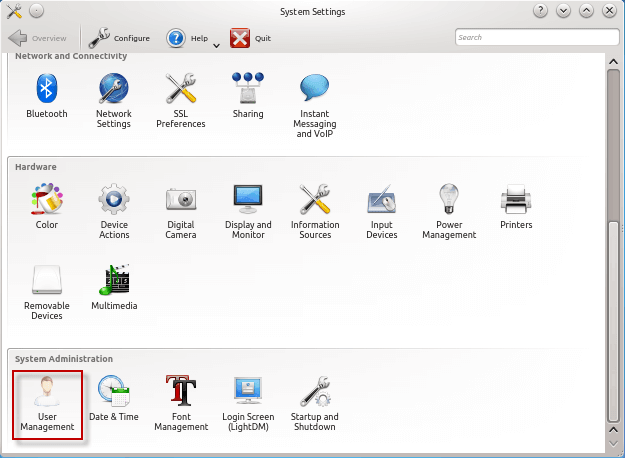
In the open window, click on the icon. User management:
Right after the opening. User Management The system will ask you to enter a user password with administrative rights, in our case it is the administrator:
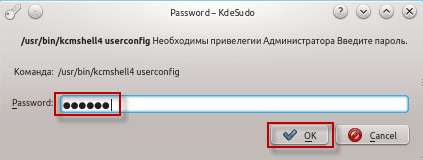
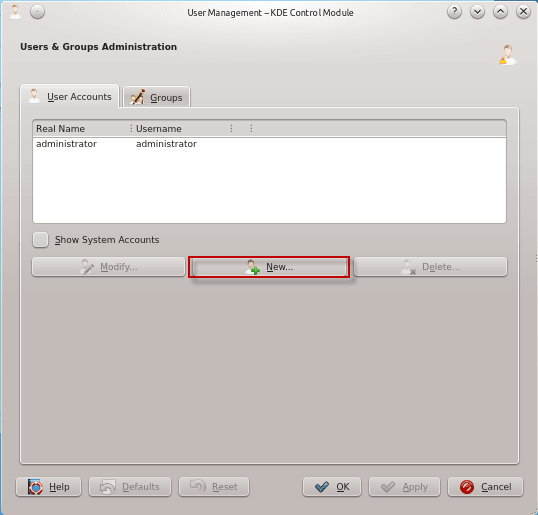
After entering the correct password, the editing window of users and groups will open, in order to add a new user click the button. New...:
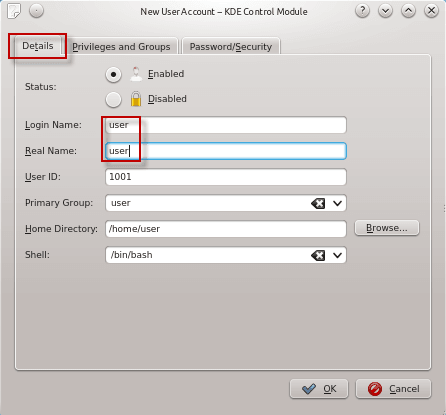
In the form of adding a new user, fill in the fields in the tab Details:
- Login Name: user
- Real Name: user
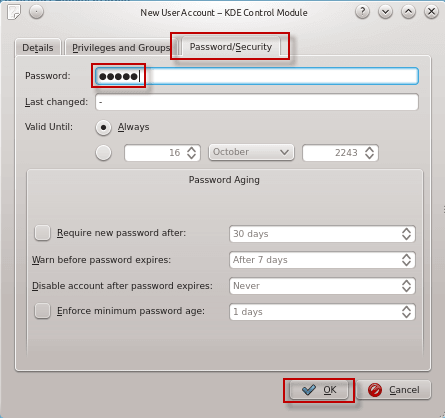
We're going in the tab. Password/Security Float the field:
- Password: pass_user
- Last changed: pass_user
To save changes and add a user, click the button OK:
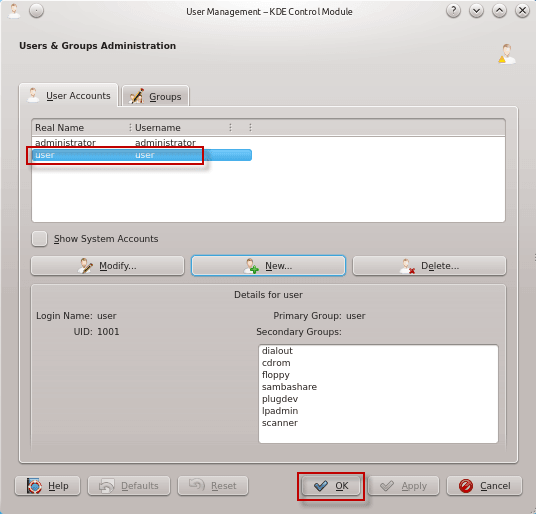
In the User and Group Management window, you can see a newly added user. user:
Configure the Internet via WiFi and cable
In order to update the system and install the necessary programs, an Internet connection is required. There are two most common ways to connect to the Internet is WIFI and wired connection them we will consider below.
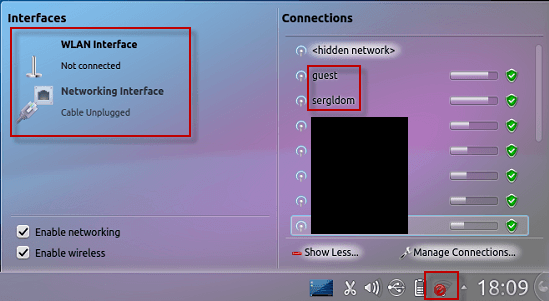
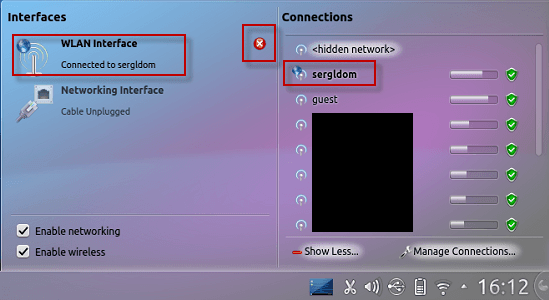
Clicking on the network manager icon at the bottom left, you must tick two boxes:
- Enable networking
- Enable wireless
In the right half, there will be WIFI-enabled networks, which is my home. sergldom for personal use and guest Guests without access to the network.
To connect to the desired network, you need to click on it with the right mouse button:
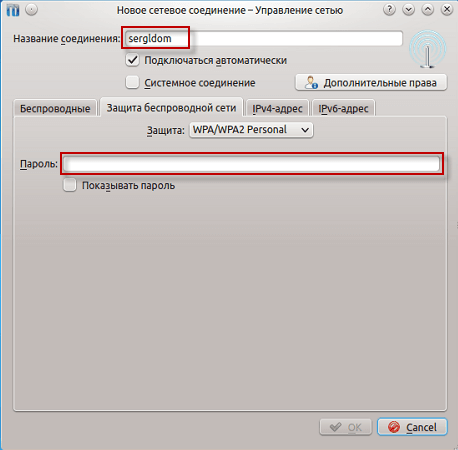
In the window that opens, the system will prompt you to enter a password from the WIFI network:
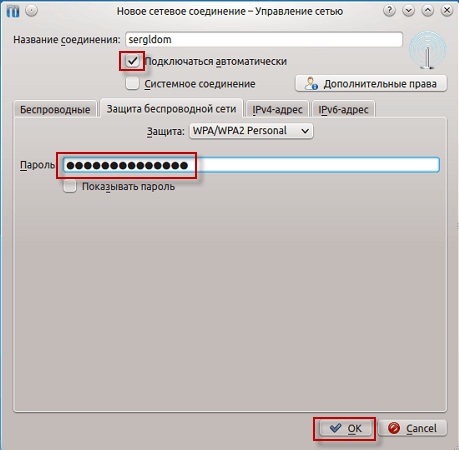
We mark the box in the field. Connect automatically, and enter the password and press the button OK.:
After connecting to the selected wifi network in the field WLAN Interface status Connected to sergldom. To disconnect from the connected network, you need to click on the cross at the status of connections to the network. If you want to view the details of the connection, click on the connection status:
In the screenshot below you will see details of the connection.

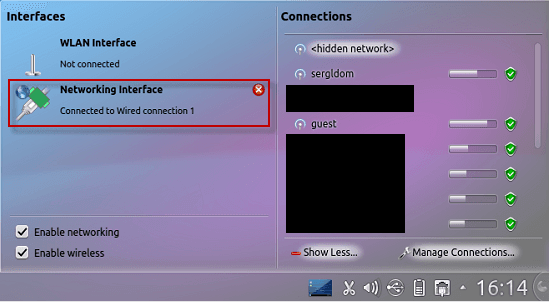
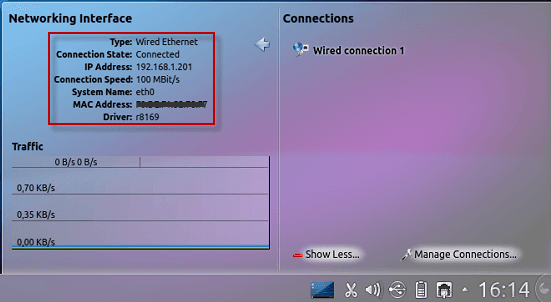
If you are not able to connect to the WIFI network, but have the ability to connect a network cable with the Internet to your computer, as soon as you connect the cable, the connection status is activated. Networking Interface - Connected to Wired connection 1Similarly, when you click on the status, a window will open with detailed connection data such as IP, MAC and connection speed:
Consider the manual settings of the Internet connection.
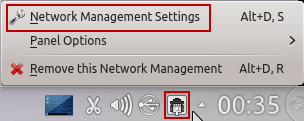
To configure the network, you need to start the network management manager, for this we right-click on the network icon and press Network Management Settings oral Configure the widget "Network Management":

In the open window, go to the tab. Wired click Wired connection 1 press the button. Edit:

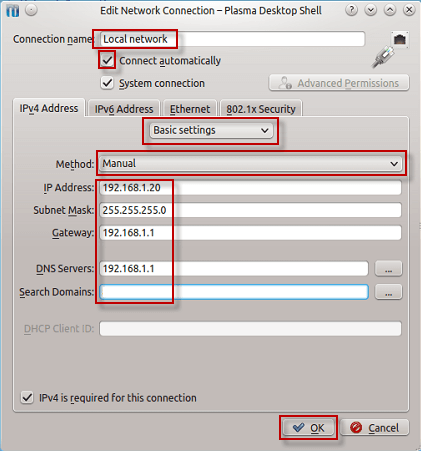
Fill in the fields for example below:
- Connection name: Local network
- Connect automatically: tick off
- Method: Manual
- IP Address: 192.168.1.20
- Subnet Mask: 255.255.255.0
- Gateway: 192.168.1.1
- DNS Servers: 192.168.1.1
To save network settings, press the button OK:
If you need to prescribe the necessary routes, then network settings should be in the drop-down list instead of Basic settings choose Routes and fill out the routes you need, such as below:
- Address: 192.168.0.0
- Netmask: 255.255.0.0
- Gateway: 192.168.1.1
To save network settings, press the button OK.:

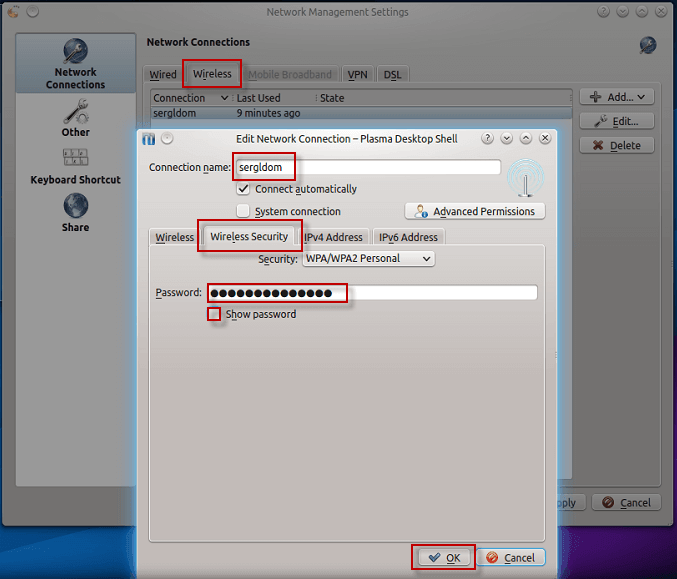
If you need to see the saved WIFI password of the network, you must go to the network settings manager in the tab. WirelessClick on the network you want to view and click the button. Edit, in the opened window in the tab Wireless Security To view the saved password, you need to tick in the field Show password:
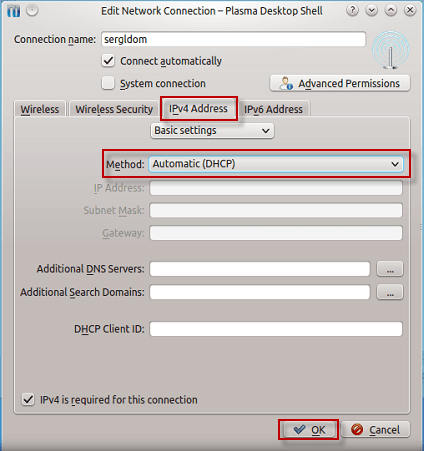
Similarly, as in a wired connection in WIFI you can change the addressing of settings, this is necessary in the tab. IPv4 Address modify Automatic (DHCP) on ManualTo save settings, press the button. OK:
A little advice.
If you install not one computer, but more than two, then in order not to create a local repository on the network and install systems quickly enough to install one computer according to this instruction, install the entire set of programs and after all setting up copy to the flash drive a set of all programs installed in the system.
Now we move on to removing guest access to the system, updating the system and installing some software. To do this, 2 commands must be executed:
echo 'allow-guest=false' >> /etc/lightdm/lightdm.conf
apt-get update && apt-get install -y aptitude language-pack-ru language-pack-kde-ru ssh vim mc screen && aptitude safe-upgrade -y && reboot

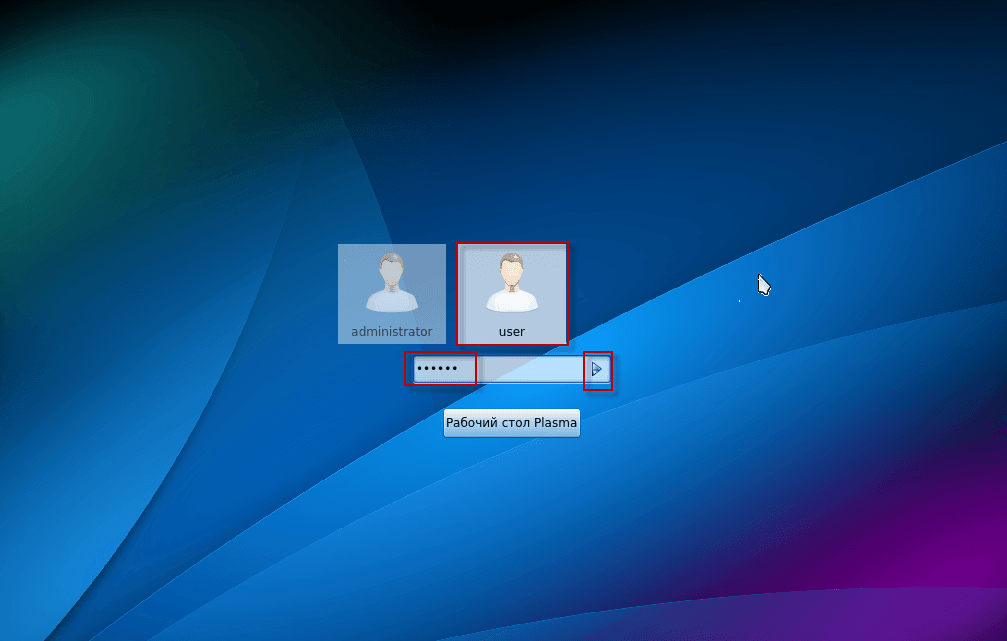
After restarting the computer, a new user appeared in the user's choice. user And the guest access that we've cut off is missing. Going under the user. user click on the icon user and entering the password in the field to enter the password Enter, or mouse on the arrow near the password field:
We will start installing the necessary software.
Open the console and log in under the administrator user by executing the command
su administrator
To request the system to enter a password, you must enter the administrator user password, the password will not be displayed when entering.
Authorized with rights root By executing the command similarly by entering the administrator user password:
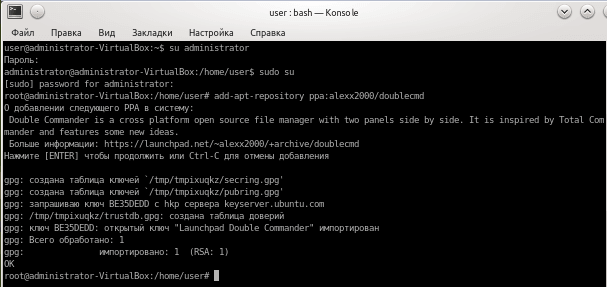
sudo su

add-apt-repository ppa:alexx2000/doublecmd
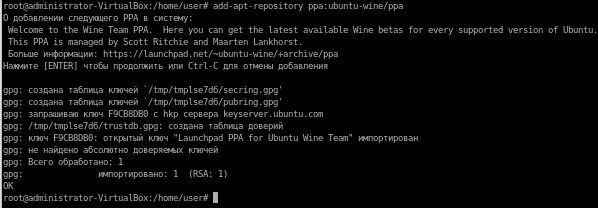
add-apt-repository ppa:ubuntu-wine/ppa
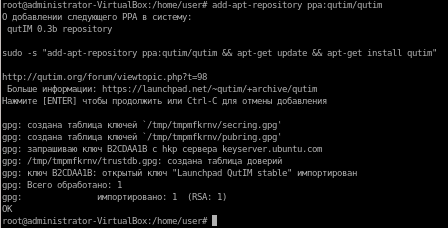
add-apt-repository ppa:qutim/qutim
We press the Enter button on the system question:
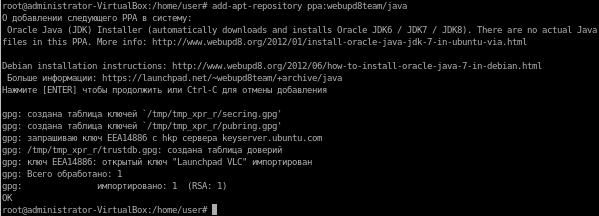
add-apt-repository ppa:webupd8team/java
We press the Enter button on the system question:
Run the package manager update, and also install the entire set of software for all occasions by following the command:
aptitude update && aptitude install -y vim mc screen nmap htop unzip zip rar unrar p7zip-full remmina rsync filezilla inkscape skype doublecmd-gtk wine1.7 qutim ssh sshfs mtr bmon vlc smplayer smplayer-themes smplayer-translations k3b k3b-i18n chromium-browser chromium-browser-l10n cifs-utils samba libreoffice-grammarcheck-ru libreoffice-help-ru libreoffice-l10n-ru libreoffice-grammarcheck-ru firefox firefox-locale-ru build-essential linux-headers-`uname -r` kubuntu-restricted-extras qutecom gimp yakuake acetoneiso oracle-java7-installer

This set of programs covers almost all user requirements.
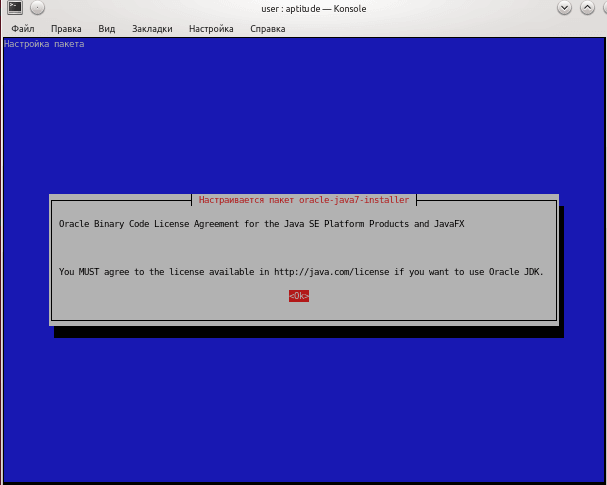
During the installation of programs, the system will offer to answer several questions. On the question of setting up the package oracle-java7-installer press Enter:
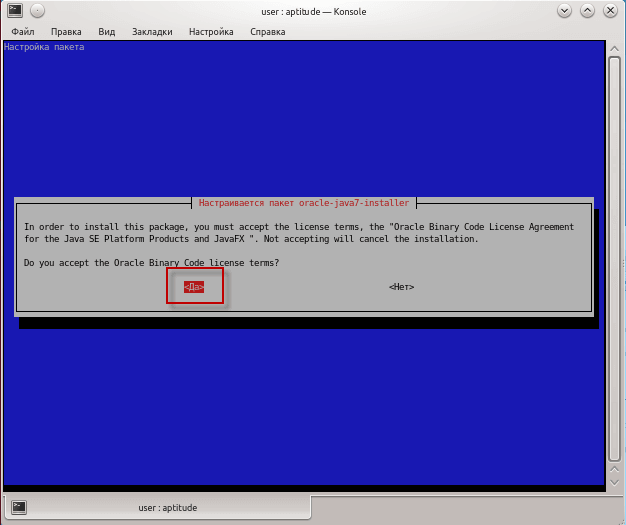
Set-up of the package oracle-java7-installer should be noted Yes. press Enter:
When asked about the package setup ttf-mscorefonts-installer press Enter:
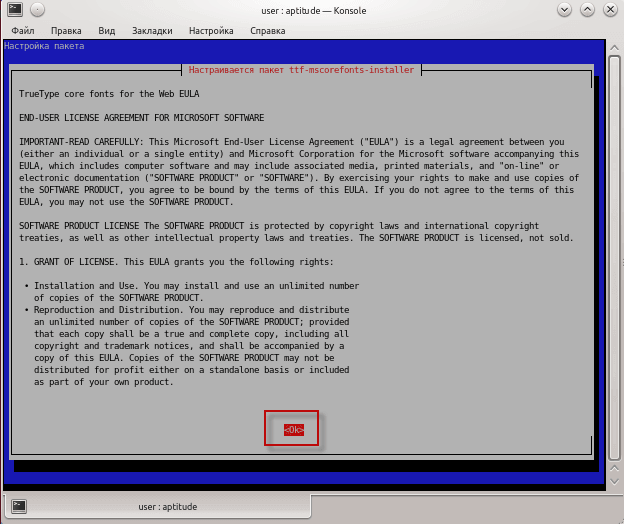
Continuing the package ttf-mscorefonts-installer tick off Yes. And press the knob.

Configure the keyboard layout in KDE4. To do this, click on the icon of the tongue switch with the right mouse button and press the button. Set up:
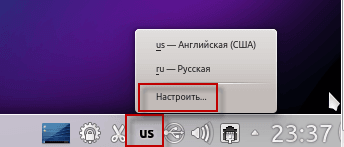
In the open window in the field Layout-out indicator tick off Flag of the country, Switching area of the layout tick off Annextick the field. Set up the layouts:

In the field that has appeared, we already have two languages in the system English and Russian, if you need to add any more, then you can add the necessary ones on the example of Ukrainian. Press the button. Add and in the window that appeared in the field Limit choice to language in the drop-down list, select Ukrainian press the button. OK.:
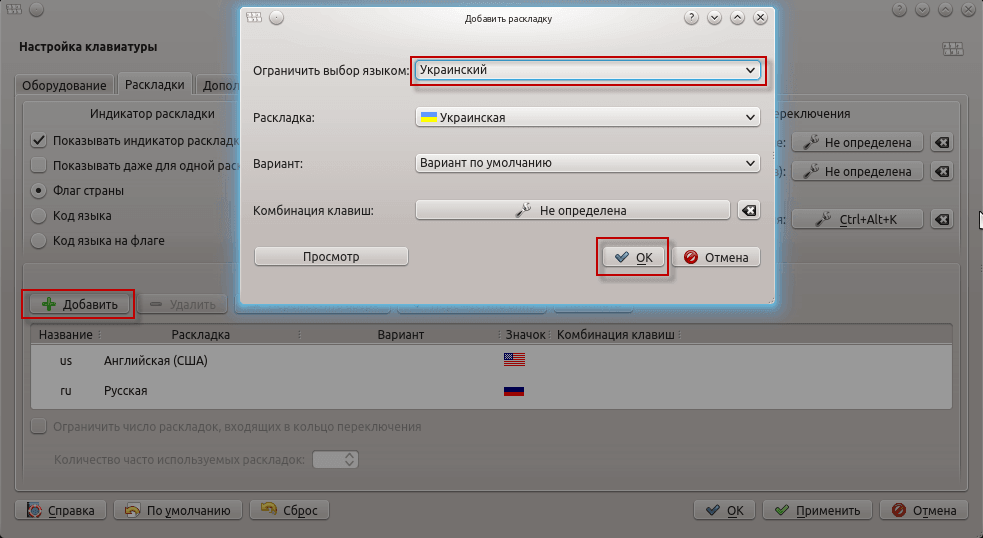
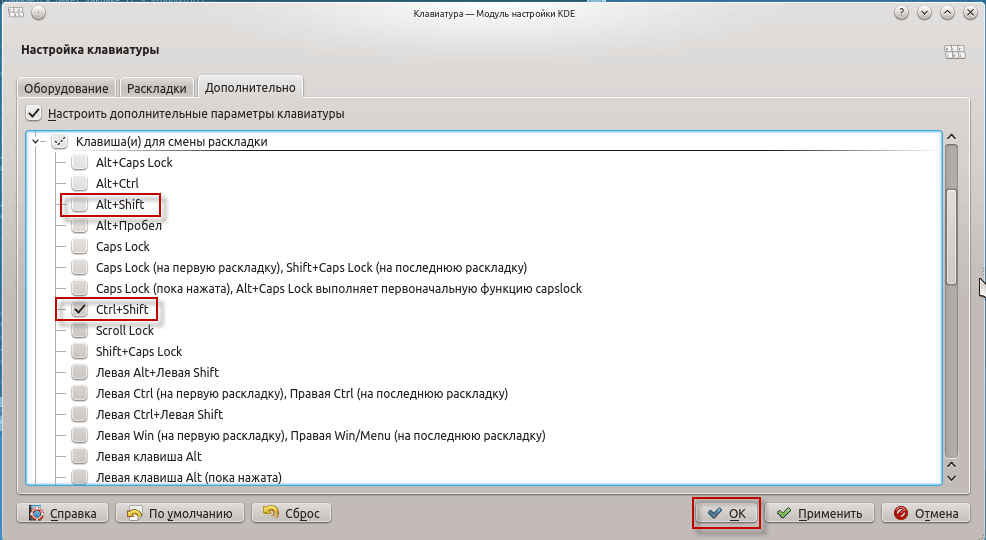
By default, the keyboard layout change occurs using a keyboard combination Alt+Shiftto change the Ctrl+Shift You need to press the key combinations field to switch to Major: press the setting button:

In the window that appears, you need to remove the tick from the key combination Alt+Shift and note the keyboard combination Ctrl+Shift. By the way, you can also use both switching combinations at the same time, but when switching by combination. Ctrl+Shift press first. Shift later Ctrl. To save the settings, press the button OK.:
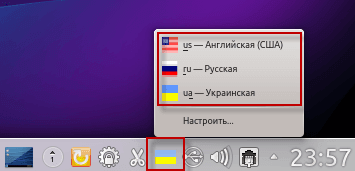
In the screenshot below, you will see already added languages and a configured keyboard switch:
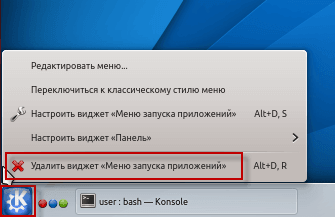
We will remove the start button and replace it with a more convenient classic, if the menu button coming in the kit seems more convenient for you, then you can keep it. Click on the menu button with the right mouse button and press Delete the widget "Application Launch Menu":
In the lower right corner, click on the panel setting:

In the panel opened from above, press the button Add widgets...
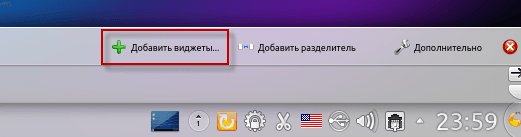
In the drop-down range of categories select Launching applications:

We click on the icon twice. Classic menu of application launchIt will appear in the main panel:

Immediately pull the added menu to the left corner:
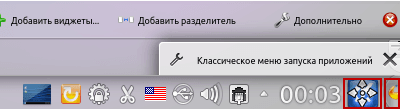
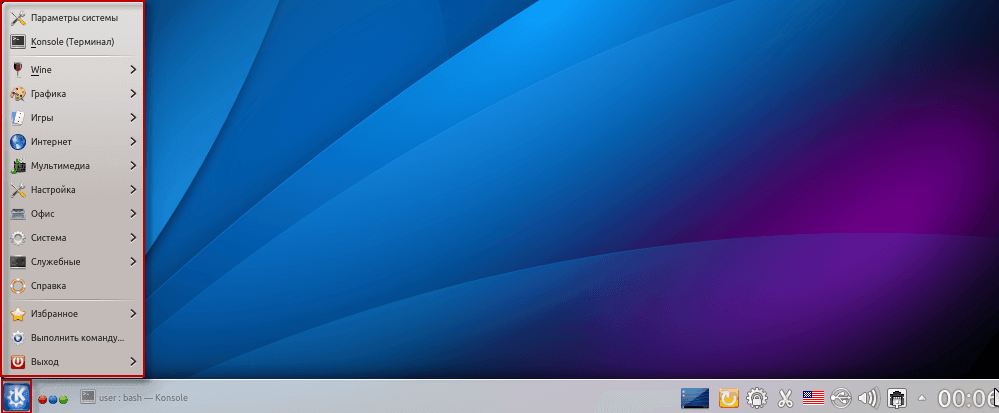
In the screenshot below, you will see the added and disclosed application launch menu:
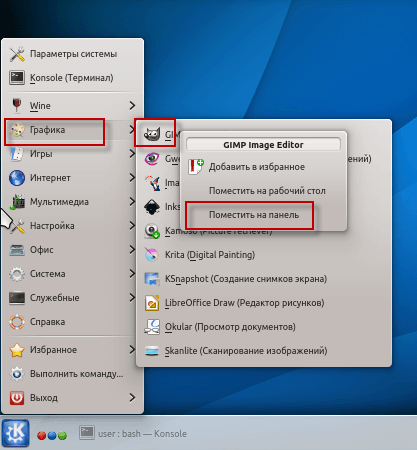
Add your most used program shortcuts to the panel, for this you need to click on the desired program shortcut with the right mouse button and press Place it on the panel., and pull the shortcuts to start programs according to your preferences:

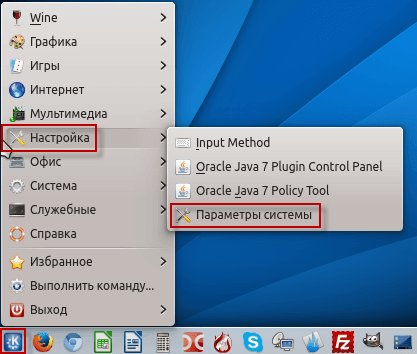
Disable the built-in search in KDE4, for this we go to the system settings click Application launch menu - Setting up - System parameters:
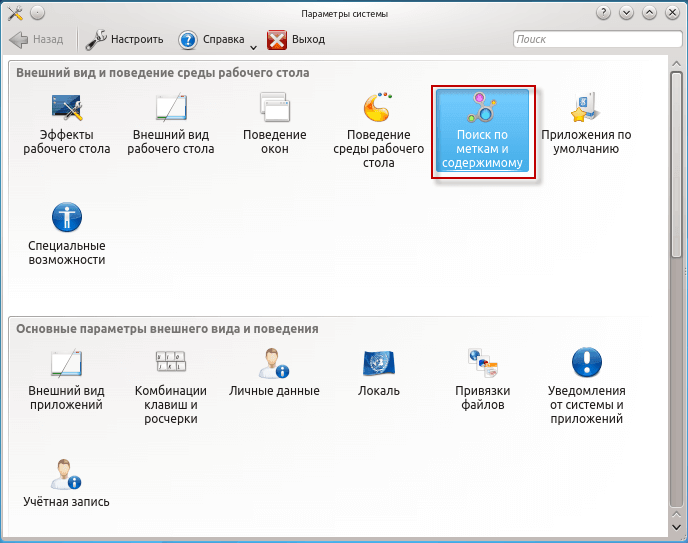
In the open window, click the mouse on the icon. Search by tags and content:
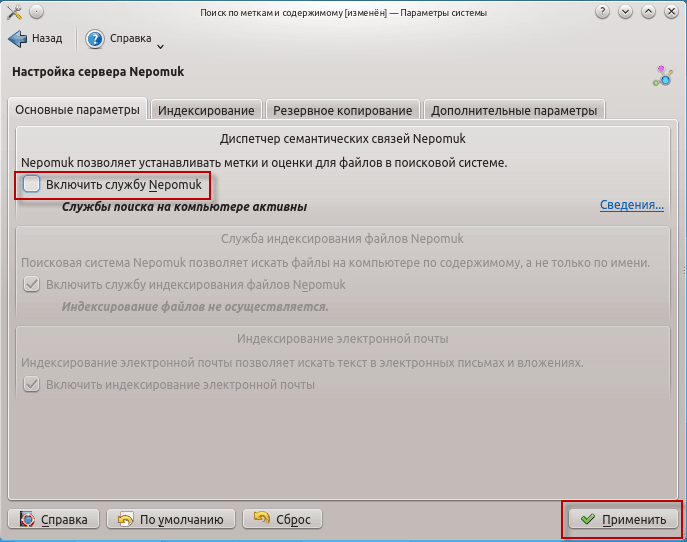
In the opened window of search settings remove the tick from Energize service Nepomuk And then we press the button. Apply:
Set up an office suite Libreoffice
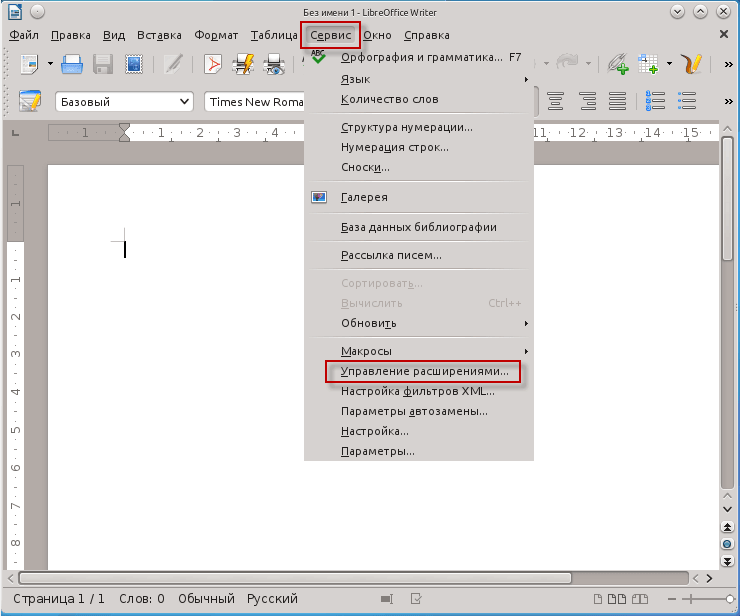
In the window that opens, press the button. Add Select a previously downloaded plugin pagination-1.3.10.oxt and press open:
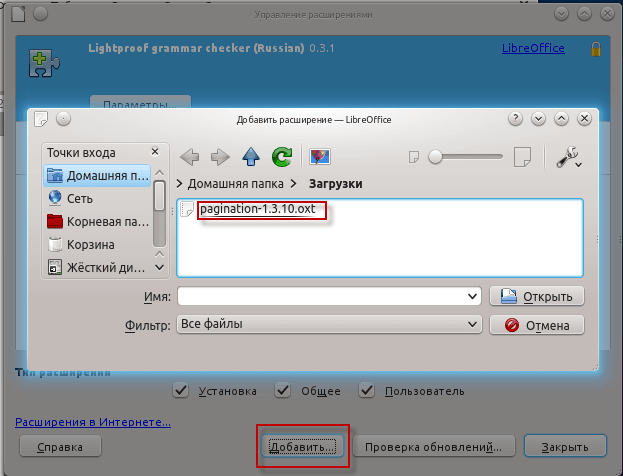
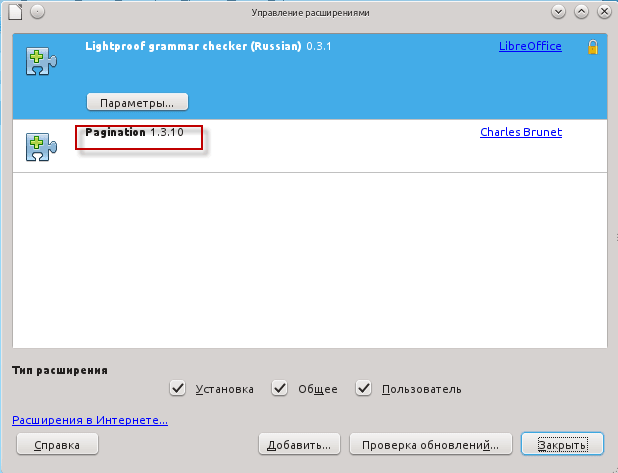
In the screenshot below, this plugin is already installed.
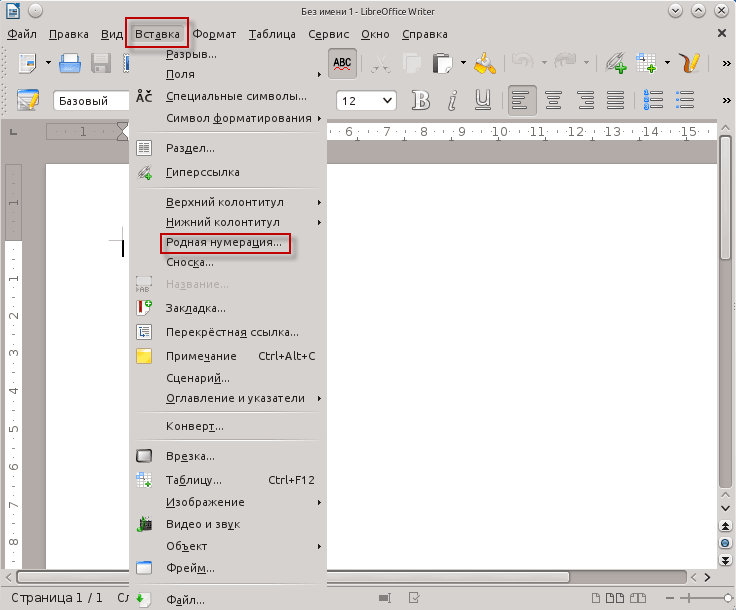
To check its work, you need to close and open the Libreoffice text document. This plugin will appear in the tab. Insertion - Native numbering:
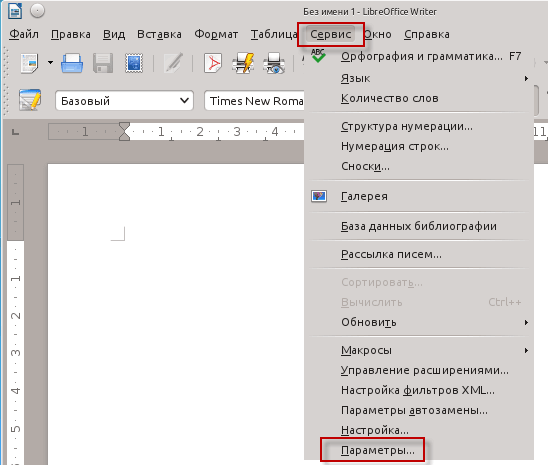
Move to the office settings, open up Service - Parameters...
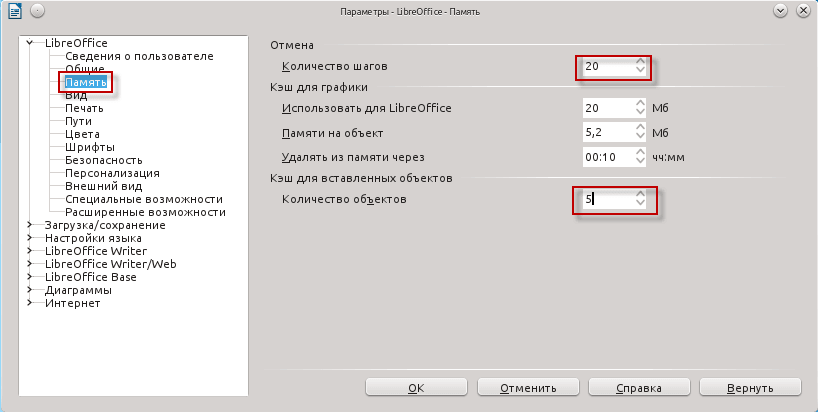
Go to the tab. Memory.:
- Number of steps: 20
- Number of objects: 5 or 10
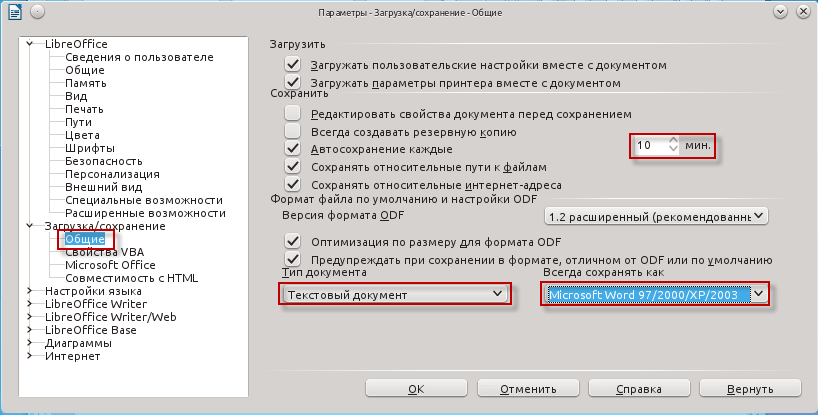
Tab General.:
- Auto-saving each: 10 min.
- Text document: Microsoft Word 97/2000/XP/2003
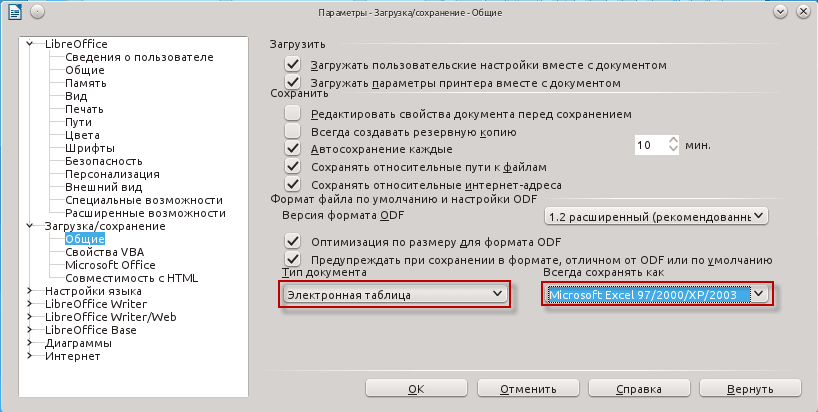
- Spreadsheet: Microsoft Excel 97/2000/XP/2003
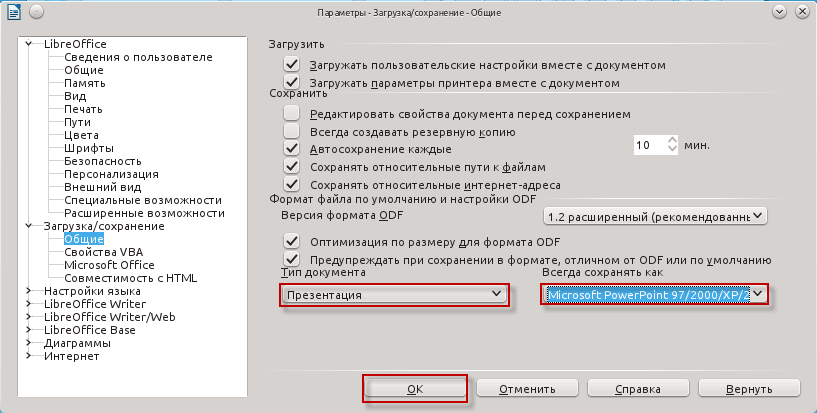
- Presentation: PowerPoint 97/2000/XP/2003
To save changes in the Libreoffice office suite, click the button Ok:
Configure the Double Commander File Manager
Change the method of sorting content in Double Commander, for this we press the button in the commander's menu. Setting up - Parameters and in the settings tree select a tab Viewing files field Method of sorting In the drop-down list, select the sorting method: Natural Sorting: Alphabetical Number:

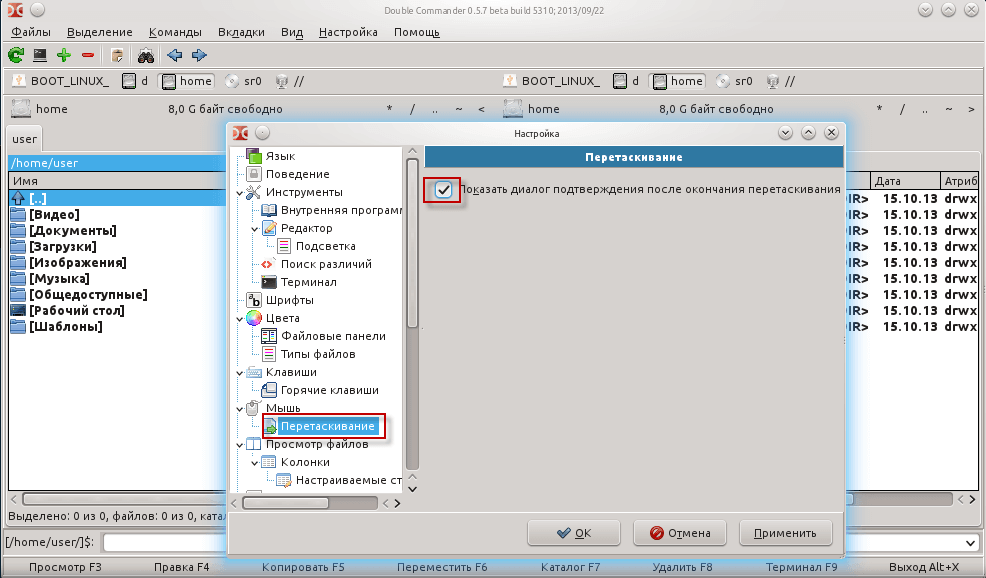
In the tab. Mouse. - Dragging check the box Show confirmation dialog after drag and drop:
To save changes to the settings of the file manager Double Commander, you need to press the button Apply:
The initial KDE4 desktop setup in Kubuntu is complete. After this setup, a package of necessary programs was installed on the computer, the desktop was configured for convenient work, and the necessary programs for easy and fast start-up were displayed.
The instructions are huge, I tried to do as much as possible in detail, I think it will be useful for beginners.
I was with you. Sergei Lazarenko.
After such a large instruction, we will take a short break and watch a very instructive video for 4 minutes, watch everyone and fully:

comment