
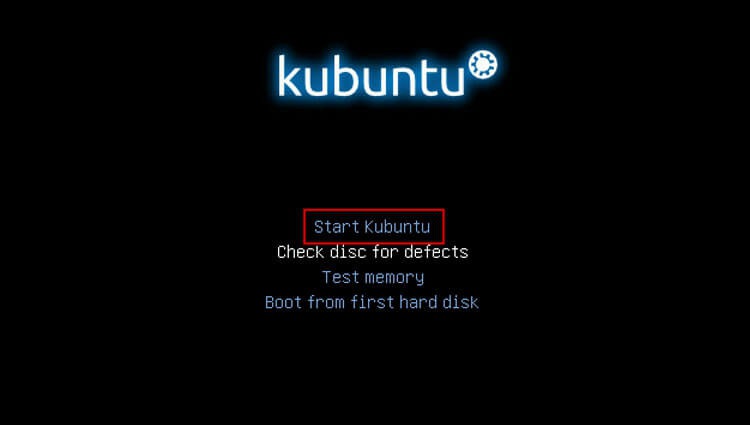
 In this guide, we will install the Kubuntu 13.04 operating system. This version of Linux is based on the Ubuntu 13.04 package base and has a KDE 4 desktop.
Personally, I like this desktop more than others, quite possibly because KDE was my first desktop.
To install, you need to download the distribution and burn it to a DVD disc, or you can make an installation flash drive with this distribution and install without a DVD drive.
Download the distribution for its architecture at the following links:
Download Kubuntu 13.04 i386 for a 32bit computer
Download Kubuntu 13.04 amd64 for a 64bit computer
Write this downloaded image on a DVD, boot from this disk when you turn on the computer and below you will see a step-by-step detailed guide with many screenshots.
If you do not have a DVD drive in your computer, then you need to make a bootable flash drive.
If you do not know how to create a bootable flash drive from a downloaded Linux image, then you need to parage on the link and view the instructions: How to create a bootable flash drive for installing Linux using the example of Kubuntu
In general, regardless of how you install Linux Kubuntu, the installation process will be the same and a detailed guide with many screenshots and description can be found below.
The process of launching the Kubuntu 13.04 distribution, click Start Kubuntu:
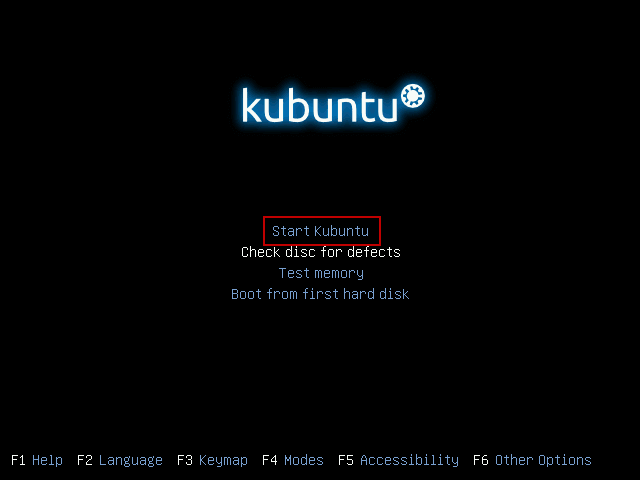
The process of launching the distribution:

Select the language in which we will further install by clicking on the arrow and select the drop-down list Russian:

Press the button. Install Kubuntu to start the installation:

In the screenshot below, the installer will tell you whether there is free space for installation on the hard drive, whether the Internet is connected to the computer - will be marked with a green tick. If the Internet is connected, mark the boxes on the fields:
- Install this third-party software
- Download updates during installation
If the computer does not have the ability to connect during installation, then there is nothing terrible, and note only the field. Install this third-party softwareUpdate the system and install the main software after installing Kubuntu 13.04 Linux. To continue the installation, press the button Continue.:

In the next window, the installer will offer us to break the hard drive automatically or manually. If you have a new hard drive, you can also choose automatic partitioning, but if you use a hard drive with data from a previous operating system, such as Windows, and this data must be stored, Mandatory Choose the method of splitting the hard drive Manually.:
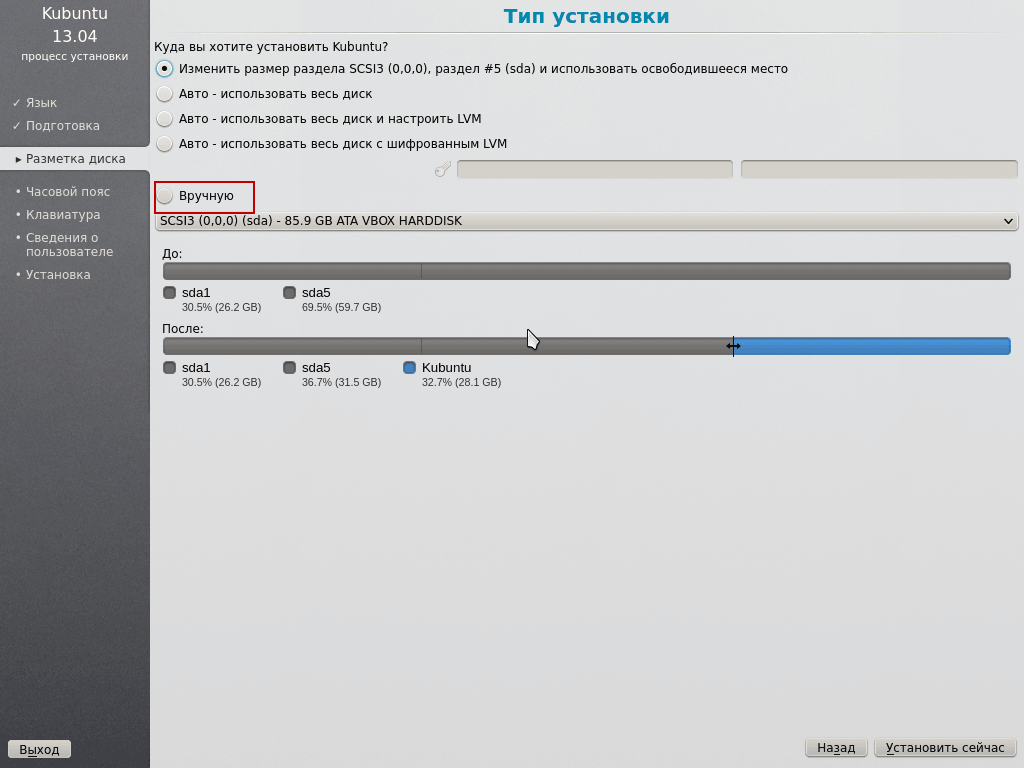
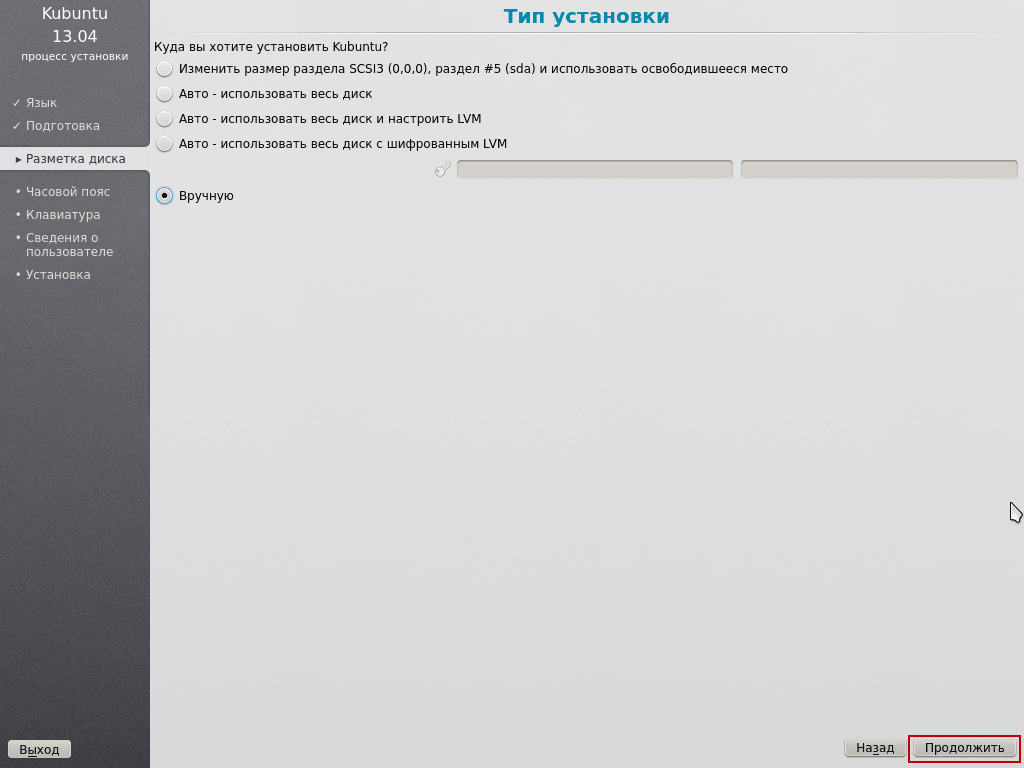
After choosing the method of splitting the hard drive Manually. To go to the Winchester split manager, press the button Continue.:
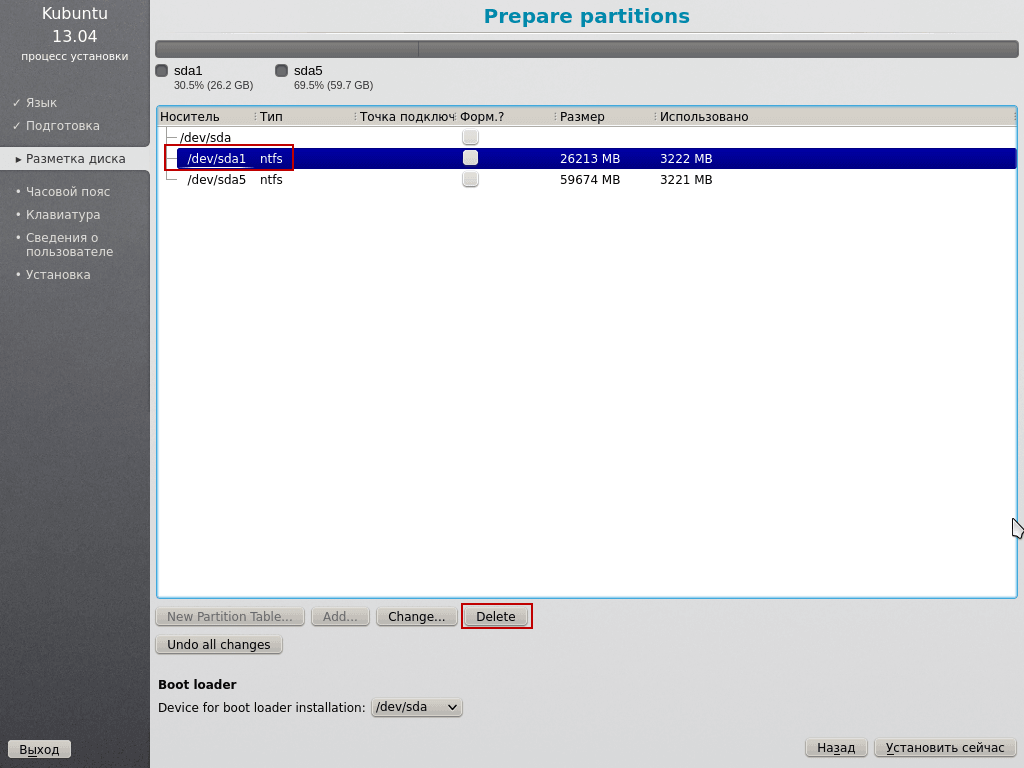
In the disk manager window that opens, we can see that one hard drive is installed in our computer./dev/sda) divided into two disks with a file system NTFS. On CD One. /dev/sda1 Windows-based C:\ 26GB size, We do not have the necessary data on it, since we previously rewrote all documents from the desktop and folder. My papers. disk D:\. We will remove the C disk and create a free partition structure necessary for installing Linux Kubuntu 13.04. Disc D:\ /dev/sda5 We need to keep unchanged and connect to the system for use by users:

Click the left mouse button on the first disk. /dev/sda press the button. Delete:
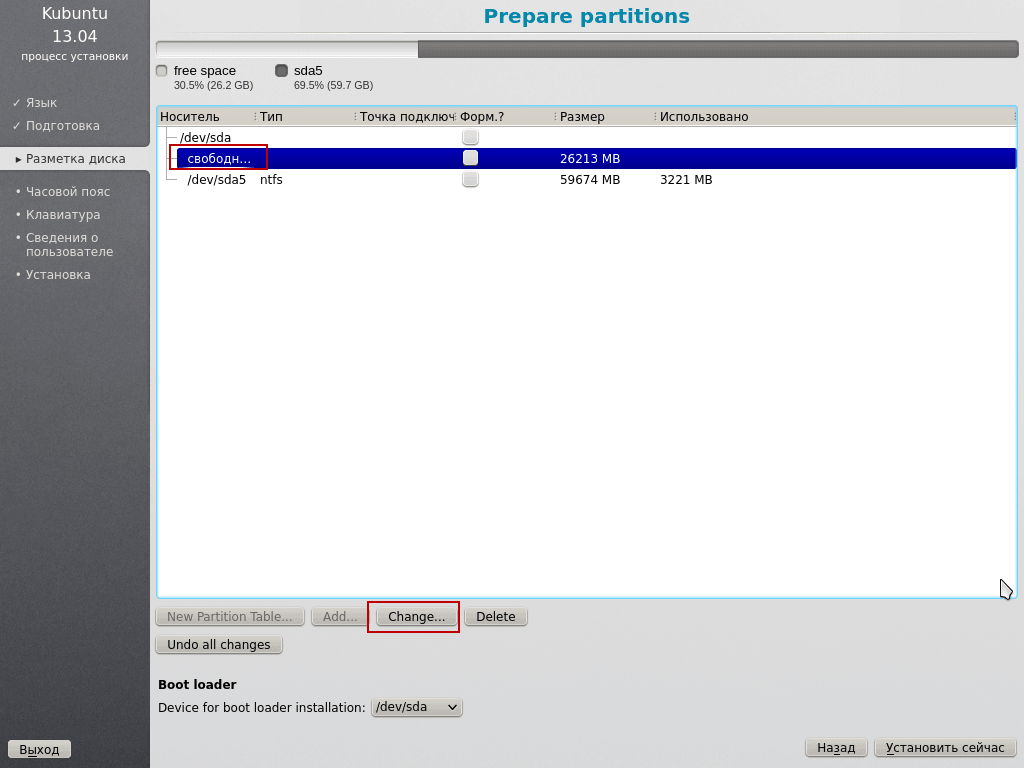
After deleting the C disk, you become the left mouse button in a free place, and the new partition creation window will automatically appear:
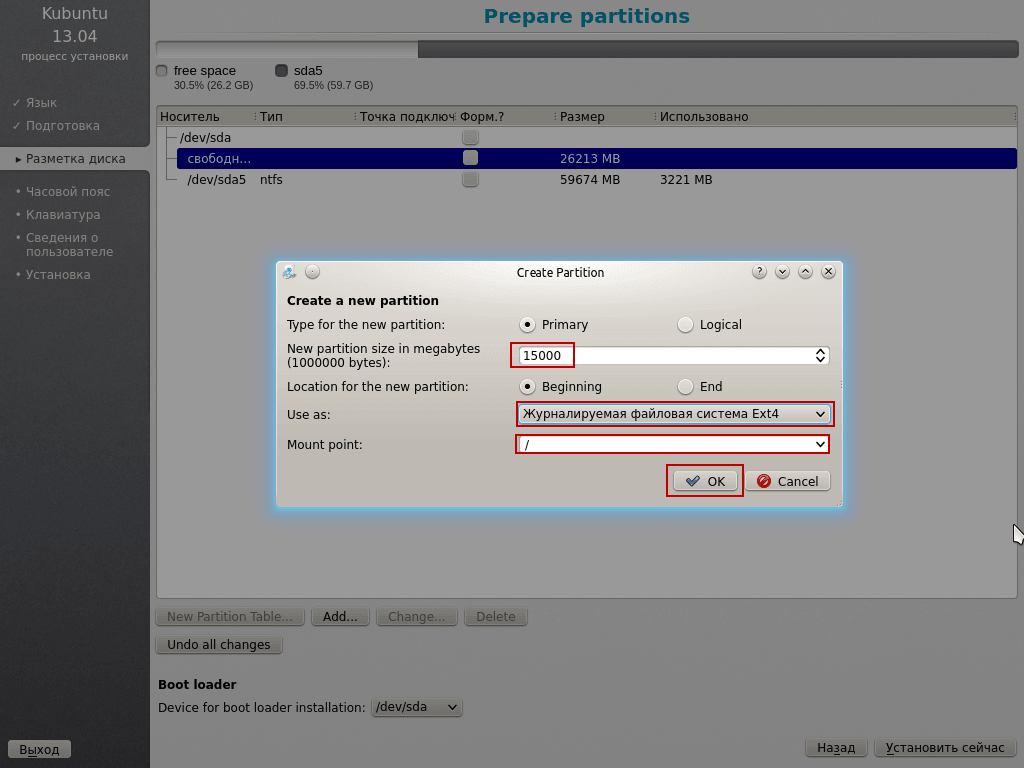
In the following section, we specify the size of the new section in MB, specifying the file system EXT4 in the drop-down list and mount point / to create a section press the button OK:
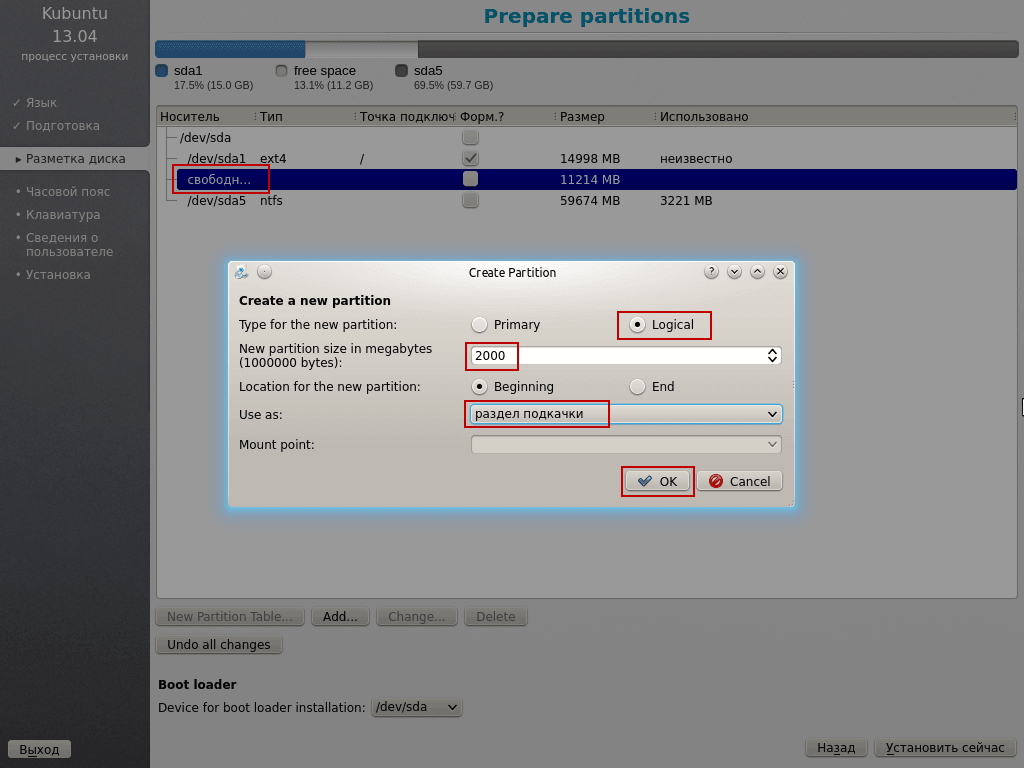
Click the left mouse button in a free place, automatically opens the window to create a new partition, create a swap section of about 2GB for which we specify 2000 and select the drop-down list pumping-piece. To create a swap section, press the button OK:
Create a home partition by clicking on the free space and in the window that appears in the field where the size of the partition is indicated automatically, the installer sets all available space, leaves it unchanged, select EXT4 in the drop-down list of file systems, and indicate the mount point in the drop-down list or you can register with your hands. /home press the button. OK:
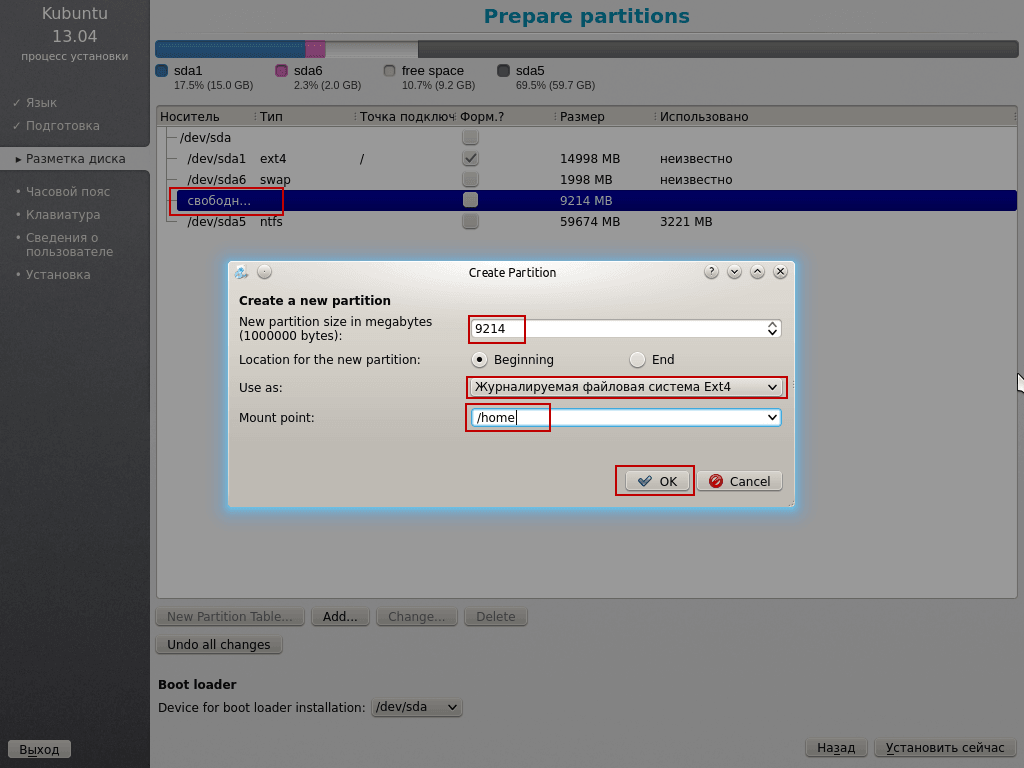
Connect the disk D:\ to the system, for this we click the left mouse button on the second disk. /dev/sda hard drive and press the button Change:
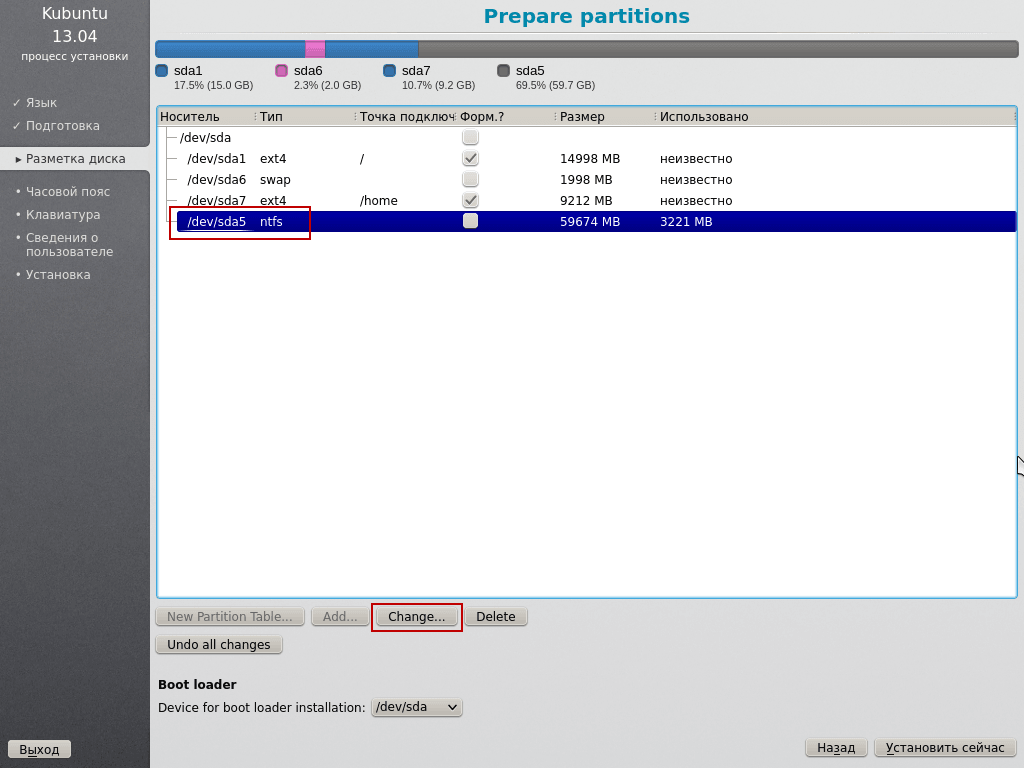
In the window that appears, we need to use as: you need to select the partition file system, in our case it is NTFS. In the field. Mount point: We specify the mounting point /mnt/d Then press OK button to connect the second disk to the system:
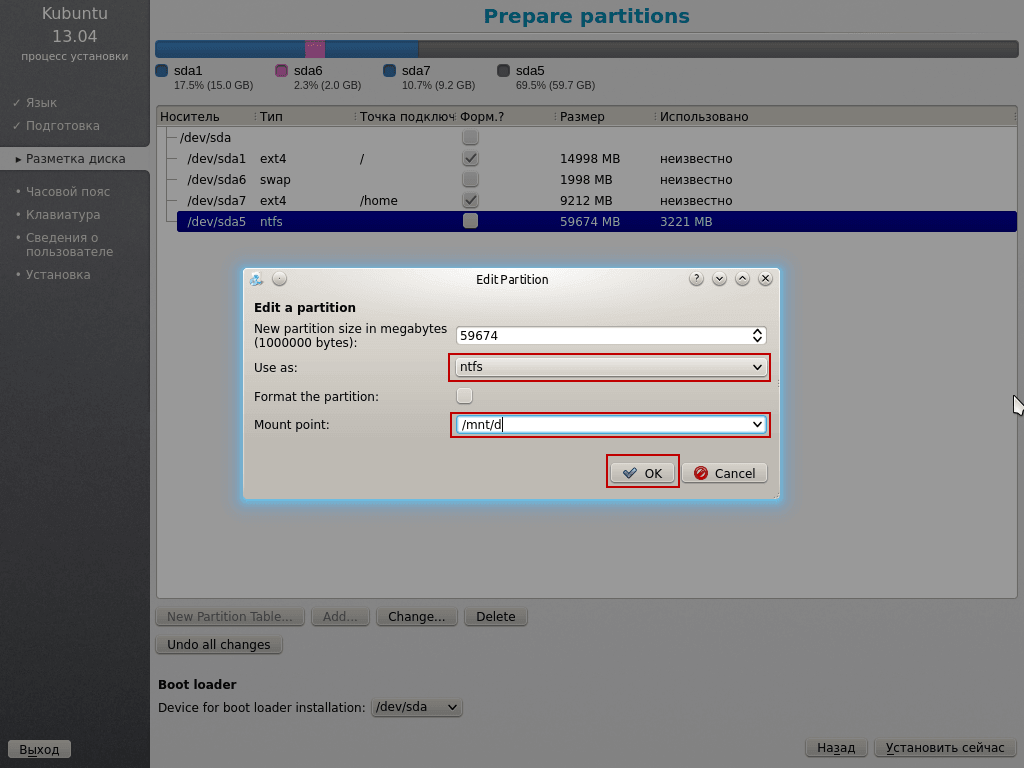
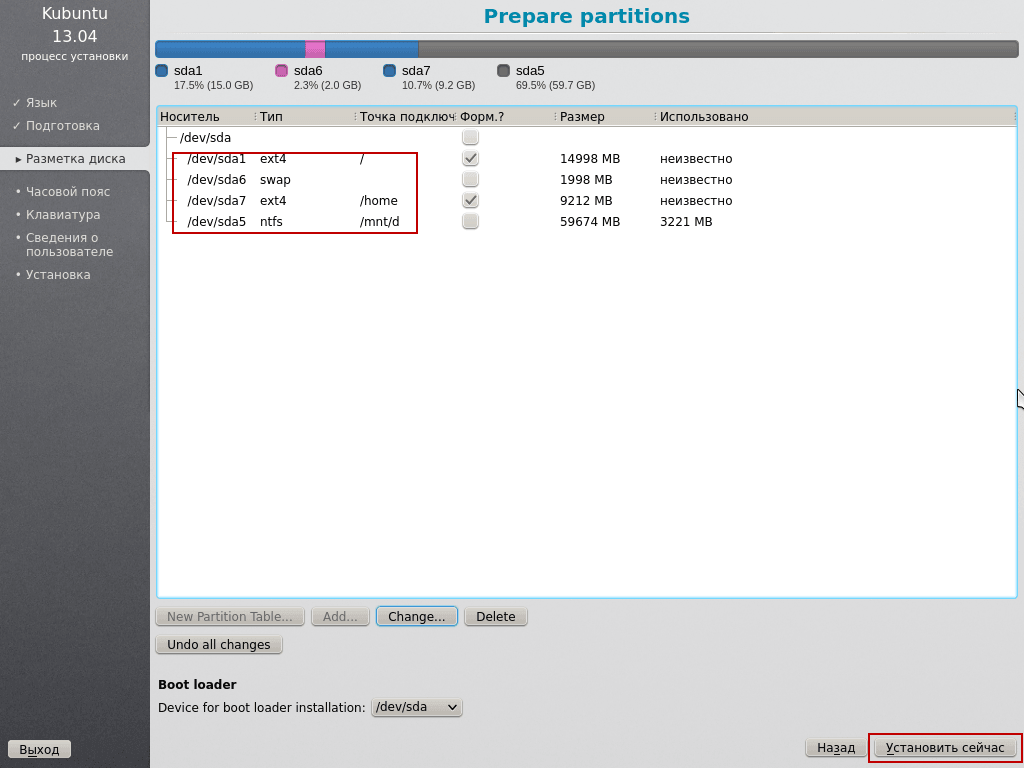
After breaking the first partition under the system and connecting the second partition in Kubuntu to save all changes with the hard drive, click the button. Install now..
Attention!! As soon as you press the button Install now. All changes to the disk will be recorded and formatted according to your settings. If you want to return the changes with the disks and reshape on another, you need to press the Undo all changes button, all changes will be returned to the original state.
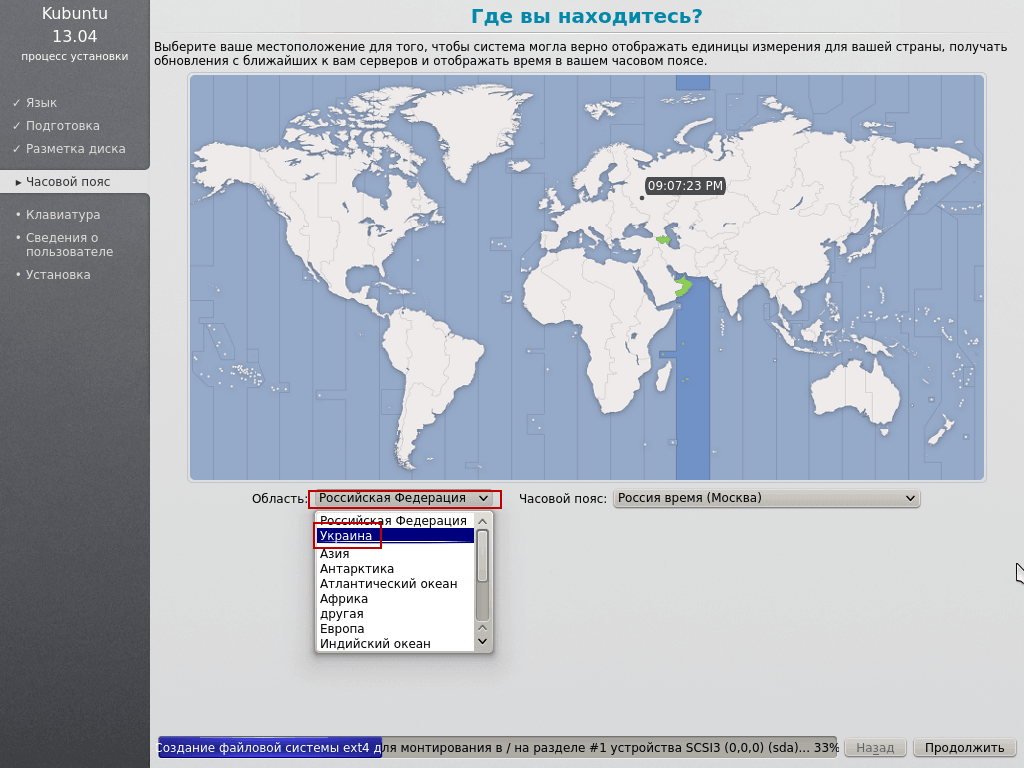
In the next installer window, you need to select a Country: in my case it is Ukraine:
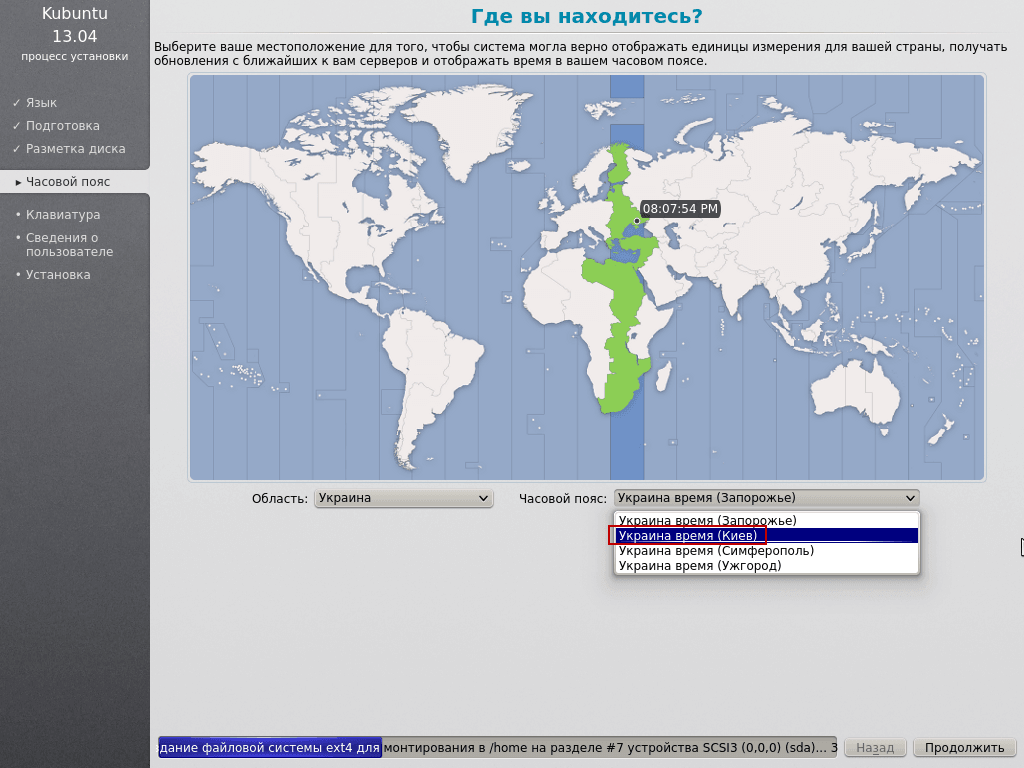
In the next installer window, you need to select a time zone Ukraine (Kiev):
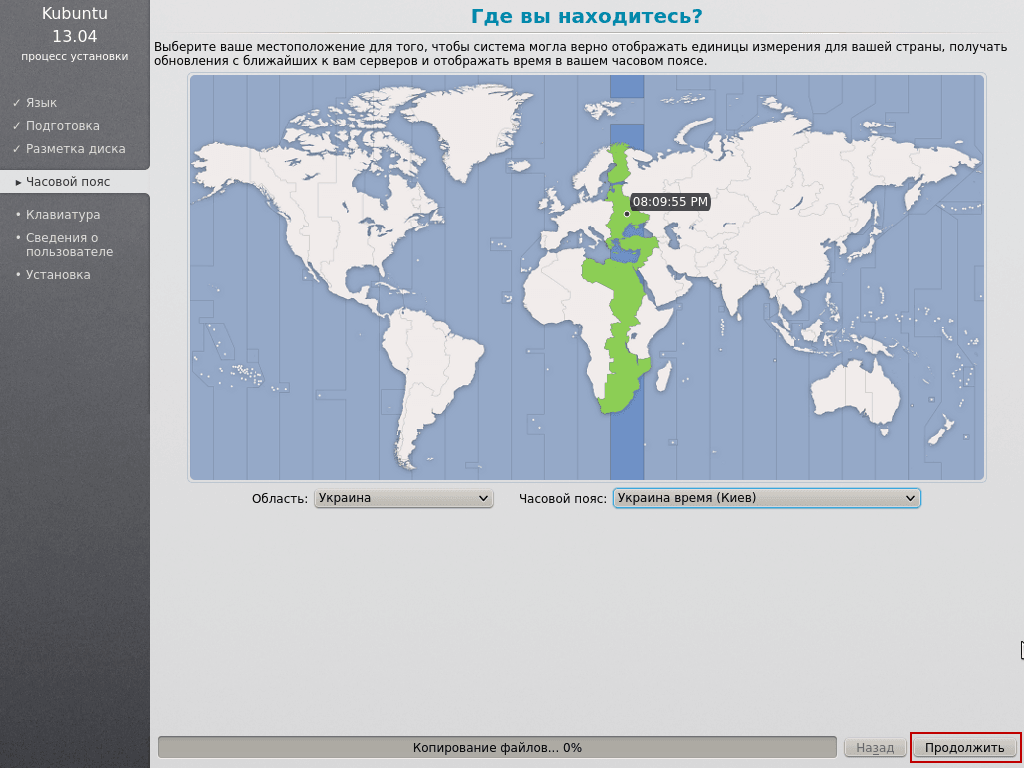
To continue the installation, press the button Continue.:
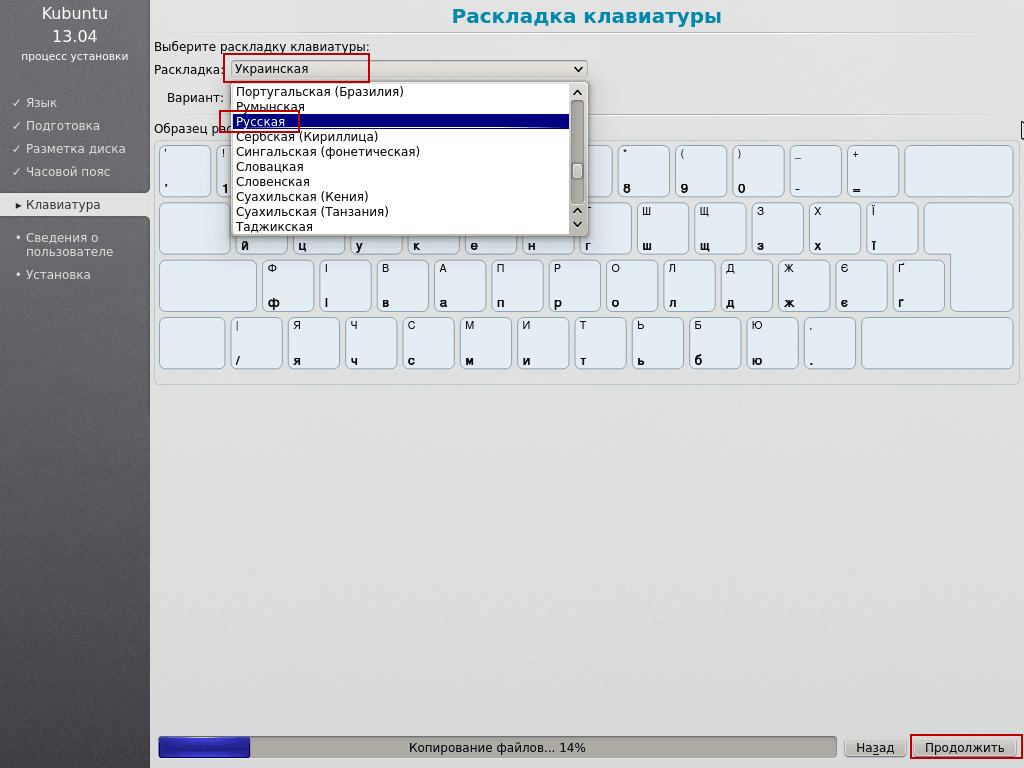
In the next installer window, you need to select the keyboard layout language, I choose Russian. And press the button. Continue.:
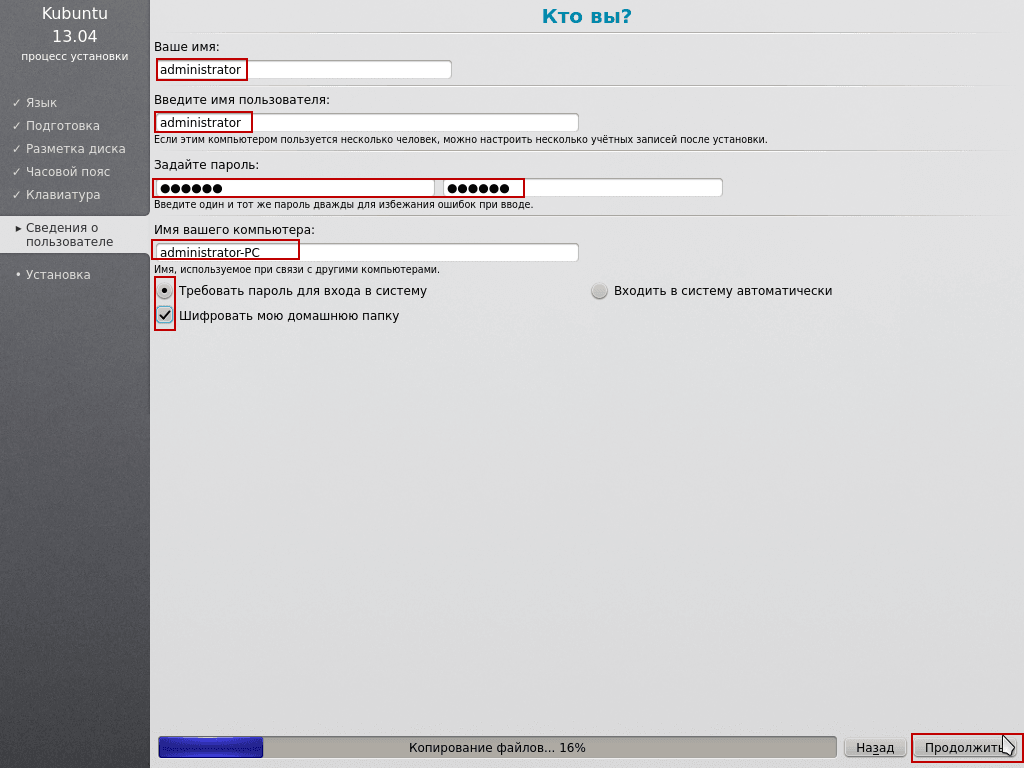
In the new installer window, you must specify the user name and password, indicate:
- Your name: administrator
- Enter the user name: administrator
- Set the password: qwerty
- Write the password: qwerty
- Name of your computer: administrator-PC
You'll have to check the box. Require a password to log in. If you wish, you can check the box. Encrypt my home folder.. Password must be specified complex.
All the pre-installation we made now to continue installation press the button Continue.:
Installation complete. After clicking on the button overload, the system will push the disk out of the drive and you need to press Enter, after which the computer will restart and boot into the newly installed operating system Kubuntu 13.04 Linux.
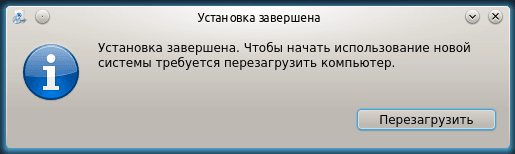
Linux Kubuntu 13.04 installation is complete. In this guide you have learned how to install Linux Kubuntu 13.04 on a computer, laptop, netbook. Split the C:\ disk to install the system and connect the D:\ disk without losing data. If you have any questions, you can ask them in the comments.
Continuation of this instruction: Setting up KDE4 in Kubuntu Linux - Detailed User Guide
Sergei Lazarenko was with you.
After work, be sure to take a short break and watch a short video about catching pike on spinning:

comment