

In this article, we will create a bootable installation flash drive from the downloaded image of the distribution Kubuntu 13.04 using a very convenient program UNetbootin.
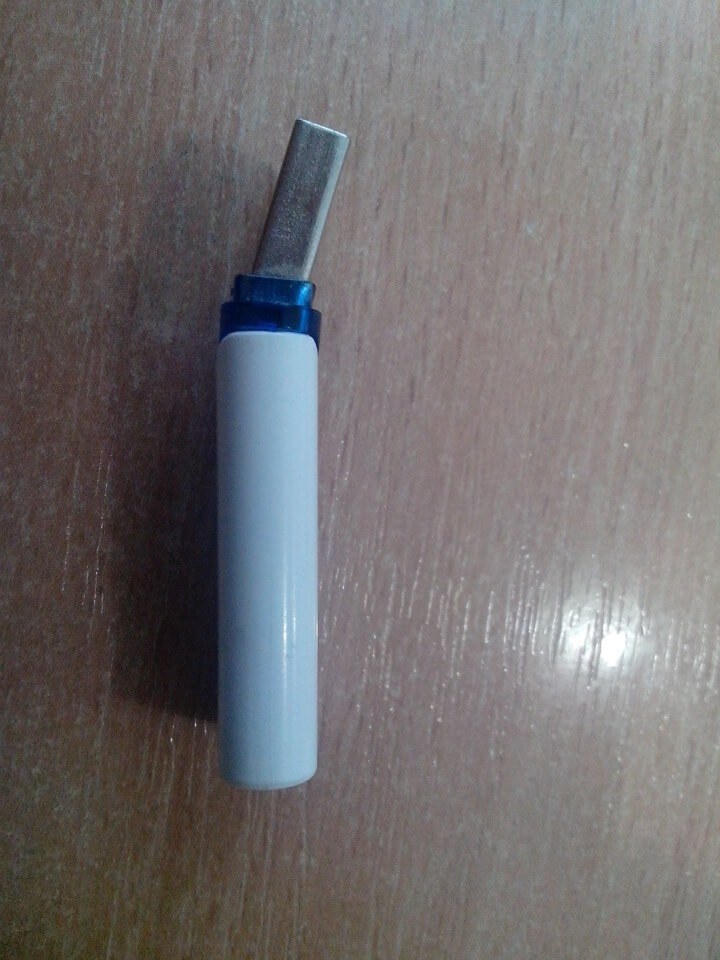
To create a flash drive, we need the presence of the flash drive itself, here is a photo of a little damaged during the installation of my installation stick:
Format the flash drive by downloading the USB_FORMAT program at the link: Download usb_format
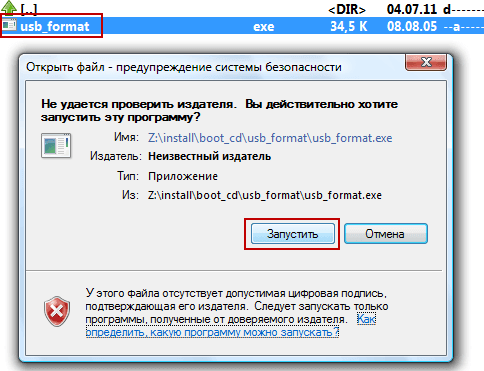
We run the downloaded program usb_format, the operating system may ask you to confirm your desire to run this program, depending on the settings of the operating system itself:
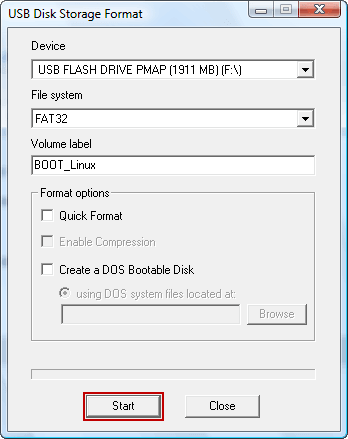
In the drop-down field list Device Choose our flash drive, I have the installation USB drive is 2GB in size, select the file system FAT32 If you wish, you can specify the name: BOOT_LinuxTo start formatting, press the button. Start:
The process of formatting a flash drive by the program usb_format You can see below:
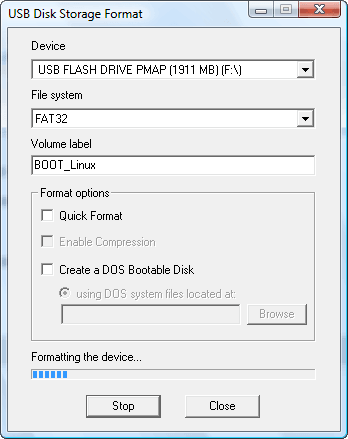
The process of formatting the flash drive is completed:
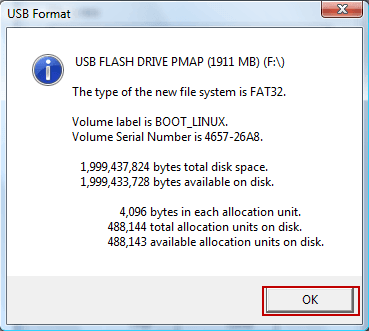
Preparation of USB flash drive is completed, go directly to the creation of an installation flash drive.
To create a bootable flash drive, use the UNetbootin program.
UNetbootin This is a very convenient free cross-platform utility for creating a Live USB system from an ISO CD / DVD disk image with Linux / BSD. The program itself is very versatile and works on operating systems such as Windows, Linux and MacOS. Supports the vast majority of Linux distributions, including: Arch Linux, CentOS, Debian, Fedora, Linux Mint, Mandriva, openSUSE, Slackware, Ubuntu, FreeDOS, FreeBSD, NetBSD and their variations.
Download the program to create a bootable flash drive UNetbootin on website by reference: Download the UNetbootin program for Windows
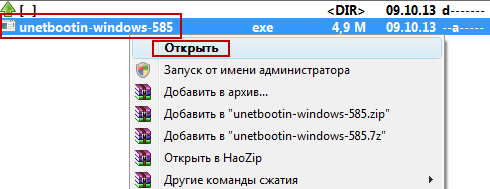
We are launching the Unetbootin program:
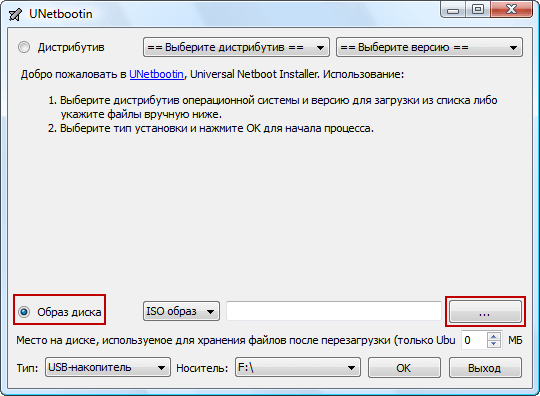
In the open window it is necessary to note Disc image Clicking the three-dot button in the window that appears, you need to select a pre-downloaded image of Linux Kubuntu 13.04:
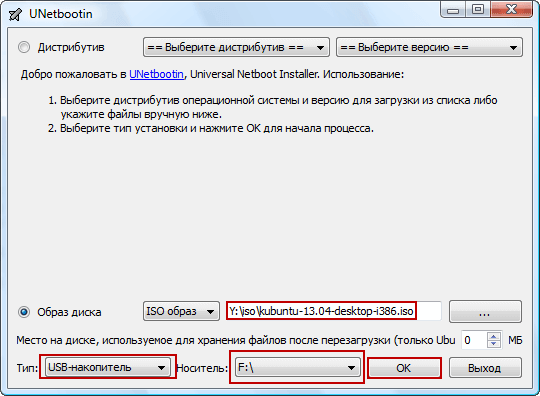
After selecting the image, you need to choose the type of USB drive media, and also specify the letter of the disk of our flash drive, in my case it is a letter of the disk. F:\ And to start creating a bootable flash drive, press the button. OK.:
In the screenshots below, you can see the process of creating a bootable flash drive in the UNetbootin program:
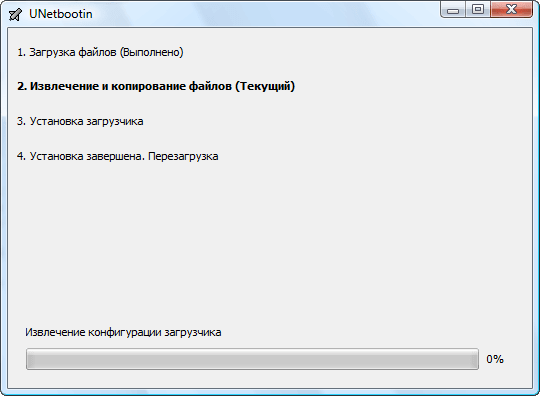
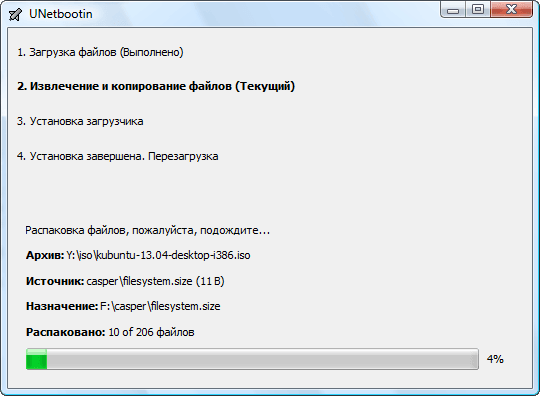
Creating a bootable flash drive for installing Linux Kubuntu 13.04 is completed, to close the program window, click the Exit button:
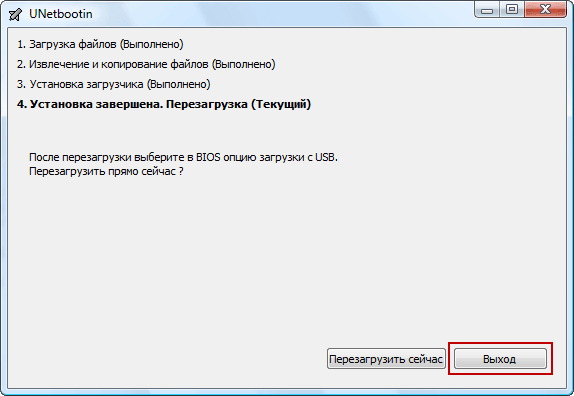
The task of this manual is completed, we have formatted the flash drive, created a bootable USB flash drive with Linux Kubuntu 13.04 on board. Now you can safely install this Linux distribution on a computer without a CD / DVD drive, the main thing is that the motherboard supports booting from USB flash drives, but as far as I know, modern motherboards of laptops and stationaries support this download.
With this guide, you can easily create almost any bootable installation image of a Linux distribution.
I was with you. Sergey Lazarenko.
A little media break, a bit of kindness and tenderness:

comment