
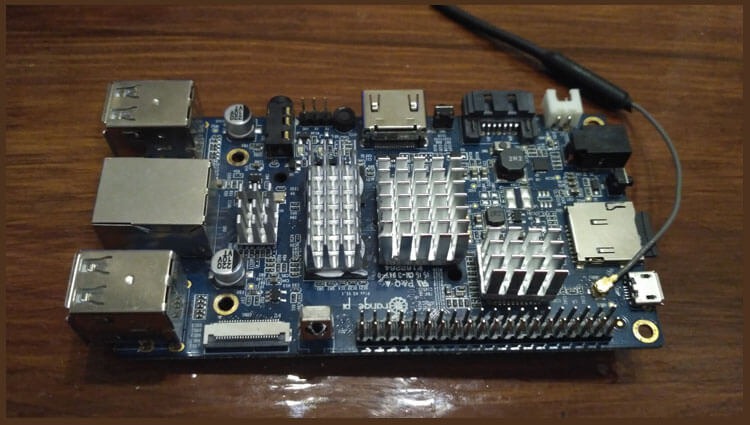
Due to the fact that my OrangePi Plus board has built-in EMMS memory, I decided to save on a flash drive and install an operating system on this flash memory. I will consider 2 options for installing the system on EMMS.
Option 1. Install the official version of the OS.
Go to the official website of OrangePI download on page figure Lubuntu_1404_For_OrangePiplus_v0_9_0_.img.xz, но по ссылке в Google Disk открывается Lubuntu_1404_For_OrangePiplus_v0_8_0, а для того, чтобы скачать в Baidu нужно поставить клиент на компьютер либо телефон, то я выкладываю ссылку на уже скачанный дистрибутив, скачиваете и заливаете на флешку аналогично как по инструкции.
Download Lubuntu 14.04 For OrangePiplus v0.9
After that, put the flash drive in the board and turn on, a red LED should light up, and after a few seconds the link on the network map. After downloading, look at the router which IP received the fee and connect using the putty program and login with the orangepi / orangepi password, if not familiar with Putty, here Instructions for using Putty.
Going to the server, at the time of setting up we log in as a user. root And then I did the command.
sudo su
Execute the command to expand the root partition to all free space of the flash drive:
fs_resize
To request the system that the partition will be changed, click y
After the changes are made, we restart our mini server with a command:
reboot
After loading, we'll connect. SSH server using Filezilla and copy the image previously downloaded and unarchived Lubuntu_1404_For_OrangePiplus_v0_9_0_.img to the orangepi user folder. Going to the server, at the time of setting up again log in as root by executing the command:
sudo su
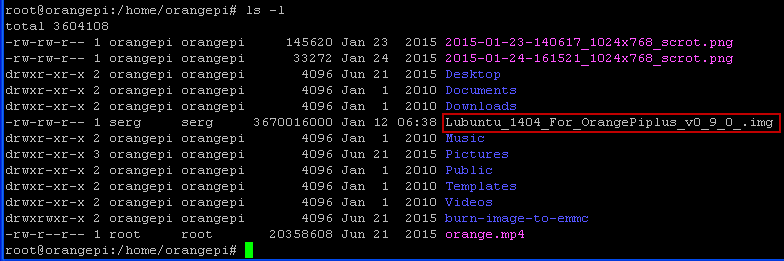
Let’s start recording Lubuntu on EMMS.
Open the file. /home/orangepi/burn-image-to-emmc/readme.txt and read the instructions for pouring the operating system from the image on EMMS:
Important: after first boot run sudo fs_resize and reboot, to resize linux partition to fit sd card size
You can copy your burning firmware image into /home/orangepi/burn-image-to-emmc/
sudo dd bs=4M if=xxx.img of=/dev/mmcblk1
xxx.img is your burning firmware image
sudo dd if=u-boot-sun8iw7p1.bin of=/dev/mmcblk1 bs=1024 seek=16400
In the system, an external flash drive is seen. how /dev/mmcblk0and EMMS how /dev/mmcblk1
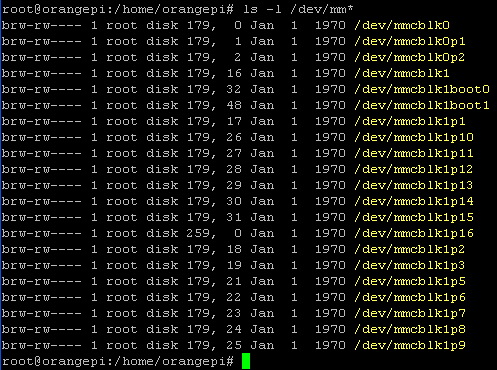
Since we previously logged in as root, we do not need to enter sudo before the team. Copy the downloaded image of Lubuntu on EMMS by executing the command:
dd bs=4M if=Lubuntu_1404_For_OrangePiplus_v0_9_0_.img of=/dev/mmcblk1

Reload the fee by executing the command:
reboot
After logging into the server, at the time of setting up we again log in as a user. root And then I did the command.
sudo su
Run the bootloader record in EMMS by executing the command:
dd if=/home/orangepi/burn-image-to-emmc/u-boot-sun8iw7p1.bin of=/dev/mmcblk1 bs=1024 seek=16400

Turn off our mini server by executing the command:
halt
We turn off the power and pull out the flash drive, turn on the power on the board, a red LED should light up and after some time a link on the network map. Look at the router which IPI issued the board automatically and connect to the server using the putty program and login orangepi passwordd orangepi

Authorize as root and expand the root partition to all free space by executing the command:
fs_resize

Reboot the server by executing koumanda:
reboot
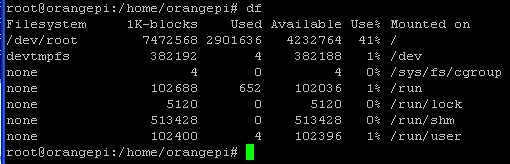
After that, if you use this board as a console server, delete the graphics, browser, etc. If you use it as a media center, connect the monitor and check it in operation.
The disadvantage of this first method is that if you use as a server, then a lot of junk is installed with graphics, and no matter how deleted, it did not work out to clean up as much as it happens when installing a clean distribution without graphics. But plus, it's when used as a media device, less body movements, everything has to work out of the box.
Option 2. Install the version of the OS from Loboris.
A good man. Loboris Compiled images of different operating systems on single plates. Scripts have also been prepared both for updating the kernel and for installing the necessary graphics systems on the desktop for use as a media device. I personally like this option much more, since a bare axis is installed, and what is necessary is established from the needs. It is also much more practical and easier to install the system on EMMS.
I’ll do the installation on the example of Debian Jessie, and I tried Debian Wheezy as well.
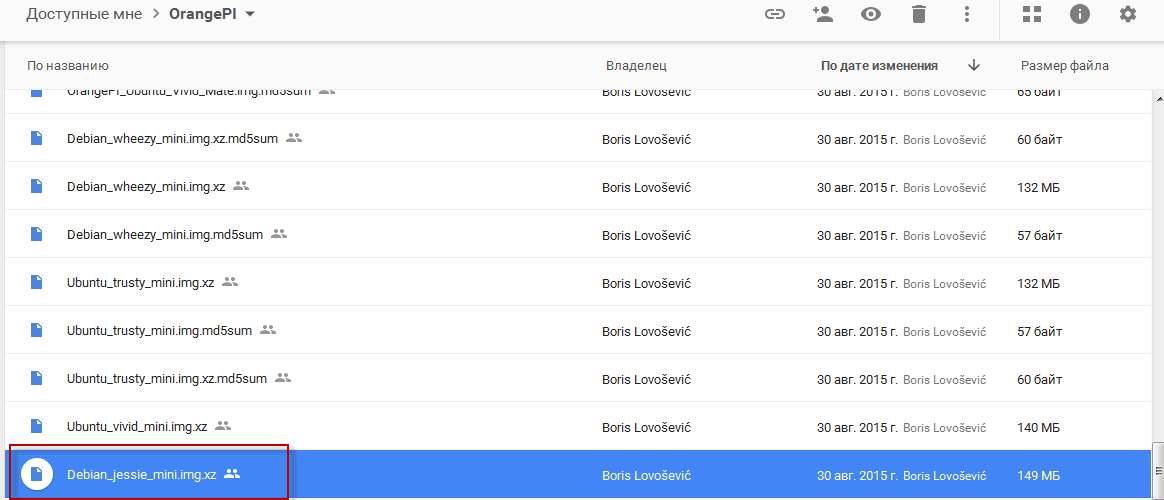
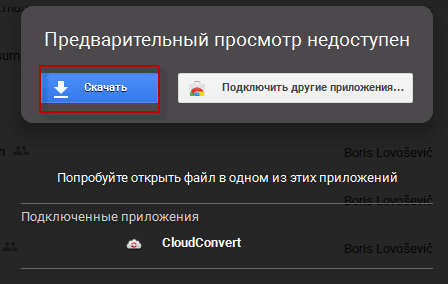
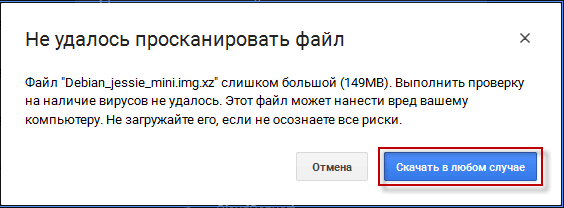
On the page Google Diskdownload Debian_jessie_mini.img.xz
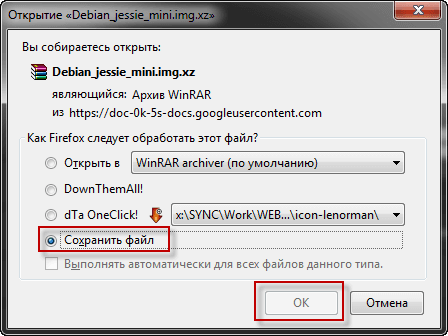
We decompress the downloaded image and pour on a flash drive like in instruction.
After filling, in the flash drive on the fat section you can see a list of files for downloading different versions of OrangePi:
script.bin
script.bin.OPI-2_1080p50
script.bin.OPI-2_1080p60
script.bin.OPI-2_720p50
script.bin.OPI-2_720p60
script.bin.OPI-PC_1080p50
script.bin.OPI-PC_1080p60
script.bin.OPI-PC_720p50
script.bin.OPI-PC_720p60
script.bin_OPI-PLUS_1080p50
script.bin.OPI-PLUS_1080p60
script.bin.OPI-PLUS_720p50
script.bin.OPI-PLUS_720p60
uImage
uImage_OPI-2
uImage_OPI-PLUS
We need to rename the example for my OrangrPi Plus board:
was: uImage_OPI-PLUS
became: uImage
was: script.bin_OPI-PLUS_1080p50
became: script.bin
Select your screen resolution, I chose as in my monitor. After that, we remove the flash drive from the computer and insert it into the board, turn on the red LED should light up, and after a few seconds the network card link if you connected the network.
Look at the router which IP received the payment, go remotely to the network using the Putty program by entering the orangepi login and the orangepi password
After authorization on the server, expand the root file system to all free space by entering the command:
fs_resize
Overload the fee by executing the command:
reboot
After downloading, we connect to the board again, log in as root dsgjkybd command:
sudo su
and start installing the system on the built-in EMMS memory by following the command:
install_to_emms
on the request of the script that the EMMS will be overwritten click y
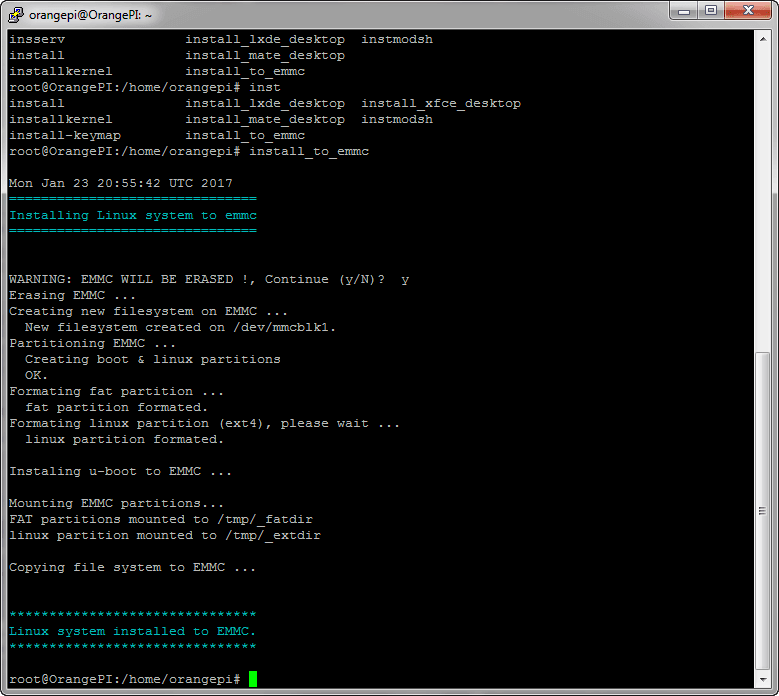
After installing Debian on the EMMS flash in the OrangePi mini server, we enter the server using the putty program, install the necessary programs and can install and run the htop program, see the load and number of cores, RAM and running processes:

If you use your board as a mini server, then it is enough to install the programs you need, configure and the board will work quietly and imperceptibly.
If you need to install a graphics system to use as a media server, you need to install a graphics system. Loboris has prepared several scripts for installing different graphic tables, we run the desired script to install the desktop you choose:
install_lxde_desktop
install_xfce_desktop
install_mate_desktop
The only downside to Lobioris’ assembled kernel is the disabled multiport for iptables, which puts a limit on using Fail2Ban if you use the board as a server. I will explain the solution to this problem a little later.
Today, we installed Debian Jessie on the OrangePi Plus single-board minicomputer with two options to choose from.
I was with you. Sergey Lazarenko.
Let’s take a short break and watch a little video:

comment