
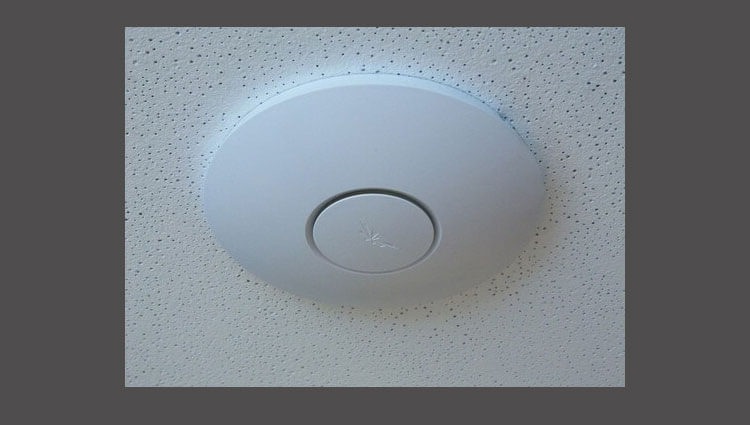
In this article, we will install and configure a corporate WIFI access point. Since this WIFI access point does not have a built-in web interface for configuration and management, we need to install software to configure the UNIFI point controller.
Installation at Debian Wheezy
Add a repository for installing UNIFI software by following the command:
echo 'deb http://www.ubnt.com/downloads/unifi/distros/deb/debian debian ubiquiti' >> /etc/apt/sources.list
aptitude update
Install the software for access point management will be on Debian Wheezy server installed on instruction And then I did the command.
aptitude install openjdk-7-jre mongodb unifi-beta
After installation, restart the unifi software by executing the command:
/etc/init.d/unifi restart
system response:
[ ok ] Stopping Ubiquiti UniFi Controller: unifi.
[ ok ] Starting Ubiquiti UniFi Controller: unifi.
To check the running unifi, you can execute a command:
ps aux | grep unifi
system response:
root      1335  0.0  0.0   8344   300 ?        Ss   21:45   0:00 unifi -home /usr/lib/jvm/java-7-openjdk-amd64 -cp /usr/share/java/commons-daemon.jar:/usr/lib/unifi/lib/ace.jar -pidfile /var/run/unifi/unifi.pid -procname unifi -outfile SYSLOG -errfile SYSLOG -Djava.awt.headless=true -Xmx1024M com.ubnt.ace.Launcher start
root      1336  0.0  0.0   8344   116 ?        S    21:45   0:00 unifi -home /usr/lib/jvm/java-7-openjdk-amd64 -cp /usr/share/java/commons-daemon.jar:/usr/lib/unifi/lib/ace.jar -pidfile /var/run/unifi/unifi.pid -procname unifi -outfile SYSLOG -errfile SYSLOG -Djava.awt.headless=true -Xmx1024M com.ubnt.ace.Launcher start
root      1338  0.0  0.4 1518760 34076 ?       Sl   21:45   0:01 unifi -home /usr/lib/jvm/java-7-openjdk-amd64 -cp /usr/share/java/commons-daemon.jar:/usr/lib/unifi/lib/ace.jar -pidfile /var/run/unifi/unifi.pid -procname unifi -outfile SYSLOG -errfile SYSLOG -Djava.awt.headless=true -Xmx1024M com.ubnt.ace.Launcher start
root      1357  1.3  2.5 1671476 211744 ?      Sl   21:45   0:23 /usr/lib/jvm/java-7-openjdk-amd64/jre/bin/java -Xmx1024M -jar /usr/lib/unifi/lib/ace.jar start
root      1420  0.2  0.1 456128 15972 ?        Sl   21:45   0:03 bin/mongod --dbpath /usr/lib/unifi/data/db --port 27117 --logappend --logpath logs/mongod.log --nohttpinterface --bind_ip 127.0.0.1
root      7555  0.0  0.0   7856   868 pts/2    S+   22:14   0:00 grep unifi
And also:
ps aux | grep mongod
System response:
root      1420  0.2  0.1 456128 15972 ?        Sl   21:45   0:03 bin/mongod --dbpath /usr/lib/unifi/data/db --port 27117 --logappend --logpath logs/mongod.log --nohttpinterface --bind_ip 127.0.0.1
root      7457  0.0  0.0   7856   872 pts/2    S+   22:14   0:00 grep mongod
mongodb  24417  0.2  0.1 173312 13076 ?        Sl   21:35   0:05 /usr/bin/mongod --unixSocketPrefix=/var/run/mongodb --config /etc/mongodb.conf run
Installation in Windows
If you need to install and configure a UNIFI access point in Windows, you must official website download, start and install it, after installation run on the desktop shortcut startup program to configure access point UNIFI.
Setting up UNIFI
After installing the UNIFI software, we will start configuring the WIFI access point. To do this, we open the server address in the browser to which unifi was previously installed:
https://IPSERVER:8443/
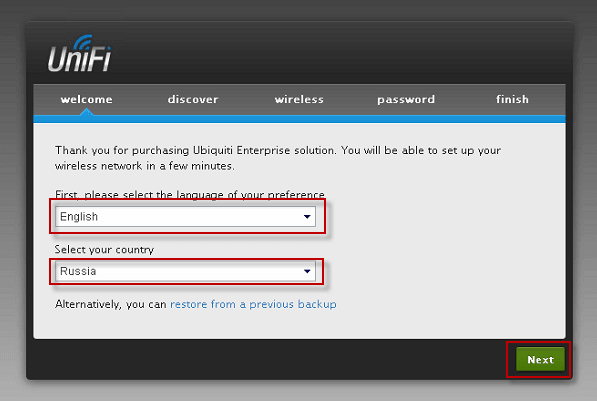
Opens the window to select language settings and country, to continue pressing the button Next:
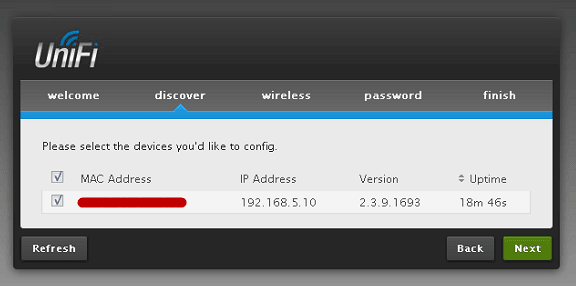
The following window will display the access point found by WIFI with a Mac address and ip address:
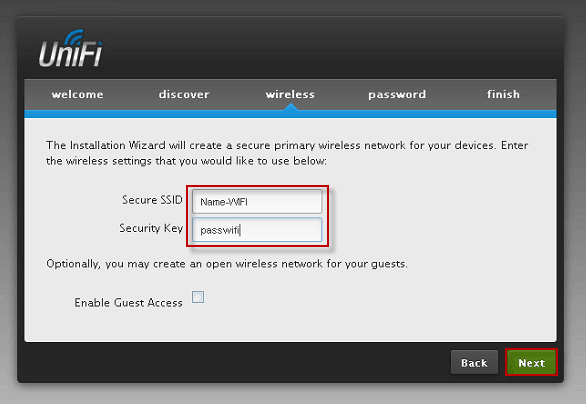
Filling the fields:
- Secure SSID (name) : Name-WIFI
- Security Key (password): passwifi
To continue pressing the button Next:
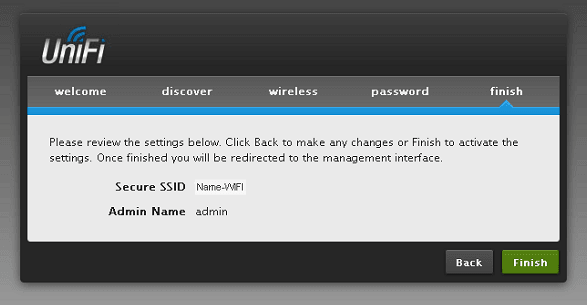
Confirm the WIFI name of the network, the administrator login (administrator and password are entered in the process of setting up above, there is no screenshot) and press the button Finish:
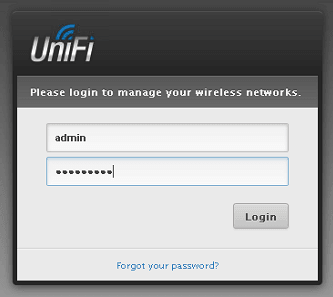
After the initial configuration of the web interface, a login and password entry window will open, enter and press the button. Login:
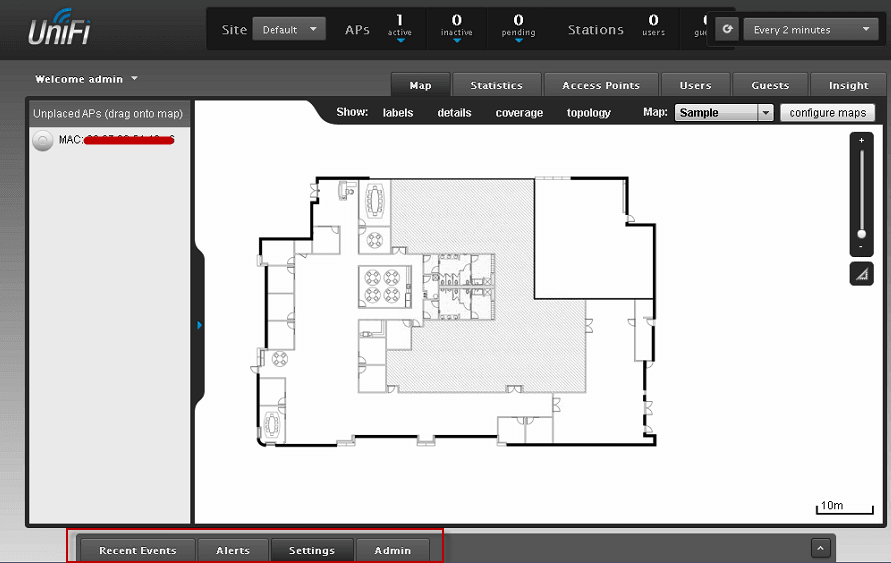
The WIFI settings window of the UNIFI access point opens, at the bottom are the configuration buttons, click on the button. Settings:
The access point setting window opens:
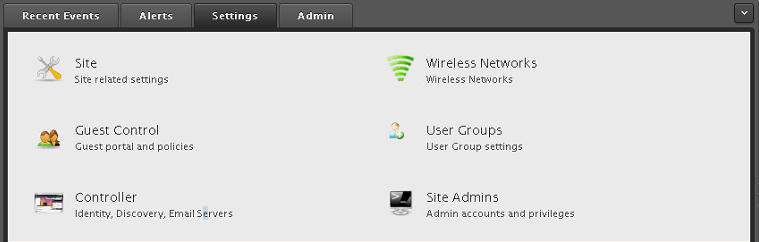
Click on the User Groups button, add for example 2 groups vek1 and vek2, for each group you can assign a speed limit by download or return.

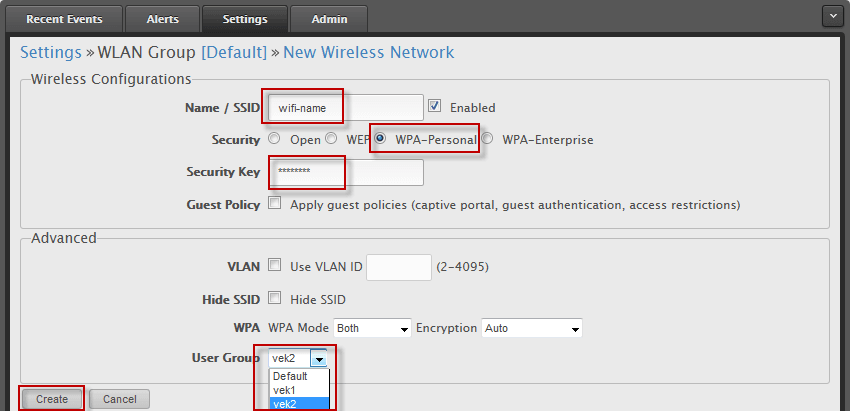
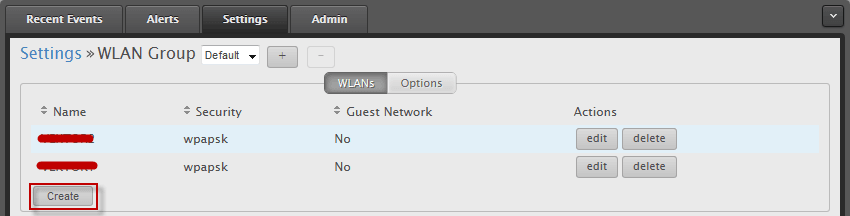
If you need to apply changes after setting up, then click on the Access Points tab and click on the desired Unifi point. restart:
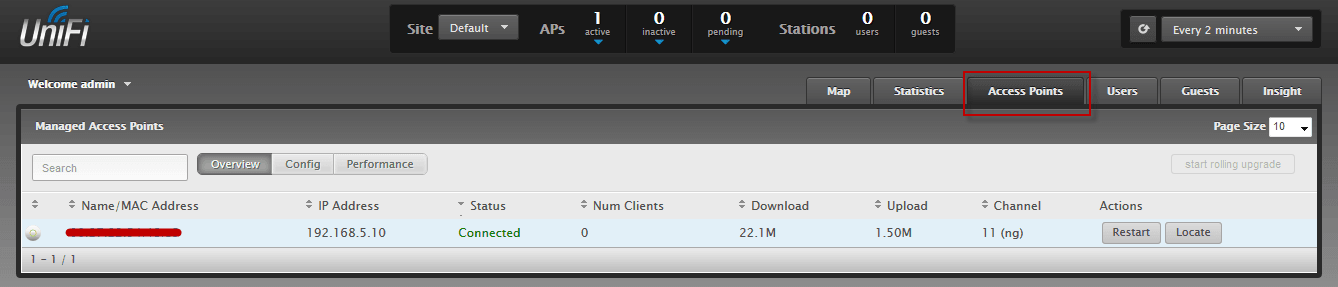
If we click on the Mac address of the access point, a window with different WIFI settings of the access point will open, screenshots are attached from below:
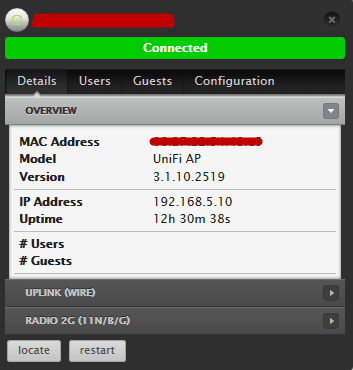
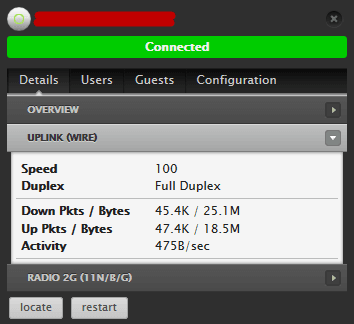

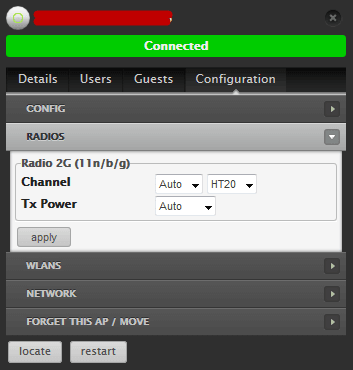
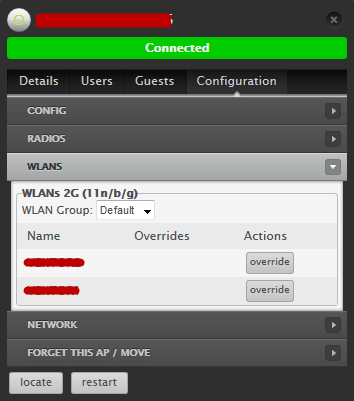
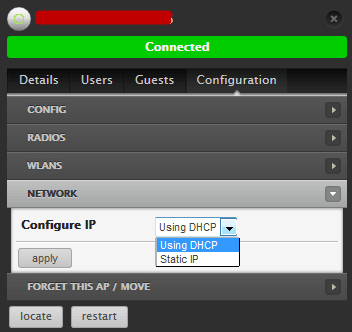
If you have made changes to the settings, you need to press a button for application. apply and overload the button restart. After setting up the access point, it will light up green in a circle if not configured to glow yellow.
Instructions for installation, connection and configuration of UNIFI access point in Debian and Windows is completed, can what subtleties I ignored, but you can install and configure the UNIFI access point.
I was with you. Sergey Lazarenko.
Let’s take a short break and watch a video of how you can ride the wind from improvised materials in winter:

comment