
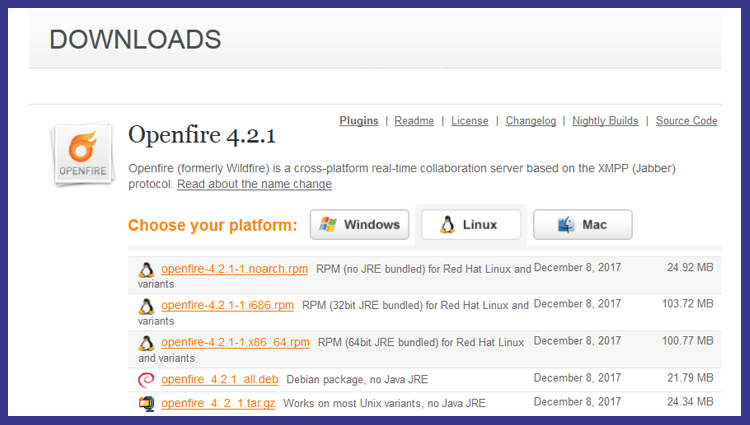
A small instruction for installing jabber Openfire server in Debian or Ubuntu Linux.
Openfire - cross-platform XMPPA server written in Java and using dual licensing Apache License 2.0 and a commercial license. Most of the server administration tasks are solved through a web interface running Jetty, available on the Internet. port 9090 (HTTP) and 9091 (HTTPS) by default. administrators can edit server settings, add and delete users, conference rooms and so on.
Installation will be carried out operating systems Debian Jessie, Debian Stretch and Ubuntu 16
Download the Openfire distribution with official website.
Open the official website, click on the button Downloads:
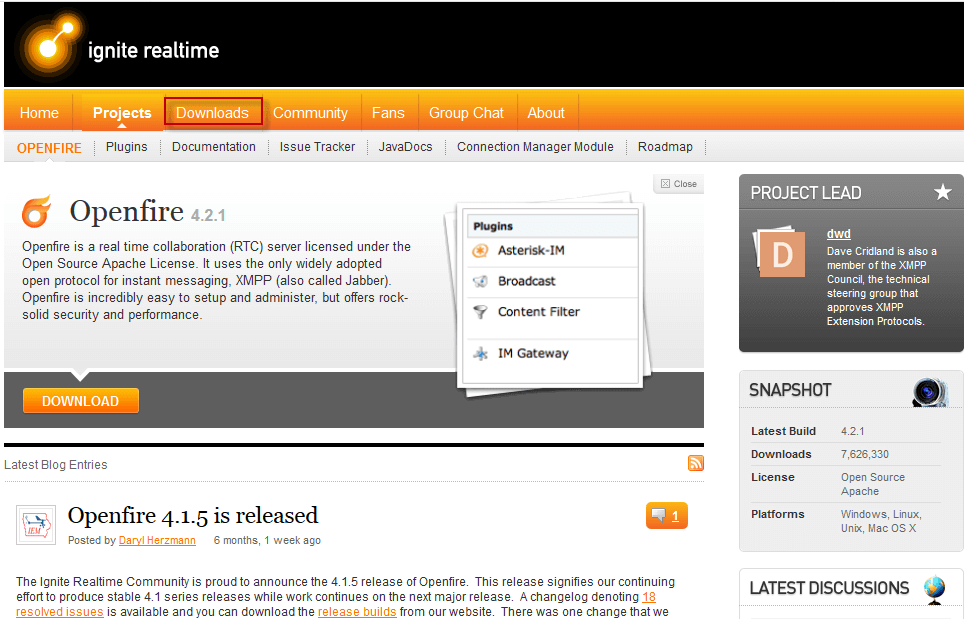
The download page of the distribution for different versions of operating systems opens:
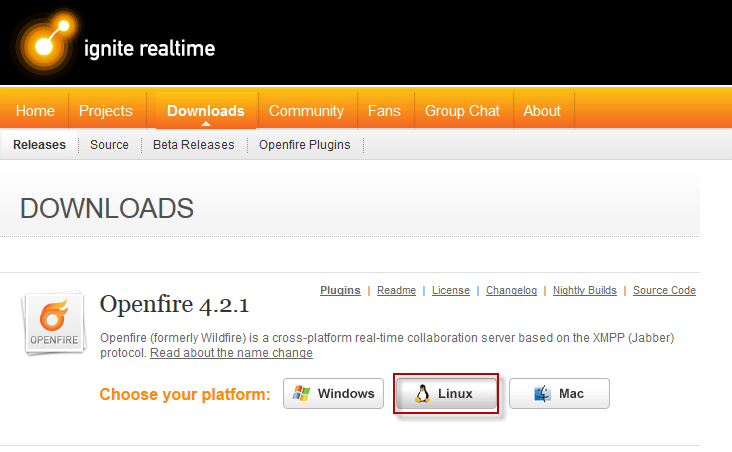
Clicking on the Linux button will appear links to download Openfire for different versions of Linux, download the distribution for Debian and based on it OS, file with extension .deb
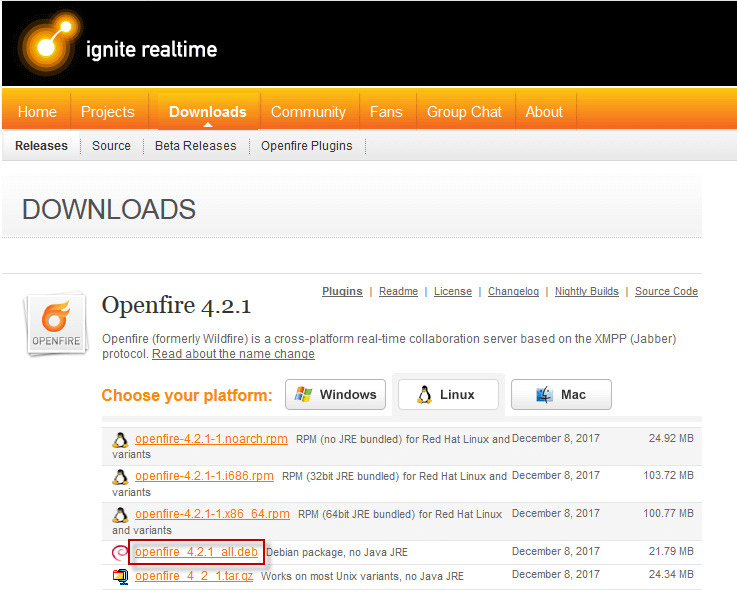
We save the file to the hard drive and copy it to the server via SSH using the instructions: Putty or Filezilla.
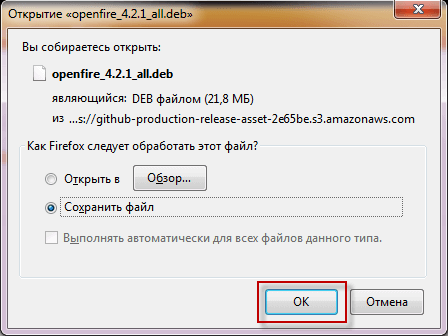
Installing Openfire
Add a repository to Debian Jessie by following the command:
echo 'deb http://ftp.debian.org/debian/ jessie main contrib non-free' > /etc/apt/sources.list
Add a repository to Debian Stretch by following the command:
echo 'deb http://ftp.debian.org/debian/ stretch main contrib non-free' > /etc/apt/sources.list
For Ubuntu 16, you don’t need to add a repository, they are already registered during installation.
Update the repository, system and install JAVA on which Openfire works by executing commands:
aptitude update
aptitude -y safe-upgrade
aptitude -y install default-jre-headless
Above we downloaded the distribution from the official site through the browser, but you can download Openfire and in the console following the command below, the main thing is to check that you are downloading the latest version, if on the official website a newer one, specify in the command the version of the distribution from the site:
wget -O openfire_4.2.1_all.deb https://www.igniterealtime.org/downloadServlet?filename=openfire/openfire_4.2.1_all.deb
Install the downloaded distribution by executing the command:
dpkg -i openfire_4.2.1_all.deb
Reboot the server by executing the command:
reboot
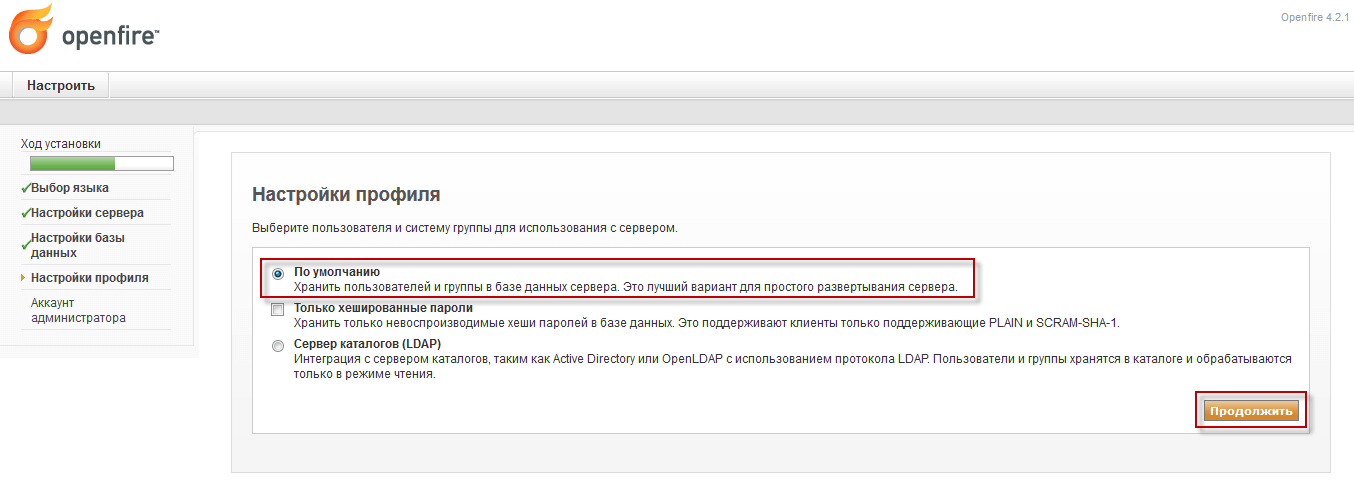
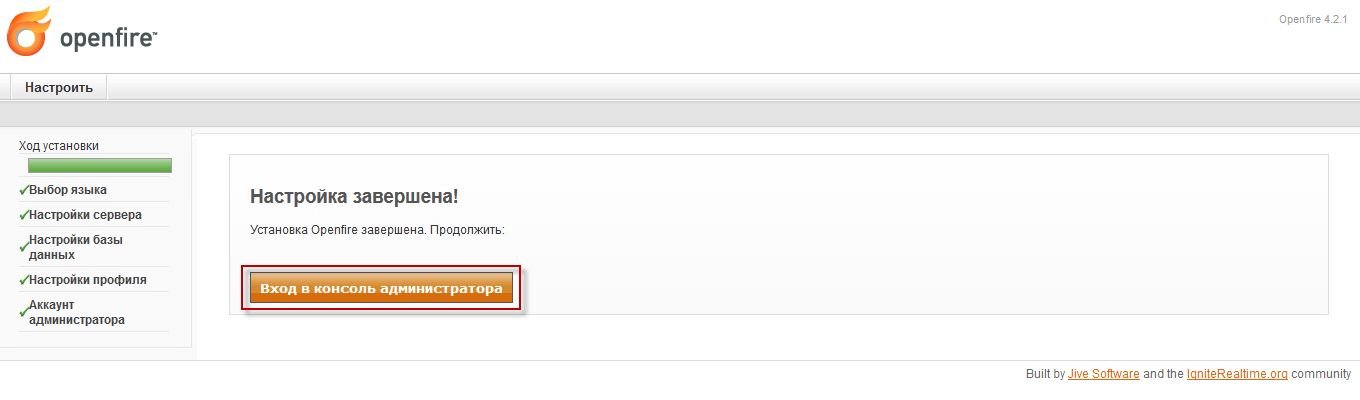
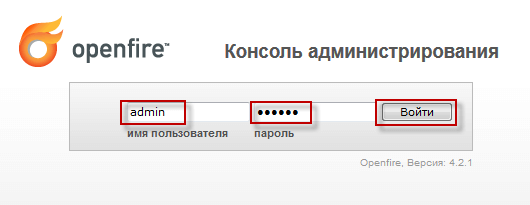
After downloading, go through the browser at: 192.168.0.1:9090, where 192.168.0.1 is the IP address of the server with openfire installed, and 9090 is the port on which the openfire web management interface operates.
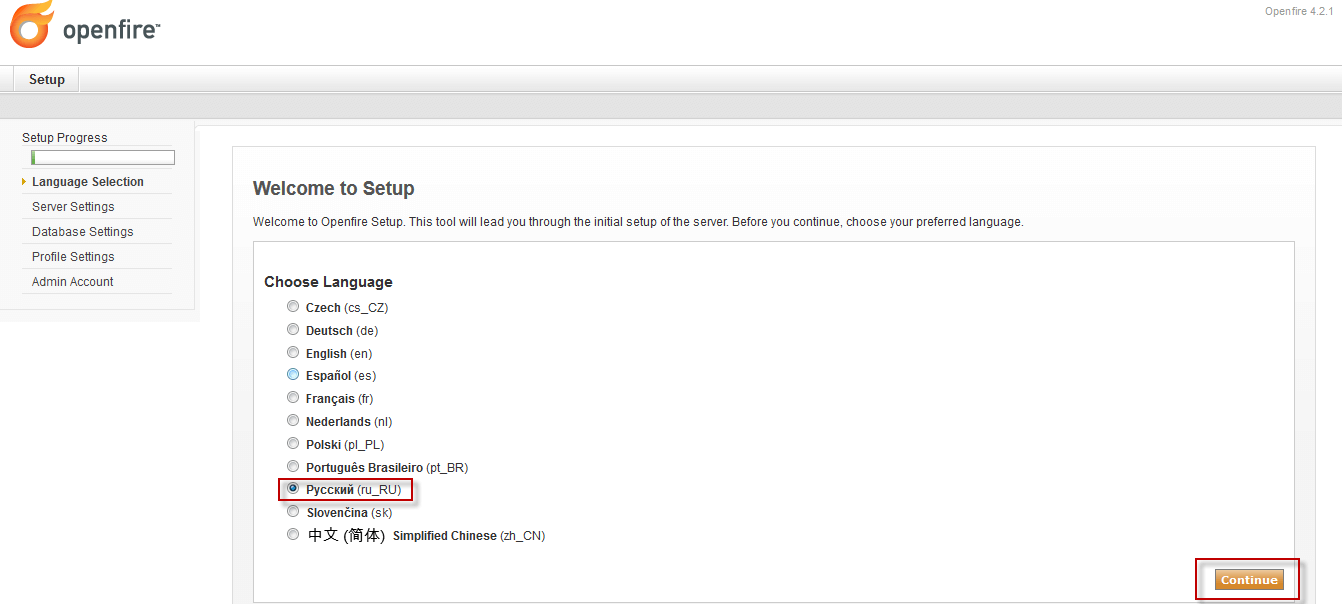
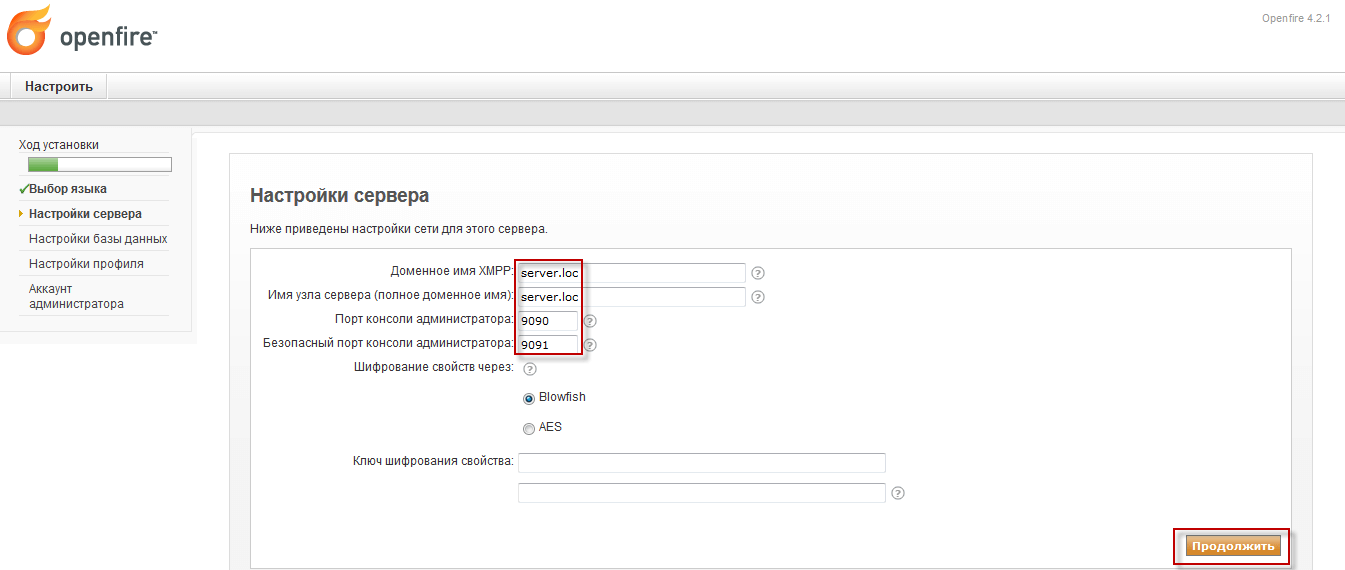
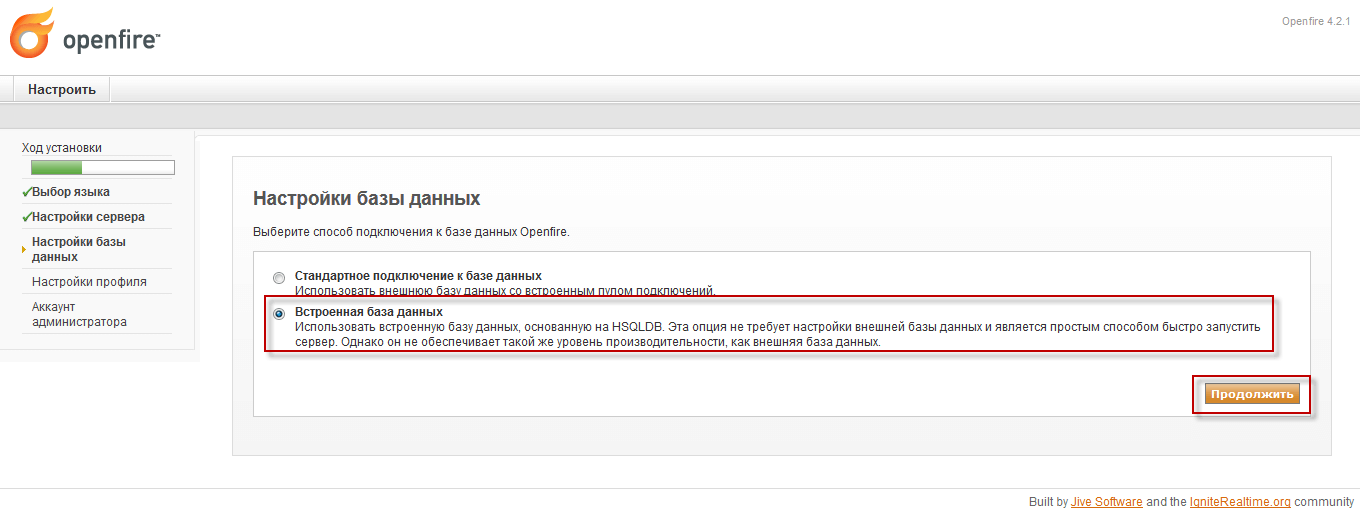

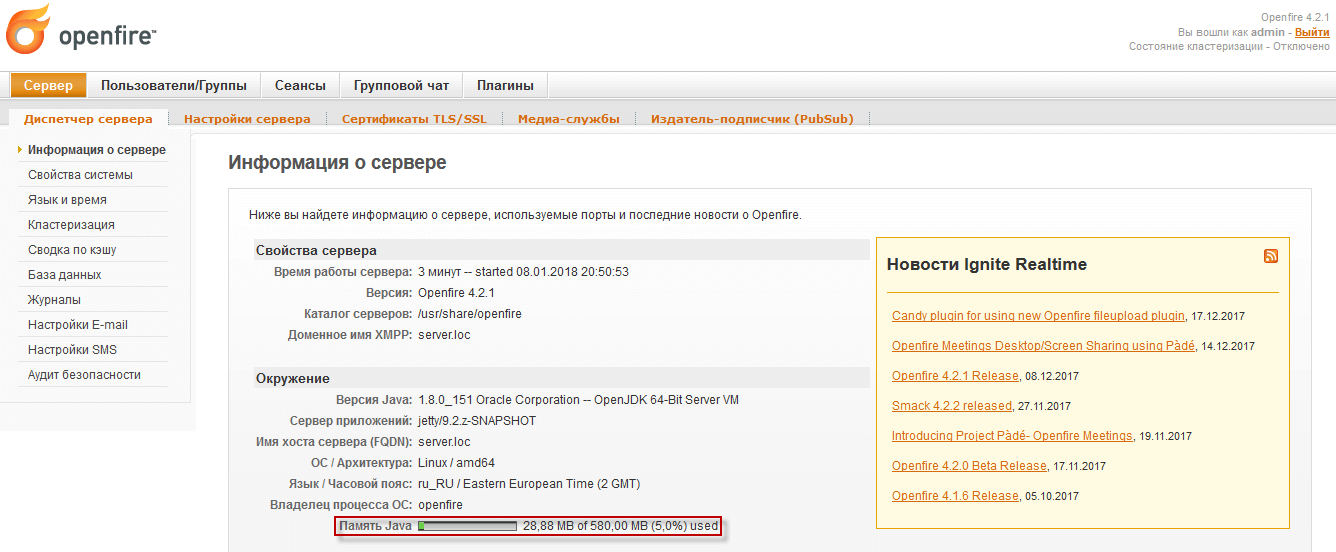
On the main page, we see the size of RAM consumed by openfire and the amount of maximum consumption:
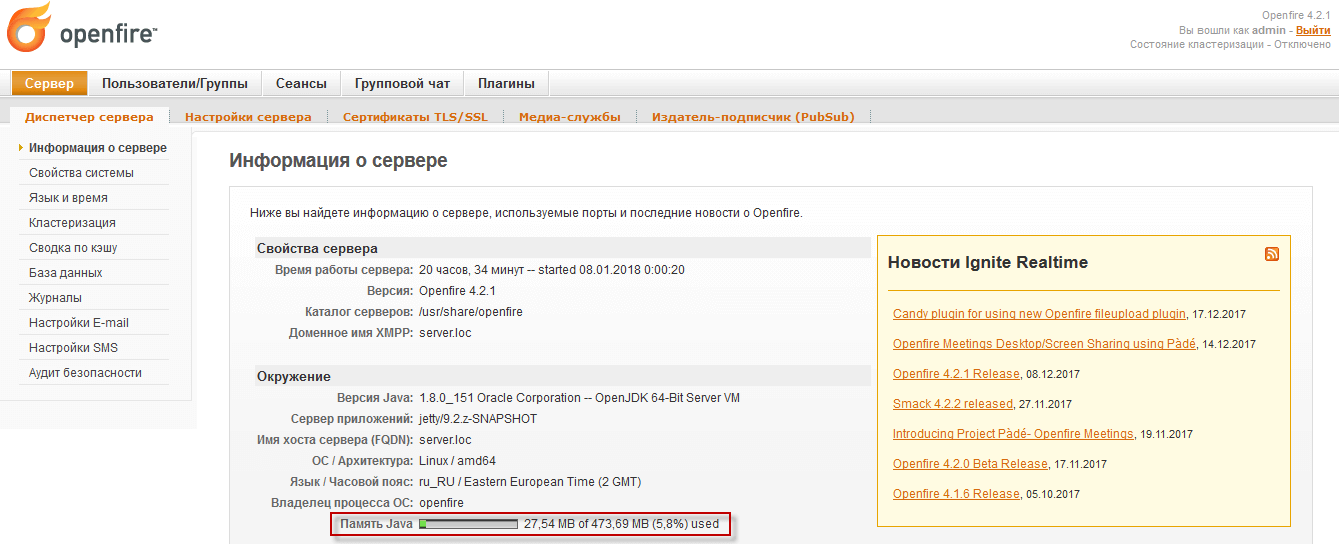
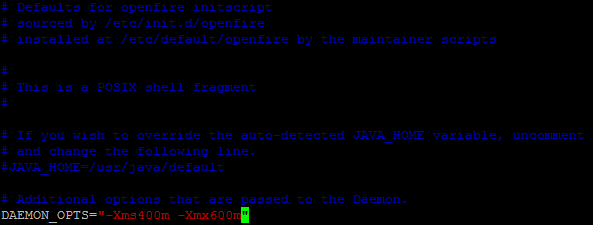
We increase the memory allocated by the server for Openfire, to do this we change the parameter DAEMON_OPTS file /etc/default/openfire
vi /etc/default/openfire
DAEMON_OPTS="-Xms400m -Xmx600m"
Reboot the openfire server by executing the command:
/etc/init.d/openfire restart
In the screenshot below, we see the changed maximum size of allocated memory:
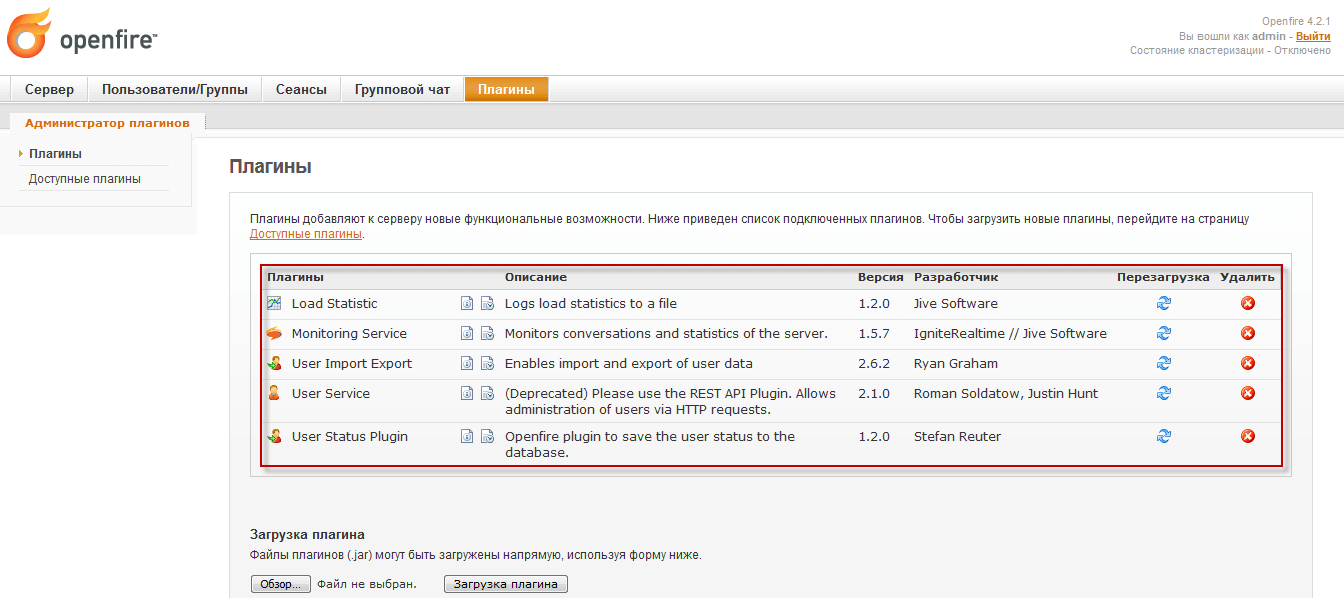
We are installing some plugins:
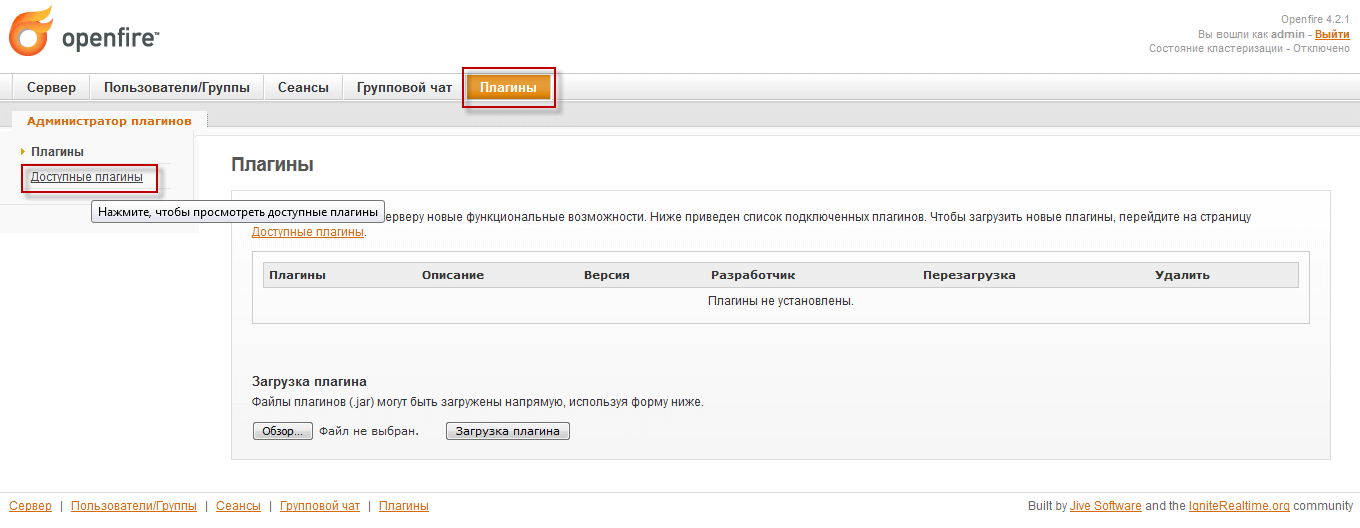
On the installed plugins, click opposite to the button in the form of a green cross:
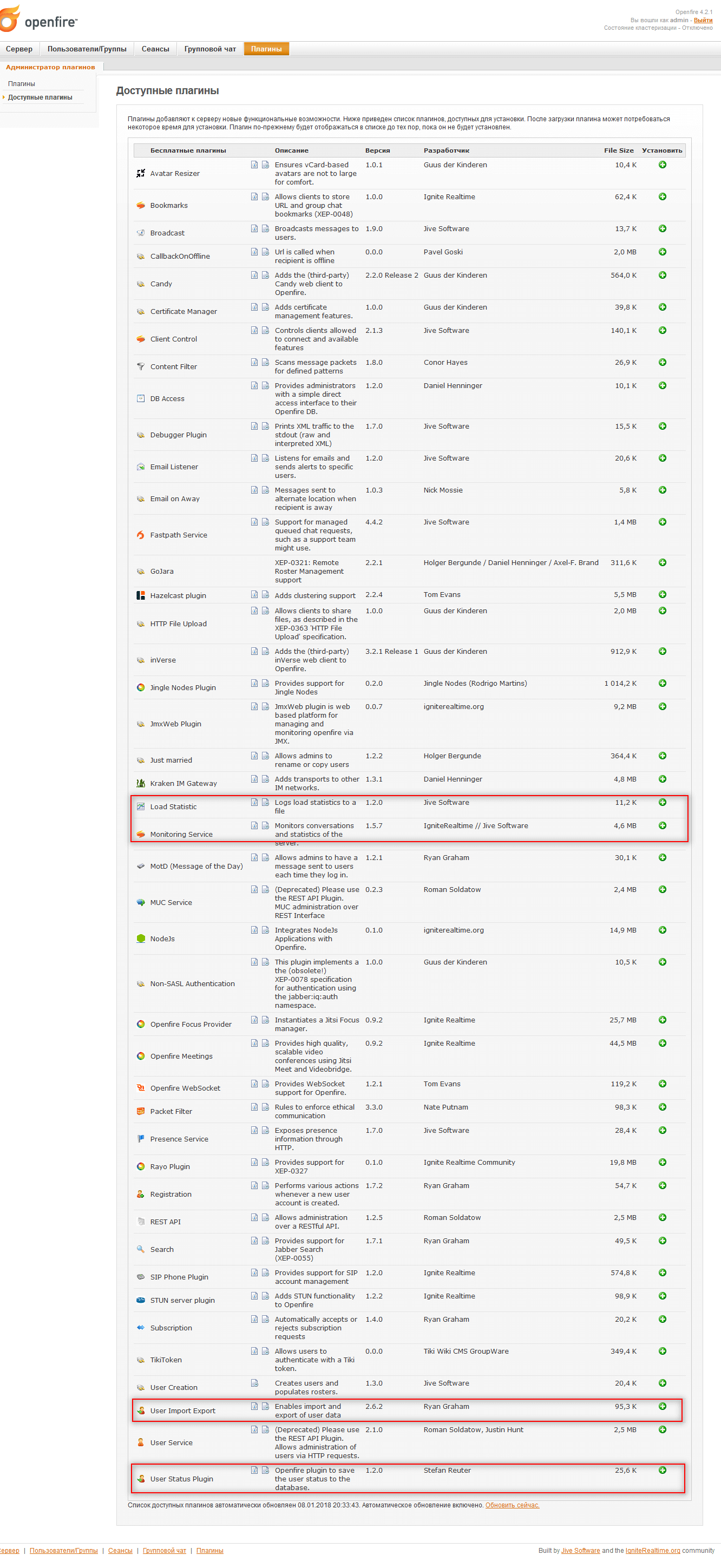


Plugins are installed:
Add users and groups
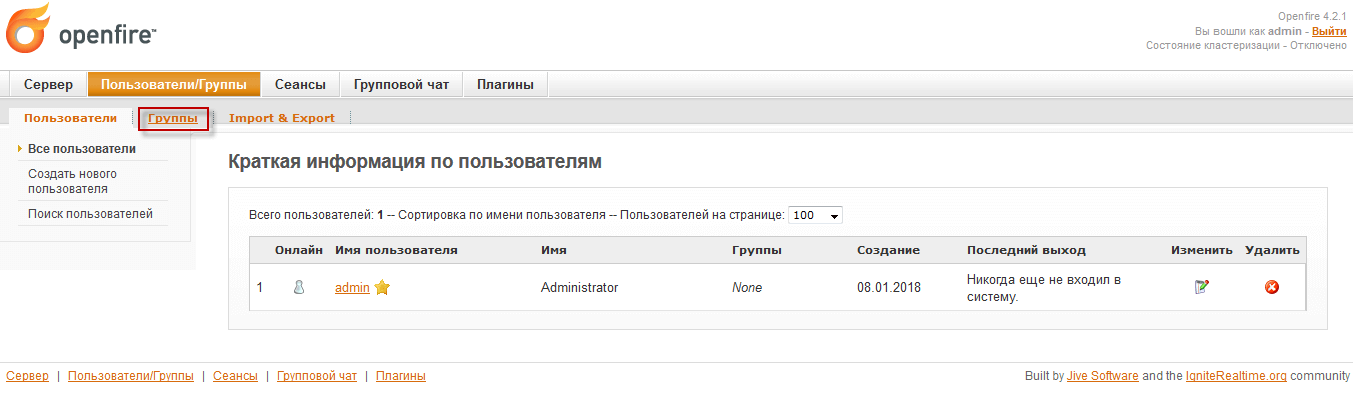
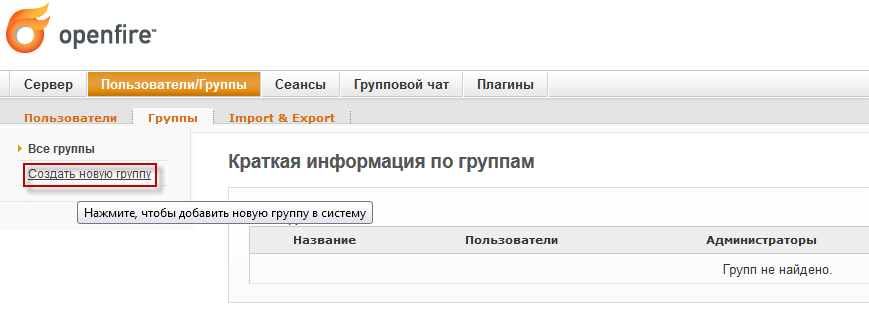
On the tab. Users/Groups - Groups click Create a new team:
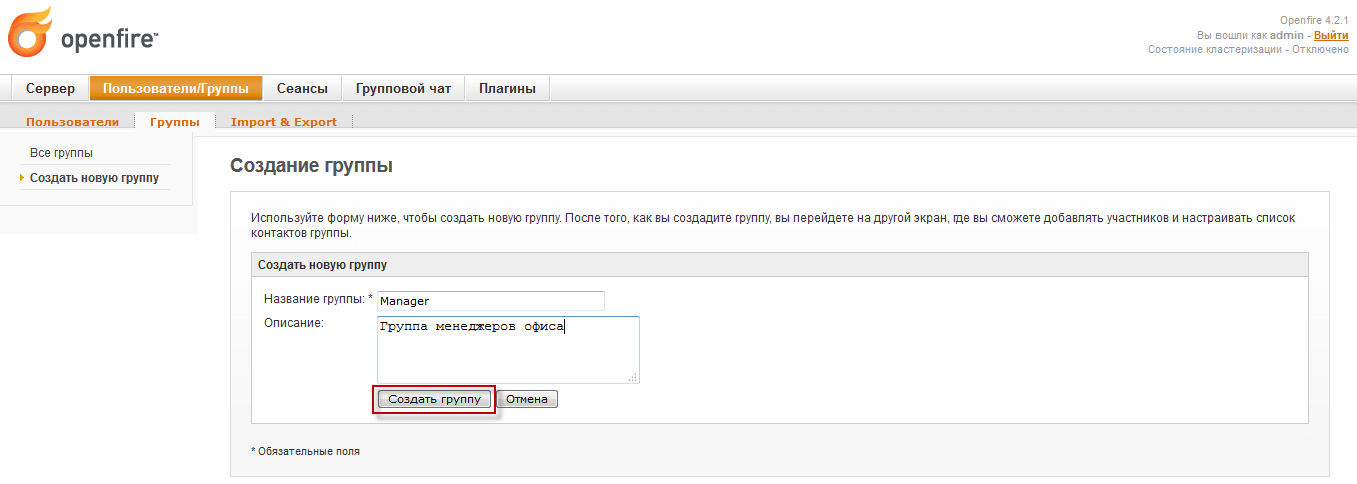
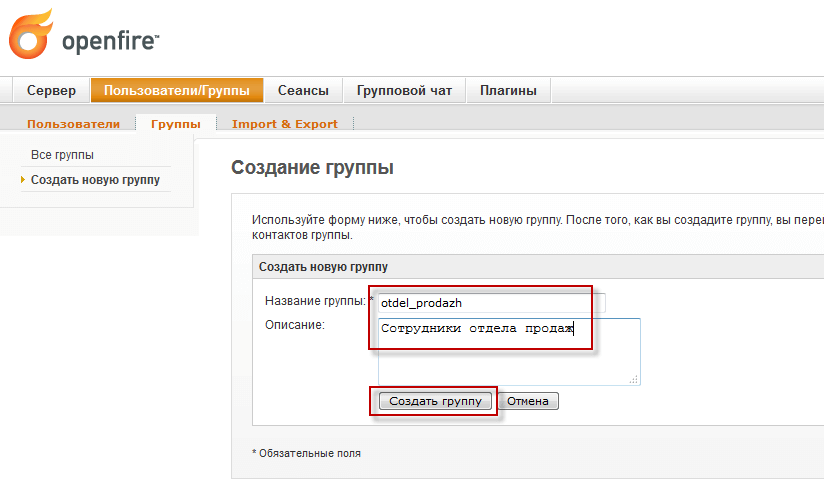
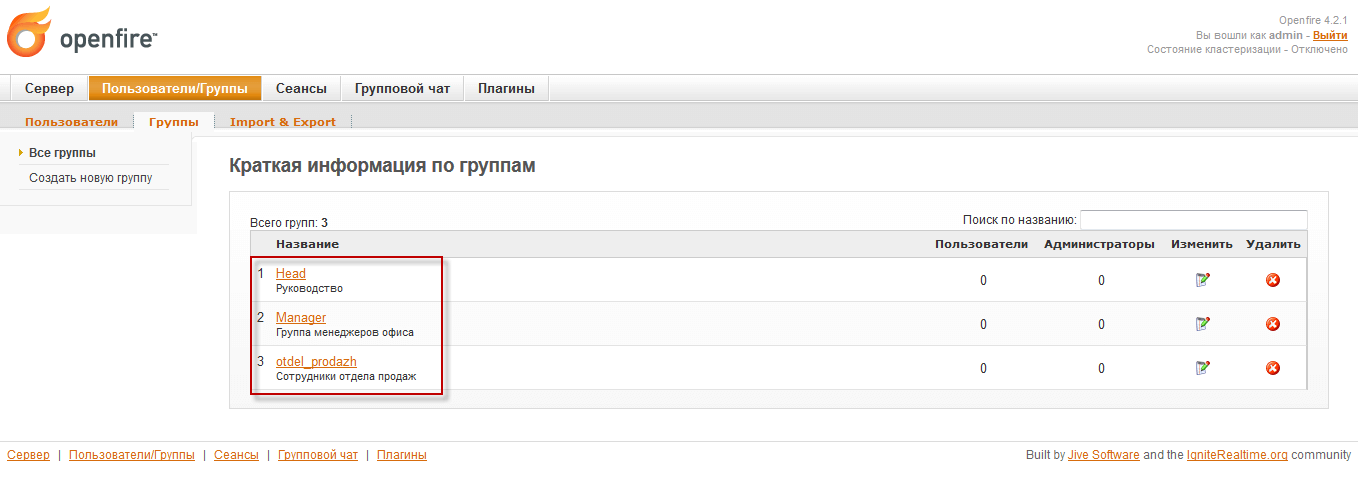
We enter the name of the group, in our case we add 3 groups:
- Manager
- Head
- otdel_prodazh
Introduce the first group name Manager and description Team of office managers and click on the button Create a group:
We're also building a group. otdel_prodazh and Head similar to the previous one:
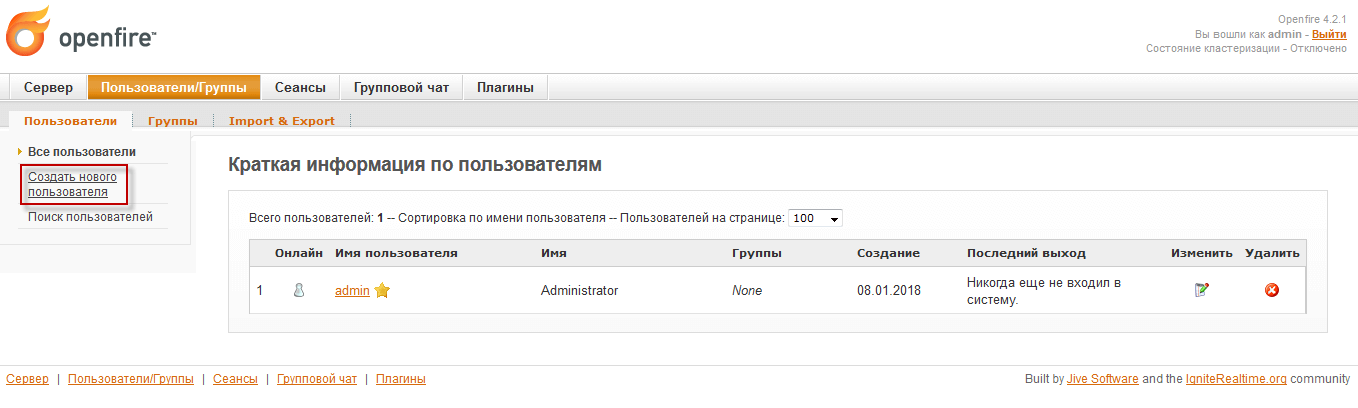
Create users in each group of 2 for example. Click on the link Create a new user in the tab Users/Groups - Users:
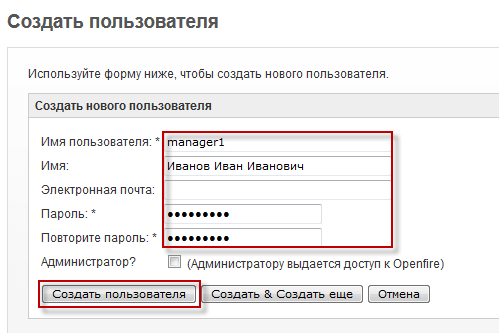
We fill in the user data:
- User name: manager1
- Name: Ivanov Ivanovich
- Password and password repetition
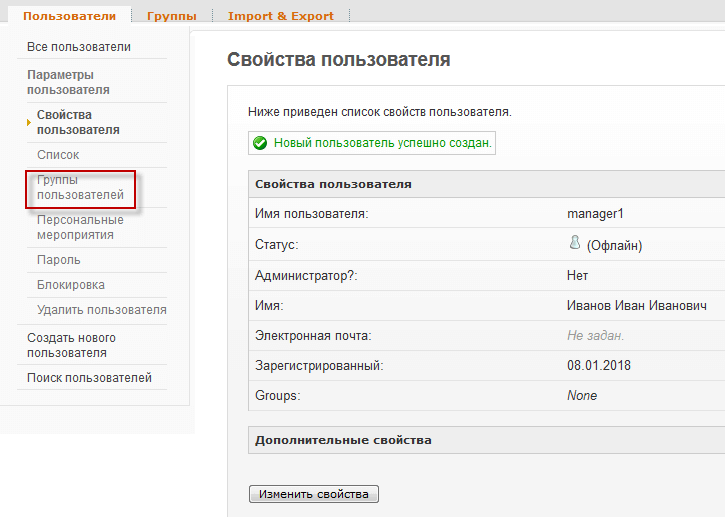
Click on the Create User button, the user tab will open:
On the user tab, click on User groups:
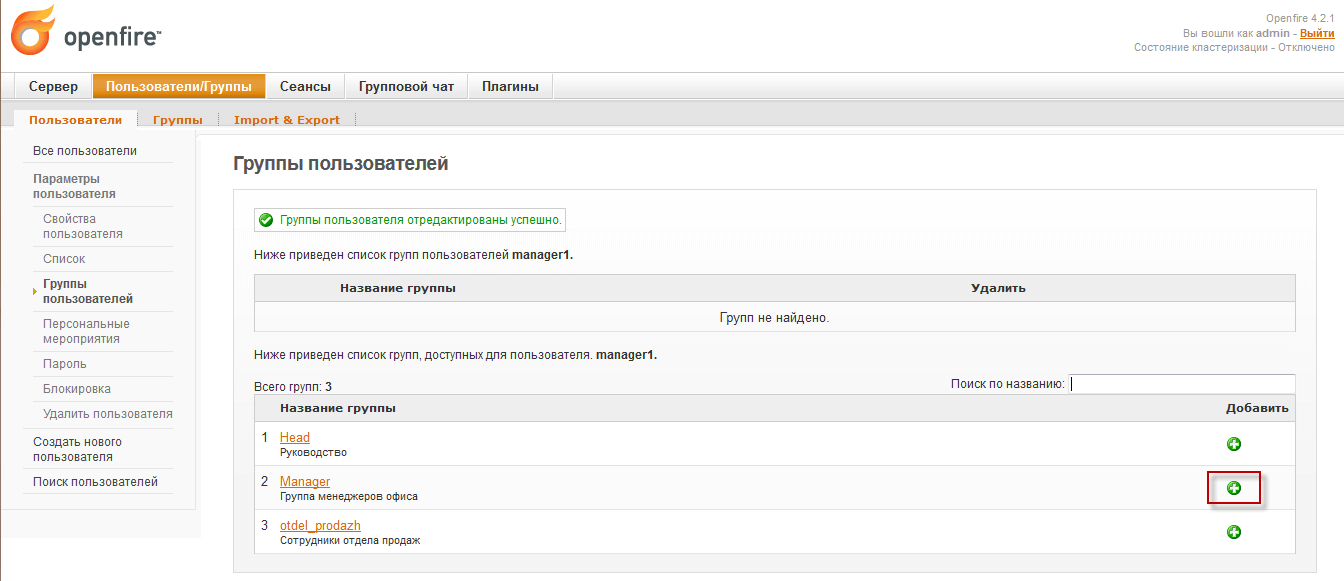
In the window that opens on the desired group, click on the green cross to add to the Manager group:
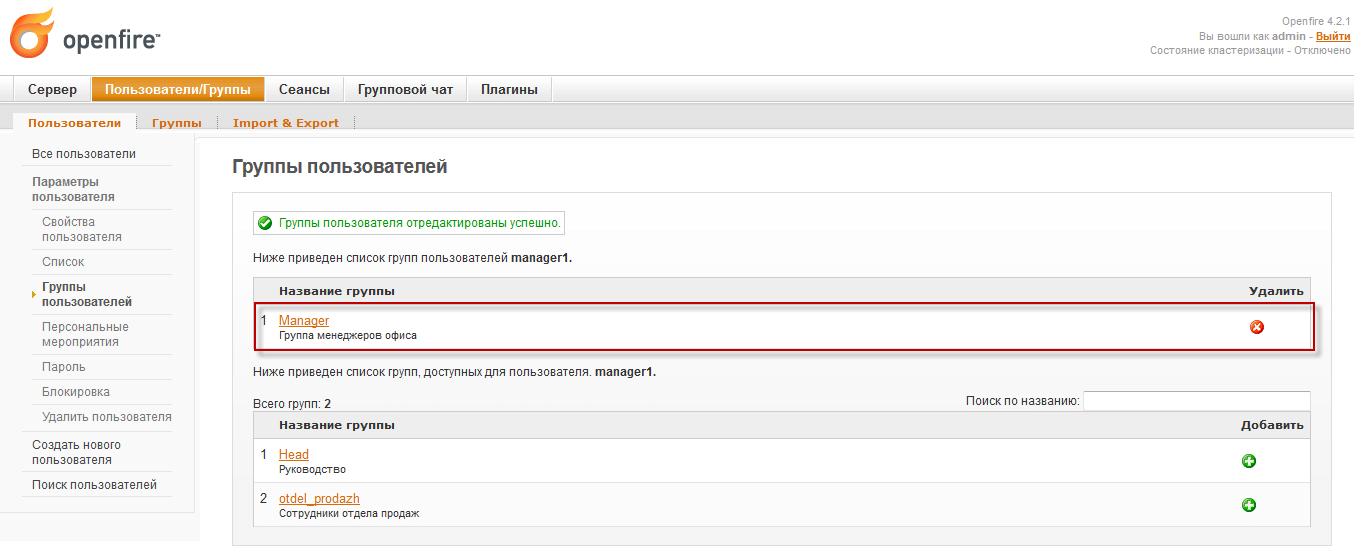
Added group Manager for the added user:
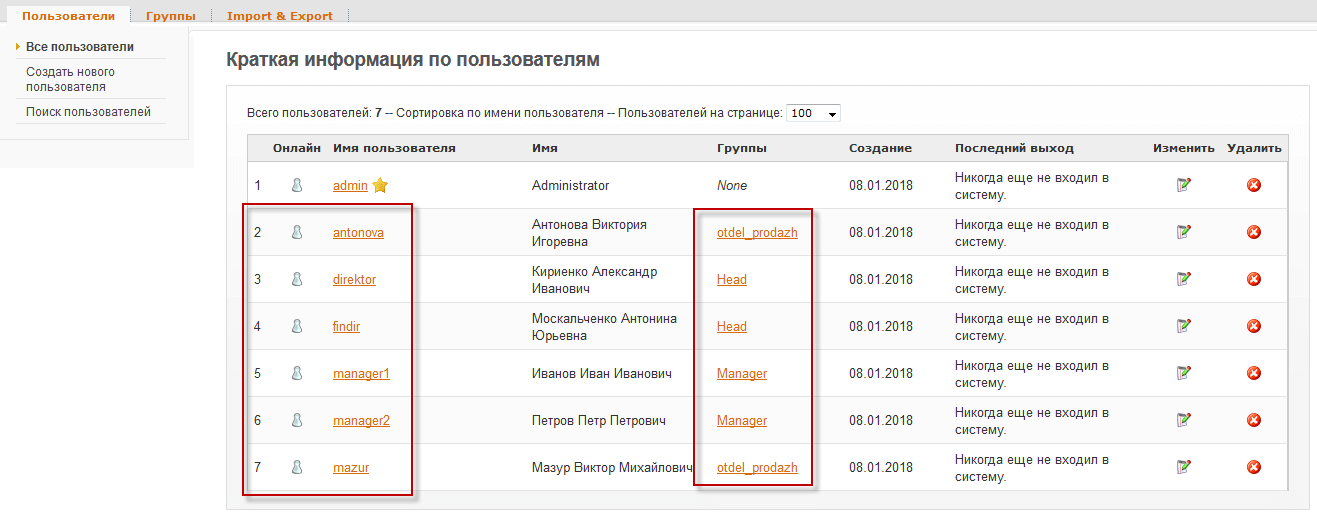
Similarly, we add several other users and attach the desired groups to them:
Configure each group so that all users can see the groups and other users and write messages to each other:
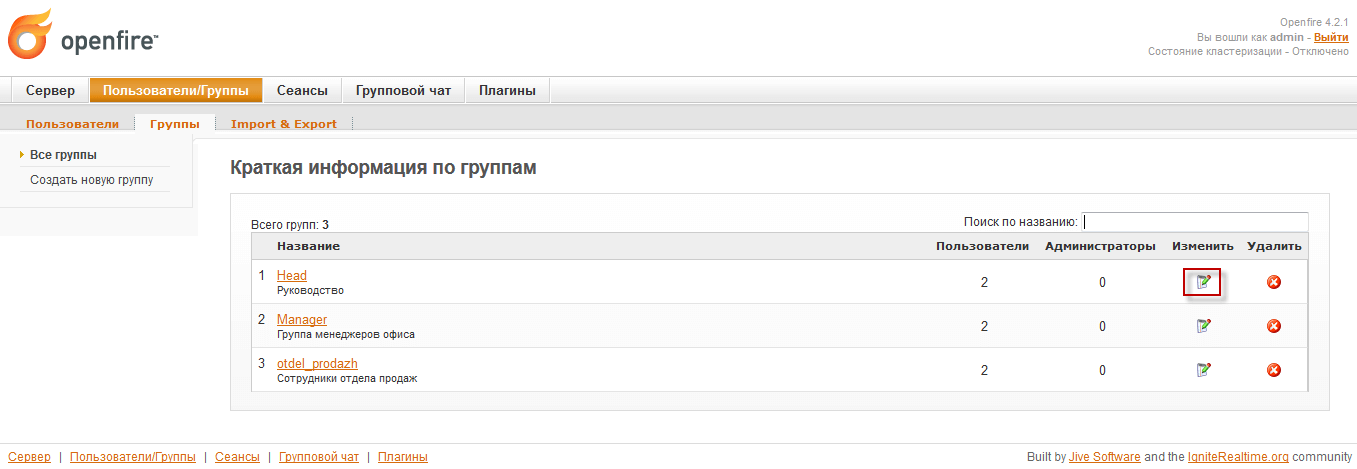
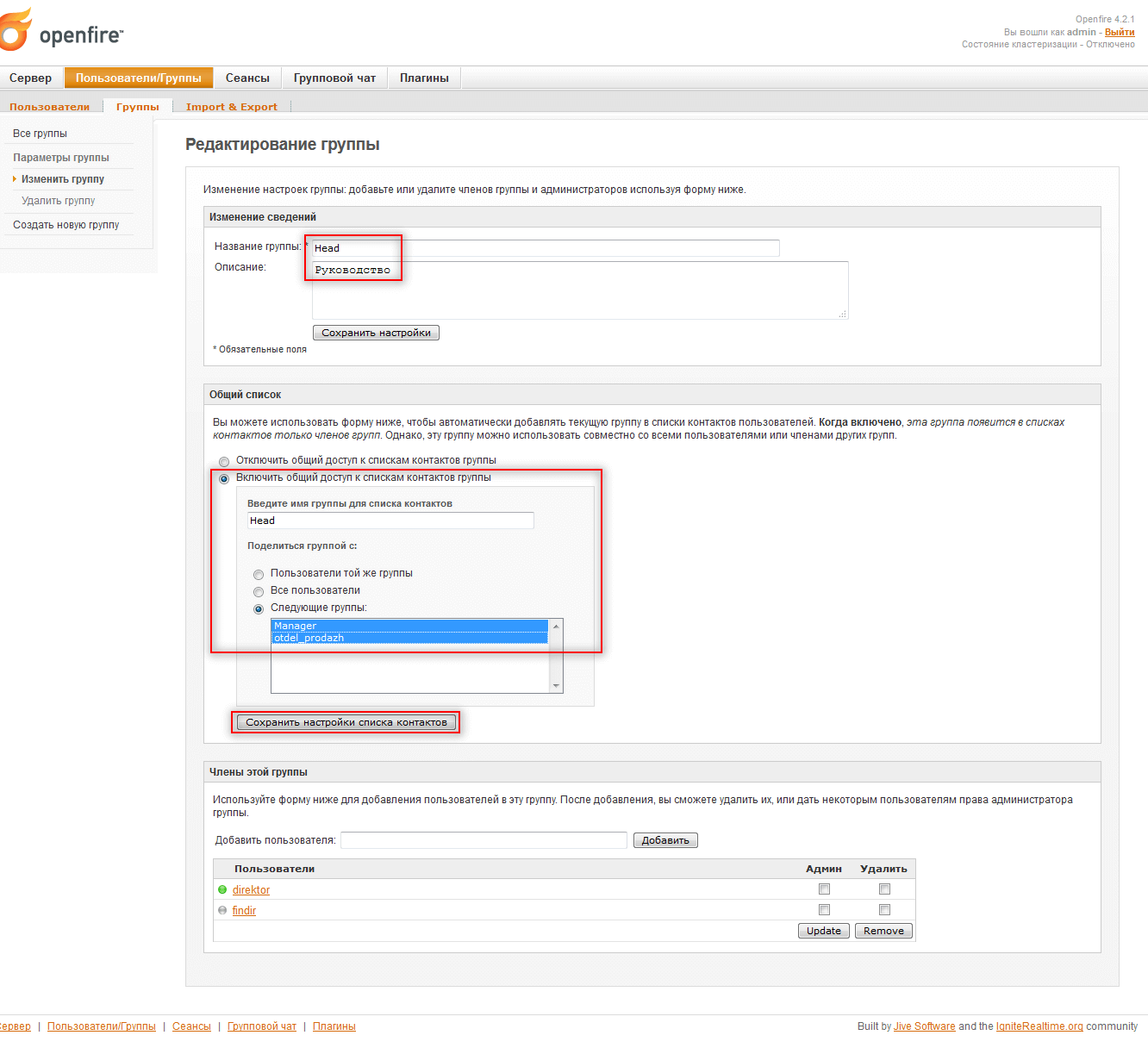
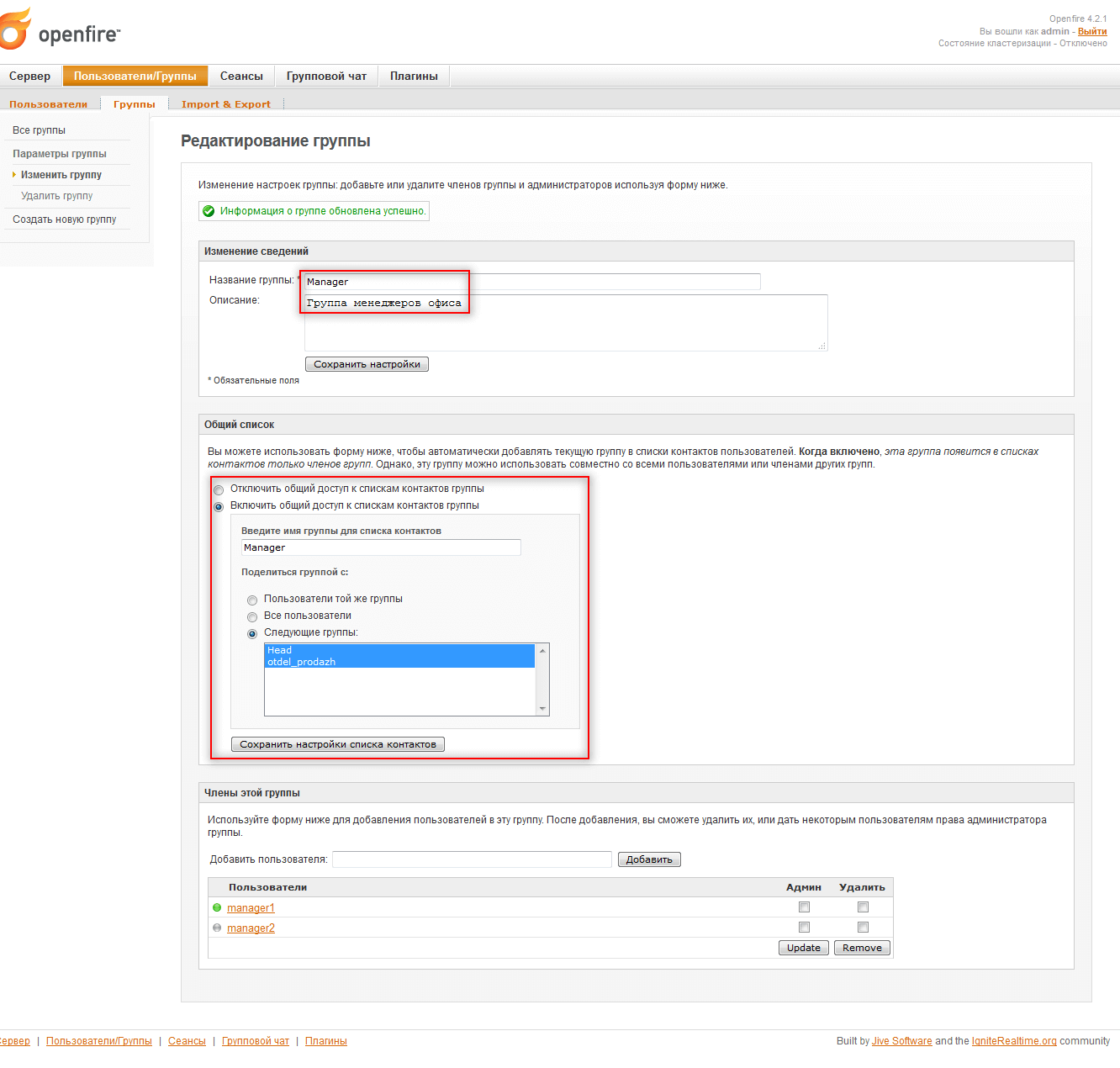
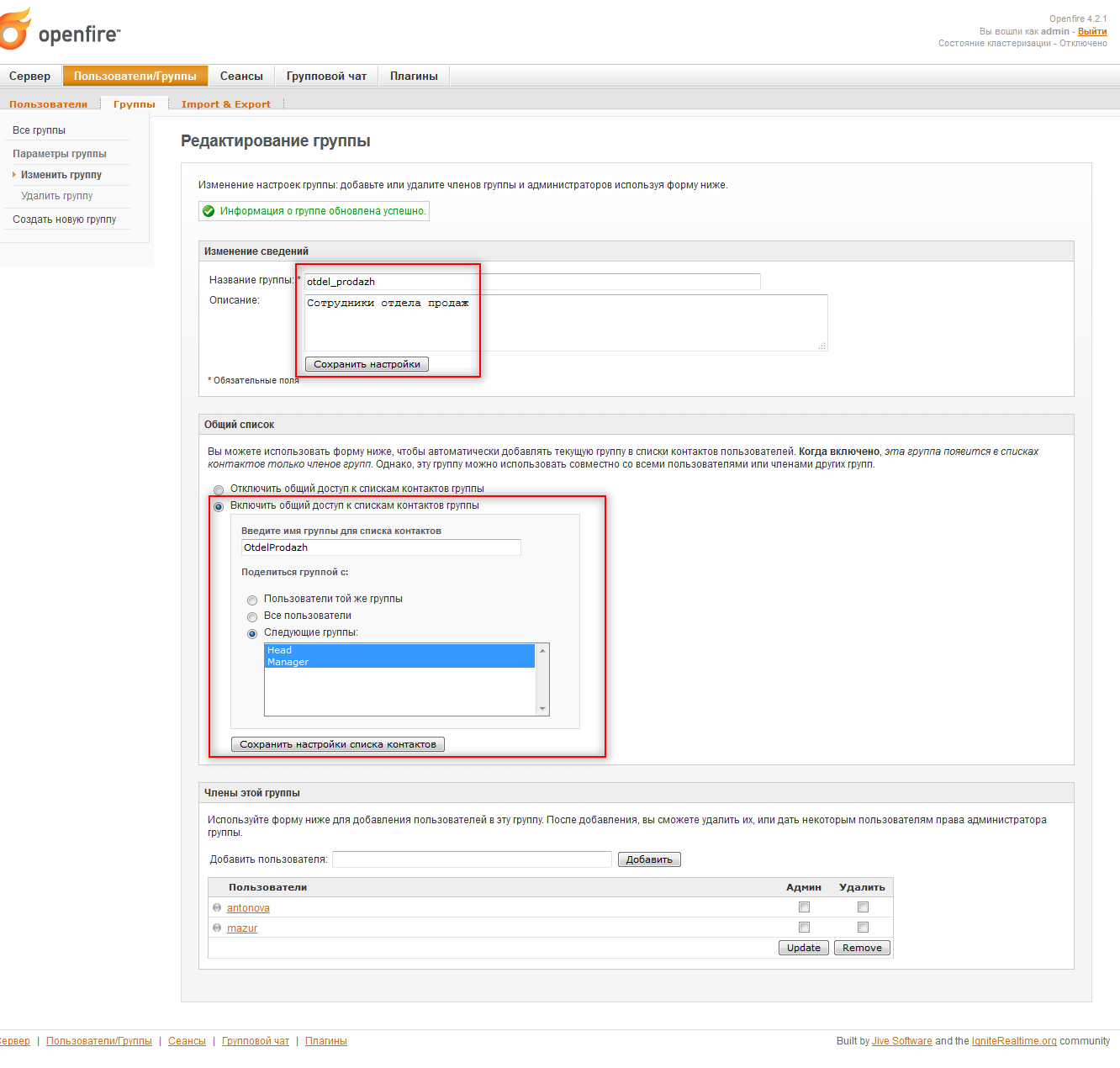
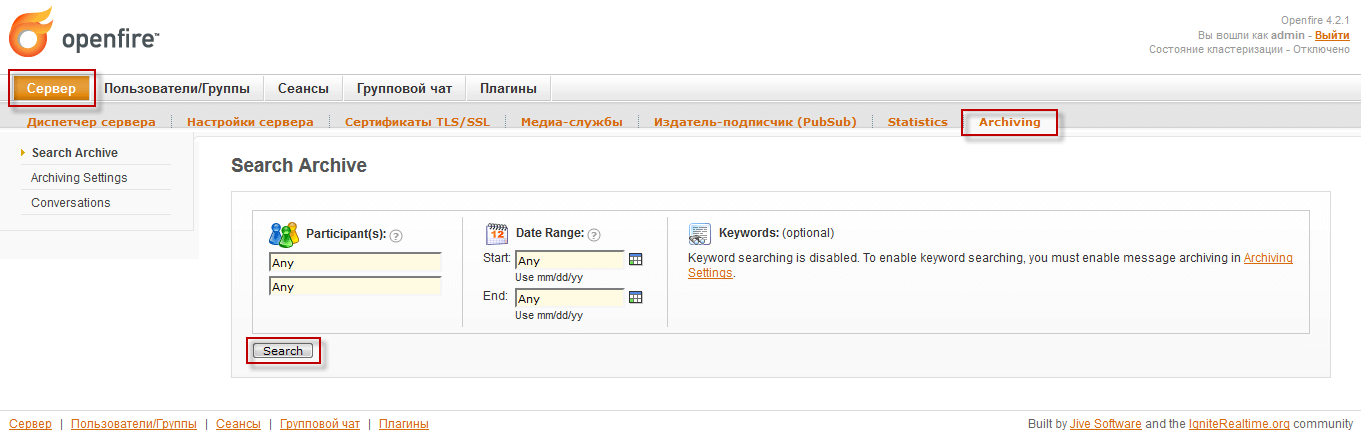
After installing the plugin Monitoring ServiceThe saved messages can be viewed at the address server - Archiving, and you can configure archiving on the tab Archiving Settings:
After setting up the server, check how groups and users are displayed in the jabber client.
Connect Jwchat to our customized jabber server on openfire.
Open the site. jwchat.org and enter access options to our configured server above and click the login:
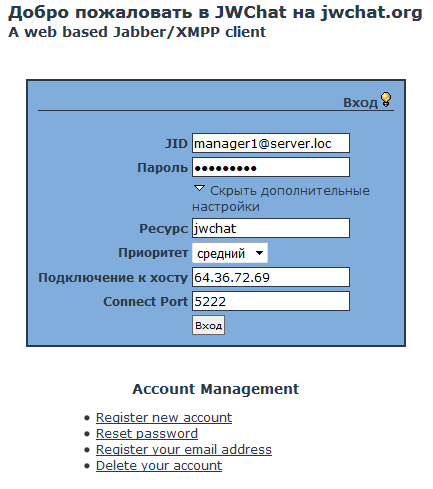
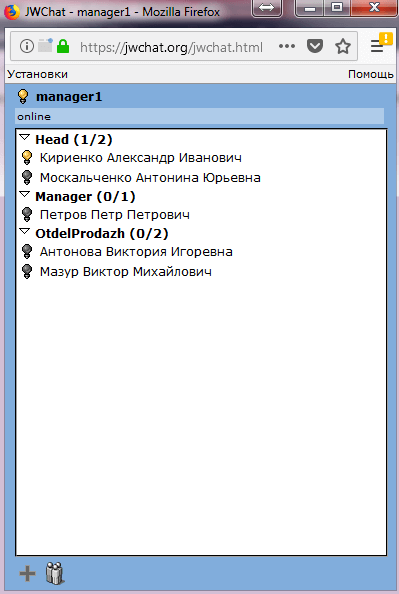
Chat with a list of groups, active and inactive users:
Convenient jabber clients for the corporate segment:
- qipinfium The most convenient client for windows is able to send a message to groups.
- qutim A Linux client, similar to qip, is quite convenient.
This is what I use, naturally there are a huge number of other great clients like PSI+, Pidgin. and other ...
In this instruction, we installed jabber server Openfire, install and use, very convenient in setting up and using this server, I will be glad if you need this instruction.
With you. Sergey Lazarenko.

comment