
In the article We have discussed in detail how to install Linux Mint XFCE, in the article below we will configure the system, install the necessary software and configure the necessary programs and desktop.
Since the Linux Mint distribution is based on Ubuntu, all commands must be executed using the program. sudo before the command and to execute each command, the system will ask you to enter the administrative user password (by default, the user you add during the installation of the system) or just like me, we activate the work under the root user and execute all the below commands without entering a password (or rather, you will need to enter a password once). In order to execute commands under the root user, run the command sudo su and to request the system to enter a password, enter the user's password and from that moment you root and can install or delete programs, configure the system.
We will start installing the necessary software.
Add the Double Commander file manager repository by executing the command:
add-apt-repository ppa:alexx2000/doublecmd
We press the Enter button on the system question:
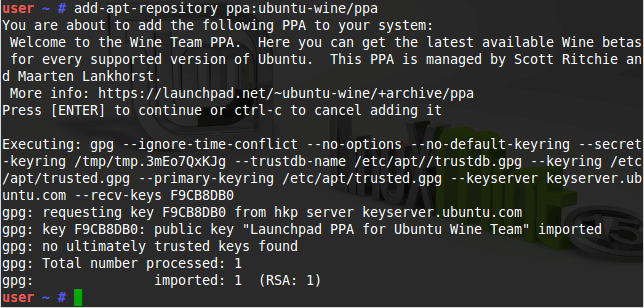
Add the Windows emulator repository - WINE by following the command:
add-apt-repository ppa:ubuntu-wine/ppa
We press the Enter button on the system question:
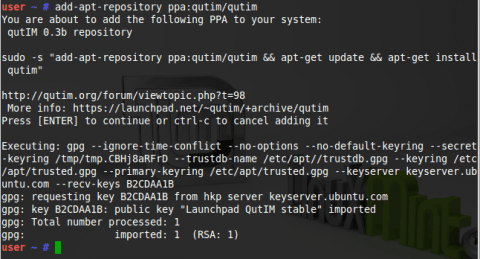
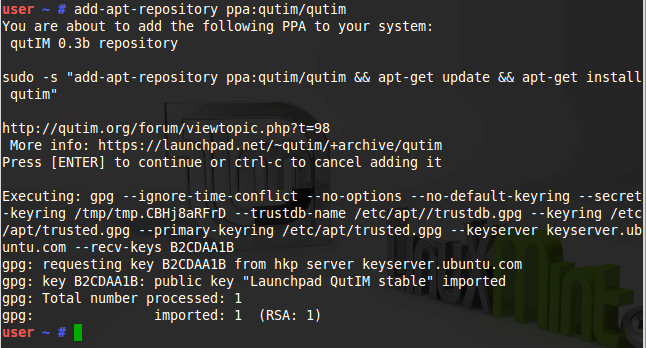
Add a repository of the multiprotocol messenger qutim (analogue qip) by executing the command:
add-apt-repository ppa:qutim/qutim
We press the Enter button on the system question:
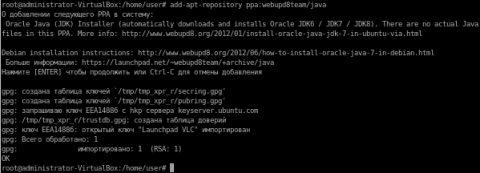
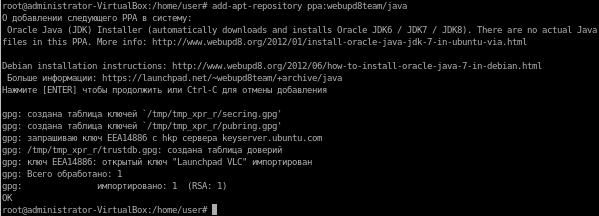
Add the java repository by executing the command:
add-apt-repository ppa:webupd8team/java
We press the Enter button on the system question:
Run the package manager update, and also install the entire set of software for all occasions by following the command:
Run the package manager update by executing the command:
Update the distribution and restart the system by executing the command:
aptitude safe-upgrade -y && reboot
After restarting, install all the necessary software by executing only one command in the terminal console:
aptitude install -y vim mc screen nmap htop unzip zip rar unrar p7zip-full remmina rsync filezilla inkscape skype doublecmd-gtk wine1.7 qutim ssh sshfs mtr bmon vlc smplayer smplayer-themes smplayer-translations chromium-browser chromium-browser-l10n cifs-utils samba libreoffice-grammarcheck-ru libreoffice-help-ru libreoffice-l10n-ru libreoffice-lightproof-ru-ru firefox-locale-ru build-essential linux-headers-`uname -r` ubuntu-restricted-extras qutecom gimp acetoneiso oracle-java7-installer
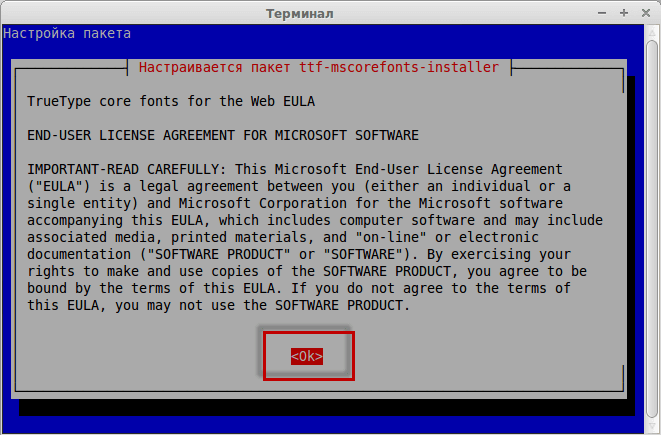
To the questions of the installer when installing programs, we agree:
From the set of programs above - all free and they can be used both at home and in the corporate segment. I always install this set, because when you need something, and there will be no time to install it, or the Internet will be absent and they do not take up much space, as they say, programs for all occasions except especially specific ones.
Configure a network card in Linux Mint XFCE
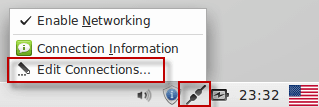
To set a static IP address, if you need it, right click on the icon in the tray and press the button. Edit Connections...:
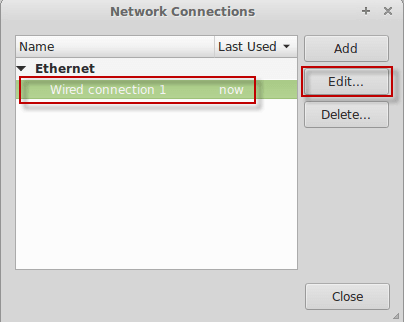
In the window that opens, click on the existing connection. Wired connection 1and press the button. Edit:
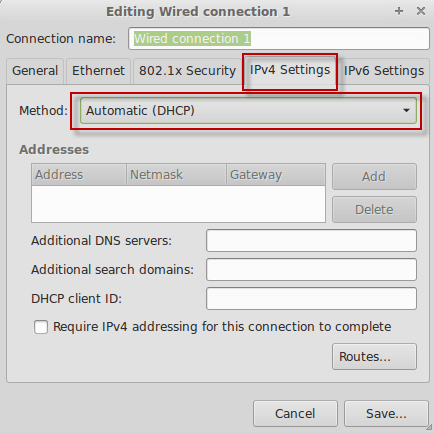
In the open window, click on the tab. IPv4 Settings and in a drop-down field Metod: By default, it is automatically receiving network settings by DHCP - Automatic (DHCP)If you have a router, router or server distributing IP addresses on your network, you may not need to change anything.
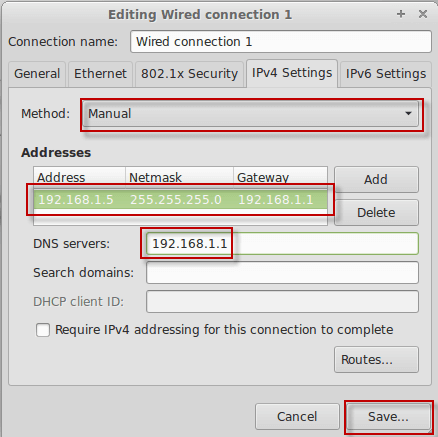
If you need to change your network settings, then in the field Method: You need to select from the drop-down list Manual, that is, manually entering network settings. In the field. Address Add an IP address by pressing the button Add and by filling in the fields like the following (addresses must be entered as below is an example and it may differ from yours):
-
Address = 192.168.1.5
-
Netmask = 255.255.255.0
-
Gateway = 192.168.1.1
-
DNS servers =192.168.1.1
After filling in all fields, press the button to save changes. Save...:
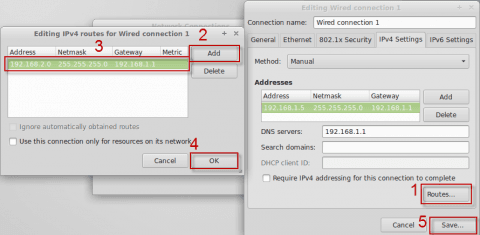
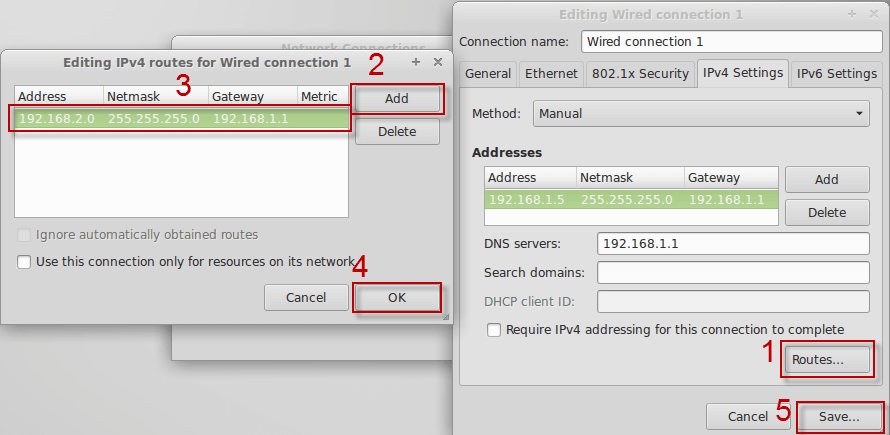
If you need to add a route to another subnet (suppose the desired subnet has the address 192.168.2.0/24), you need to click on the button. Routes... And in the window that appears, fill in the fields as follows:
-
Address = 192.168.2.0
-
Netmask = 255.255.255.0
-
Gateway = 192.168.1.1
After filling in all fields, press the button to save changes. OK, To save all network changes, press the button. Save...:
We will add and adjust the layout of the switching languages.
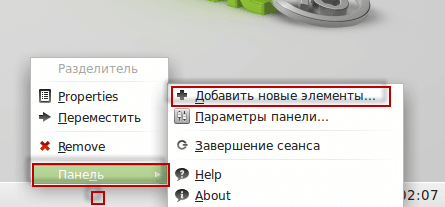
With the right mouse button, click on the taskbar and click the button in the window that opens. Add new elements:
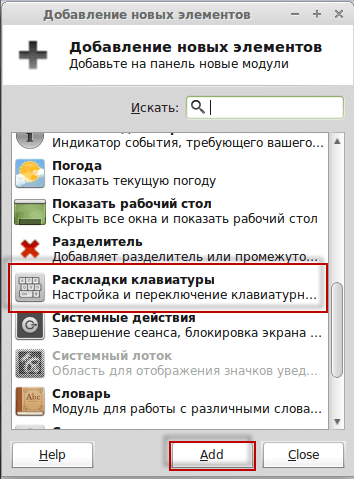
In the window that appears in the list, select Keyboard layouts press the button. Add:
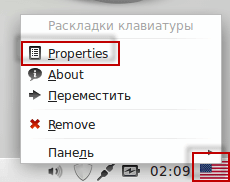
In the lower right corner, a check box of the icon of the language switch will appear, on it we click with the right mouse button and press the button. Properties:
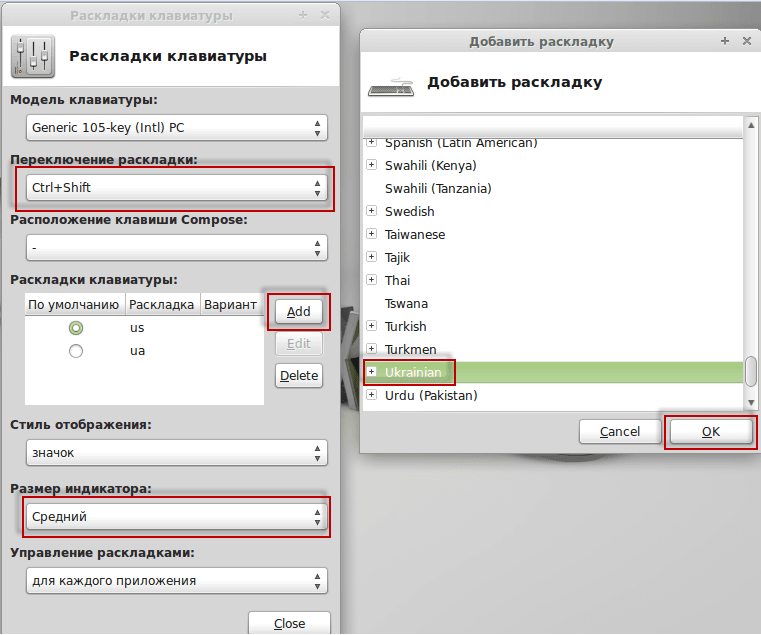
In the window that appears, change the field. Switching layouts - in the drop-down list, select Ctrl+Shift
To add additional languages to the field Keyboard layout press the button Add and in the window that appears, you need to select the desired language and press the button. Ok, Size of indicator How to choose the best in the drop-down list Medium.:
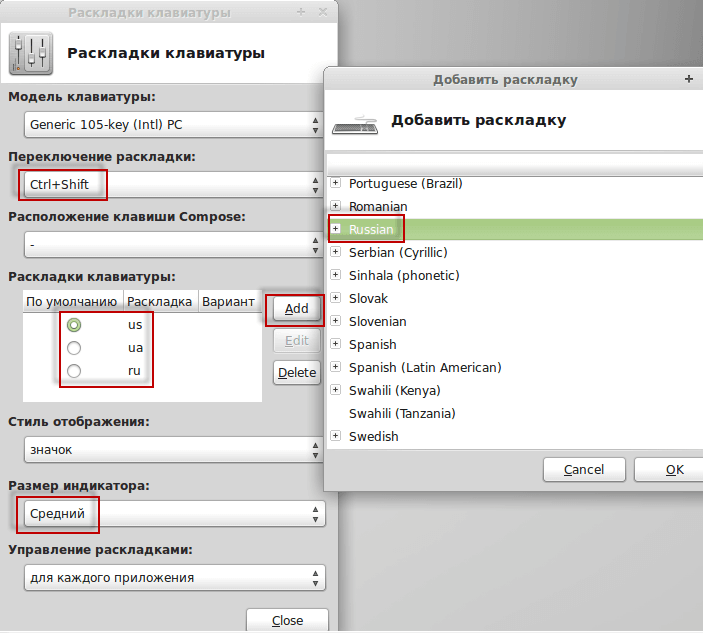
In the screenshot below you can see the addition of Russian:
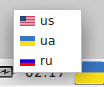
In the screenshot below you can see the added languages: Russian, Ukrainian, English, they switch by keyboard combination. Ctrl+Shift
Disable some programs from autoboot.
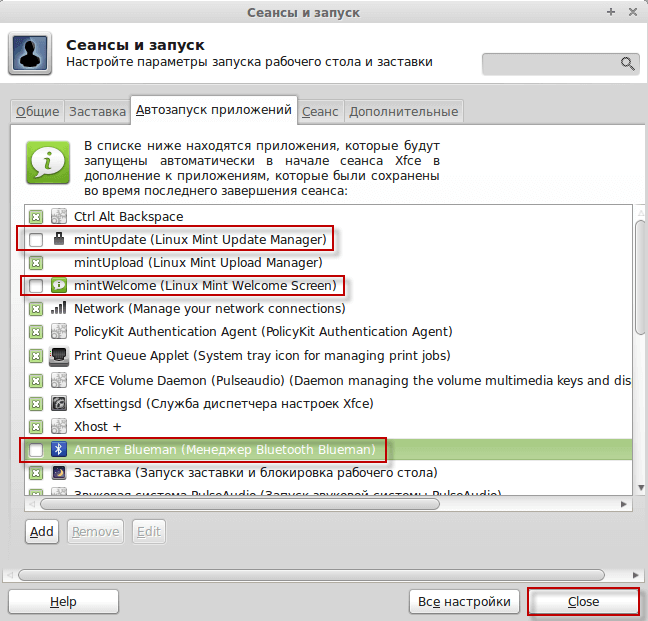
If the computer is not planned to have the Internet, then you can safely disable the update manager, turn off the autorun mintWelkome, and also if you do not have blues, then we will turn off the blutuse manager.
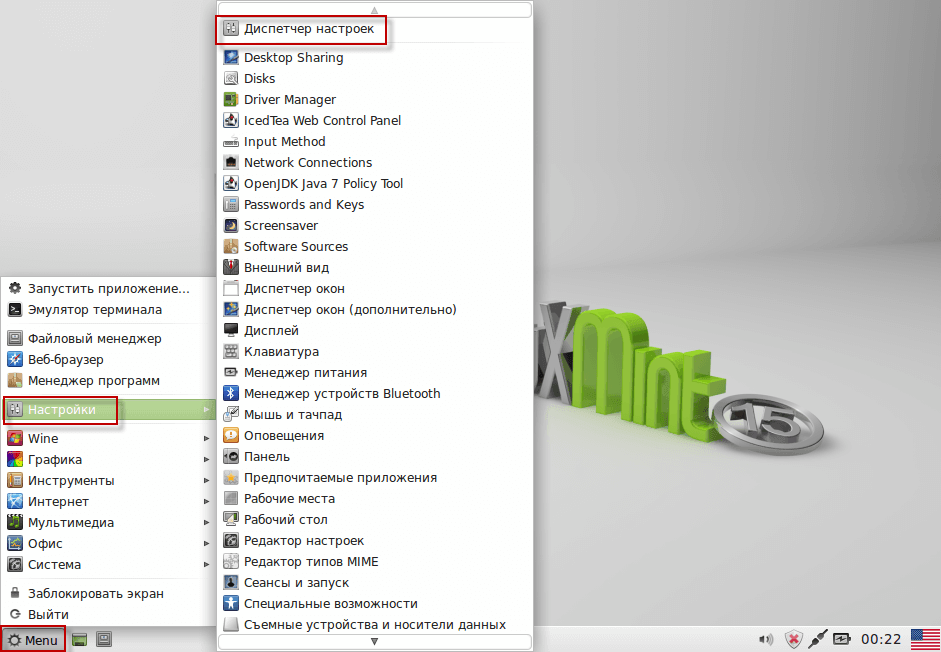
Press the button. Start (Menu) - Settings Manager:
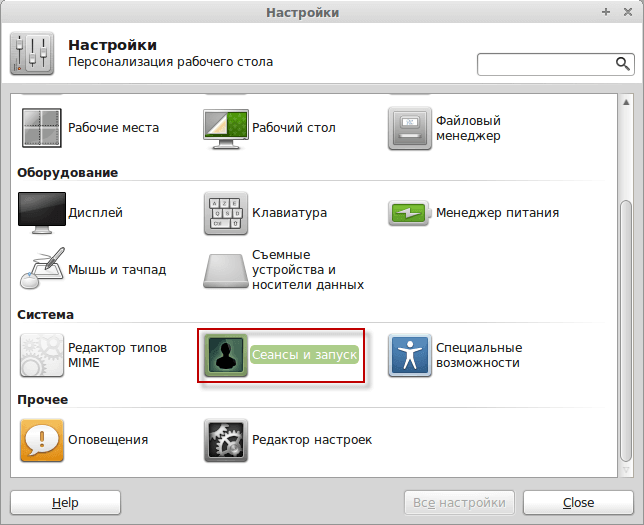
In the window that appears, we press the icon. Sessions and launch:
In the window that appears, go to the tab Auto-launching applications In the list of programs below, you need to uncheck unnecessary programs:
-
mintUpdate (Linux Mint Update Manager)
-
mintWelcome (Linux Mint Welcome Screen)
-
Blueman Applet (Bluetoute Blueman Manager)
After disabling the autoboot of unnecessary programs, press the button Close:
We will display the shortcuts of the most necessary programs for a quick and convenient launch.
With the right mouse button, click on the taskbar and click the button in the window that opens. Add new elements:
In the window that appears, select an element. Launching applications press the button. Add Three times to add three quick start elements, you can add the number you need: In each of the quick start elements, we group several programs:
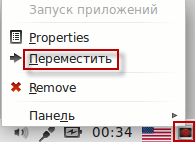
Move the quick start elements to the lower left corner by right-clicking on the element and pressing the button Move it:
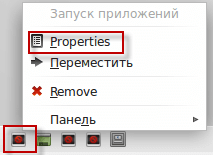
To add the necessary programs to the quick start element, right-click on the item and press the button. Properties:
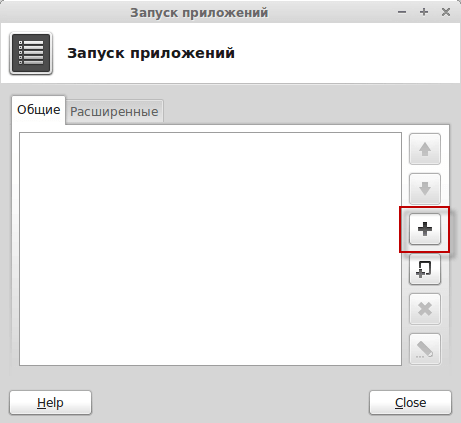
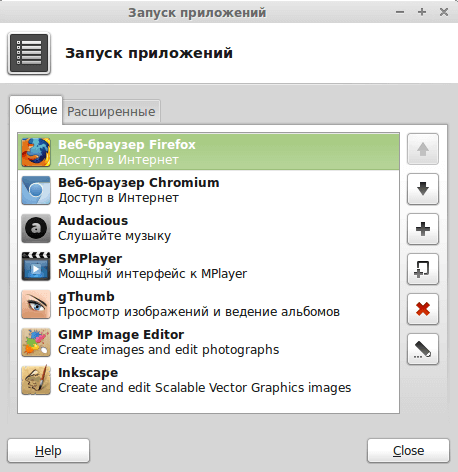
In the window to add programs, press the button. +:
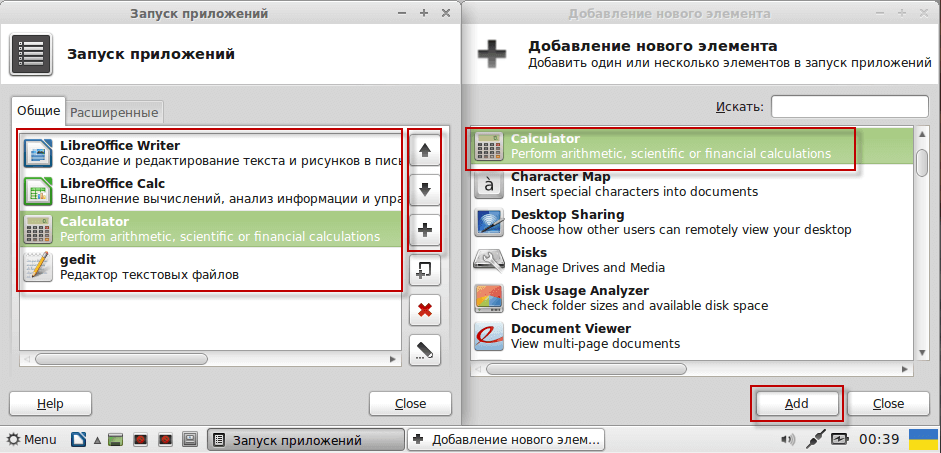
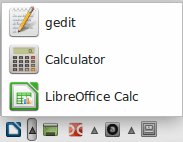
We add the necessary programs of a group of office programs, with the help of arrows you can move programs:
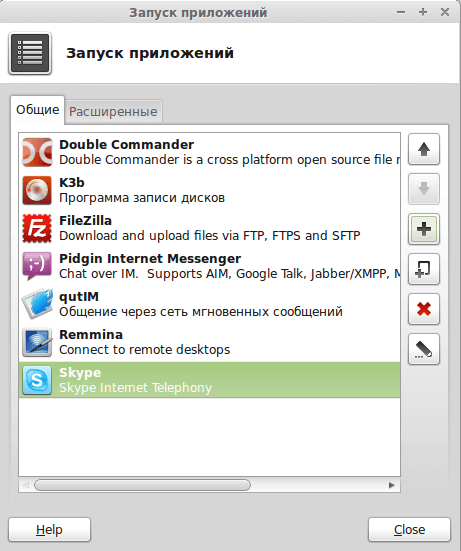
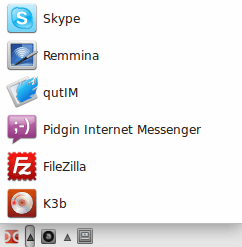
In the same way, we add programs to the remaining elements of a quick start (for example, grouping programs as convenient for you):
After adding programs, to run any of the programs in the element, you need to click on the arrow to the right of the item and in the drop-down list, click on the desired program:
Configure the Double Commander File Manager
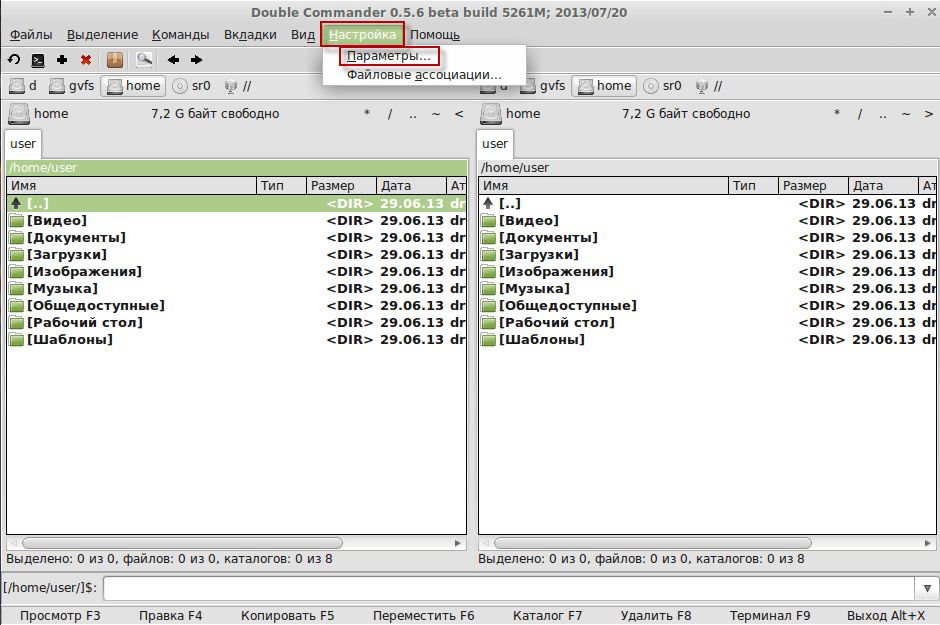
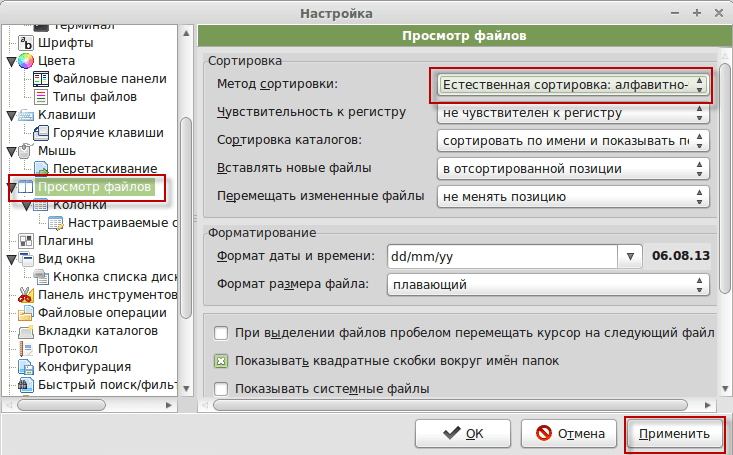
Change the method of sorting content in Double Commander, for this we press the button in the commander's menu. Setting up - Parameters:
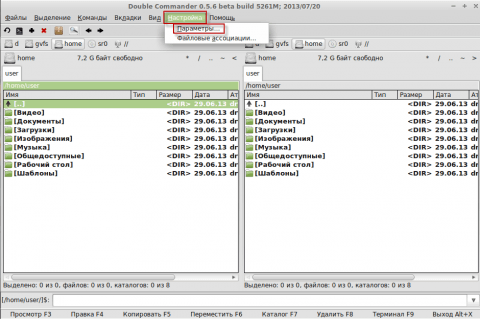
In the settings tree, select a tab Viewing files field Method of sorting In the drop-down list, select the sorting method: Natural Sorting: Alphabetical Number:
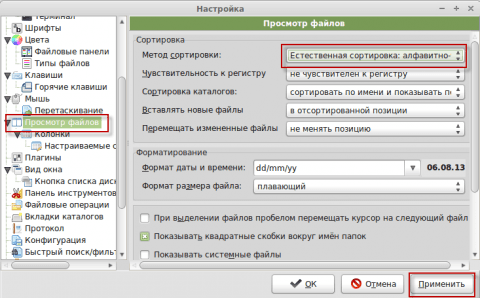
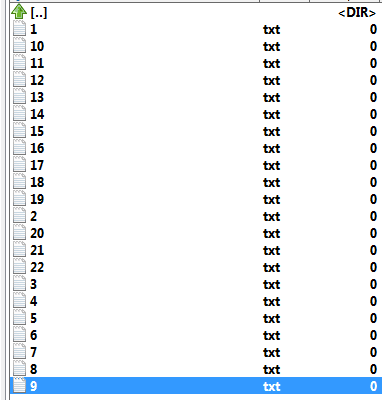
By default, the file sorting method in Double Commander is selected Alphabetical, taking into account the peculiarities of the language Below in the screenshot you can see how files are sorted:
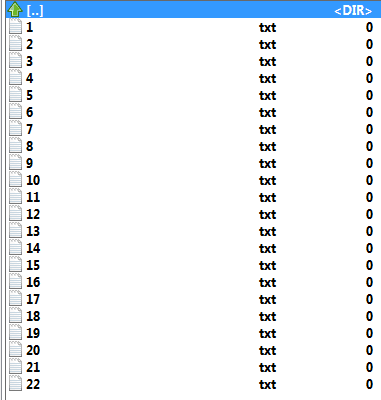
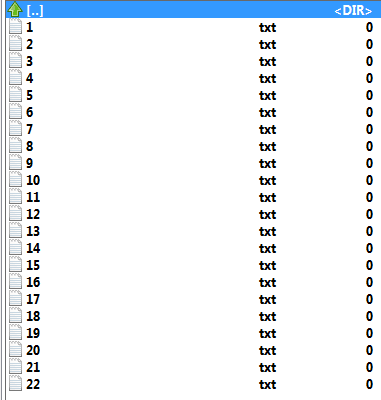
The sorting method we choose is more convenient for the job. Below in the screenshot, you can see how Mo method files are sorted. Natural sorting of alphabetic-numerical:
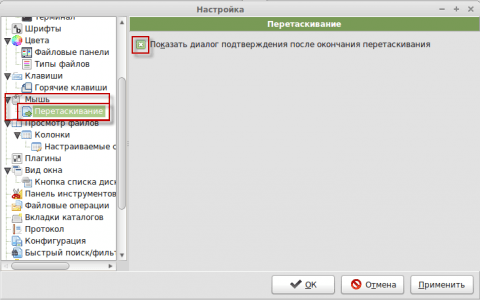
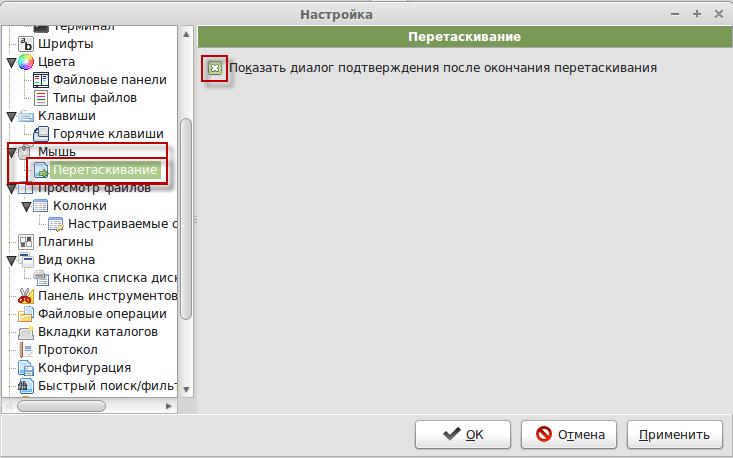
In the tab. Mouse. - Dragging check the field Show confirmation dialog after drag and drop:
To save changes to the settings of the file manager Double Commander, you need to press the button Apply:
Set up an office suite Libreoffice
Office suite that is installed by default in Linux Mint, as well as in Ubuntu, Kubuntu, Xubuntu Libreoffice does not have a convenient tool for adding pages as in Word, and for users who moved from Microsoft office this is very critical. Therefore, we will download and install the Paginations plugin for convenient addition of pages to Libreoffice. This plugin is installed on both Linux and Windows version of Libreoffice. That's what we download.
Plugin of Paginations 1.3.10 by direct link, or on the page:
http://extensions.openoffice.org/en/project/pagination Download a newer version of the plugin if this version of the plugin is already outdated.
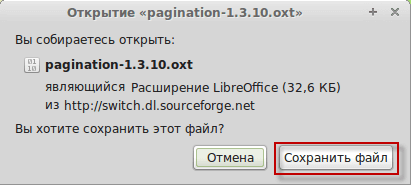
Save the downloadable plugin:
Open LibreOffice and install the downloaded plugin Paginations 1.3.10 Service - Expansion management:
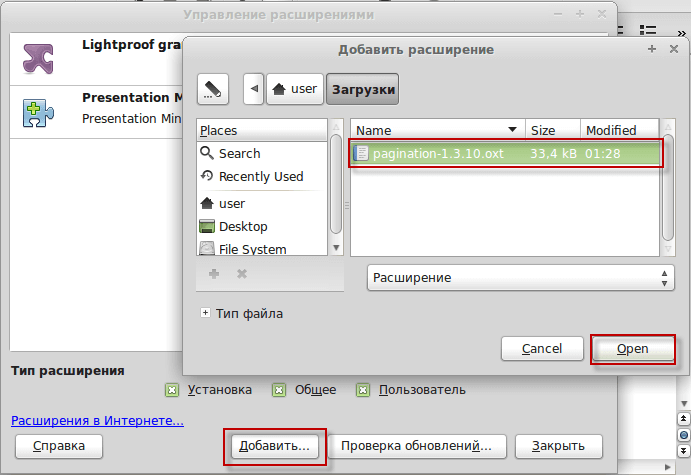
In the window that opens, press the button. Add and in the opened window, select the downloaded plugin and press the button. Open:
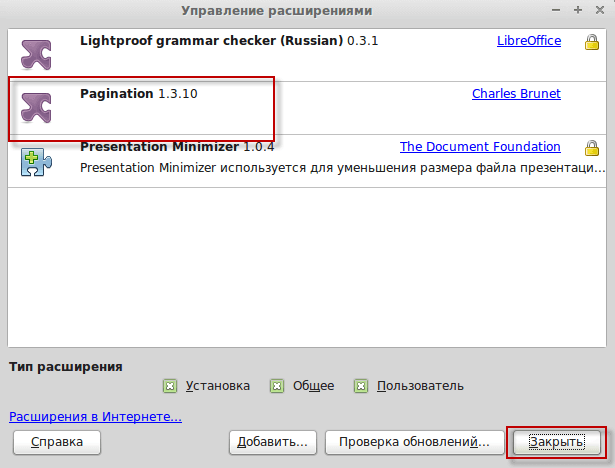
In the screenshot below, you will see the Paginations plugin installed, click the button to complete. Close it.:
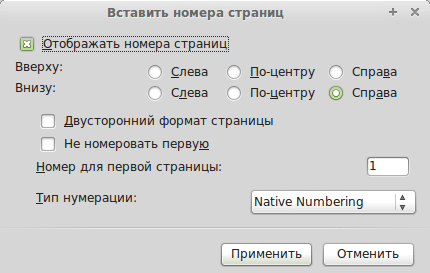
After installing the Paginations plugin in Libreoffice in the tab Insertion There will be a new paragraph Native numberingClicking on which will open the window to add page numbers:
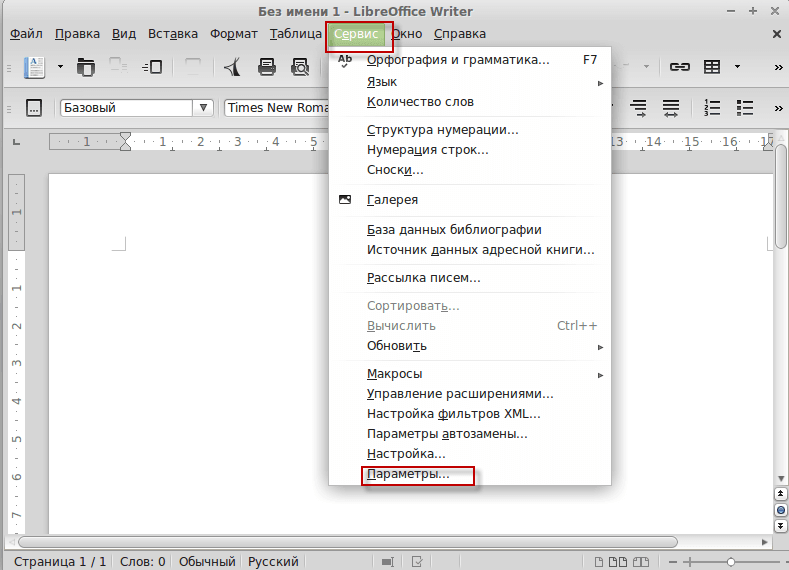
We will make a small setup of the Libreoffice office, for this we move to Service - Parameters:
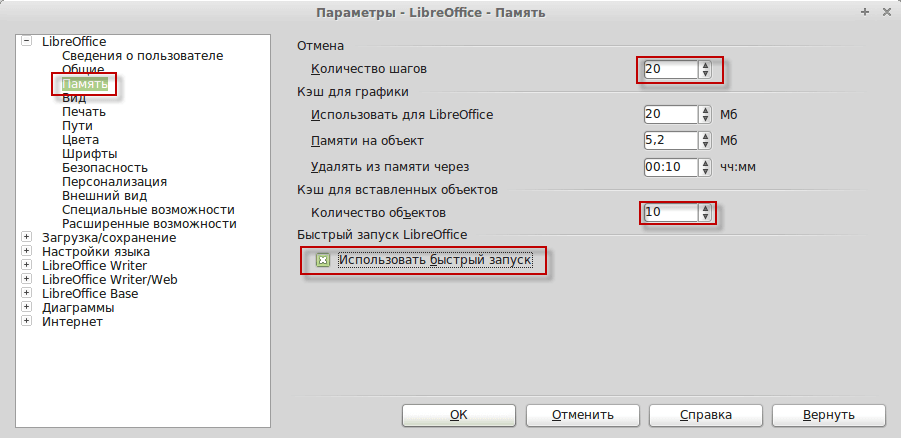
In the tab. Memory. Change several parameters to reduce memory consumption and increase the speed of office start-up. We change the settings by example below:
-
Number of steps set 20
-
Number of objects set 10
-
Check the box. Use a quick launch
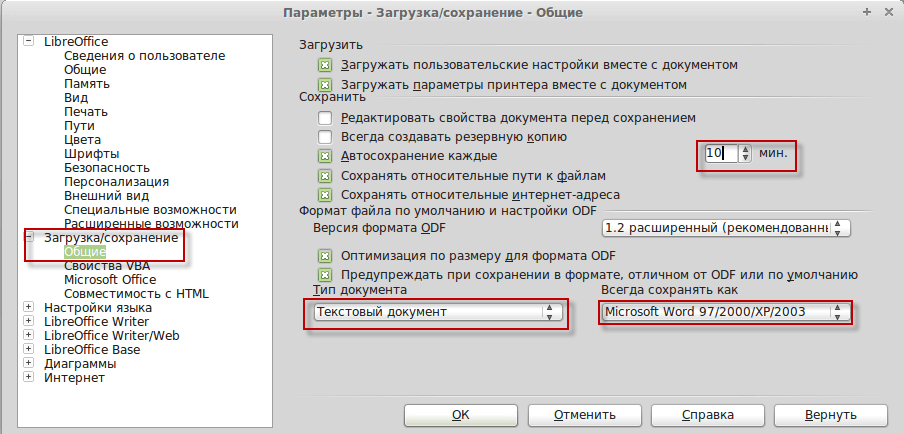
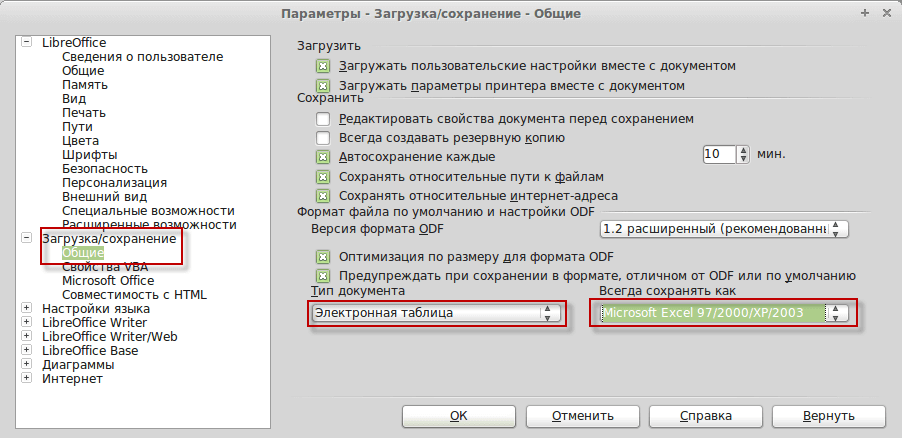
In the tab. Loading/Saving - General. We change some parameters:
-
Auto-saving of the document every time 10 minute
-
Text document: Microsoft Word 97/2000/XP/2003
-
Spreadsheet: Microsoft Excel 97/2000/XP/2003
-
Presentation: PowerPoint 97/2000/XP/2003
To save changes in the Libreoffice office, press the button Ok:
After these changes, while saving documents, they will be saved in the native Microsoft Office format with a native extension, for a more peaceful transition to a free office, whose native Microsoft Office format does not understand.
Configure search engines in Firefox.
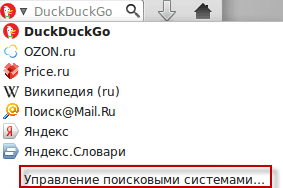
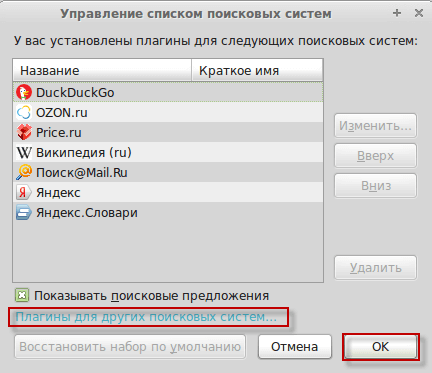
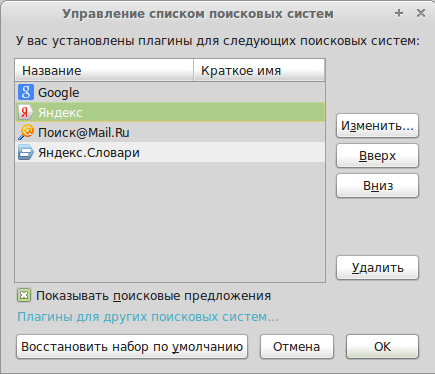
By default, the Firefox browser of the Linux Mint distribution does not have Google and Yandex search networks, so we need to add them and remove unnecessary search engines, click on the arrow of the search engine selection in the upper right corner and press the button. Management of search engines:
In the window that appears, click on the link Plugins for other search engines:
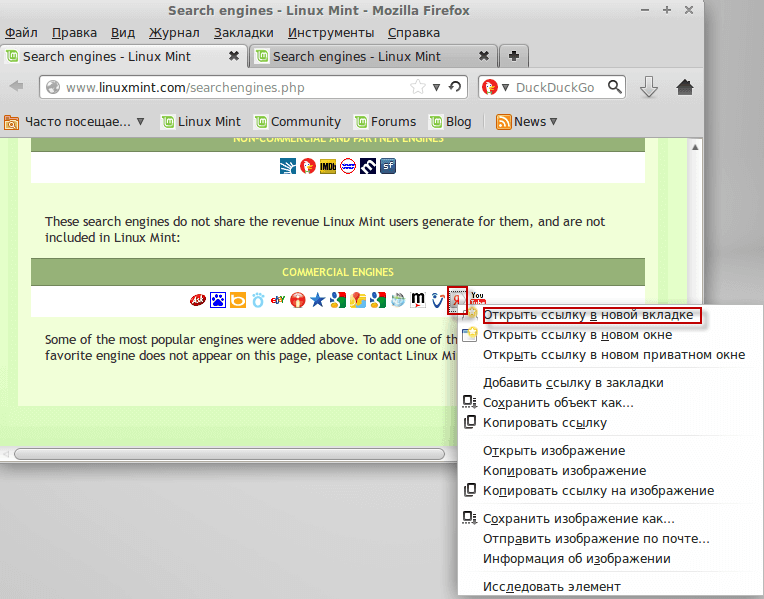
A window will open in which you need to right-click on the necessary search networks Google and Yandex and open links in a new tab:
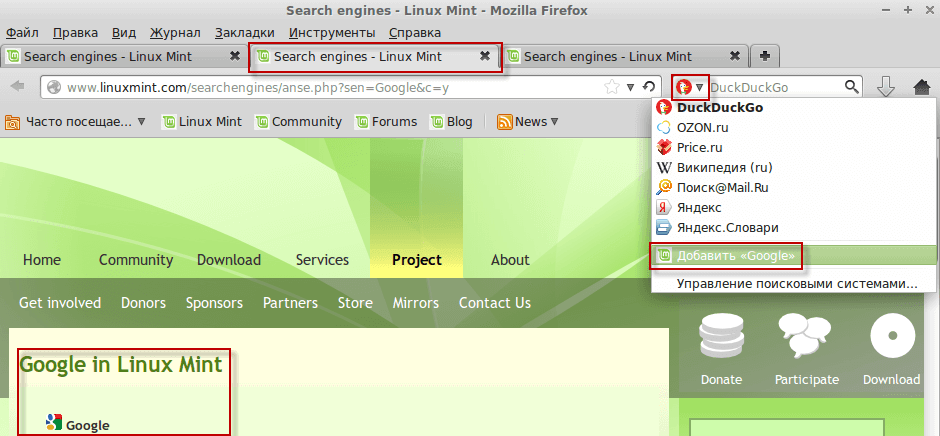
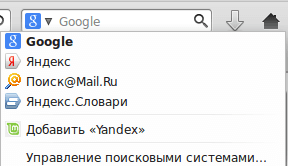
After moving to the Google tab opened in the search engine change panel, click on the arrow and press the button in the drop-down list. Add "Google"
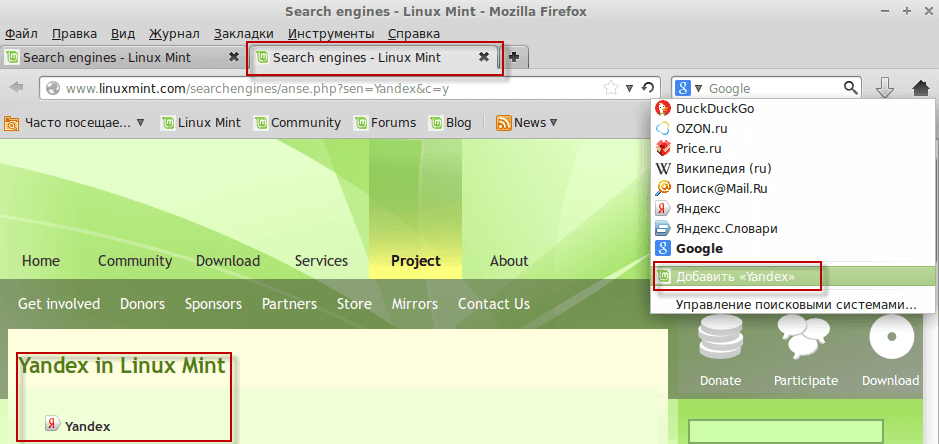
After going to the opened tab Yandex in the change panel of the search engine, click on the arrow and in the drop-down list press the button Add "Yandex"
In the screenshot below, you can see the search engines added as well as the unnecessary ones removed:
In this manual, you learned how to configure Linux Mint XFCE for a more convenient user experience, installed almost all the basic necessary software from players to remote desktop. Made the minimum necessary configuration of the main software and added a little convenience in the desktop. Added search engines for the Firefox browser.
I was with you. Sergei Lazarenko.
After setting up, you can distract for 3 minutes and watch a small video:


 In the article Installation of Linux Mint 15 XFCE - Detailed Guide We have discussed in detail how to install Linux Mint XFCE, in the article below we will configure the system, install the necessary software and configure the necessary programs and desktop.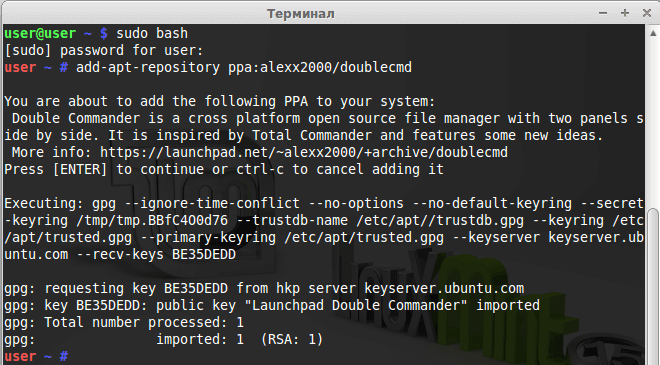









comment