

 In this manual, we will configure sending mail on the Drupal 7 website.
To send mail on a site with Drupal 7 installed through the SMTP server using the example of Google mailbox, we will use the module SMTP Authentication Support which can be downloaded from the official website. The module proved to work well on combat sites.
Open the module page http://drupal.org/project/smtpand copy the link to the archive from Recommended releases, at the time of writing the instructions http://ftp.drupal.org/files/projects/smtp-7.x-1.0-beta2.tar.gz
Open the site that we configure, after the address add /admin/modules/install
In the field. Install from the URLinsert a copied link to the archive http://ftp.drupal.org/files/projects/smtp-7.x-1.0-beta2.tar.gz
Press the button. Install
After installation, go to the modules page to enable the SMTP module for Drupal 7, open the link /admin/modules, find the module SMTP Authentication Support and tick to include the module by example in the screenshot:

After activation of the module SMTP Authentication Support press the button Save it.And at the bottom of the page.
After installation and activation of the module SMTP for Drupal 7 Go to the module setup on the page /admin/config/system/smtp
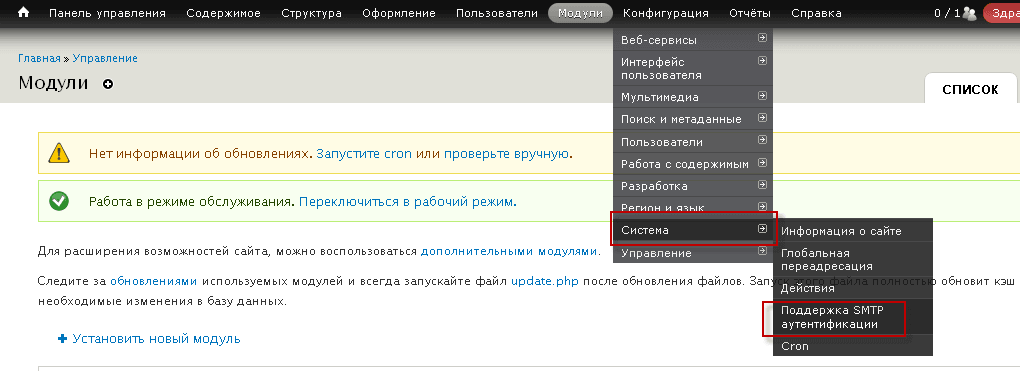
Settings of the smtp module:

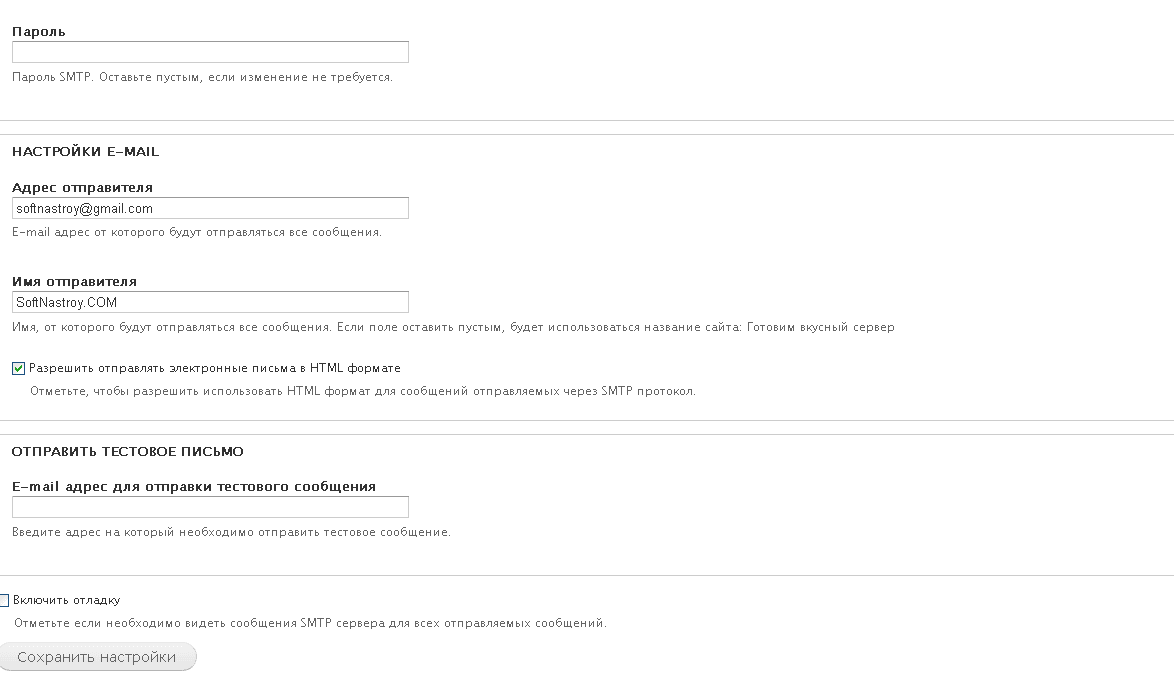
Configure the SMTP module for Drupal 7 as follows:
- Module status (On/Off): Included
- SMTP server: smtp.gmail.com
- SMTP port: 465
- Use the encryption protocol: Use SSL.
SMTP authorization:
- User name: [email protected] (instead of my mailbox) [email protected] Please indicate your mailbox.
- Password: Your password.
- The address of the sender: [email protected]
- Name of sender: SoftNastroy.COM
To check the work, write your work mailbox in the field:
Send a test letter
- E-mail address for sending a test message: [email protected] (instead of my mailbox) [email protected] Please indicate your mailbox.
Press the button. Save the settingsAnd we check your email -- you're going to get a test message from your site.
! Attention.
If the mail does not come, check the box on Enable debugging, and look for an error after sending. Possible error when blocking Google:
SMTP -> ERROR: Password not accepted from server: 535-5.7.8 Username and Password not accepted. Learn more at 535 5.7.8 http://support.google.com/mail/bin/answer.py?answer=14257
You need to open in the browser by logging in under the user from which you send the address:
https://accounts.google.com/b/0/DisplayUnlockCaptcha

And after the click, you re-send a new message for verification.
Our Drupal 7 site is set up to send email messages to users via an external SMTP server, using the example of a Google mailbox.
I was with you. Sergey Lazarenko
To distract from work, we will watch an interesting video on the topic of SEO.
To be or not to be social SEO:

comment