

In this instruction, we continue to install and configure the ISPConfig 3 hosting control panel.
To test the mail server, I installed on the server with an external IP, c the Debian Squeeze operating system installed hosting control panel ISPConfig 3, registered a free domain. testings.pp.ua website http://nic.ua/ This domain will be configured in the ISPConfig 3 panel.
Today we will configure the Postfix mail server installed on the server. Debian Squeeze. To do this, go to the web interface hosting panel ISPConfig 3 tab Mail. In the window that opens, we need to add a button. Add new Domain:
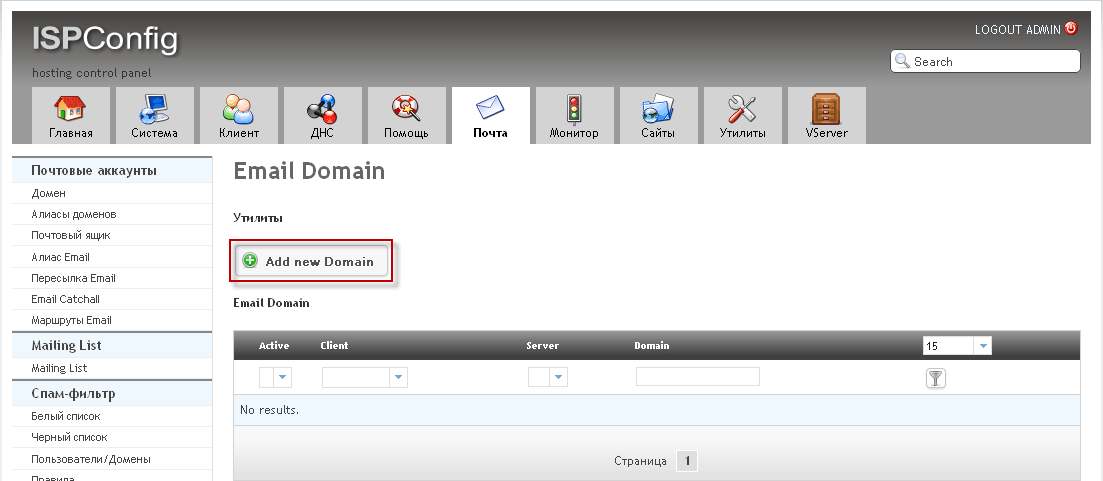
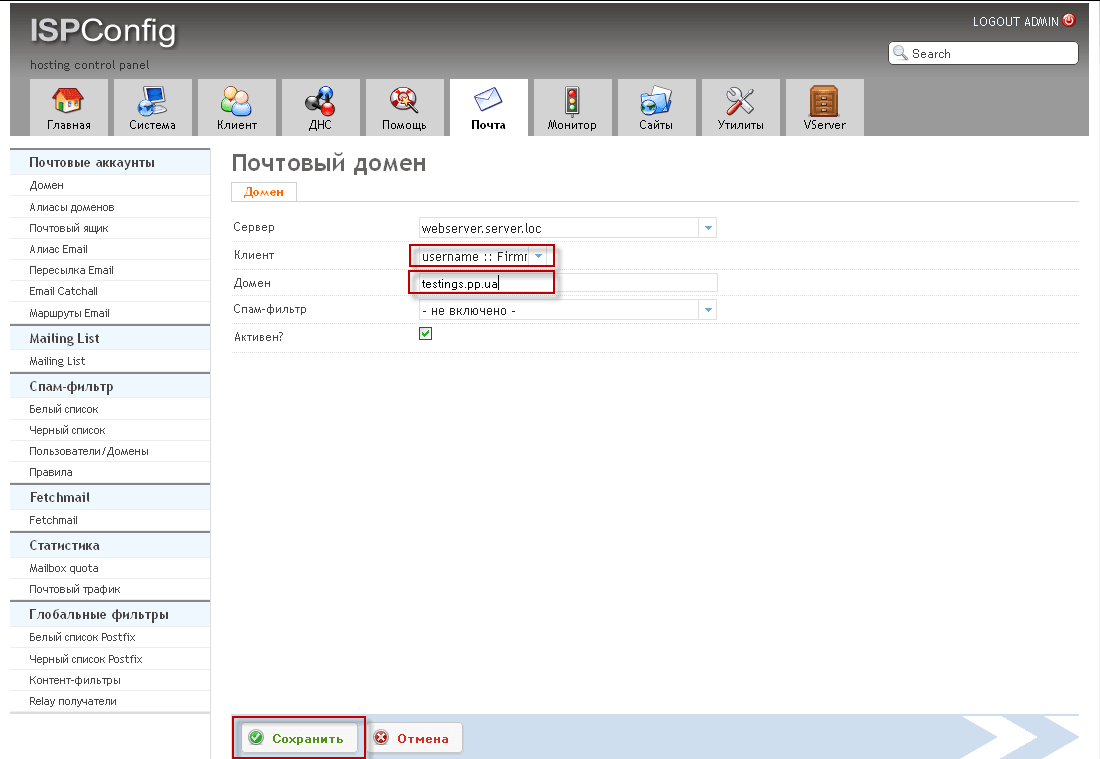
In the window that opens, you need to fill in the fields as follows:
- Server: webserver.server.loc
- Client: username
- Domain: testings.pp.ua
- Spam filter: not included
- Active: checkmark
To save changes when adding a mail domain testings.pp.ua press the button Save.:
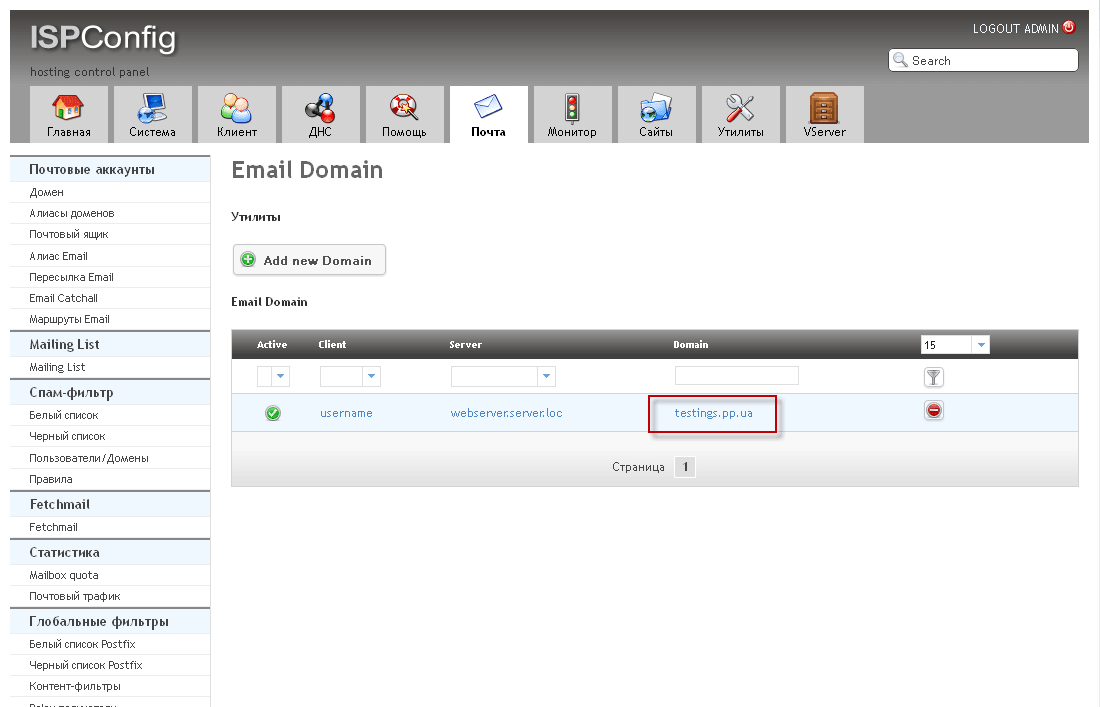
In the screenshot below, we see an added test email domain. testings.pp.ua:
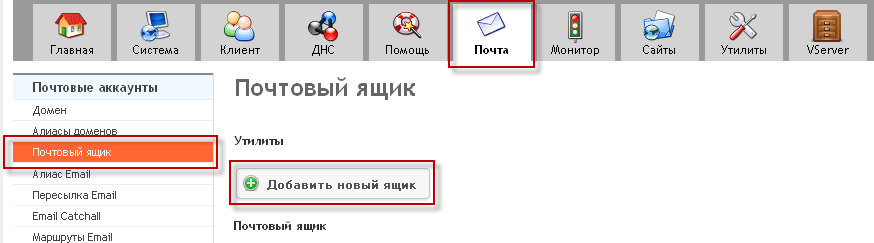
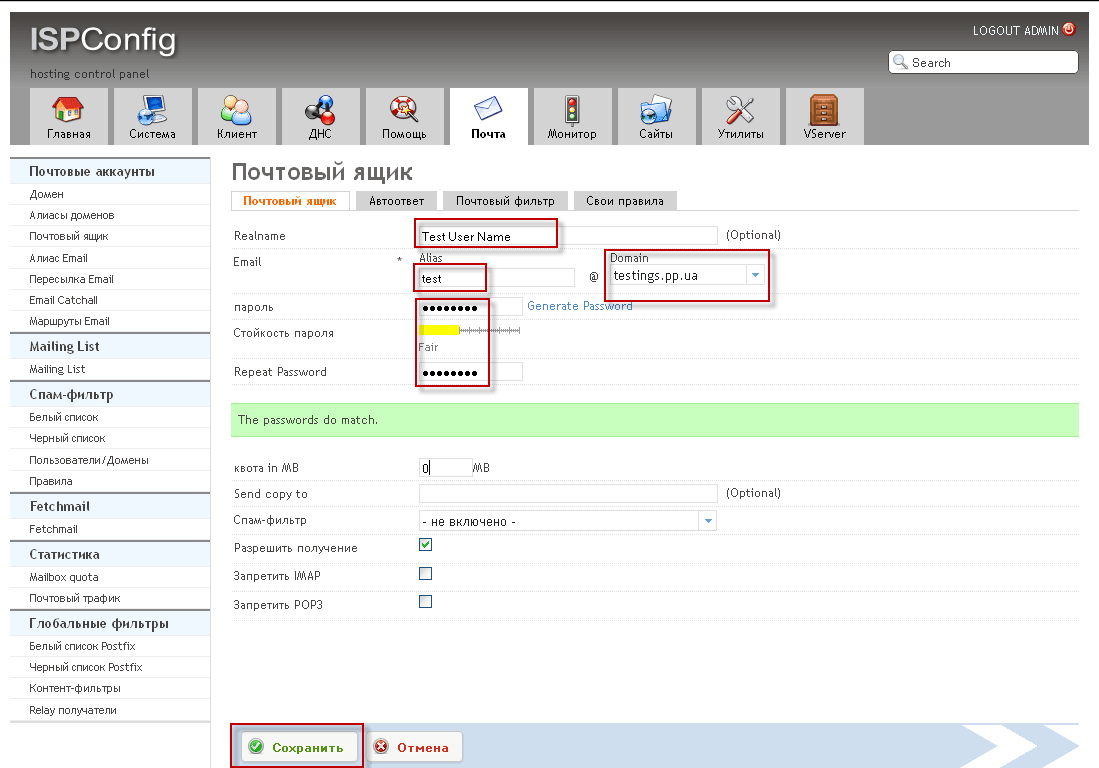
After adding the test domain testings.pp.ua, we need to add a mailbox with the name for this domain. testThis is required in the tab. Mail push The mailbox and in the window that appears, press the Add New Box button. Below in the screenshot you can see the dedicated steps in the web interface of the hosting control panel ISPConfig:
In the window that appears, we need to fill in the fields as follows:
- Realname: Test User Name
- Email: test
- Domain: testings.pp.ua
- Password: passmail
- Repeat Password: passmail
- quota in MB: 0 MBwhere 0 is not limited, if you want to limit, then set the desired size of the box.
- Spam filter: not included
- Allow receipt of: checkmark
To add a box with the entered parameters, you need to press the button Save.:
After completing all the above steps, we need to check the work, for this we will use the wonderful email web client Roundcube.
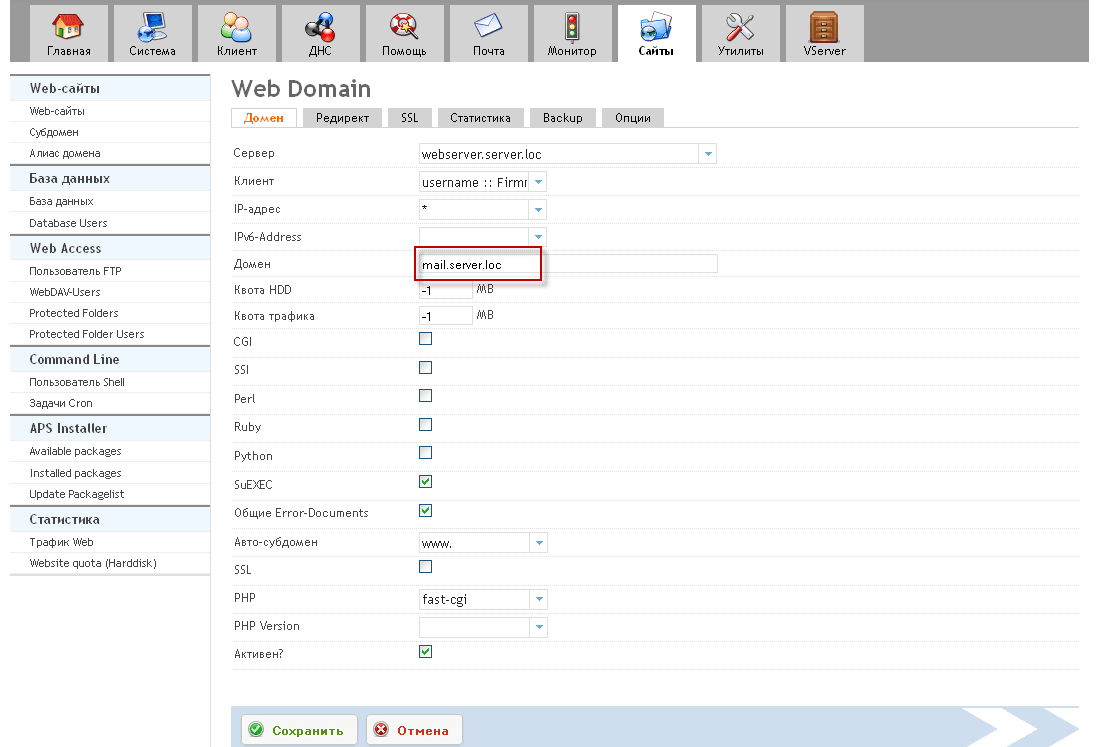
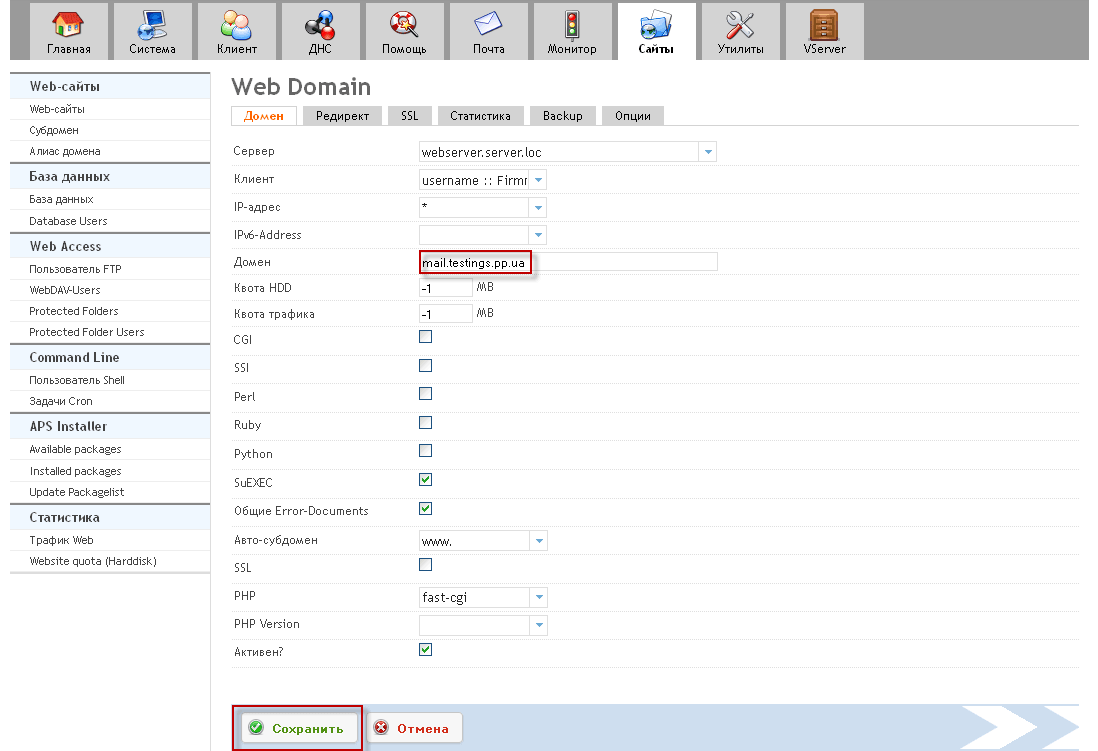
For the test, I have ISPConfig installed. Roundcube email client nameless mail.server.locTo check the work of the mail server on the test domain, I rename mail.server.loc into mail.testings.pp.ua.
was:
became:
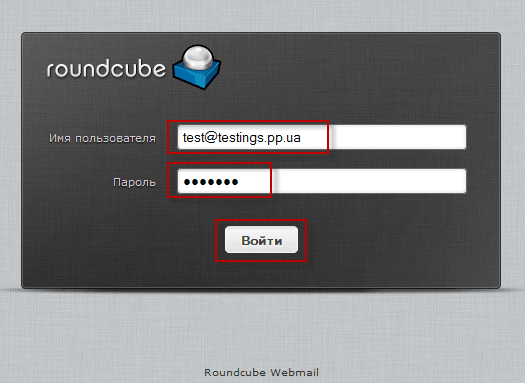
When you open a Roundcube email client in your browser using a new name mail.testings.pp.ua We need a field. User name and Password Postal information added above for example:
- User name: [email protected]
- Password: passmail
In the screenshot below, you can see what the window with the entered data looks like:
After pressing the button Come in.The user window will open. test domain testings.pp.ua c the ability to send and receive emails, for test sending press the button Send.:
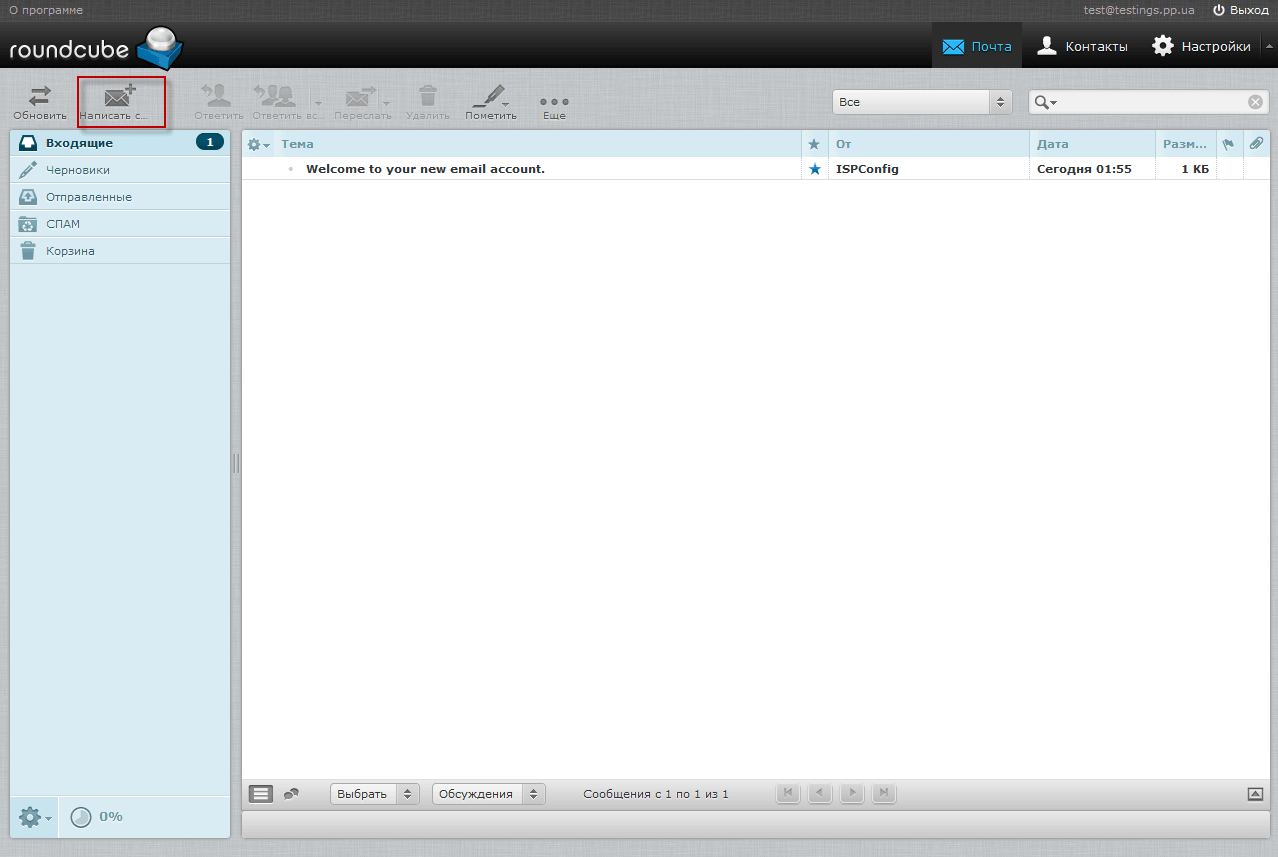
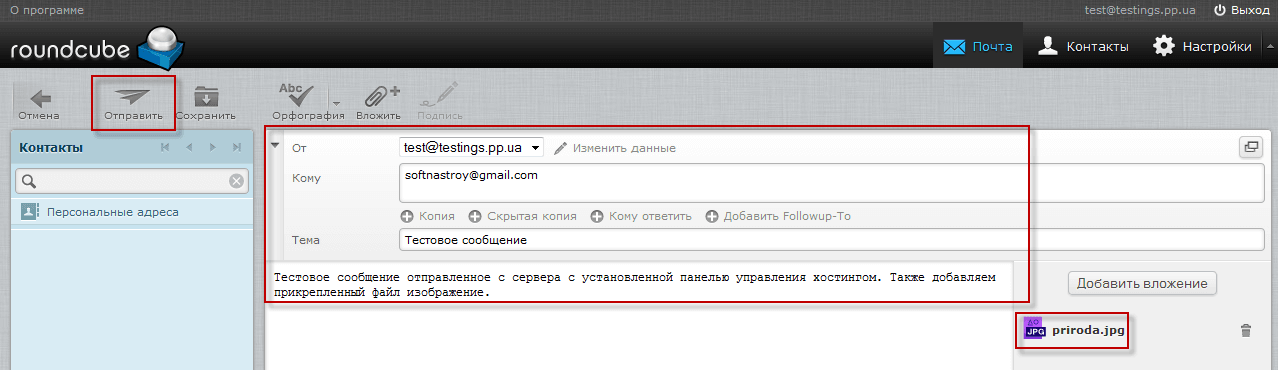
In the window that appears, you need to fill in the fields as follows:
- From: [email protected]
- Who: [email protected]
- Subject: Test message
- Message: A test message sent from a server with the hosting control panel installed. We also add an attached image file.
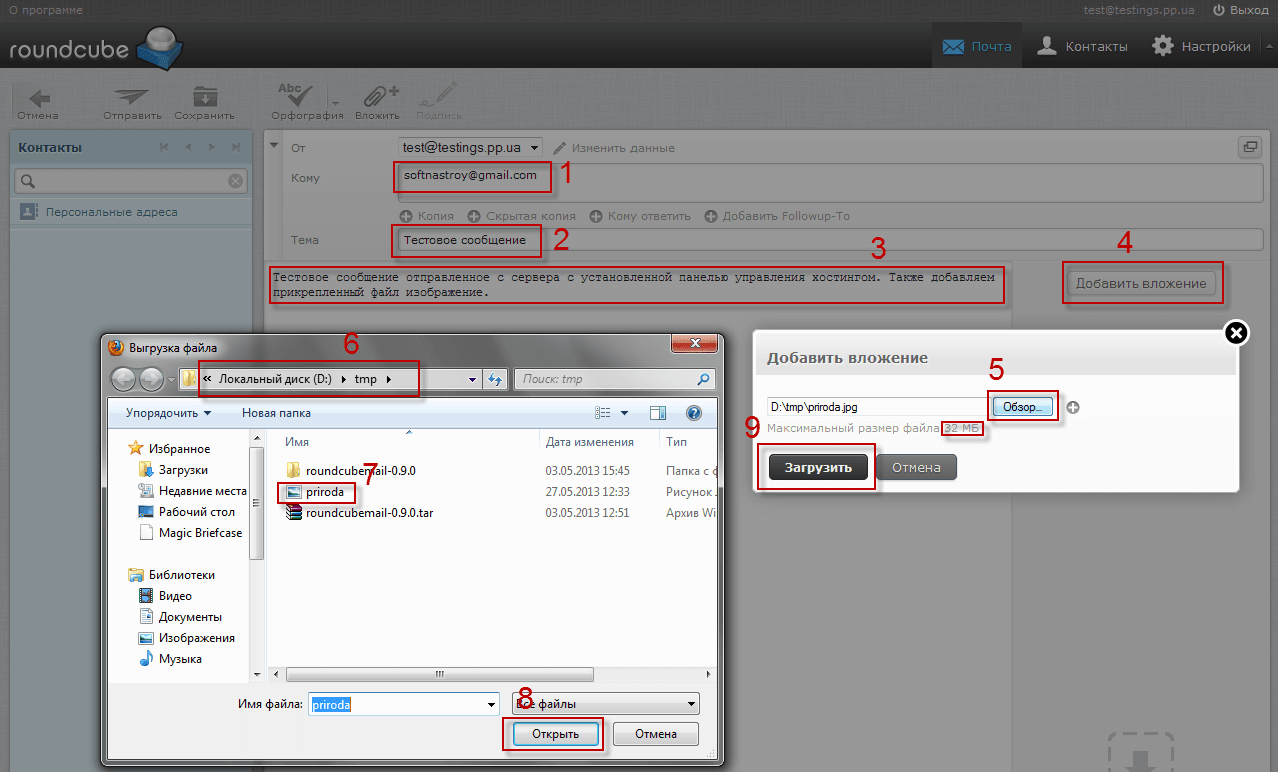
In order to attach and send a file in this test letter, you need to press the button. Add an attachmentA window will open where you need to press the button. Review and in the window that appears, you need to select the desired file and press the button. Open.And in the window. Add an attachment press the button Download.. After uploading the image, we send a test email by pressing the button. Send.:
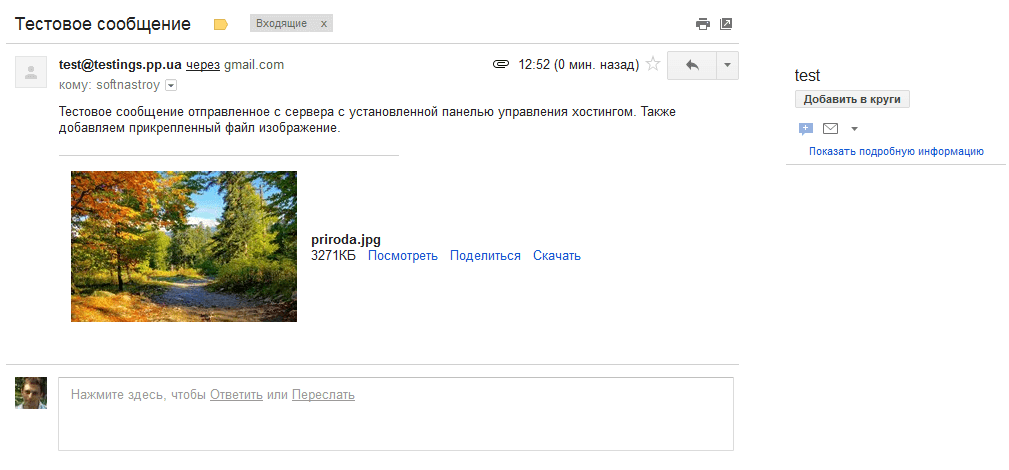
Go to Google email under your user and open in the incoming new letter from the user [email protected]:
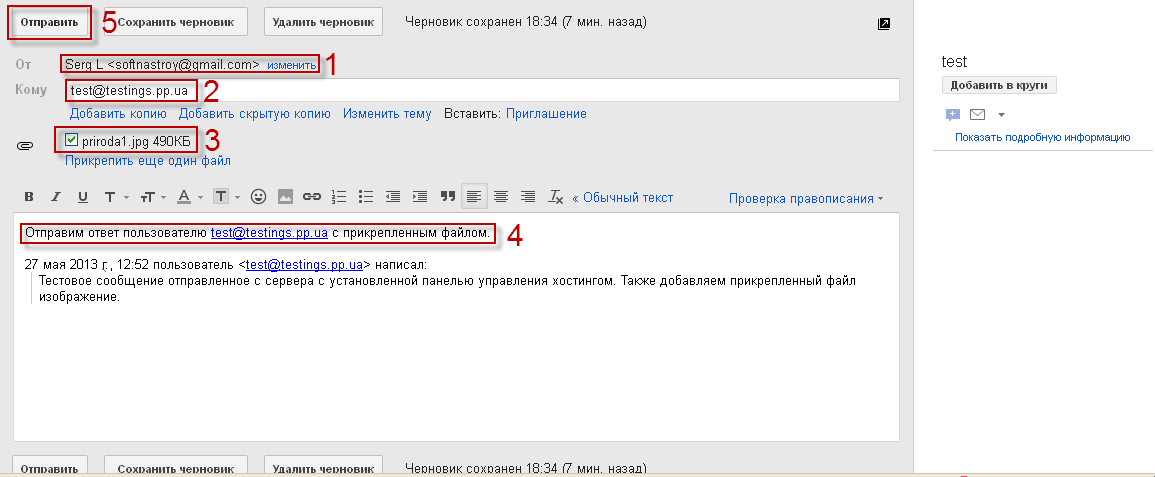
To check the work of incoming letters, click on the letter from [email protected] button Answer. and fill in the fields as follows:
- From: [email protected]
- Who: [email protected]
Attach the image without pressing the button Attach the file
- Message: Send a response to the user [email protected] c the attached file.
To send a test letter from the Google mailbox, you need to press the button. Send.:
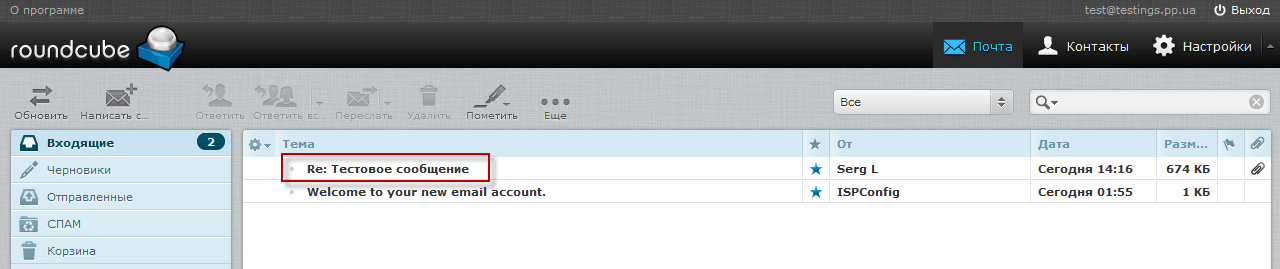
Updating the page of the mail web client Roundcube we will see the response to our letter, in a screenshot you can view it:
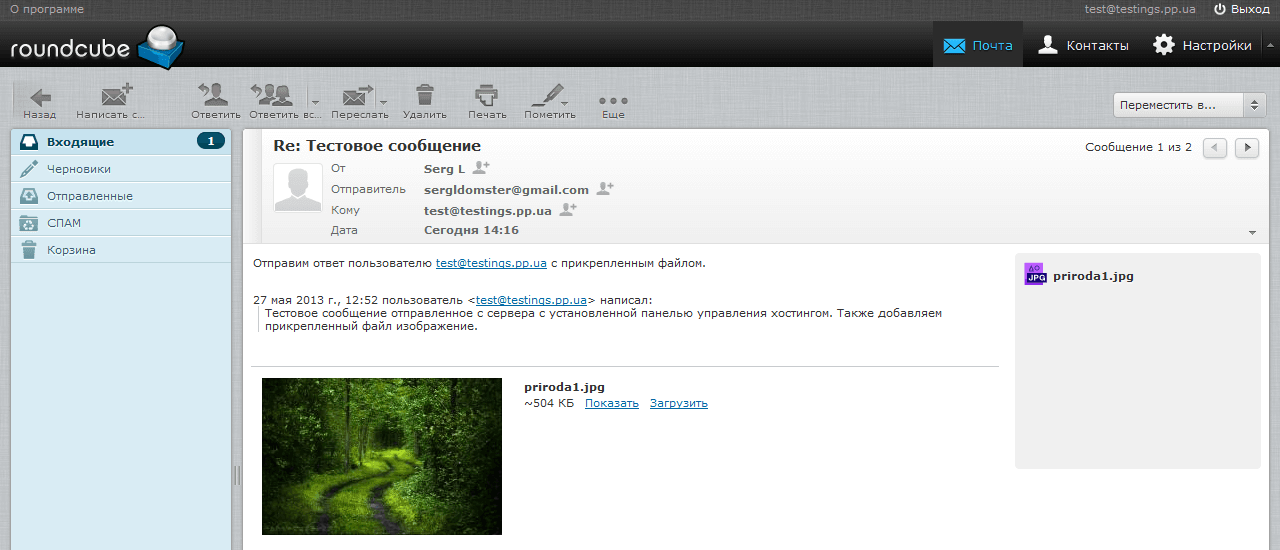
Clicking on the letter 2 times with the mouse, the letter with the attached file will open, below in the screenshot you can see it:
Configure the test domain testings.pp.ua
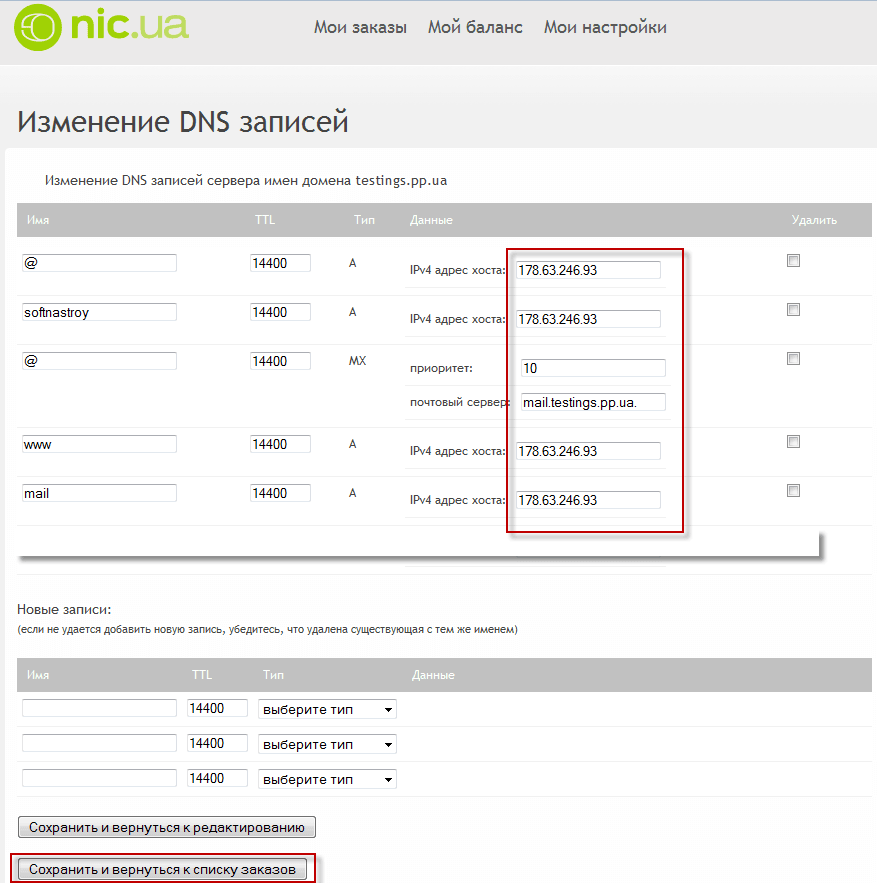
To check the server, I'm on the site. http://nic.ua/ registered free domain level 3 testings.pp.ua When registering, I instructed you to use the NS server nic.ua. Going to the DNS domain control panel testings.pp.ua I changed the IP address of the domain to the external IP address of the test server to check the mail. The screenshot shows what I've changed. After pressing the button Save and return to the order list You just have to wait a day to update DNS records from the nic.ua registrar and other DNS servers.
The task of configuring and verifying the mail server in the ISPConfig 3 panel has been completed. Now you know how easy and fast to configure the mail server, add the required number of mailboxes, This server can work both on the Internet and in an isolated local corporate network and serve as an internal corporate email system.
I was with you. Sergey Lazarenko
After a productive work, we will rest by watching an interesting video:

comment