

Detailed instructions for installing Ubuntu 14.04 servers. Step-by-step screenshots are attached.
To install Ubuntu 14.04 LTS Server, download the iso image to page official website, Download the ISO image for 32bit, Download ISO image for 64bitWe record the downloaded image of the distribution on a CD or DVD and download from it.
If you do not have the ability to install a CD / DVD drive, then I would advise you to install Ubuntu 14.04 LTS Server with an installation flash drive. To do this, simply and quickly create a bootable installation flash drive using the instructions: How to create a bootable flash drive for installing Linux using the example of Kubuntu
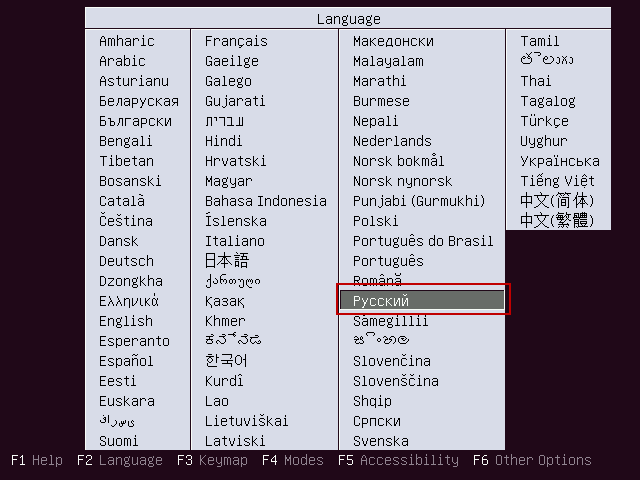
First window, select the language of installation, in our case I choose Russian:
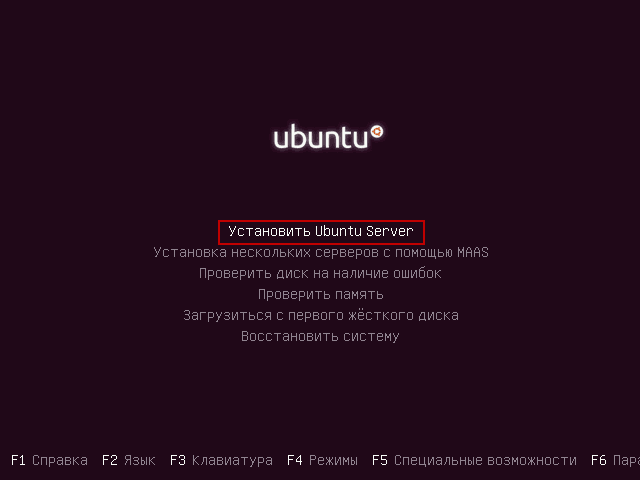
Starting Ubuntu 14.04 installation:
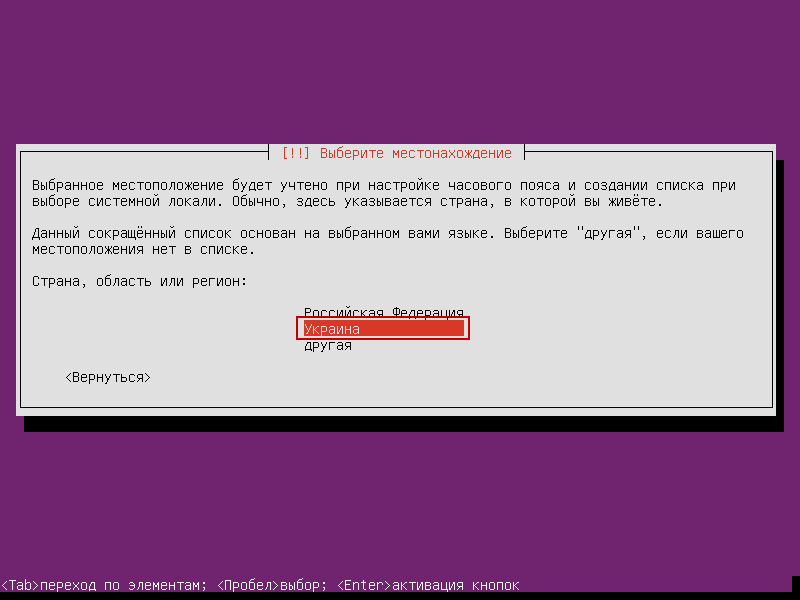
Choose a country:
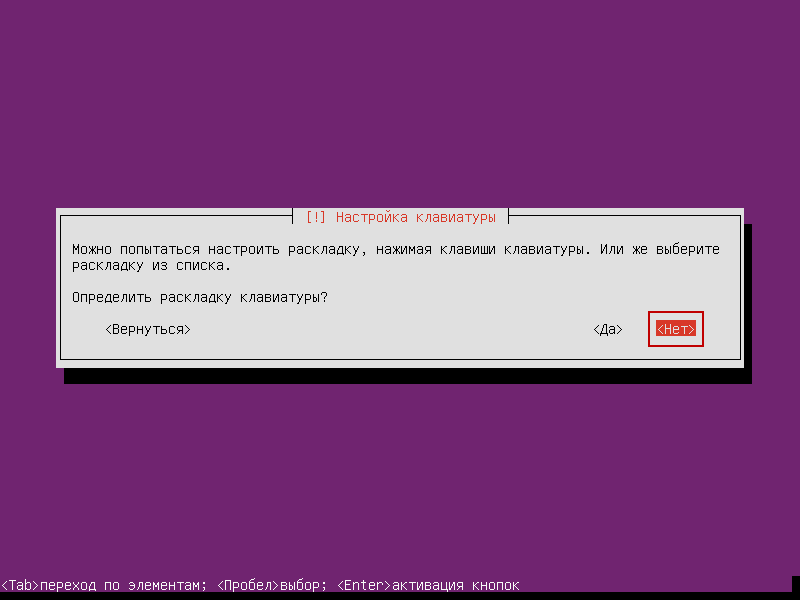
We do not agree with the automatic definition of the keyboard:
Select the layout language:
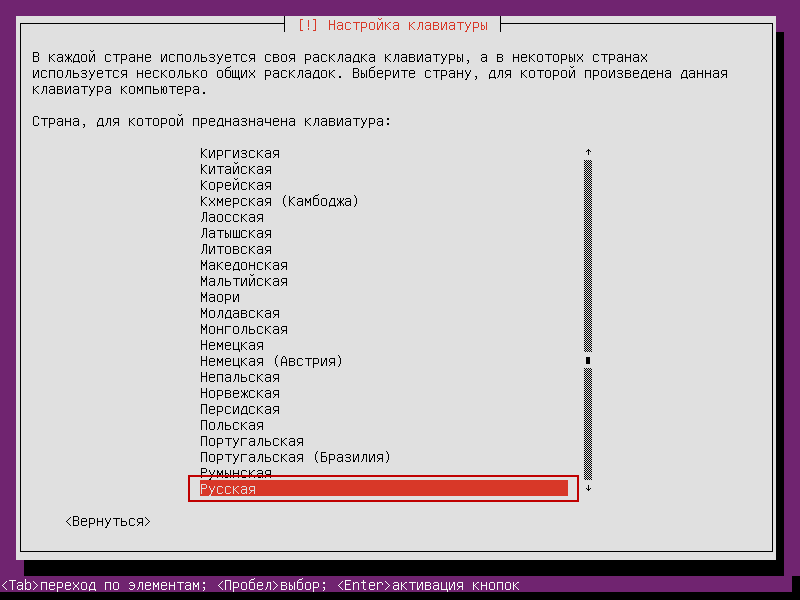
Choose the Russian keyboard layout:

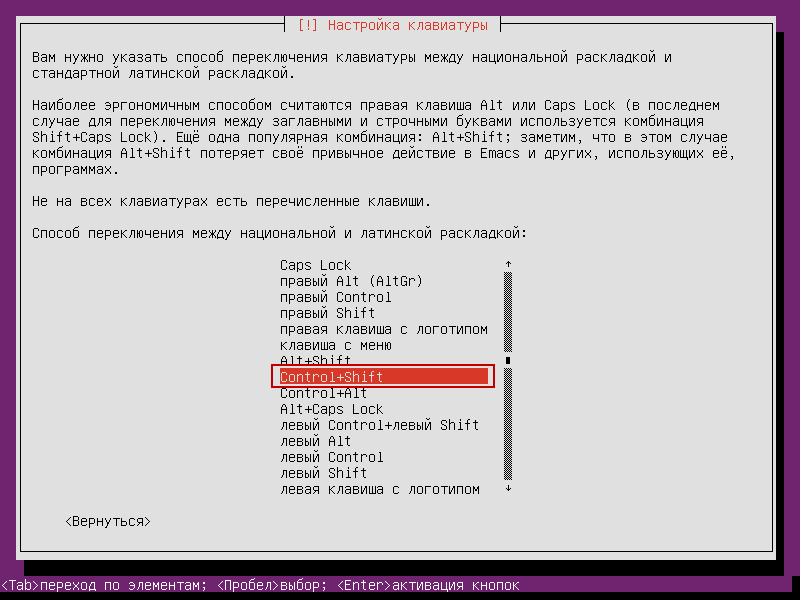
We choose the way to switch keyboards, I prefer Ctrl + ShiftIn your case, it may be different:
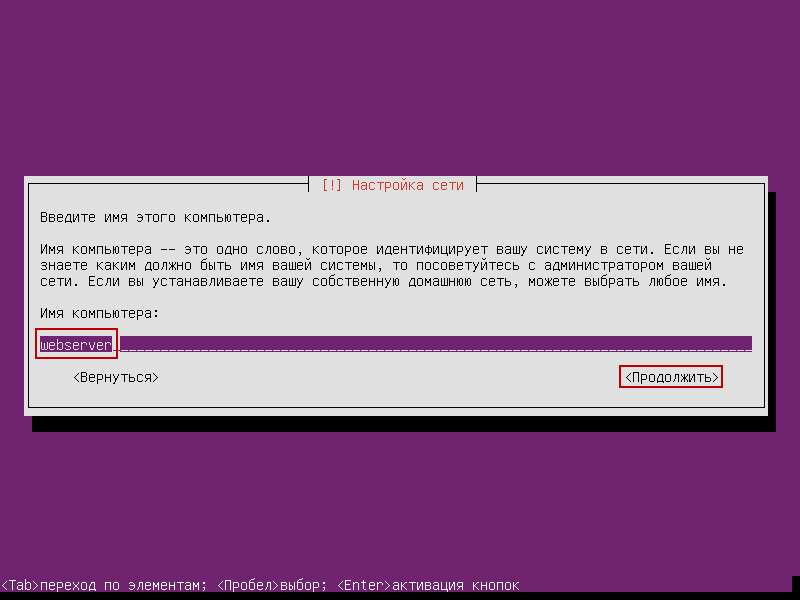
Write the name of the server, in our case the standard name Ubuntu 14.04 LTS Server:
Write the username:
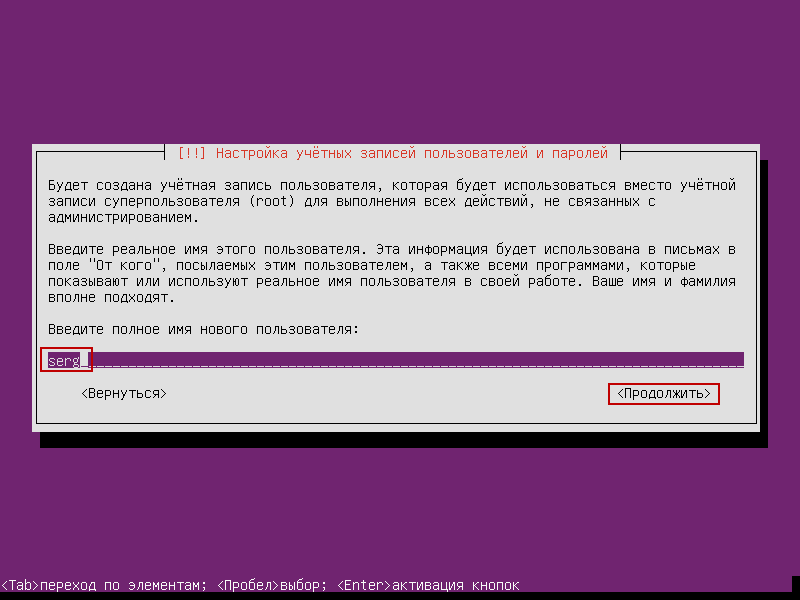
Repeat user input:
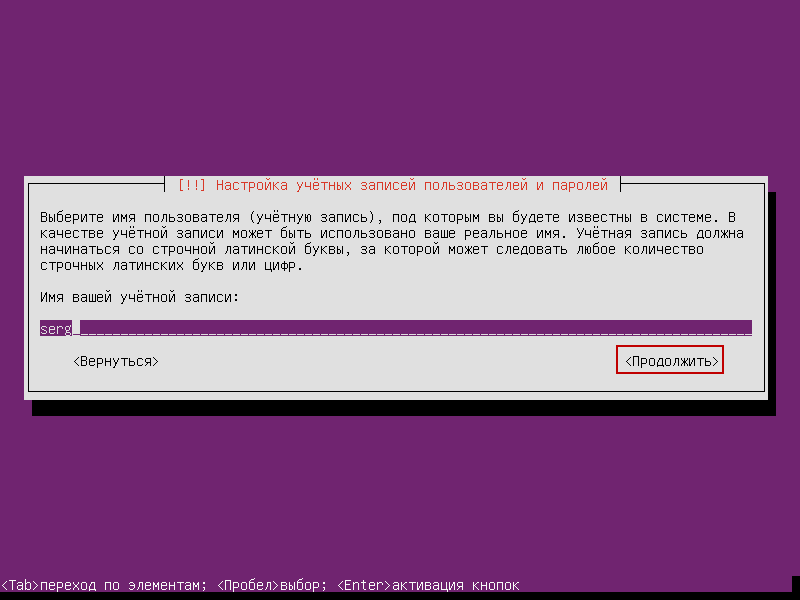
Enter the password, pre-write it in a notebook:
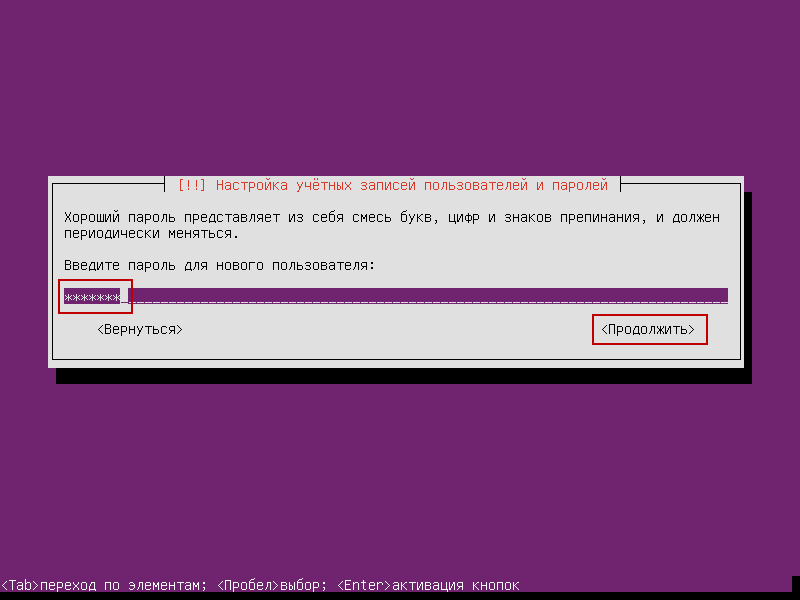
Repeat entering the password, the password is made up of symbols of the Latin layout, alternating the upper and lower case, and also randomly insert digits inside the password. The password should consist of at least 8 characters. This is my recommendation, and it’s up to you:
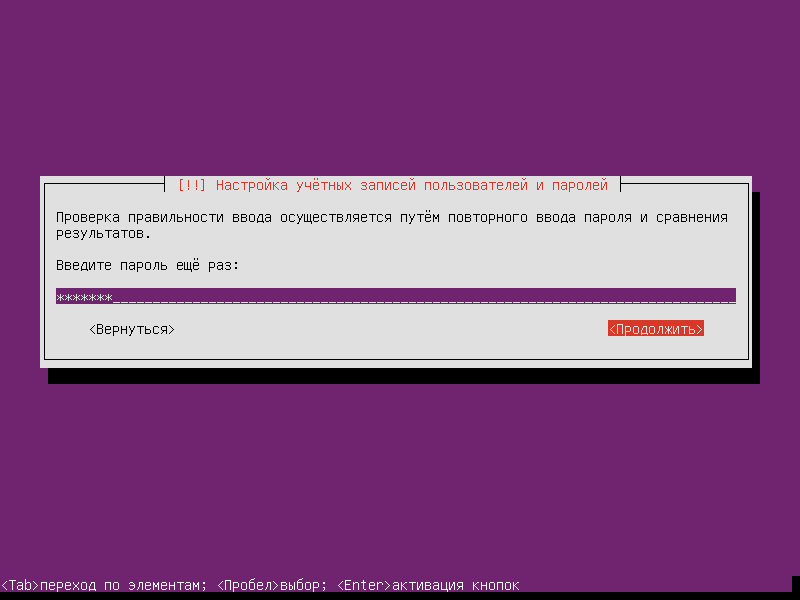
I install it on the virtual machine, so I use a weak password and the installer asks if I want to use a weak password:
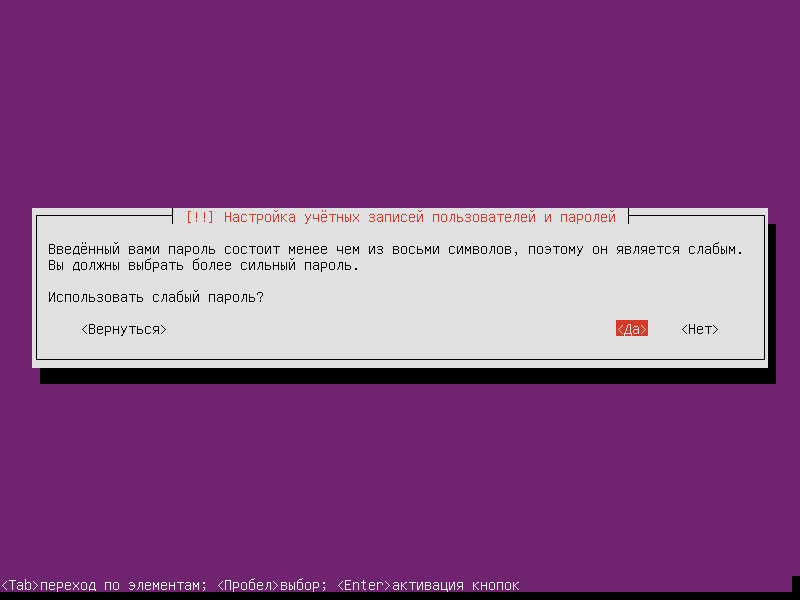
We do not agree with the encryption of the home directory, otherwise you will have to enter a password when loading the server, and if you have to overload the server remotely, the server will boot up without entering a password to connect the encrypted partition:
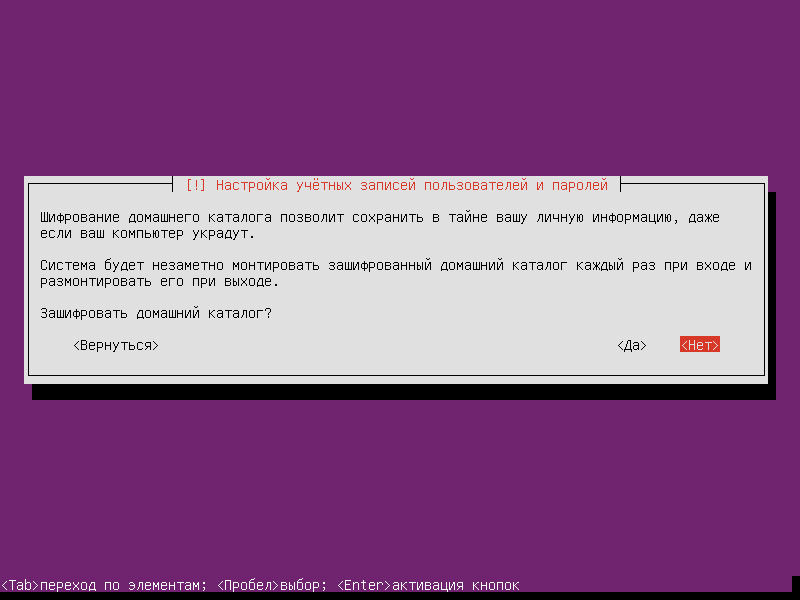
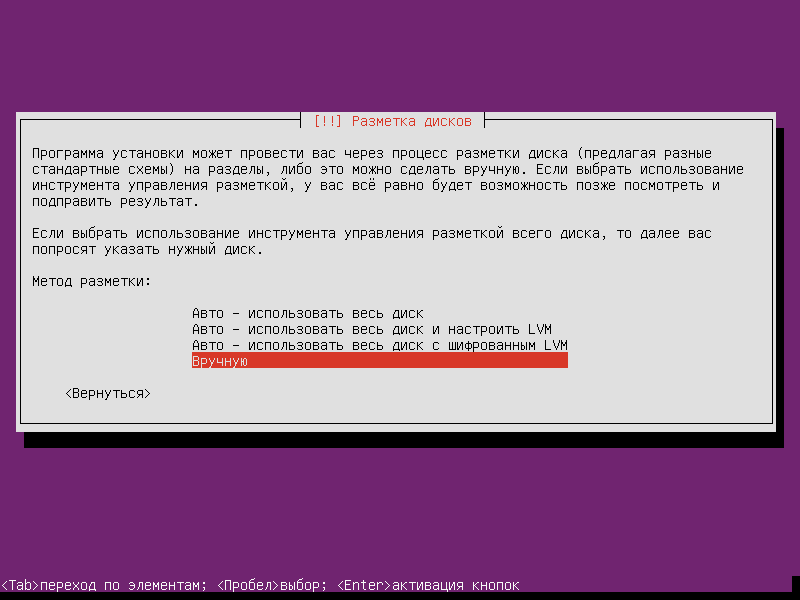
Let’s start to break the hard drive manually:
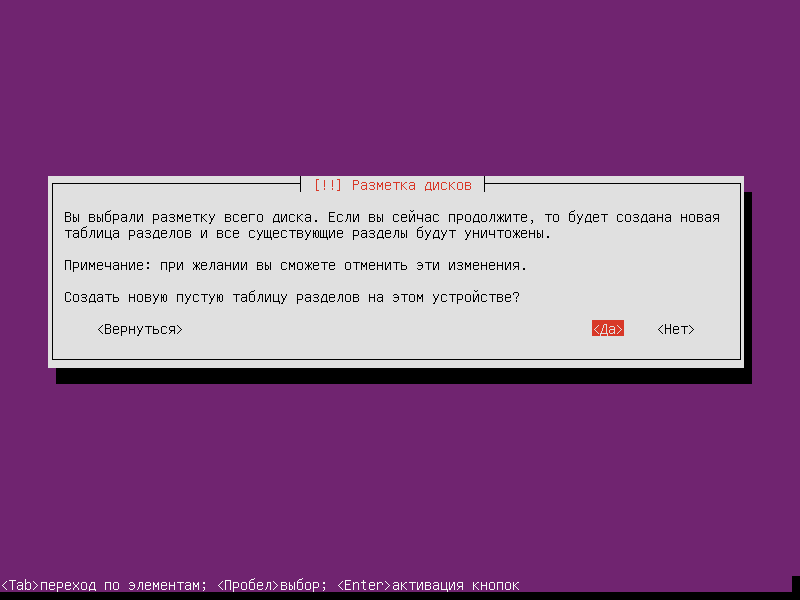
The screw is clean, because we see that there is no partition table on the hard drive:

Let's go to the hard drive and press. Enterand the question Create a new blank partition table - agree and click on Yes. pressed Enter:
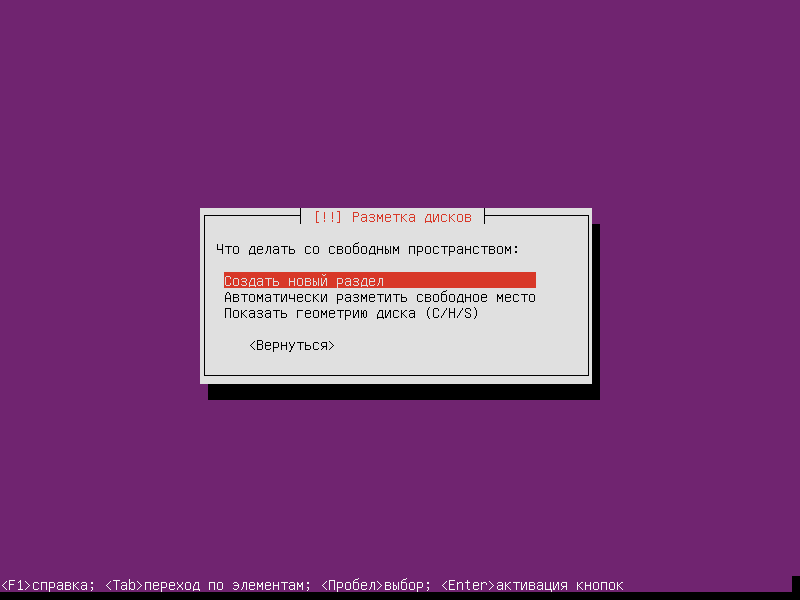
Create a new partition table, go to Free Place, press Enter and create a new partition. /boot :

Let's get on. Create a new section pressed Enter:
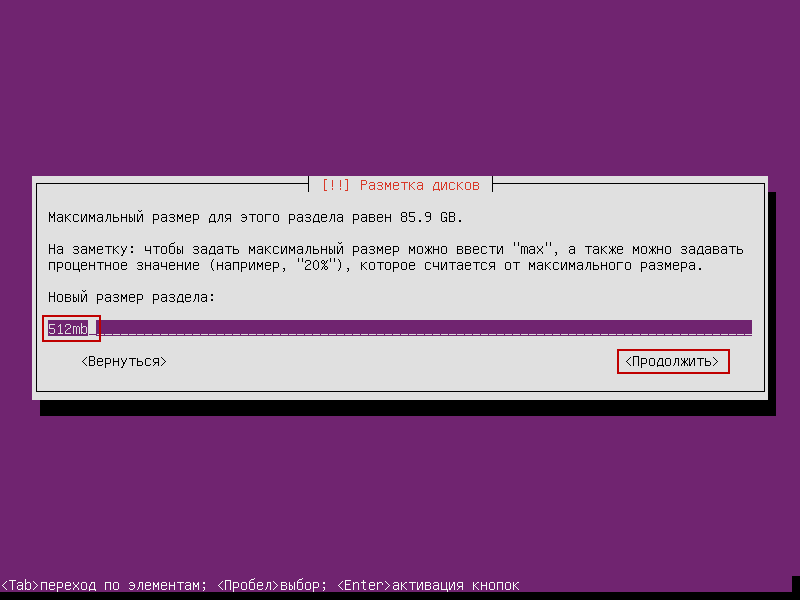
Enter the section size /boot - 512mb
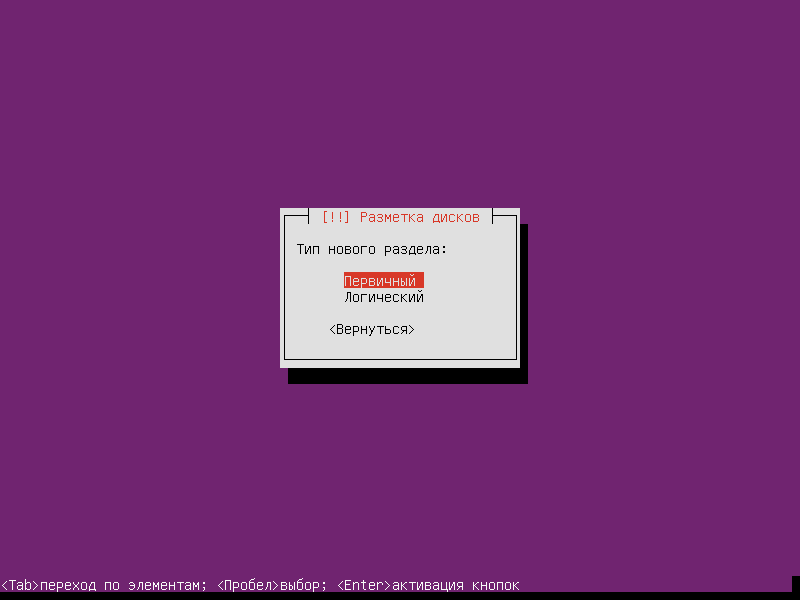
Choose the type /boot section Primary:
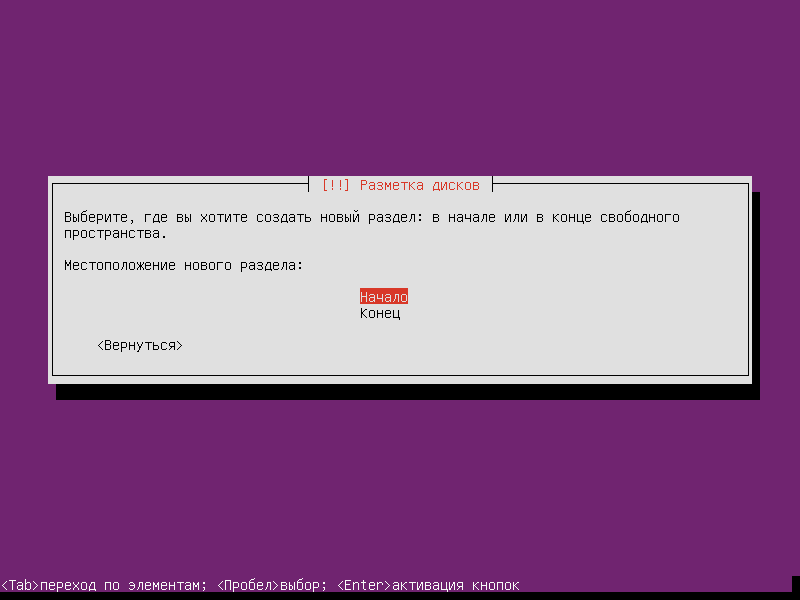
Push. Enter stand-up Beginning:
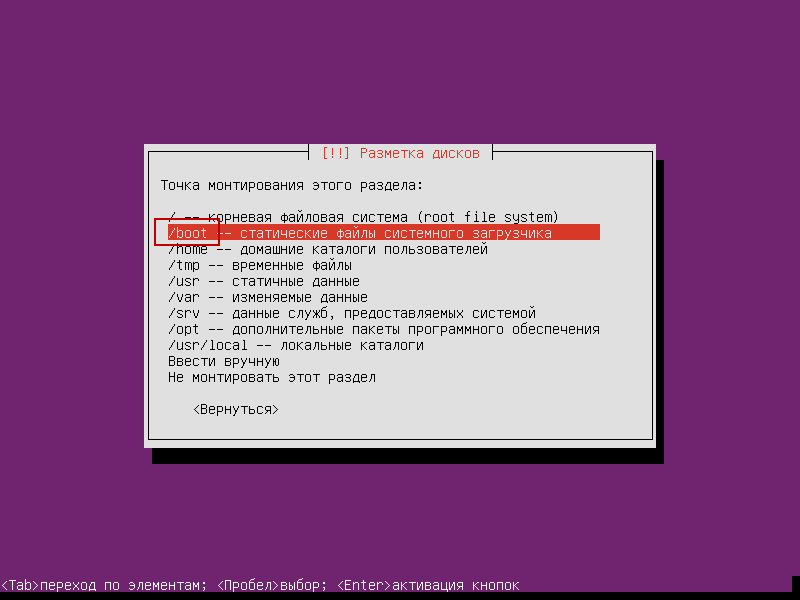
Become the mounting point by clicking Enter:
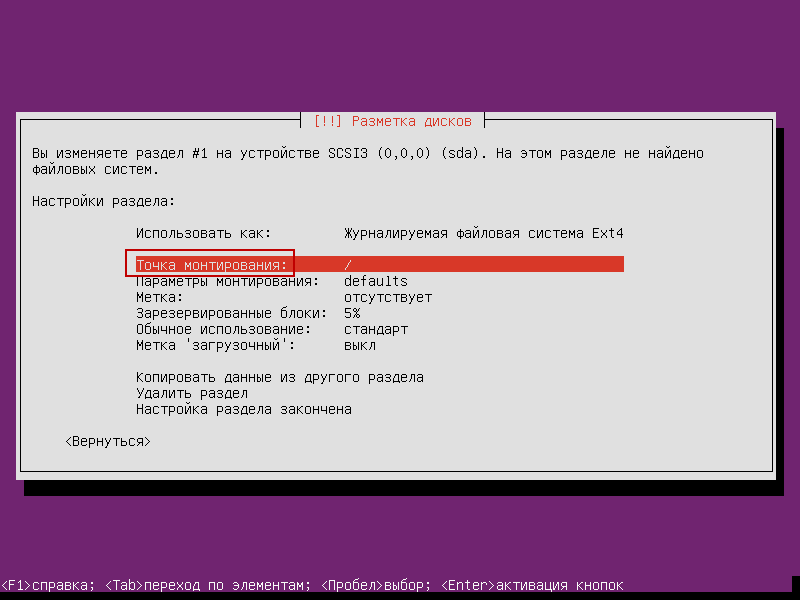
In the open window, select /boot pressed Enter:
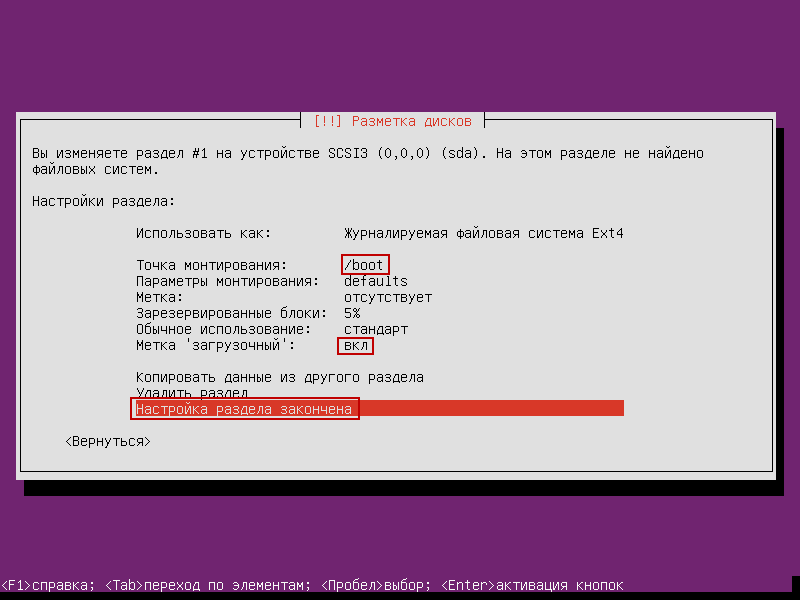
- We're installing the file system. ext4
- Mounting point - /boot
- Loading section mark - included
Let's get on. Set-up section is complete pressed Enter:
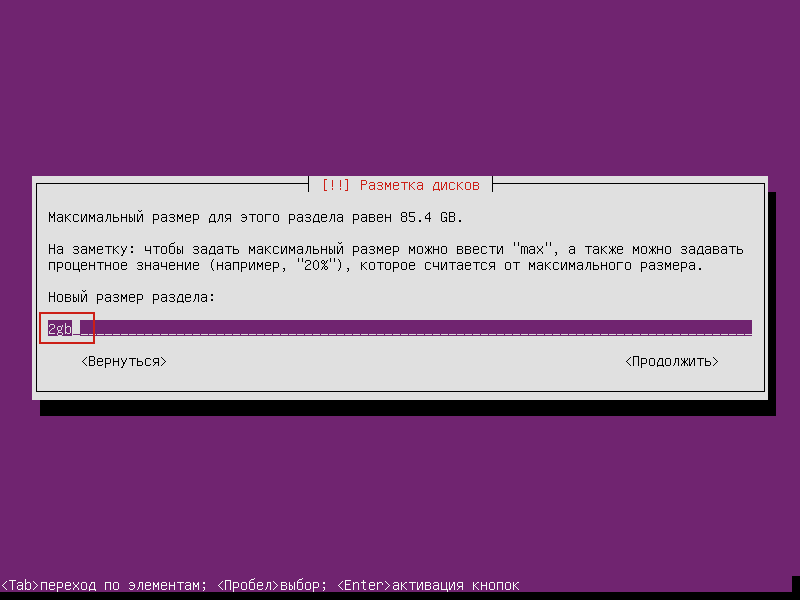
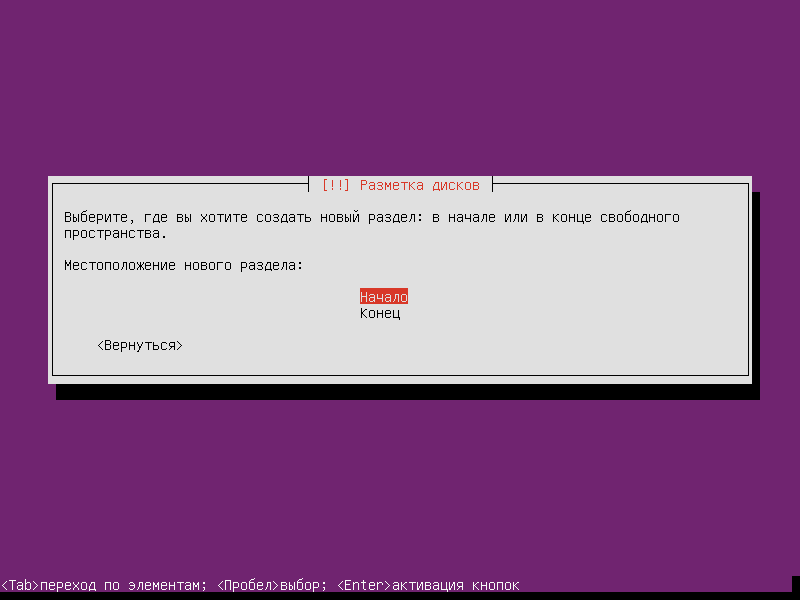
We stand in a free place and create a section. /tmp sized 2gb:
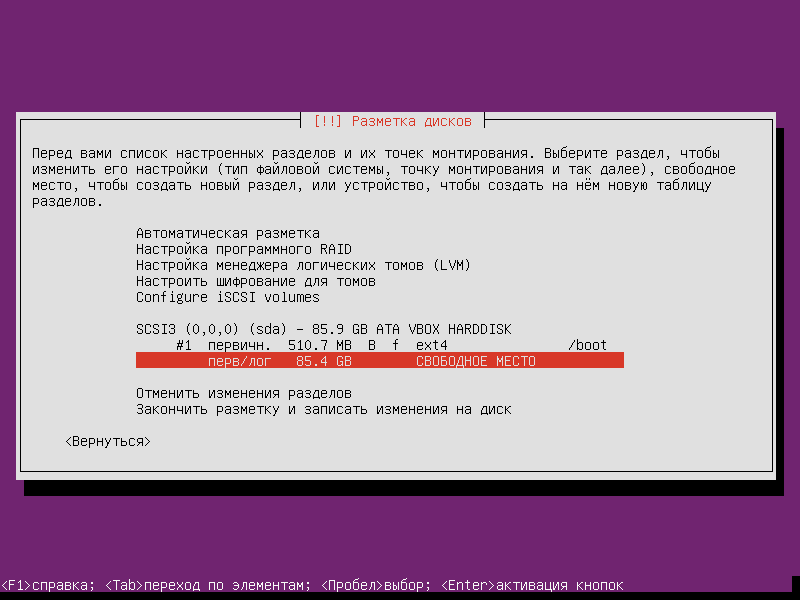
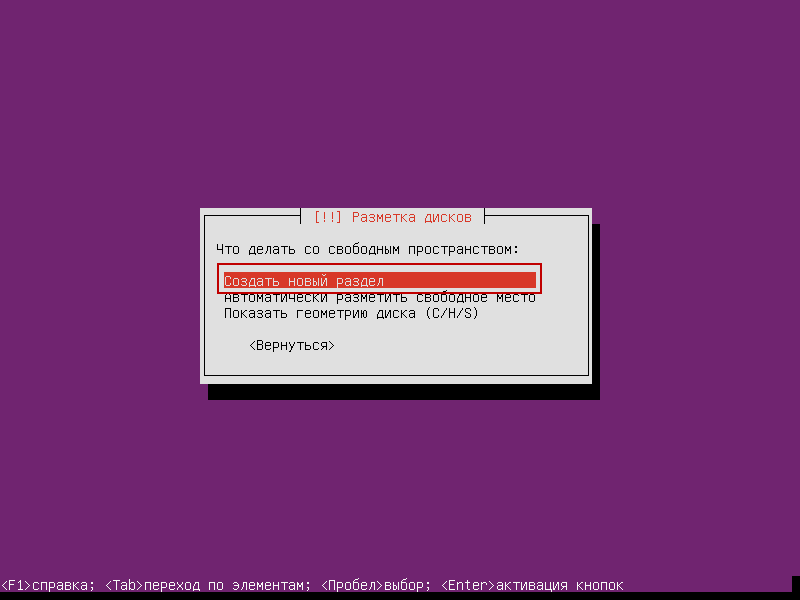
Click on Create a new section:
Indicate the size of the section 2gb:
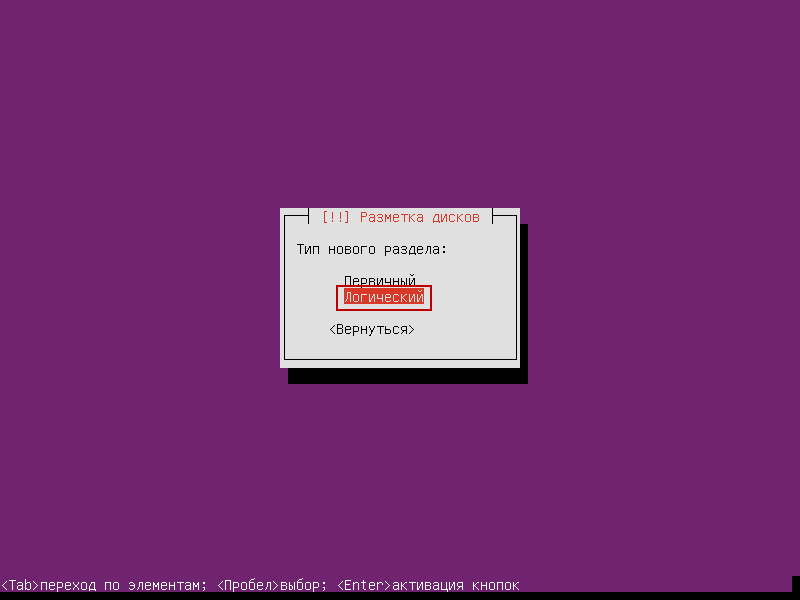
Type of section /tmp choose Logical pressed Enter:
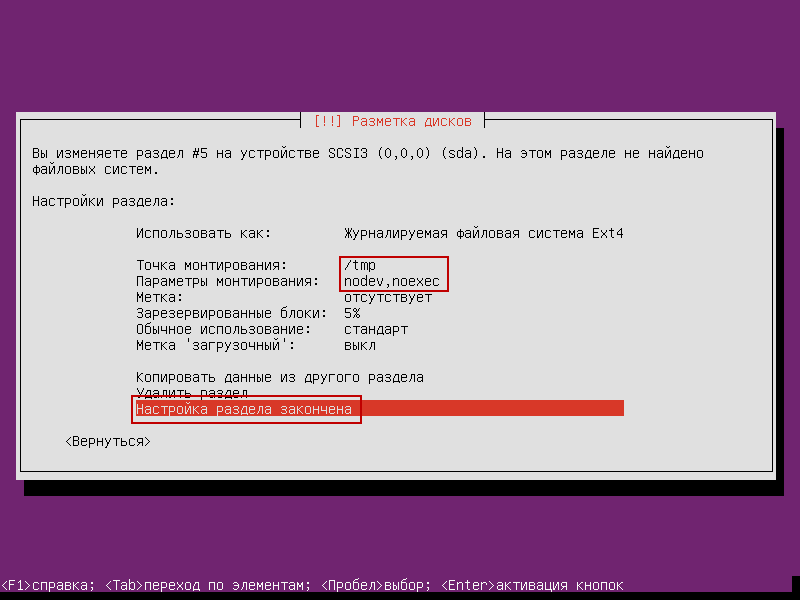
Selecting the mounting point /tmpSelect the mounting parameters nodev and noexec, move on Set-up section is complete pressed Enter:
Create a swap section:
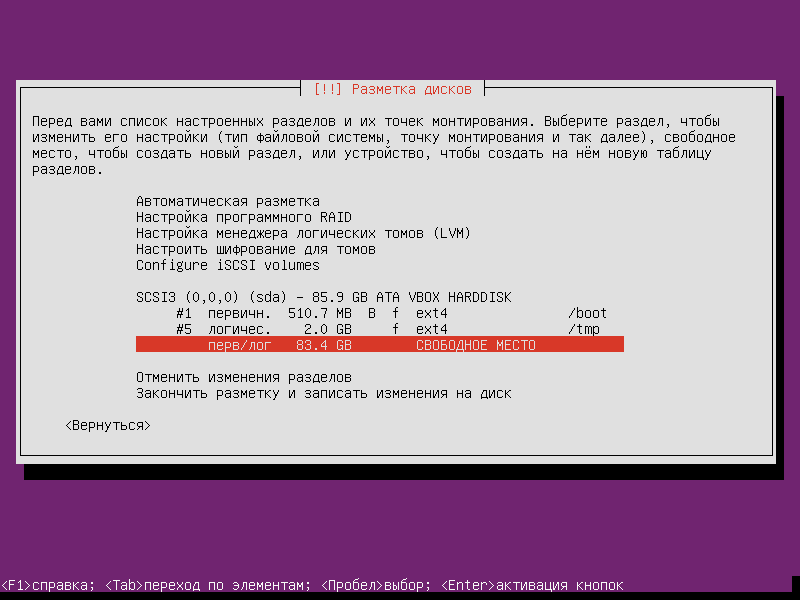
Let's move on. Create a new section:
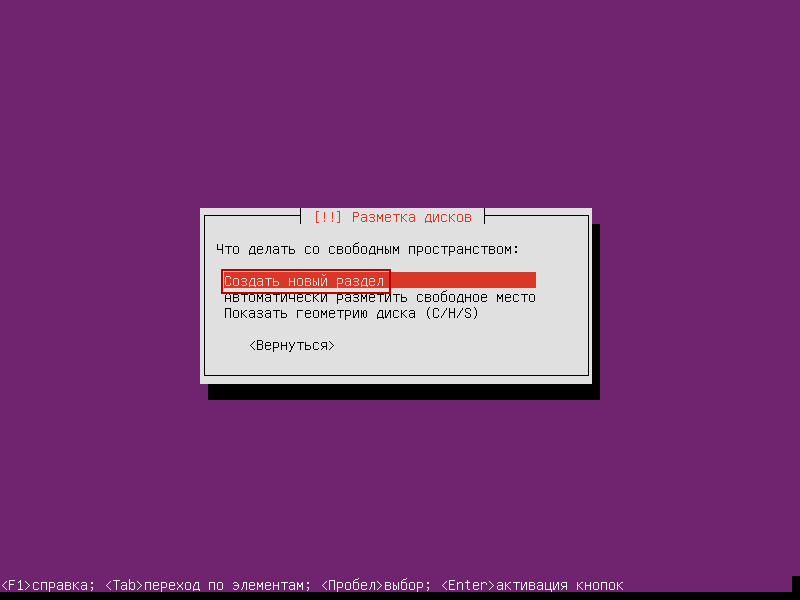
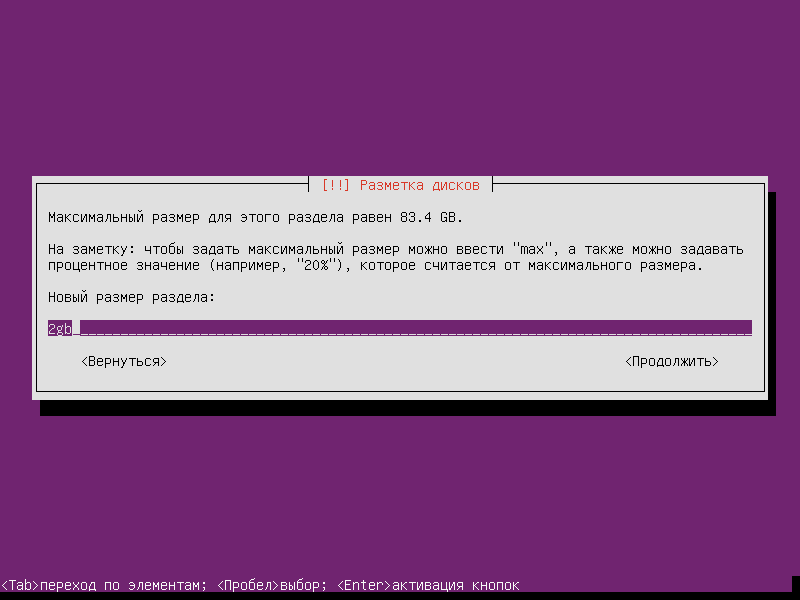
Specify the size of the swap section - 2gb:
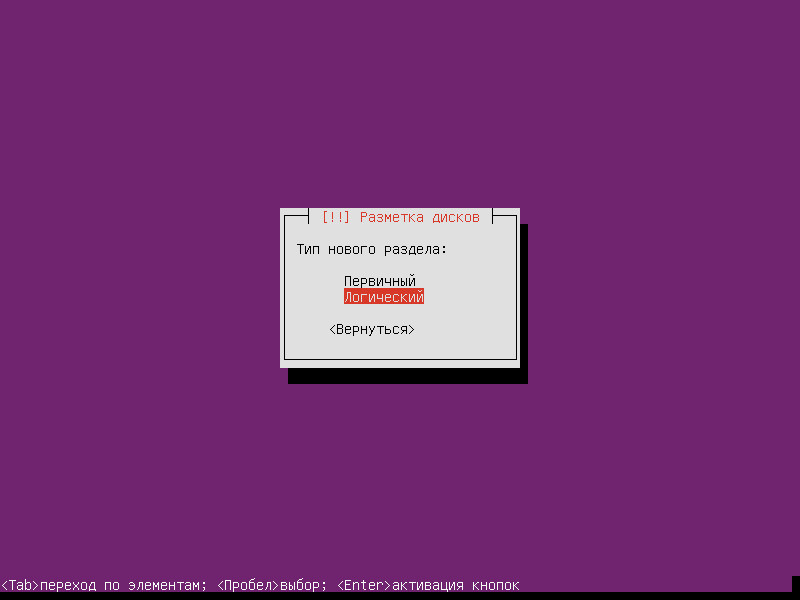
Select the type of new section Logical pressed Enter:
Let's move on. Beginning pressed Enter:
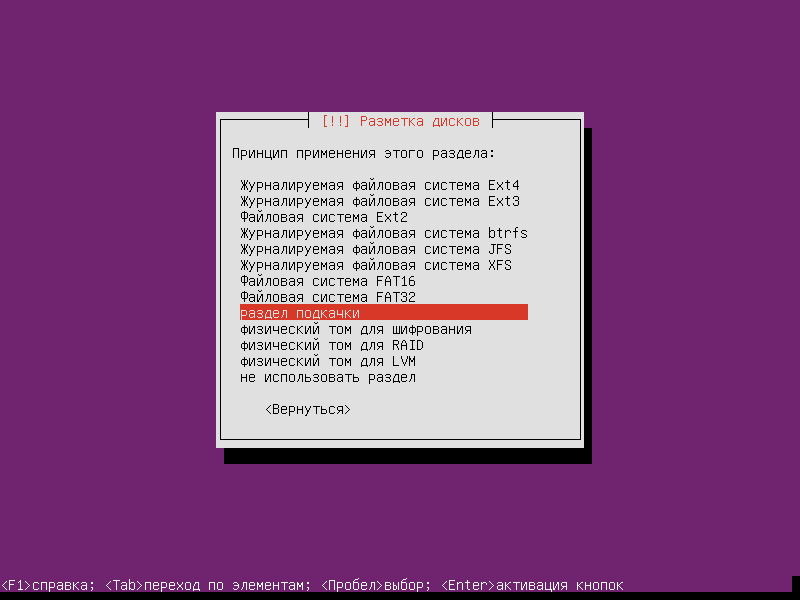
Select in the file system instead of ext4 - pumping-piece:

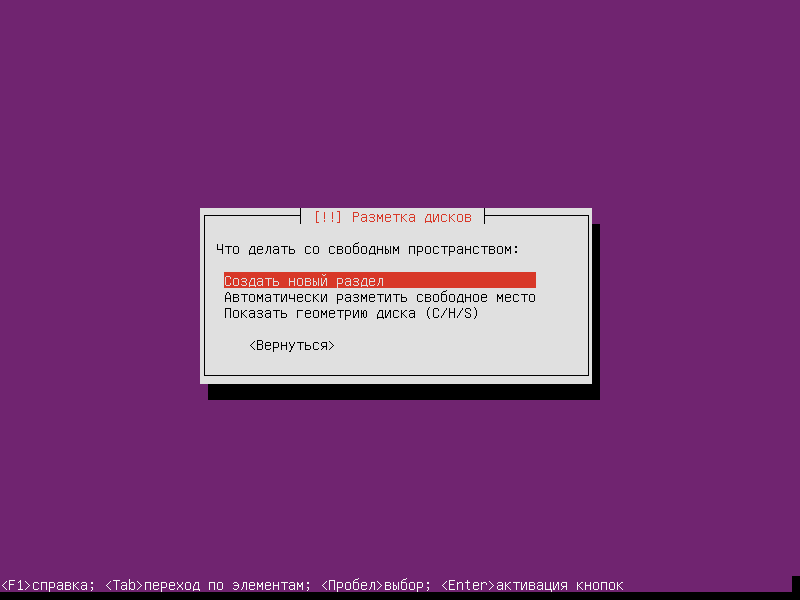
Creating a root section / Let's go to a free place by clicking. Enter and click on Create a new section:
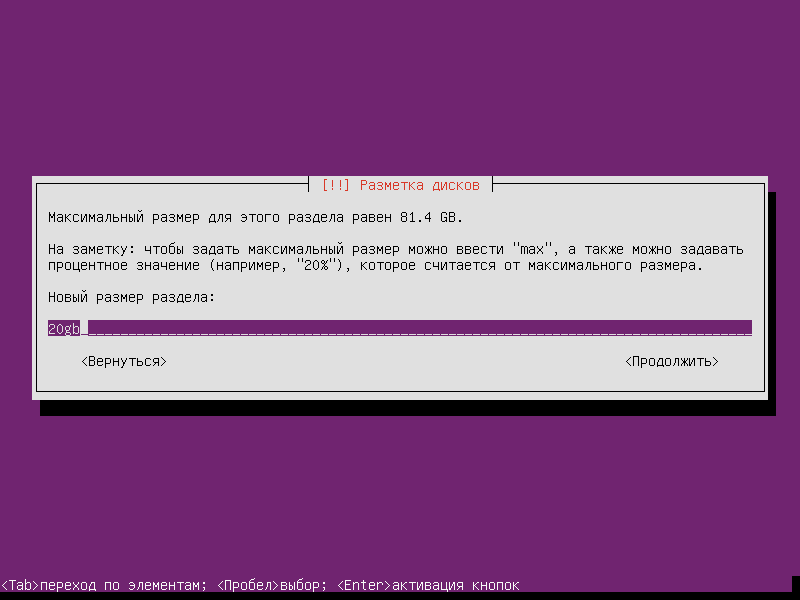
Specify the size of the root partition, if you have a small hard drive, then allocate the entire place, if large, then create a root section and a home partition. /home, we're giving you the size 20gb:
Choose. Logical type of section:
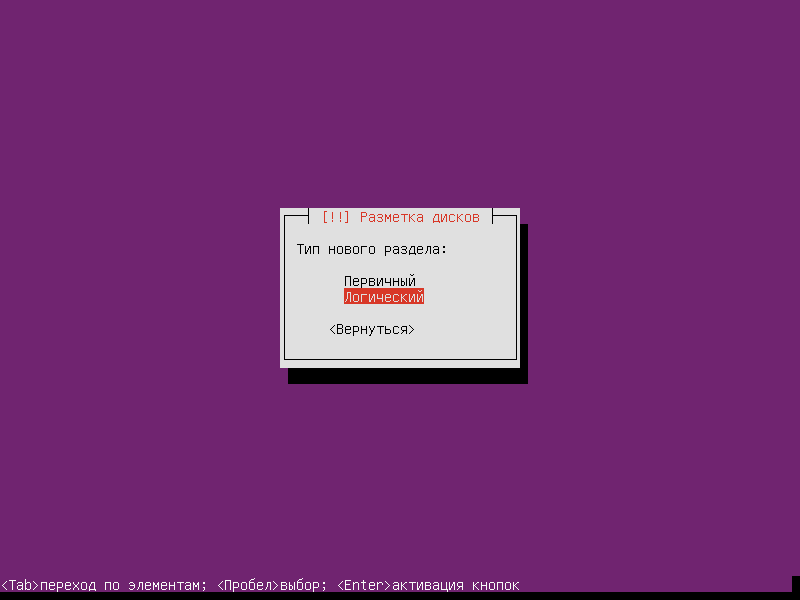
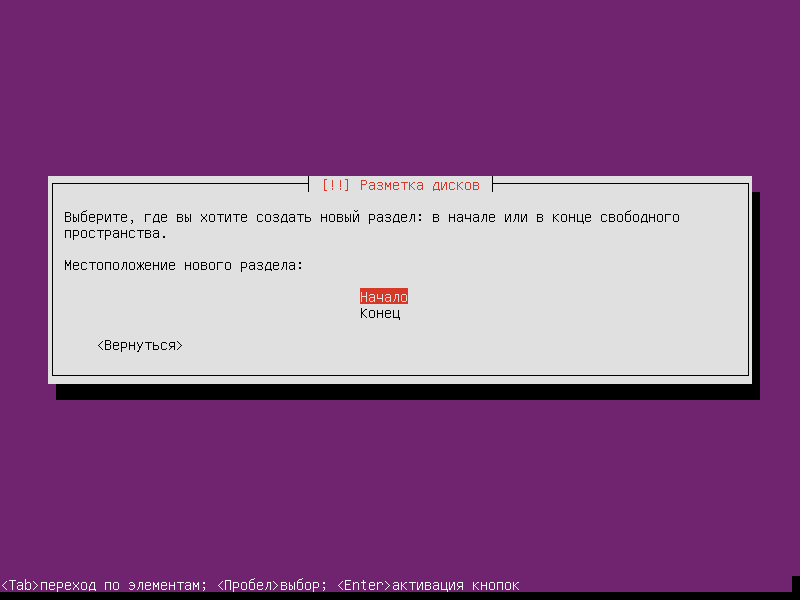
Let's move on. Beginning pressed Enter:
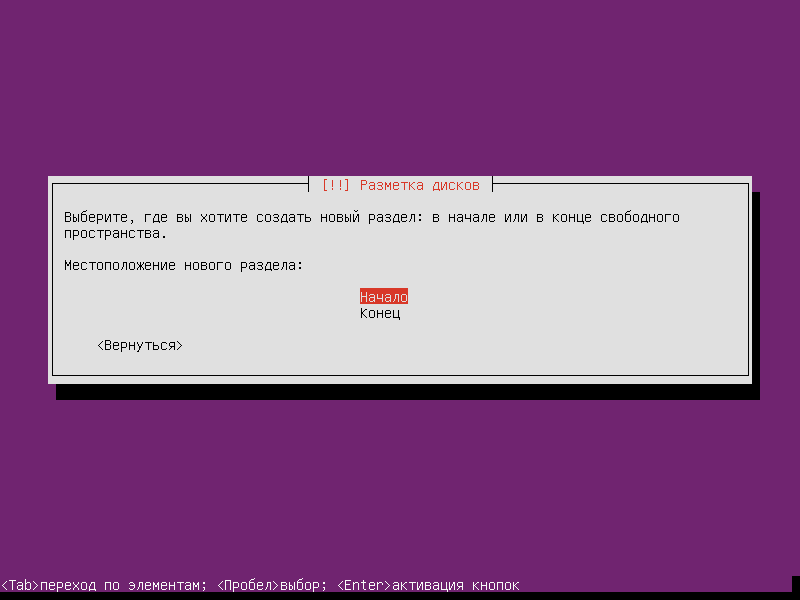
Select ext4 file system for root partition / :

Click on the free space. EnterIn the open window, we move to Create a new section pressed Enter:
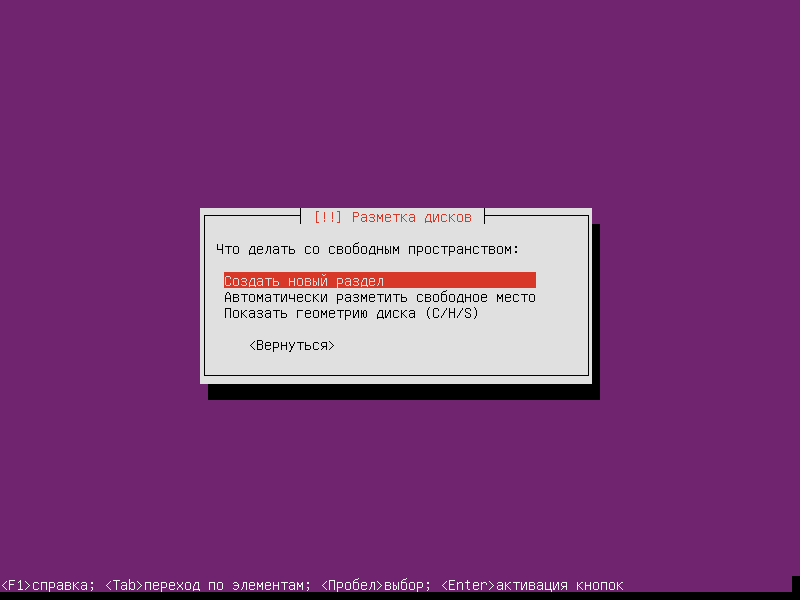
Indicate for section /home all remaining space:

Choose. Logical type of section:
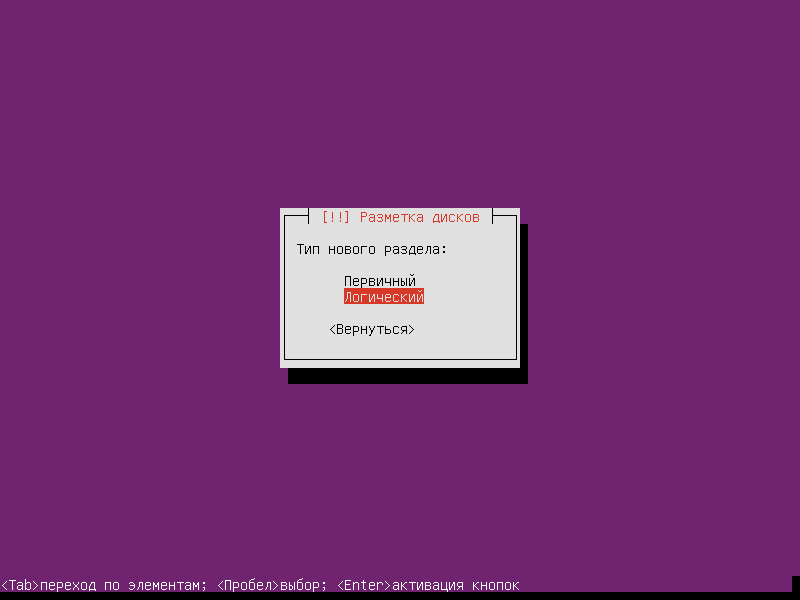
We're mounting a point. /homeLet's move on. Set-up section is complete pressed Enter:
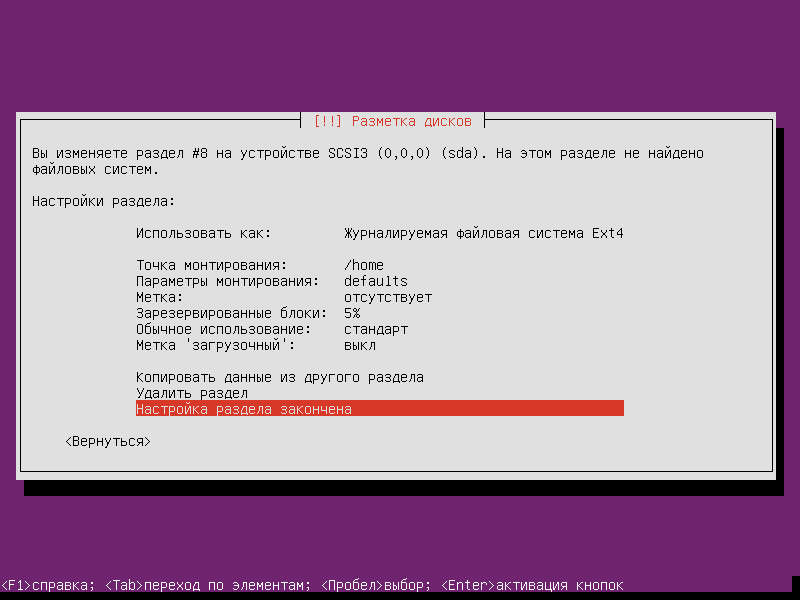
After the break-up of the hard drive, we move on to Finish the markup and record changes to disk pressed Enter:
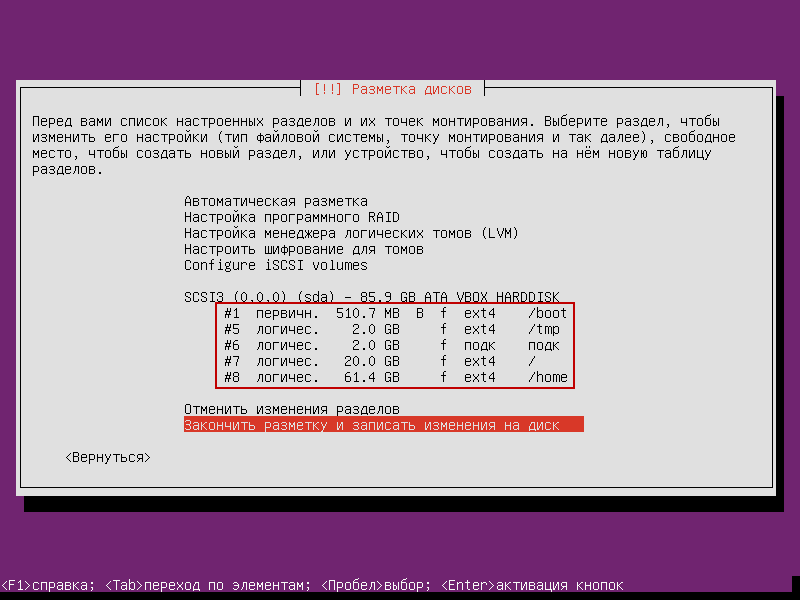
We agree to the request. Write the changes to disk:
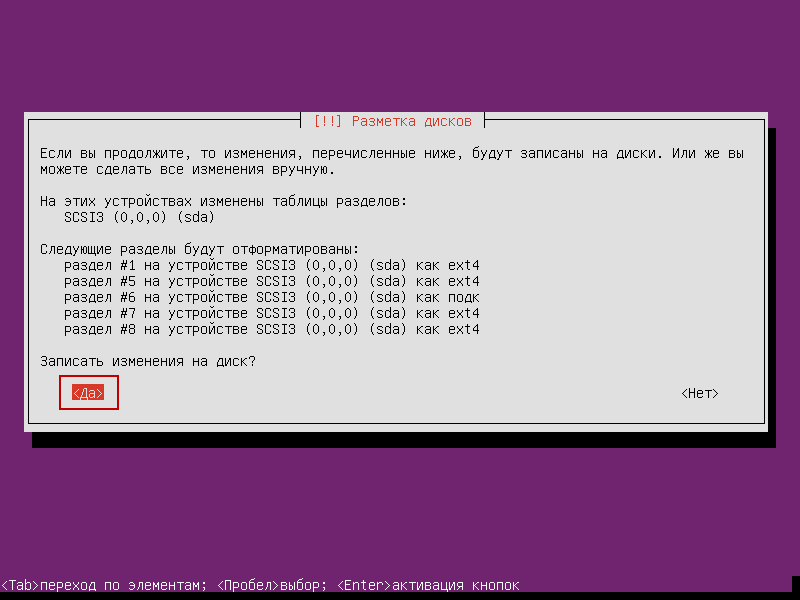
The process of splitting and formatting hard drive sections:
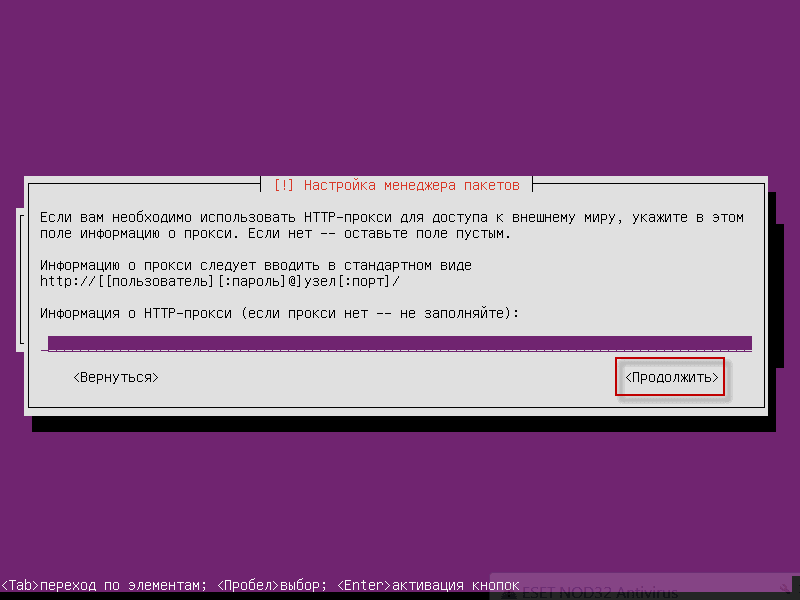
If you are on the local network to the Internet go through a proxy server, then you need to specify the connection parameters for example in the screenshot:
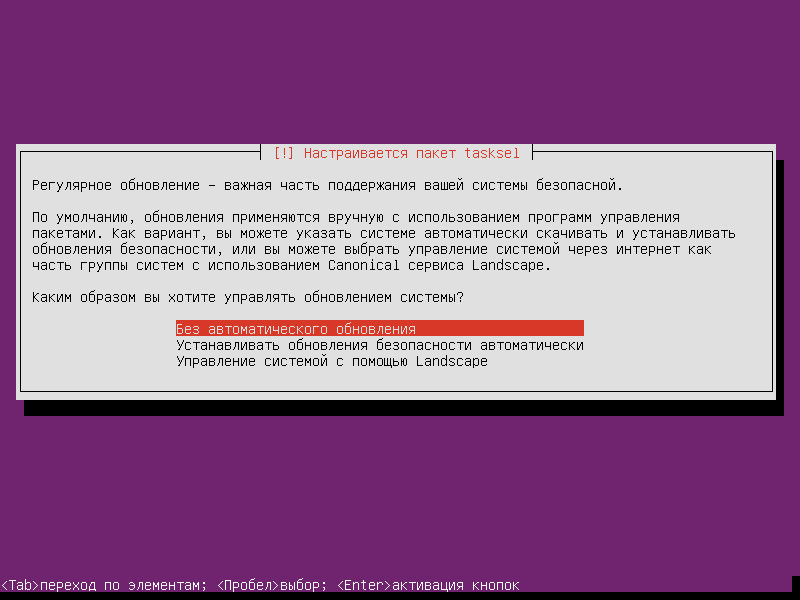
Here you can choose to automatically install security updates, it is quite possible that there will be no problems, but I prefer to put the update manually to know what is put from the updates, I bet. No Automatic UpdateWhatever you want:
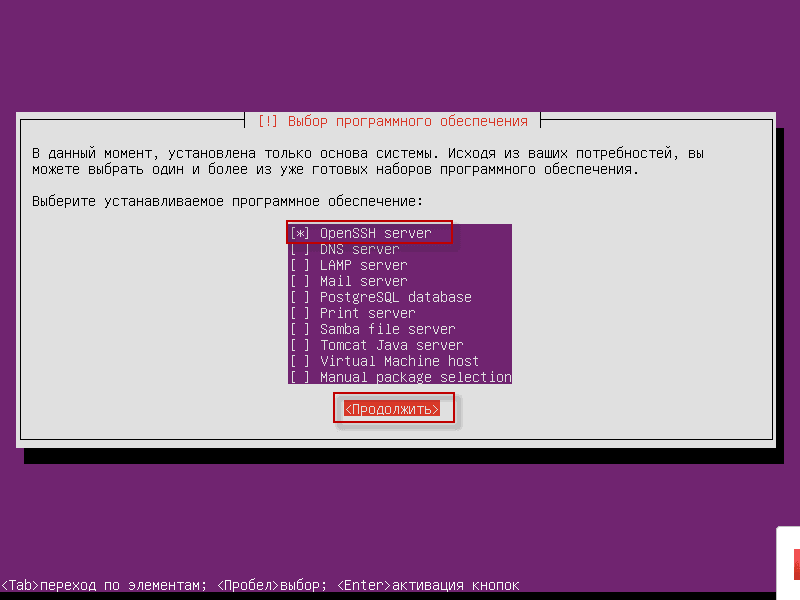
In the software installation selection window, click only on OpenSSH server pressed Continue.:
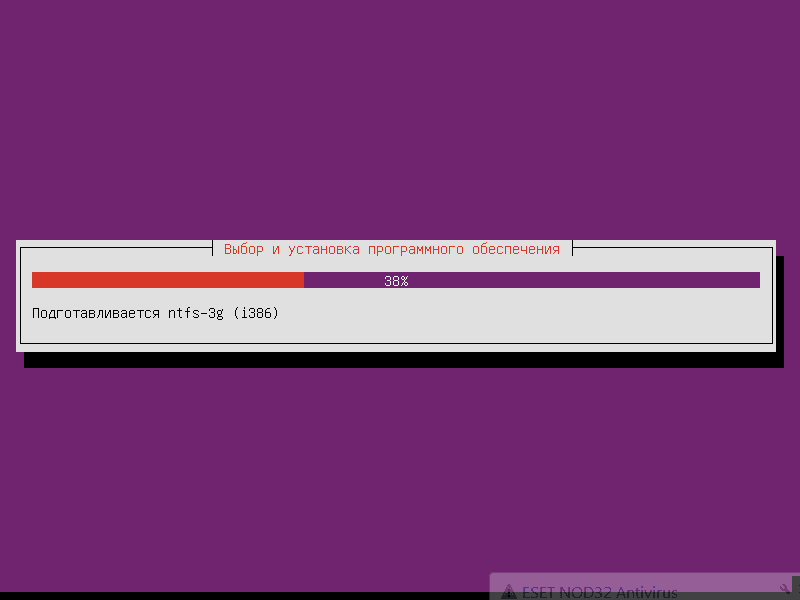
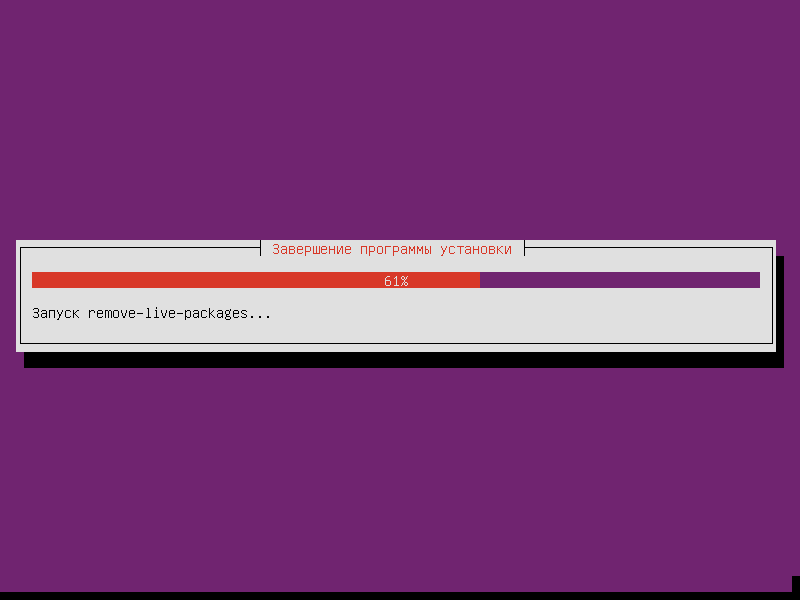
Installation process of Ubuntu 14.04 LTS Server:
Celebrate Install the GRUB system boot loader in the main boot record pressed Enter:
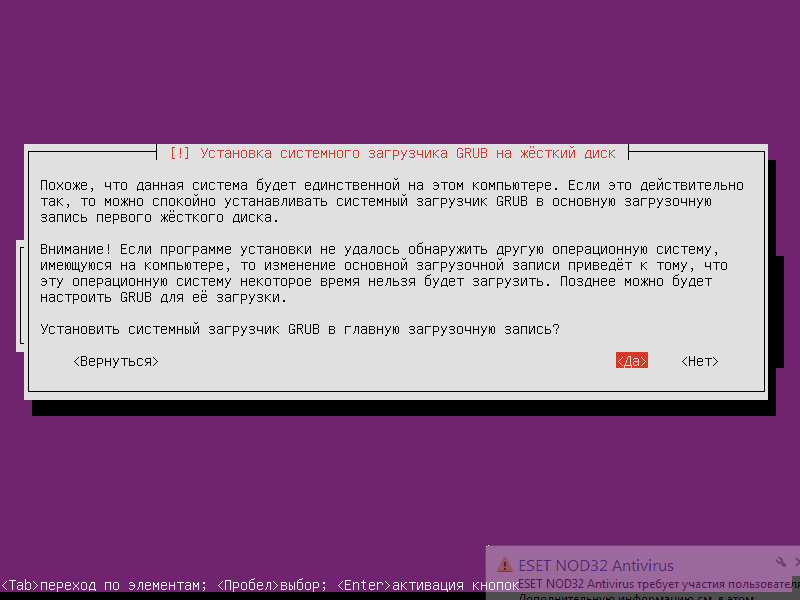
After installation, click Continue.press Enter system installer will unmount the installation disk and push it from the CD / DVD drive:

After restarting, we will see the boot window of the installed Ubuntu 14.04 LTS Server:
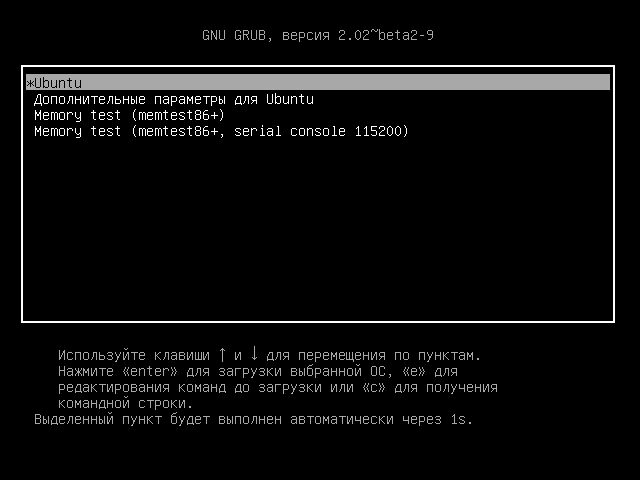
The task of installing Ubuntu 14.04 LTS Server is completed, the server is installed.
I was with you. Sergey Lazarenko.
After work, we will take a short break for 2.5 hours.:

comment