


Detailed instructions for installing Ubuntu 12.04 servers. Step-by-step screenshots are attached.
To install Ubuntu 12.04 Server, download the iso image to pageWe record it on a CD and download from it.
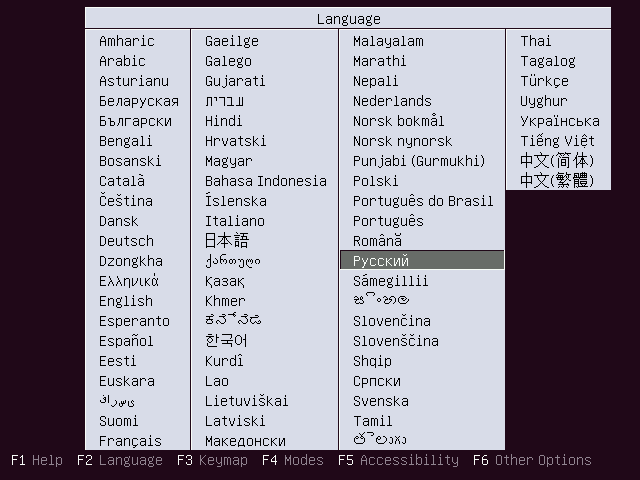
First window, select the language of installation, in our case I choose Russian:
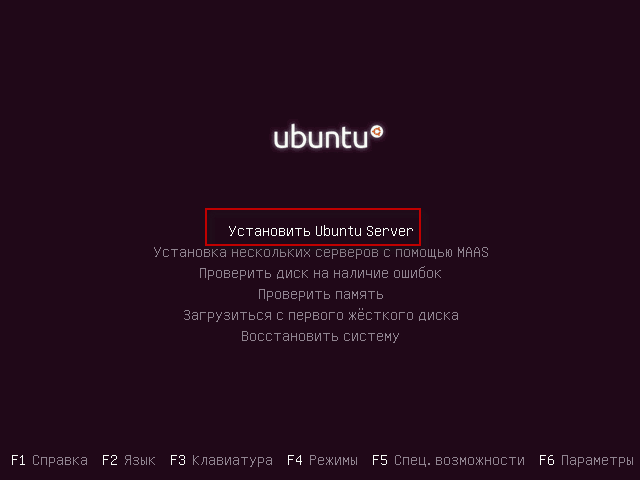
Start the installation of Ubuntu 12.04:
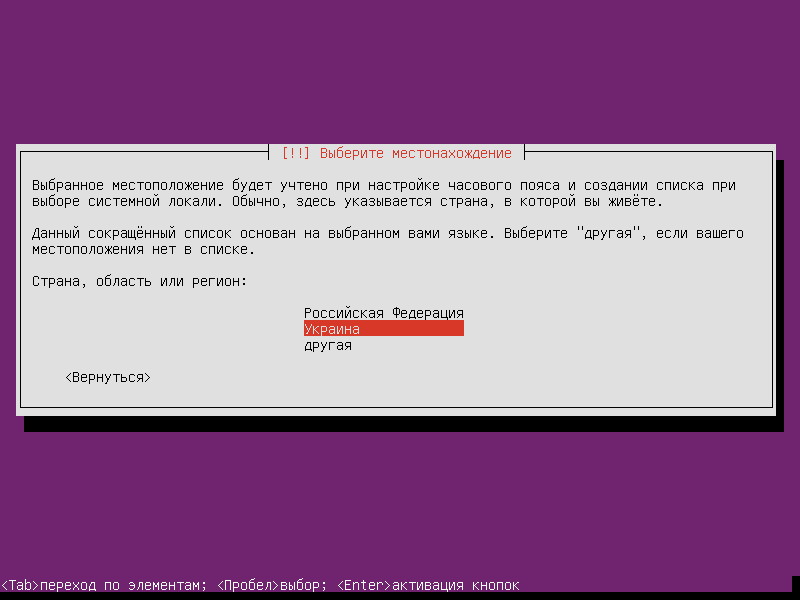
Choose a country:
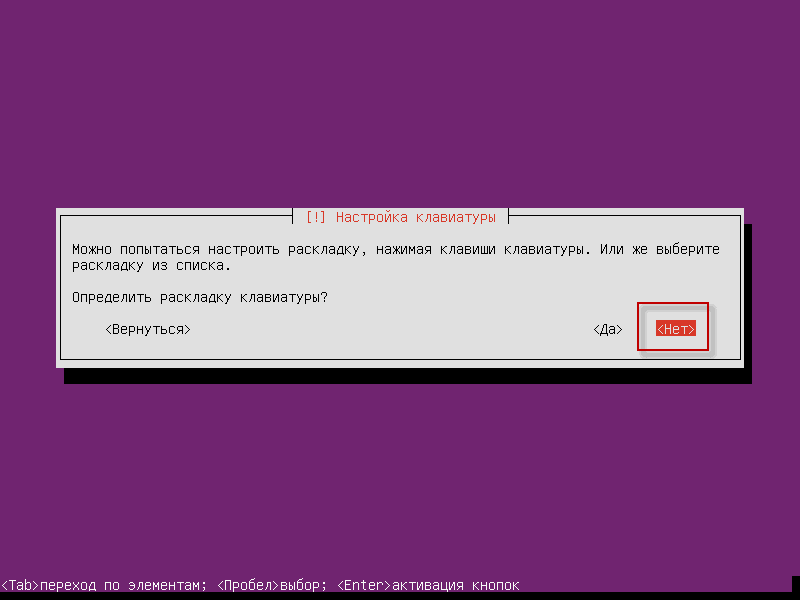
We do not agree with the automatic definition of the keyboard:
Select the layout language:

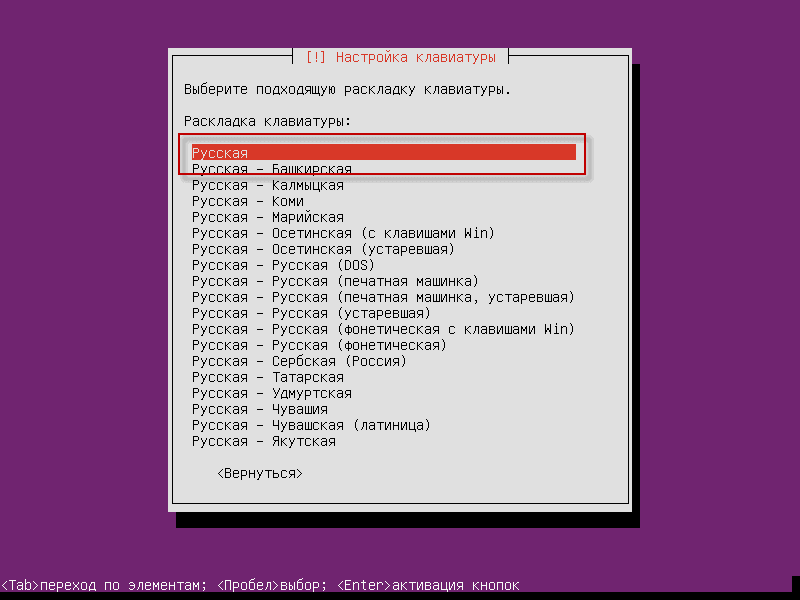
Choose the Russian keyboard layout:
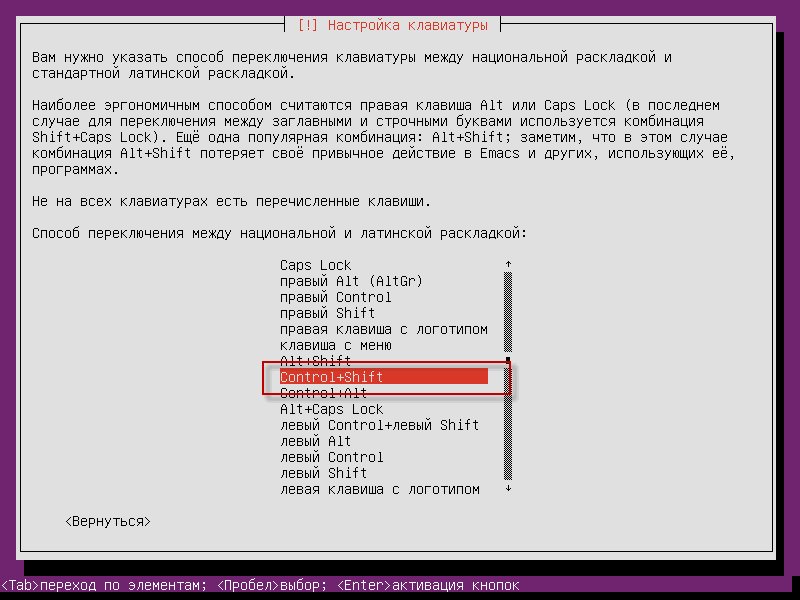
Choosing a way to switch the keyboard, I prefer Ctrl + Shift, in your case it may be different:
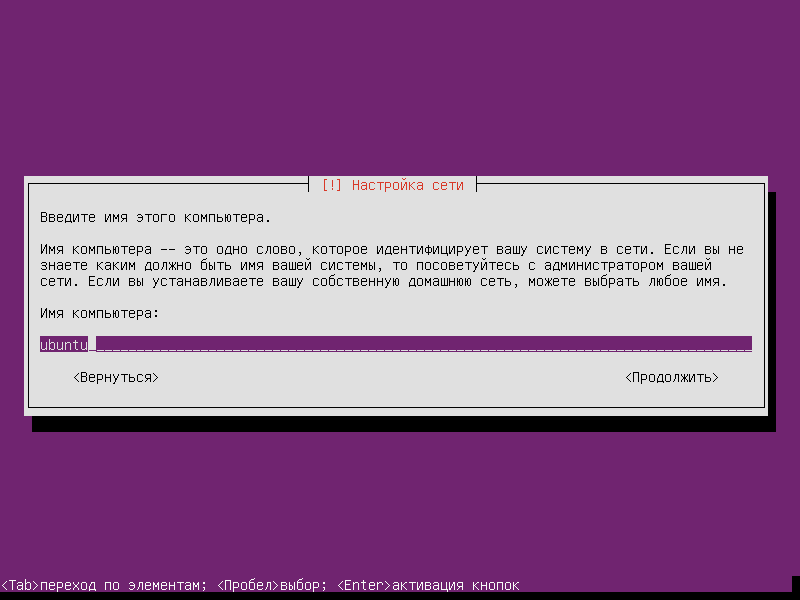
Write the name of the server, in our case the standard name ubuntu:
Write the username:
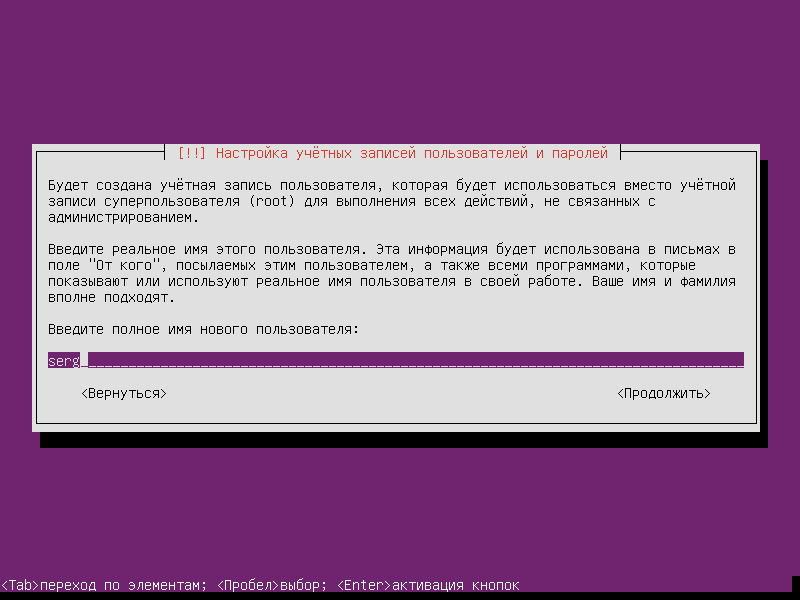
Repeat user input:
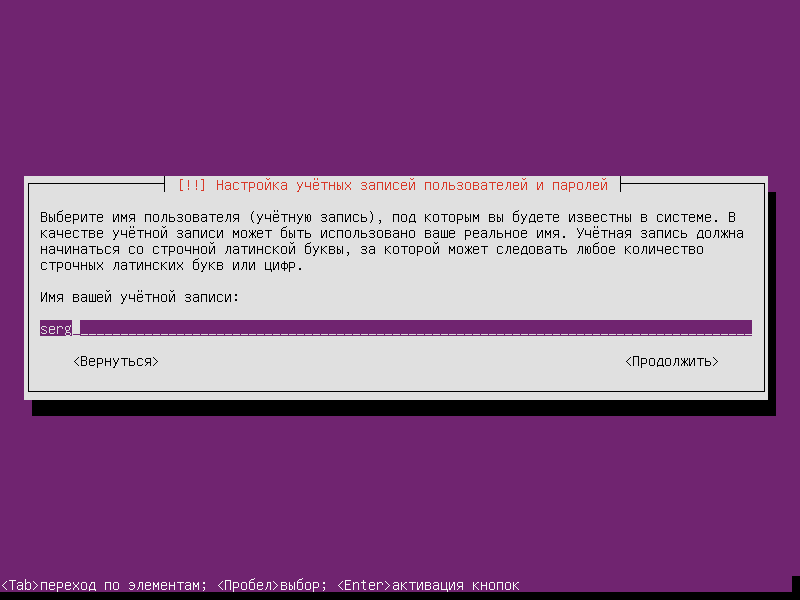
Enter the password, pre-write it in a notebook:
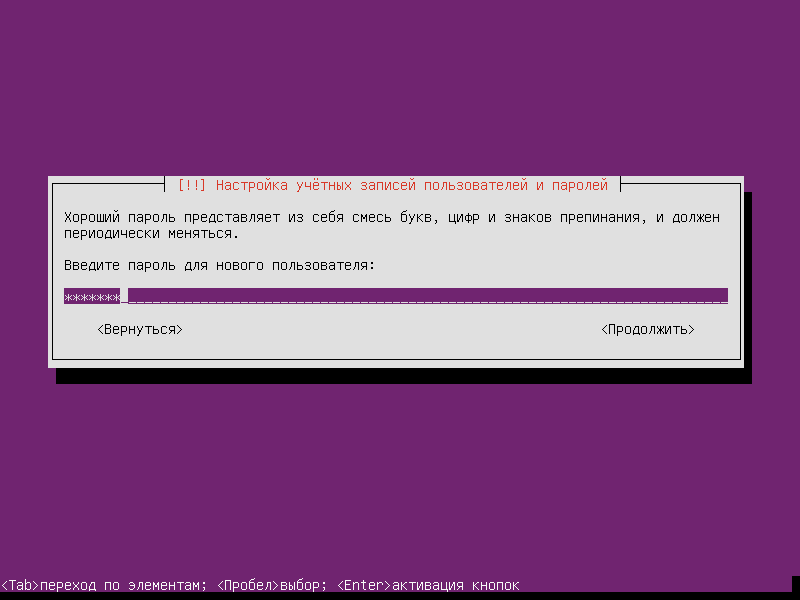
Repeat entering the password, the password is made up of symbols of the Latin layout, alternating the upper and lower case, and also randomly insert digits inside the password. The password should consist of at least 8 characters. This is my recommendation, and it’s up to you:

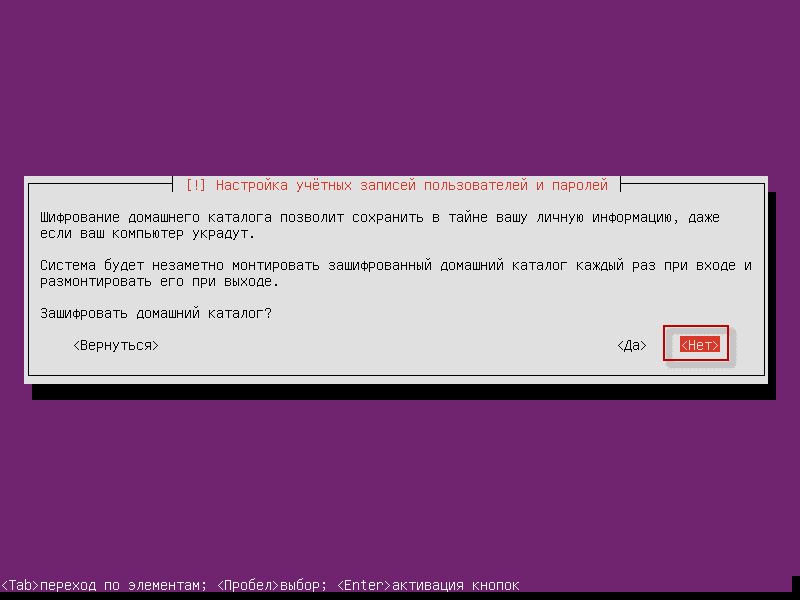
We do not agree with the encryption of the home directory, otherwise you will have to enter a password when loading the server, and if you have to overload the server remotely, the server will boot up without entering a password to connect the encrypted partition:
Let’s start to break the hard drive manually:
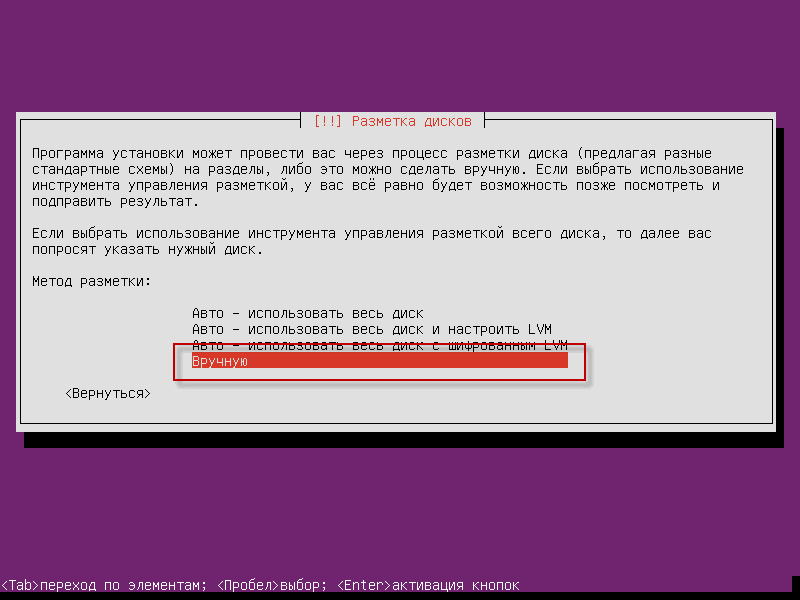
The screw is clean, because we see that there is no partition table on the hard drive:
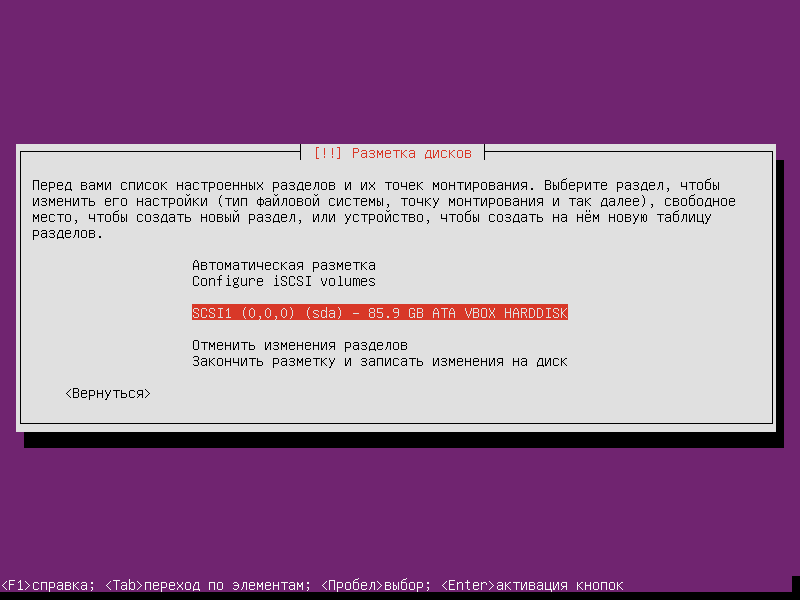
Switch to the hard drive and press Enter, and to the question "Create a new blank partition table" - agree and click on Yes and press Enter:

Create a new partition table, go to Free Place, press Enter and create a new partition. /boot :
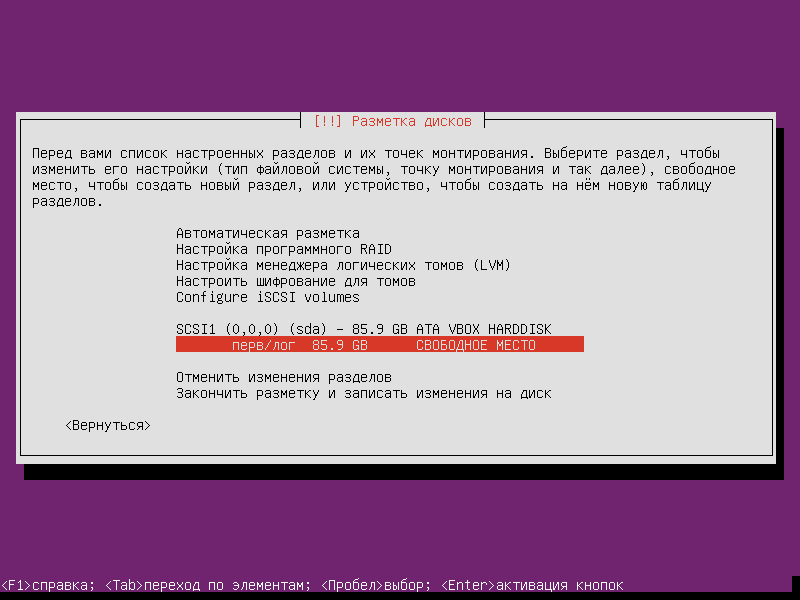
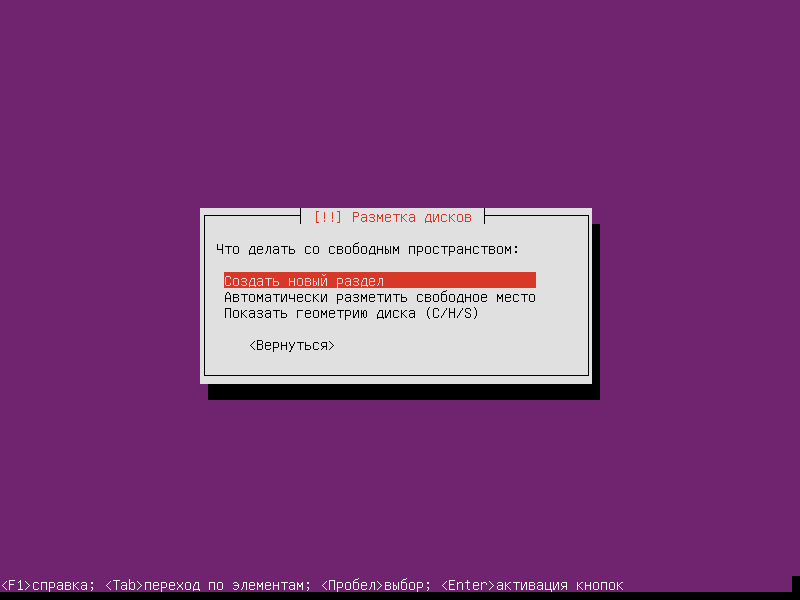
Let's get on. Create a new section pressed Enter:
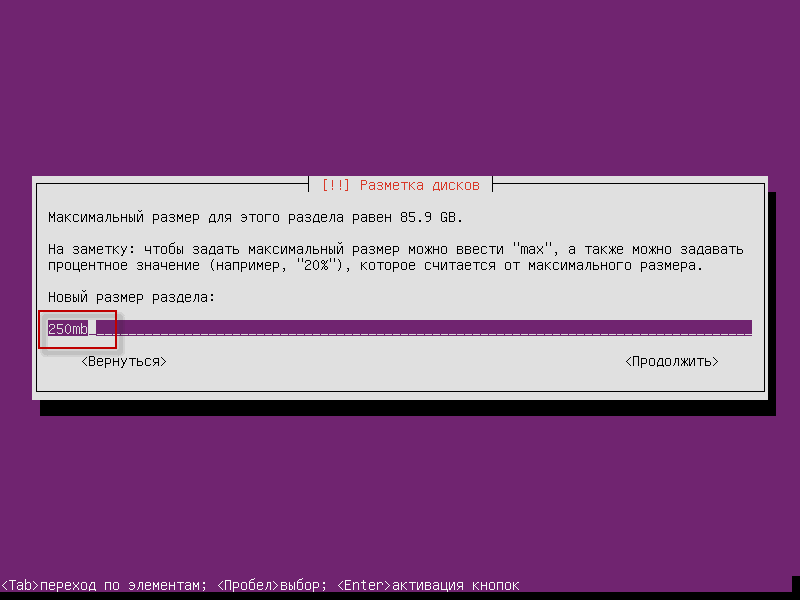
Enter the section size /boot - 250mb
Choose the type /boot section Primary:
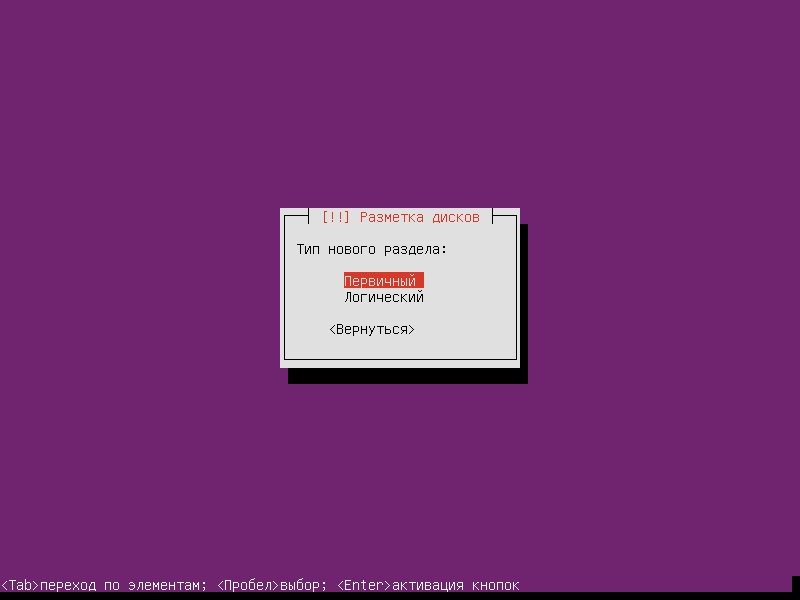
Push. Enter standing Beginning:

Install the file system - ext4
Mounting point - /boot
Loading section mark - included
Let's get on. Set-up section is complete pressed Enter:

Create a swap section:
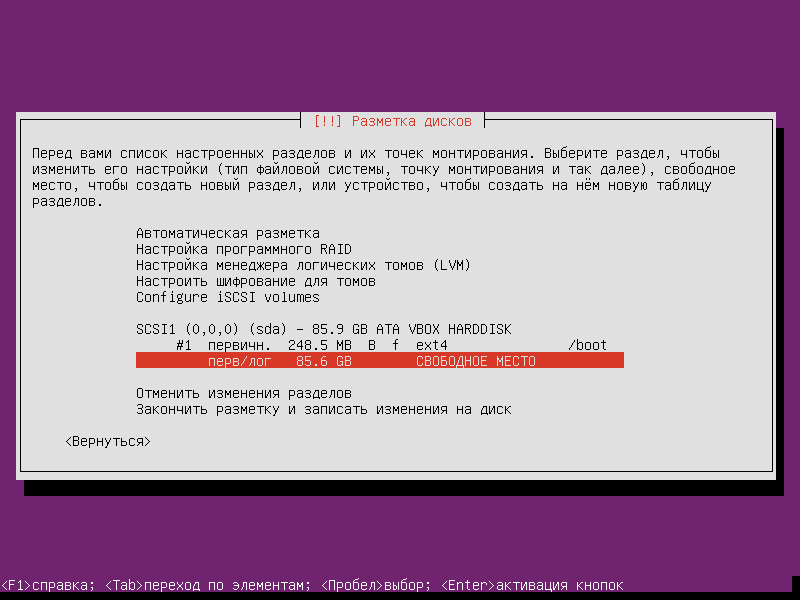
Let's move on. Create a new section:
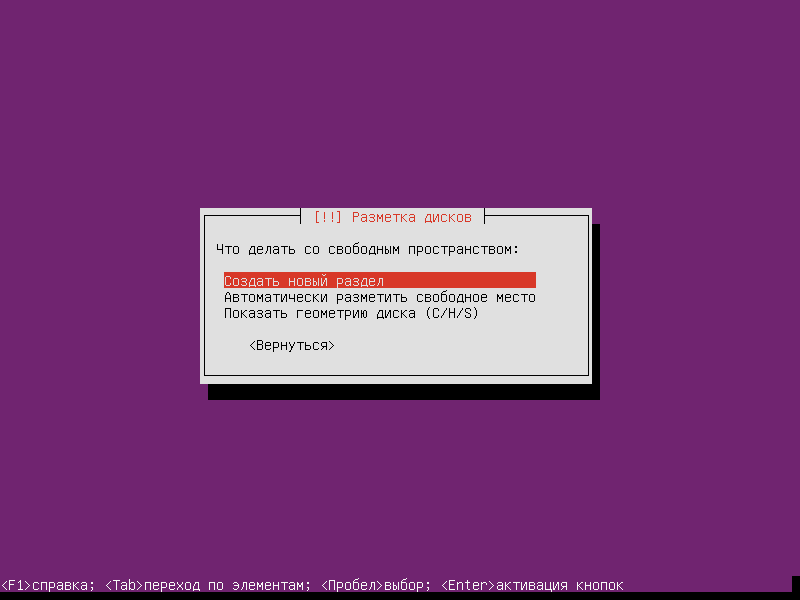
Specify the size of the swap section - 2gb

Let's move on. Beginning pressed Enter:

Select in the file system instead of ext4 - pumping-piece:
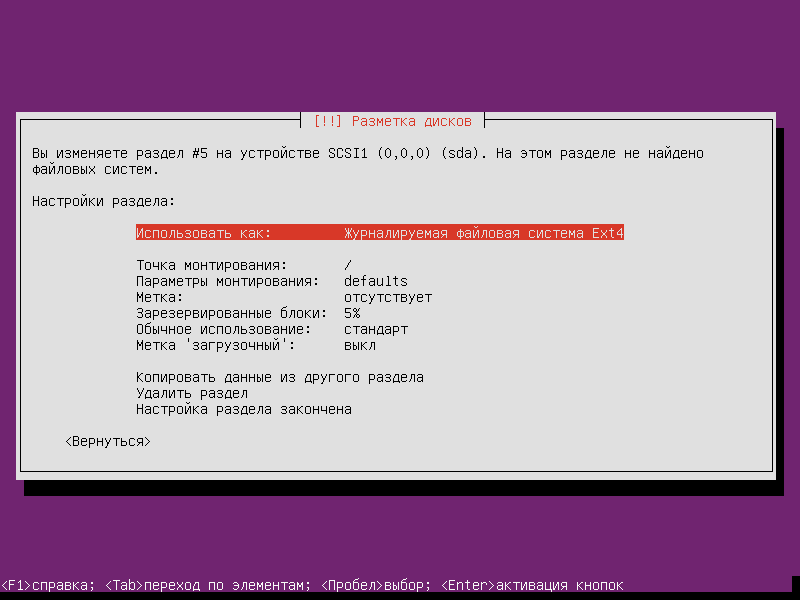
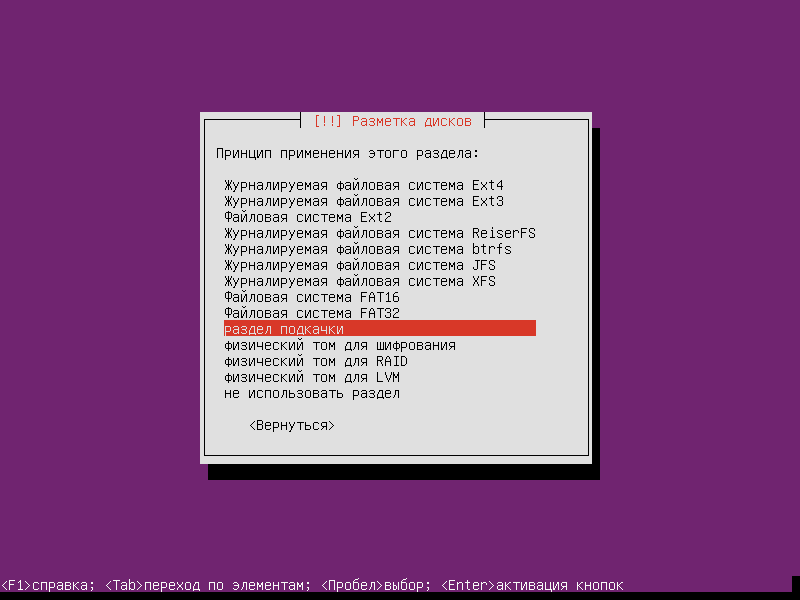
Indicated. Set-up section is complete pressed Enter:
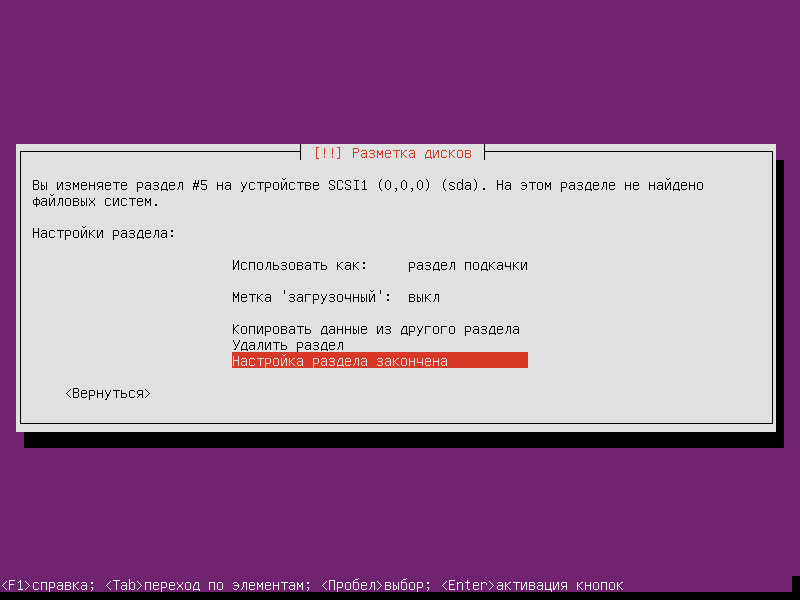
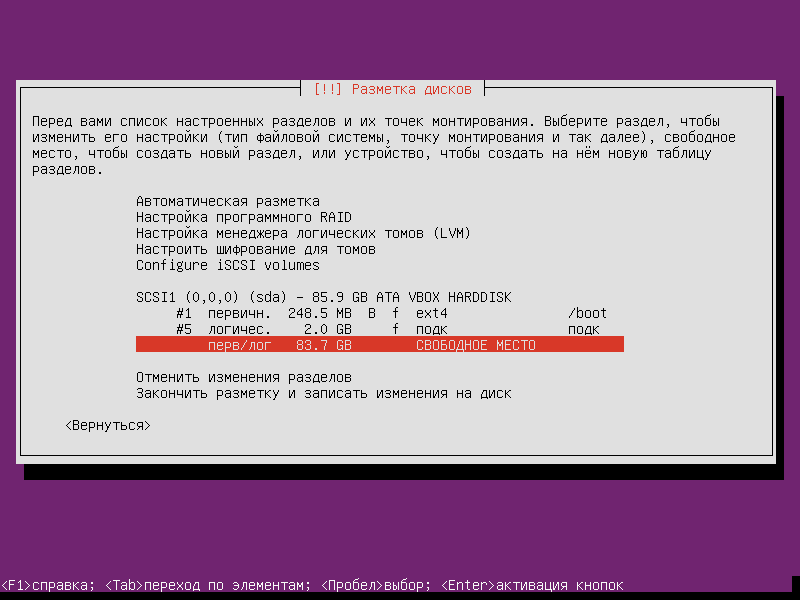
Create a section. /tmp sized 2gb:
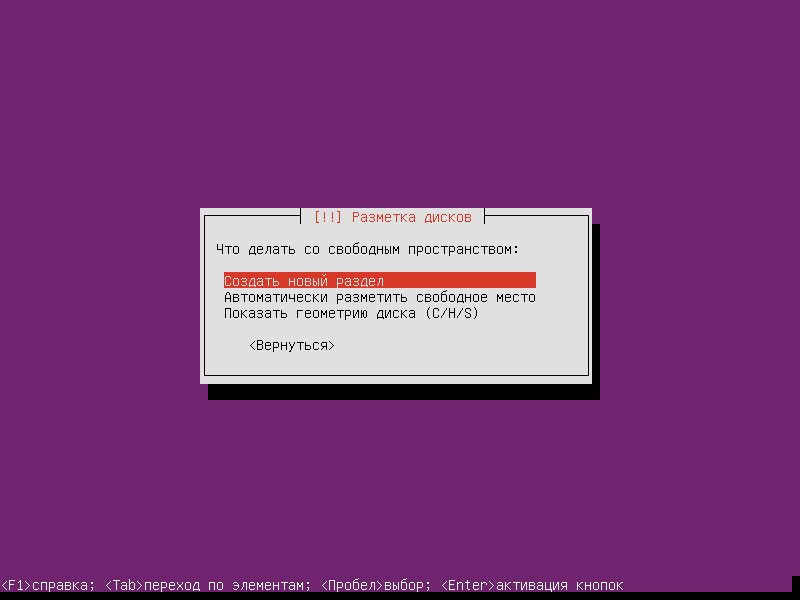
Indicate the size of the section:

Type of section /tmp choose Logical pressed Enter:
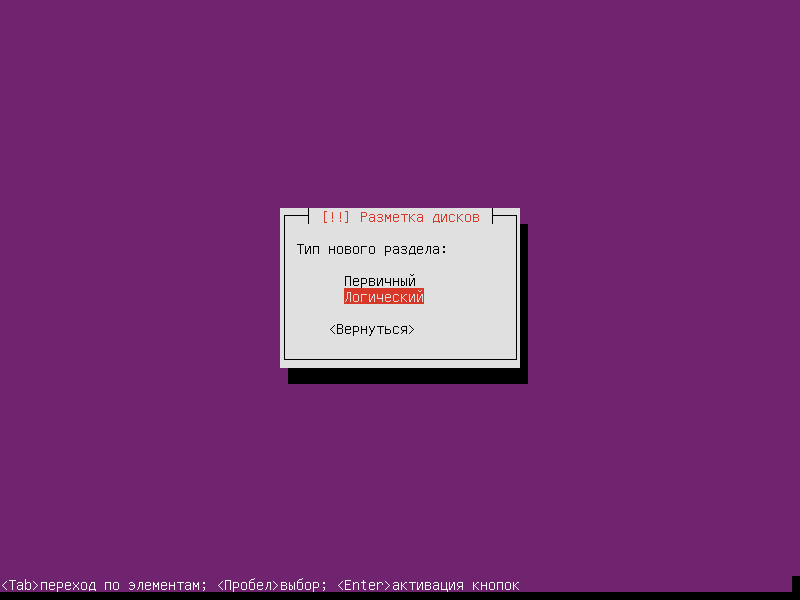
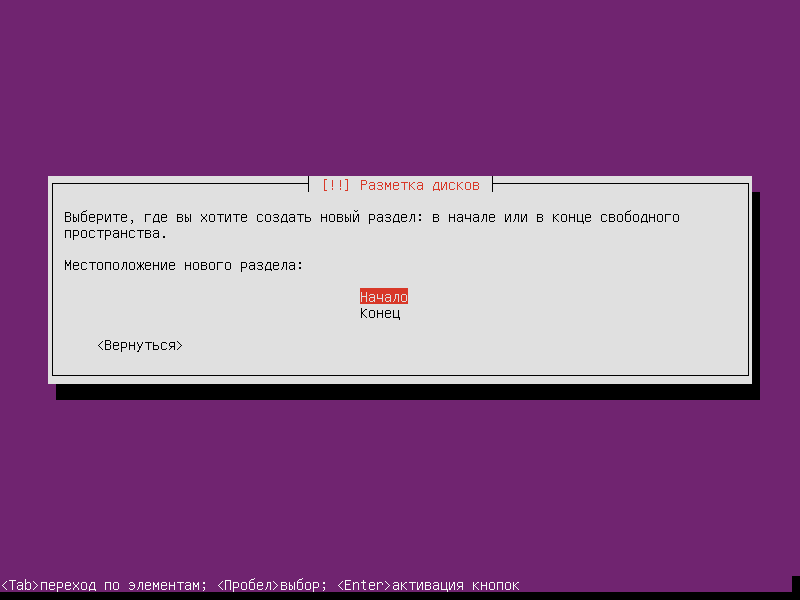
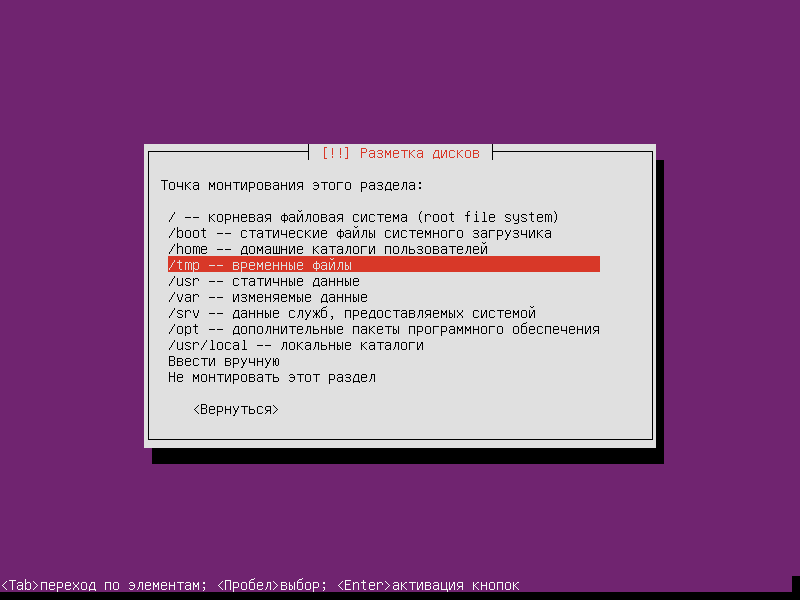
Selecting the mounting point /tmp pressed Enter:
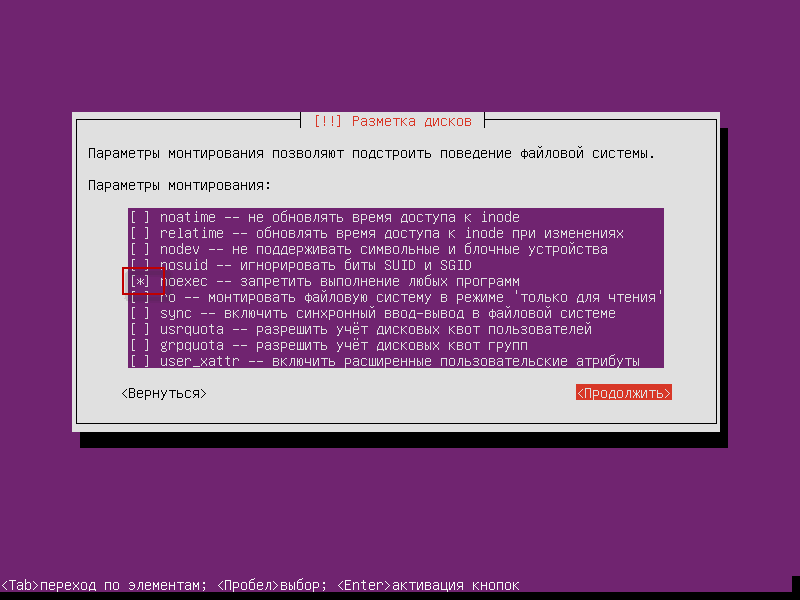
Open the settings of partition mounting /tmp And we're missing the parameter. noexec
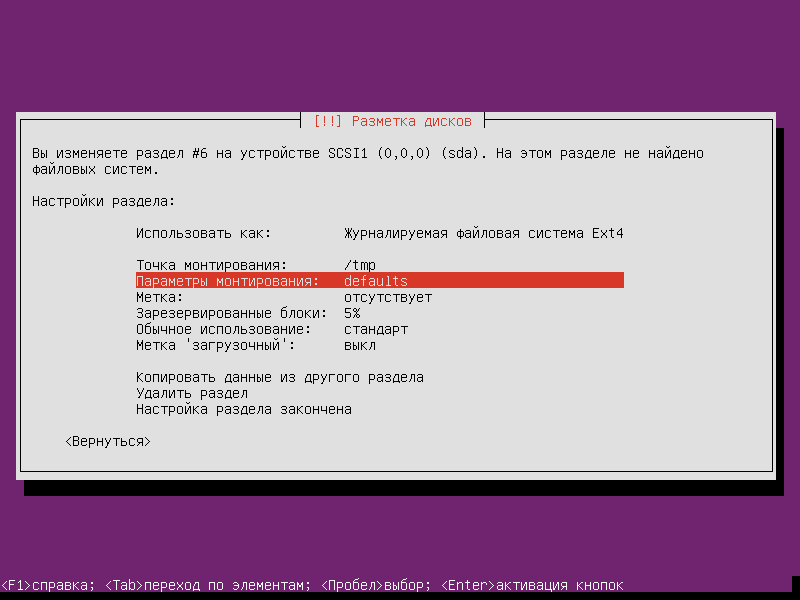
Press Enter after selecting the parameter noexec:
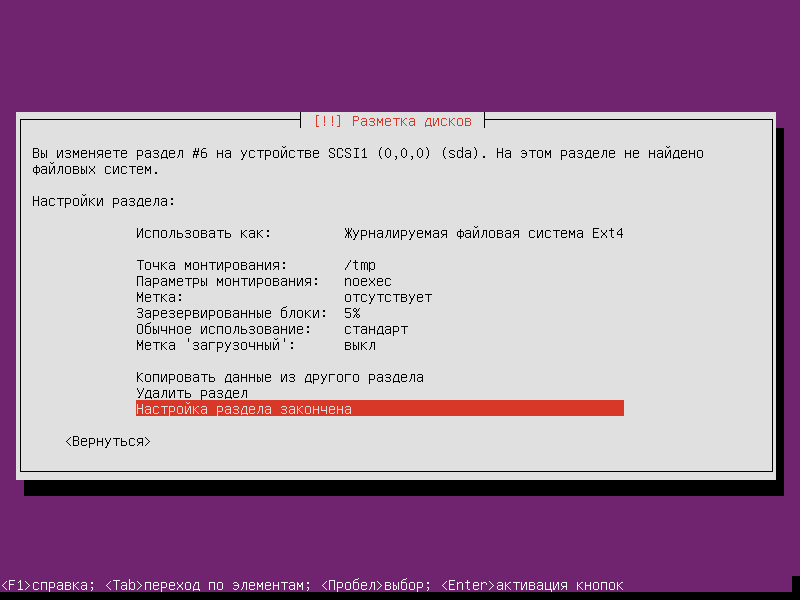
Let's get on. Set-up section is complete and press Enter, the tmp partition setting is finished:
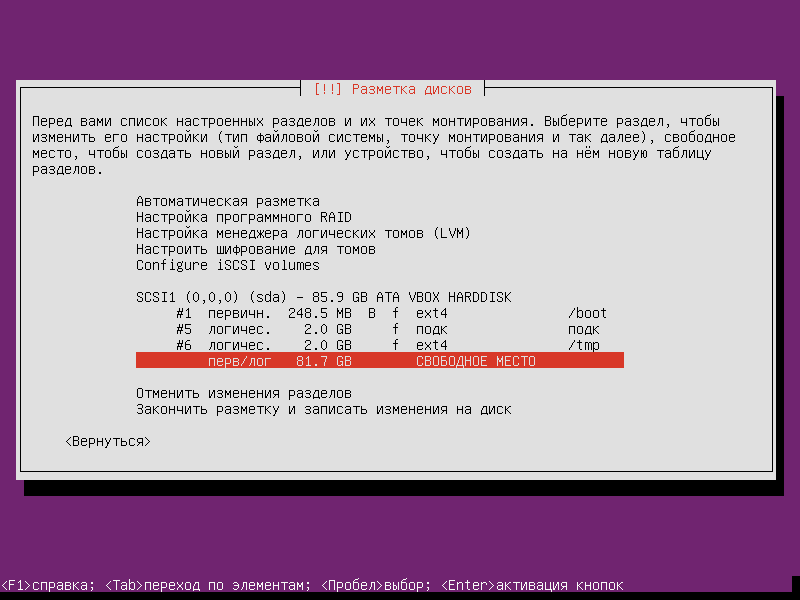
All we have to do is create a root partition/size for the rest of the place:
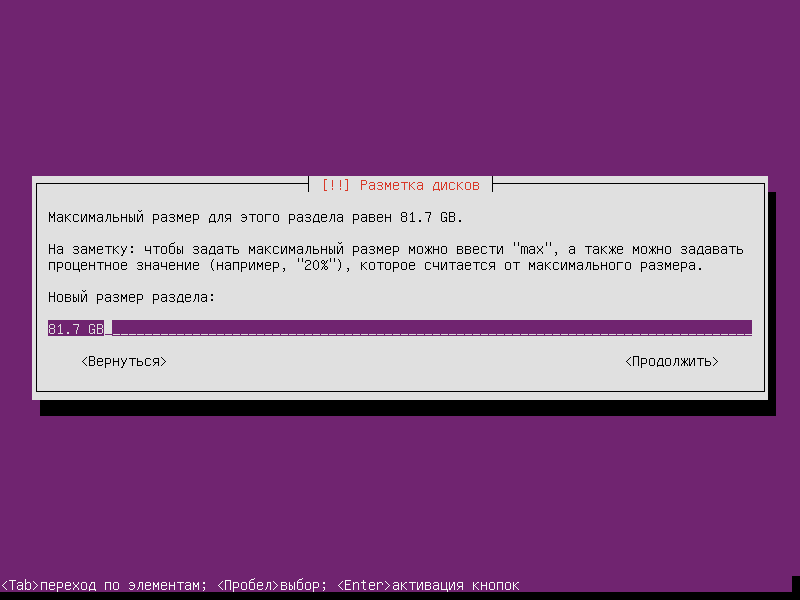
Choose all available space under the root size:
Select the logical type of section:

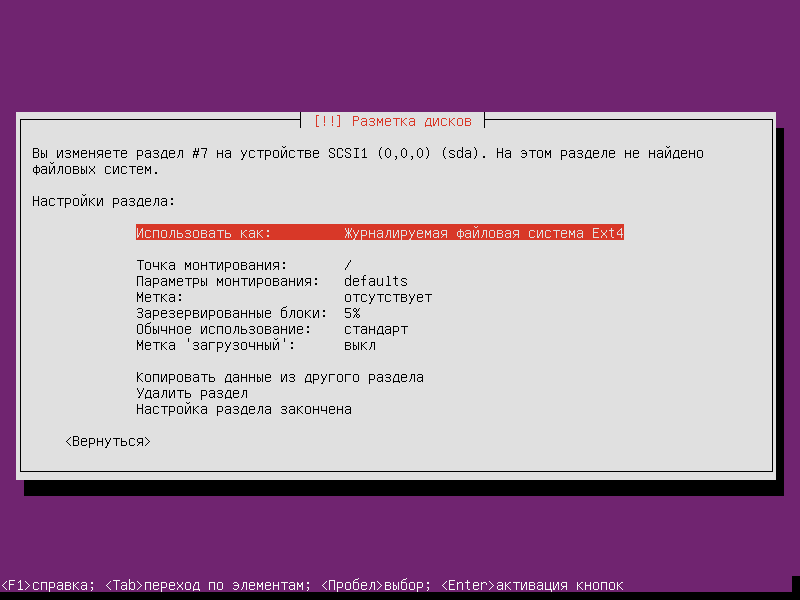
Select ext4 file system for root partition / :
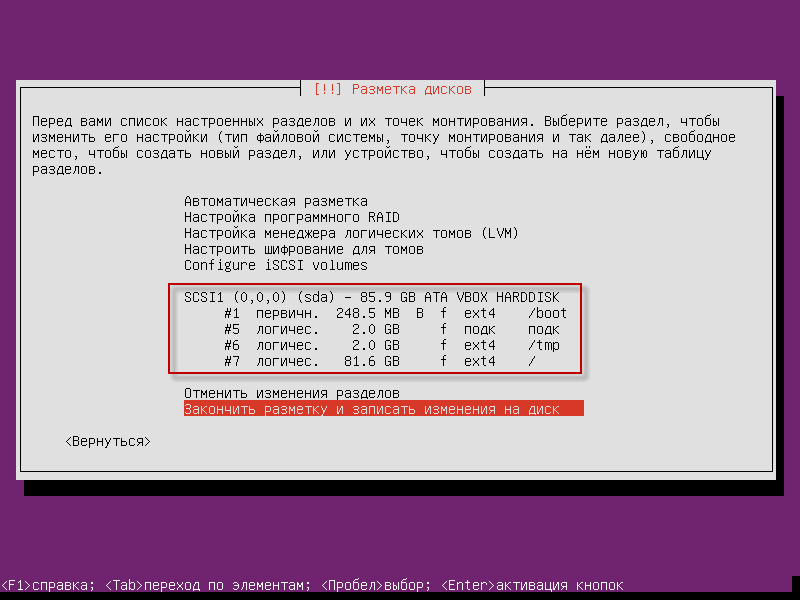
After breaking down and creating all the sections on the hard drive, finish breaking up the hard drive by clicking on Finish the markup and record changes to disk pressed Enter:
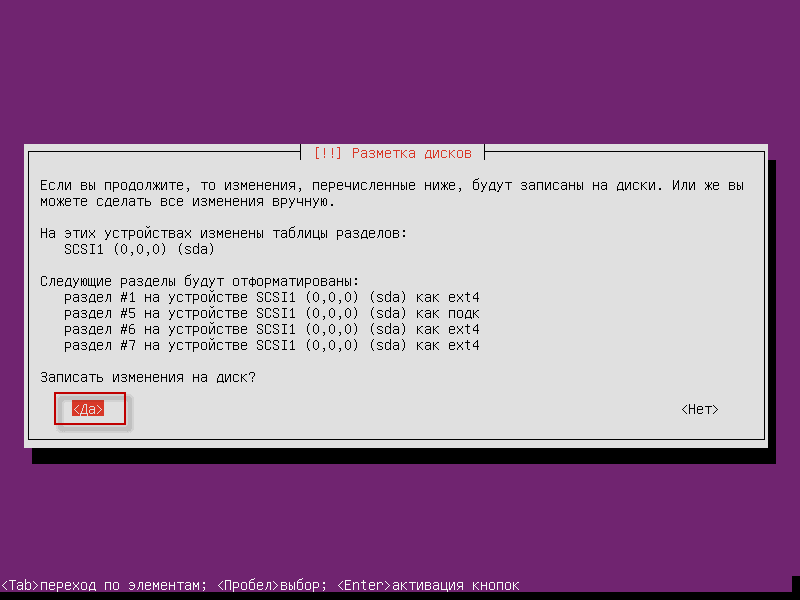
We agree with you. Record the changes to disk pressed Enter:
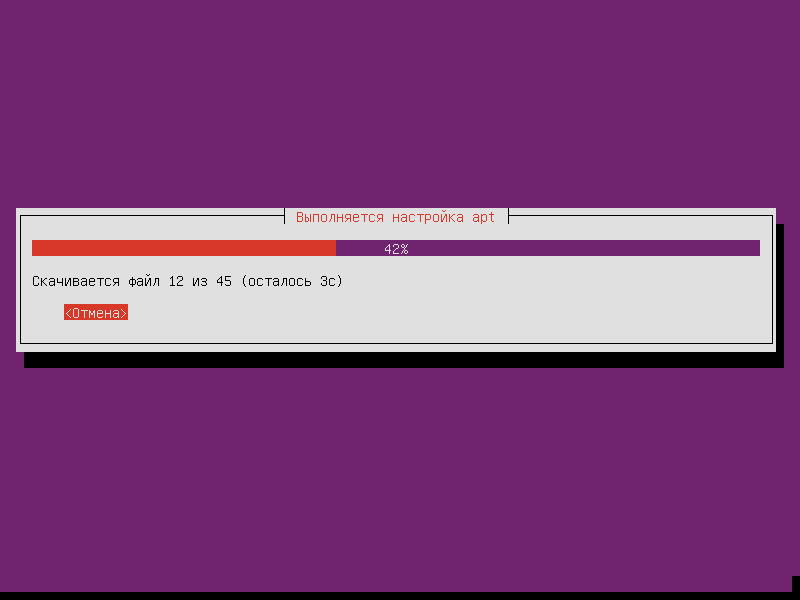
When asked about the proxy server (screenshot skipped), if you do not use it to access the Internet, then just click Enter. Otherwise, you need to register your proxy server.
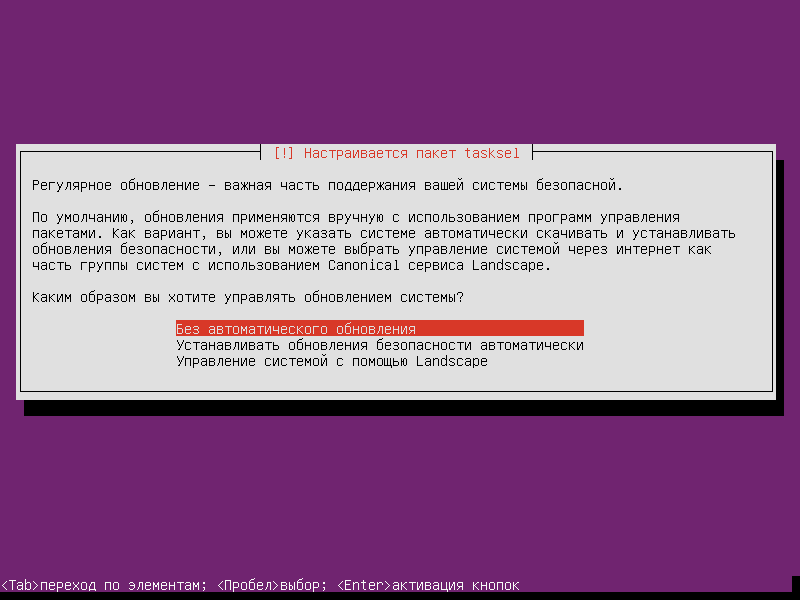
Select the method of updating the system: No Automatic Update
In the software selection window, select and tick space OpenSSH server pressed Enter:

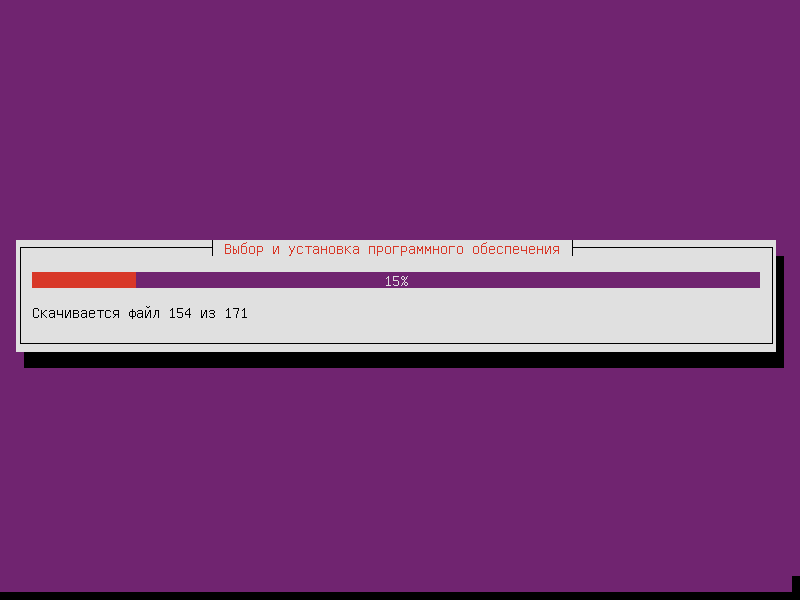
The software installation process is underway:
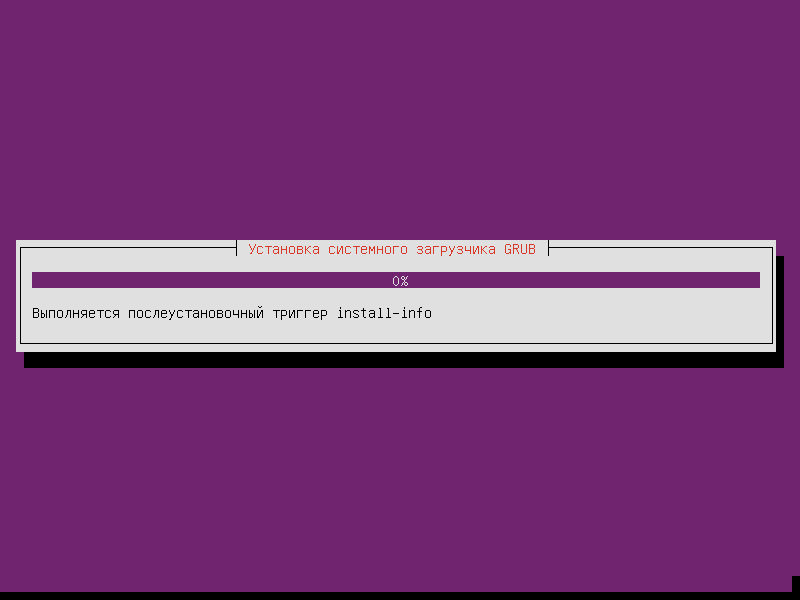
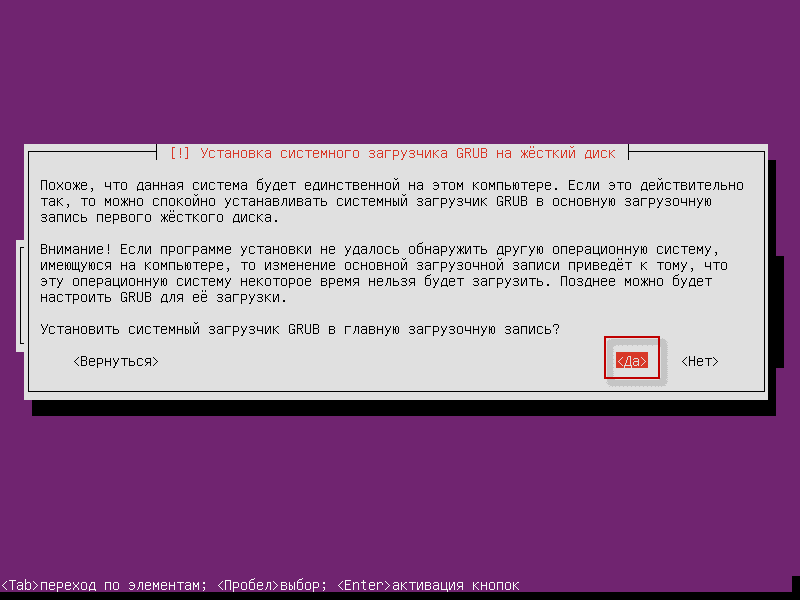
We agree to install the GRUB system bootloader on the hard disk in the main boot record and click Enter:
After pressing. Continue. Open CD-DVD drive, you need to pull out of the drive installation disk with the distribution Ubuntu 12.04 Server.


The task is completed, Ubuntu 12.04 Server installed.
I was with you. Sergey Lazarenko.
After work, we will take a short break and smile at the presentation of the Indian Super Gun:


comment