
In this instruction, we will install the FTP client Total Commander and configure the connection to the FTP server using ftp (not secure) and sftp (protected).
Installation will be made in the operating system Windows 7, for other versions of Windows installation program Total Commander identical.
Total Commander - the best of file managers, has a built-in simple FTP client, for uploading, downloading and editing files is quite suitable, if you need to change the rights to folders or files, then you need to use a full FTP manager, such as: Filezilla.
Download. Total Commander
Download the Total Commander program to official website. When you open the link above, a page will open with links to the Total Commander installation file for 32bit and 64bit architectures, depending on your architecture:
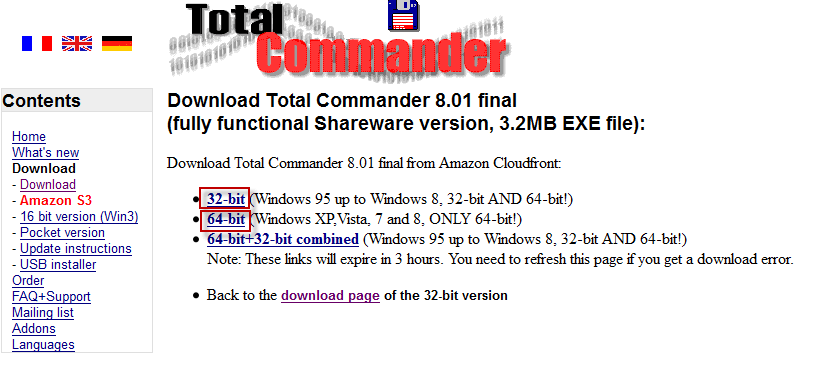
When you click on the link of the architecture you need, the browser window will be opened to save the Total Commander program:

In the window that appears to save the installation file of Total Commander, you need to select a folder to save, in our case I choose the same folder. tmp disk D:We'll keep it there.
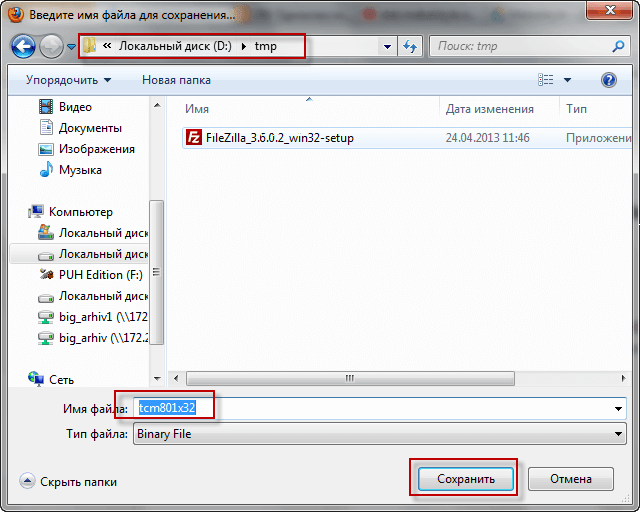
After saving the program installer Total Commander We need to run it and install it, for this we will launch the installation file. tcm801x32.exe folder tmp disk D:
We run the installer of the Total Commander program, we open a window to select the program language, we naturally choose Russian and press the button. Next:

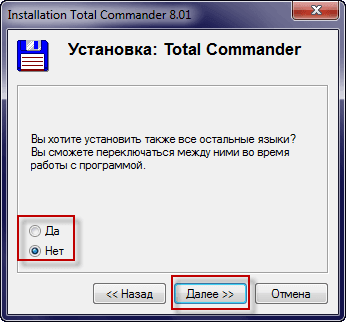
On the question of whether it is necessary to install all languages, I chose no, because if the interface is so clear beyond where there is no need to install and press the button again to continue installing. Next:
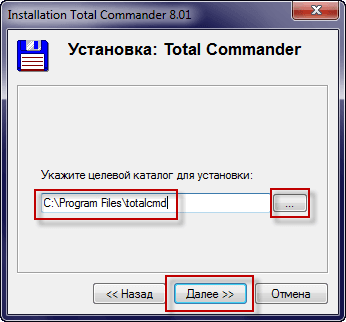
At this stage of installing the Total Commander file manager, we need to select a folder for installation and since by default the installer tries to install the program in the folder. totalcmd disk-root C:We need to click on the installation folder selection button and open the folder. Program Files disk C: and choose her. Thus, the path to installation should be C:\Program Files\totalcmd As in the screenshot below, press the button to continue installation Next:
In this window, we note which shortcuts to launch Total Commander to set, mark by following logic or by example in the screenshot, choose to create shortcuts in the Start menu and on the desktop, as well as create shortcuts for all users of the system. To continue the installation, press the button Next:

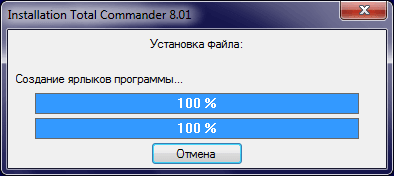
In the screenshot below, you can see the process of installing Total Commander:
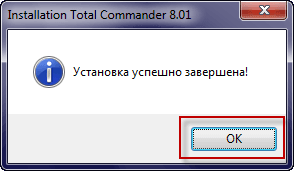
Installation of Total Commander is complete, press OK to close the Total Commander installer.
Installation of the Total Commander file manager in Windows 7 is complete, we begin to connect to the FTP server.
In the manual. Install and configure ISPConfig 3 in Debian We have installed an SSL-enabled FTP server and using the web interface of the ISPConfig 3 panels have added a user's FTP under which we will go to the FTP server to check this instruction.
The connection data that we have added to the ISPConfig panel let us have:
- FTP user: user_ftp
- User's FTP password: erbgad3tgbVs
- IP address of the FTP server: 192.168.0.2
Run the best file manager Total Commander installed in Windows 7 by clicking Launch. - All programs. - Total Commander - Total Commander
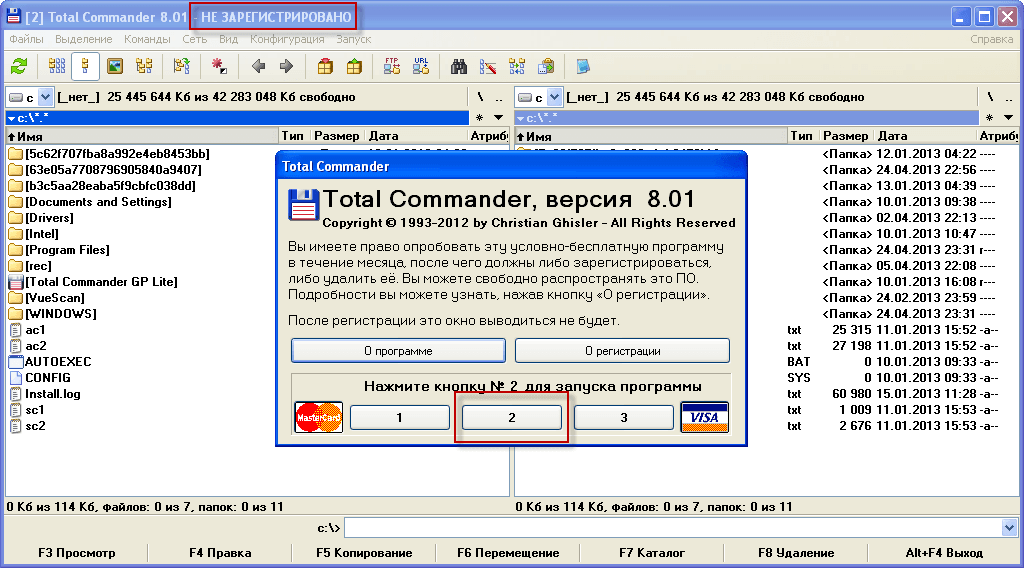
Since we downloaded and installed Total Commander from the official website, and the program did not buy, the program will ask you to click on one of the buttons when running. If you want to remove this window at launch, you will need to buy a license for the program, or search on the Internet torents cured Total Commander, this is your own business.
At the first launch, Total Commander launched the setting, we need to put in a tab. View of the window checkmarks on:
- Disk buttons
- Two disk button panels
- Flat.
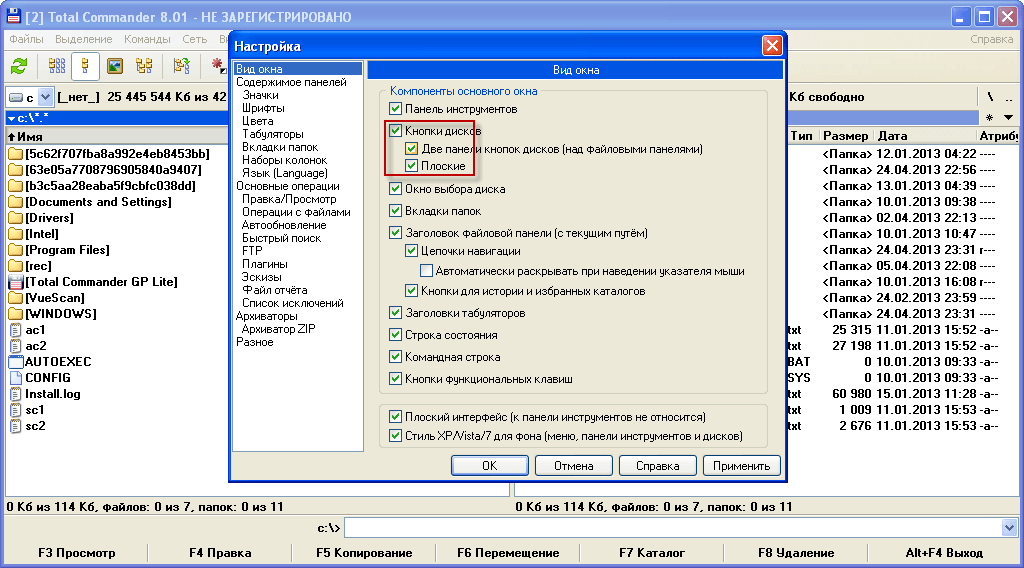
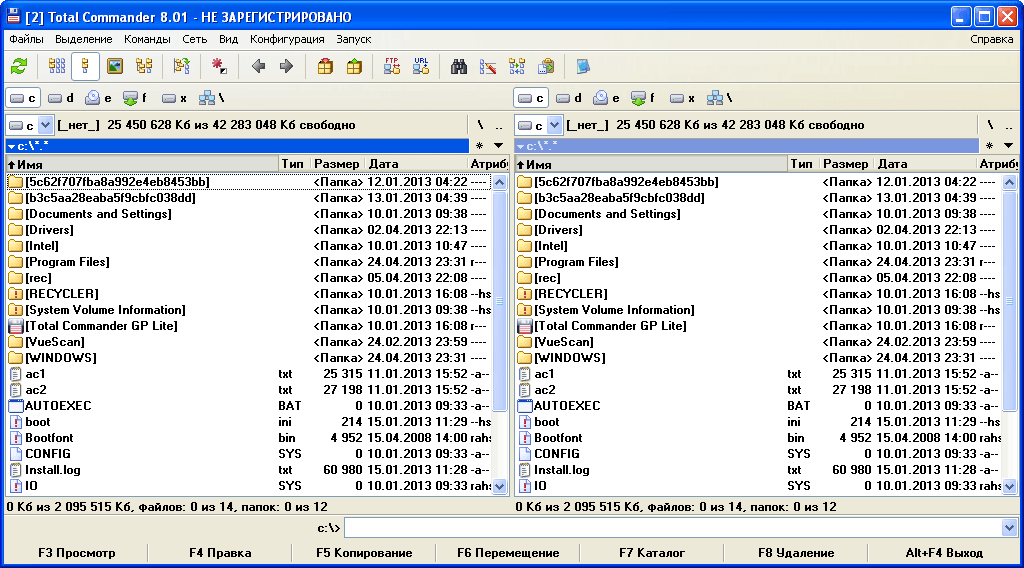
Go to the tab. Panel contents and check the box. Show hidden / system filesAfter that, to save the changes, press the button. OK:

This is the file manager of Total Commander:
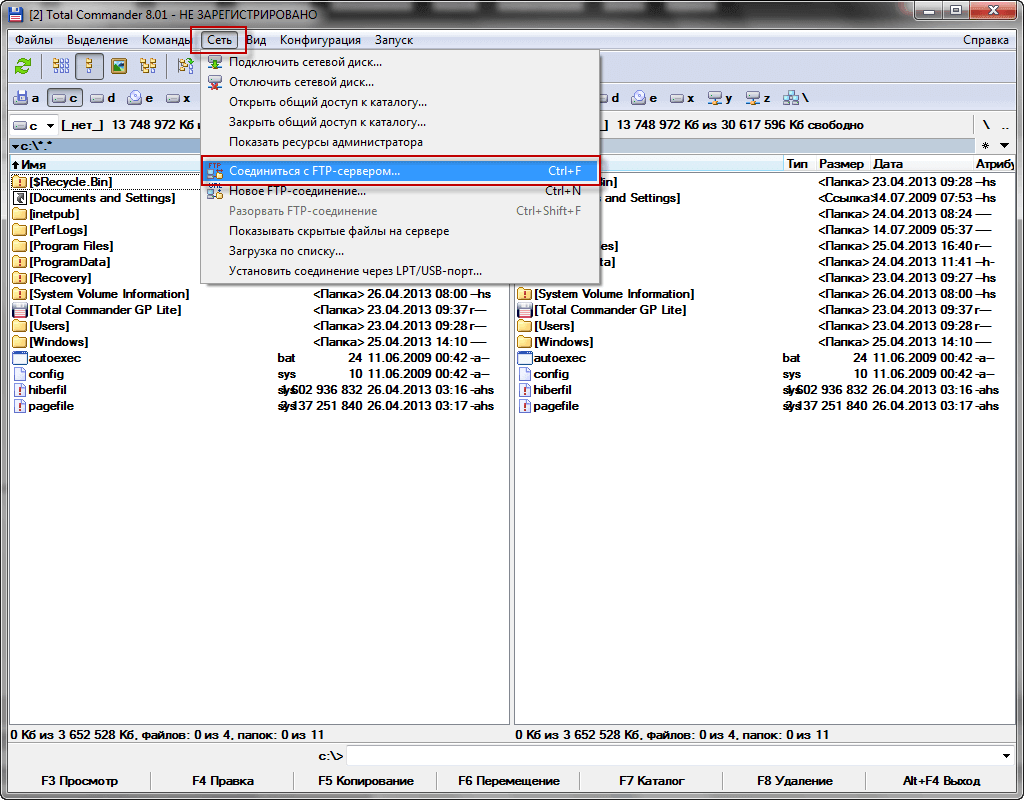
In order to add connection options to the FTP server in the Total Commander file manager, you need to click on the menu. Network - Connect to the FTP server:
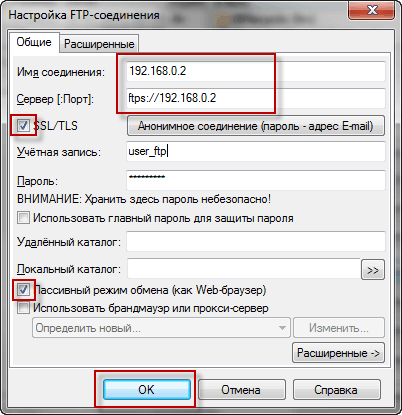
The window will open. Connection to an FTP serverwhere we press the button Add And in the window that appears, fill in the fields as follows:
- Connection name: 192.168.0.2
- Server [:Port]: 192.168.0.2
- Account: user_ftp
- Password: erbgad3tgbVs
Check the box. Passive Exchange Mode (like a Web browser)
To save the settings, press the button OK

Connect to the FTP server by clicking in the window Connection to an FTP server button Connect.:
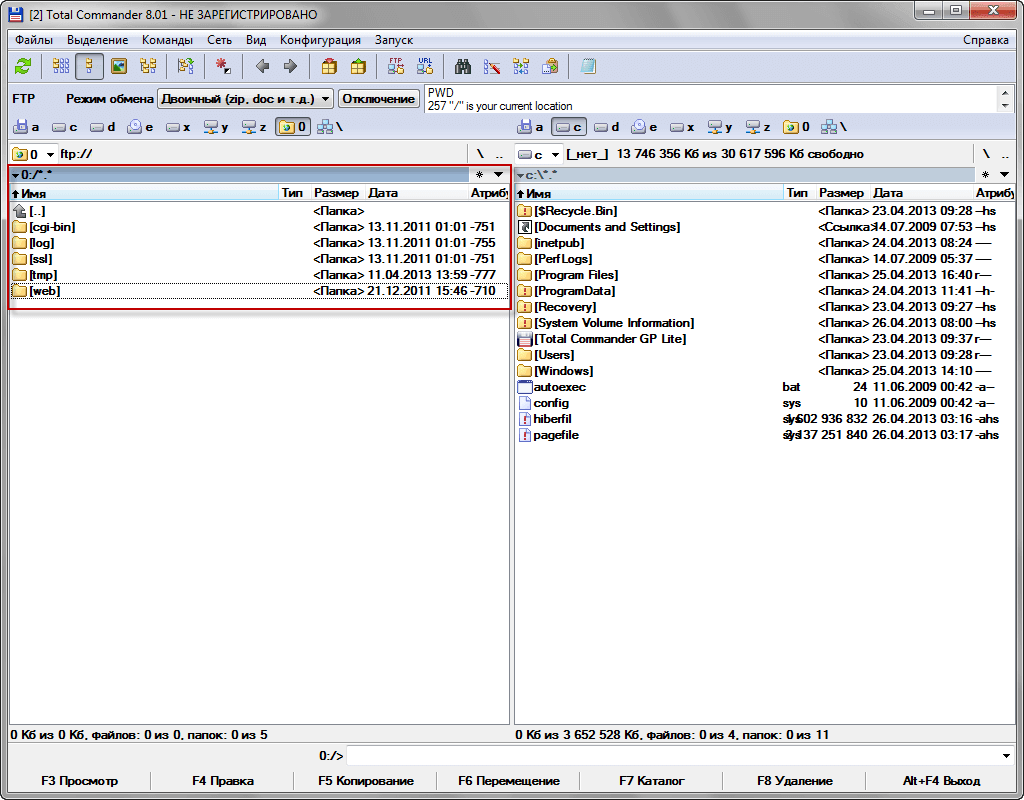
To connect to an FTP server using a secure SFTP protocol in the Total Commander file manager, you must tick the FTP connection settings. SSL/TLS As in the screenshot below, save the changes by pressing the button OK and connect to the server by pressing a button Connect.:
Connected to the FTP server via SFTP in Total Commander:
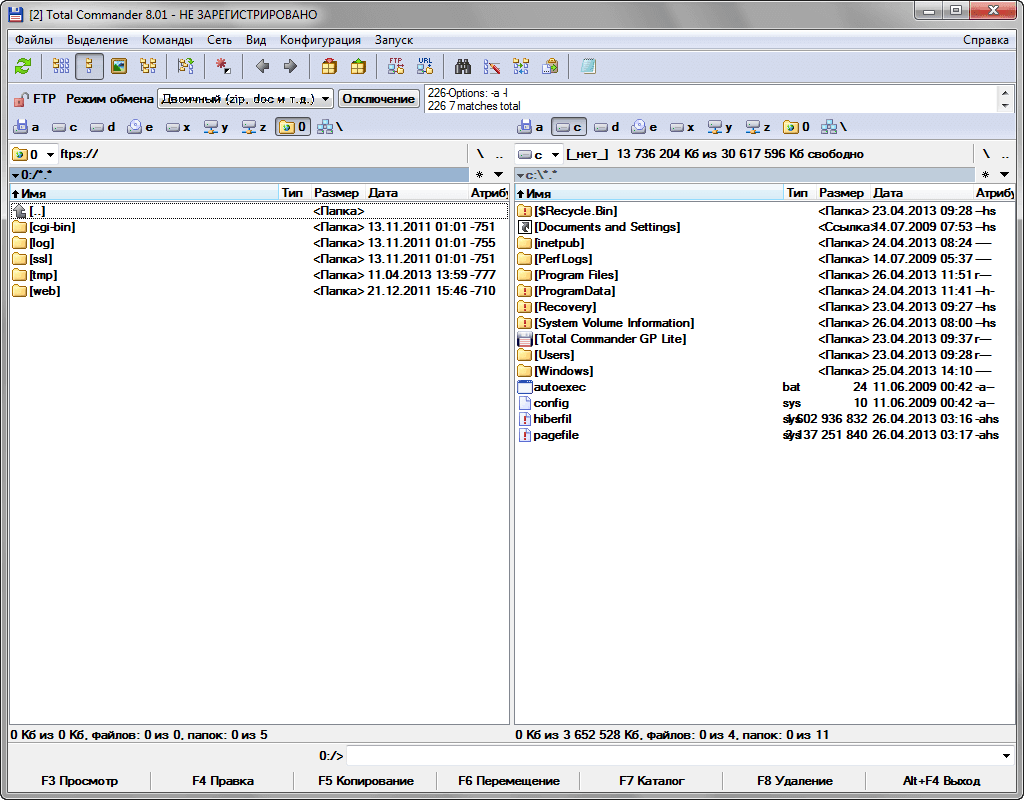
The task of connecting to the FTP server via FTP and SFTP in the Total Commander file manager is completed. Everything from installing Total Commandera to connecting to an FTP server is described in detail and illustrated with screenshots of each step.
I was with you. Sergey Lazarenko
We will rest for a few minutes after watching this video, relieve the work strain and charge you to continue further full-fledged work:

comment