

In this instruction, we will install the Filezilla FTP client and configure connection to the FTP server using ftp (not secure) and sftp (protected).
Installation will be made in the operating system Windows 7, for other versions of Windows installation program Filezilla identical.
Filezilla - the best of free and paid FTP managers, very convenient for full work with files and folders located on an FTP server.
In the Installation and Configure ISPConfig 3 guide in Debian, we installed an FTP server with TLS/SSL support and using the web interface of the ISPConfig 3 panel added a user FTP under which we will go to the FTP server to check this instruction.
The connection data that we have added to the ISPConfig panel is:
- FTP user: user_ftp
- User's FTP password: erbgad3tgbVs
- IP address of the FTP server: 192.168.0.2
Download FTP client.
Download the Filezilla program at: Download Filezilla from the official website:
Click on the link above and press the button in the window that opens. Save the file.:
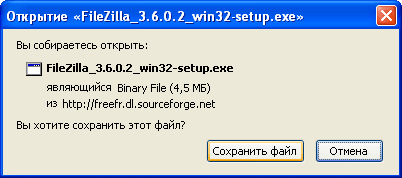
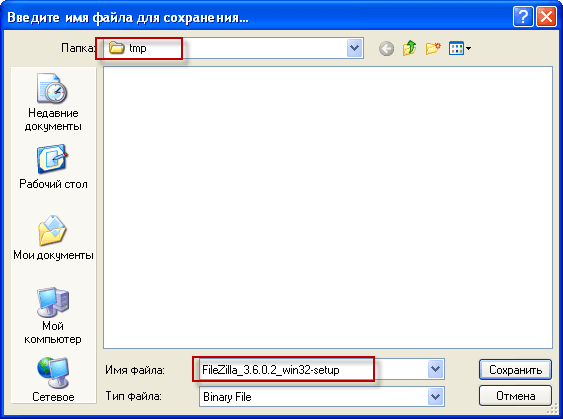
In the window that appears to save the installation file Filezilla You need to select a folder to save, in our case I have on the disk. D: folder tmpWe'll keep it there.
Start the downloaded FTP installer of the Filezilla manager, and to start the installation, click the button in the window that appears I Agree:

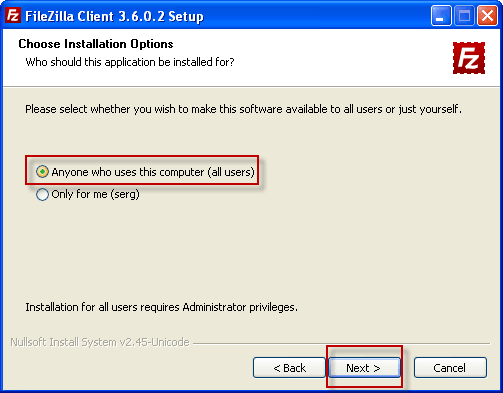
We tick the Filezilla box for all users and press the button to continue installing. Next:
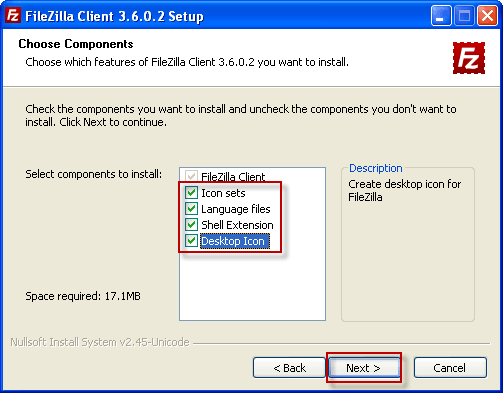
Mark all the ticks in the next installer window and press the button to continue installing Filezilla client FTP. Next:
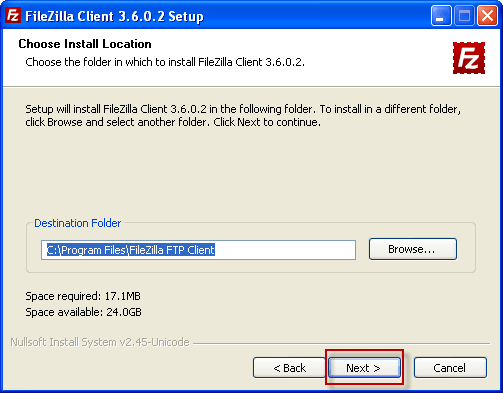
By default, Filezilla is installed standard in the folder. Program Files\Filezilla FTP Client disk C:To continue the installation, press the button Next:
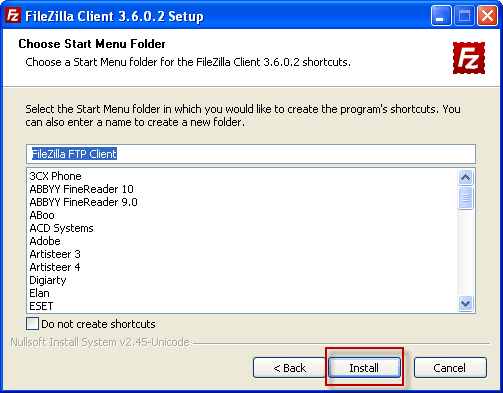
If you need to change the name of the program in the menu Launch. - All programs.for the start of installation Filezilla press the button Install:
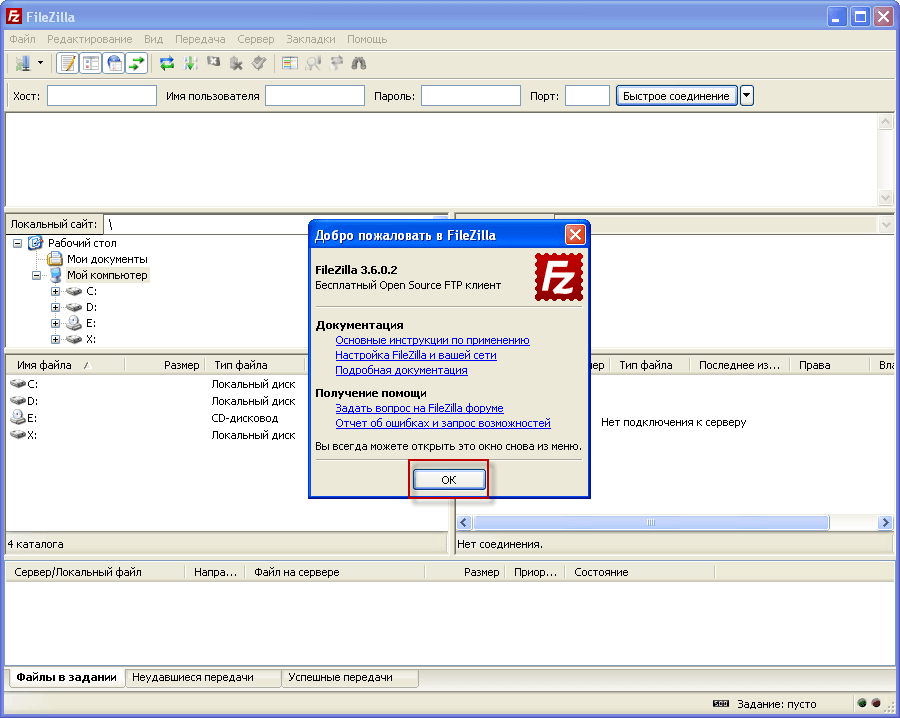
After installation, run the FTP client Filezilla Limo through the menu: FileZilla FTP Client - FileZilla - FileZilla, or through the launch label FileZilla on the desktop, which was created by the installer during installation. After FTP launches, Filezilla client window will open Welcome to FileZilla.where you need to press a button to close the window OK:
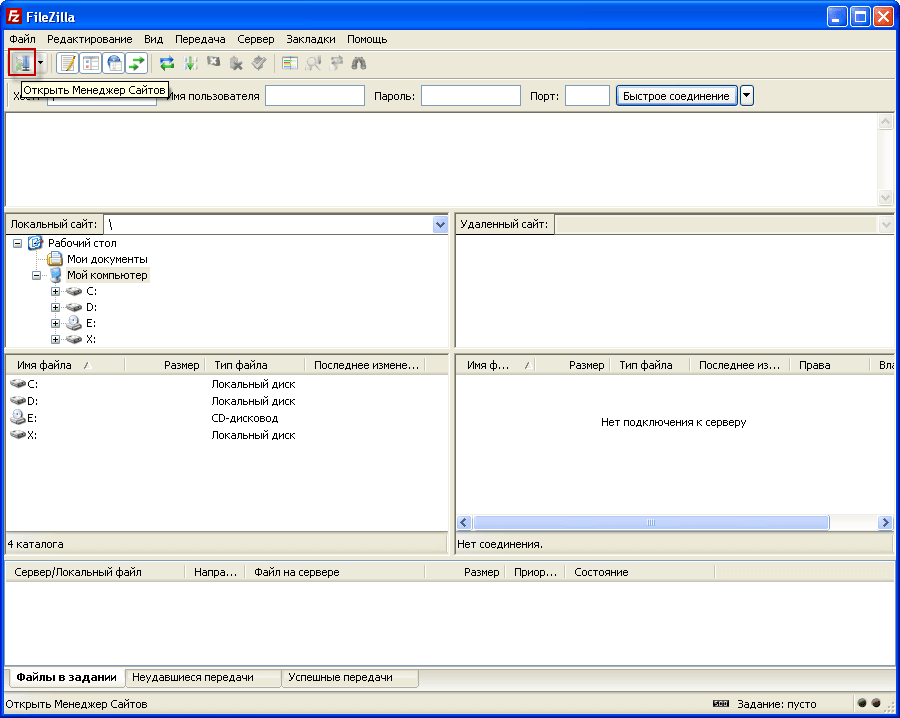
The general view of the best free FTP client Filezilla is shown in the screenshot below, in order to add a connection to an FTP server in Filezilla you need to run Site ManagerTo do this, you need to press the left mouse button on the button in the upper left corner, on the screenshot the button is circled in red:
In the open window, the Site Manager presses the button. New websiteIn the added entries tree, add a new site, prescribe the name to the added site 192.168.0.2 and fill in all other fields for example below:
- Host: 192.168.0.2
- Type of entrance: Normal.
- User: user_ftp
- Password: erbgad3tgbVs
To save changes to the added FTP user press the button OK:

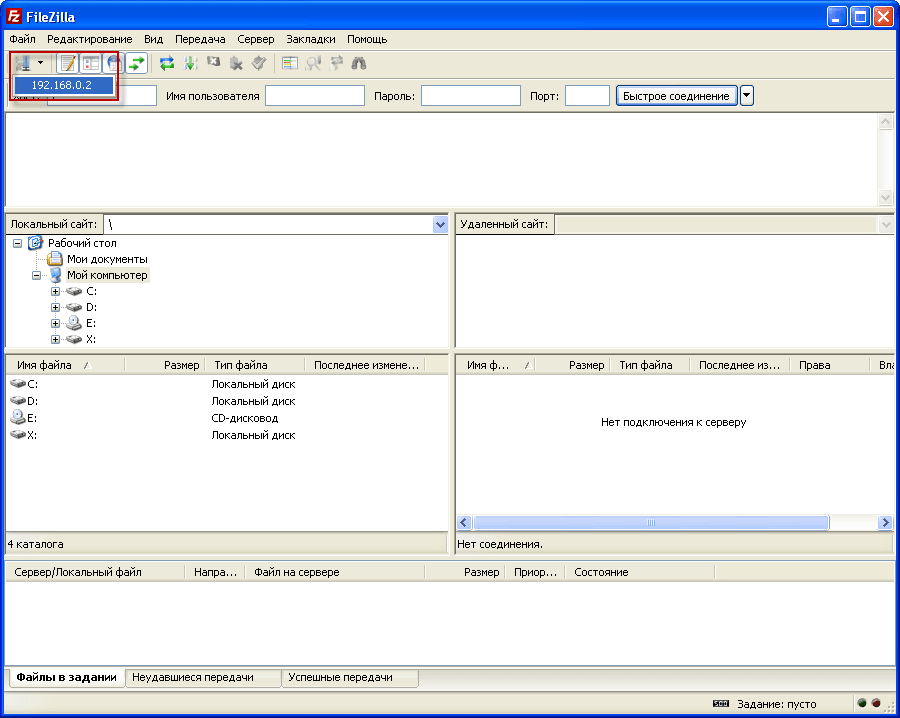
After adding an FTP account in the FTP client, Filezilla right-click on the Site Manager button and click on the added server in the drop-down list:
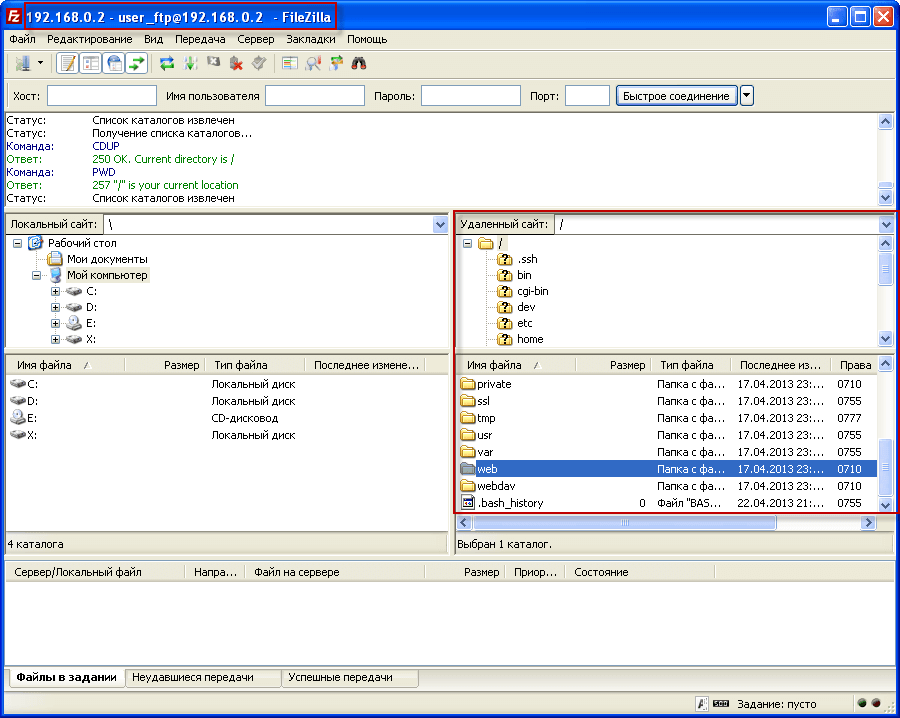
This view has a window connected to the FTP server FTP client Filezilla:
Connect to an FTP server using a secure protocol using TLS.
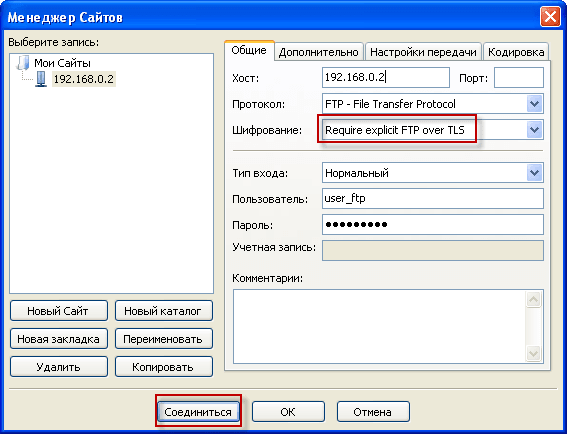
To connect using TLS encryption in Filezilla, you need to go to the Site Manager and open the desired account, in the Encryption field in the drop-down list you must select Require expliot FTP over TLS To connect to the server via TLS, press the button. Connect.
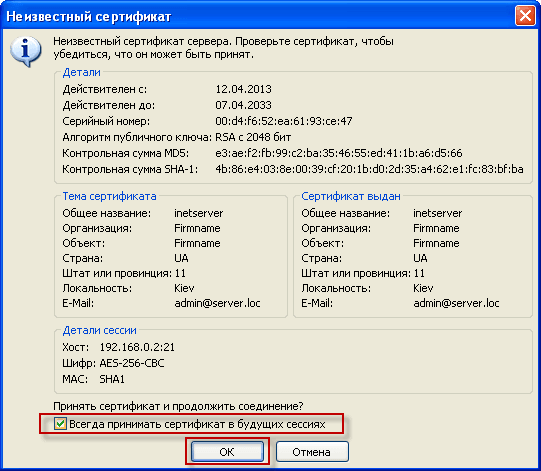
After connecting to the FTP server using TLS encryption, a certificate acceptance window will open in which it is necessary to tick the box. Always accept the certificate in future sessions and press the button OK:
The window connected to the FTP server using TLS encryption in Filezilla's FTP client looks like it does without encryption, but since the screen did, you can view it below :

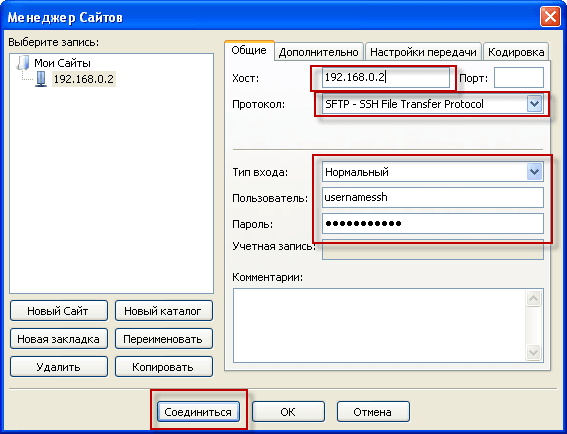
Data for SSH access:
- IP server: 192.168.0.2
- Protocol: SFTP - SSH File Transfer Protocol
- Type of entrance: Normal.
- Login: usernamess
- Password: 8x6jE6Foh3m
To connect to the server via SFTP FTP client Filezilla press the button Save.:
After connecting to the server via SSH protocol using free FTP, Filezilla client has this program window:
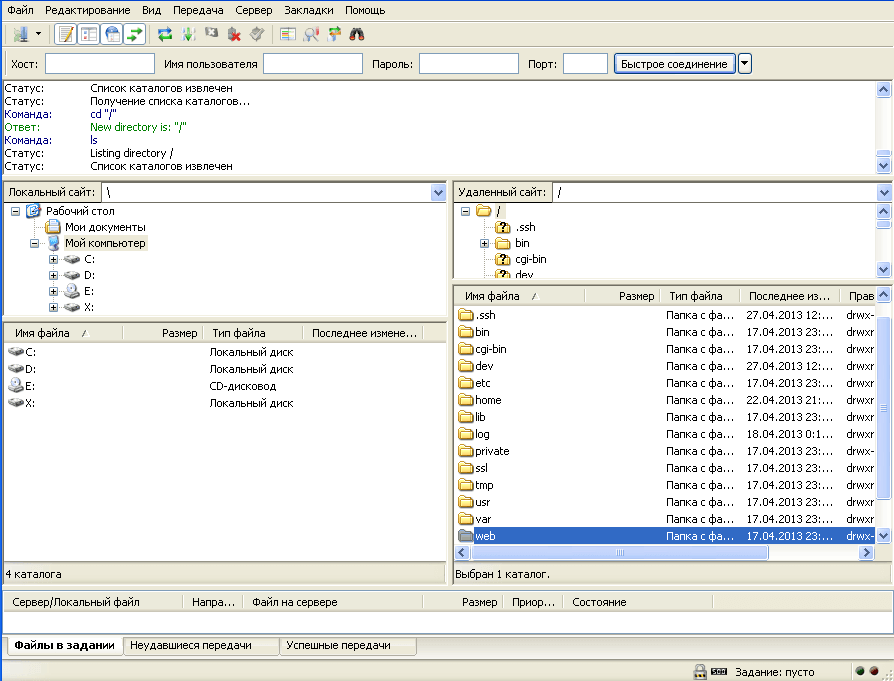
The task of connecting to the FTP server via FTP, FTP with encryption using TLS/SSL and SFTP in the Filezilla file manager is completed. Everything from installing Filezilla to connecting to an FTP server is described in detail and illustrated with screenshots of each step.
I was with you. Sergey Lazarenko
The work was done, now you need to take a little rest after watching a small video clip, a great dance of the Japanese:

comment