

 For remote work with Linux servers, FreeBSD, *BSD conveniently use the Putty program.
Putty is a free program - a client for connecting to the server mainly via SSH protocol, but you can also use the telnet protocol, which is not desirable because of its insecurity, since everything over the telnet protocol is transmitted unencrypted.
Through the SSH protocol, you will learn how to throw a port on a router, modem or other equipment behind a server with an installed SSH server, learn how to download or upload a file to the server or from the server. In general, Putty is a very useful and convenient small program with great opportunities.
The Putty program can also be used to connect to devices using a serial port, for example. Configure Huawei’s 3G modem via Putty.
Download the Putty and PSCP program on the page:
When you open the above link in the browser, you will open a window:
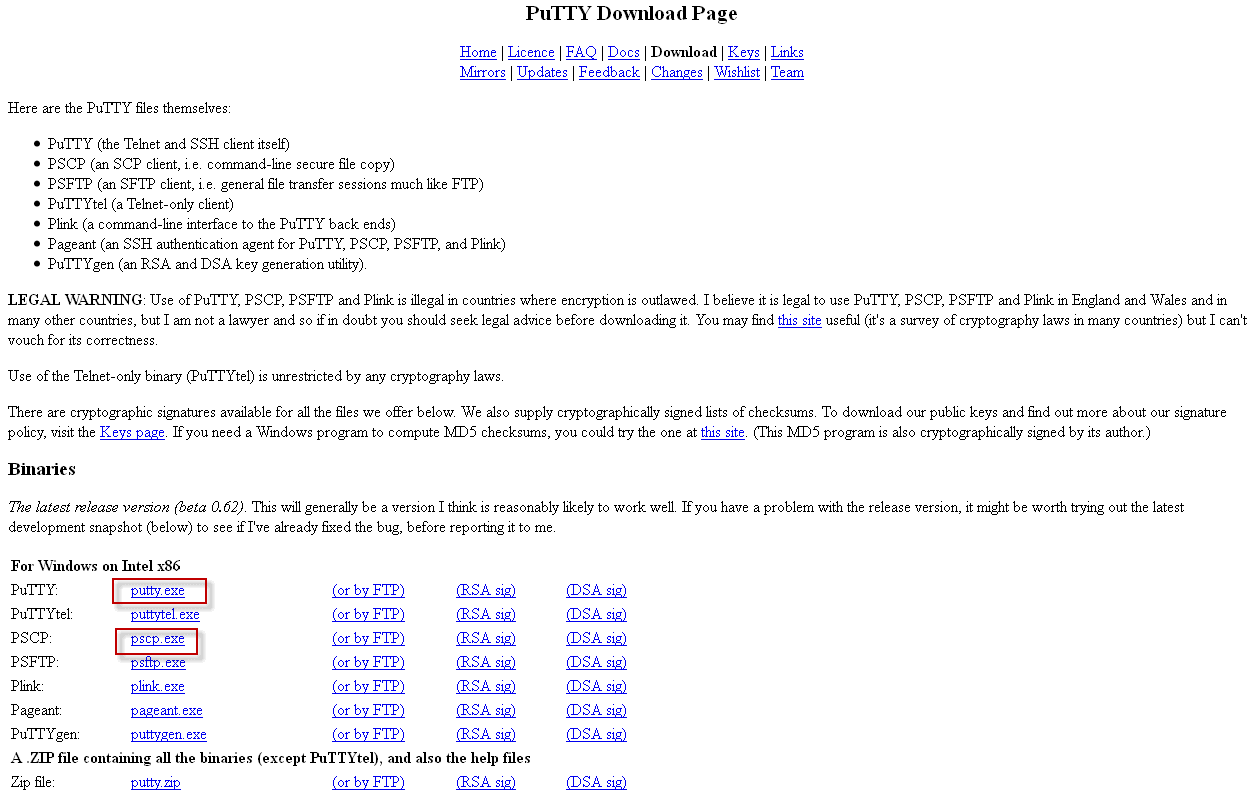
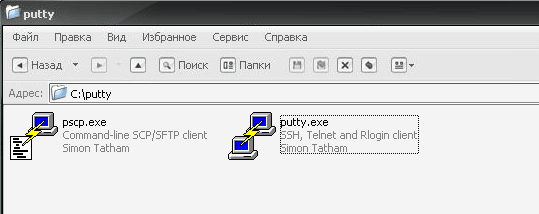
In the screenshot above, there are two links that you need to download to the disk. C:\ a putty folder that must be created in advance. There we download two programs. putty.exe and pscp.exe. In the screenshot below, you can see the programs downloaded on my computer in the putty folder on disk C:\
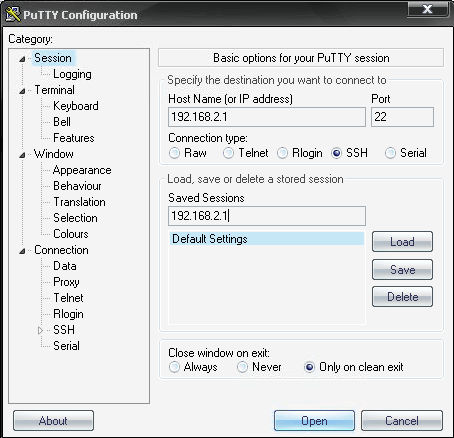
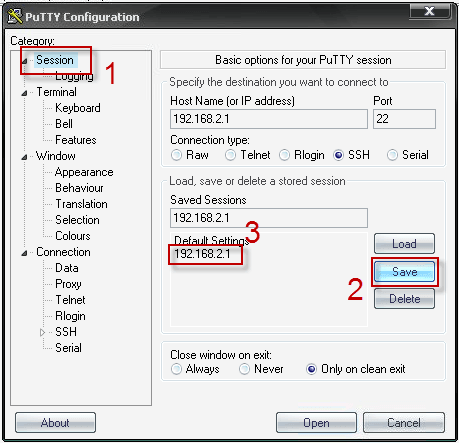
Start the putty.exe file by clicking twice on the file with the mouse, a window will open in which I add a Linux server that is located on my network and has an IP address 192.168.2.1 with a standard SSH port - 22, total:
- Host Name: 192.168.2.1
- Port: 22
- Saved Session: 192.168.2.1 (any name can be written here, for example) Vasi Pupkin server)
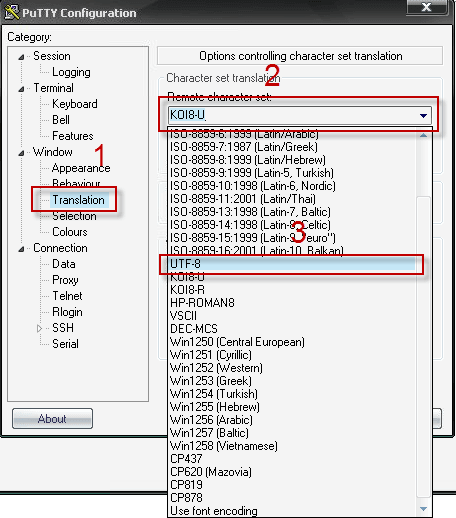
Then we will definitely go to the tab. Window - Translation and in the drop-down list, select UTF-8 encoding (or choose the encoding from which your remote server is configured, in most cases it is UTF-8), if you do not do this, then after connecting to the server using Putty, all Russian words will be displayed with unreadable characters:
After changing the encoding, go to the main window. Session and make sure you have a full field. Saved Session press the button Save. Now you have a new entry 192.168.2.1 in the main window (or Vasi Pupkin server). After the Putty program is closed, you will have an added record and to connect to a remote server via SSH, you just need to click twice on the saved record. 192.168.2.1:
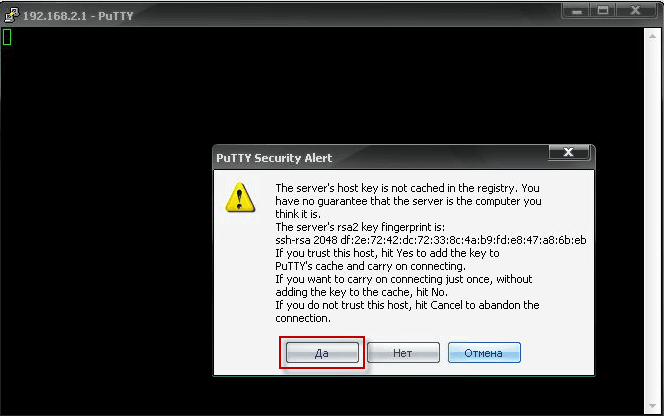
When you first connect to the server via SSH protocol, you will be asked to agree to write the key of the remote server in the cache of the Putty program, you agree to this by clicking the button. Yes. And you will open the login and password entry window:
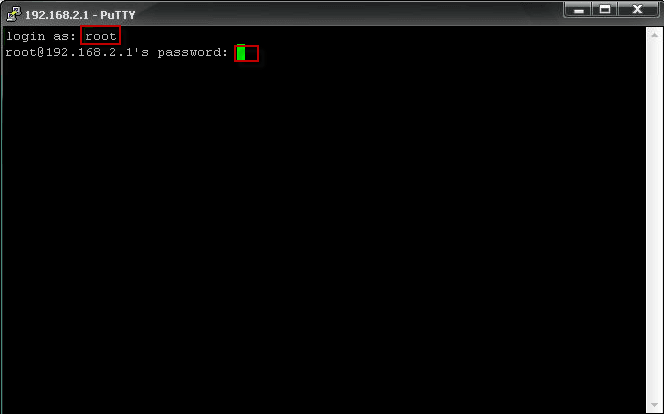
In the open window, enter a user name for example. root and click Enter, you will be prompted to enter the user password root, the entered password itself will not be visible, just when you enter the password click Enter and if you correctly entered the login: password You will be remotely on a Linux server:
Below is a screenshot in which I logged into the Linux server via SSH bcgjmpez remote access program Putty:
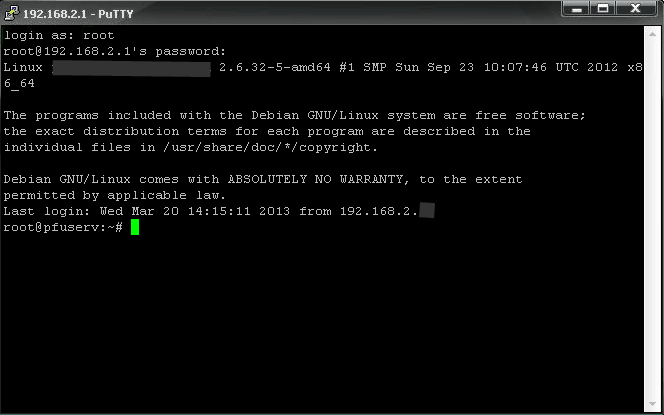
In the above instructions, you learned how and where to download Putty, started the downloaded Putty program, added a remote server to and saved its settings including server encoding in the parameters of Putty, and also connected to a remote Linux server.
Let’s assume that we have a server or router with Linux installed and an open SSH port. We need to connect to the modem through which this server accesses the Internet. The modem itself is not available from the Internet. In this situation, we are very useful remote access program Putty, with which we throw a port from our computer through a remote server to the router or modem.
Dano:
- IP of the Remote Server - 192.168.2.1
- IP router or modem - 192.168.1.1
- The port to be dropped - 82
We need to open the settings of the router or modem in the browser, make changes and save. We'll throw it away. 82 port, since it is not used in the standard settings of both the server and the desktop.
Since we will throw 82 port on the router on the same server to which we have previously connected, you need to use the tab. Session Remove a previously added server with a name 192.168.2.1 and press the button LoadAfter that, the fields will be filled. Host Name, Port, Saved Session:

We need to go into the tab. Connection - SSH - Tunnels and fill in the fields:
Source port: 82
Destination: 192.168.1.1:80
where port 82 is the port that opens on your computer (dextop), and 192.168.1.1:80This is the IP router and the port we need to port to. The http port is 80 and the https port is 443. Similarly, you can flip and 21 ports are FTP, mail, SSH, Radmin, RDP and so on. After filling the fields, click Add to add the tunnel to your current settings:
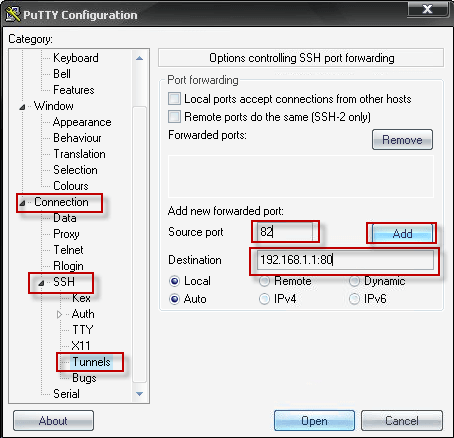
In the window below, we added a tunnel to the router from 82 ports on IP router 192.168.1.1 and WEB port 80:
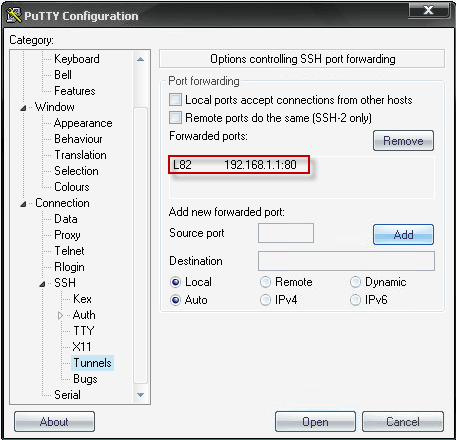
After adding the tunnel, we need to save the settings data under a different name, for this we go into the tab. Session and in the Saved Session field, write the name of the connection to the configured tunnel: 192.168.2.1_82-to-192.168.1.1 press the button. SaveA new name will appear in the window below. 192.168.2.1_82-to-192.168.1.1 Twice clicking on which mouse we will receive an invitation to enter login, entering which we will go to the remote server.

After we logged in to a remote server from a profile 192.168.2.1_82-to-192.168.1.1In which we have configured port 82 on 80 port router via IP 192.168.1.1, we need to register the address in the browser to connect to the router or modem http://localhost:82 and you will open a login and password entry window from the router:

After logging in to the router, you will only have to make the necessary changes to the settings of the router or modem. In order to stop the port rollover, you just need to close the Putty remote access program.
You have learned how to configure the port through Putty, so we move on to the third section of copying files over SSH.
Copy files via SSH using Putty remote access software.
To copy a file to a remote server, I have archived the putty.exe program in the pytty folder on the C:\ disk, and in the archived form the file has the name putty.zip Screenshot:

To copy the file putty.zip We need to open the Windows command line, press the button. Launch - Execute In the window that appears, enter a command. cmd and press OK:

After starting the command line, executing the cmd command, a window will open for us:
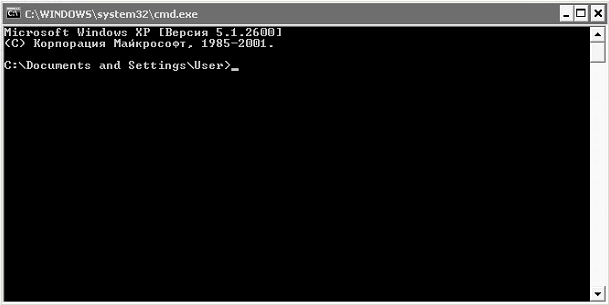
After opening the command line, we need to go to the folder where the pscp.exe program and the copied file are located. putty.zip, To do this, we need to execute a command in the command line:
cd c:\putty
After logging into the putty folder on the C:\ disk, we can check the contents of the folder by following the command:
dir
The screenshot below shows everything:

And now we have to download the file. putty.exe to a remote server under the user root folder /root We need to execute the command:
If you have an SSH server hanging on a standard 22 In the port, perform a command:
pscp.exe putty.zip [email protected]:/root/
If you have an SSH server hanging on a non-standard port, for example. 222Then follow the command:
pscp.exe -P 222 putty.zip [email protected]:/root/
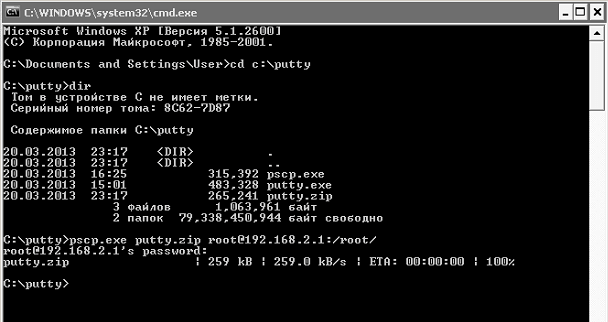
In the team above, we told the program. pscp.exe download putty.zip in the current directory to a remote server under the user root IP-address 192.168.2.1 folder /root. After the command is executed, you will be asked to enter the user password. root
In order to copy the putty.zip file from a remote server to the current folder, the SSH server is on standard. 22 We need to perform the command in the port:
pscp.exe [email protected]:/root/putty.zip .
In order to copy the putty.zip file from a remote server to the current folder, the SSH server on a non-standard one 222 We need to perform the command in the port:
pscp.exe -P 222 [email protected]:/root/putty.zip .

In the team above, we told the program. pscp.exe download putty.zip directorial /root on a remote server under the root user with an IP address 192.168.2.1 The current folder (in the folder in which we are located)
Here are the instructions for working with the Putty program. After reading this manual, you learned (if you did not know) how to install, run, configure and use the program for remote access Putty. You’ve learned how to throw a port through Putty on a router, modem or other server behind the current one. You have learned how to download a file from the server to your computer, or vice versa, download the desired file from your computer to a remote server using the SSH protocol.
I was with you. Lazarenko SergeyI would be very happy if this instruction is useful to you.
A little break, rest for 3 minutes watching a beautiful video:

comment