
In organizations, due to tightening control over the availability of licensing software and a lack of finance, it is necessary to use free software from the operating system to application software.
The only free alternative to Windows is Linux distributions.
Linux distributions can be selected for very weak characteristics of computers, as well as new computers with very powerful hardware.
In this manual, we will install the Linux Mint 5 operating system on a weak computer with the following characteristics:
Processor: Celeron 366 MHC
RAM: 128MB
Winchester: 4GB
On this hardware, the operating system works satisfactorily.
Linux Mint 5 It is based on the Ubuntu 8.04 package base. We will install a version of the distribution using XFCE desktop, which performs best on computers with weak performance. The purpose of the distribution is to provide the end user with the simplest possible system that will be ready to work immediately after installation and will not require downloading the most popular software, including additional codecs for playing popular multimedia formats. Otherwise, Linux Mint is almost identical to Ubuntu, which brings a new original interface mainly in green colors and a small number of native applications.mintInstall, mintUpdate, mintMenu Others are designed to simplify the work of those who are just familiar with Linux.
In the basic installation, we will have all the free software you need to work:
OpenOffice 2 is an analogue of Microsoft Office, Pidgin is an instant messaging program for connecting to a corporate Jabber server, PDF viewers, images, a text editor and other free software.
The instructions below will describe with screenshots how to install Linux Mint 5 XFCE on two hard drives:
Winchester 4GB will be broken up completely under Linux Mint 5 XFCE.
Winchester 170GB - with two discs C: and D:We will install the system in place of the disk. C:
Version. Linux Mint 5 XFCE The kernel was chosen because the kernel is less new, and support for the data hardware of ancient computers must overlap with a huge supply. If you need to install drivers for graphics cards, wifi or other equipment, the system has a driver installation manager. Using the driver manager, you can conveniently install missing drivers in the operating system in a couple of clicks with your mouse, the only thing that is required is the presence of connected Internet, if the Internet is currently impossible to connect, it’s okay, since it can be connected later and install the necessary programs and localization packages.
The availability of the Internet is also necessary for the initial installation and further installation of the necessary software and localization of the installed system in full.
Distribution Linux Mint 5 XFCE For a weak computer, we download pageOr download a direct link of the CD disc image: Download LinuxMint-5-XFCE
The downloaded distribution must be written to a CD or DVD disc, depending on what is available (disc), and from which you will install (drive), boot the computer from recorded to disk. Linux Mint 5 XFCE And the first thing we see is that it's automatically booting from disk to system, but you can also try it without installing Linux.
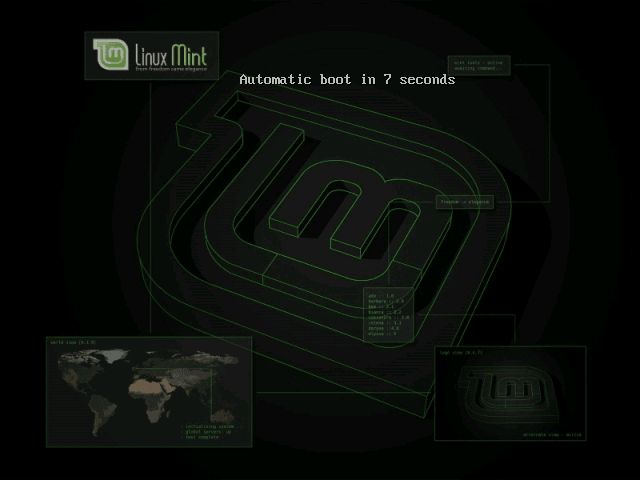
Linux Mint 5 boots with an XFCE desktop on a weak computer:

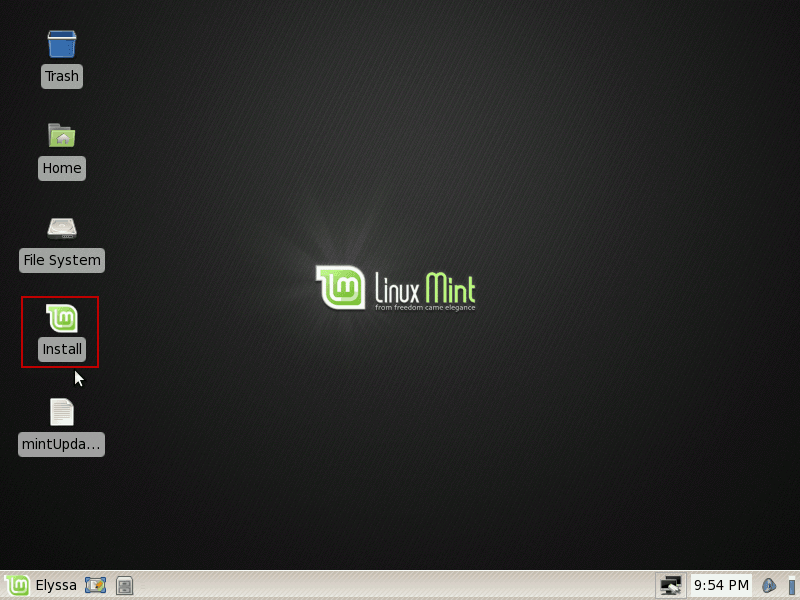
After downloading, we need to run the Install shortcut on the desktop:
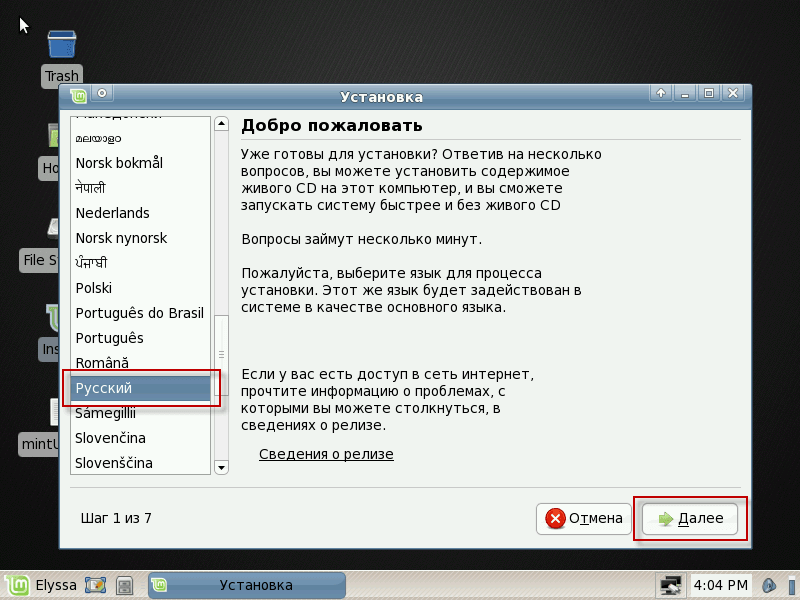
A window will open where we need to select the language of installation. Russian and press the button Next:
In the open window, you need to select a city. Kievto determine the time zone and to continue the installation press the button Next:
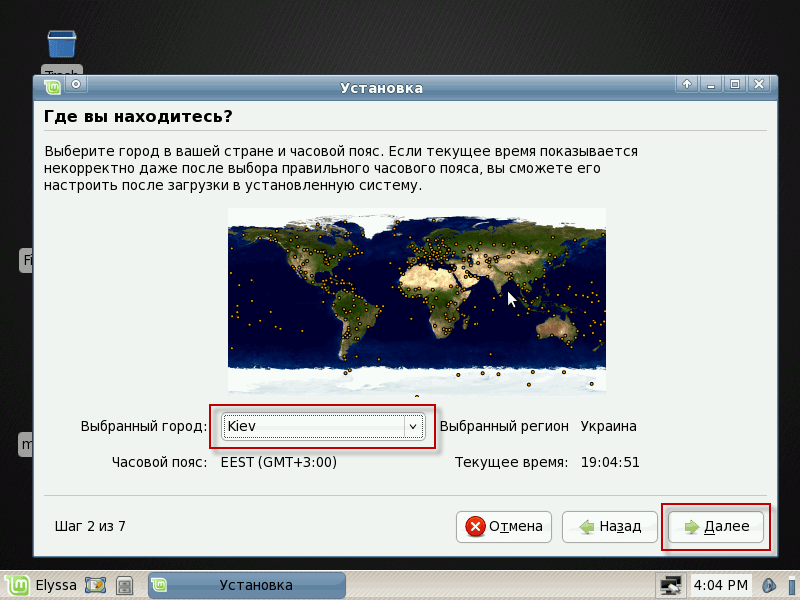
In the window. Keyboard layoutchoose Ukraine in both windows as in the screenshot below and to continue installing press the button Next:

Now let's take a little bit of a break and talk about hard drives, and their breakdown.
In the computer can be installed as one or several hard drives. On these hard drives previously could be installed the Windows operating system, it is characterized by two of the most common file systems:
- Fat32
- NTFS
Disks with these file systems are very easy to connect and work with them as convenient as from Windows.
We will describe several situations with installed hard drives and on screenshots we will show you how not to delete the necessary data so that the installation for you goes smoothly and only with pleasant impressions.
- The computer has one hard drive size of 4 Gb with disk C: c file system Fat32.
A 4Gb hard drive is enough only for installing Linux on the entire hard drive, before you need to copy the necessary documents from the disk to an external medium, such as a flash drive, so that after installation, copy to a computer already installed Linux Mint 5. We will delete everything on the hard drive and create one partition in the Ext3 file system and one partition.
- The computer has a main hard drive size of 4 Gb with disk C: c file system Fat32 and the second additional hard drive size 171.8 Gb with two discs C: 20Gb, file system Fat32, D: 150.8Gb, file system NTFS
We will install Linux Mint 5 on a 4GB hard drive, removing everything on it, and connect from the second hard drive partition D: 150.8Gb, the NTFS file system to the folder. /mnt/d
- The computer has a hard drive 171.8 Gb with two discs C: 20Gb, D: 150.8Gb
We will delete the C: disk and create the necessary partitions to install Linux Mint 5 on a weak computer. Disk D: we will connect to the system in a folder /mnt/d
- The computer is the main hard drive 171.8 Gb with two discs C: 20Gb, D: 150.8Gb and an additional hard drive 4Gb
We will delete the C: disk and create the necessary partitions to install Linux Mint 5 on a weak computer. Disk D: we will connect to the system in a folder /mnt/d, and additional hard drive 4Gb we will connect to the system in a folder /mnt/her
Since we now have both hard drives connected and if we are working on a situation with only one, then we assume that there is no second hard drive.
When the Linux Mint 5 installation approached the hard drive breakdown, a window will open Preparation of disk spaceWe need to select the disk layout. Manually. and to continue the installation press the button Next:
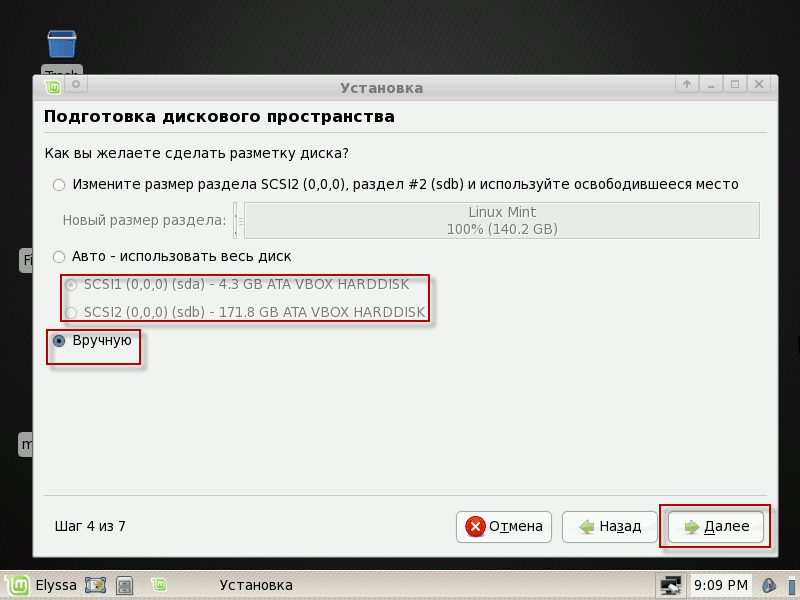
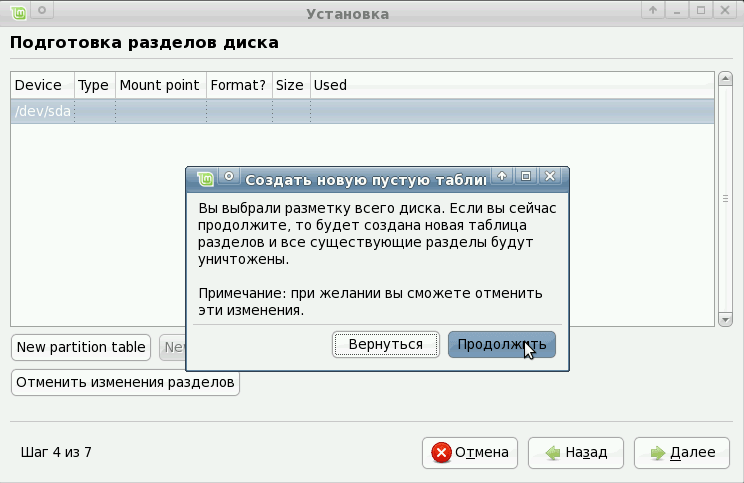
A little retreat. If you have a new hard drive installed in your computer, which does not have partitions (winchester is the first one). /devsdaand the section will be called /dev/sdaXwhere X - this is the partition number), it is necessary to create a partition structure on this hard drive. So we become a mouse for that. /dev/sda press the button. New partition table:
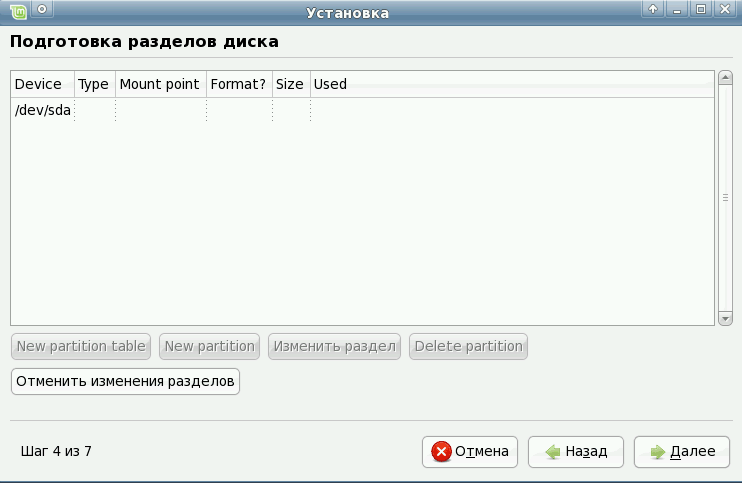
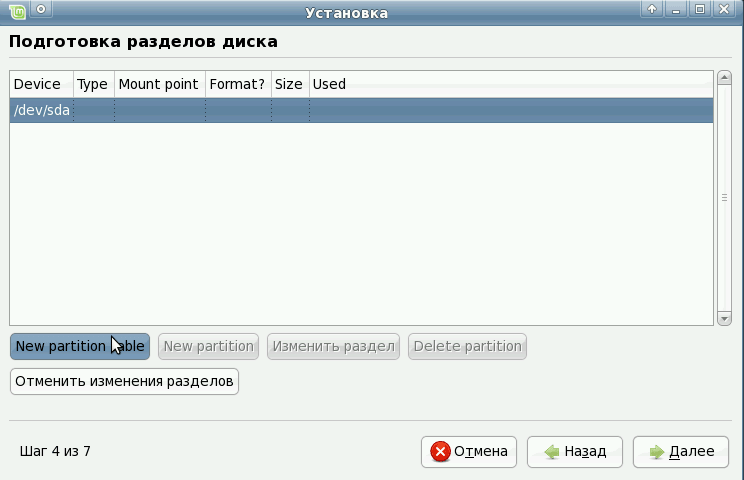
After creating a new partition table, you will have access to all the free hard drive space that you can already create the sections you need.
In the window. Preparation of disc sections You will see hard drives connected to the system with disks into which they are broken up and file systems on these disks:
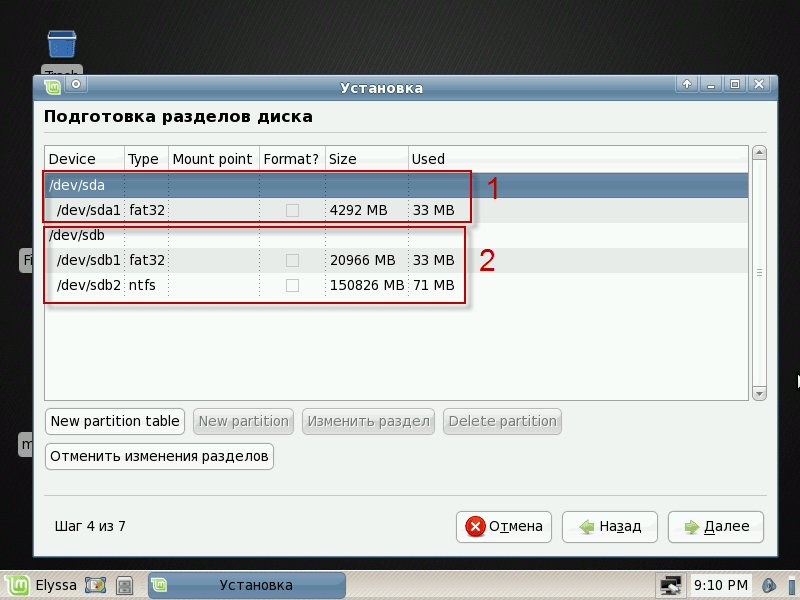
Scenario 1
We work on the first scenario only with 4Gb hard drive. To remove the section, we need to become a mouse on the section. /dev/sda1 and delete the section by pressing the button Delete partition:

After removing the partition, we will have free space in its place, we need to become a mouse on it and press the button. New partition:
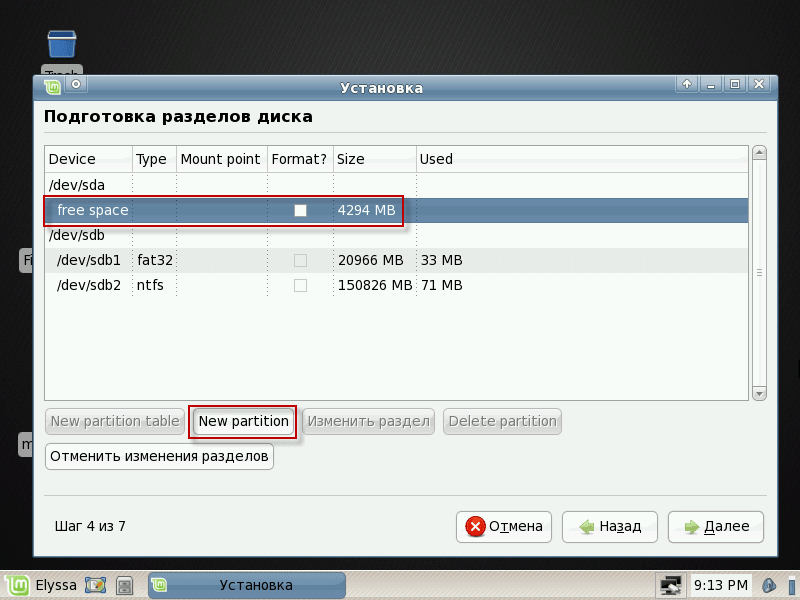
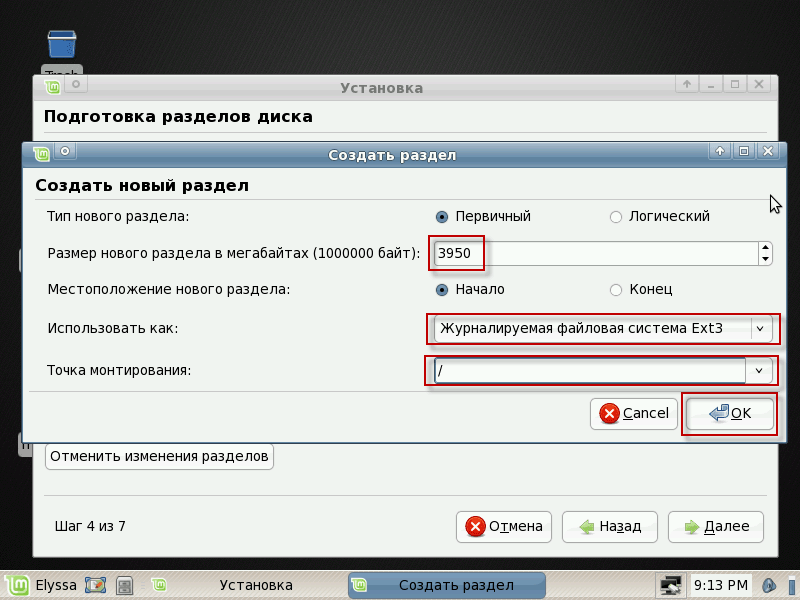
When a new partition is created, we will create a 3950 Mb root partition of Linux so that there is about twice as much space as the RAM computer.
Fill in the fields for example below:
- Type of new section: Primary
- The size of the new partition in megabytes: 3950
- Use as: in the drop-down list, select the file system Journaled file system Ext3
- Point of mounting: in the drop-down list select /
After filling the fields to create a root partition, press the buttonOK:
In the window, we see the created partition, file system and mount point. Create a swap section, this partition is used if the system is not enough for RAM, then it begins to use the swap section on the hard drive. Become a mouse on the remaining free space and press the button. New partition:
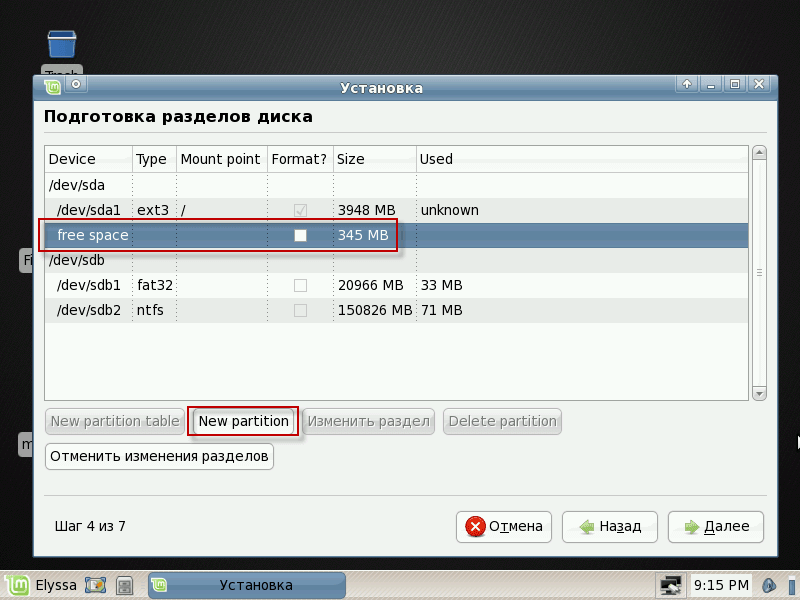
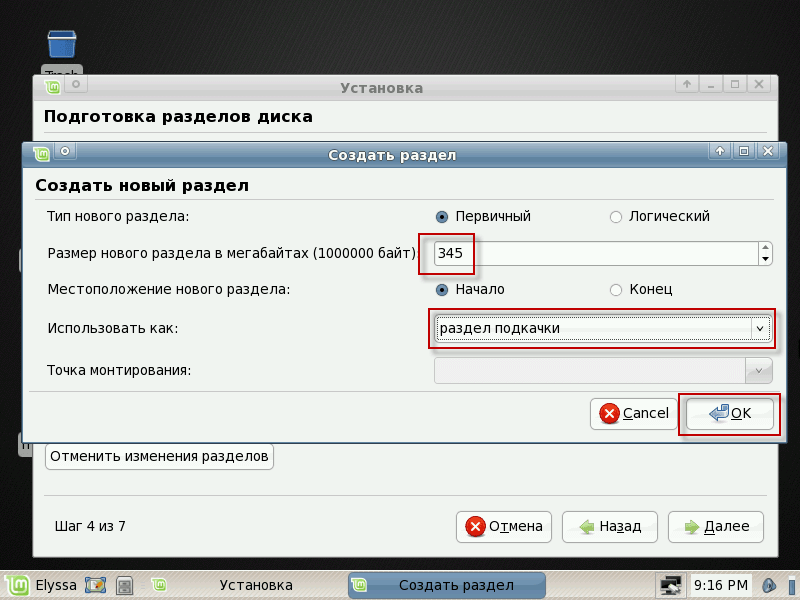
In the window that opens, fill in the fields for example below:
- Type of new section: Primarybut you can point out and Logical
- The size of the new partition in megabytes: 345
- Use as: in the drop-down list, select the file system pumping-piece
After filling the fields to create a swap section, press the buttonOK:
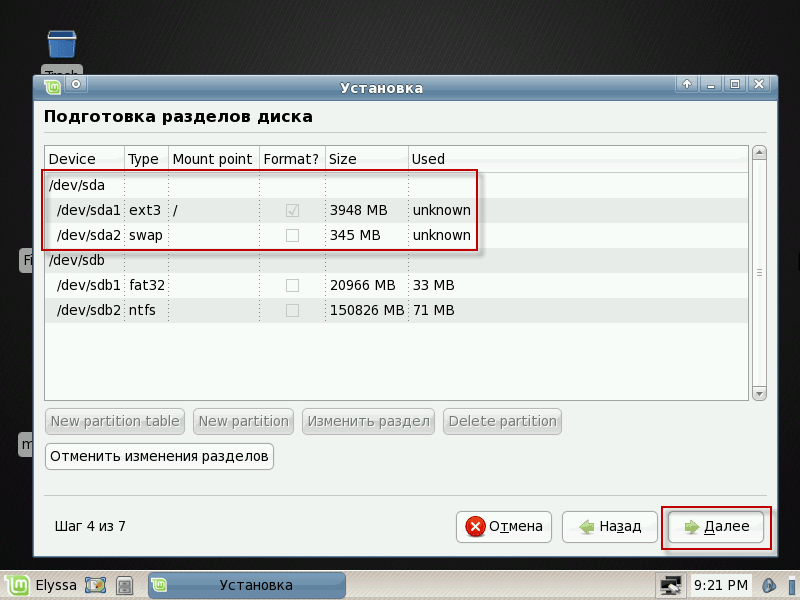
After performing all the above actions, we have two partitions on the hard drive: this is the root partition, with which the user and the system directly work, and the swap partition with which only the system works, to continue installing Linux Mint 5 press the button. Next
The split of the hard drive according to the first scenario is completed.
Scenario 2
The 4Gb hard drive is similar to the first scenario. We just need to connect (mount) the disk. D: file-to-file /mnt/d so that the user can use the data in the section.
To connect the disk D: second hard drive with a file system ntfsWe need to be a mouse in the section. /dev/sdb2 and press the button Amend the section:
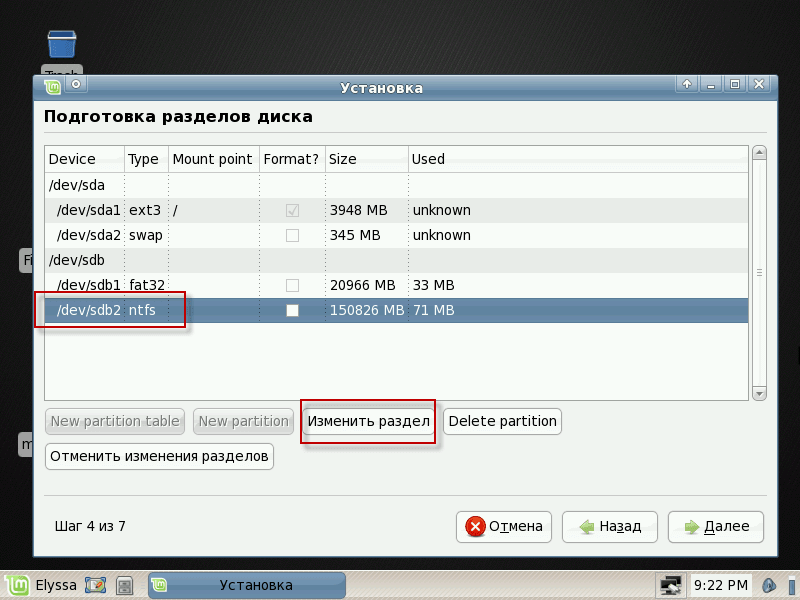
In the window that appears, you need to fill in the fields as follows:
- The size of the new partition in megabytes: leave it unchanged
- Use as: in the drop-down list, select the file system ntfs
- Format the section: Don't put a checkmark.
- Mounting point: /mnt/d
After filling the fields, press the button.OK:

In this window we can see the breakdown of the first hard drive, and the connection of the D: second hard drive to the system. You can continue the installation, press the button. Next
The split of the hard drive according to the second scenario is made:

Scenario 3
Breaking the Winchester into a third scenario.
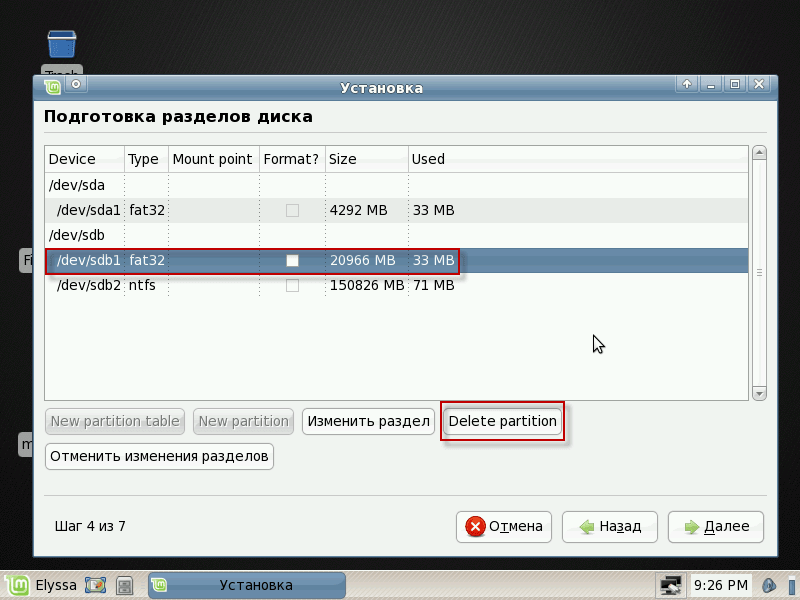
We're working on the disc. C: 170Gb hard drive, delete partition in order to create a disk structure for installation Linux Mint 5.
To remove the disc C: Become a mouse on the section /dev/sdb1 (If there is one hard drive in the system, the partition will be named.) /dev/sda1) and press the button Delete partition:
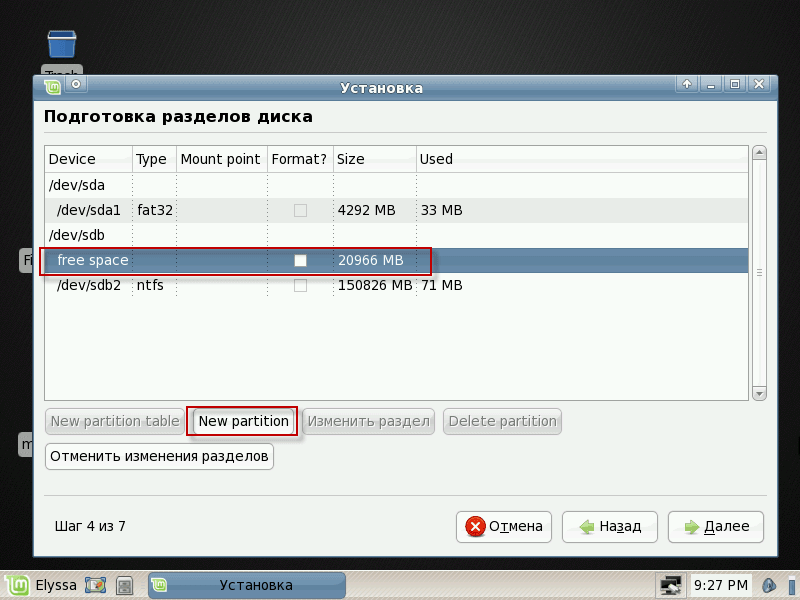
In a free place, we become a mouse and press the button. New partition:
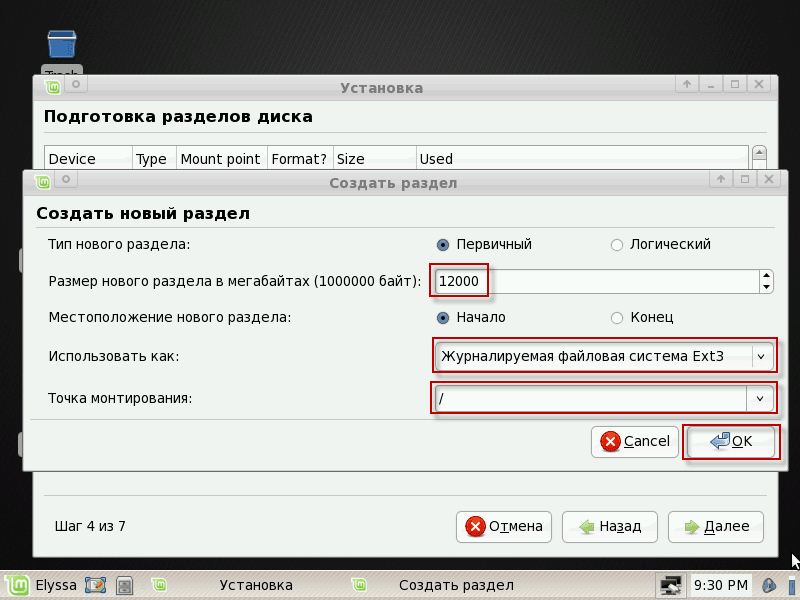
In the window that appears, you need to fill in the fields as follows:
- Type of new section: Primary
- The size of the new partition in megabytes: 12000
- Location of the new section: Beginning
- Use as: in the drop-down list, select the file system Journaled file system Ext3
- Mounting point: /
After filling the fields to create a root partition, press the buttonOK:
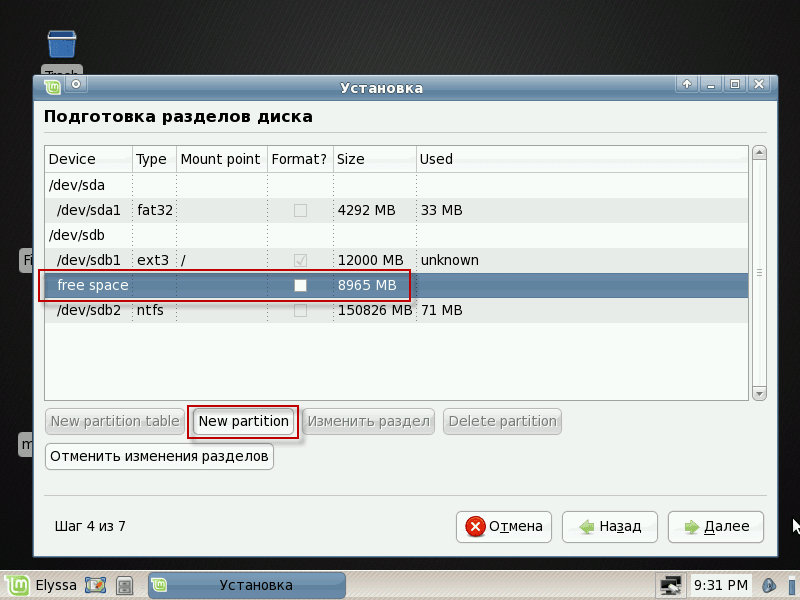
Become a mouse in an empty space and press the button. New partition:
In the window that appears, you need to fill in the fields as follows:
- Type of new section: Primary
- The size of the new partition in megabytes: 8000
- Location of the new section: Beginning
- Use as: in the drop-down list, select the file system Journaled file system Ext3
- Mounting point: /home
After filling the fields to create a home section, press the buttonOK:

At the remaining place, create a swap section for the system. To do this, we become a mouse in the free space and press the button. New partition:
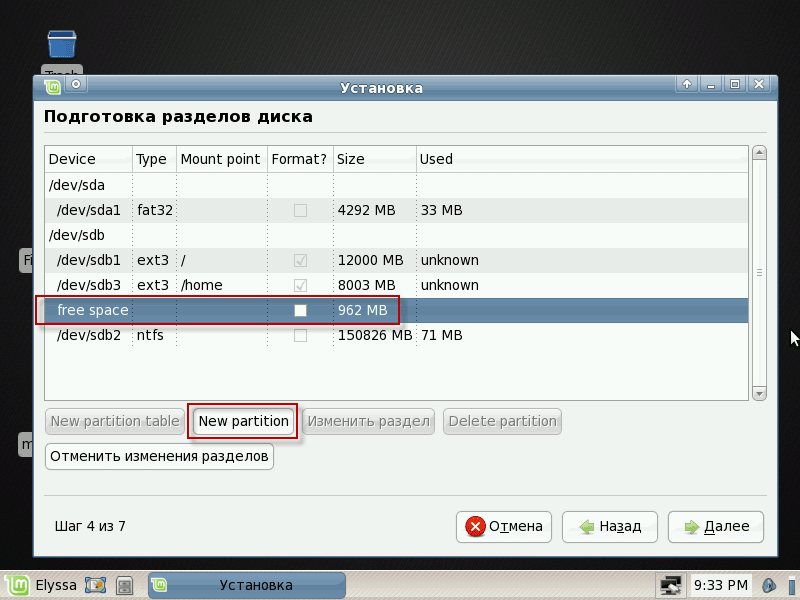
In the window that opens, fill in the fields for example below:
- Type of new section: Primarybut you can point out and Logical
- The size of the new partition in megabytes: leave it unchanged
- Use as: in the drop-down list, select the file system pumping-piece
After filling the fields to create a swap section, press the buttonOK:
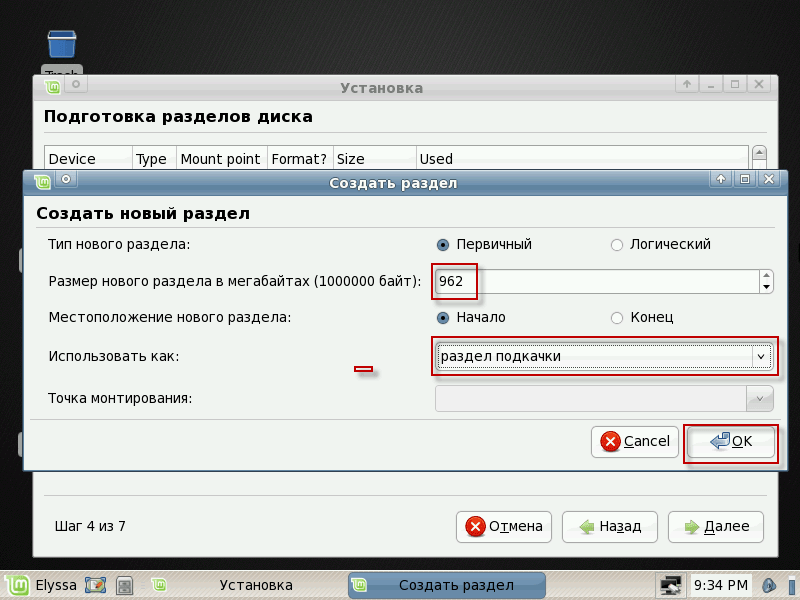
To connect the disk D: filesystem ntfsWe need to be a mouse in the section. /dev/sdb2 (If there is only one hard drive, the name of the disk will be /dev/sda2) and press the button Amend the section:
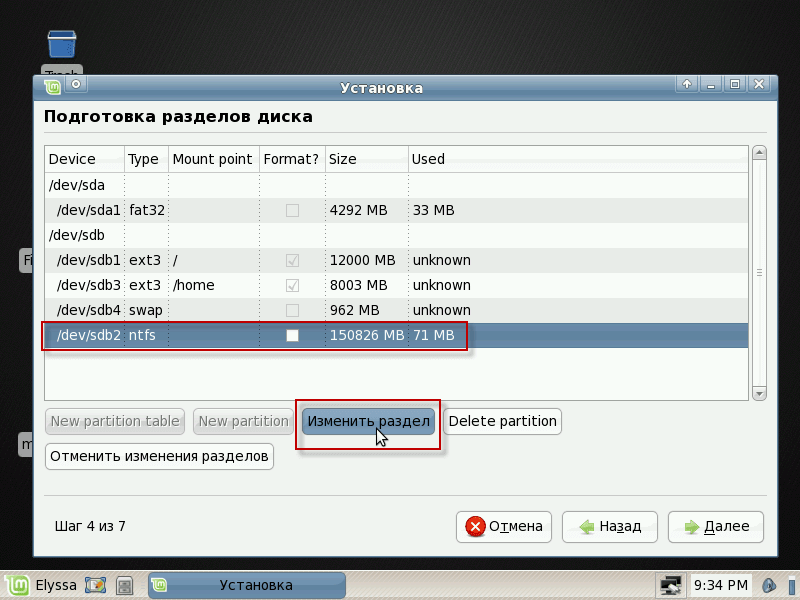
In the window that appears, you need to fill in the fields as follows:
- The size of the new partition in megabytes: leave it unchanged
- Use as: in the drop-down list, select the file system ntfs
- Format the section: Don't put a checkmark.
- Mounting point: /mnt/d
After filling the fields, press the button.OK:
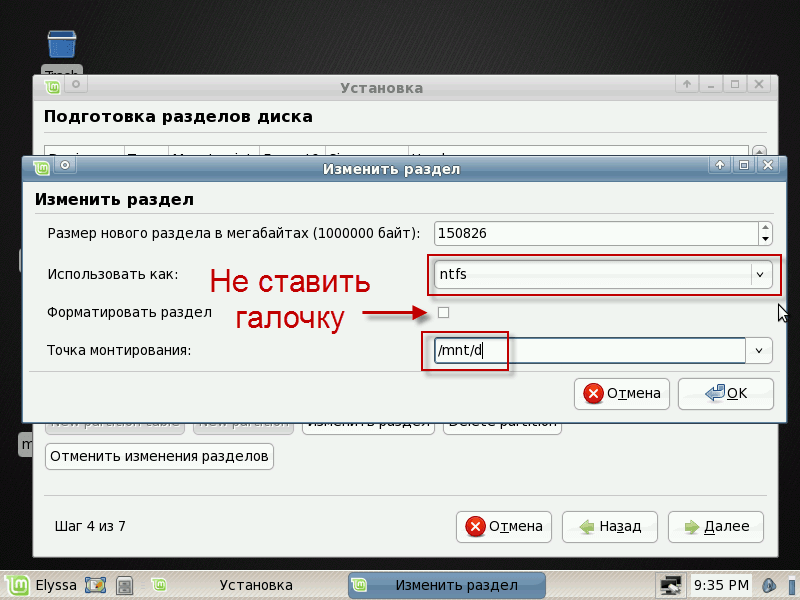
Breakdown of the hard drive by the third scenario of the finisher, to continue the installation you need to press the button Next:
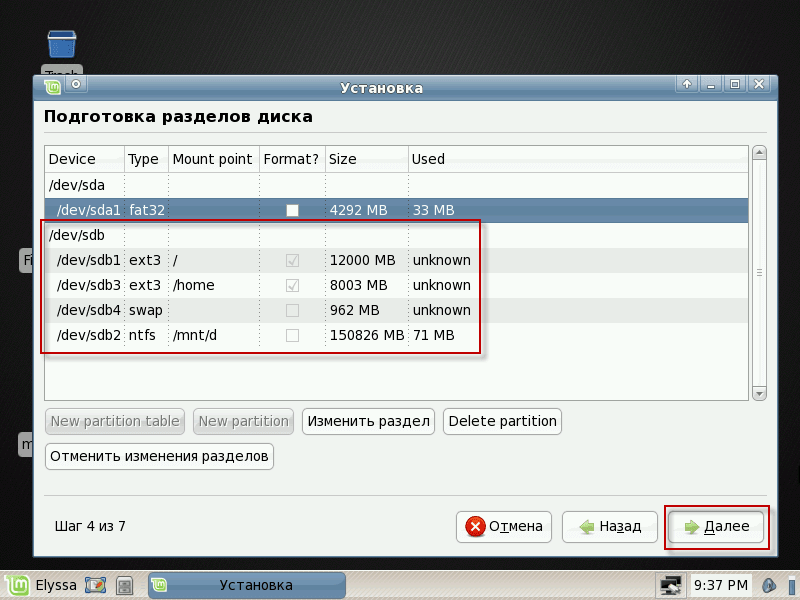
Scenario 4
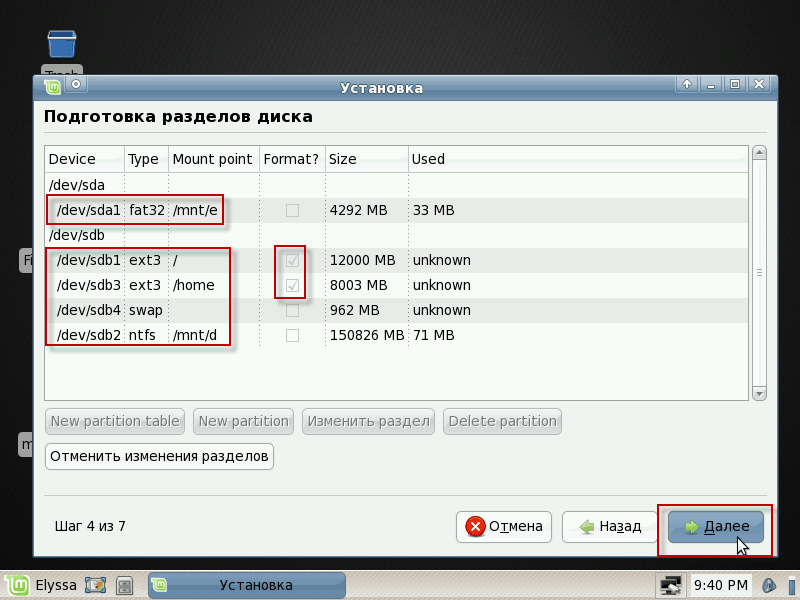
Breaking the hard drive according to the fourth scenario differs from the third only in that in the fourth scenario we need to connect a 4Gb hard drive to the system in the folder. /mnt/eTo do this, we need to become a mouse on the Winchester section. /dev/sda1 and press the button Change the section.
In the window that appears, fill in all the fields for example below:
- The size of the new partition in megabytes: leave it unchanged
- Use as: in the drop-down list, select the file system File system FAT32
- Format the section: Don't put a checkmark.
- Mounting point: /mnt/e
After filling the fields, press the button.OK:
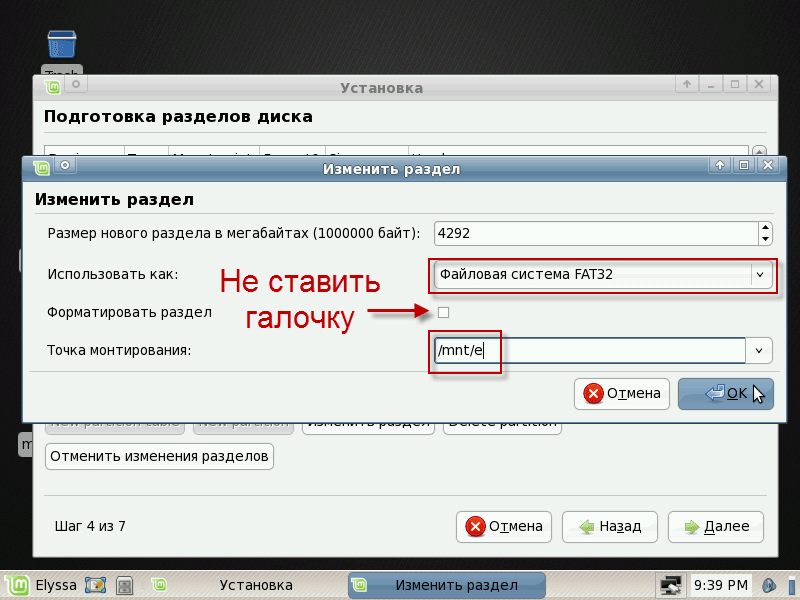
The splitting of the hard drives on the fourth scenario is completed.
After changing all hard drive partitions, we can start the installation of Linux Mint 5 XFCE, for this you need to click on the button. Next:
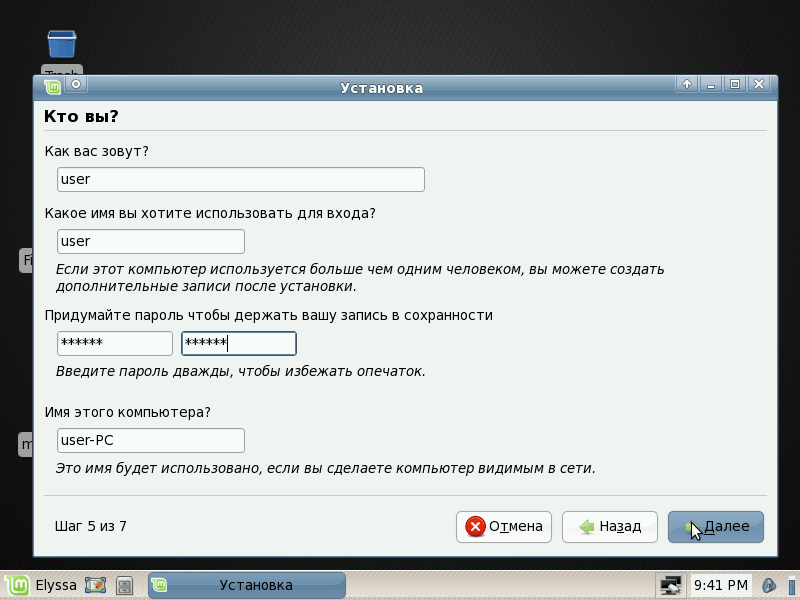
After breaking up the hard drive sections, we will open a window in which you need to fill in the username, password, computer name for example below (naturally all these fields you fill in with your data):
- What's your name? user
- What name do you want to use to enter: user
- Create a password to keep your record safe: your user password
- The name of this computer? user-PC
After filling in all the fields (strongly recommend entering a password of at least 8 characters alternating letters with numbers and symbols, for example rV4jN#fg) to continue installing you need to click on the button. Next:
In the next window, we can control which partitions we will format, if all is correct, then to start the installation press the button. Install:

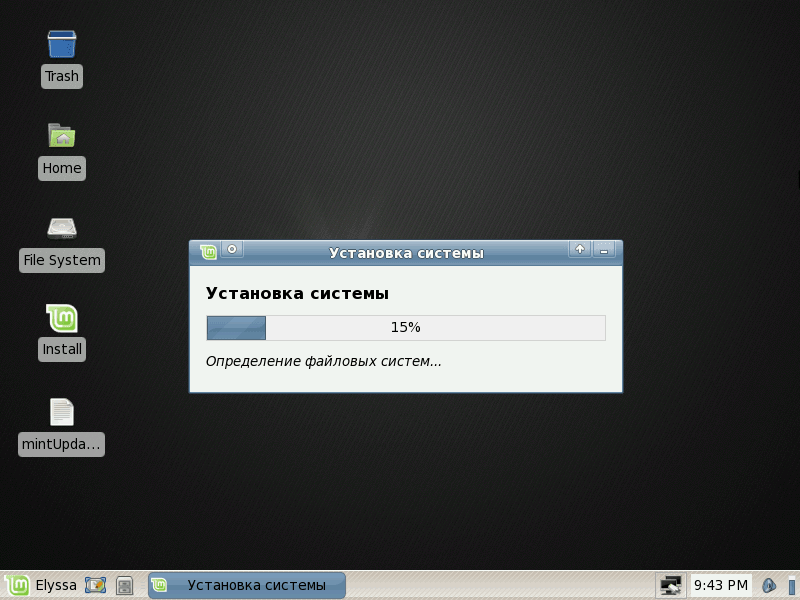
You can see the process of installing Linux Mint 5 XFCE:
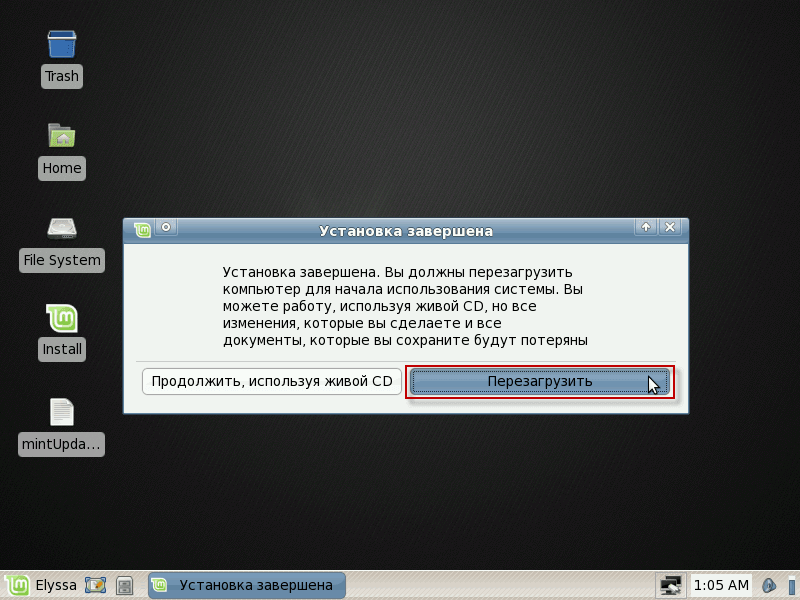
After the installation is complete, the installer will prompt you to press the button. Reboot.Do not forget to pull the disk from the drive, so as not to boot again from the disk:
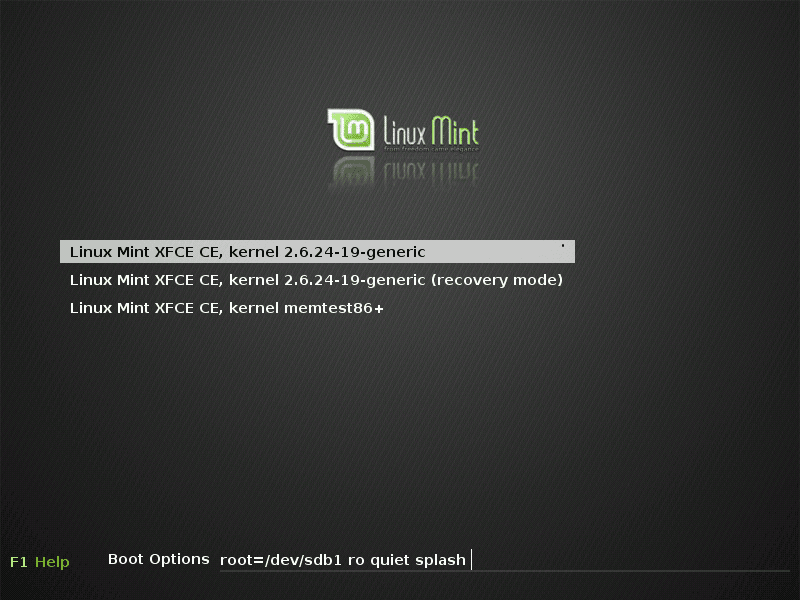
The process of launching the Linux Mint 5 xfce operating system is shown:
After booting the computer, you will see a user and password input window, enter a user name and click Enter:
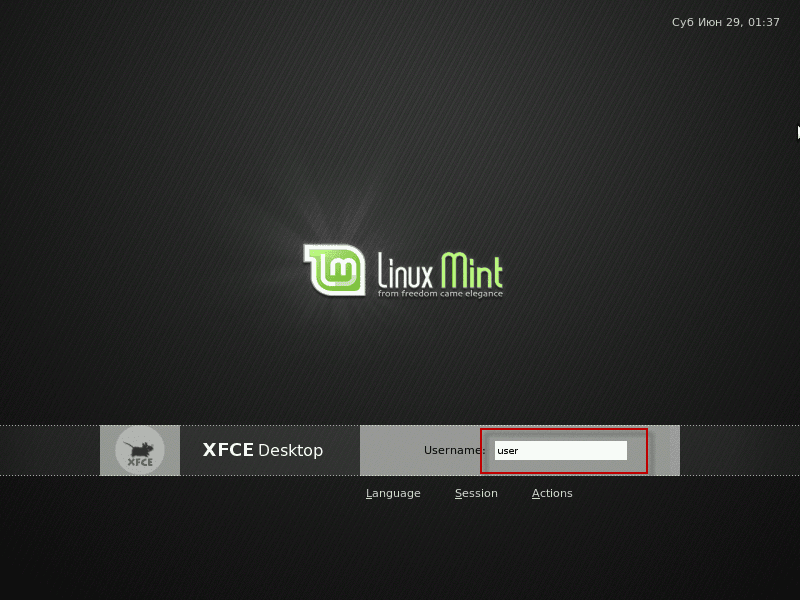
After entering the user name, enter the user password and click Enter:
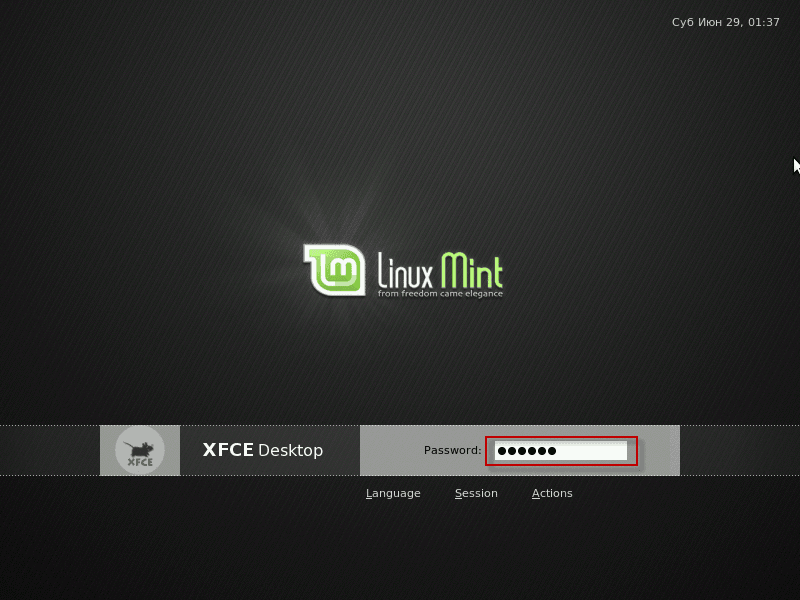
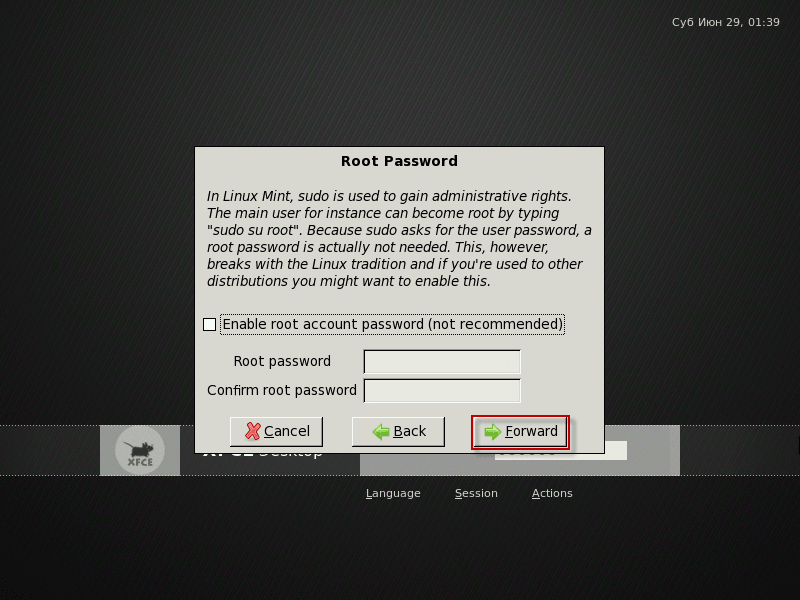
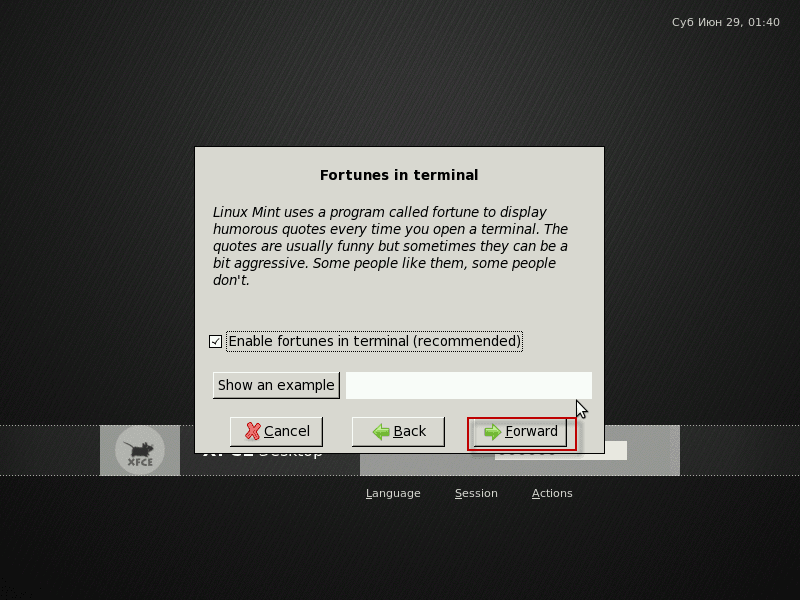
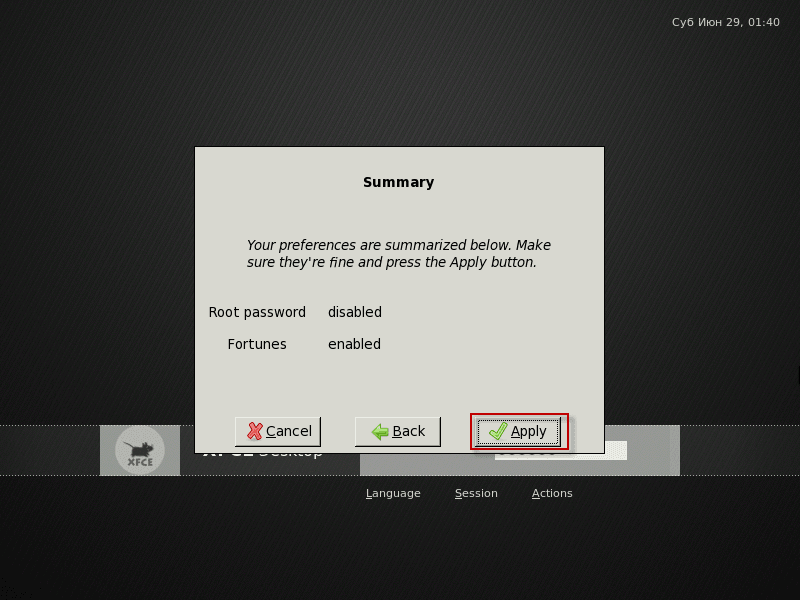
At the first run, you need to answer a few simple questions, they are clearly shown in the screenshots and I consider each to be superfluous (if you think that it is still worth describing, please write in the comments to the article and I will finish):

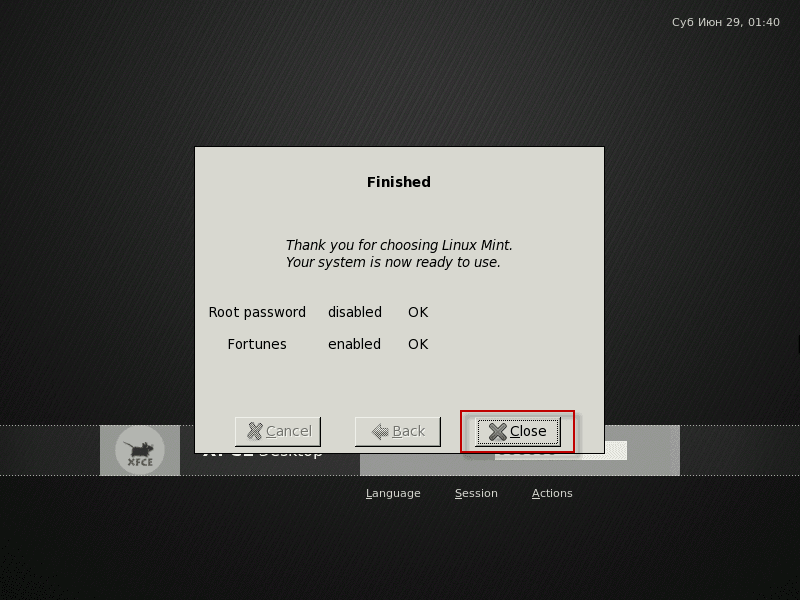
After completing all the installation steps, the System will load the XFCE desktop of the operating system. Linux Mint 5:
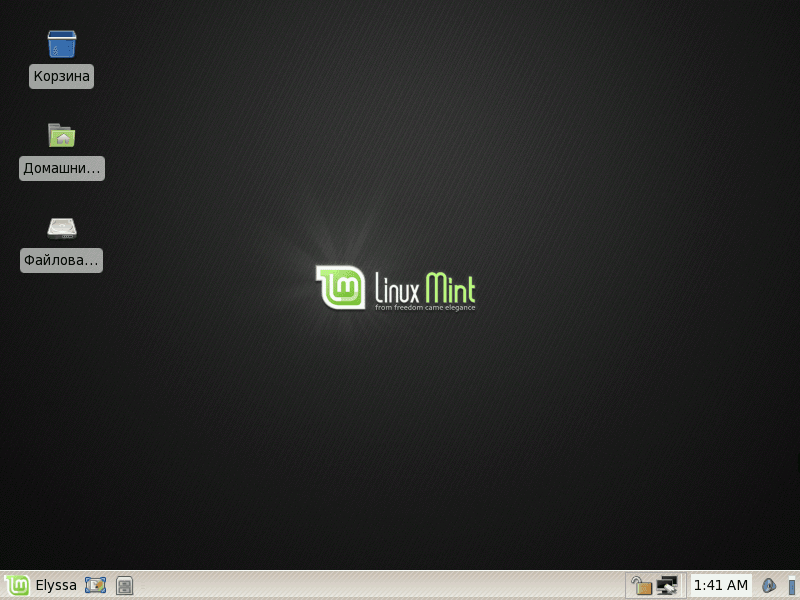
Installation of the operating system Linux Mint 5 XFCE The weak computer is complete. To further configure the operating system with the XFCE desktop, I wrote an article: Setting up Linux Mint XFCE
!! Attention!!!
To install additional programs in this outdated operating system, you need to add a repository of the current repository, execute commands:
echo '
deb http://de.archive.ubuntu.com/ubuntu/ precise main restricted

deb http://packages.linuxmint.com/ elyssa main upstream import
deb http://packages.linuxmint.com/ elyssa backport
deb http://packages.linuxmint.com/ elyssa community
' > /etc/apt/sources.list
aptitude update
aptitude install remmina remmina-plugin-rdp
After the above instructions are executed, the system will install the program. Remmina for remote access to the desktop, and also update the necessary dependencies, at the same time updating the printing system cups.
I was with you. Sergei Lazarenko.
After a lot of work, take a break for 3 minutes and see how people run on water in the literal sense of the word:

comment