

Today I encountered the fact that the program I used earlier for recording sound from a microphone Free Sound Recorder developer-installator It has a huge number of advertising and spying additions. So I decided to find something that is free (free, freebies) without such additions and I found it - this is the audio editor of Audacity.
Audacity Free multi-platform audio editor of sound files, focused on working with several tracks. Audacity is a very convenient program to use, and as a bonus works under the control of such operating systems: Microsoft Windows, Linux, Mac OS X and others. The program is distributed under the GNU General Public License.
Download the audio editor Audacity by direct link
either
Download Audacity from the official website Audacity audio editor website
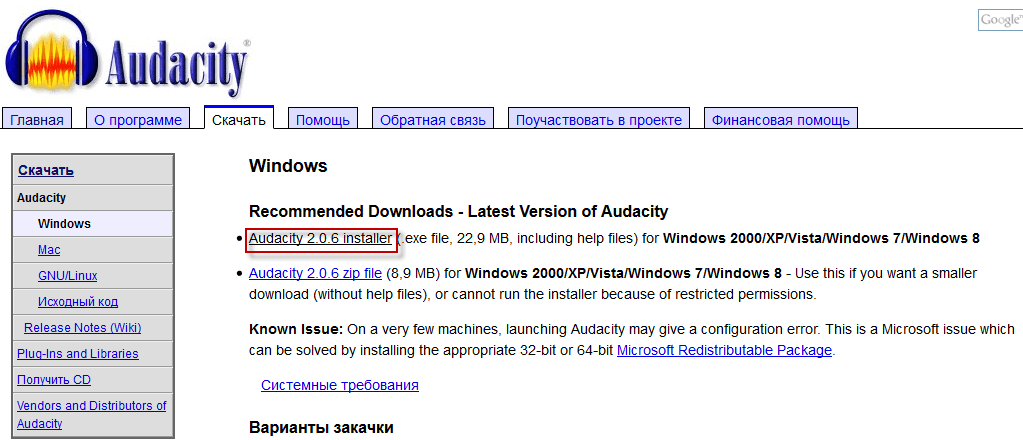
A window will open where we click on the link. Audacity for Windows:

A window opens where we click on the link Audacity 2.0.6 installer.exe:
In the following window, save the downloaded program to the computer:
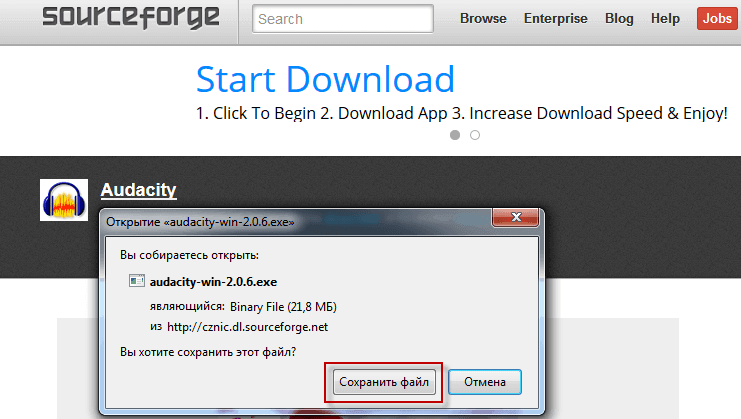
Opening up a broken program. Audacity and clicking on the button OK Start the installation of the program:

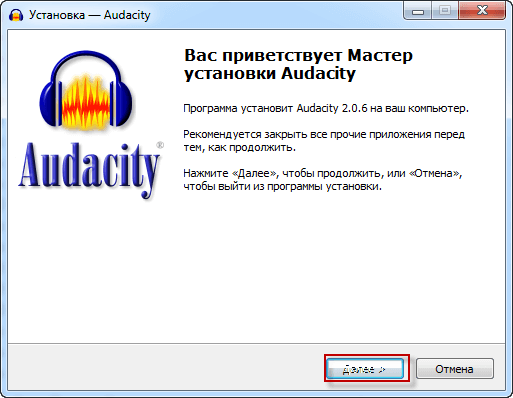
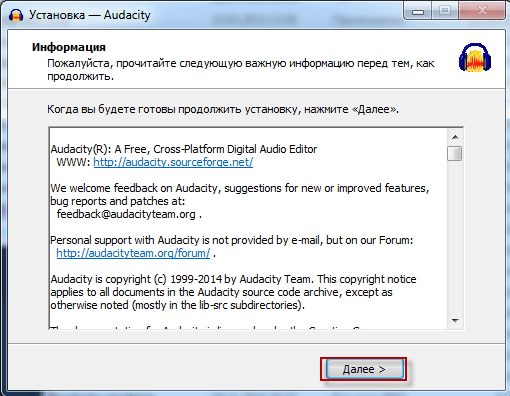
In the open window to continue installing click on the button Next:
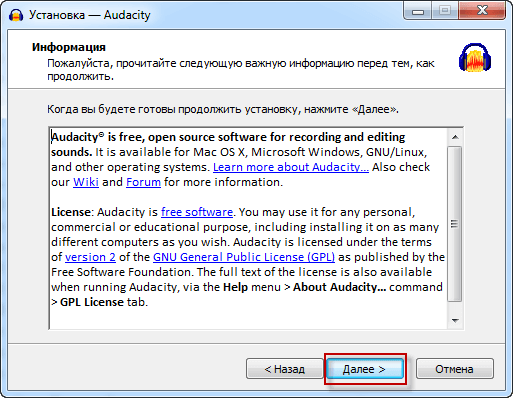
In the next window, read the program license agreement. AudacityIf you agree, click. NextIf you do not agree and decide not to install the program click Cancellationor Get back. to change the installation language:
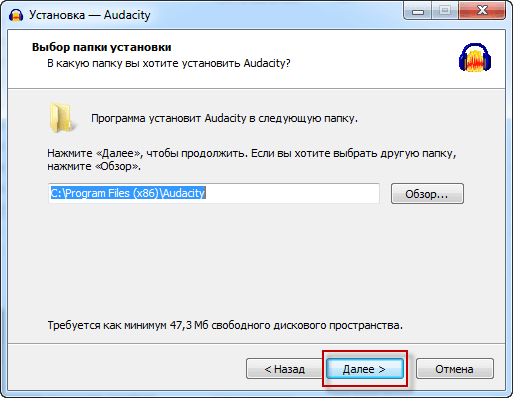
In the window that opens, the installation program will offer to select the installation folder, in the standard case, the choice is not required, therefore we press Next to continue installation:
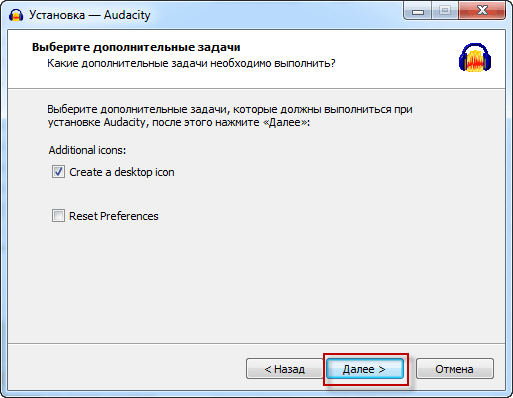
In the open window, note the parameter Create a desktop icon This is creating a program launch icon on the desktop and pressing the button. Next to continue installation:
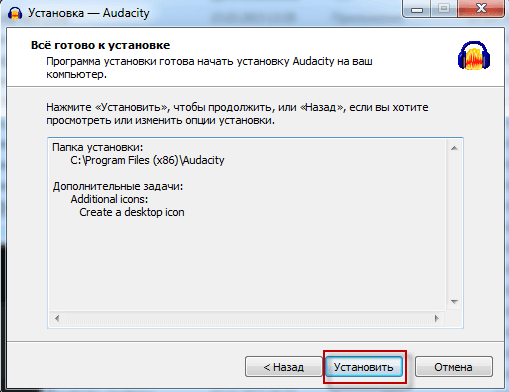
If you are satisfied with the installer parameters, we press the Install button to start the installation:
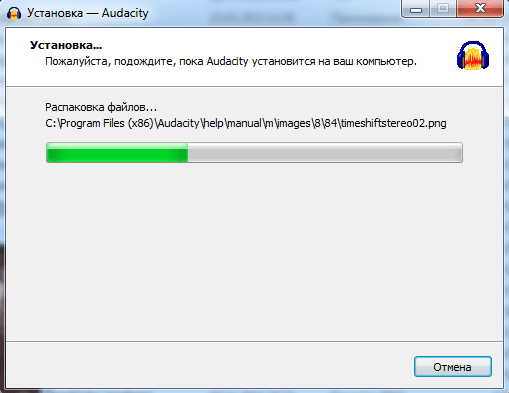
The process of installing an audio editor Audacity:
In the next window, click on the button Next:
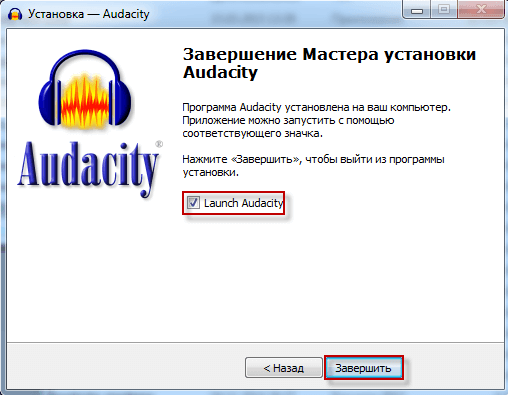
After ticking the box on Launch Audacity, click the Complete button, the program installer window will close and the Audacity audio editor itself will start:
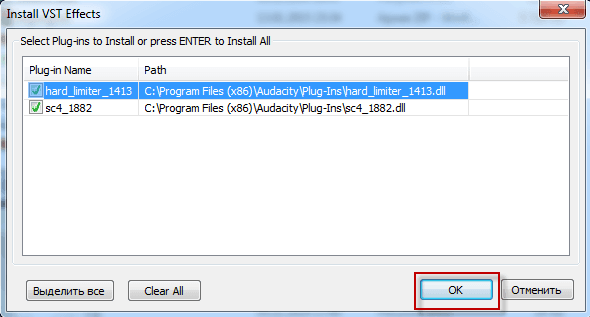
In the next window, click on the button. OK.:
On the first launch in the open window, Welcome to Audacity! uncheck the parameter. Do not show this window again at launch. press the button. OK.:

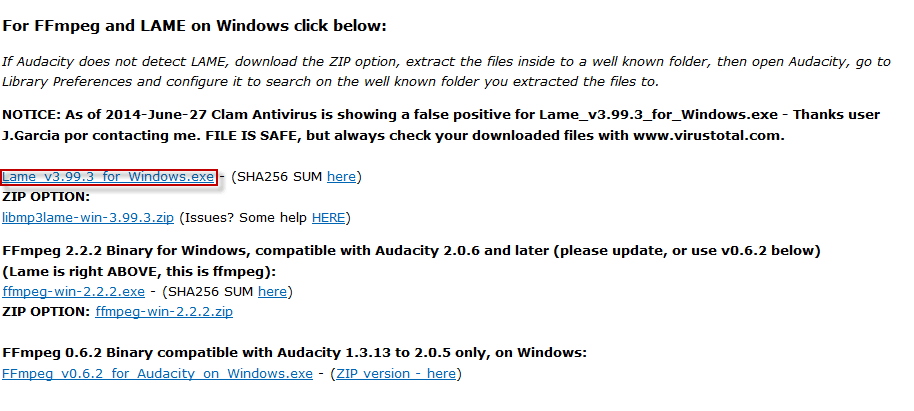
To save files recorded from the microphone in mp3 format, you need to download the Lame encoder, for this we open official download site of Lame In the window that opens, we click on the link. Lame_v3.99.3_for_Windows.exe:
Save the Lame to the disc:
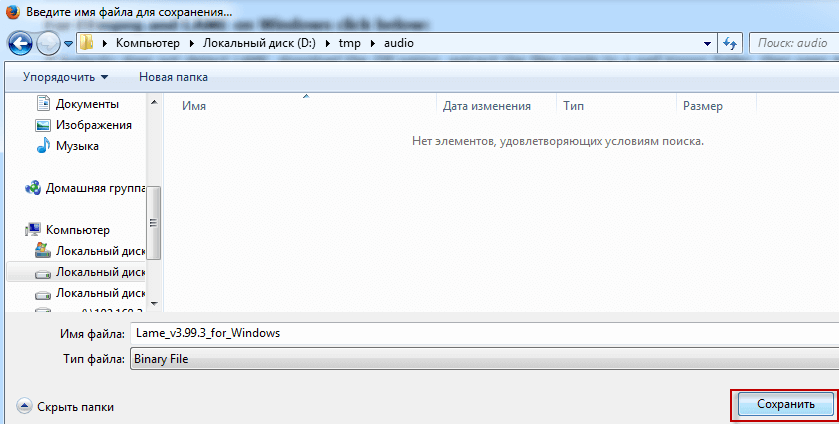
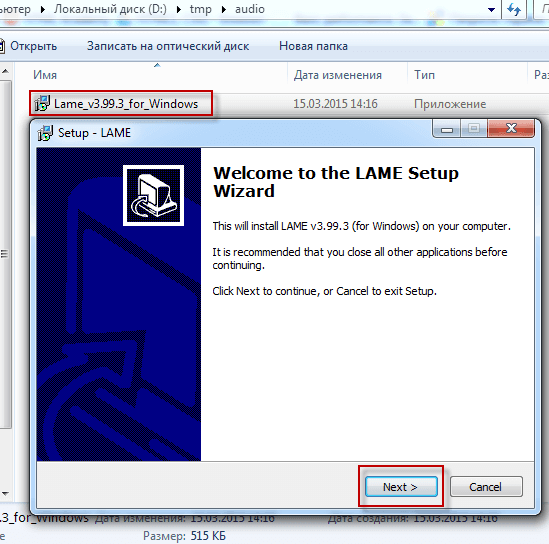
Start the program and in the opened window to continue installing click on the button Next:
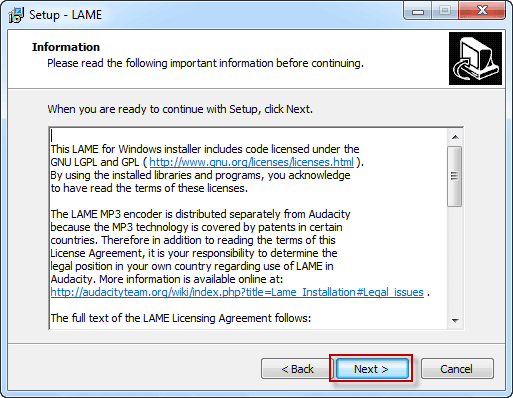
We agree to the license agreement and press the button. Next:
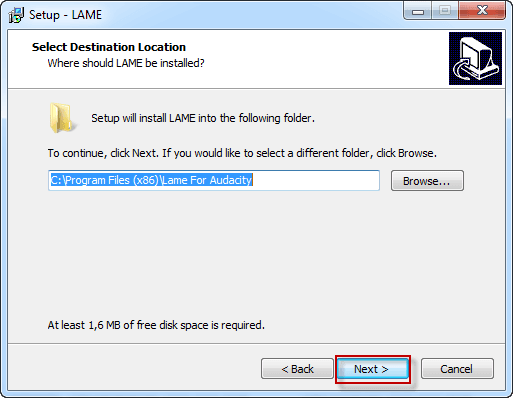
In the next window, agree to install in a standard folder and click Next:
Install the program by clicking on the button Install:

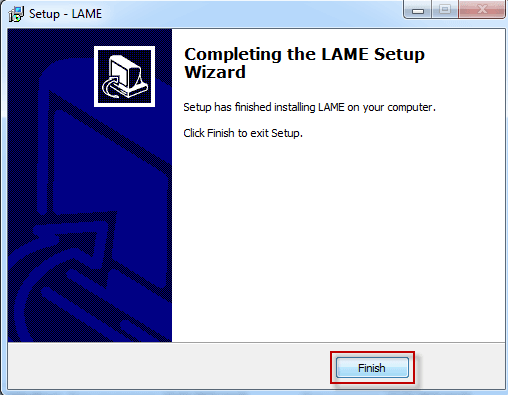
To complete the installation, click on the button. Finish:
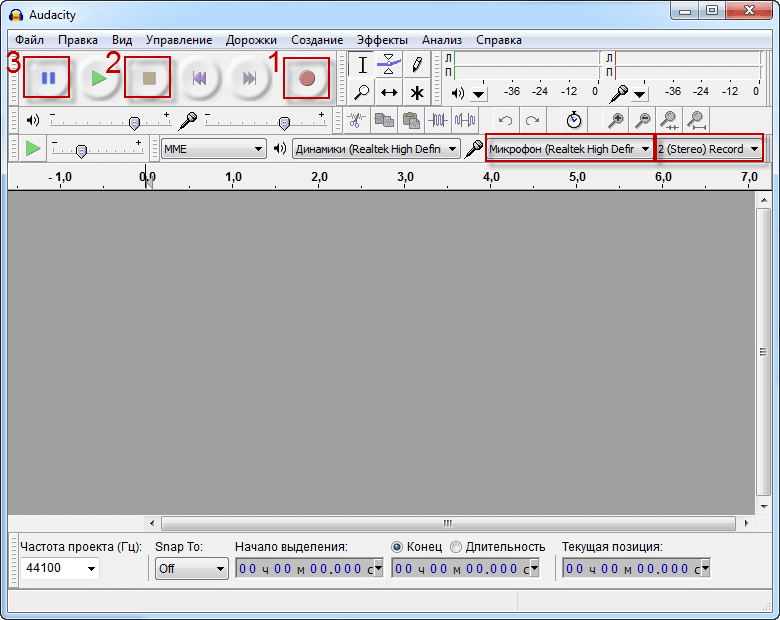
Start recording audio from the microphone in the audio editor Audacity? To do this, we launch the program by clicking on the shortcut Audacity on the desktop, in the window that opens we see a tab where it is displayed Microphone (Realtek High Define) regime 2 (Stereo) Record. To start recording from the microphone, press a button. Record No. 1The recording will start immediately and the sound graph will be displayed. If you need to pause, click on the button. Pause No. 3To continue recording, you must press the button again. Pause No. 3. To stop recording, click on the button Stop No. 2:
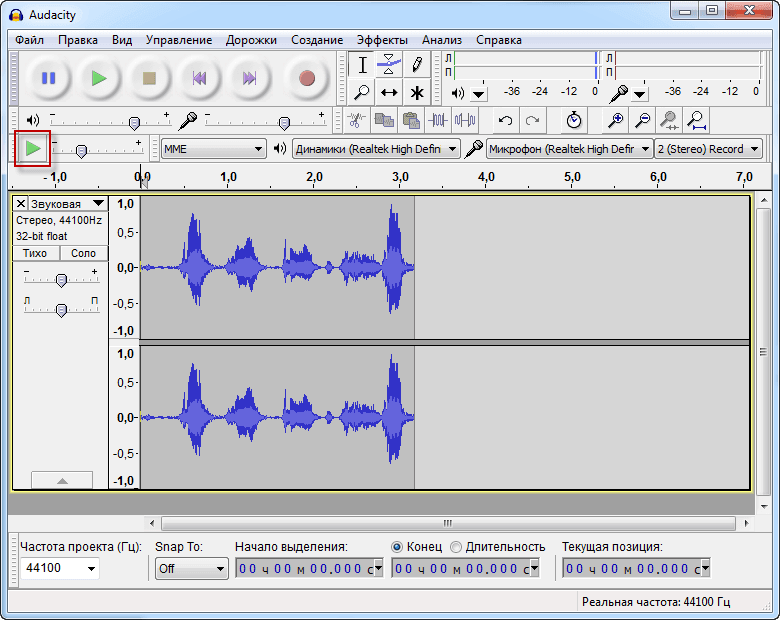
After you have recorded the desired text, you can listen to the current record, for this we click on the Play button (green triangle to the right), if you do not like the recording, you can again press the write button and dictate the text you need:
When you recorded, listened to your recording and it arranged for you, you need to save it to the disk for further use, for this we click on the tab. File. - Export Audio...:

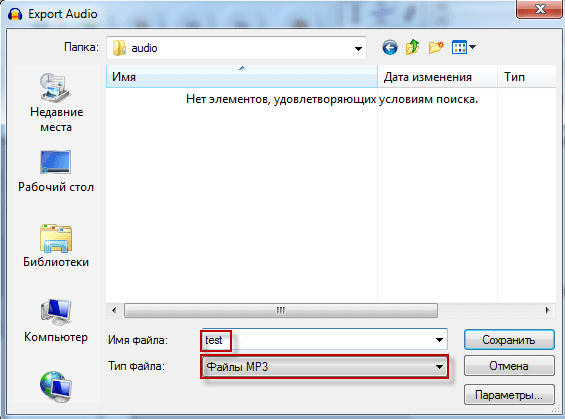
In the open window, we indicate File name, and on the drop-down list File type choose MP3 files And click on the button. Save.:
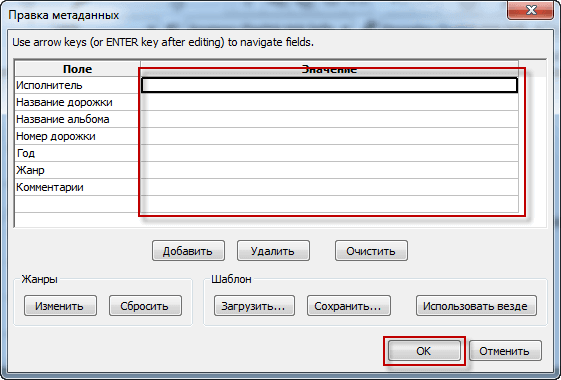
In the next window, you can specify the name of the track, author and other file parameters that will be visible in different players, if you do not need to change anything, then click the button. OK.:
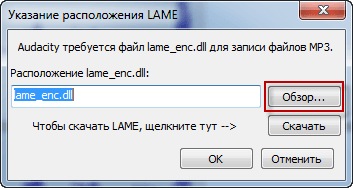
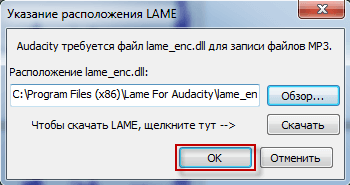
In the next window, the Program will offer to select an encoder for MP3 format, this choice must be made only once, for this we click on the button. Review:
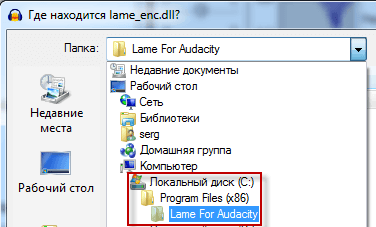
In the open window, select C - Program Files (x86) - Lame For Audacity, if you do not have a folder Program Files (x86), and there is just Program Files, then select it:
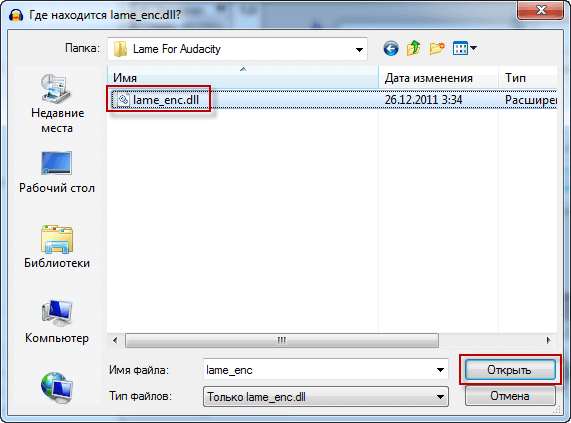
In the selected folder, click on the file Lame_enc.dll pressed Open.:
Further, we agree to save the file recorded from the microphone to disk:
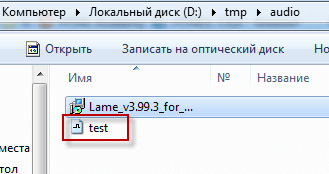
Open the folder where the recorded file was saved and see the saved test.mp3 file, which can then be opened in the player:
Today we installed 2 programs: audio editor Audacity and encoder Lame, as well as recorded from the microphone and saved it in mp3 format.
I was with you. Sergey Lazarenko.
Let’s take a short break and watch a video about the exciting tricks of people:

comment