

Today, we will install and configure a SQUID proxy server with the SAMS version 1.5 web interface to manage a proxy server on Debian Wheezy. This guide is one of the articles. Instructions for installation and configuration of the Internet server.
SAMS It is a system for managing user access through a proxy server to Internet resources. It is ideal for use in both private firms and government agencies. All the work on proxing, redirecting requests, caching and authorization is taken over by the proxy server Squid, and SAMS deals with traffic accounting and user management.
Squid A software package that implements the function of a caching proxy server for HTTP, FTP, Gopher and (if appropriate) HTTPS protocols. Developed by the community as an open source program (distributed under the GNU GPL).
Preliminary server we configure according to the instructions: Install and configure hosting panel ISPConfig 3 in Debian
After configuring the server according to the above instructions, we proceed to install a squid proxy server, as well as configure the SAMS web interface to manage the SQUID proxy server, and also we will install a redirector to block access to sites.
Add a repository from Debian Squeeze to set dependencies during the installation of the SAMS web interface by following the command:
echo 'deb http://mirror.yandex.ru/debian squeeze main contrib non-free' >> /etc/apt/sources.list
Update the repository by executing the command:
aptitude update
Configuration File Editors:
vi It requires the user to read the instructions. In order to take an express course, run the vimtutor command and pass the main commands for easy use of the program.
mcedit - easier to work for a beginner linuxoid, you can change vi on mcedit and edit the configuration files. After opening the file in the editor mcedit press F7 will appear search box, enter it what you need to find by clicking Enter. If we find the wrong thing, repeat the search again, and so on until we find the right line. After you have made the necessary changes and want to save the file, press the button. F2 And we accept the change. After saving to close the saved file, press the button F10
Install the SQUID proxy server by executing the command:
aptitude install squid
We make a backup config squid which we will change by executing the command:
cp /etc/squid/squid.conf /etc/squid/squid.conf_backup
Open a convenient editor for you (vi, mcedit, nano) configuration-file /etc/squid/squid.conf
vi /etc/squid/squid.conf
Next, I’ll write what we’re looking for and how it should look after the change (the first one looks like it should, the others are like this):
was:
#  TAG: visible_hostname
#       If you want to present a special hostname in error messages, etc,
#       define this.  Otherwise, the return value of gethostname()
#       will be used. If you have multiple caches in a cluster and
#       get errors about IP-forwarding you must set them to have individual
#       names with this setting.
#
#Default:
# none
became:
#  TAG: visible_hostname
#       If you want to present a special hostname in error messages, etc,
#       define this.  Otherwise, the return value of gethostname()
#       will be used. If you have multiple caches in a cluster and
#       get errors about IP-forwarding you must set them to have individual
#       names with this setting.
#
#Default:
visible_hostname inetservname
was:
http_port 3128
became:
http_port 3128 transparent
Attention!! If your users are logged in using a password, transparent authorization will not work, you need to prescribe IP:PORT of your proxy server in the user's browser.
was:
# icp_port 3130
became:
icp_port 0
was:
# cache_mem 8 MB
became:
cache_mem 256 MB
was:
# maximum_object_size_in_memory 8 KB
became:
maximum_object_size_in_memory 512 KB
was:
# maximum_object_size 20480 KB
became:
maximum_object_size 120480 KB
was:
# cache_dir ufs /var/spool/squid 100 16 256
became:
cache_dir ufs /var/spool/squid 5000 32 256
was:
# cache_swap_low 90
# cache_swap_high 95
became:
cache_swap_low 90
cache_swap_high 95
was:
# logfile_rotate 0
became:
logfile_rotate 5
was:
acl SSL_ports port 443          # https
acl SSL_ports port 563          # snews
acl SSL_ports port 873          # rsync
acl Safe_ports port 80          # http
acl Safe_ports port 21          # ftp
acl Safe_ports port 443         # https
acl Safe_ports port 70          # gopher
acl Safe_ports port 210         # wais
acl Safe_ports port 1025-65535  # unregistered ports
acl Safe_ports port 280         # http-mgmt
acl Safe_ports port 488         # gss-http
acl Safe_ports port 591         # filemaker
acl Safe_ports port 777         # multiling http
acl Safe_ports port 631         # cups
acl Safe_ports port 873         # rsync
acl Safe_ports port 901         # SWAT
became:
acl SSL_ports port 443          # https
#acl SSL_ports port 563          # snews
#acl SSL_ports port 873          # rsync
acl Safe_ports port 80          # http
acl Safe_ports port 21          # ftp
acl Safe_ports port 443         # https
#acl Safe_ports port 70          # gopher
#acl Safe_ports port 210         # wais
#acl Safe_ports port 1025-65535  # unregistered ports
#acl Safe_ports port 280         # http-mgmt
#acl Safe_ports port 488         # gss-http
#acl Safe_ports port 591         # filemaker
#acl Safe_ports port 777         # multiling http
#acl Safe_ports port 631         # cups
#acl Safe_ports port 873         # rsync
#acl Safe_ports port 901         # SWAT
was:
#  TAG: url_rewrite_program
#       Specify the location of the executable for the URL rewriter.
#       Since they can perform almost any function there isn't one included.
...
#Default:
# none
became:
#  TAG: url_rewrite_program
#       Specify the location of the executable for the URL rewriter.
#       Since they can perform almost any function there isn't one included.
...
#Default:
url_rewrite_program /usr/bin/samsredir
was:
#Default:
# url_rewrite_children 5
became:
url_rewrite_children 5
was:
#auth_param basic program <uncomment and complete this line>
#auth_param basic children 5
#auth_param basic realm Squid proxy-caching web server
#auth_param basic credentialsttl 2 hours
became:
auth_param basic program /usr/lib/squid/ncsa_auth /etc/squid/ncsa.sams
auth_param basic children 5
auth_param basic realm Squid proxy-caching web server
auth_param basic credentialsttl 2 hours
!!! If you are using an internal DNS server inside the network, you can tell the Squid proxy to use it by writing:
In order to use your local DNS server, we change:
was:
#  TAG: dns_nameservers
...
#Default:
# none
became:
#  TAG: dns_nameservers
...
#Default:
dns_nameservers 192.168.1.1
Save the changes and proceed to install SAMS.
Installing SAMS.
We go to the directory where we will download installation packages, put the folder Samsung, go to it and pump installation packages:
mkdir /usr/src/iserver/sams && cd /usr/src/iserver/sams
We download Samsung packages for our architecture:
For amd64:
wget http://nixdev.net/release/sams/debian/squeeze/sams_1.0.5_amd64.deb
wget http://nixdev.net/release/sams/debian/squeeze/sams-web_1.0.5_all.deb
wget http://nixdev.net/release/sams/debian/squeeze/sams-doc_1.0.5_all.deb
For the i386:
wget http://nixdev.net/release/sams/debian/squeeze/sams_1.0.5_i386.deb
wget http://nixdev.net/release/sams/debian/squeeze/sams-web_1.0.5_all.deb
wget http://nixdev.net/release/sams/debian/squeeze/sams-doc_1.0.5_all.deb
Backup link in case of unavailability of files on the official website:
For amd64:
wget http://softnastroy.com/downloads/sams/squeeze/sams_1.0.5_amd64.deb
wget http://softnastroy.com/downloads/sams/squeeze/sams-doc_1.0.5_all.deb
wget http://softnastroy.com/downloads/sams/squeeze/sams-web_1.0.5_all.deb
For the i386:
wget http://softnastroy.com/downloads/sams/squeeze/sams_1.0.5_i386.deb
wget http://softnastroy.com/downloads/sams/squeeze/sams-doc_1.0.5_all.deb
wget http://softnastroy.com/downloads/sams/squeeze/sams-web_1.0.5_all.deb
Install the downloaded packages:
For amd64:
dpkg -i sams_1.0.5_amd64.deb
For the i386:
dpkg -i sams_1.0.5_i386.deb
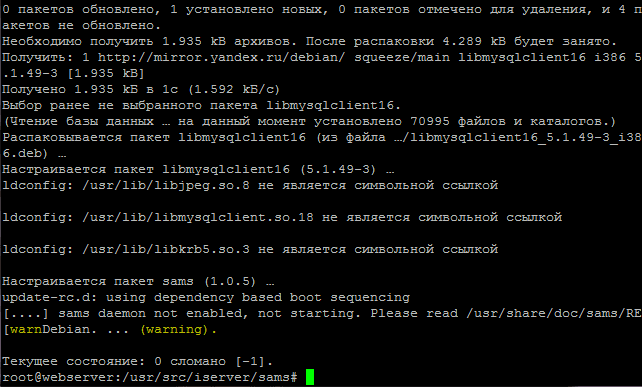
We will set the necessary dependencies to configure the installed web interface of Sams by following the command:
aptitude install libmysqlclient16 php-fpdf
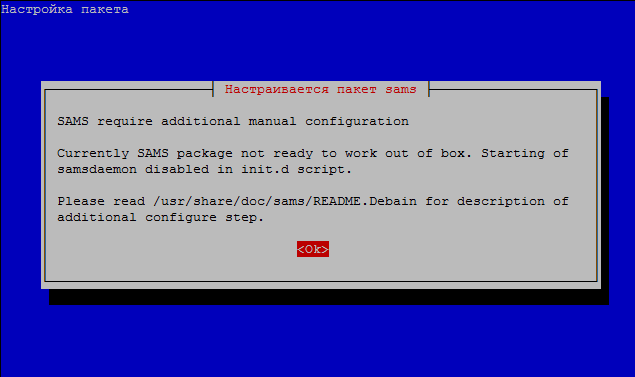
A pseudographic setting window for the SAMS package will appear:
SAMS require additional manual configuration

Currently SAMS package not ready to work out of box. Starting of samsdaemon disabled in init.d script.

Please read /usr/share/doc/sams/README.Debain for description of additional configure step.

                                    <Ok>
Press OK:
Installation of SAMS 1.5
During the installation of the base server, we installed the ISPConfig 3 hosting control panel. Open the ISPConfig 3 panel and in the tab Sites add a website sams.server.locIn the php language selection field, select php-5.2.17 and save the button. Save..

Delete the standard files automatically created by the ISPConfig 3 panel: favicon.ico, robots.txt, index.html, .htaccess And then I did the command.
rm /var/www/sams.server.loc/web/favicon.ico
rm /var/www/sams.server.loc/web/robots.txt
rm /var/www/sams.server.loc/web/index.html
rm /var/www/sams.server.loc/web/.htaccess
Check the rights of the created site sams.server.loc by following the command:
Let's go to the file. /usr/src/iserver/sams
cd /usr/src/iserver/sams
Create a folder into which we unpack the web files of the SAMS web interface:
mkdir /usr/src/iserver/sams/webfiles
dpkg --extract sams-web_1.0.5_all.deb webfiles/
dpkg --extract sams-doc_1.0.5_all.deb webfiles/
We transfer web interface files and documents to the created ISPConfig 3 panel site by executing commands:
mv webfiles/usr/share/sams/* /var/www/sams.server.loc/web/
rm -rf /var/www/sams.server.loc/web/doc
mkdir -p /var/www/sams.server.loc/web/doc
mv webfiles/usr/share/doc/sams/html/* /var/www/sams.server.loc/web/doc/
We check the user name and file group name of the site, in our case, the web3 user and the client1 group by following the command:
ls -l /var/www/sams.server.loc/
System response:
drwxr-xr-x  2 web3 client1 4096 Янв  2 23:38 cgi-bin
drwxr-xr-x  2 root root    4096 Янв  2 23:38 log
drwx--x---  2 web3 client1 4096 Янв  2 23:38 private
drwxr-xr-x  2 root root    4096 Янв  2 23:38 ssl
drwxrwxrwx  2 web3 client1 4096 Янв  2 23:38 tmp
drwx--x--- 14 web3 client1 4096 Янв  4 19:52 web
drwx--x---  2 web3 client1 4096 Янв  2 23:38 webdav
Change the rights to copied SAMS web interface files by following the command:
chown -R web3:client1 /var/www/sams.server.loc/web/
We also change the rights to the configuration file. /etc/sams.conf And then I did the command.
chown -R web3:client1 /etc/sams.conf
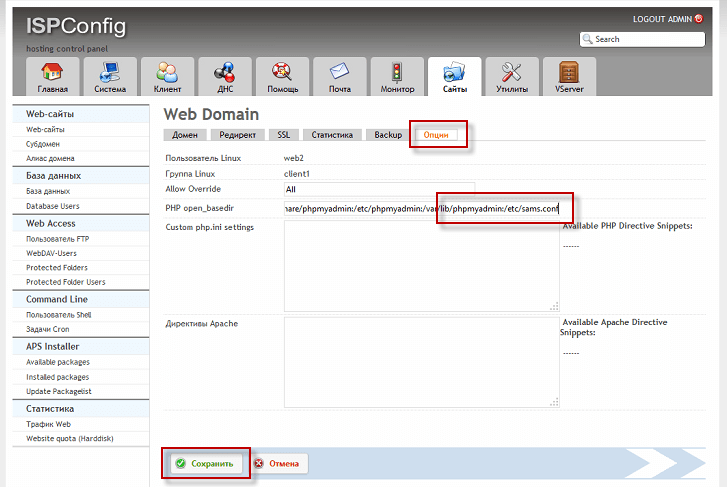
After changing the rights to the configuration file /etc/sams.conf You need to configure the ISPConfig 3 panel so that the SAMS web interface can read the settings. To do this, you need to open the site in the panel, go to the tab Options. field PHP open_basedirat the end of the line, add:
:/etc/sams.conf
After the changes are made, save the changes by pressing the button Save..
We make a backup config php 5.2.17 which we will change:
cp /opt/php-5.2.17/lib/php.ini /opt/php-5.2.17/lib/php.ini_backup
Configuring PHP
SAMS is able to work with PHP safe_mode=On. But this requires additional configuration settings. To do this, edit the php5 configuration file. /opt/php-5.2.17/lib/php.ini
vi /opt/php-5.2.17/lib/php.ini
Turn on the safe mode (this is optional, for example, I do not turn on). This is why we set the safe_mode setting.
safe_mode = On
But I'm using sams c safe_mode in Off, which means it should be:
safe_mode = Off
SAMS for some functions of the interface uses system commands, for example wbinfo. In mode. safe_mode php blocks access to system commands. Php allows you to execute system commands located in a directory specified by a parameter. safe_mode_exec_dir. Modify this parameter:
was:
safe_mode_exec_dir =
became:
safe_mode_exec_dir = "/usr/share/sams/bin"
Next, we allow the execution of system scripts from php code. We search for a configuration file and remove the ban on calling phpinfo system shell_exec exec functions from it:
was:
disable_functions =
became:
disable_functions = "chdir,dl,ini_get_all,popen,proc_open,passthru,pcntl_exec"
In PHP, we increase the maximum query size and file size.
was:
post_max_size = 8M
became:
post_max_size = 50M
was:
upload_max_filesize = 2M
became:
upload_max_filesize = 50M
All. PHP is ready to go.
You need to restart the web server to reread the settings from php.ini:
/etc/init.d/apache2 restart
Create a database user and mysql database for SAMS:
go under the hosting panel ISPConfig 3 tab Sites section Database - Database Users - Add new User and add
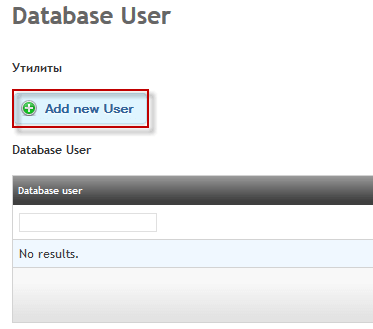
- Client: user
- Database user: _samsuser
- Database password: ZhjKwo9Ci1P
- Repeat Password: ZhjKwo9Ci1P
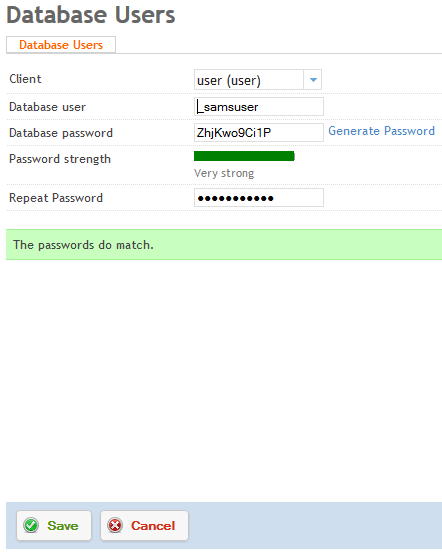
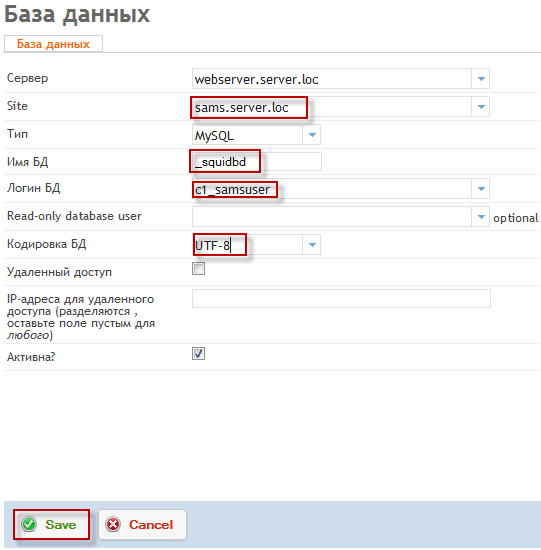
Fill in the fields to create a database, you need to fill in the fields for example:
- Server: webserver.server.loc
- Site: sams.server.loc
- Type: MySQL
- Name of BD: _samsbd
- Login BG: c1_samsuser
- OBD encoding: UTF-8
- Active? tick off
To add a database, press the button. Save.:
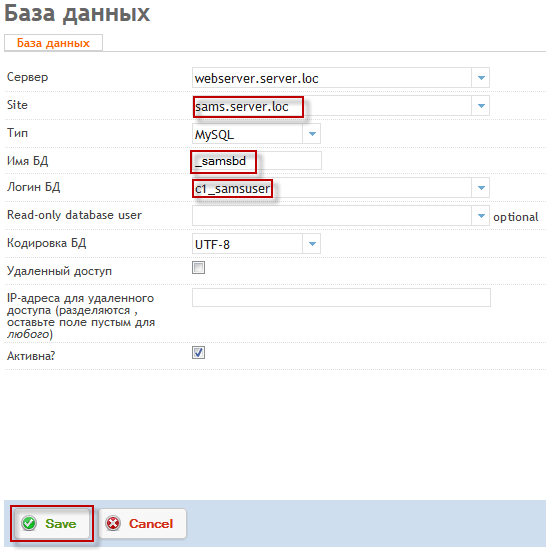
Fill in the fields to create a database, you need to fill in the fields for example:
- Server: webserver.server.loc
- Site: mail.server.loc
- Type: MySQL
- Name of BD: _squidbd
- Login BG: c1_samsuser
- OBD encoding: UTF-8
- Active? tick off
To add a database, press the button. Save.:
It is necessary to change the databases that will be poured into the databases created above:
sed -i 's/DROP DATABASE IF EXISTS `squidctrl`;/#DROP DATABASE IF EXISTS `squidctrl`;/g' /usr/share/sams/mysql/sams_db.sql
sed -i 's/CREATE DATABASE `squidctrl`;/#CREATE DATABASE `squidctrl`;/g' /usr/share/sams/mysql/sams_db.sql
sed -i 's/USE squidctrl;/#USE squidctrl;/g' /usr/share/sams/mysql/sams_db.sql
sed -i 's/ TYPE=MyISAM/ENGINE = MYISAM/g' /usr/share/sams/mysql/sams_db.sql
sed -i 's/squidctrl/c1_samsbd/g' /usr/share/sams/mysql/sams_db.sql
sed -i 's/DROP DATABASE IF EXISTS squidlog;/#DROP DATABASE IF EXISTS squidlog;/g' /usr/share/sams/mysql/squid_db.sql
sed -i 's/CREATE DATABASE squidlog;/#CREATE DATABASE squidlog;/g' /usr/share/sams/mysql/squid_db.sql
sed -i 's/USE squidlog;/#USE squidlog;/g' /usr/share/sams/mysql/squid_db.sql
sed -i 's/ TYPE=MyISAM/ENGINE = MYISAM/g' /usr/share/sams/mysql/squid_db.sql
Fill in modified database files by executing commands (copy and change the password to your own:
mysql -u c1_samsuser -pZhjKwo9Ci1P c1_samsbd < /usr/share/sams/mysql/sams_db.sql
mysql -u c1_samsuser -pZhjKwo9Ci1P c1_squidbd < /usr/share/sams/mysql/squid_db.sql
Include Sams in the file by correcting the file /etc/init.d/sams:
vi /etc/init.d/sams
was:
SAMS_ENABLE=false
became:
SAMS_ENABLE=true
Adjust the configuration file to the address /etc/sams.conf Correct:
vi /etc/sams.conf
was:
...
SQUID_DB=squidlog
SAMS_DB=squidctrl
MYSQLHOSTNAME=localhost
MYSQLUSER=sams
MYSQLPASSWORD=samspasswd
MYSQLVERSION=4.0
...
became:
...
SQUID_DB=c1_squidbd
SAMS_DB=c1_samsbd
MYSQLHOSTNAME=localhost
MYSQLUSER=c1_samsuser
MYSQLPASSWORD=ZhjKwo9Ci1P
MYSQLVERSION=5.5
...
Next, check whether squid is running and if the command outputs the number means it is running:
pidof squid
system response:
8534
Then stop the proxy server by executing the command:
/etc/init.d/squid stop
system response:
* Stopping Squid HTTP proxy squid [ OK ]
Now we will recreate the proxy server cache with the command:
squid -z
system response:
2009/02/16 15:55:20| Creating Swap Directories
At this stage, the squid setup is finished, now we run a proxy server with the command:
/etc/init.d/squid start
In order to go to the SAMS control panel, you need to enter the address sams.server.loc/ in the browser, if you have not configured DNS on this server (add an entry to the IP server and the name sams to the DNS A), then you need to register in hosts file record (file is in Windows) c:\Windows\System32\drivers\etc\hosts):
192.168.1.1 sams.server.loc
where 192.168.1.1 is the IP address of the server
Open the website in the web browser at:
http://sams.server.loc/
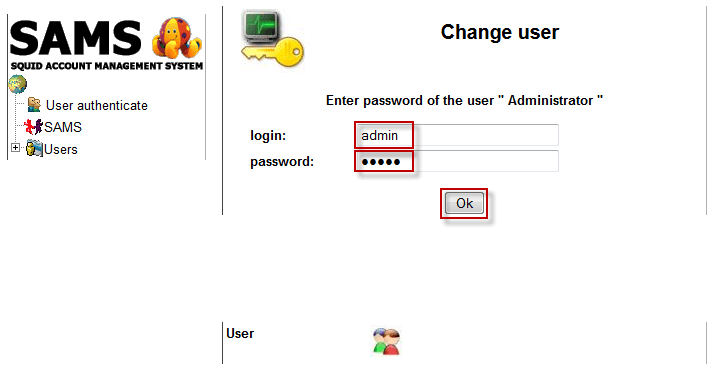
Administrator entrance:
Login: admin
Password: qwerty
Entrance under the auditor:
Login: auditor
Password: audit
I strongly advise you to change the password immediately, and write it down in a notebook.
Screenshots of setting up SAMS through the web interface:
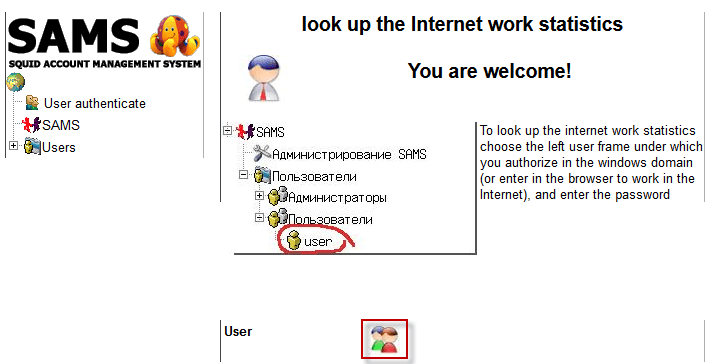
Enter the login and password in the corresponding fields and click OK:
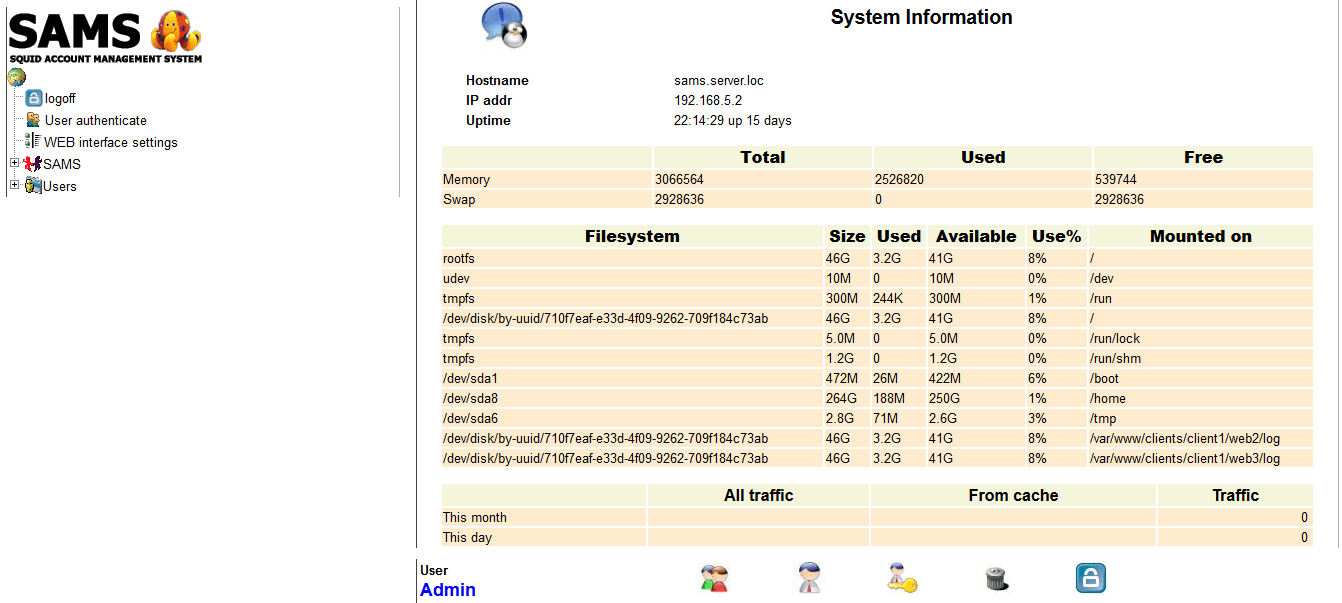
We see the first page of the SAMS web interface:
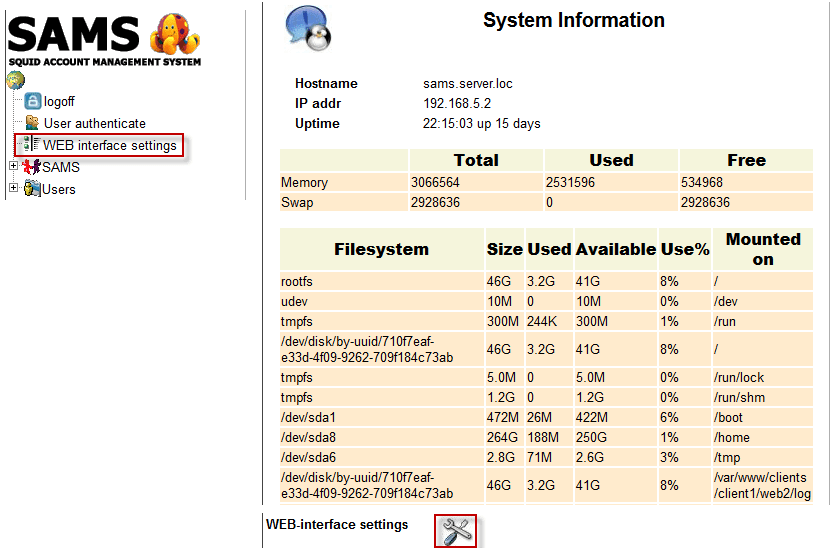
Click on the link WEB interface settings and open the web interface setting by clicking on the button:
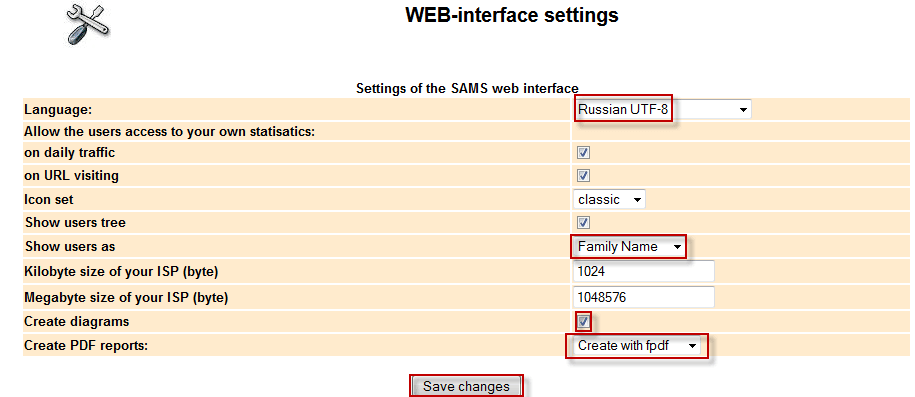
In the window that opens, change the interface language in the drop-down list and save the changes:
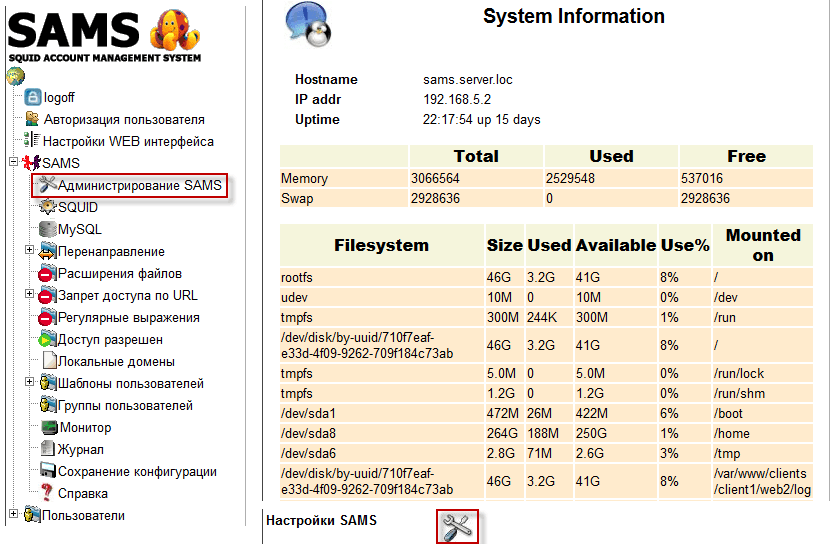
Open the link. SAMS administration and click on the button to open SAMS administration settings:
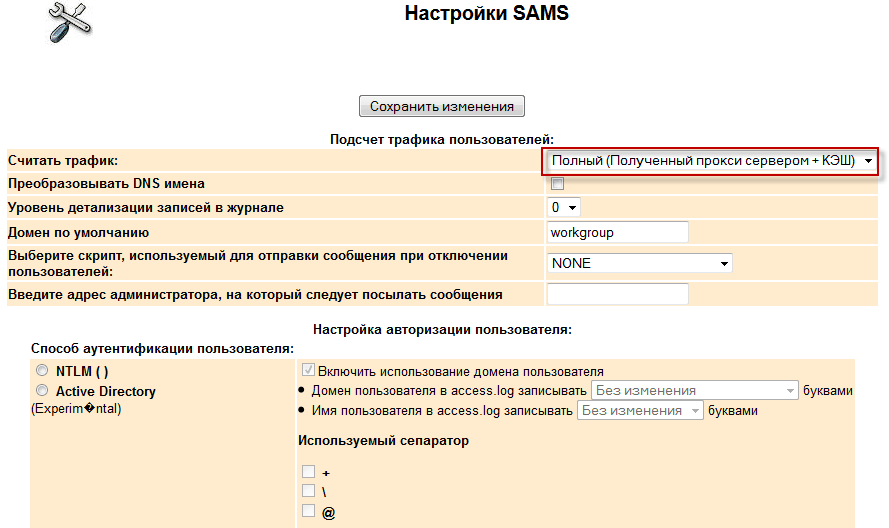
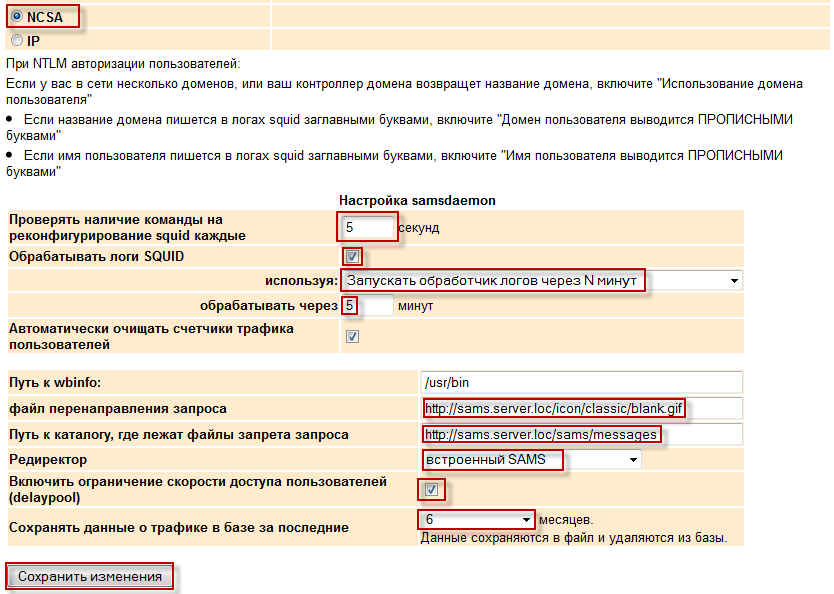
In the opened window, change the settings according to example below:
- Count traffic: Complete (Received by proxy server + Cash)
- NCSA: tick off
- Check for a command to reconfigure squid each time: 5 seconds
- Processing SQUID logs: tick off
- Run the log handler in N minutes
- process through: 5 minutes.
- Include a user speed limit (delaypool): tick off
- Store traffic data in the database for the latest: 6 months
To save changes to the SAMS settings, press the button Save the changes
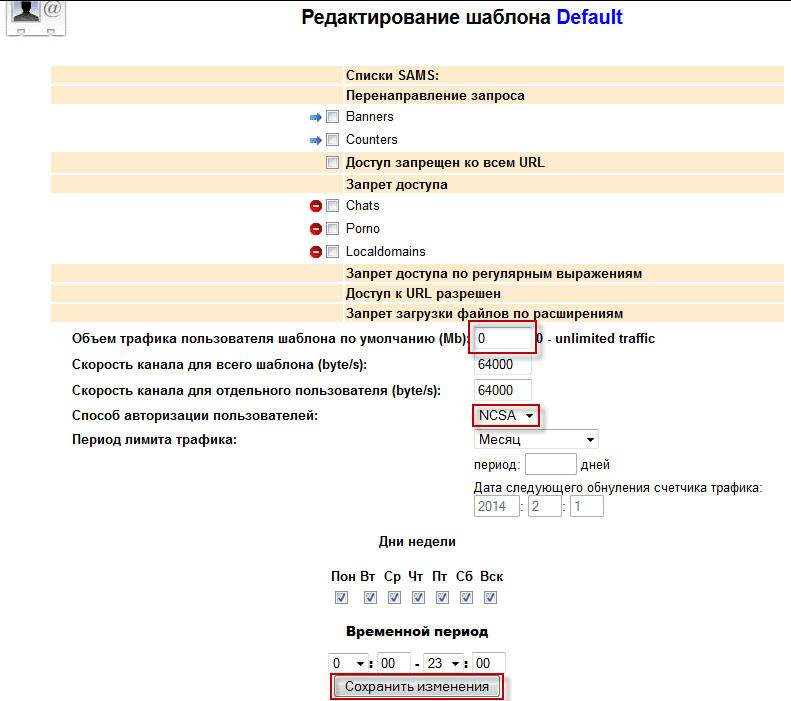
Be sure to change the template settings Default:
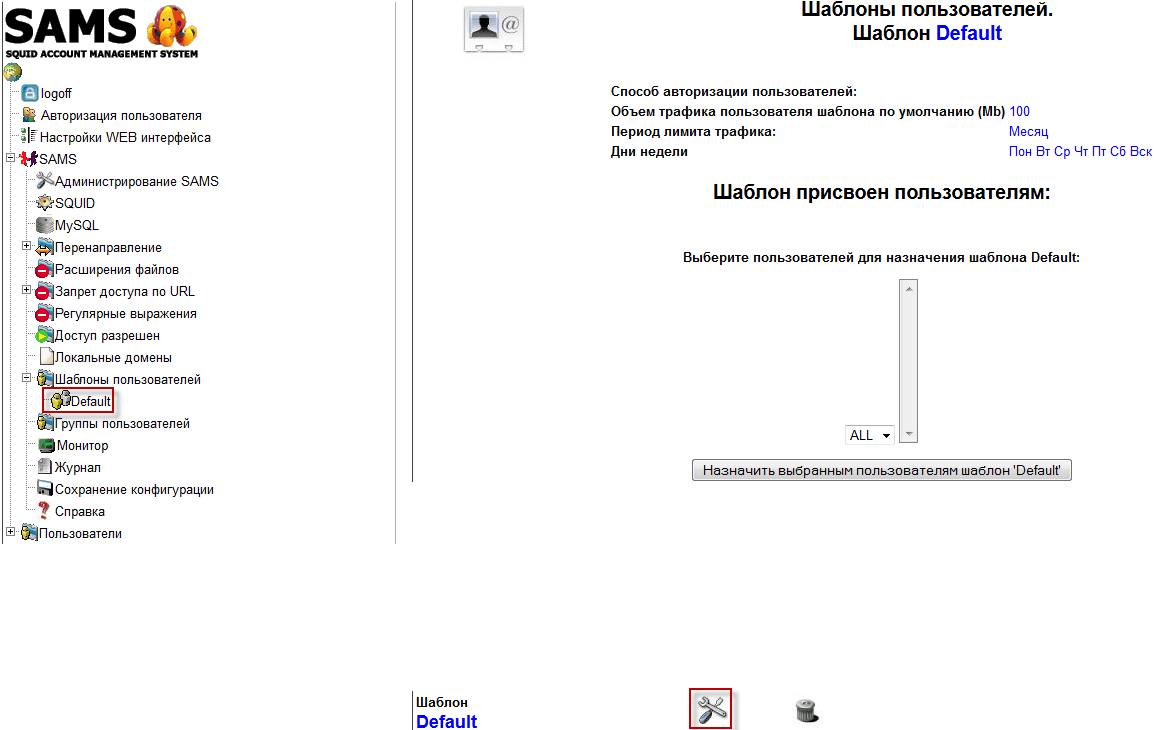
In the opened window, change the settings according to example below:
- Default user traffic (Mb): 0
- Method of user authorization: NCSA
To save changes to the SAMS settings, press the button Save the changes
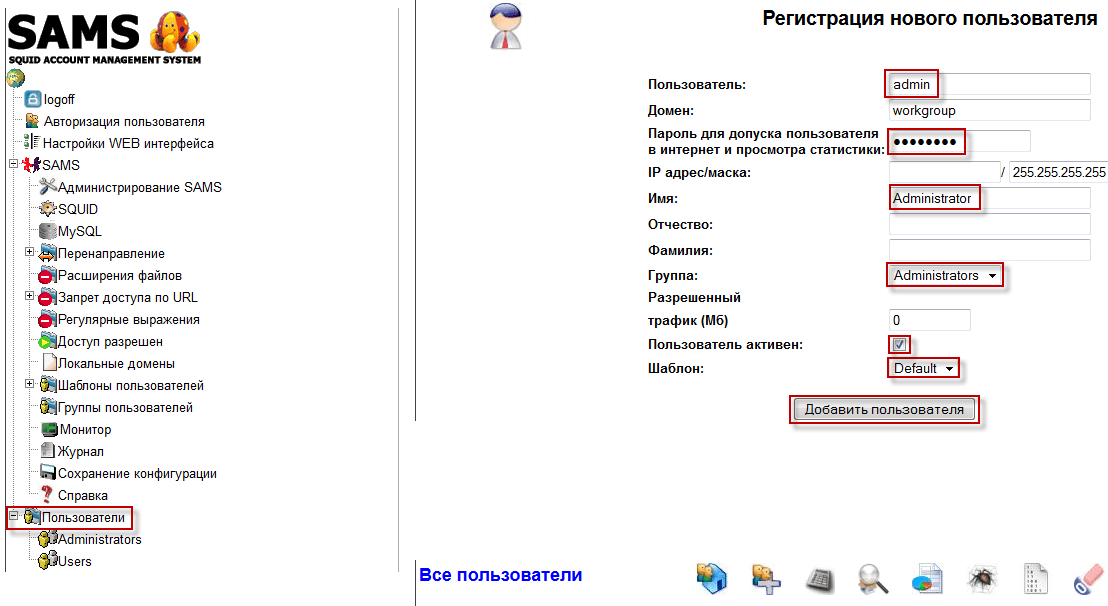
Add the user by clicking on the link Users and click the user add icon at the bottom of the page, in the window that opens, fill in the new user data for example below:
- User: admin
- IP address/mask: 192.168.1.50/255.255.255.0
- Name: Administrator
- Group: Administrators
- The user is active: tick off
- Template: Default
To add a user, press the button Add a user:
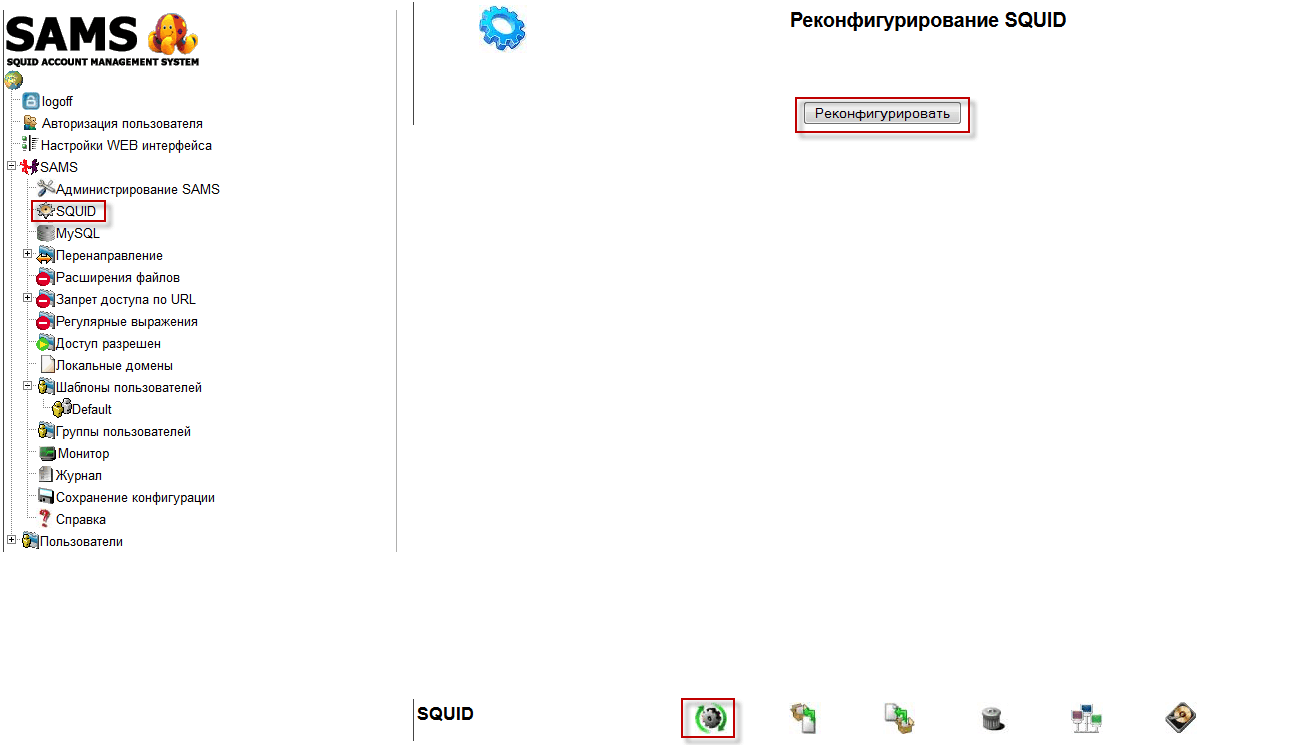
Save the changes made to the SAMS web interface by clicking on the link SQUID, press the icon SQUID reconfiguration press the button. Reconfigure

! Problems
If SAMS doesn't count traffic.
Let's do the command.
sams -d
If there is a problem, will issue an error, I had a problem with the database squid_db, deleted the contents of the database, re-imported following the example above and no problem. Now SAMS counts traffic.
The guide to installing a proxy server Squid with the SAMS web interface in Debian Wheezy is complete.
I was with you. Sergey Lazarenko.
Let’s take a short break and watch the video how to open a can with your bare hands without any improvised means:


comment