

In this guide, we will install the CentOS 7 operating system on a server that supports 64bit architecture, since the developers did not release a distribution for the 32bit architecture, at least I did not find anywhere.
Recently, a new operating system CentOS 7 was released, so I decided to make an installation manual with detailed screenshots in order to guide those who want to learn how to install and configure Linux CentOS 7 when asked to teach or prompt.
CentOS is a Linux distribution based on and compatible with Red Hat's commercial Red Hat Enterprise Linux. Red Hat Enterprise Linux consists of free open source software, but is available as binary package discs only for paying subscribers. As required by the GPL and others, Red Hat provides all source code. CentOS developers use this source code to create a final product very close to Red Hat Enterprise Linux and available for download.
Download CentOS 7 on the official website for x64 architecture:
Download a distribution convenient for you size by links:
Download CentOS 7 DVD
Download CentOS 7 Minimal CD
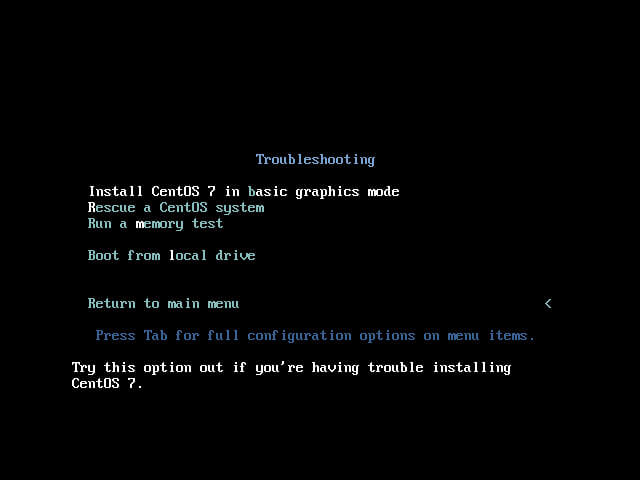
Write on the disk downloaded image, which you downloaded by one of the links above, or finding yourself on the Internet, but if the requirement is to install a minimum configuration, then it is enough to download an image for the CD disc. Download from the disk and see a window in which you click on the menu Install CentOS 7 and press Enter. If you need to run a RAM test or start from the hard drive click on the menu Troubleshhting and press Enter:

In the window that opens, select the menu you need and click Enter:
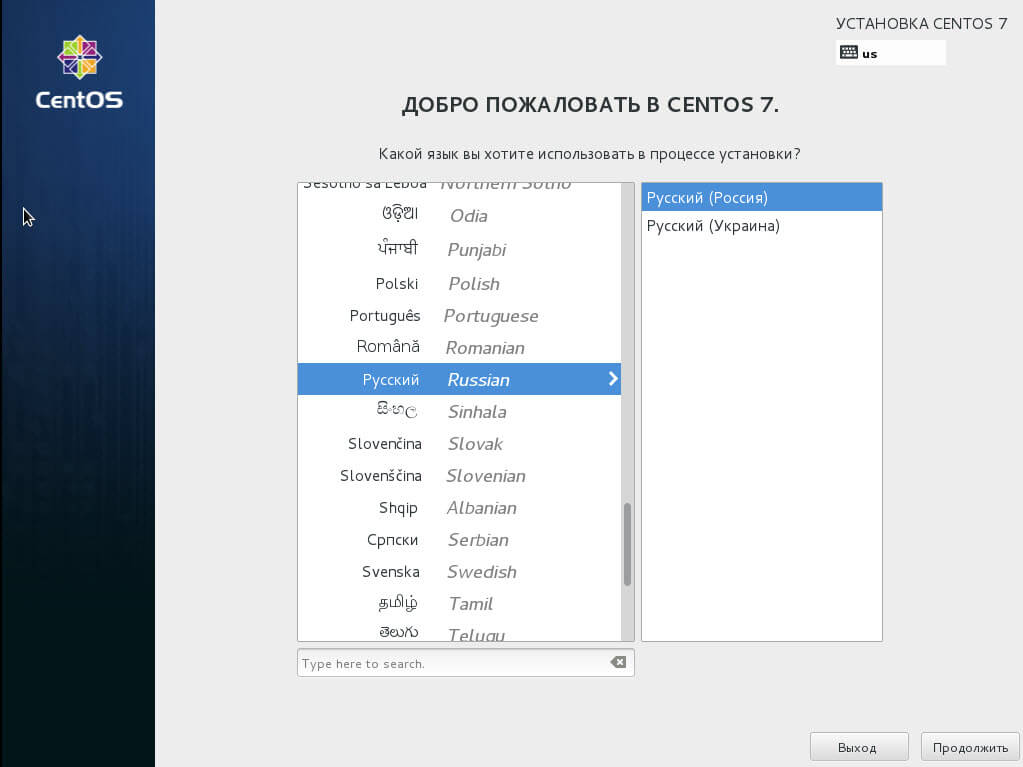
The system installer window starts:
Choose the language of iterface installation Russian (Russian):
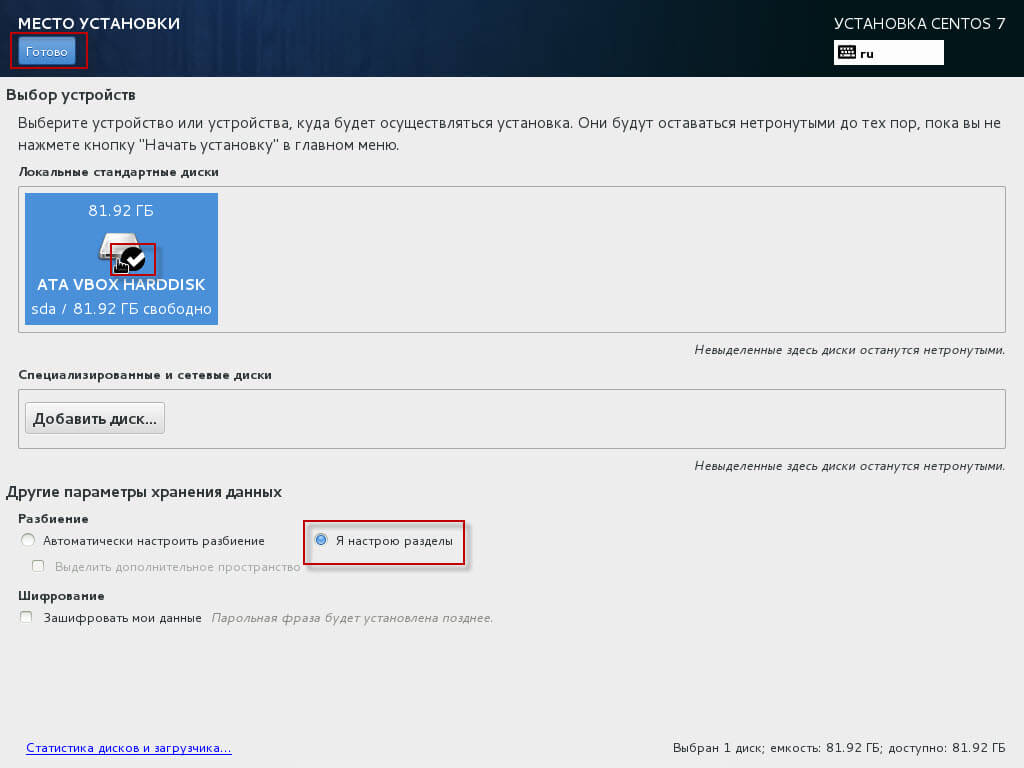
If you do not use specific drives in the server, but standard screws are used, mark the icon Local standard disks, click in the section Additional parameters - I'll set up sections.:
The window of the manual breakup of the hard drive opens:
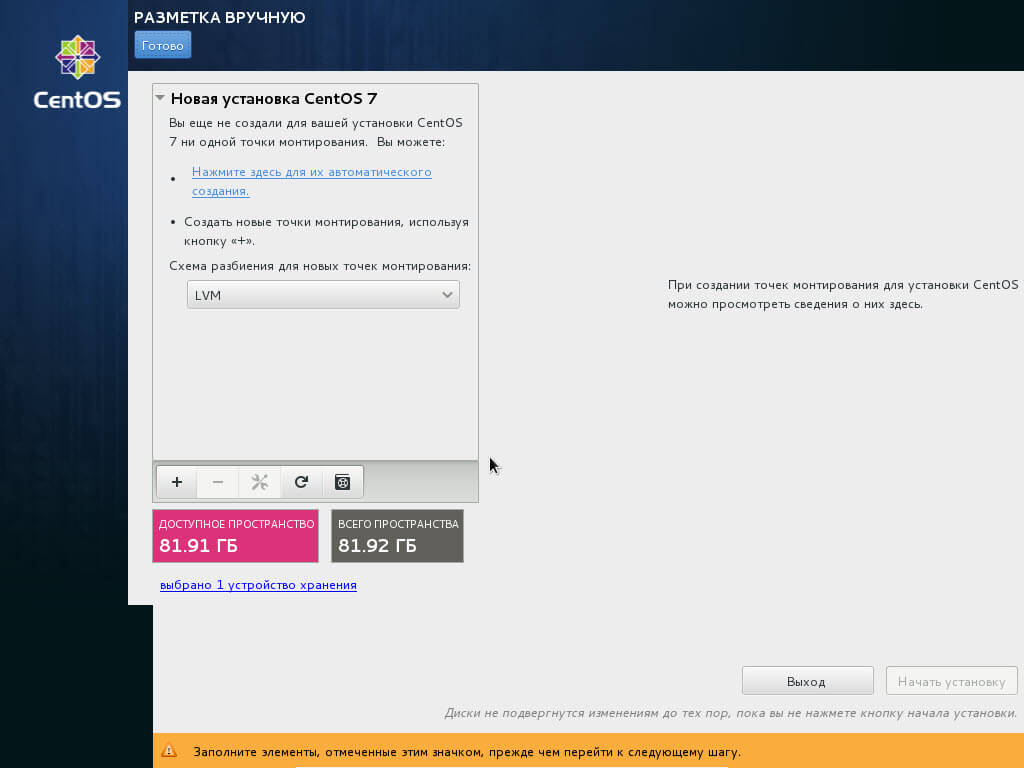
Choose from the drop-down list Regular sectionClick on the Plus button, enter in the opened window:
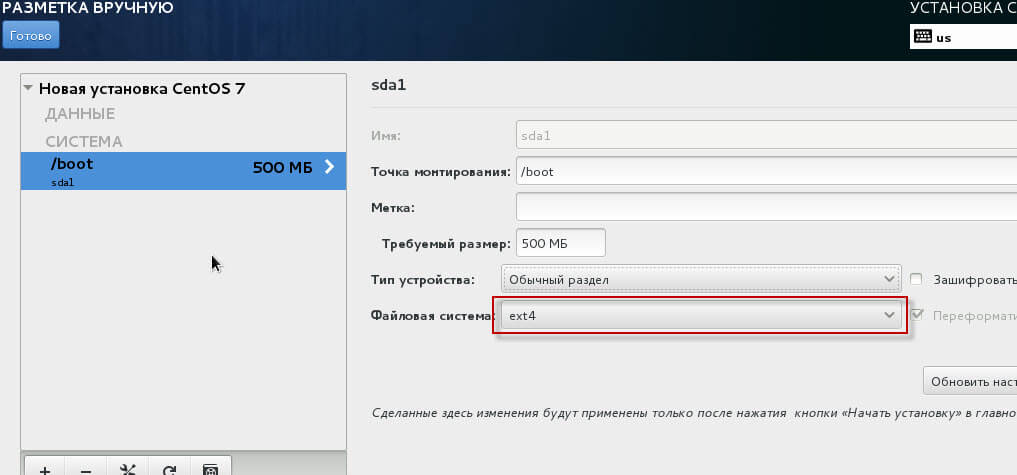
- Mounting point: /boot
- Section required: 500mb
To add the boot section, press the button Add a mounting point:

Click on the newly created section /boot right-handed File system in the drop-down list, select ext4To apply the change, click on the button. Update the settingsI forgot to highlight this button in the screenshots below:
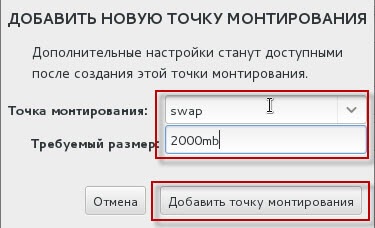
Now add the swap section. swap, clicking on the button Plus. In the window that opens, add a new section:
- Mounting point: swap
- Section required: 2000mb
To add the swap section, press the button Add a mounting point:
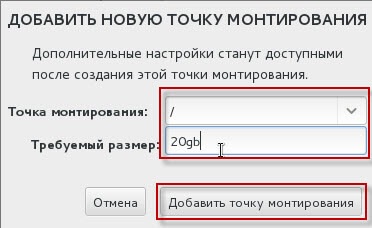
Now add the root section. /, clicking on the button Plus. In the window that opens, add a new section:
- Mounting point: /
- Section required: 20gb
To add the root partition, press the button Add a mounting point:
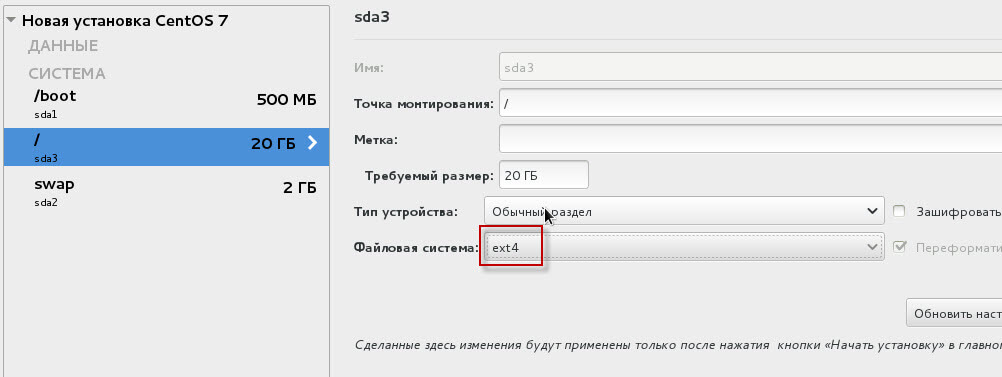
Click on the newly created root section / right-handed File system in the drop-down list, select ext4To apply the change, click on the button. Update the settings:
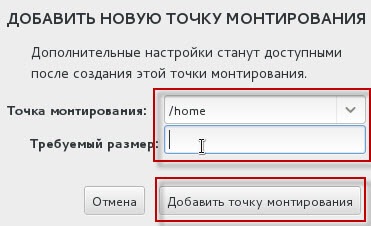
Now add the home section. /home, clicking on the button Plus. In the window that opens, add a new section:
- Mounting point: /home
- Section required:
For the home section, we allocate all available space, so when adding a partition, we do not specify the size, to add a partition, press the button. Add a mounting point:
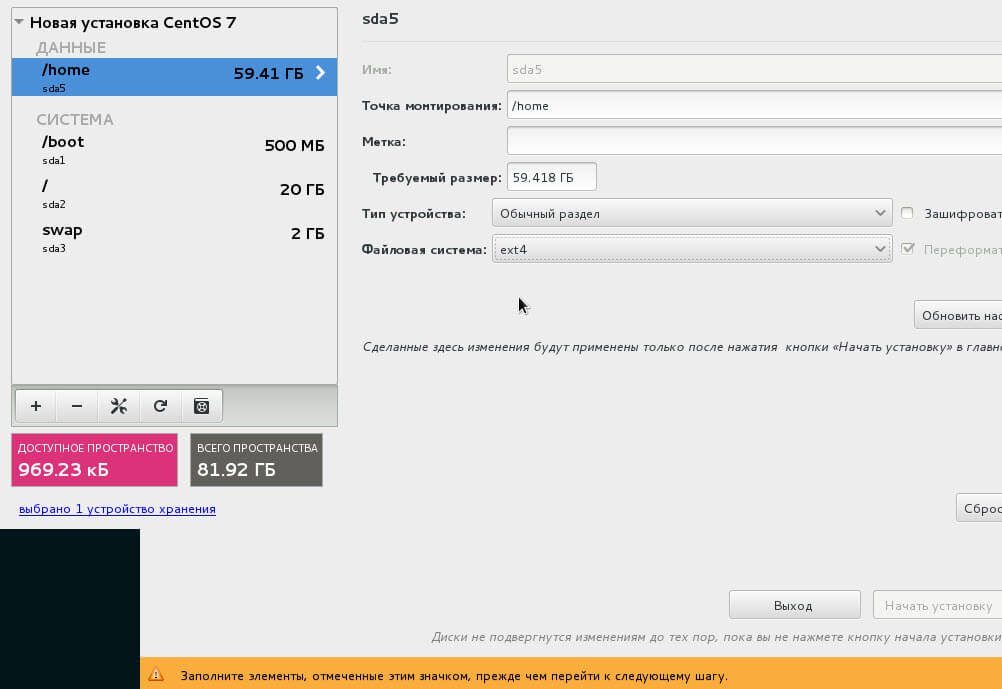
The breakup of the hard drive is finished, in the screenshot below you can see what the finished disk breakdown looks like:
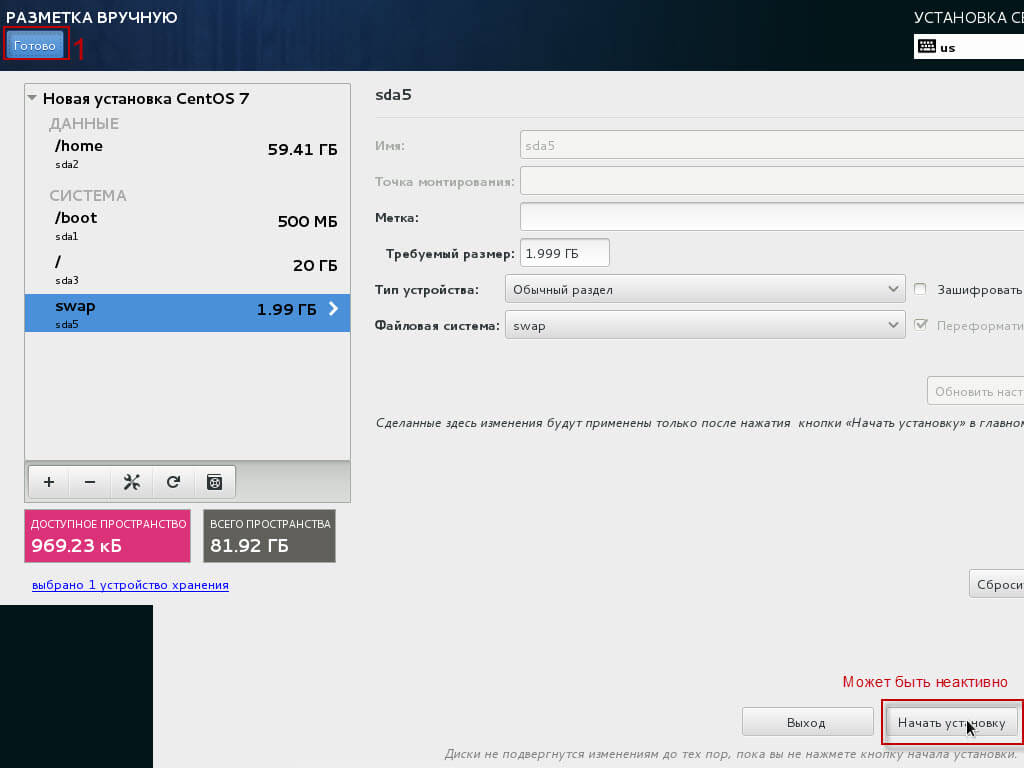
In the screenshot above you can see the not active button Start installation, here to activate the button press the button Ready. In the upper left corner, then press the button. Start installation:
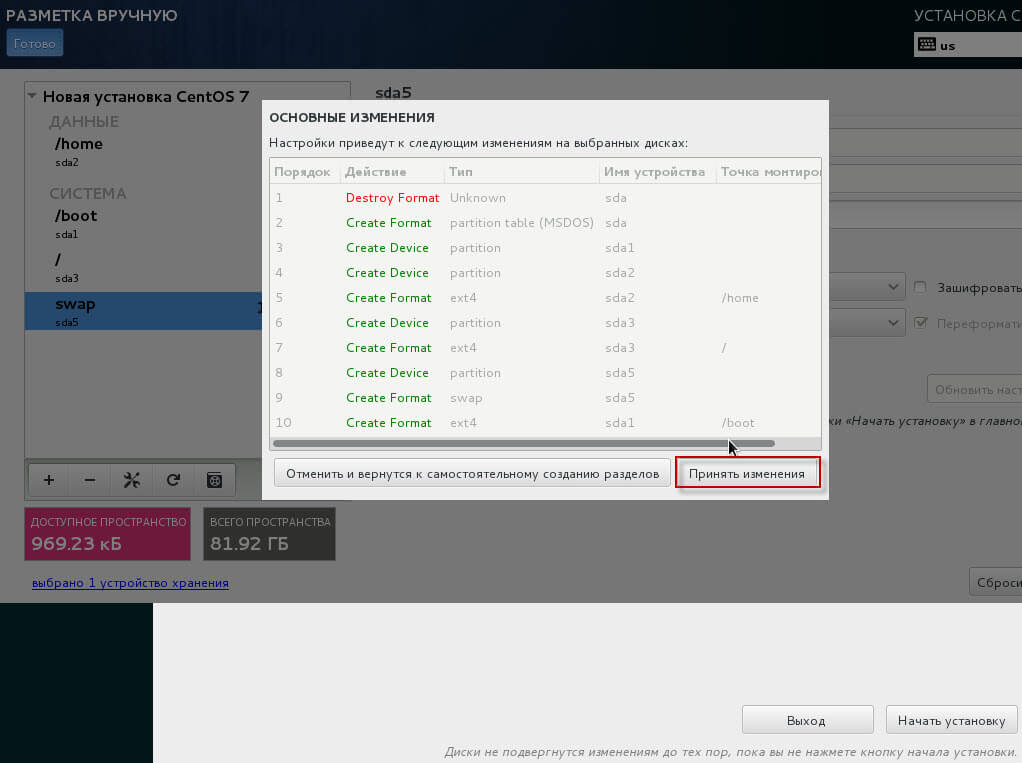
In the open window, agree to break up the hard drive and click on the button. Adopt changes:
In the installer window that opens, we proceed to set up the network by clicking on the button. The network and the name of the node:
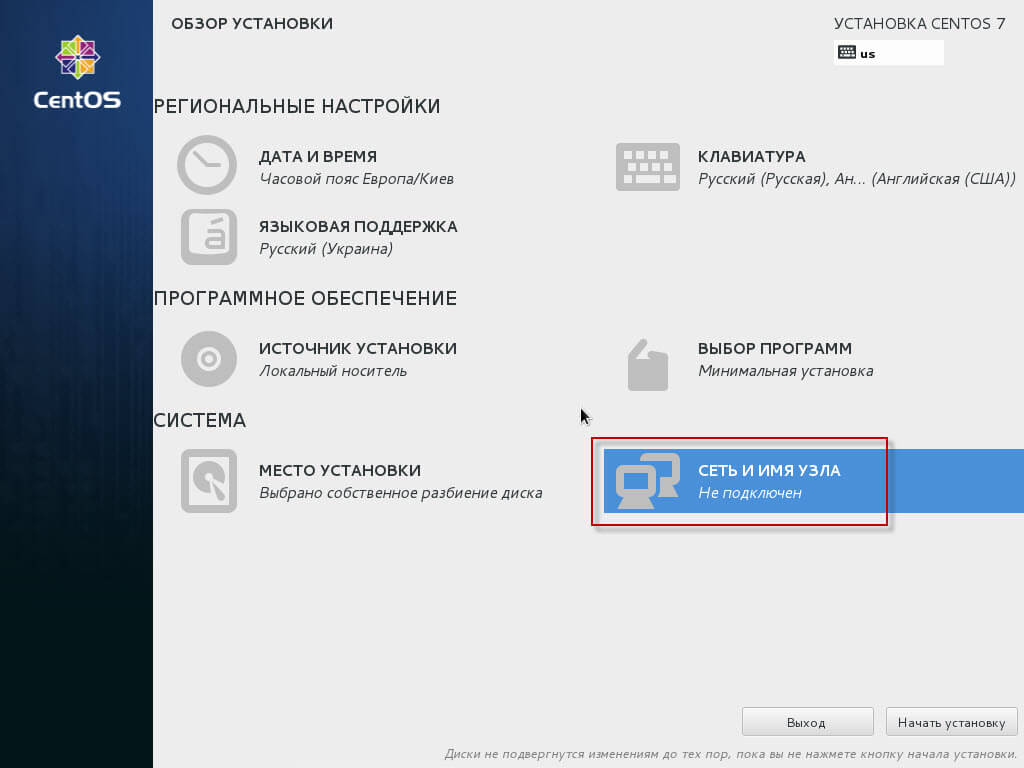
In the left section of the opened window, we see the network card installed in the server, click on it and press the button. Set up:

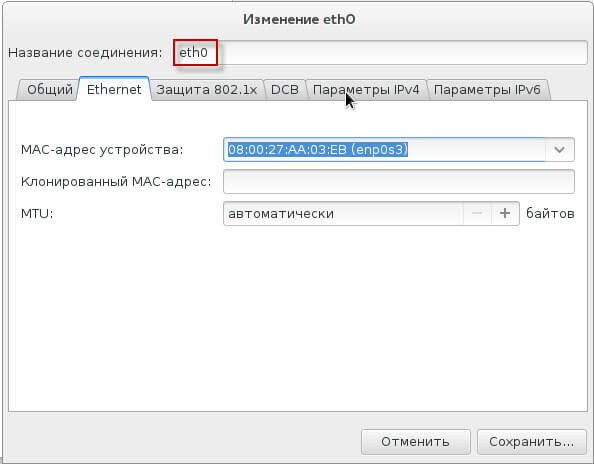
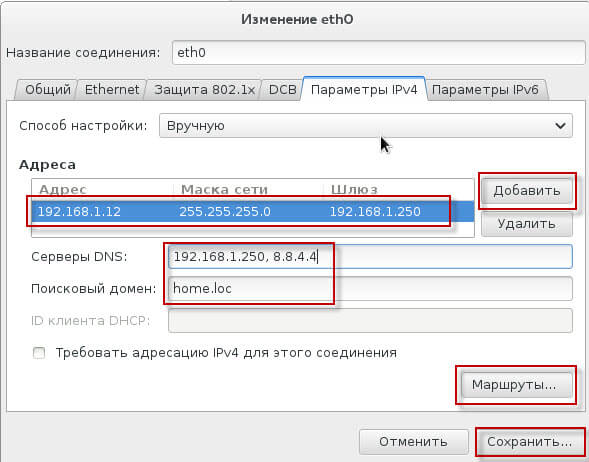
In the window that opens, you can change the name of the connection: eth0, then go to the tab. IPv4 parameters:
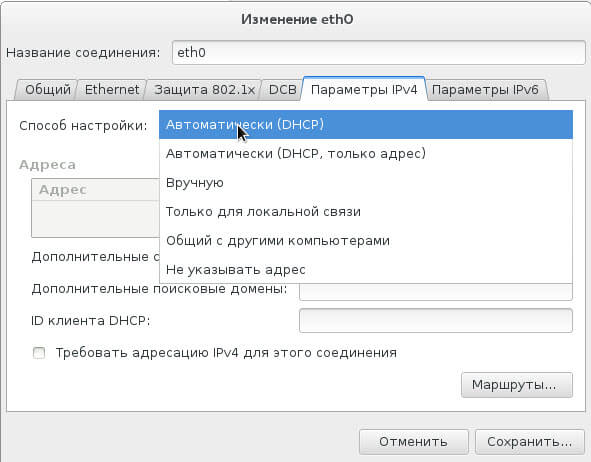
When choosing the method of setting up in the drop-down list, choose the method you need depending on the server connection, if you have a router or gateway that automatically distributes IP, choose Automatic (DHCP):
I will set up the network below when choosing a connection method. Manually.click on the button. Add:
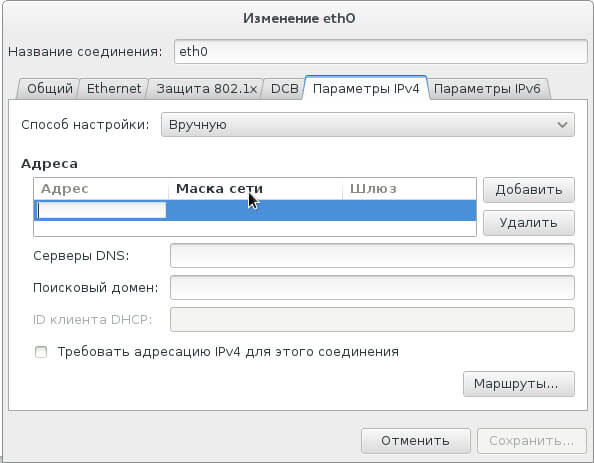
Fill in the fields for example below:
- Address: 192.168.1.12
- Mask of the net: 255.255.255.0
- Gateway: 192.168.1.250 (my router)
- DNS servers: 192.168.1.250, 8.8.4.4
- Search domain: home.loc (don't write anything here)
Add a route by clicking the button Routes...
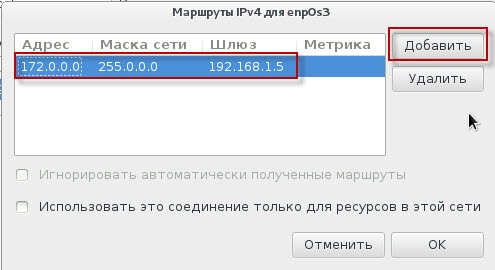
In the window that opens, press the button. Add and fill the desired route of the internal network running on the intranet gateway or router, for example, the intrahome network is connected to the server 192.168.1.5, and the home network is located in 172.0.0.0 subnet:
- Address: 172.0.0.0
- Mask of the net: 255.0.0.0
- Gateway: 192.168.1.5
To save the changes, press the button. OK:
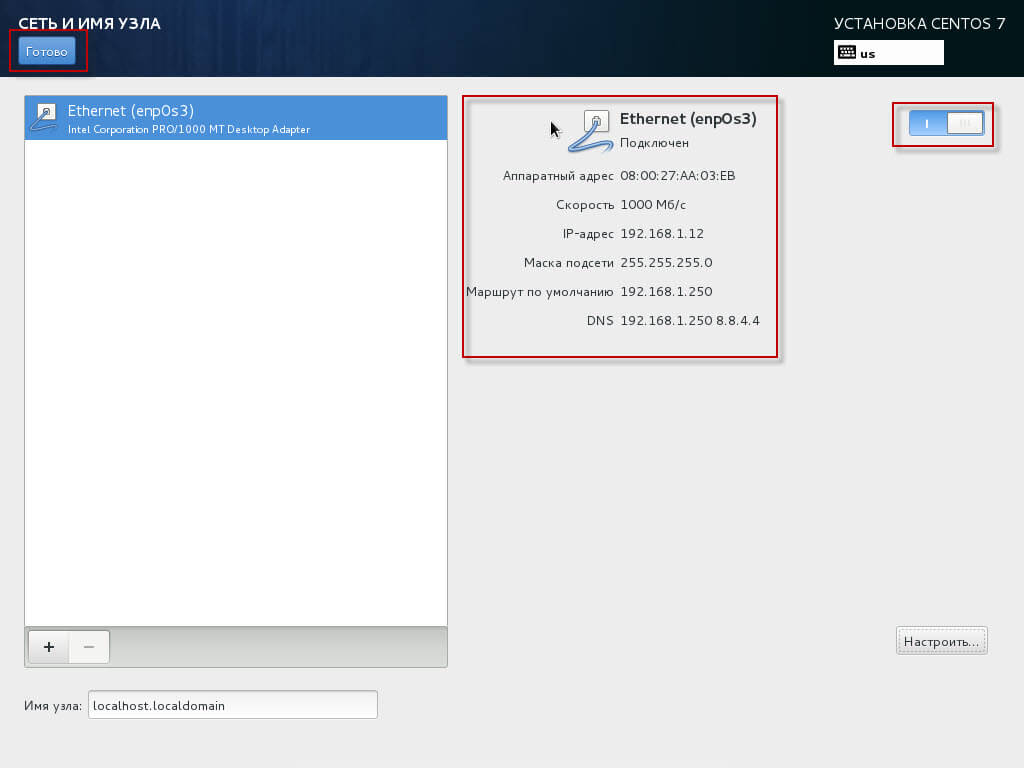
After configuring the network card, you need to enable it by clicking on the button in the upper right corner, it is initially colorless, to save changes press the button. Ready.:
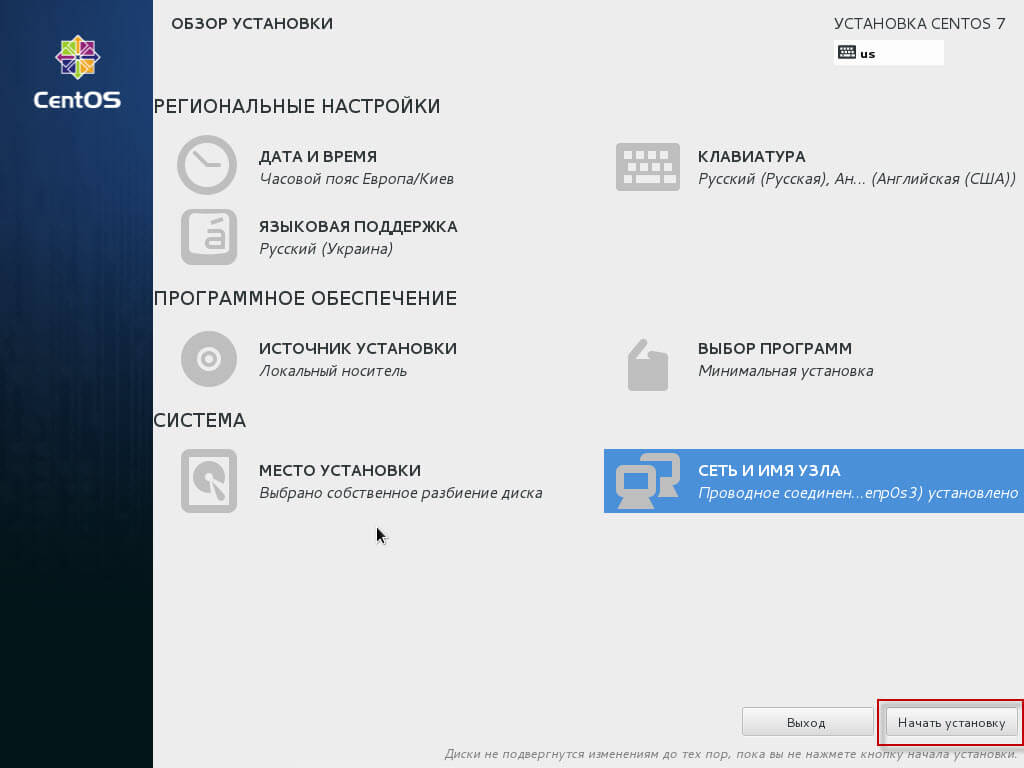
The network card is configured, the hard drive is broken, the server is ready to install, click the button Start installation:
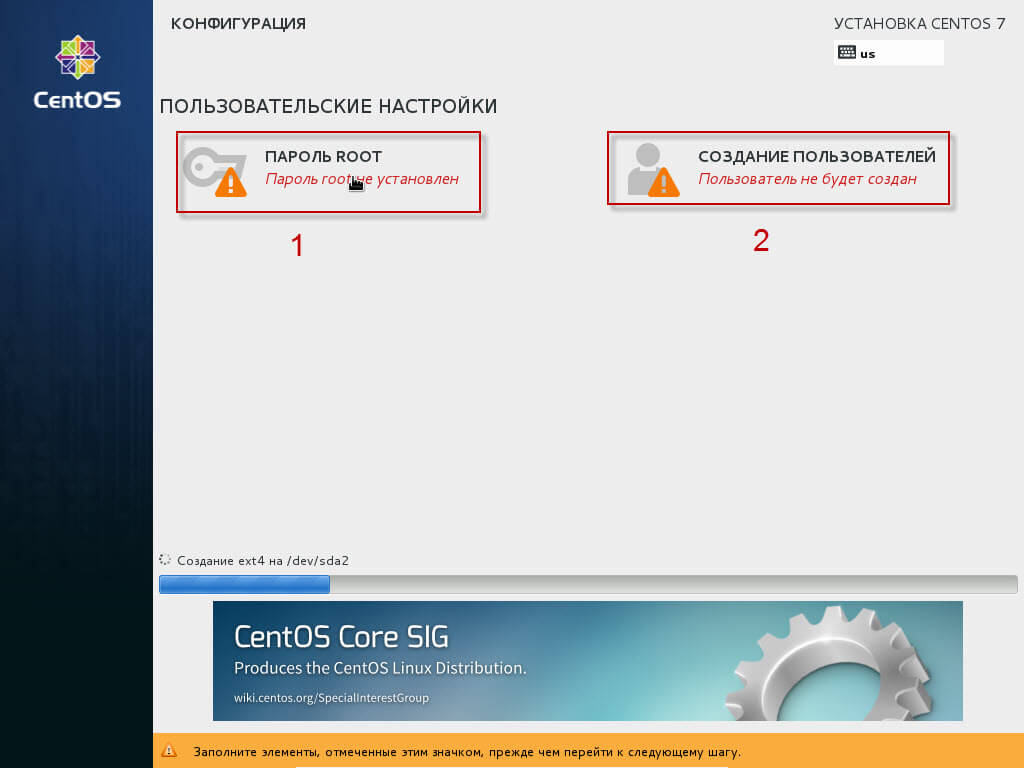
Installation of the system on the server is started, in the window that opens, we have to create a password for the root superuser and add one or more ordinary users, click on the button. Password ROOT:
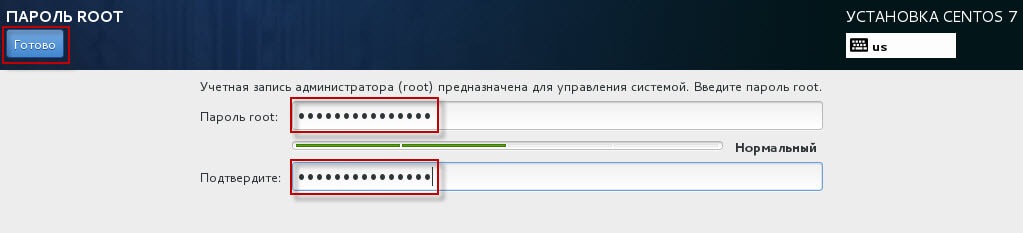
In the window that opens, enter a complex password of 8 characters from the Latin alphabet, numbers and I highly recommend adding at least one of the symbols: #@_ To apply changes, press the button. Ready.:
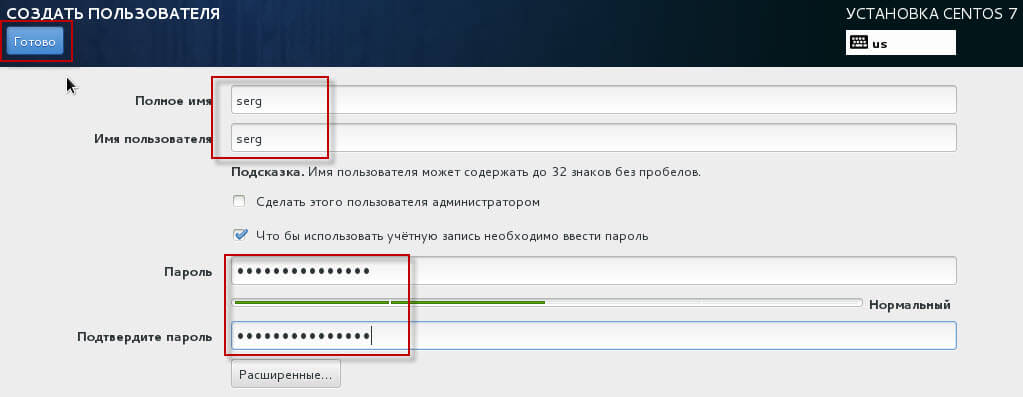
Click on the user add button, in the window that opens, add a user name, in my case. serg and enter a password similar to 8 characters from the Latin alphabet, numbers and highly recommend adding at least one of the characters: #@_ Press the button Ready. Enjoy the process of installing the server:
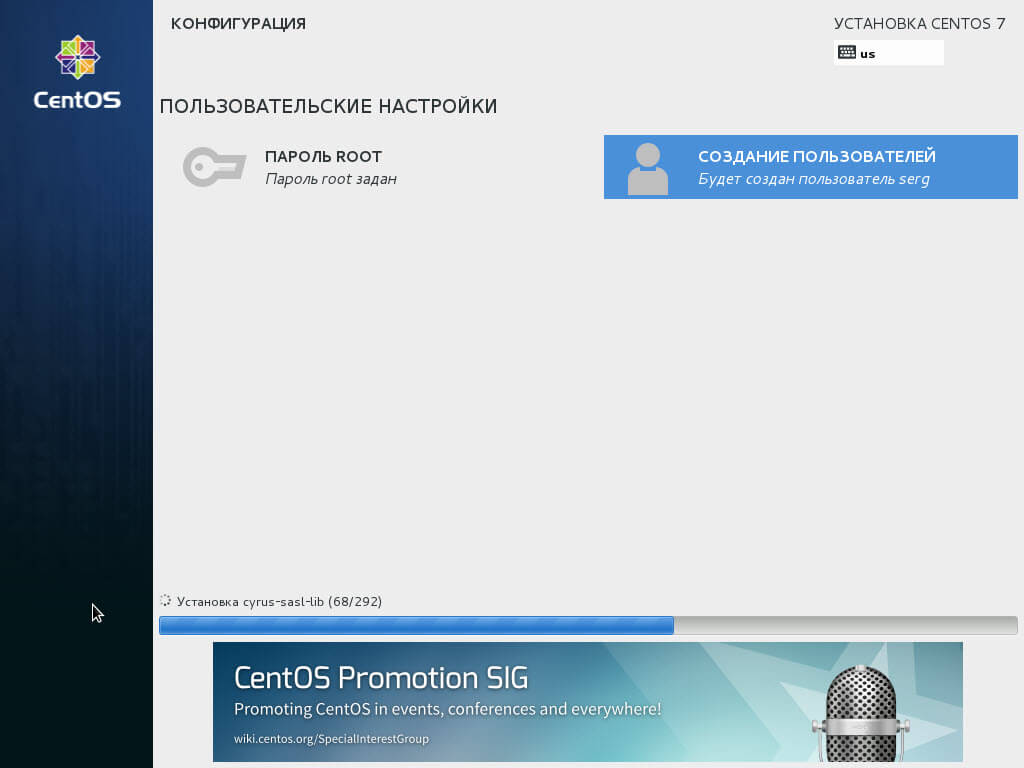
The process of installing CentOS 7 on the server:
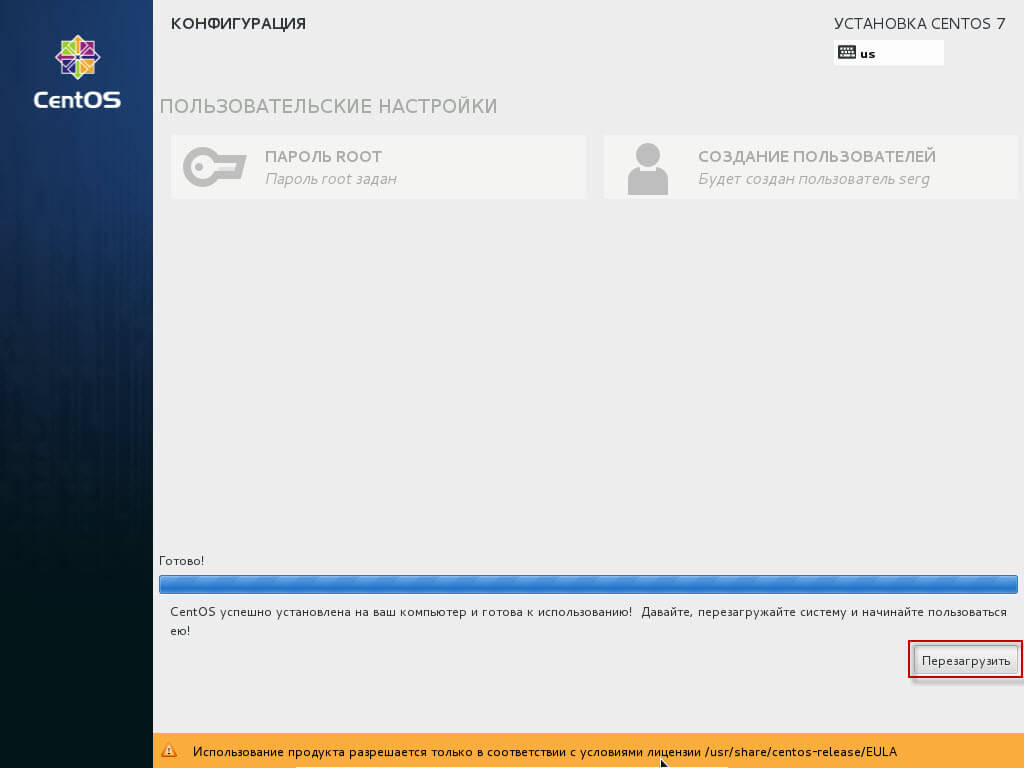
After the installation is complete, the installer will prompt you to restart the server to boot into the installed CentOS 7 Symptom by clicking on the button. Reboot.:
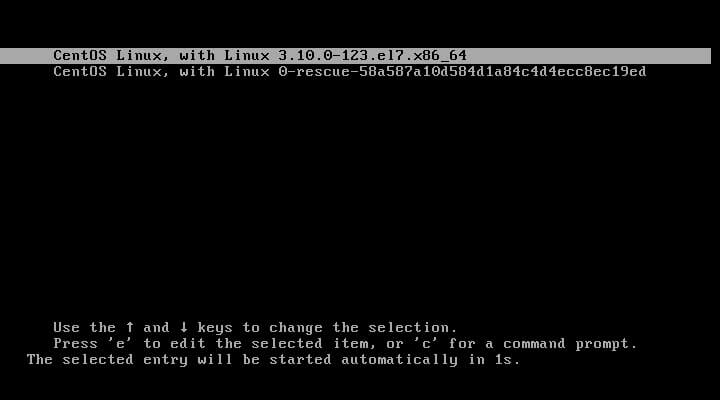
The process of launching the operating system:
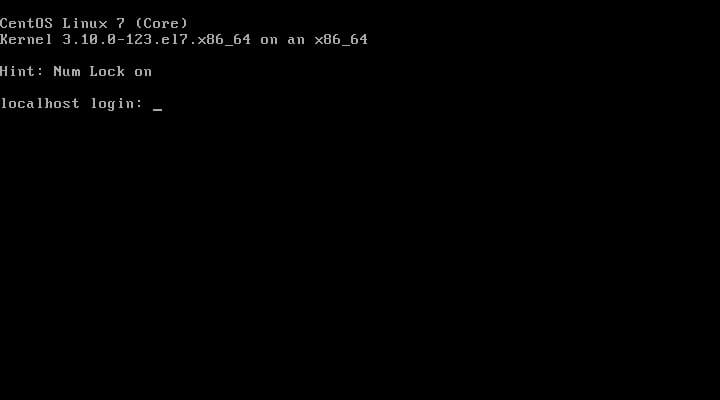
The operating system is loaded, enter the root login by pressing Enter, enter the password that was created earlier, it will not be displayed during the input:
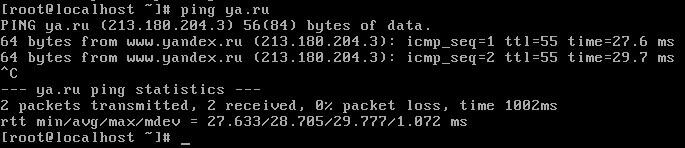
Try ping on ya.ru to make sure that the whole network is working.
In this manual, we have installed the operating system CentOS 7 Linux, in the guide you can change the steps of the hard drive breakdown and network configuration as convenient to you based on your needs. You can also set up the network and add a user after installation using the console.
I was with you. Sergey Lazarenko.
Take a short break and watch the extreme descent from the mountain on a bike, the spirit is breathtaking:

comment