

The other day, I had to install the CentOS 6.6 operating system on the server according to the requirements for software versions, although CentOS 7 has already been released, because I decided to make an installation instruction with detailed screenshots of version 6.6.
CentOS A Linux distribution based on and compatible with Red Hat's commercial Red Hat Enterprise Linux. Red Hat Enterprise Linux consists of free open source software, but is available as binary package discs only for paying subscribers. As required by the license GPL Red Hat provides all the source code. CentOS developers use this source code to create a final product very close to Red Hat Enterprise Linux and available for download. There are other clones of Red Hat Enterprise Linux based on this code.
Download CentOS 6.6 on the official website for the architecture of amd64:
Download CentOS 6.6 CD amd64 minimal version
Download CentOS 6.6 DVD amd64 version
Download CentOS 6.5 on the official website for 32bit architecture:
Download CentOS 6.5 CD 32bit Minimum
Download CentOS 6.5 DVD 32bit version
We record the downloaded image for the desired architecture, the desired size, but if there is a requirement to install a minimum configuration, then it is enough to download the image for the CD disc under your architecture. Download from the disk and see a window in which you stand on the menu Install or upgrade an existing system:
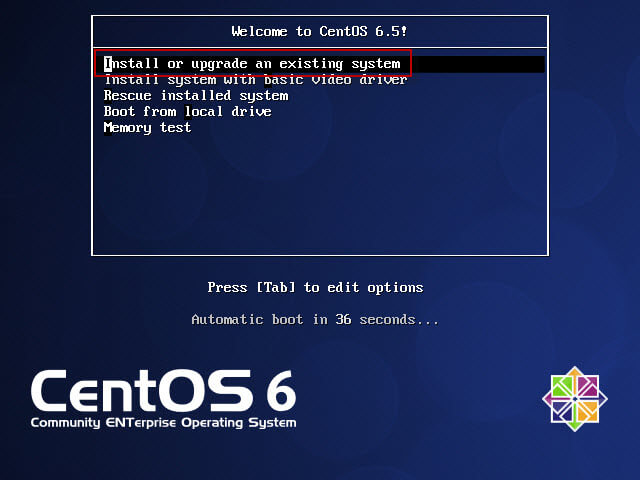
Start-up of the installation system:

Suggested to check the disk for a system read error, if you are sure of the drive we click skip, button Skip:
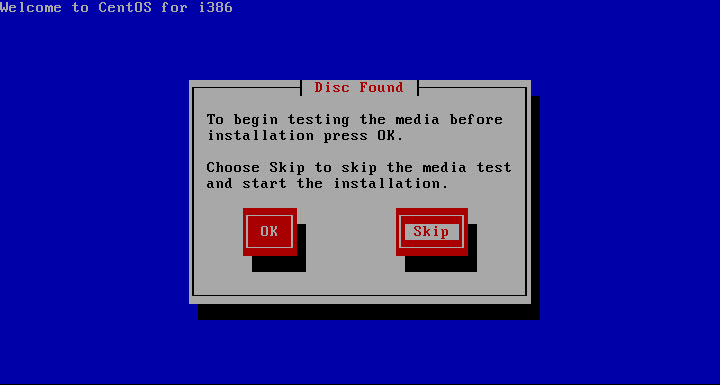
Launched the program to install the system, to start installation press the button Next:

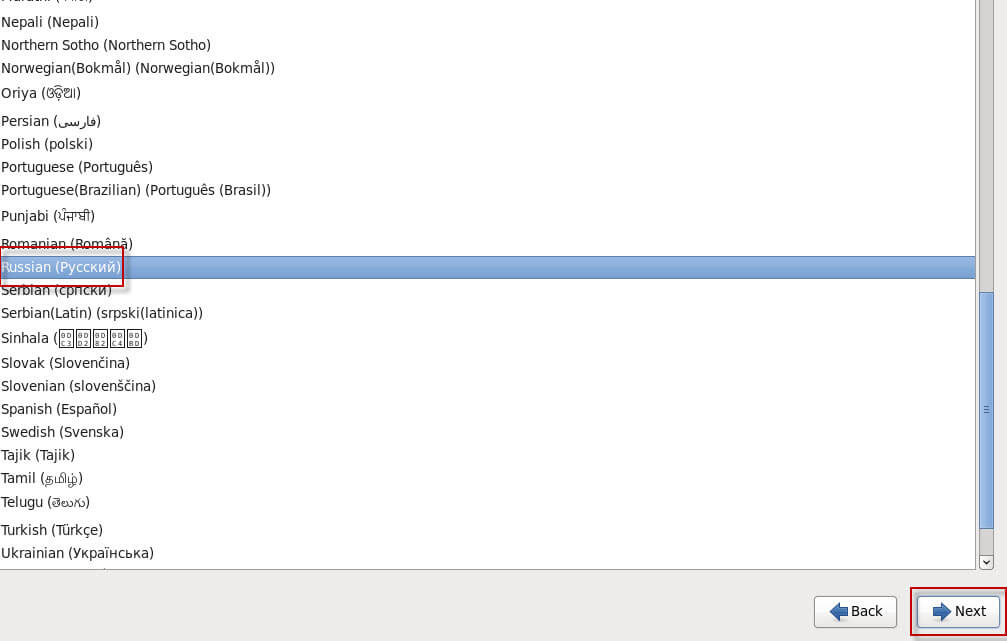
Choose the language of iterface installation Russian (Russian):
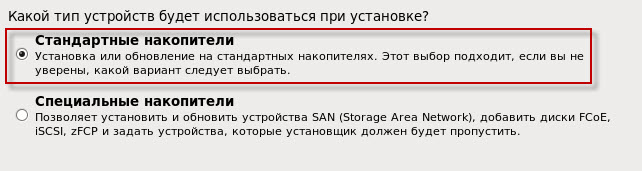
If you do not use specific drives in the server, but standard screws are used, mark the field Standard drives:
We have a new empty drive, because we agree that you can delete data on an empty hard drive:
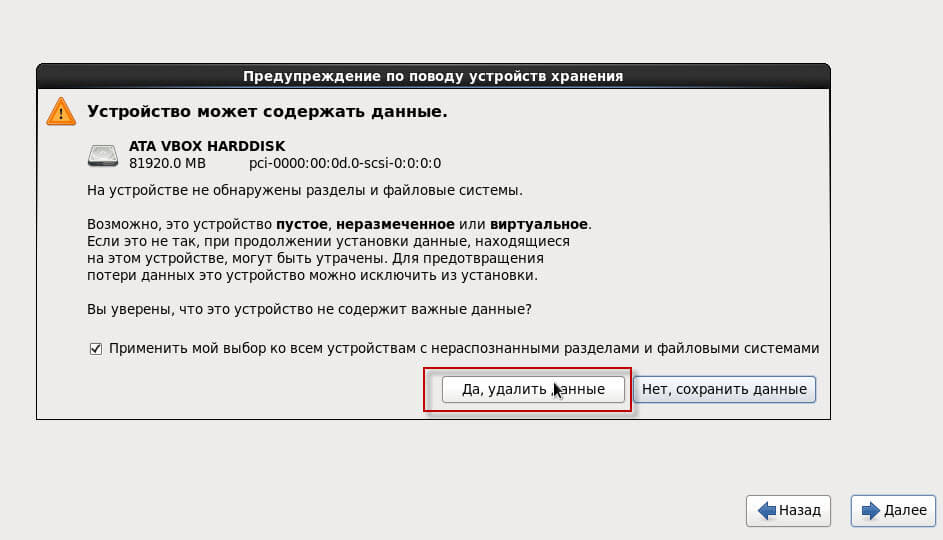
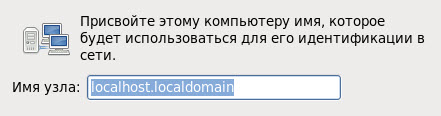
We specify the domain name for the server if necessary, you can change after installation because we leave by default:
To configure the network (you can configure after installation) press the button Set up a network:

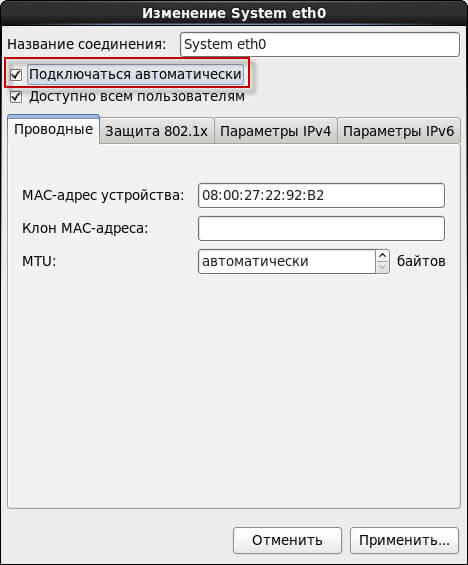
In the opened window, click on the network map System eth0 and press the button. Modify...:

In the open window, put a tick in the field. Connect automatically:
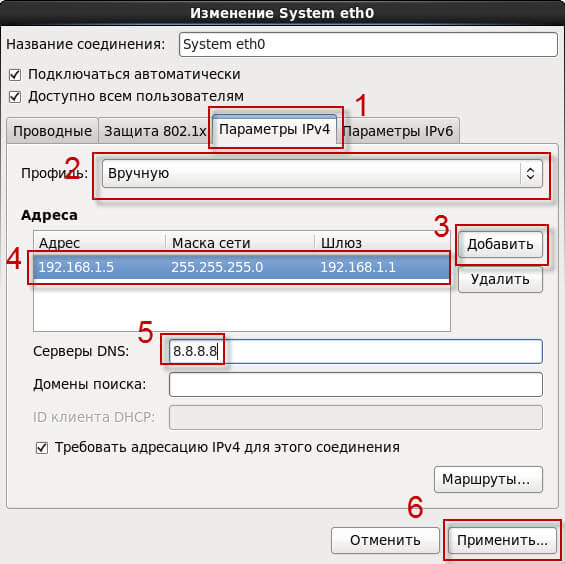
Click on the tab. IPv4 parametersIf you need to register a static IPI, click on the field. Profile and in the drop-down list, select Manual if the IP server will receive automatically from the router or a higher server:

If you have a static IP, when choosing a profile Manually. add IP by example as in the screenshot, and also specify the higher DNS server, to save changes click on the button Apply:
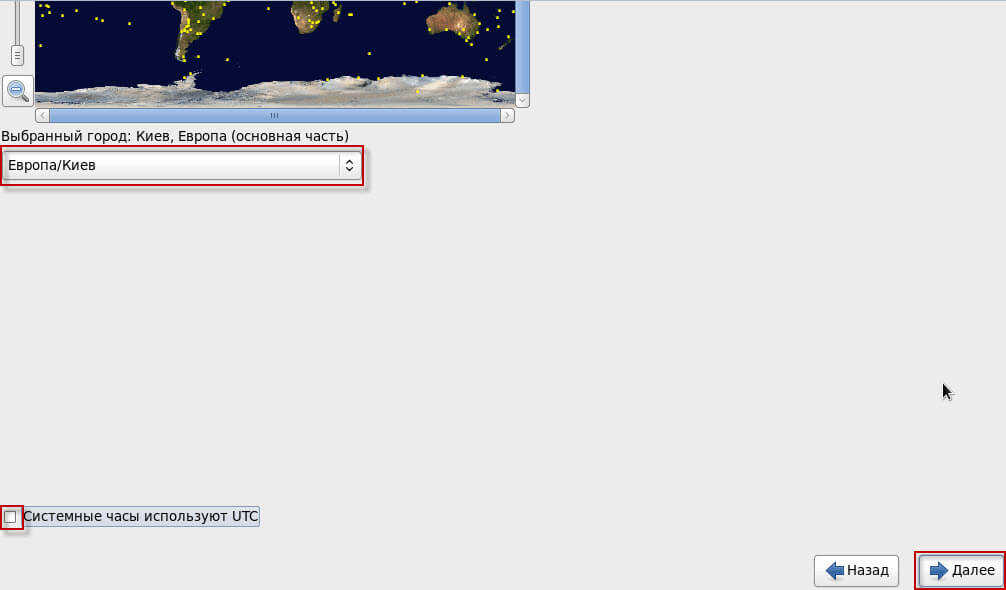
In the window that opens, you need to select a time zone, in my case I choose. Europe/Kyiv I'm taking the box off the field. System clocks using UTC and press the button Next:
In the window that opens, the installation system will ask you to enter a password and user confirmation root:

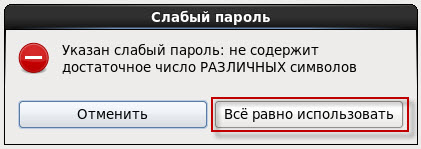
If you enter a weak password, the system will warn you about a weak password and offer to enter a new undoing the old one, or agree to use a weak password by clicking on the button. Use it anyway. I admit using a weak password for the installation and initial configuration, while the server is not displayed on the Internet, but after setting up, be sure to change all passwords to complex ones using both numbers and letters and different characters:
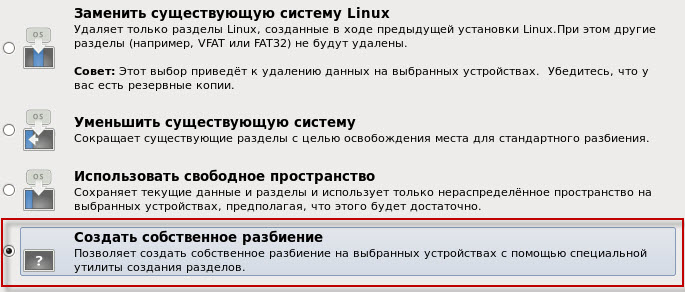
In the open window of selection of hard drive breakdown select the menu Create your own breakup:
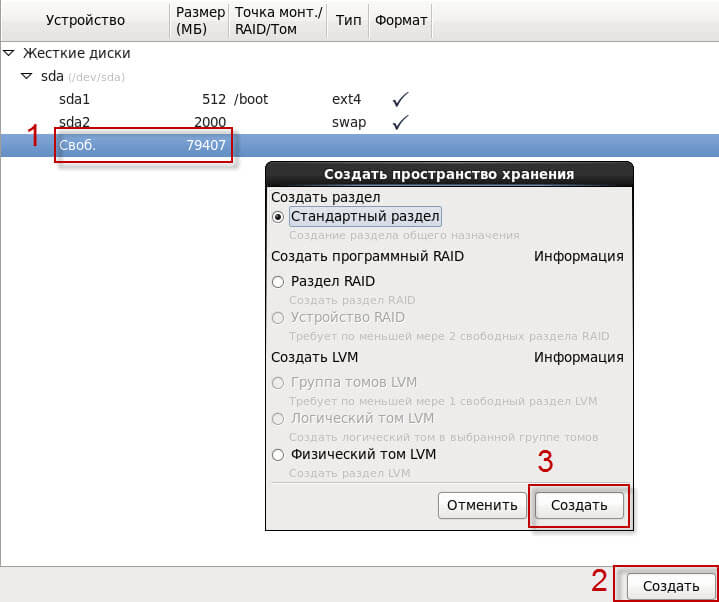
In the window that opens, we see an existing new 80GB hard drive. Click on the free space and press the button. Create:

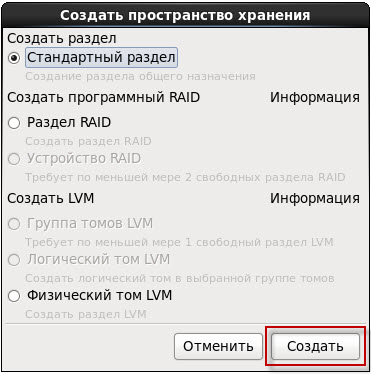
In the window that appears, select the Standard Section and press the button. Create to create a boot section /boot:
In the open window, fill in the fields:
- Mounting point: /boot
- Type FS: ext4
- Size (MB): 512
- Make the primary section: checkmark
To apply the creation of a boot section /boot press the button OK.:

After creating the boot partition, create a swap section, click on the free space and press the button. CreateIn the open window, select Standard section press the button. Create:

In the open window, fill in the fields:
- Type FS: swap
- Size (MB): 2000
To apply the creation of a section swap (pumping) push the button OK.:

Creating a root section / Clicking in a free place and pressing the button CreateIn the open window, select Standard section press the button. Create:
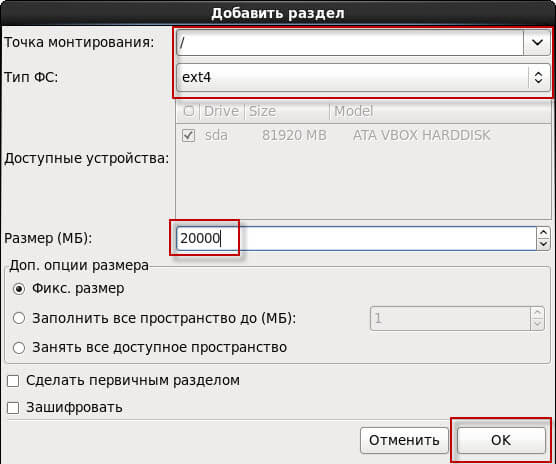
In the open window, fill in the fields:
- Mounting point: /
- Type FS: ext4
- Size (MB): 20000
To apply the creation of a root section / press the button OK.:
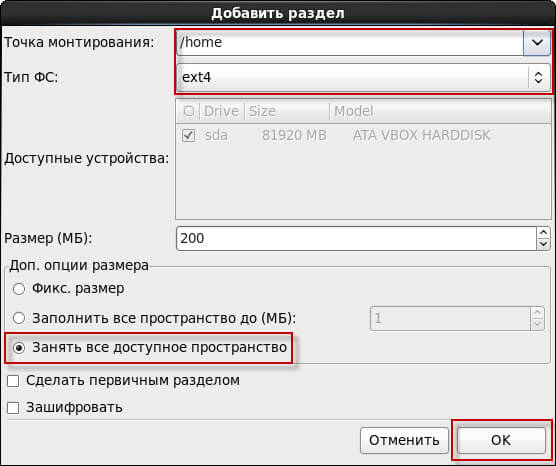
Creating a home section /home Clicking in a free place and pressing the button CreateIn the open window, select Standard section press the button. Create:

In the open window, fill in the fields:
- Mounting point: /home
- Type FS: ext4
- Size (MB): Additional size options: Occupy all available space
To apply the creation of a root section / press the button OK.:
Breakdown of the hard drive is carried out, for use and continue pressing the button Next:

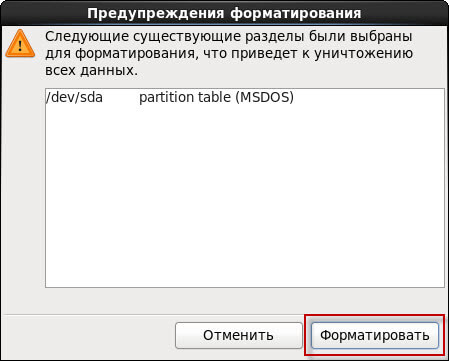
Agree with the formatting of the hard drive by clicking the button Format:
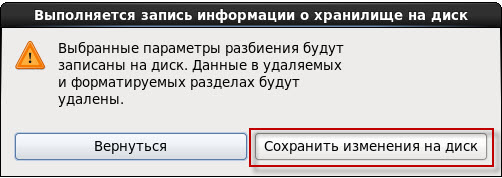
We agree with the selected partition parameters and click the button. Save changes to disk:
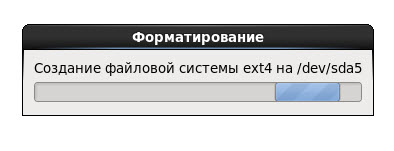
The formatting process:
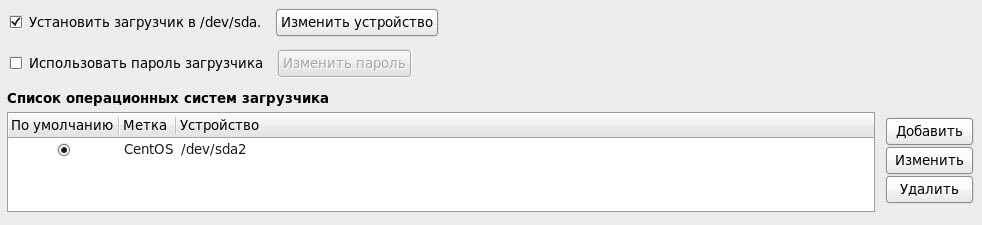
We agree to install the bootloader on the disk. /dev/sda:
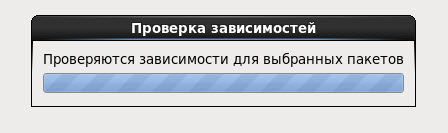
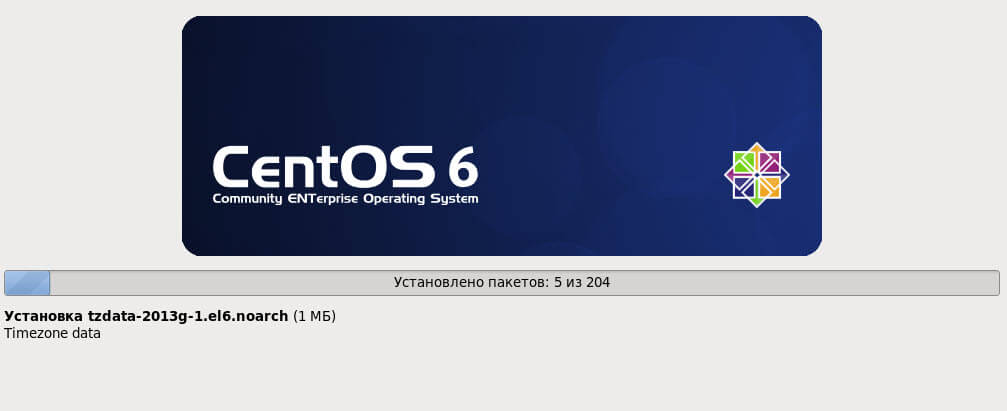
The installation process of CentOS 6.5:
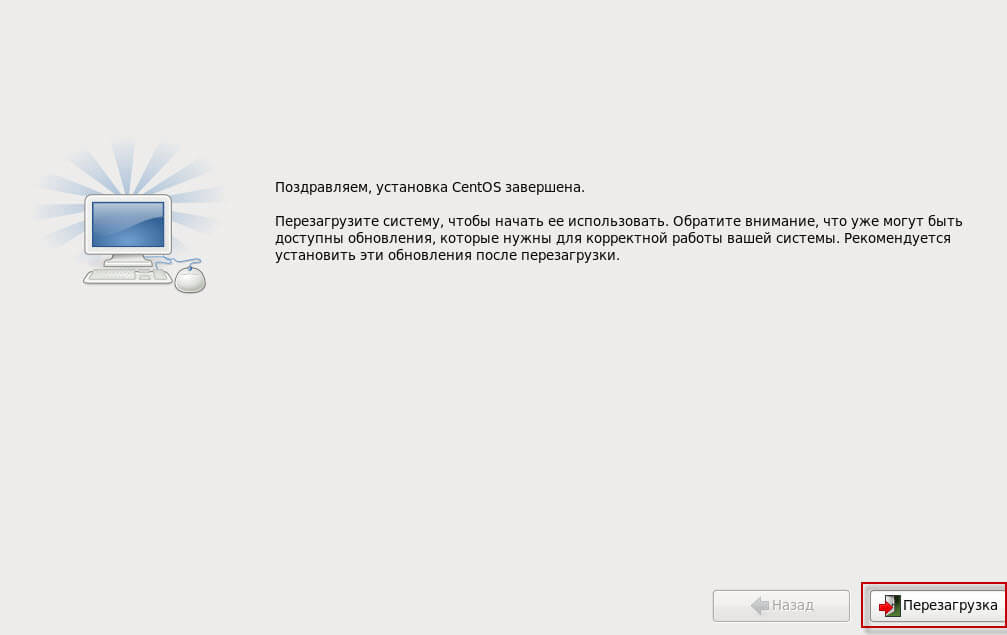
The CentOS 6.5 operating system is installed, to complete click on the button Reboot.:
In this manual, we have installed the CentOS 6.5 Linux operating system, in this guide you can change the hard drive breakdown steps and network configuration.
I was with you. Sergey Lazarenko.
Let's take a short break and watch how the girls skate off the slide, the spirit is breathtaking:

comment