
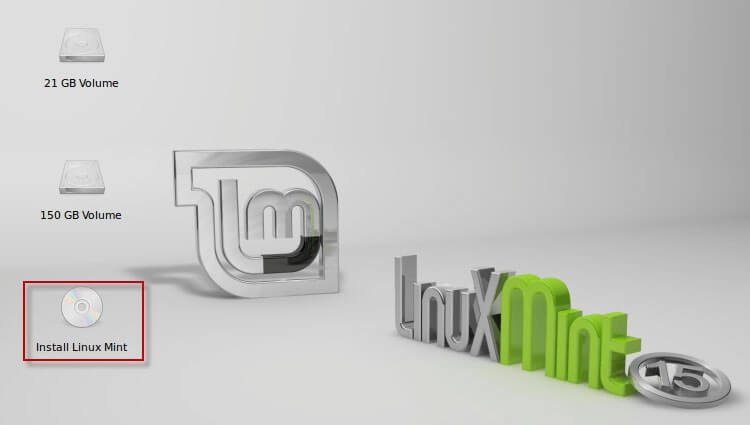
Linux Mint 15 XFCE It is based on the Ubuntu 13.04 package base. We will install a version of the distribution using the XFCE desktop, which shows itself on computers with various characteristics perfectly, for comfortable work it is desirable to have at least 512MB of RAM, but you can work with the size of RAM in 386MB. The purpose of the distribution is to provide the end user with the simplest possible system that will be ready to work immediately after installation and will not require downloading the most popular software, including additional codecs for playing popular multimedia formats. Otherwise, Linux Mint is almost identical to Ubuntu, which brings a new original interface mainly in green colors and a small number of native applications.mintInstall, mintUpdate, mintMenu Others are designed to simplify the work of those who are just familiar with Linux.
In the basic installation, we will have almost all the free software you need to work with:
OpenOffice 2 is an analogue of Microsoft Office, Pidgin is an instant messaging program for connecting to a corporate Jabber server, PDF viewers, images, a text editor and other free software.
To install Linux Mint 15 XFCE, you need to download and burn the distribution to a DVD. You can download Linux Mint 15 XFCE referenceIf you want to download the installation image using a torrent client, or from a server closer to you it is possible on this site. page.
To install the system, and to install the necessary software, you need to connect the Internet to the computer on which we install Linux Mint 15 XFCE, the installer automatically downloads and installs the necessary localization packages, if the Internet is currently impossible to connect, no problem, since it can be connected later and install the necessary programs and localization packages.
Download the computer from recorded to disk Linux Mint 15 XFCE And the first thing we see is that it's automatically booting from disk to system, but you can also try it without installing Linux.

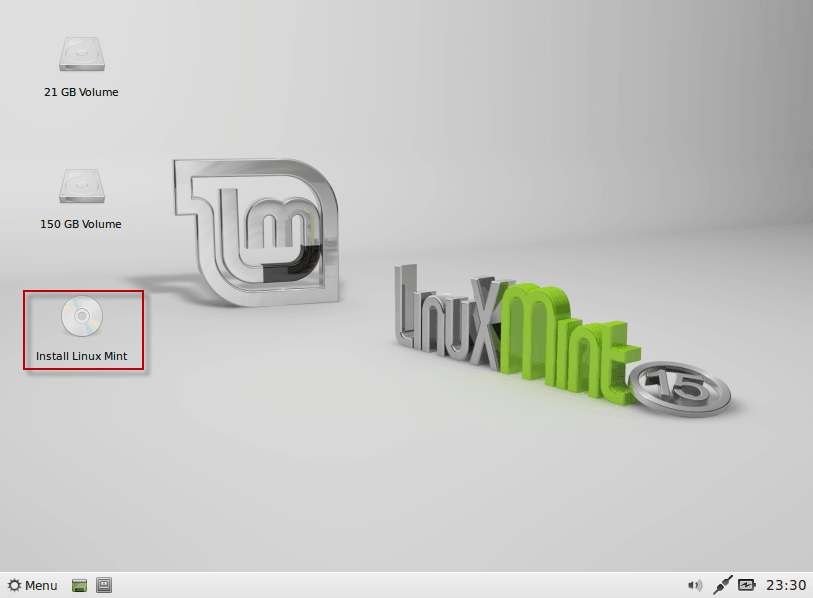
Linux Mint 15 boots with XFCE desktop, after downloading we need to run the shortcut Install Linux Mint on the desktop:
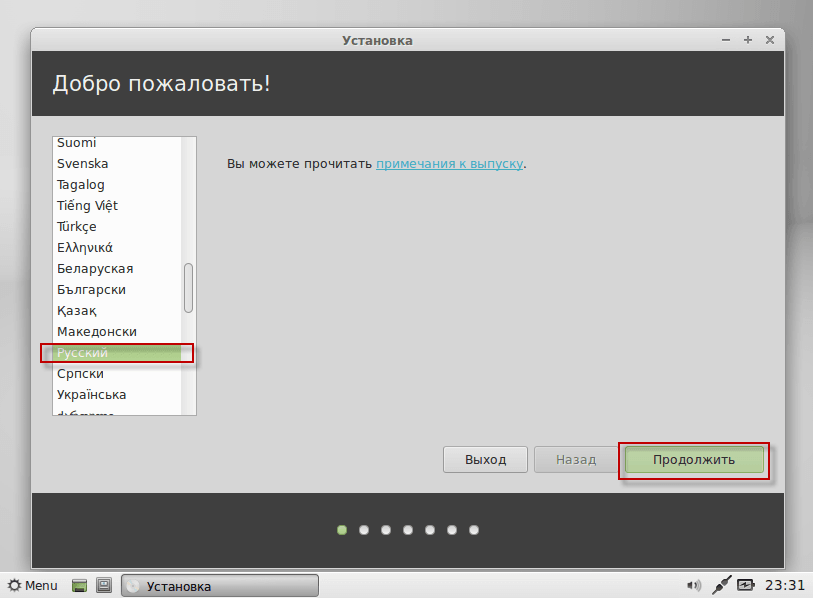
A window will open where we need to select the language of installation. Russian and press the button Continue.:
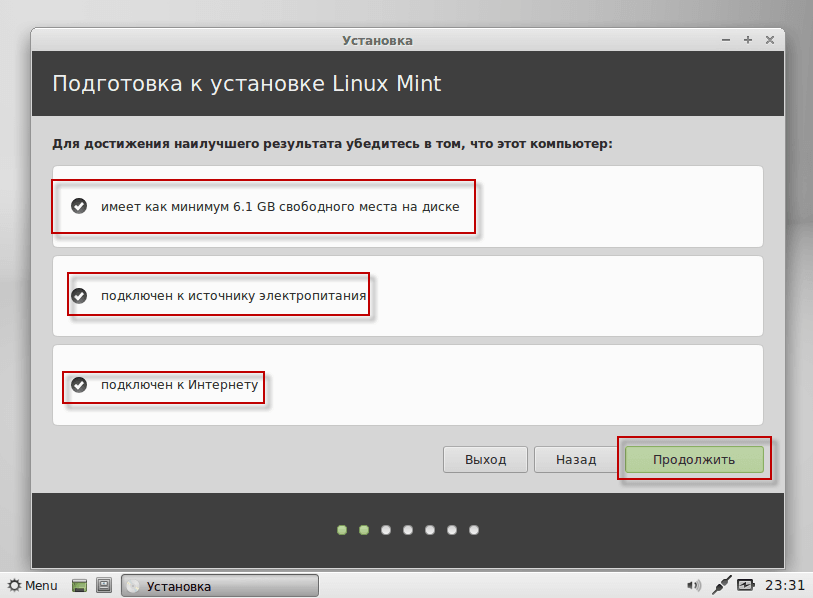
In the window that opens, the installer will notify you of existing problems if they exist, for example, are not connected to the Internet, but if the Internet is not connected, there is no big problem after installation, you can connect your computer to the Internet and install the necessary programs and localization packages. To continue the installation, press the button Continue.:
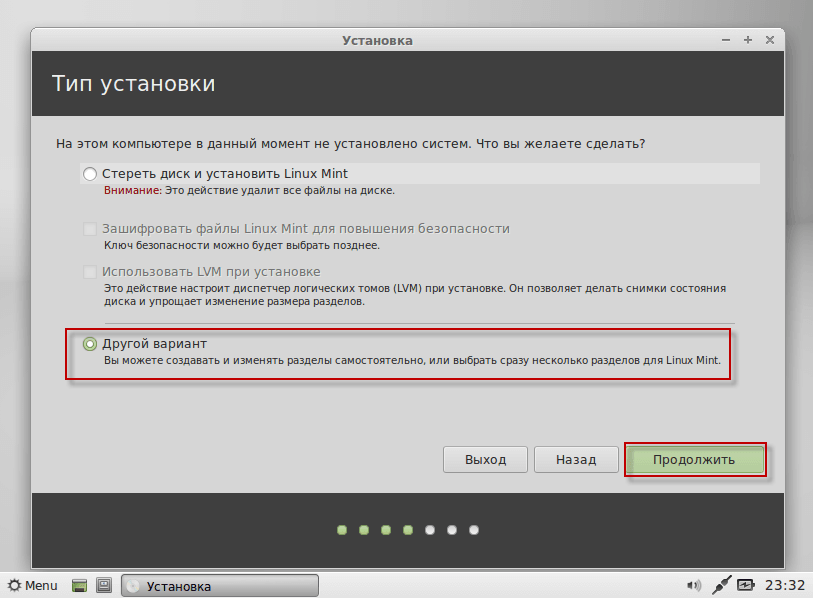
When you open the window where you need to choose how you will break down the hard drive automatically or manually, in order not to accidentally delete all the data on the hard drive, you need to select only a manual method of breakdown. For this, you need to choose Another optionIn the screenshot below, it is circled in a red frame. To continue the installation, press the button Continue.:
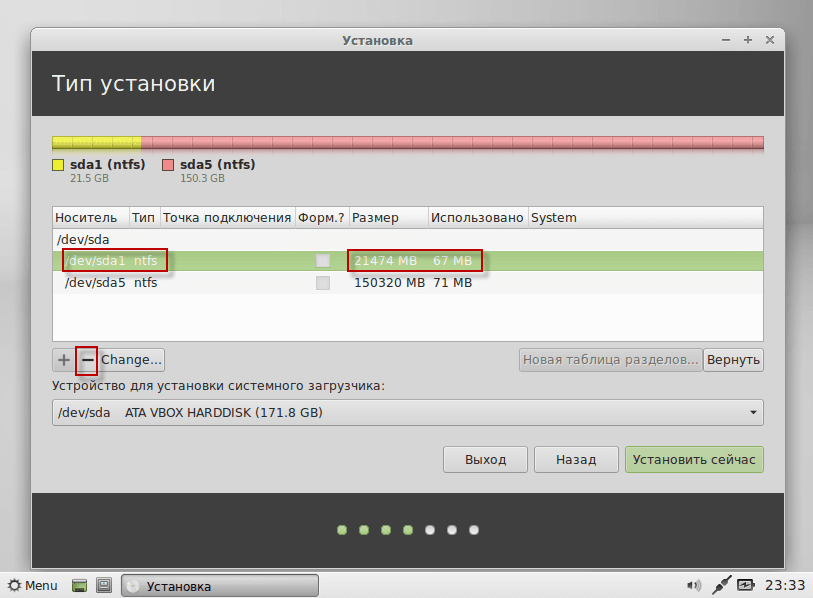
In the next open window, we see the structure of the disk, it has two partitions with the NTFS file system. The first partition is 21Gb in size, it was previously under the disk C Windows operating system, we will remove it and create the necessary partitions for installing Linux Mint 15 XFCE. The second partition is 150GB in size, and we will mount it into a folder. /mnt/d and the user will be able to work with it as in Windows, the data on the disk will remain intact.
To remove disk C, you need to become a mouse on the disk. /dev/sda1 and press the button -- in the screenshot, it's highlighted in a red rectangle:
After deleting the section, we need to create three sections:
- Root section with mounting point /
- Pumping section
- Home section with mounting point /home
- Connect the second hard drive to the folder /mnt/d
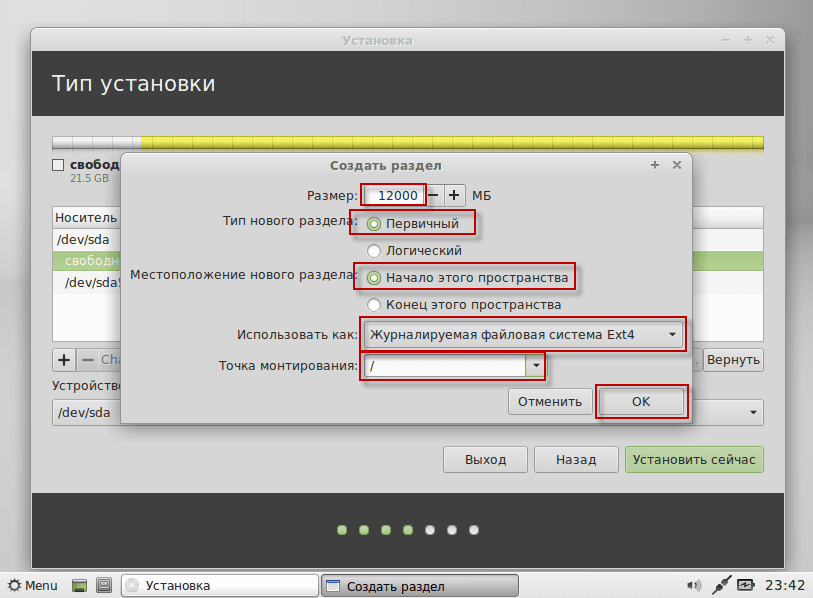
To create a root section, you need to stand with your mouse on the free space and press the + button:

Fill in the fields for example below:
- Size: 12000
- Type of new section: Primary
- Location of the new section: The beginning of this space
- Use as: in the drop-down list select Journaled file system Ext4
- Mounting point: /
After filling all the fields of creating the root partition, press the button. OK:
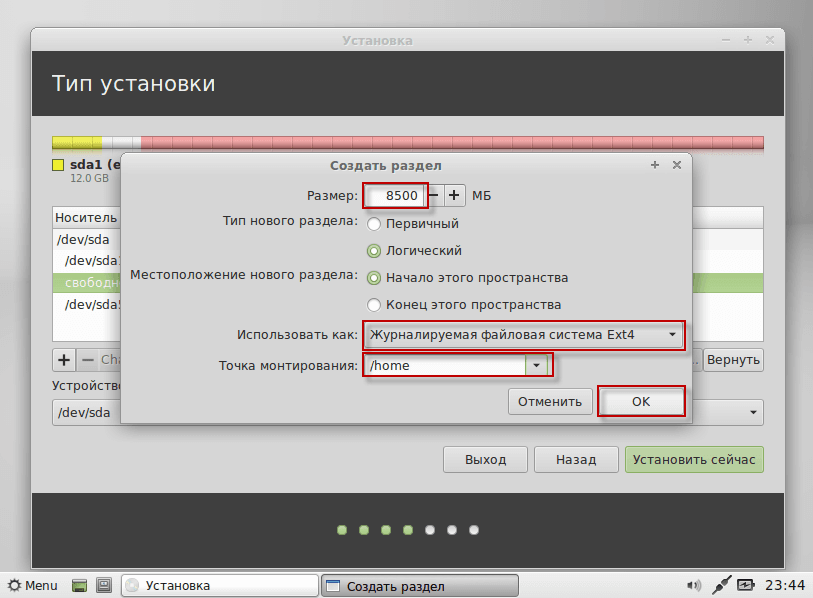
We are starting to create a home partition, for it we allocate the size of 8.5Gb. To create a home section, become the mouse on the free space and press the + button:

In the window that appears, fill in the fields for example below:
- Size: 8500
- Type of new section: Logical
- Location of the new section: The beginning of this space
- Use as: in the drop-down list select Journaled file system Ext4
- Mounting point: /home
After filling out all the fields of creating a home partition, press the button OK:
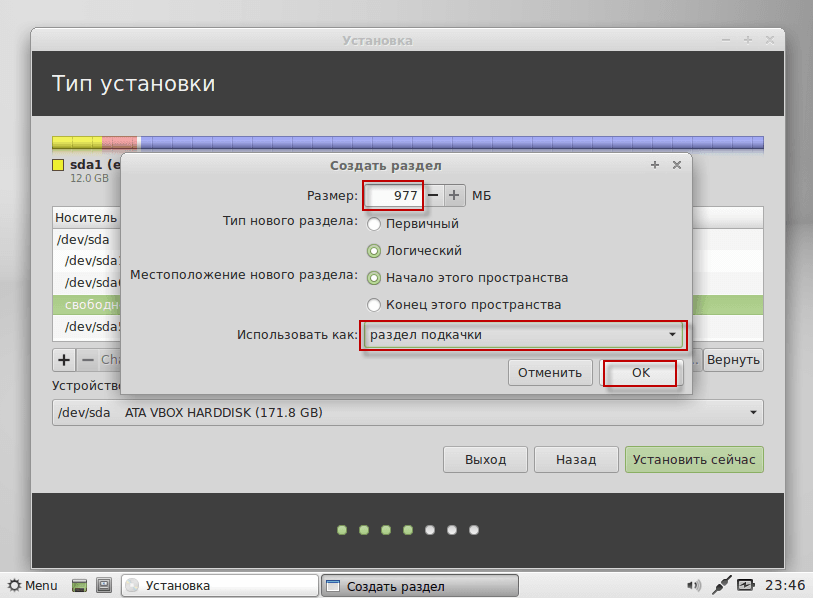
We proceed to create a swap partition, for it we will allocate the remaining space from the remote disk C, which in our case is equal to 976MB. To create the swap section, become a mouse on the free space and press the + button:

In the window that appears, fill in the fields for example below:
- Size: 977 (If this section is created last, you can not change the field) Size, since the system automatically displays all available space for a new partition.
- Type of new section: Logical
- Location of the new section: The beginning of this space
- Use as: in the drop-down list select pumping-piece
After filling in all fields to create a swap section, press the button OK:
All we have to do is mount the disc. D NTFS file system into folder /mnt/d. For this purpose, we stand on the section. /dev/sda5 press the button. Change...:
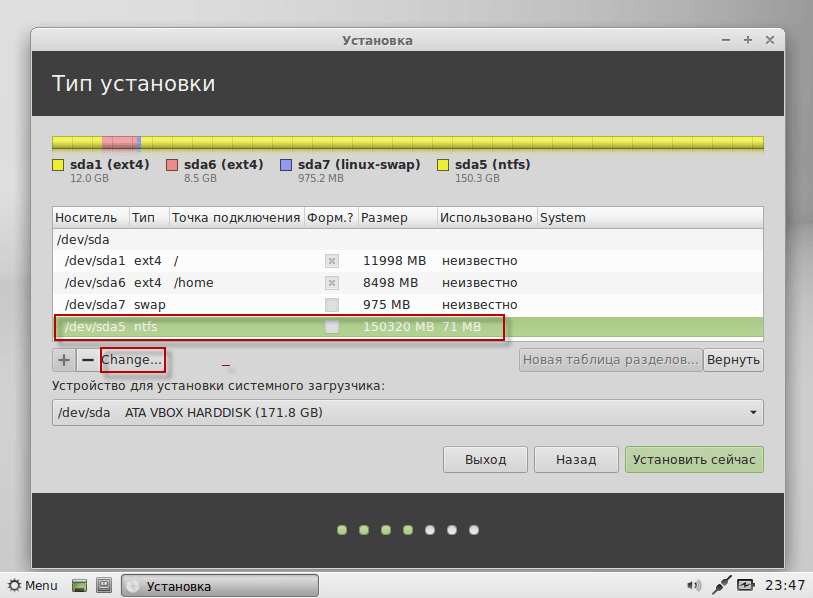
In the window that appears, fill in the fields for example below:
- Size: 150321 (This does not change, as the system automatically sets the size of this partition)
- Use as: in the drop-down list select ntfs
- Format the section: Don't put a checkmark.
- Mounting point: /mnt/d
After filling in all fields, to connect the disk partition D press the button OK:

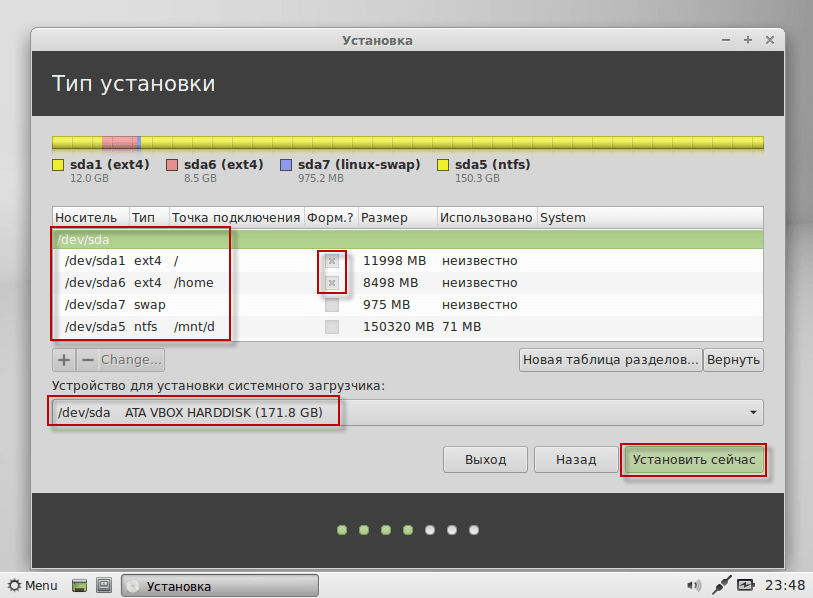
After all the actions, you can see all the changes made to the structure of the hard drive, darkened ticks marked those sections that will be formatted, if you want to cancel all actions and change something, you can press the button. Return. And remake the Winchester sections in a different way.
To continue the installation, you must press the button. Install now.:
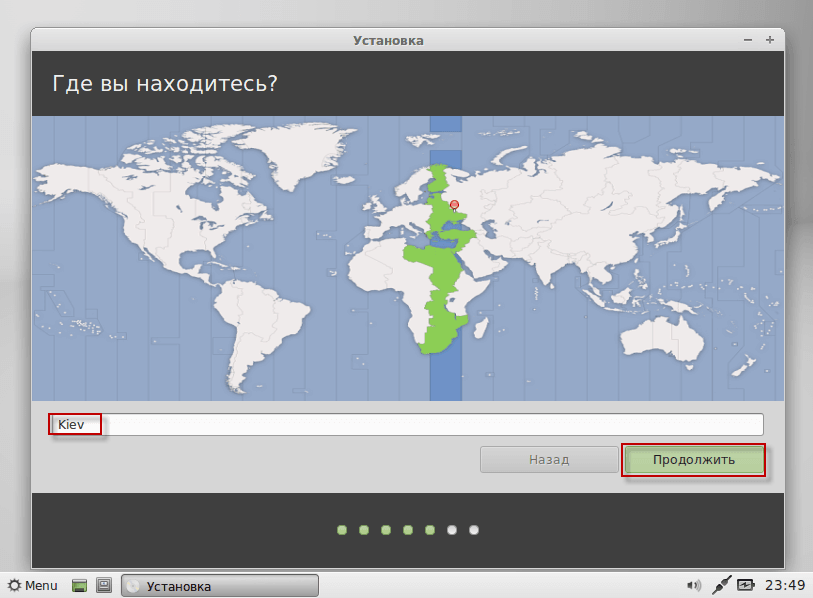
In the window that appears, select a time zone, for this we write in the field Your city in Latin letters, in my case I wrote Kiev, then press the button to continue installing. Continue.:
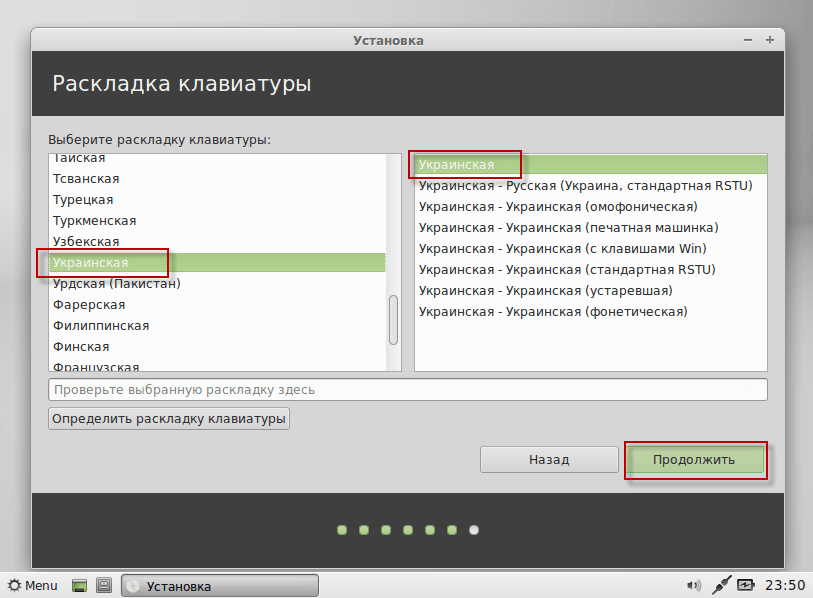
Choose the layout of the keyboard, in my case I chose Ukrainian, additional Russian I will add after installation, to continue installing press the button. Continue.:
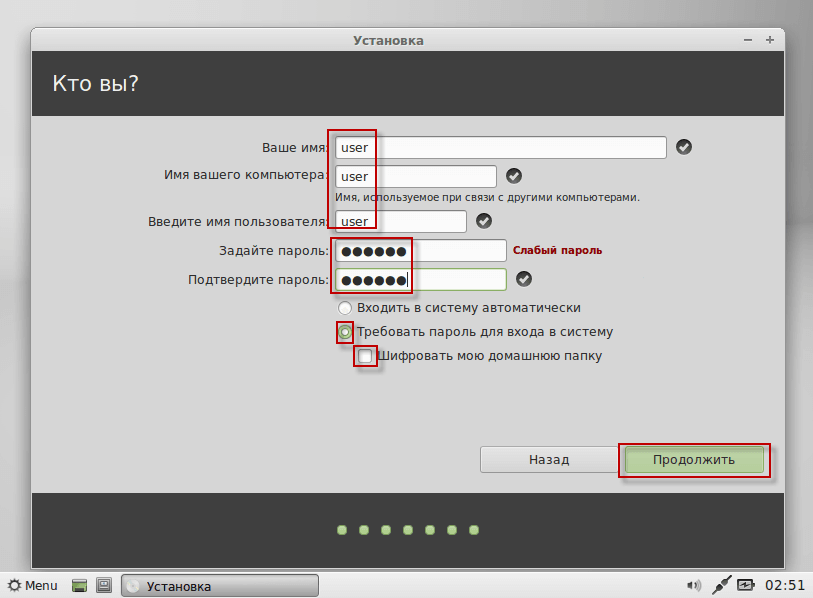
In the next window, we need to enter the user name in Latin letters, as well as a password, fill in the fields for example below:
- Your name: user
- Name of your computer: user
- Enter the user name: user
- Set the password: user password serg
- Confirm the password: user password serg
- Require a password to log in: checkmark
- Encrypt my home folder: needilyThe system will be transparent for you to encrypt the contents of your home folder, if necessary, then put.
To start installing Linux Mint 15 XFCE, press the button Continue.:
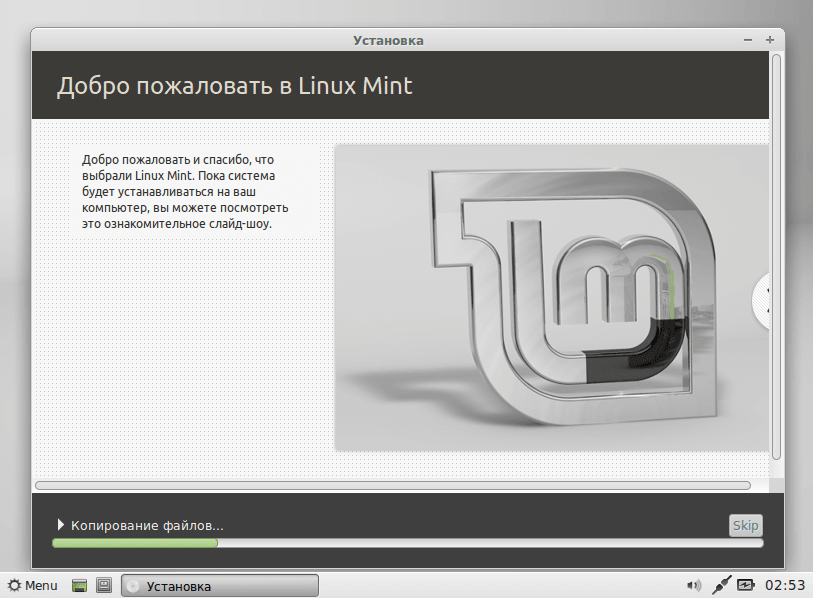
Below are screenshots of the Linux Mint 15 XFCE installation process:
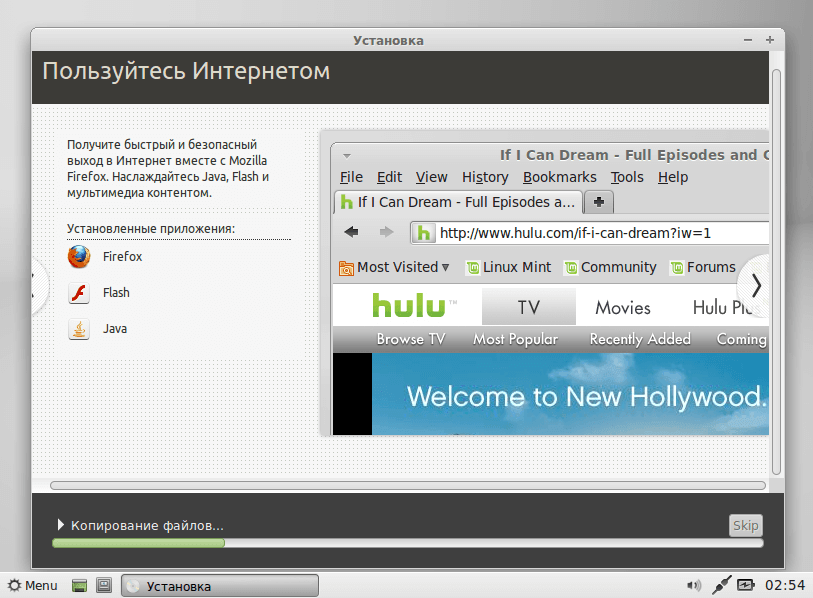
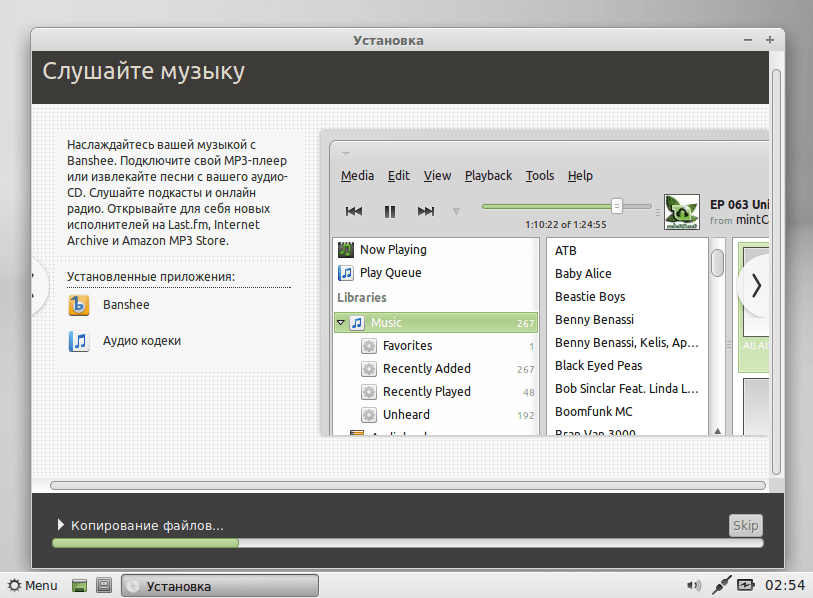
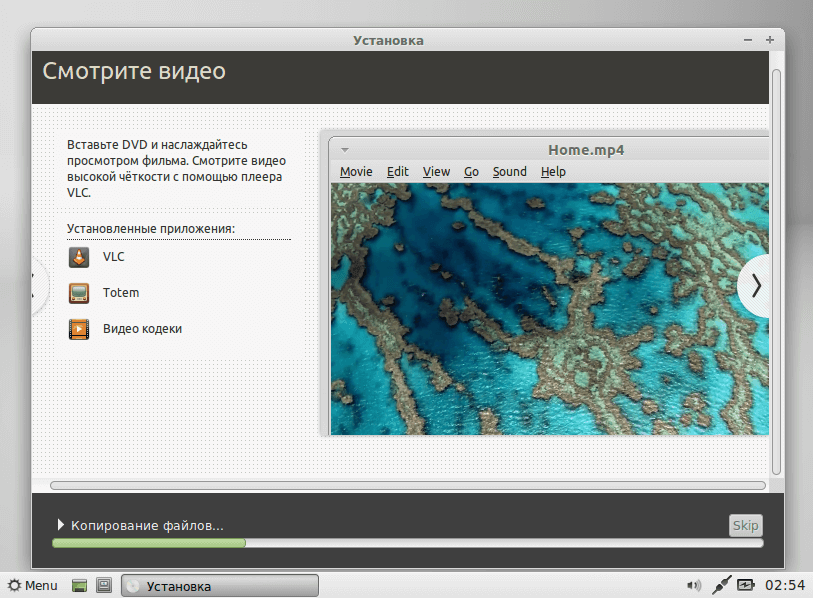
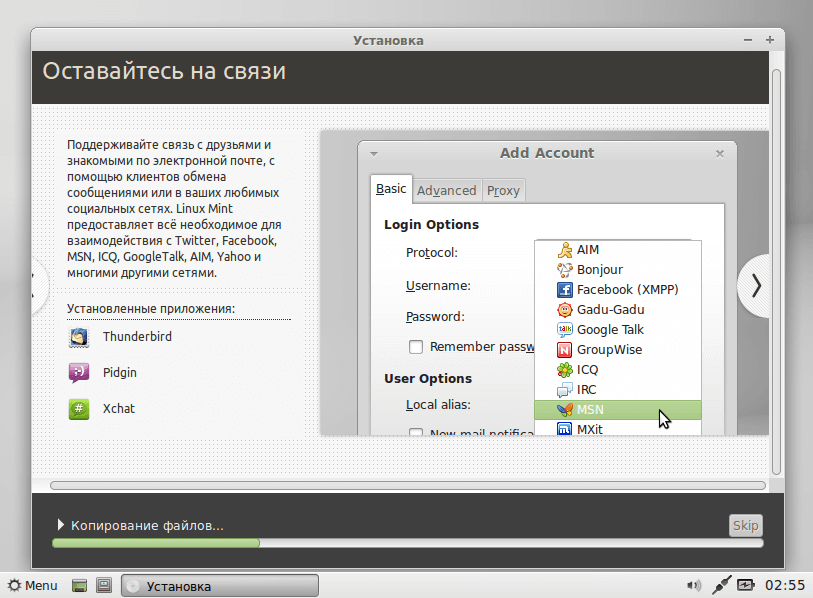

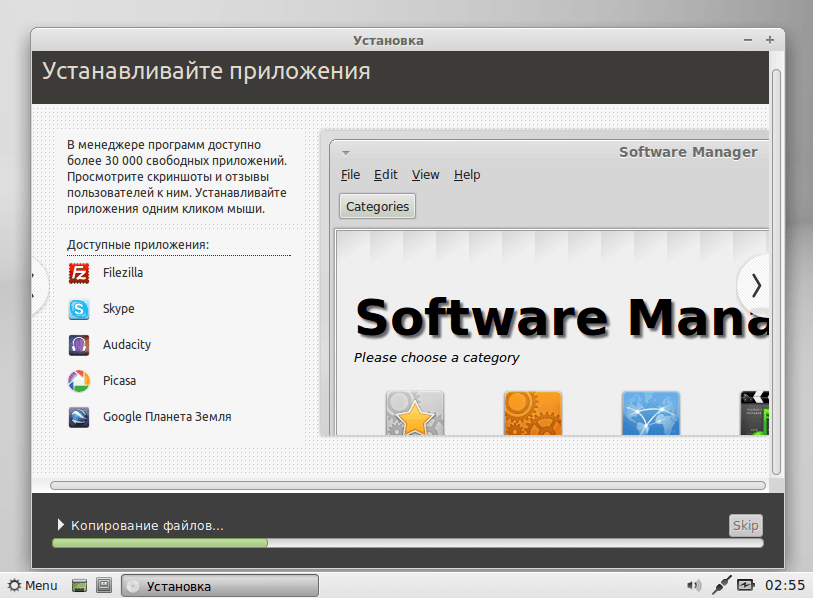
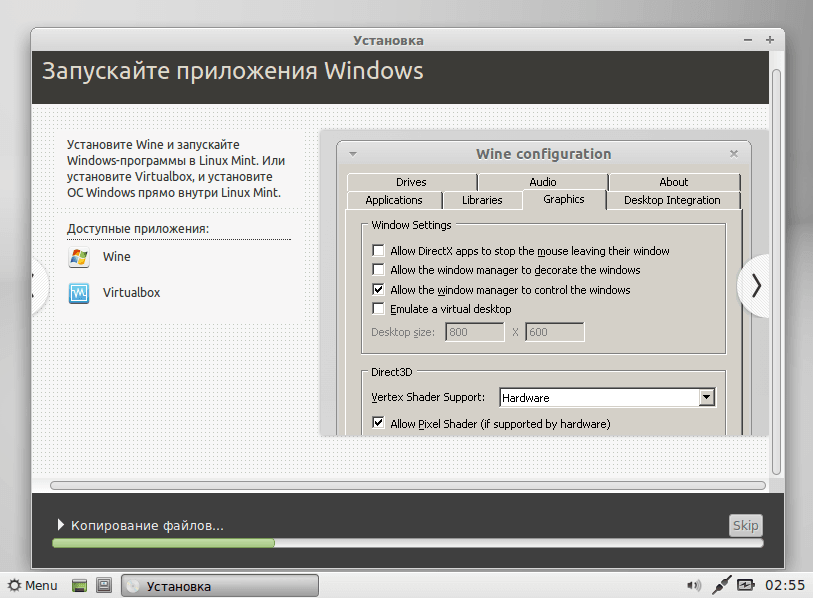
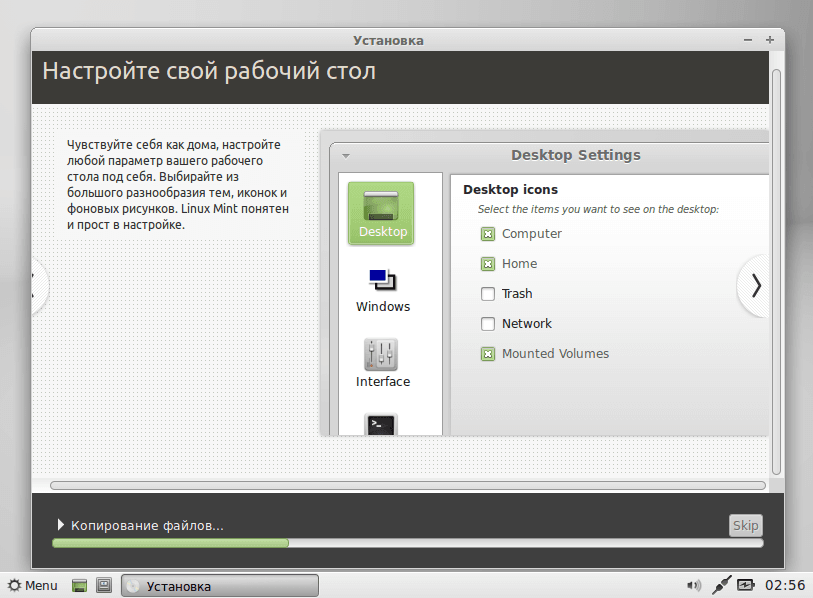
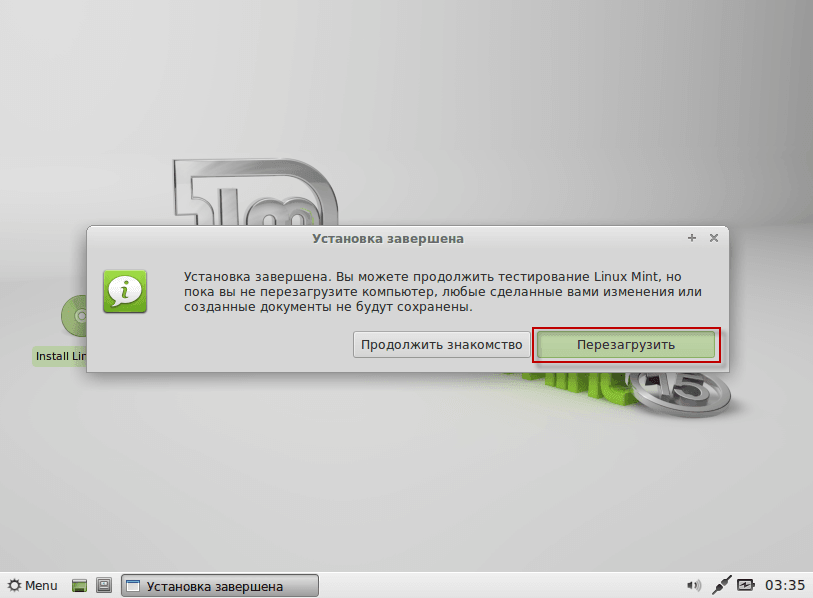
After the installation is completed, the installer will prompt you to restart the computer, press the button. Reboot. (Don’t forget to pull out the installation disk when the installer unmounts it and spits it out):
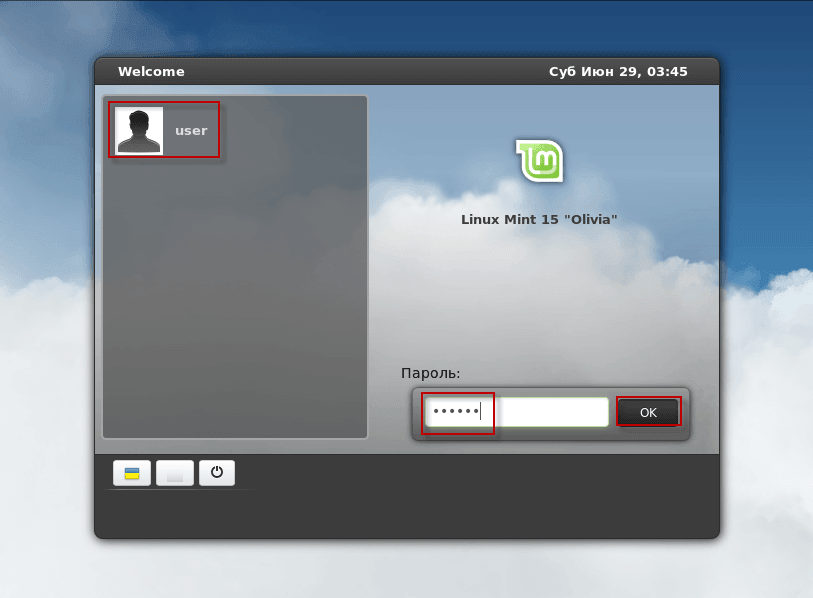
After downloading, you will see a login window, for this you need to click the user mouse and enter your password in the password entry window that you entered during the installation of Linux Mint 15 XFCE and press the button. OK:
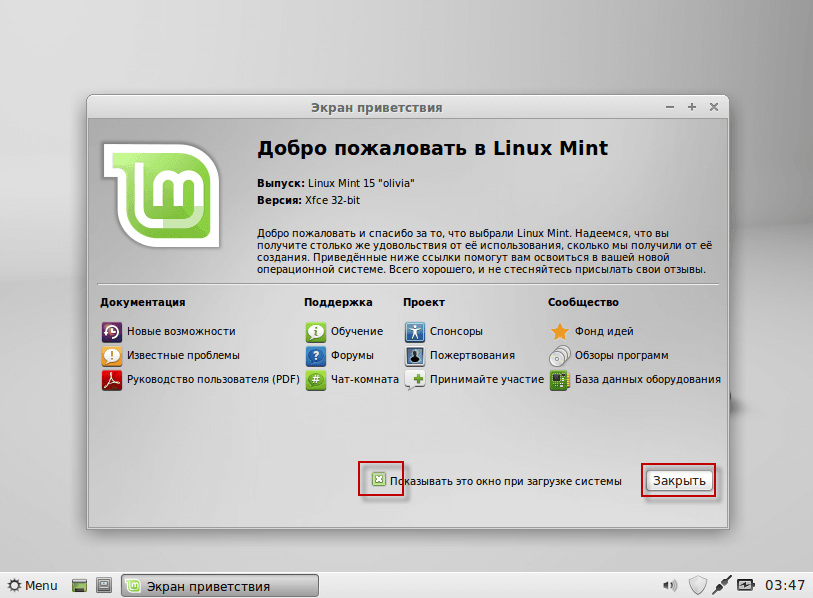
When you first start up, you will be shown the Welcome to Linux Mint window, to remove the automatic start of the window when you turn on your computer, you need to remove the tick from the field. Show this window when booting the system press the button. Close it.:
Installing Linux Mint 15 XFCE on a computer to replace the Windows operating system is complete.
In the detailed instructions Setting up Linux Mint XFCE You will be able to continue configuring the system, main software and desktop.
I was with you. Sergey Lazarenko.
After productive work, we will take a short break and look at the beautiful extreme flights:

comment