
In this manual, we will install Drupal 7 using the hosting panel ISPConfig 3. The instructions are detailed, a very large number of screenshots.
Drupal It is a free site management system with a huge number of modules and themes, very common all over the world, it makes sites from business card sites, blogs, shops and government websites to major news portals. Some of the most popular websites running Drupal are:
Asterisk.org Free ATC Asterisk site to replace commercial ATC
Weather.com weather-site
Appel.nasa.gov - NASA site
Mozilla.com - Firefox browser site
Ubuntu.com - Ubuntu operating system website
And many other highly visited and interesting sites.
ISPConfig3 Preparation: add a website, create an FTP account, database and database user.
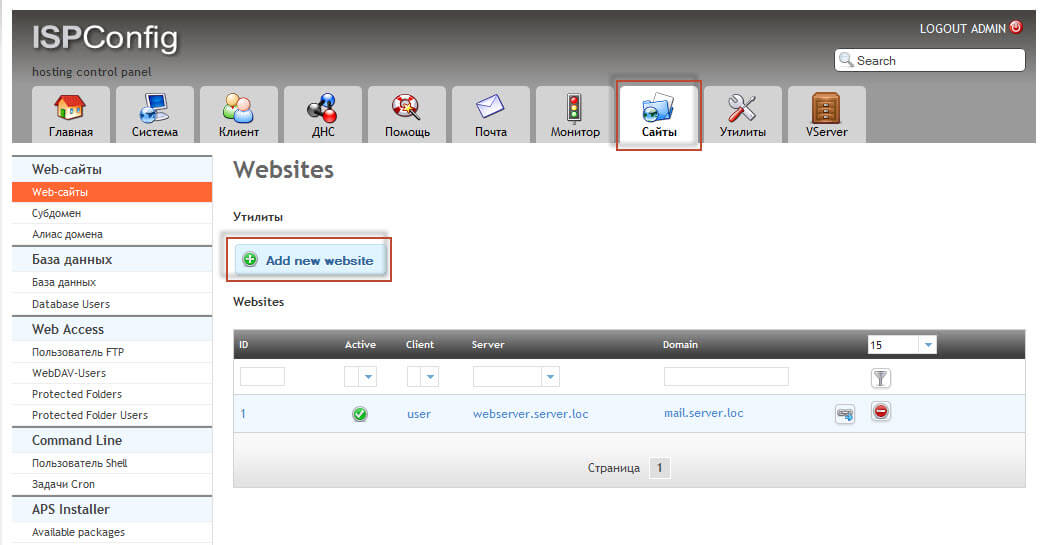
Create a website in the panel by going along the way Sites and click on the button Add new website:
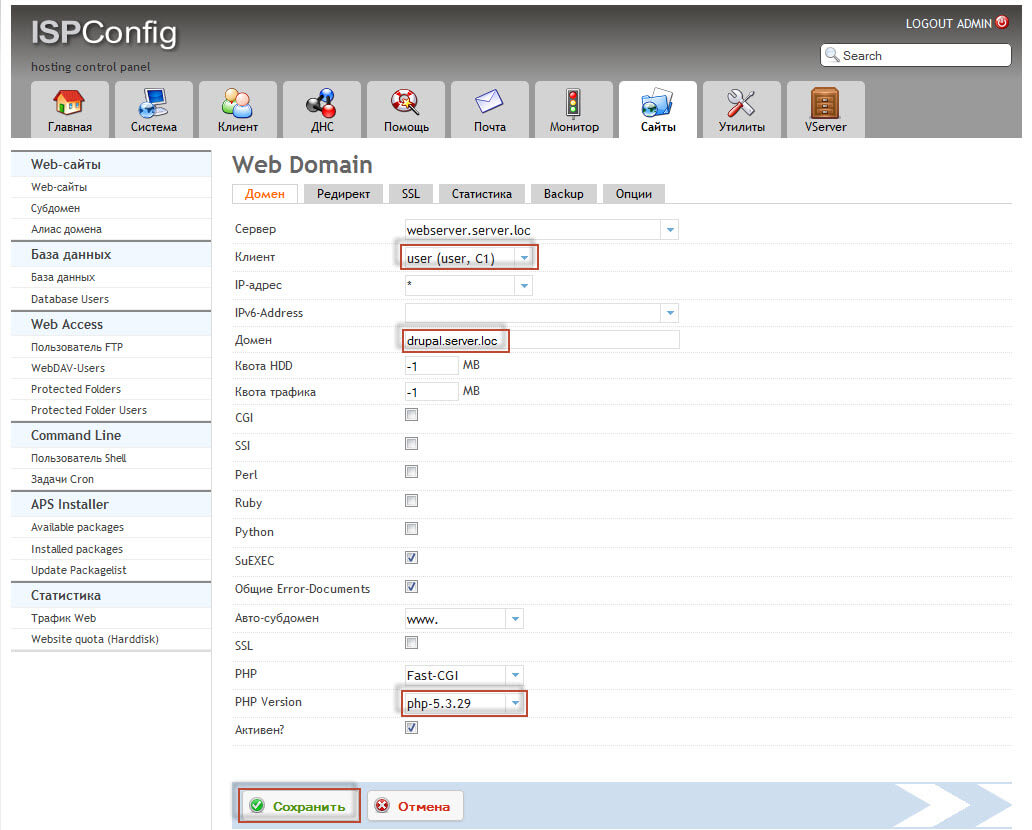
In the open window, fill in the fields for example below, substituting your values:
- Client: user (user, C1)It can be created on the Client tab.
- Domain: drupal.server.loc
- PHP Version: php-5.3.29
Additional php 5.3.29 language can be installed by the instructions: Install additional versions of PHP 5.2, 5.3 and 5.5 for ISPConfig 3 in Debian Wheezy - Part 6
To add a website, click on the button Save.:
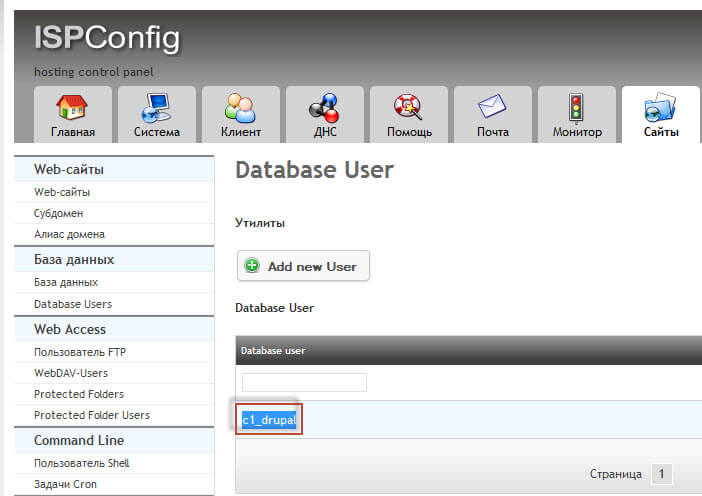
Add a database user to the site by clicking on the icon Database Users and click on the button Add new User:

In the window that opens, fill in the fields for example below:
- Client: user (user, C1)
- Database user: _drupal
- Database password: epvXKG@22
- Password strenght: epvXKG@22
To fill out the password, click on the button Generate Password Both fields will be automatically filled in, only you need to copy the first one. Click on the button. Save and the user of the database is created:

To the added user, the ISPConfig 3 panel adds a client prefix, in our case it is the same. c1If you have only one client, you will also have c1, copy the username of the database: c1_drupal
Add a database for the site by clicking on the icon Database and click on the button Add new Database:
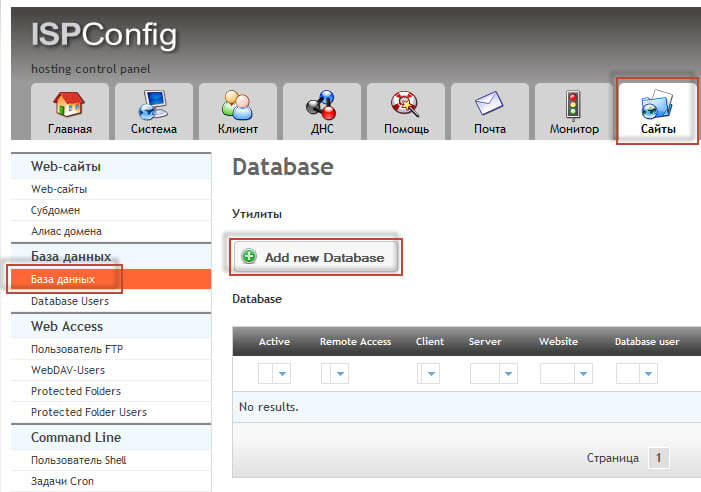
In the window that opens, fill in the fields for example below:
- Site: drupal.server.loc :: webserver.server.loc
- Type: Mysql
- Name of BD: _drupal7bd
- Login BG: c1_drupal
- Coding: UTF-8
- Active: should be ticked
To add a database, click on the button Save:
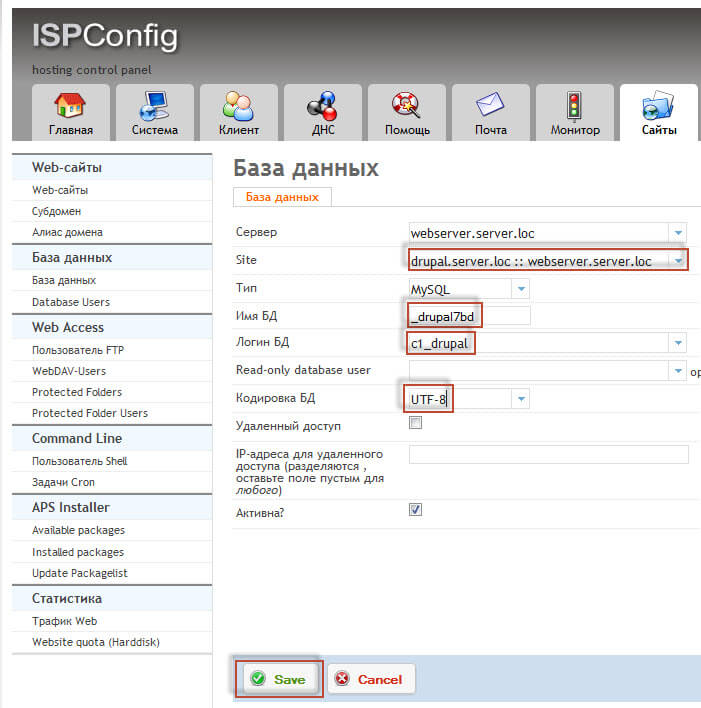
Copy the name of the created database:

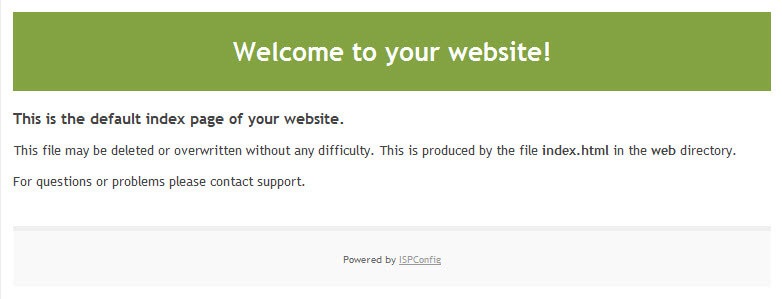
Open in the browser created site on Ardes drupal.server.loc, the panel cap opens ISPConfig:
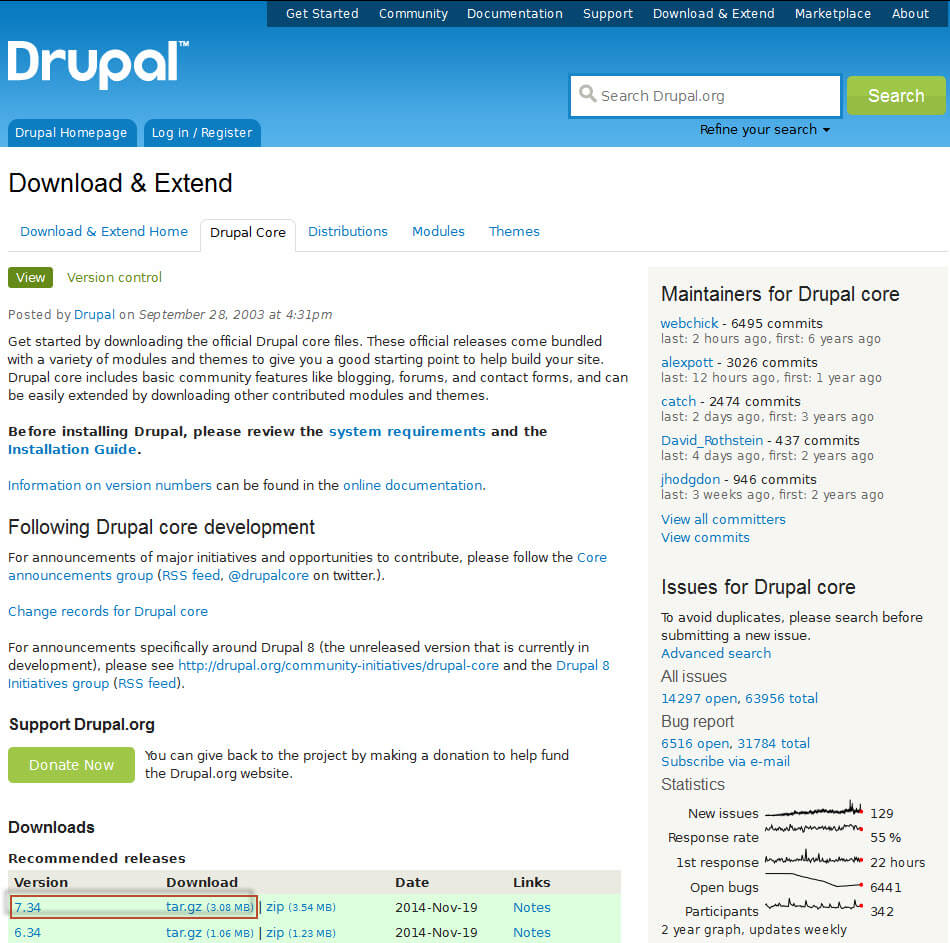
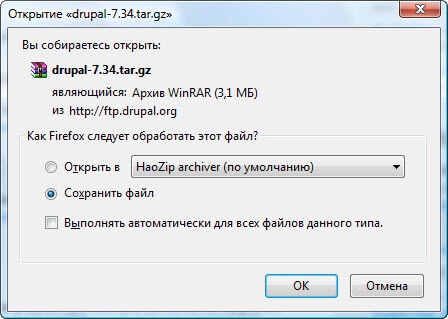
Open the official Drupal 7 website in the browser address and download the latest version of the distribution by clicking on the link, in my case it is version 7.34:
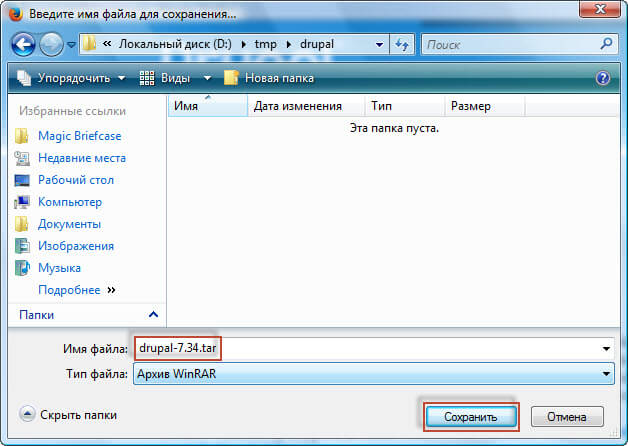
We save the downloadable archive of the Drupal 7 distribution to the computer disk:
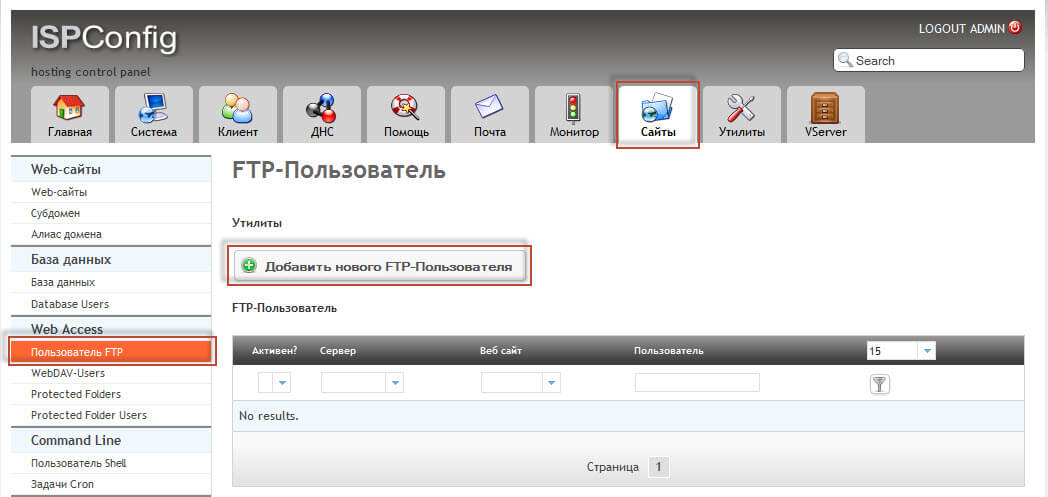
Add to the user’s FTP hosting control panel for pouring the distribution to the site using the FTP protocol, for this we go to the tab Sites and click on the link FTP userIn the open window, press the button. Add a new FTP User:
In the window that opens, add the user by filling in the fields as follows:
- Web site: drupal.server.loc :: webserver.server.loc
- User: _ftp
- Password: xbFblg1_G0
- Repeat Password: xbFblg1_G0
All other parameters are left by default, click on the button. Save. to add a user:

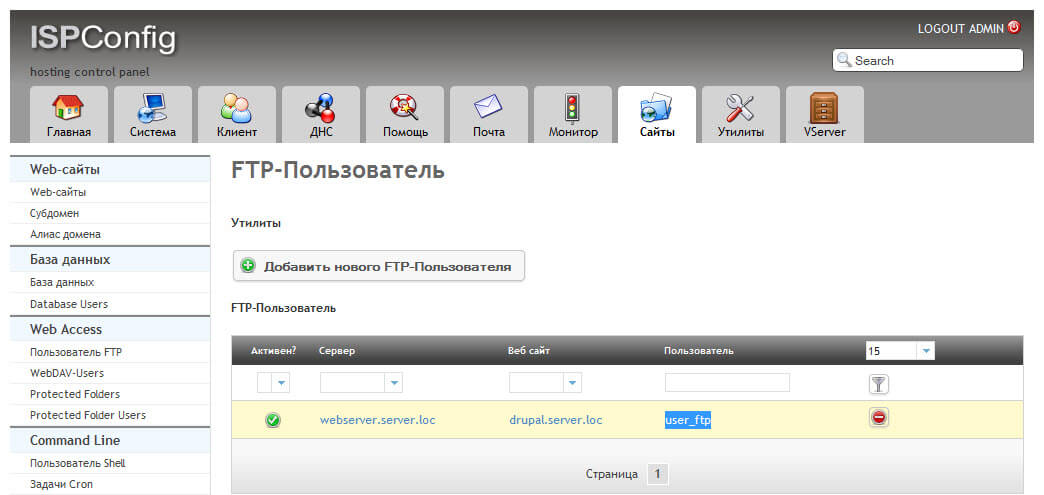
On the tab. FTP User A new user will appear and we will copy his name. user_ftp:
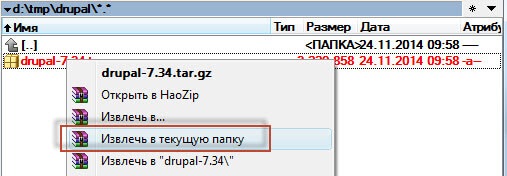
Let’s take a look at the Drupal 7 distribution:
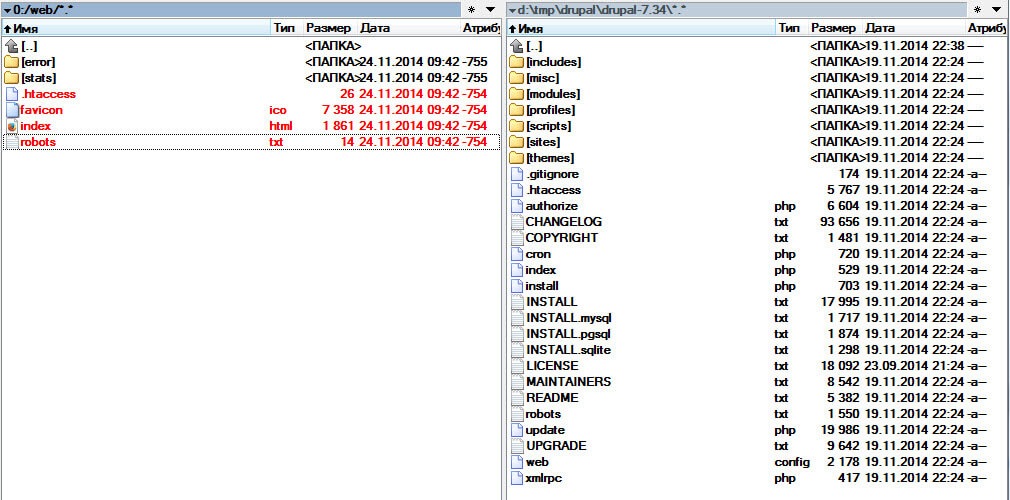
Connect via FTP to the server, delete the files of the panel plug in the folder of the web site: .htaccess, favicon.ico, index.html, robots.txt:
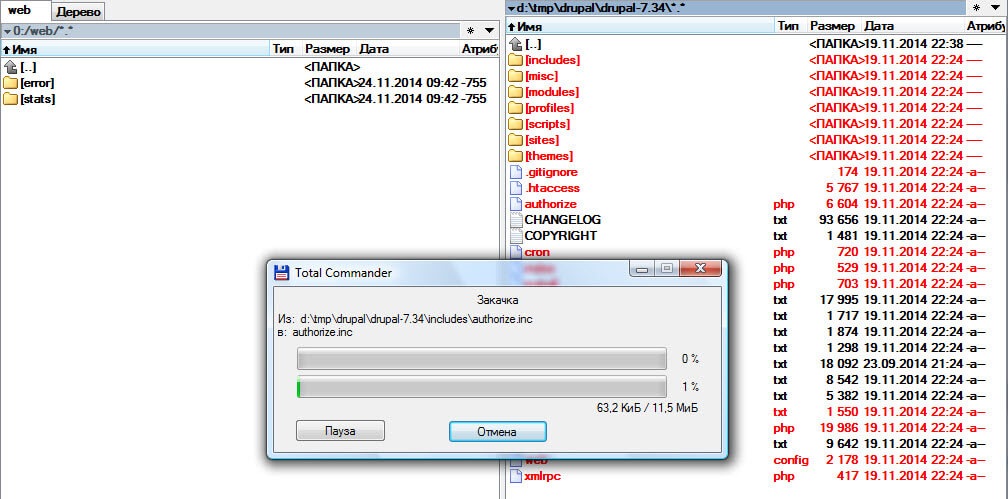
Copy the files of the Drupal 7 distribution to the site:
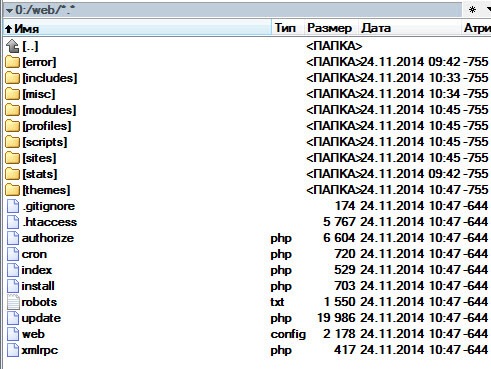
CMS Drupal 7 files are copied to the following website:
Installation of Drupal 7 in Russian
We open our website in the browser at the address drupal.server.locIn the window that opens, you can see the form of Drupal 7 installation. Standard press the button. Save and continue:

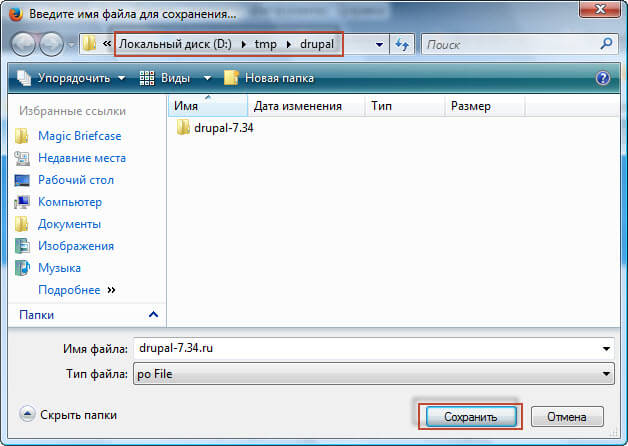
Download Russification for the site by address: or we'll download the last one for today. translation file drupal 7.34:

We save the file of translation to Russian drupal-7.34.ru.po on the computer disk:

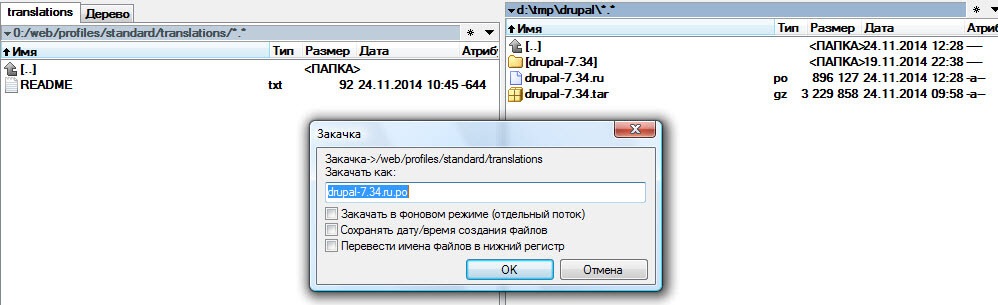
Copy the drupal 7 transfer file to the site folder along the way /profiles/standard/translations/
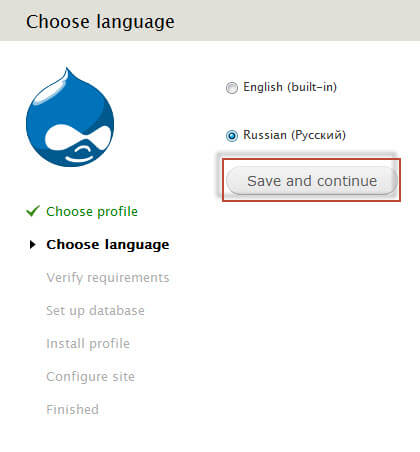
Update the page with the choice of language, select the one that appears Rusian (Russian) And click on the button. Save and continue:
In the window that opens, fill in the fields of connection to the database, for example below
Type of database: Mysql, MariaDB or analogue
- Name of the database: c1_drupalbd
- Name of the OBD user: c1_drupal
- Password to DB: xbFblg1_G0
- Host DB: localhost (in case of installation on your panel, if the server is external, specify the address of the server)
- DB port: if the port has not changed on the server, then do not put anything else to specify the Mysql port
- Table prefix: d6tafwL6gFd_
Save the changes by pressing the button Save and continue:

The process of installing the Drupal 7 CMS on the site:
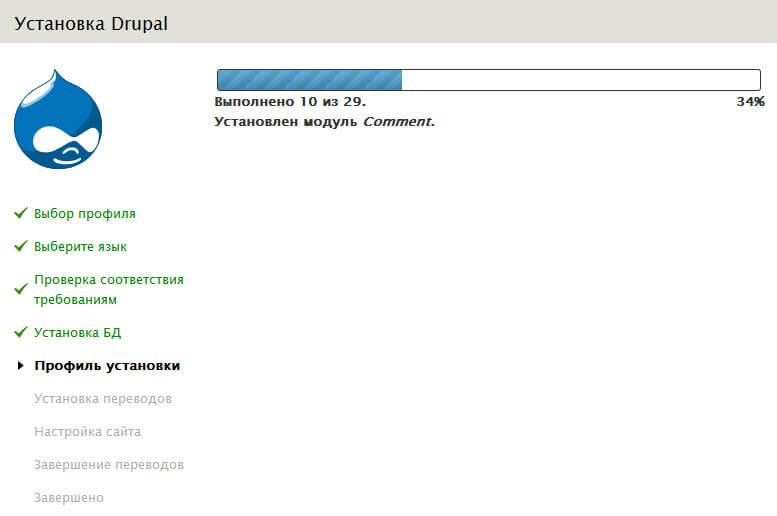
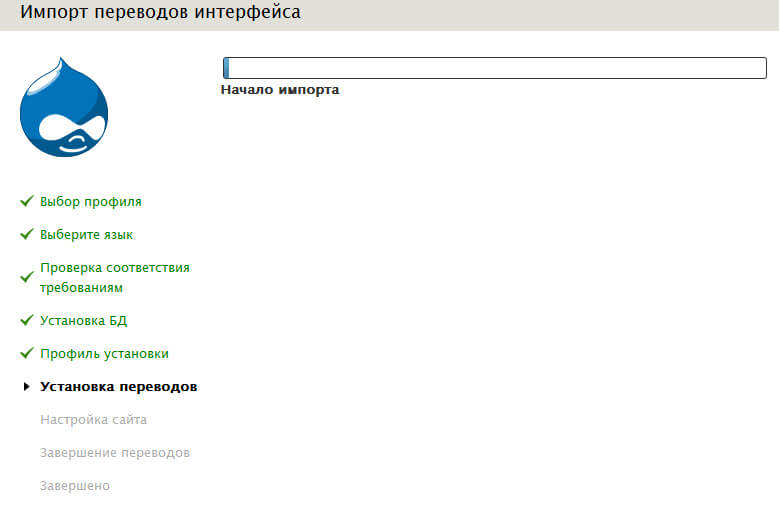
The process of installing the Russian language:
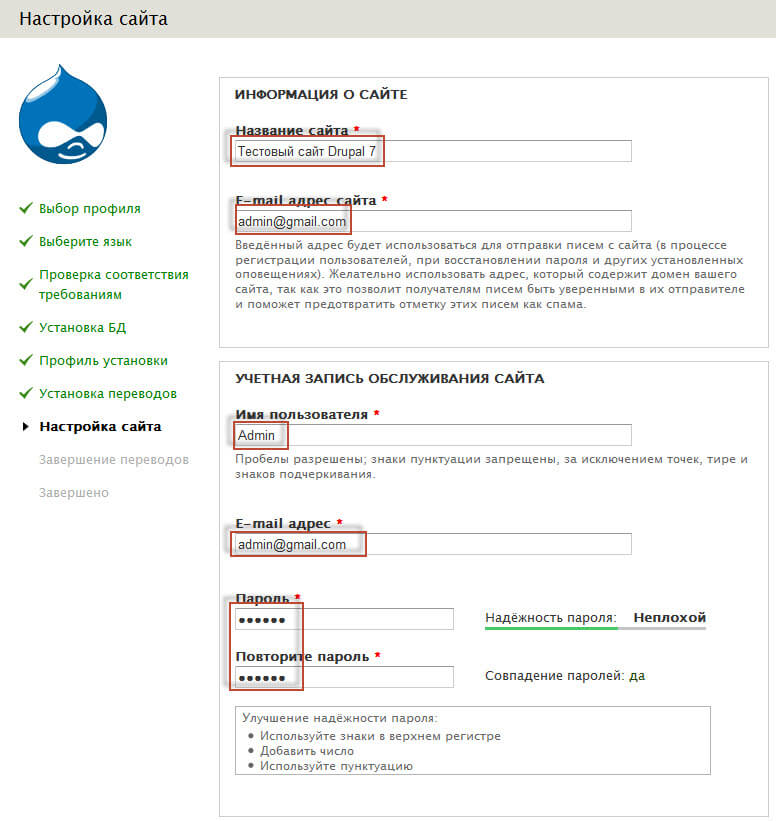
In the window that opens, fill in the fields for example below substituting your values:
- Name of the site: Test site Drupal 7
- E-mail address of the site: [email protected]
- User name: Admin
- E-mail address: [email protected]
- Password: pass_admin_site
- Repeat the password: pass_admin_site
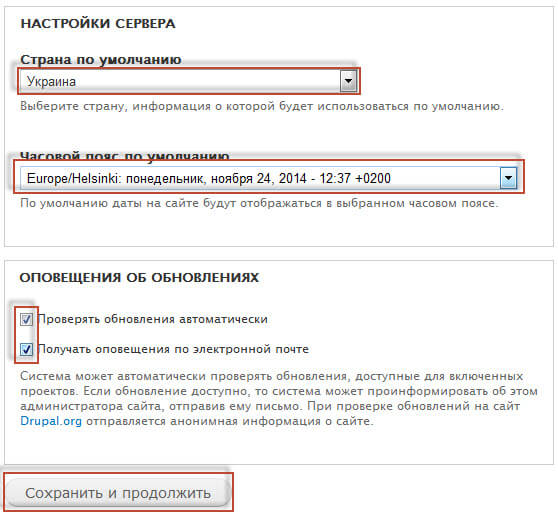
- Default country: Ukraine (choose yours)
- Default time zone: Select your time zone from the drop-down list
- Check for updates automatically: tick off
- Receive notifications by e-mail: tick off
To complete the installation, click the button. Save and continue:
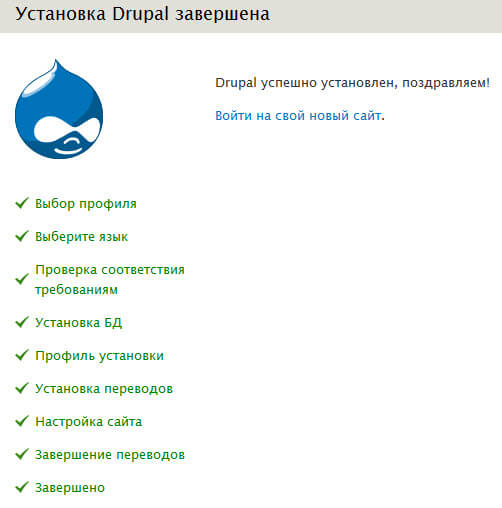
Installation Drupal is completed, to enter the site click on the link Log in to your new website:
We went to the Drupal 7 website.

Today we installed Drupal 7 on the site in the hosting control panel, in the future I will do a great article on the modules that I always use on my sites.
I was with you. Sergey Lazarenko.
Let’s take a short video break and see how you need to bake bread on the hike:

comment