
Hello dear visitor, I have long wanted to make instructions for installing Debian or Ubuntu on one hard drive in SoftRAID, so hand reached and did. Installation in principle is similar to other versions of Linux with slight differences installer, the principle is similar.
For what you may need this installation option:
1. If you need to install and configure a server but only one hard drive is available, and the second can be purchased only after some time, you install the operating system on one hard drive, and then when the second hard drive appears, it is connected to the SoftRAID server.
2. If you have a server with two hard drives working normally, with the right size and there is a need to reinstall the system: you disable one screw from the software raid on the combat server, connect it to another server, install the operating system on one screw in the software raid and after setting up, checking the server and switching to it it works stably, you connect the second screw in SoftRAID from the old server to the new.
3. If you need it for educational purposes.
4. The other one (your option).
I used an operating system to write this article. Debian 9 StretchGo to the official website. DEBIAN.ORG I downloaded a DVD or CD netinstall distribution, and I downloaded the DVD version of the distribution:
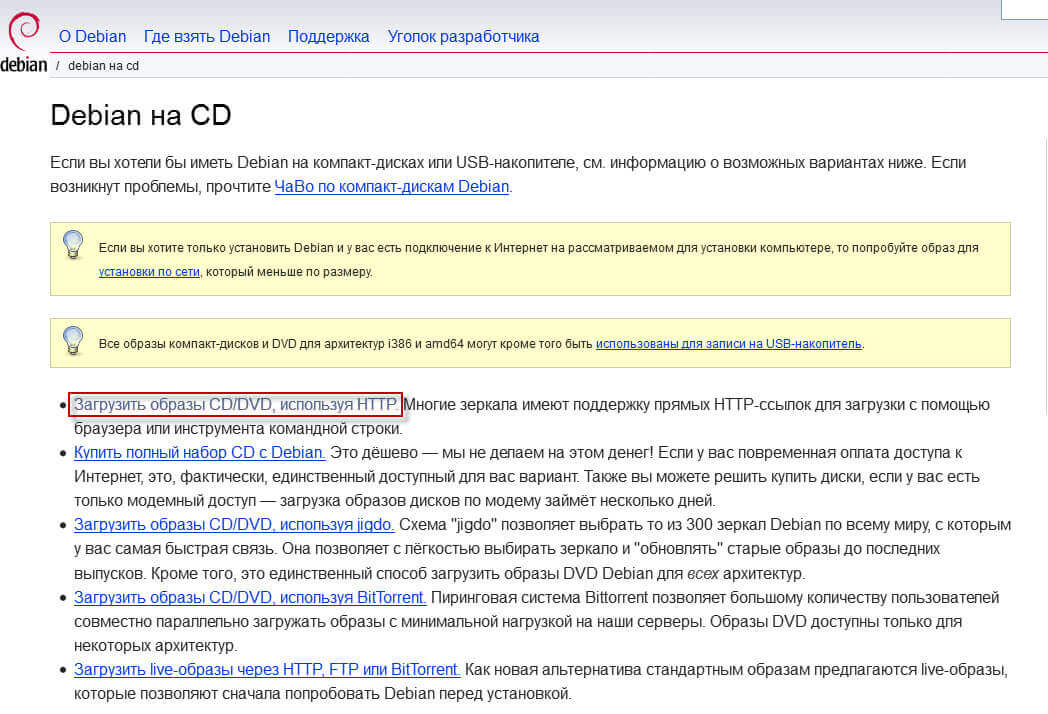
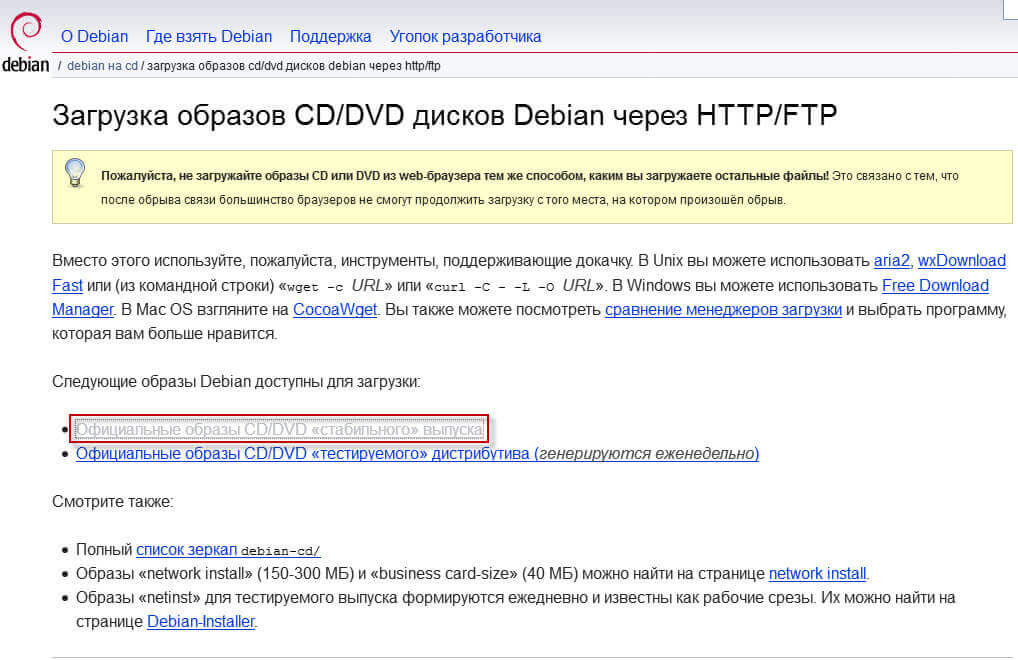

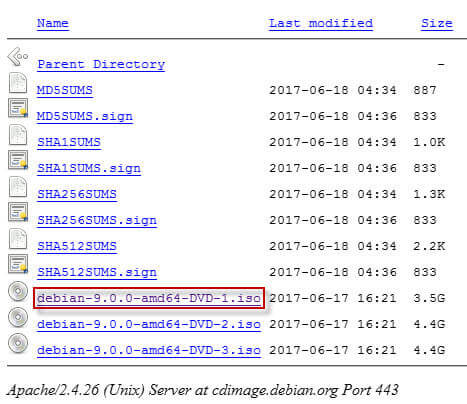
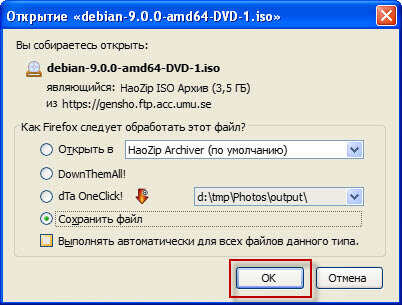
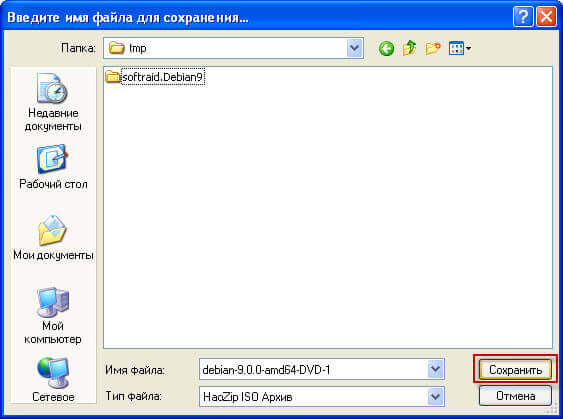
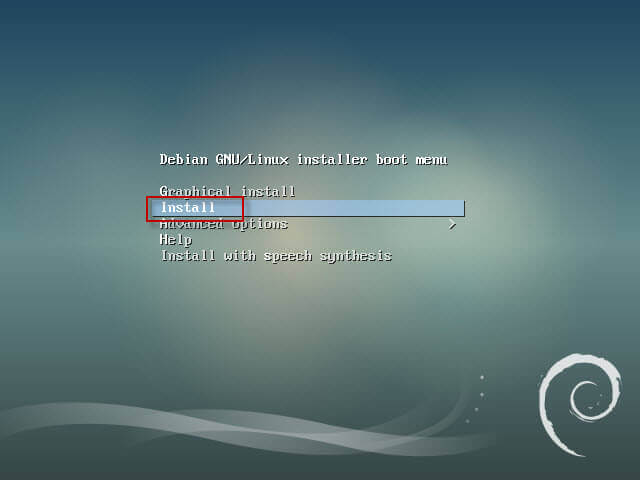
Write a downloaded image of the Debian 9 Stretch distribution to disk or use the UNetbootin program according to the instructions: How to create a bootable flash drive for installing Linux using the example of Kubuntu We make a bootable flash drive and boot from a disk or flash drive. After downloading the installer, click on the Install button, select the installer language Russian or you need, for example, choose Ukrainian or leave English:

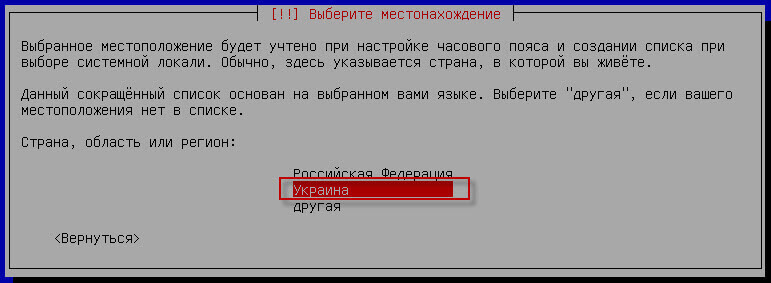
Choose your location, in my case I choose Ukraine:
Choose the keyboard layout:

Choose a way to switch the keyboard convenient for you, I use Control+Shift:

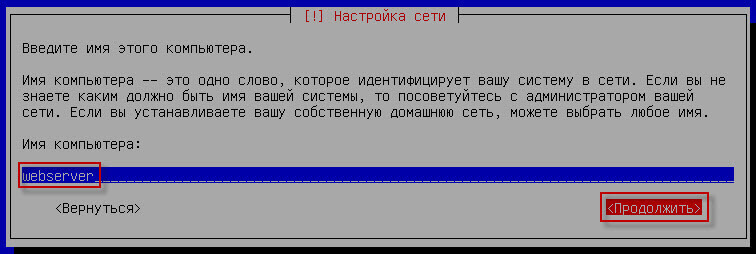
Let's give the computer name: webserver
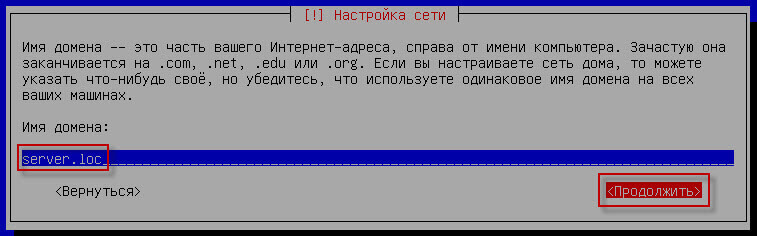
We give you the domain name: server.loc
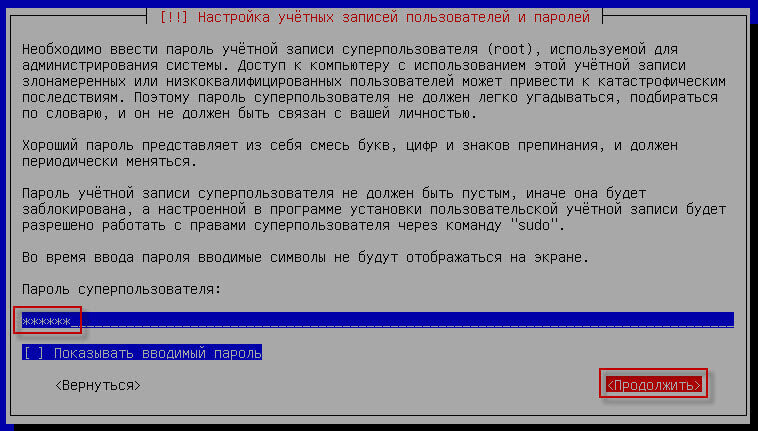
Enter the user password root
Repeat the password. root

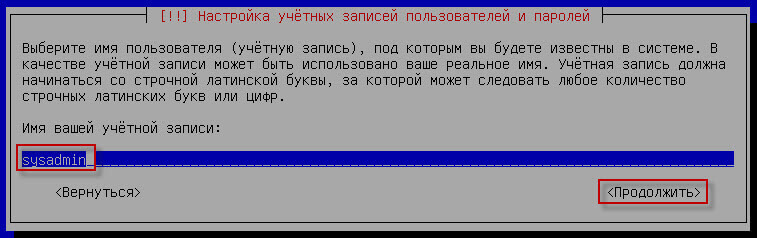
Enter the system user, calling as you are comfortable, I create a user. sysadmin

Repeat the name of the user created sysadmin
Enter the user password sysadmin:
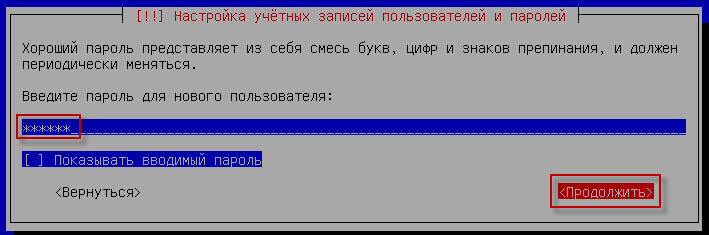
Repeat the entry of a password for the user sysadmin
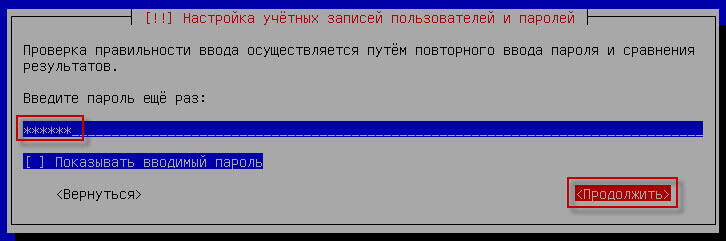
We proceed to the markup of the hard drive by choosing the method of breakdown manually:
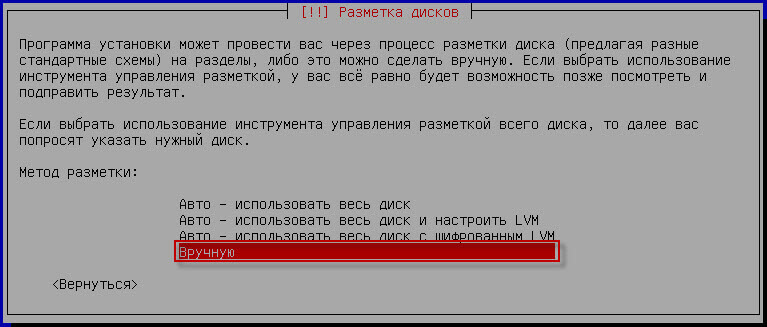
Create a new section table by becoming the cursor on sda and click Enter:
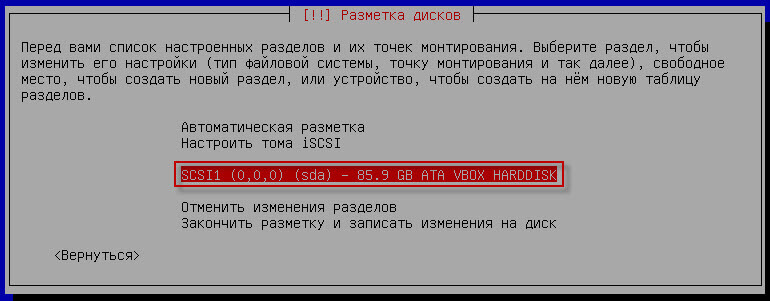
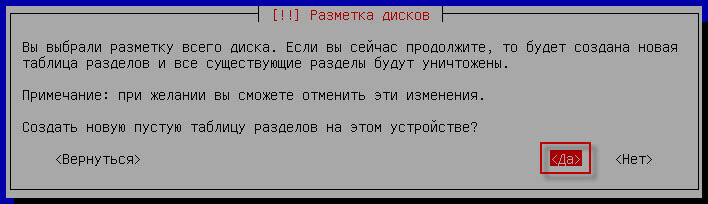
We agree with the creation of a new table of sections:
To break down the hard drive, I use this breakdown structure:
- /boot - 512mb
- swap - 2gb
- / - 40gb
- /tmp - 3gb
- /home - place-left
I divide it according to the size of the hard drive, that is, if I have a hard drive the size of 80gbThat's what I always do boot size 512mb, paging section swap I don't make it big. 2gb, since the operation is not expensive, and active operation of the swap section is undesirable. The root size depends on the purpose of the server, but in general 40Gb is enough, that is a universal option, of course, if the size of the hard drive 1Tb and higher can be increased, the partition of temporary files. /tmp I'm doing about 3Gb, and partitioning home for all the rest of the space is like a section for archives.
Create a section. /boot raid 512mbTo do this, we become a cursor on the free space and click Enter:
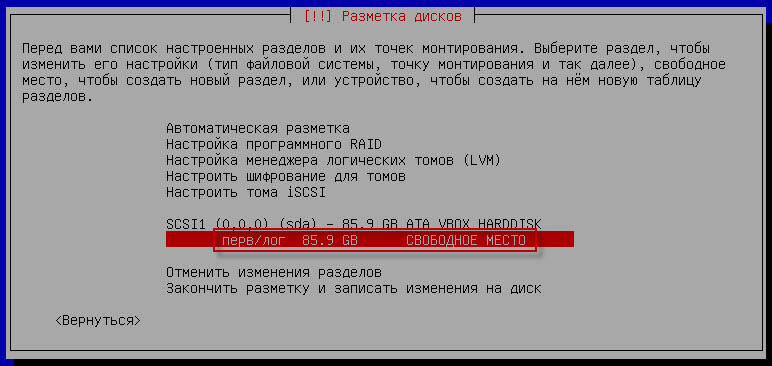
In the open window, we become a cursor on Create a new section and press Enter:

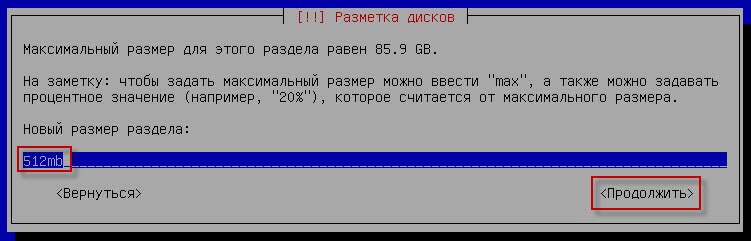
Specify the size. 512mb pressed Enter:
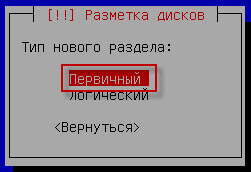
Specify the type of new section Primary and press Enter:
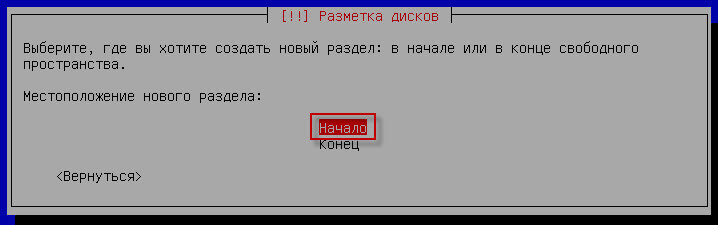
Select the location of a new section Beginning and press Enter:
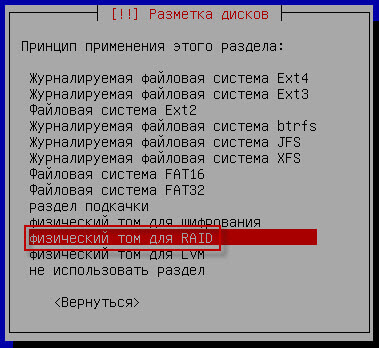
In the open window, select a tab. Use it as press Enter and select the window that opens RAID and press Enter:
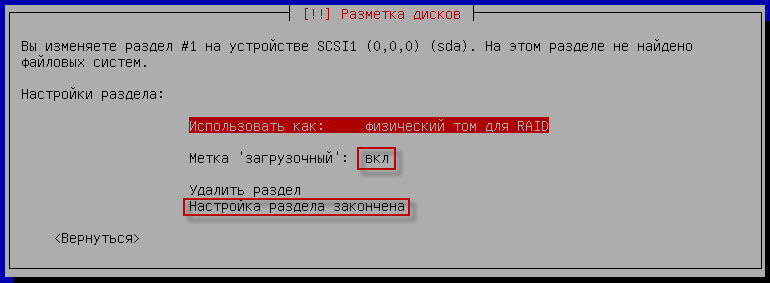
Then we become a cursor on the Label 'booting' and press Enter to become part-timeLet's move on. Set-up section is complete and press Enter:
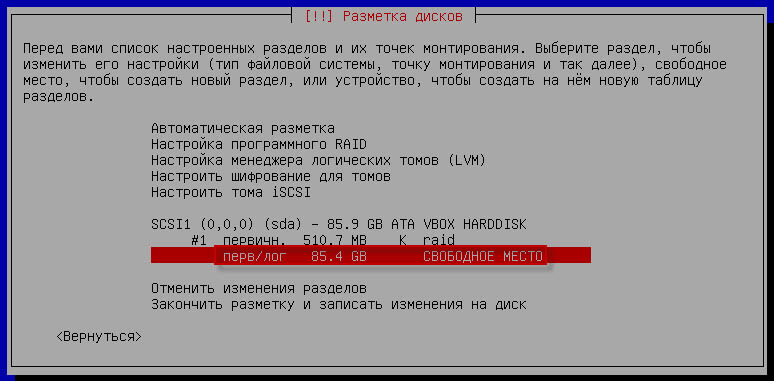
So we made a boot Boot section that we will configure in the raid, create a swap section, for this we stand on a free space and click Enter:
Specify the size of the swap section (swap) 2GB Press Enter (you can specify the swap size you need):
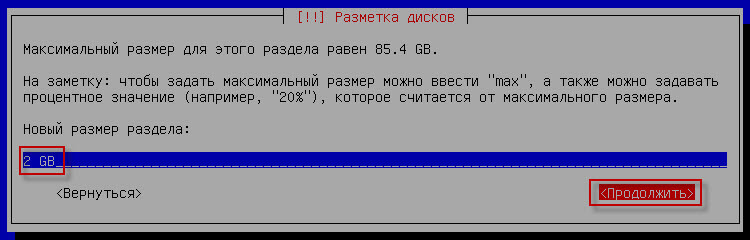
In the onk that appears, we choose Set-up section is complete and also press Enter:
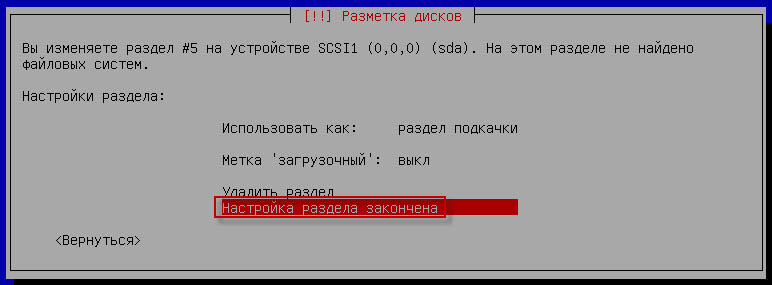
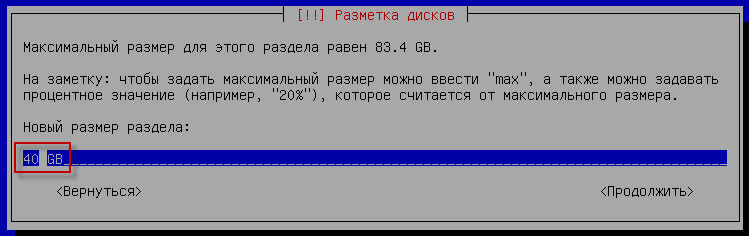
In the same way, we also create a 40Gb root partition. /tmp a partition size of 3.4Gb and /home section also 40Gb:
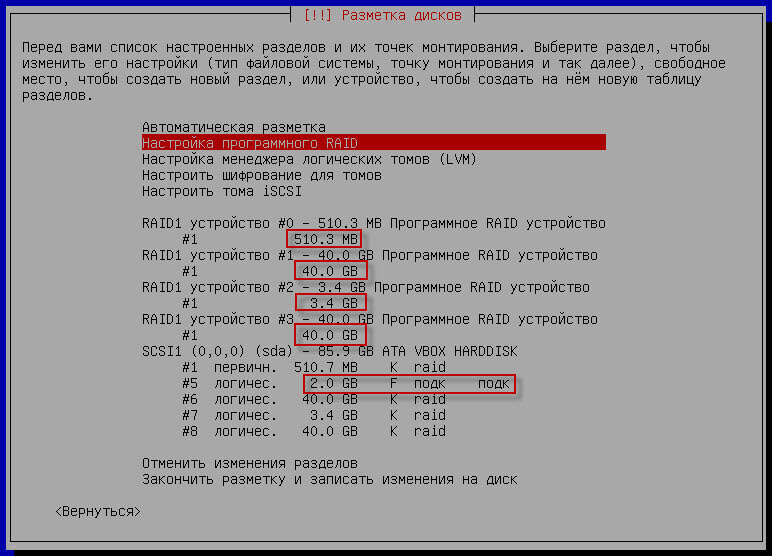
It should be such as a screenshot of the break-up of the hard drive, once again reminding that you can break depending on the size of your hard drive:

After all broken down by specifying the physical partition for RAID, we become a cursor on Setting up software RAID and in the window that appears, we agree with the installer that changes will be applied and the RAID setting will start:
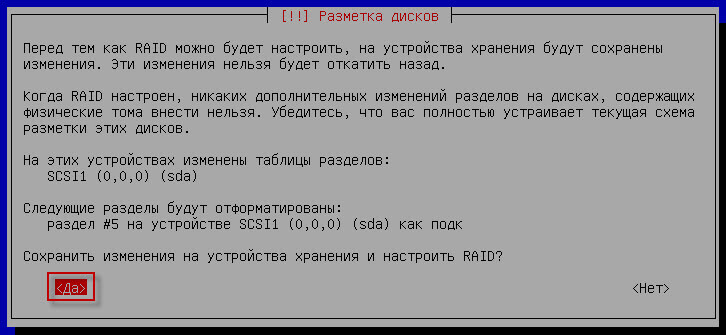
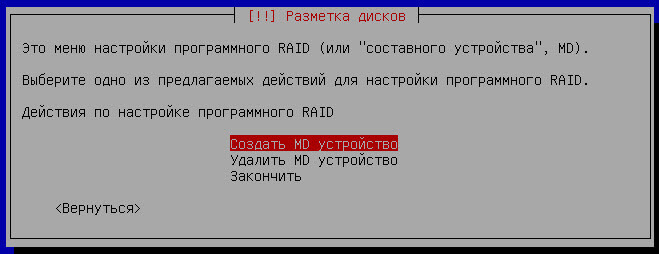
In the disk markup window that appears, we become a cursor on Create an MD device T press Enter:
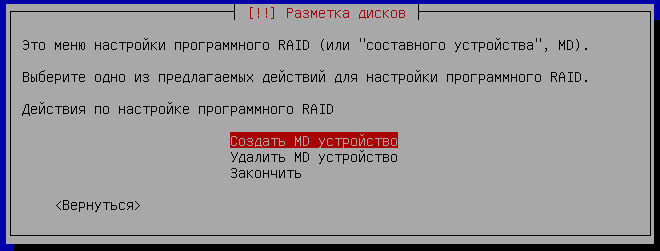
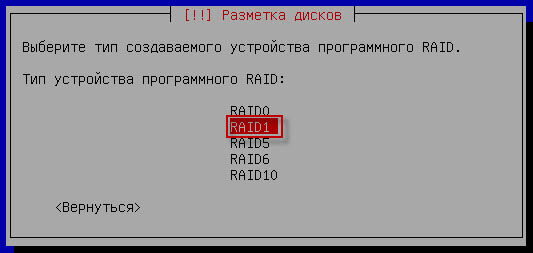
Create a Raid partition of the boot partition /bootChoose the type of software Raid: RAID1 and press Enter:
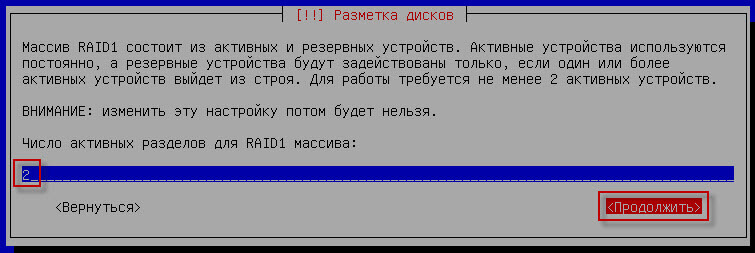
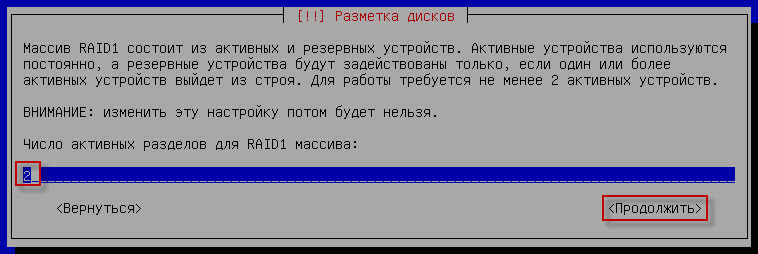
By default, the number of active partitions for the RAID1 array: 2Leave it unchanged pressing. Continue.:
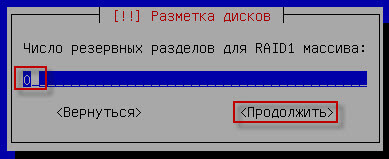
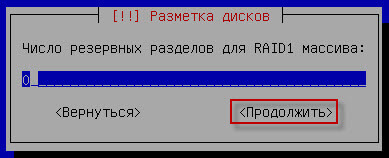
Number of backup partitions for RAID1 array: 0Leave it unchanged pressing. Continue.:
Since we only have one hard drive, select only one partition.dev/sda1 and press Enter:

Similarly, we create a root section, sections. /tmp and /home:

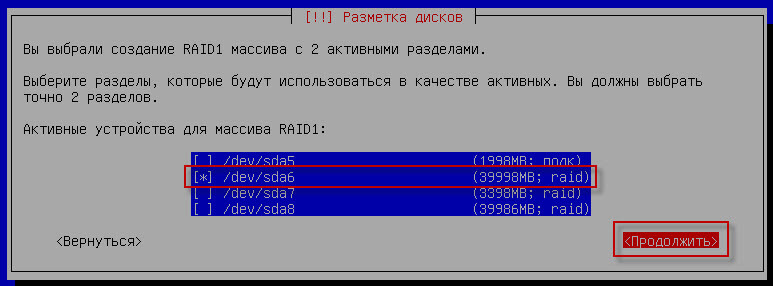
In the same way, we add sections: /dev/sda7, /dev/sda8 And when we're done, we become a cursor. Finish. and press Enter:

After that, in the window that opens, you need to configure mounting and select the file system for the Raid partitions that appear:
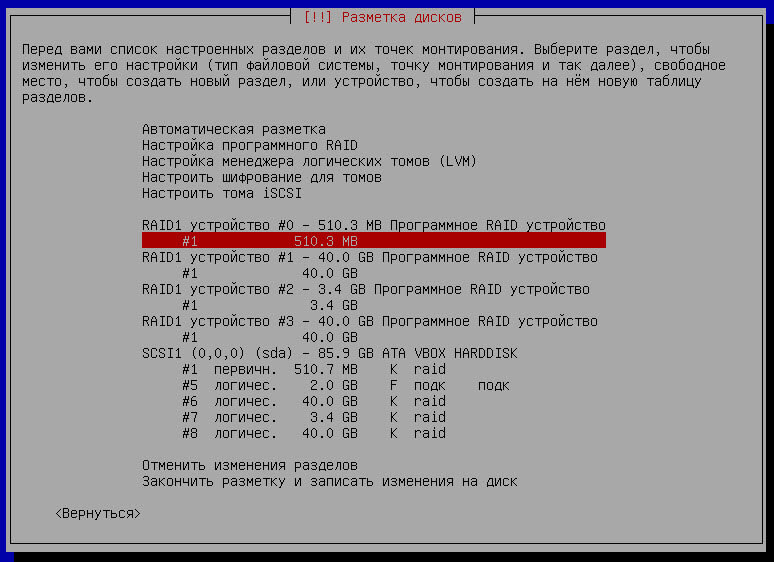
Customize the section. /boot, become a cursor on 512mb press Enter:
In the window that appears, we stand on Use as: Not to use and press Enter:

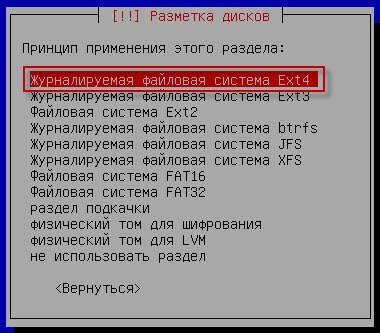
Let's get on. Use it as And in the window that appears, we select Journaled file system Ext4 and press Enter:
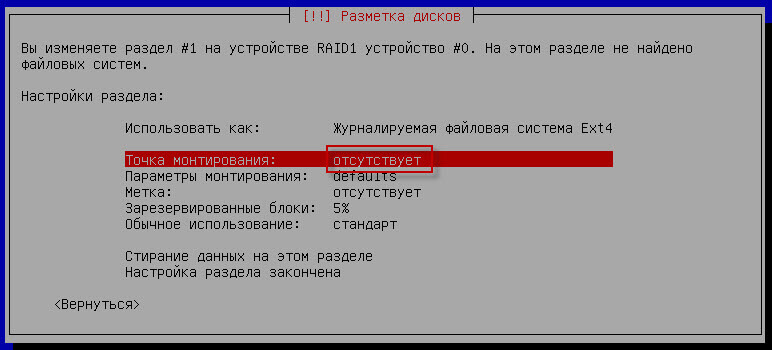
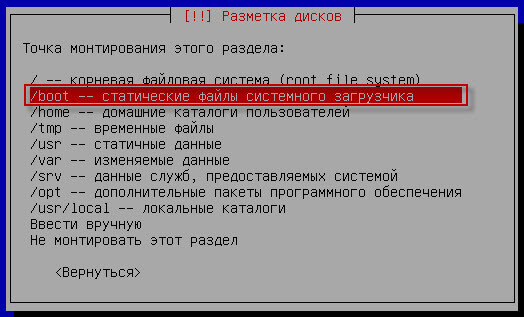
Getting to the mounting point - Enter - select /boot and press Enter:
Let's get on. Reserved blocks: 5%press Enter:

In the window that appears, we remove 5% and put 0For Raid partition, you do not need to reserve blocks and click Continue.:

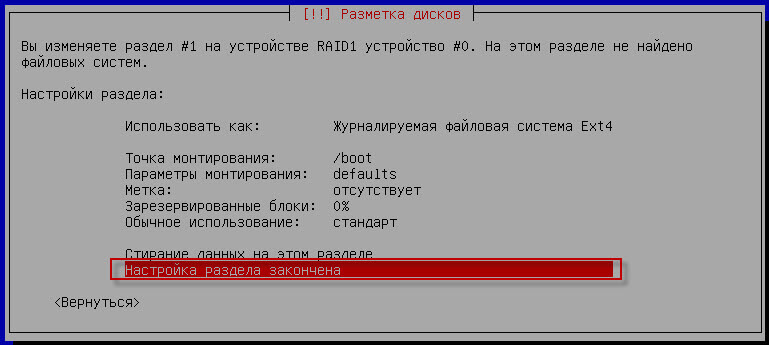
When you set the parameters /boot sectionalization Set-up section is complete and press Enter:
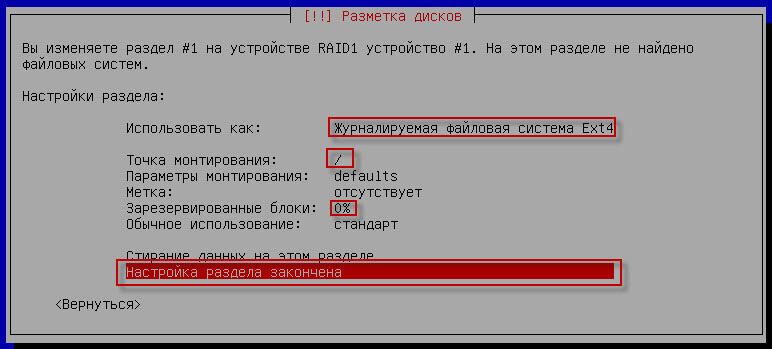
In the same way, we configure the link section / :
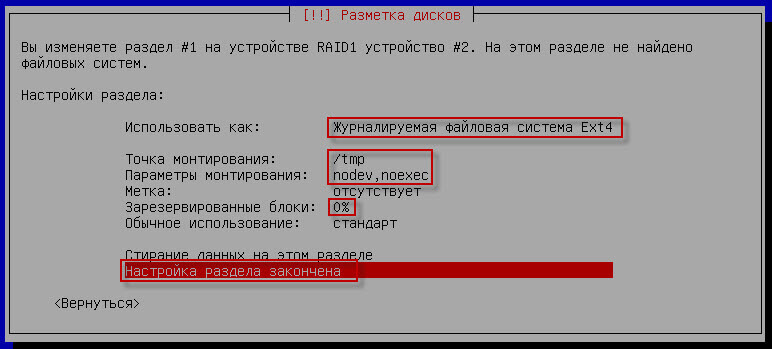
When setting up the section /tmp need to Installation parameters and press Enter, in the window that appears select parameters nodev, noexec By clicking on them and pressing the space:

Similarly, we configure the section. /home:
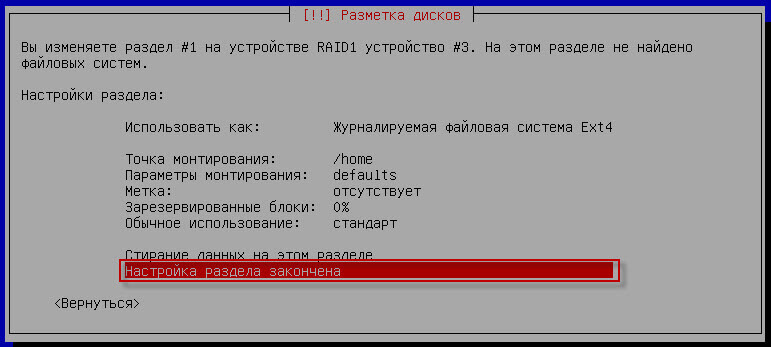
After completing the breakdown and configuring of the mounting sections, we become a cursor on Finish the markup and record changes to disk pressed EnterIn the window that appears, we agree with the changes in the hard drive breakdown and click Enter:
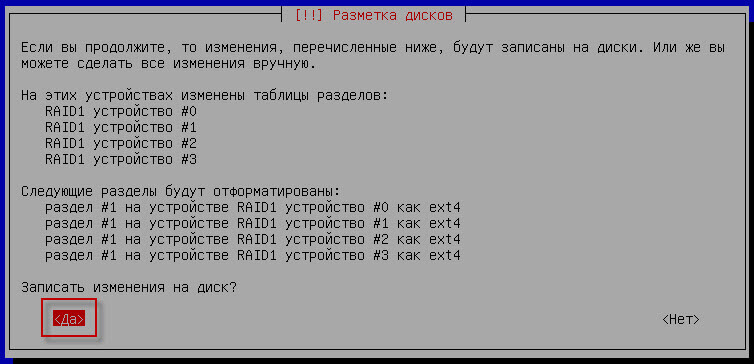
Next, we install the operating system:

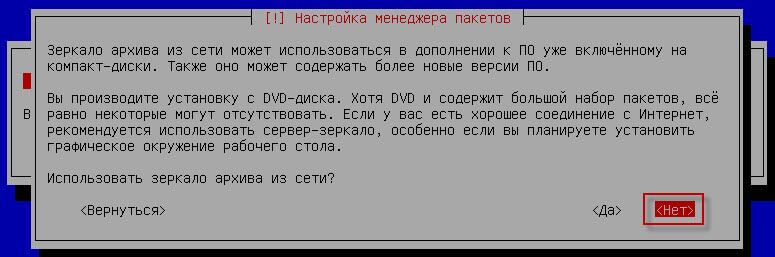
When you scan another CD or DVD, I choose No., but if you do not have the Internet, you can add several disks and in the future when installing programs, the installer will offer to insert the desired drive:

I have a system installed from a DVD disc, so I do not need to use the archive mirror from the network and choose No, but if you install from the netinstall disk, it is better to choose the repository of the higher country:
I choose not to participate in the popularity survey:

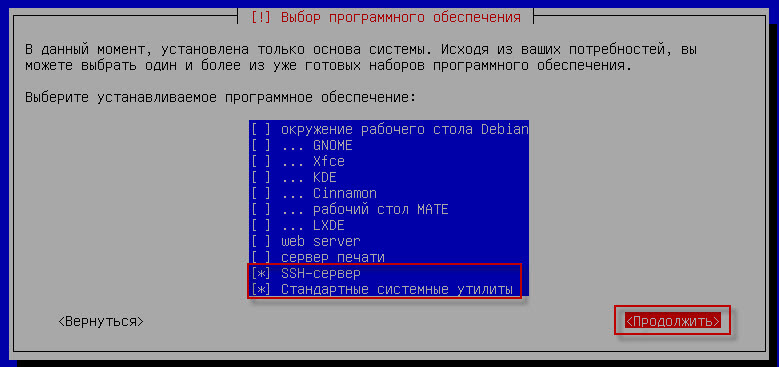
In the software selection window, select:
- SSH server
- Standard system utilities
The software is downloaded and installed:

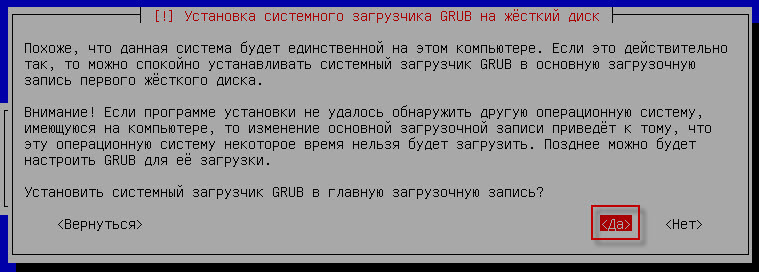
We agree to install the Grub bootloader in the main boot record:
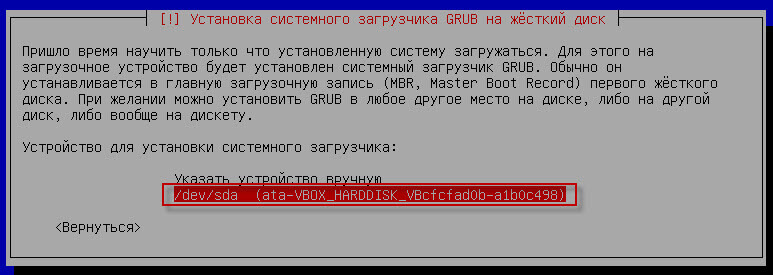
Select a section: /devsda and press Enter:
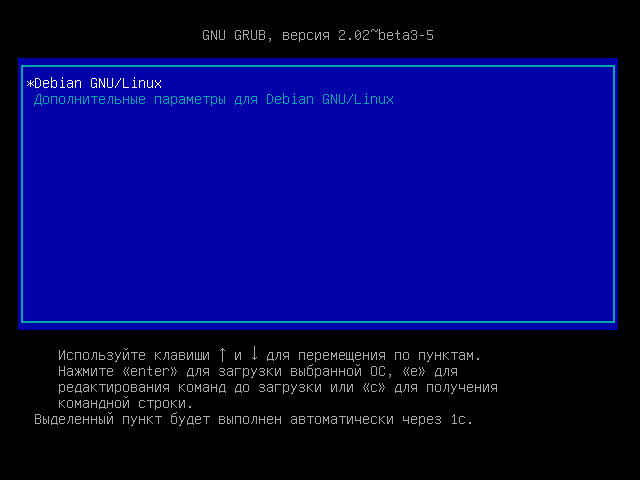
After the installation is completed, press Continue, the installer will push the installation disk, pull it out, the system will restart and the new operating system will be loaded:

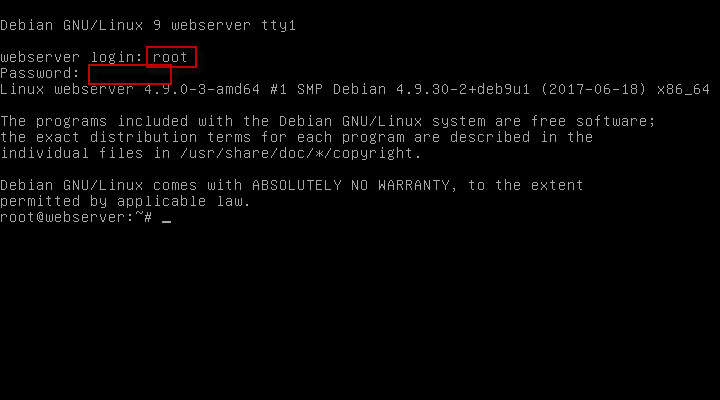
Going under the user. root or sysadmin By entering their password, the password itself is not displayed when you enter:
Installing the Debian operating system on one hard drive in the software raid array is completed, I hope that this information was useful to you, or in the future it will be.
Continuation of instruction: Add and remove the hard drive in SoftRAID
I was with you. Sergey Lazarenko.
I also made a video according to this instruction, if it will be more convenient for you to watch the video below, the comment did not record any, as everything is clear to me, and everything is described with the help of the article.

comment