

The other day, it was on the server. installed by Debian Squeeze install and configure a media server to view photos and videos from the TV Samsung Series 7000 through DLNA
A great MediaTomb server was chosen. To install it, you need to add a repository, and install it with standard operating system tools.
We add a repository to the team if it has not already been added:
echo 'deb http://mirror.yandex.ru/debian squeeze main contrib non-free' >> /etc/apt/sources.list
Update the data with the new repository team:
aptitude update
Install the mediatomb server in Debian Squeeze with the following command:
aptitude install mediatomb
After that, we check in the log which port our media server listens to by the team (this port will be written into the configuration file of our mediatomb):
cat /var/log/mediatomb.log | grep port:
Team response:
2012-10-23 15:22:28    INFO: Initialized port: 49152
2012-10-24 16:32:57    INFO: Initialized port: 49152
And check the path to the mediatomb server configuration file with the team:
cat /var/log/mediatomb.log | grep 'Loading configuration from:
Team response:
2012-10-23 15:22:28    INFO: Loading configuration from: /etc/mediatomb/config.xml
2012-10-24 16:32:56    INFO: Loading configuration from: /etc/mediatomb/config.xml
Attention!! If you use several network interfaces (network cards) you need to decide which one will hang mediatomb media server, in my case I configure on a netbook server and I have one network. eth0That's what I'm saying. If you have several network interfaces, their names in the system can be viewed when you output a command. ifconfig And choose the right one for you.
In the file. /etc/default/mediatomb We specify the interface on which our media server will hang:
vi /etc/default/mediatomb
was:
INTERFACE=""
became:
INTERFACE="eth0"
Open the configuration file /etc/mediatomb/config.xml and make changes:
vi /etc/mediatomb/config.xml
was:
<server>
    <ui enabled="no" show-tooltips="yes">
      <accounts enabled="no" session-timeout="30">
        <account user="mediatomb" password="mediatomb"/>
      </accounts>
...
became:
<server>
      <port>49152</port>
      <ui enabled="yes" show-tooltips="yes">
      <accounts enabled="yes" session-timeout="30">
        <account user="username" password="you_passwd"/>
      </accounts>
...
Here we specified the server port and allowed access to the server via http, that is, through a Web interface, and also enabled user-only entrance to the Web interface. username passwordd you_passwd
If necessary, change the name of the server in the network to your own, for example:
was:
<name>MediaTomb</name>became:
<name>MediaServer-HOME</name>was:
<protocolInfo extend="no"/><!-- For PS3 support change to "yes" -->became:
<protocolInfo extend="yes"/><!-- For PS3 support change to "yes" -->
Because we need to connect the TV. Samsung Series 7000Here are the settings for Samsung TVs:
was:
    <!--
    <custom-http-headers>
      <add header="X-User-Agent: redsonic"/>
    </custom-http-headers>
became:
    <custom-http-headers>
      <add header="X-User-Agent: redsonic"/>
      <add header="transferMode.dlna.org: Streaming"/>
      <add header="contentFeatures.dlna.org: DLNA.ORG_OP=01;DLNA.ORG_CI=0;DLNA.FLAGS=01500000000000000000000000000000"/>
    </custom-http-headers>
To support the Cyrilic alphabet, we specify to use UTF-8 encoding after </server>
was:
  </server>
  <import hidden-files="no">
...
became:
  </server>
  <filesystem-charset>UTF-8</filesystem-charset>
  <metadata-charset>UTF-8</metadata-charset>
  <playlist-charset>UTF-8</playlist-charset>
  <import hidden-files="no">
...
For the work of the Samsung TV, change the description of the mkv container in the <mappings> section (if absent, add), and also add missing containers.
was:
        <map from="mkv" to="video/x-matroska"/>
        <map from="mka" to="audio/x-matroska"/>
became:
        <map from="mkv" to="video/x-msvideo"/>
        <map from="mka" to="audio/x-msaudio"/>
        <!-- Добавляем отсутствующие контейнеры: -->>
        <map from="vob" to="video/mpeg"/>
        <map from="ts" to="video/mpeg"/>
        <map from="mpg" to="audio/mpeg"/>
        <map from="m2ts" to="video/avc"/>
        <map from="avi" to="audio/x-msvideo"/>
After that, we go through the web browser at:
http://192.168.0.1:49152/
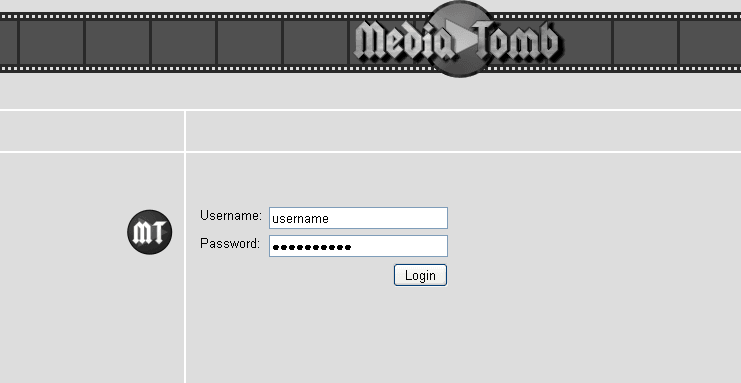
wherein 192.168.0.1 IP address assigned to the interface eth0, and 49152 is the port on which the mediatomb server hangs, a mediatomb window will open with a request for a login and password that we specified in the configuration file above, specify them and go to the Web interface, where we add the necessary folders to scan the media server.
In the open Mediatomb window, enter our login and password and press the Login button:
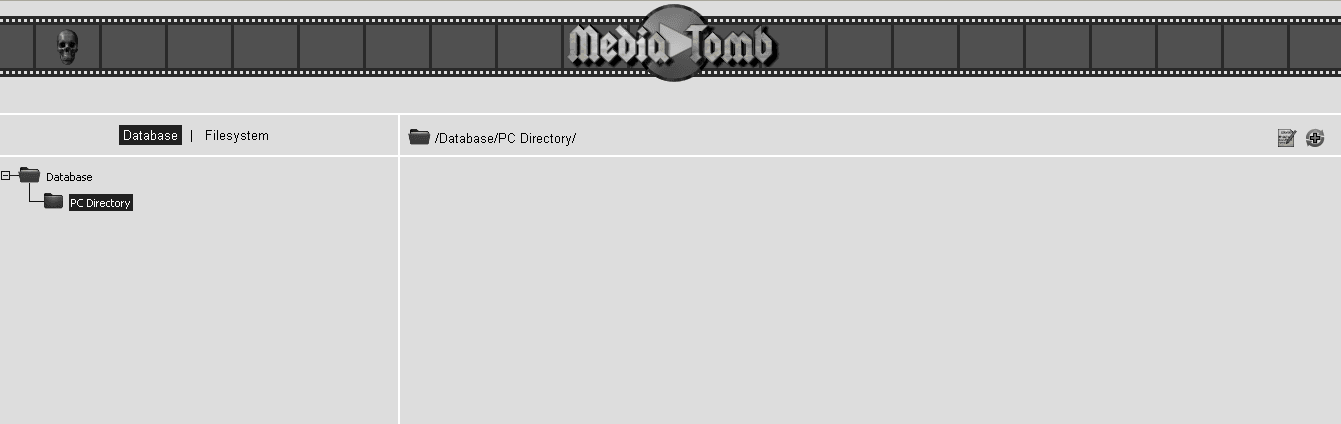
Type of media server at the first entrance to the MediaTomb web interface:
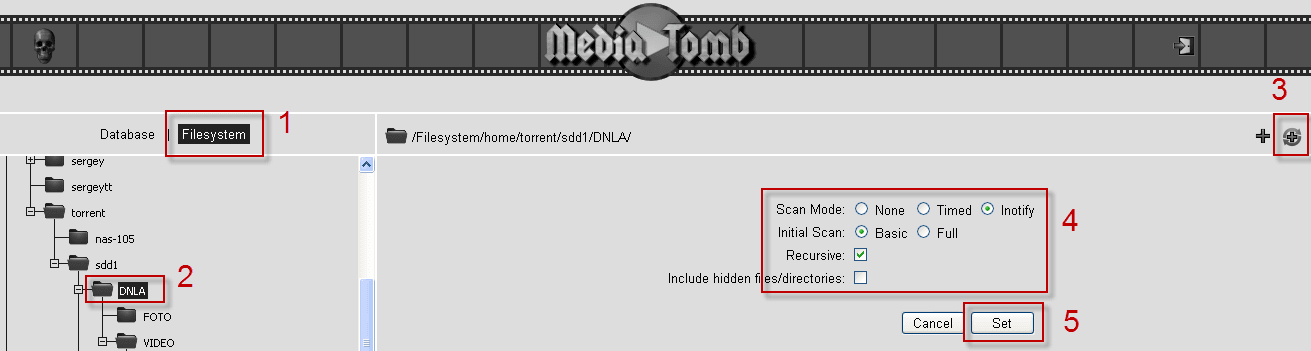
The file system window of the server, here select the folder with the content that we want to view from the TV on DLNA:

In the file system tree, select a folder with video, audio and photo content and add a folder to the media server database with scanning of all content, including subfolders, mark settings for example:
After the server scans the contents of the selected directory, you can go from the TV to your media server and enjoy watching movies and photos, as well as listening to audio files that are in the scanned directory.
The task is completed, the MediaTomb media server for DLNA access is installed and configured.
I was with you. Sergey Lazarenko.
Let’s take a short break and watch a small video for fans of active tourism:

comment