

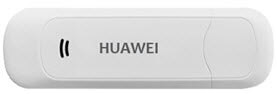
 In this manual, I lay out the latest firmware for the 3G modem Huawei E1550, as well as a description and screenshots of the process of firmware of this modem.
We will stitch under the Windows 7 operating system, under other versions there should also be no problems with the firmware process, the main thing is to install a driver for the modem in the absence of the system when connecting.
If there are no drivers when connecting the E1550 modem to Windows, Download the E1550 modem driver from my website
Download the firmware for E1550 at: Download the firmware file for 3G modem Huawei E1550
We save the downloaded firmware to disk, unpack the archive and go to the folder with the firmware, there are 2 files: Update_11_609_18_00_00_B418.exe and Huawei Modem Unlocker v5.8.1.exe
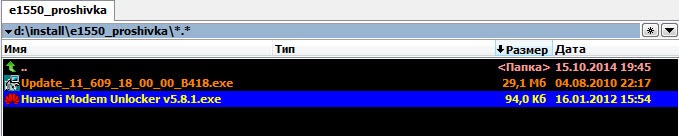
Let's start the file. Huawei Modem Unlocker v5.8.1.exeIn the open window of the program, it is necessary in the field ENTER I4 DIGITS IMEI enter the IMEI code of your modem, the code can be viewed under the cover where the SIM card is placed, click on the button CALCULATE. The program will generate code in the field FLASH CODE This is the code that we will need for later firmware.

Running the Update_11_609_18_00_00_B418.exe file to run the E1550 firmware, a window will open where we agree to the license agreement and click Next>:

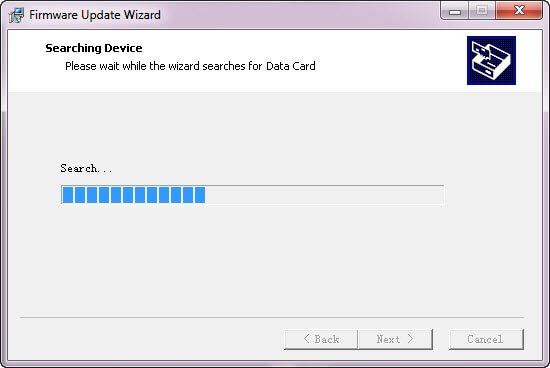
The process of searching for the Huawei E1550 modem:
Found a modem, here you can also see the IMEI code if the modem itself does not read the code. To continue, click the Next button:
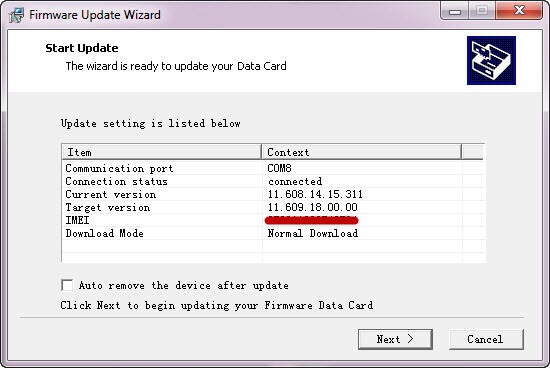
To start the firmware, press the button Start, the firmware installer will offer to enter the code, take it from the field FLASH CODE previously generated:
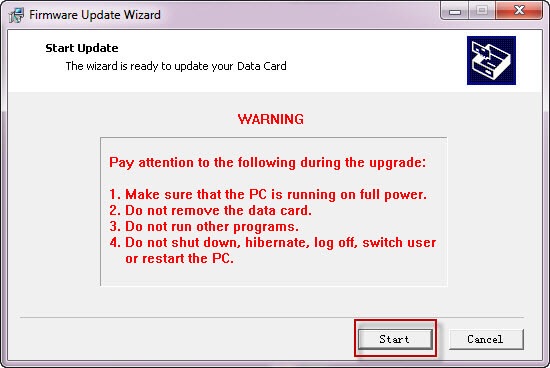
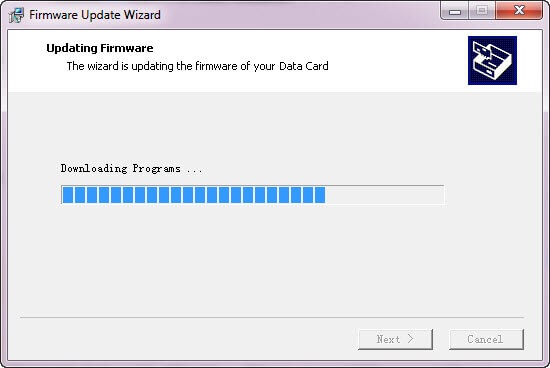
Firmware installation process:
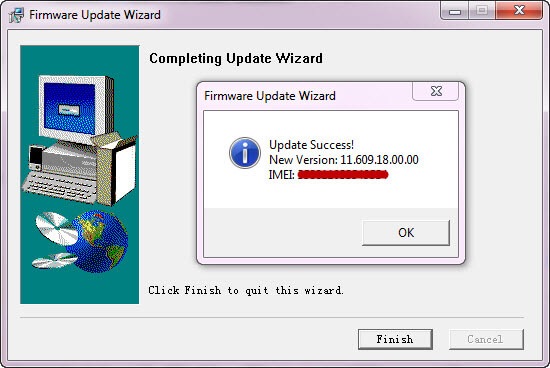
After a successful firmware installer will notify about the successful firmware, version of the installed firmware, click on OK:
To complete the firmware, click on the button Finish:
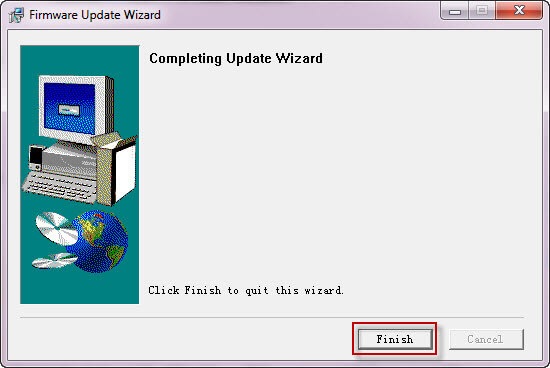
The firmware of the Huawei E1550 3G modem has been successfully completed.
After firmware, if you use this modem as a GSM gateway to connect to Asterisk, you will need to disable the virtual CD-rom, if not using Flash disk, this can be done in two ways: through Windows using Putty program and through the server with installed Linux installing the program minicom
1. Using Putty in Windows, the instructions are: Connect to the Huawei E1550 modem with Putty to change configuration using AT commands from Windows
2. Using the program minicom:
Installation minicom carried out by the command:
Installation of minicom in Debian:
aptitude install minicom
Installation of minicom in CentOS:
yum install minicom
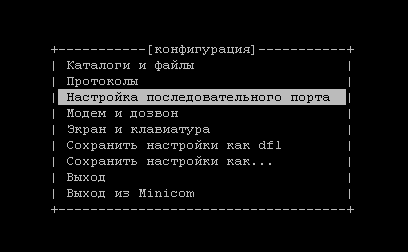
minicom -s
When you open the program, choose Sequential port configuration
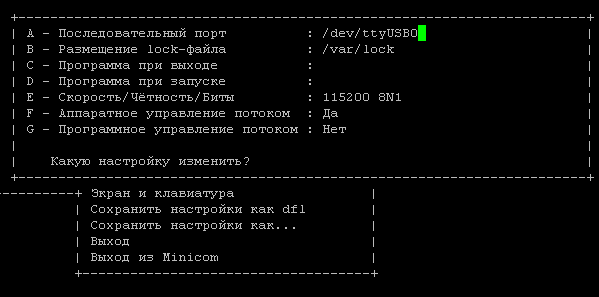
Need to change serial port capitalize Aah. (Shift a) and correcting the /dev/ttyUSB0 double-press ENTER
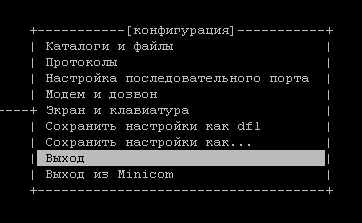
Next, press on. Exit
After that, enter the command to your modem terminal:
After that, you need to press. CTRL + apressed Shift + q And we're off the modem.
Turn it off, plug in the modem.
These are the main commands for modem:
Only GPRS/EDGE - AT^SYSCFG=13,1,3FFFFFFF,2,4
Only 3G/WCDMA - AT^SYSCFG=14,2,3FFFFFFF,2,4
Preferring GPRS/EDGE - AT^SYSCFG=2,1,3FFFFFFF,2,4
Prefer 3G/WCDMA - AT^SYSCFG=2,2,3FFFFFFF,2,4
Device in mode modem only - AT^U2DIAG=0
Device in modem + CD-ROM - AT^U2DIAG=1
Device in modem + CD-ROM + Card Reader - AT^U2DIAG=255 or AT^U2DIAG=276
Device in modem + Card Reader - AT^U2DIAG=256
I was with you. Sergey Lazarenko.
We will take a short break and watch a small video about how to make a bath in nature using improvised means:

comment