



To change the configuration of Huawei modems from Windows, you can use a simple Putty program.
Download the latest version of Putty from the official website at the link: Download Putty
Plug the Huawei E1550 modem into the USB port of your computer, open Device Manager (Right button on My computer - Properties - Equipment - Device Manager- and watch:
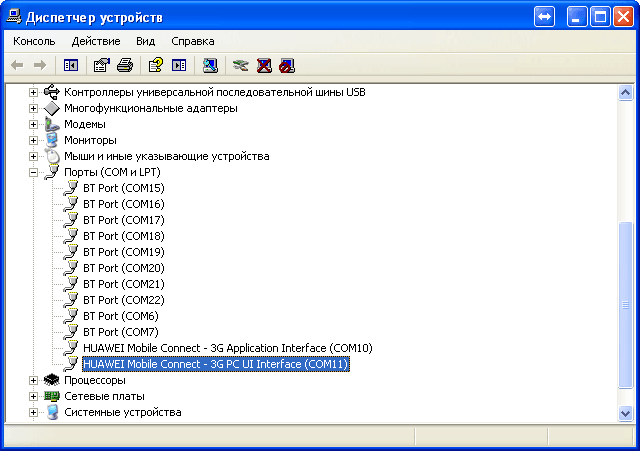
In the Ports tab (COM and LPT) we see our modem and in brackets assigned to it by COM ports, in my case this is COM10, COM11
Next, launch the putty program.
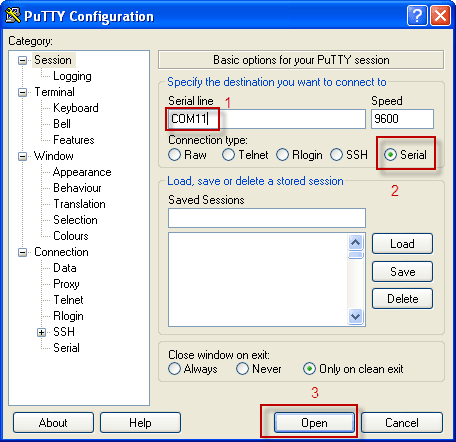
Check the box on Serial and in the field. Serial line change COM1 to COM11. Press Open and connect to the modem e1550.

Depending on how to configure the modem, prescribe a command and press Enter.
The main commands for the modem:
Only GPRS/EDGE - AT^SYSCFG=13,1,3FFFFFFF,2,4
Only 3G/WCDMA - AT^SYSCFG=14,2,3FFFFFFF,2,4
Prefer GPRS/EDGE - AT^SYSCFG=2,1,3FFFFFFF,2,4
Prefer 3G/WCDMA - AT^SYSCFG=2,2,3FFFFFFF,2,4
Device in modem only - AT^U2DIAG=0
Device in modem + CD-ROM - AT^U2DIAG=1
Device in modem + CD-ROM + Card Reader - AT^U2DIAG=255 or AT^U2DIAG=276
Device in modem + Card Reader - AT^U2DIAG=256
Since I had to configure the modem only as a modem, without cdrom and Card Reader, I typed kuomanda and pressed Enter:
AT^U2DIAG=0

All, the modem has changed configuration, the task is completed.

comment