

Instructions conversion of jpg to djvu We made a compact book out of scanned jpg files.
In this instruction, we will install the WinDjView program in which we can open a djvu book created according to the instructions mentioned earlier.
In order to open a djvu file, we need to download the WinDjView program on the website. windjview.sourceforge.net posture reference
Save the downloaded program WinDjView from the official site to your computer:
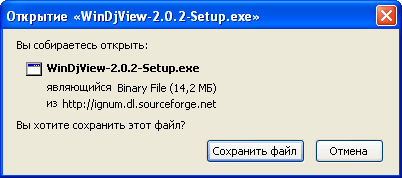
We run the downloaded installation file of WinDjView, select the Russian language of the installer:

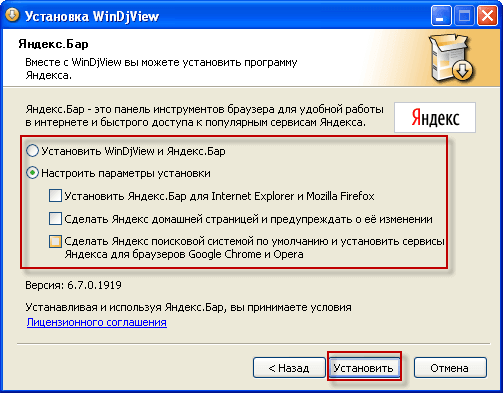
During installation, select the settings of the installation manually and uncheck to cancel the installation of Yandex Bar and make Yandex home page on the assumption in your browser:
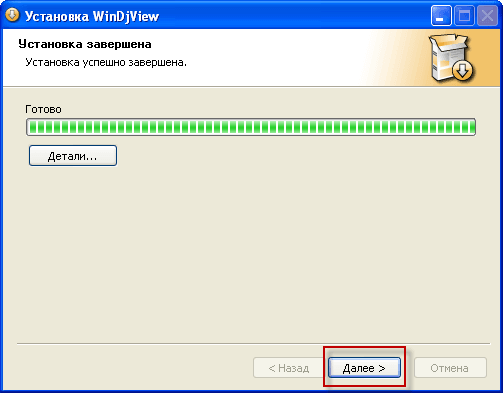
The installation process of WinDjView is completed:
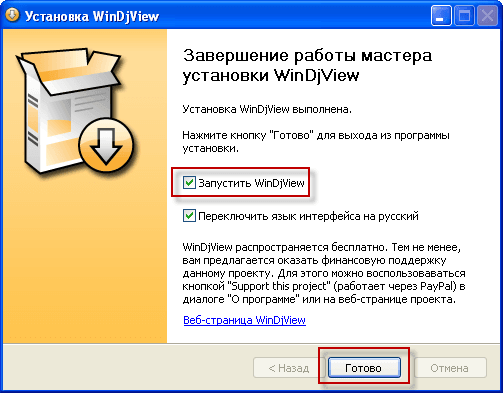
Installation of WinDjView to open the djvu book is completed, check boxes:
- Launch WinDjView
- Switch the interface language to Russian
To complete the installation, press the button. Ready.:
When you open WinDjView, you need to close the window. About WinDjView push Close it.:

In the open program WinDjView, to open djvu you need to click on the icon of the yellow folder, or in the upper menu click on File - Open and select a djvu book:

Djvu book is open:
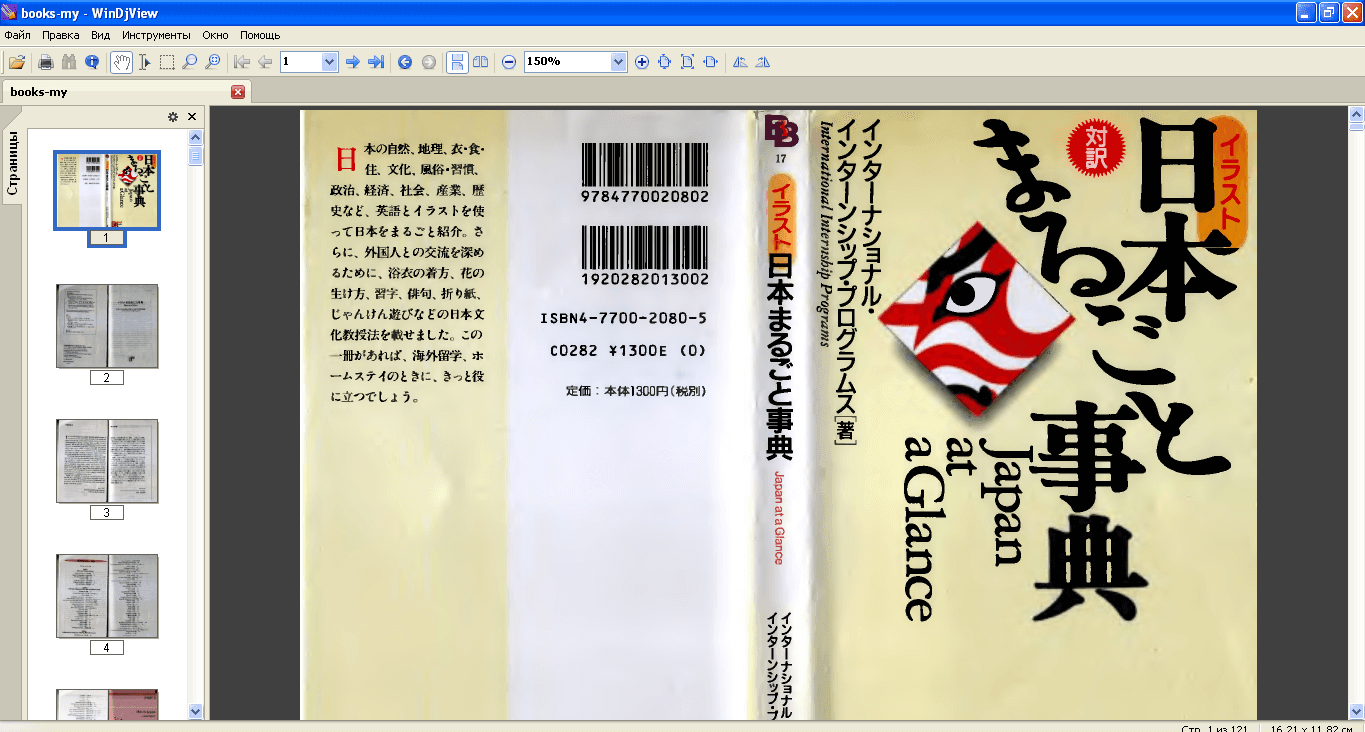
The WinDjView program is installed, the Djvu book is open. Task accomplished.
Of course, there are a lot of good programs to open a djvu file, but WinDjView is one of the best.
If you like the instructions, subscribe to receive updates from the site to your inbox.
Sergei Lazarenko was with you.
Let’s take a moment to watch the beautiful video:

comment