

DjVu is a lossy image compression technology designed specifically for storing scanned documents – books, magazines, manuscripts, etc., where the abundance of formulas, diagrams, drawings and handwritten characters makes their full recognition extremely time-consuming. DjVu has become the basis for several library science books. It is quite popular, and it makes a large number of different documents.
In this instruction, we will convert the scanned Japanese-English encyclopedia and collect the scanned pages into a djvu book, to convert scanned files from jpg to djvu we will use the DjVuSolo 3.1 program which can be downloaded at:
Download the DjVuSolo 3.1 program in Windows:

We agree with the installation of DjVuSolo 3.1 in Windows:
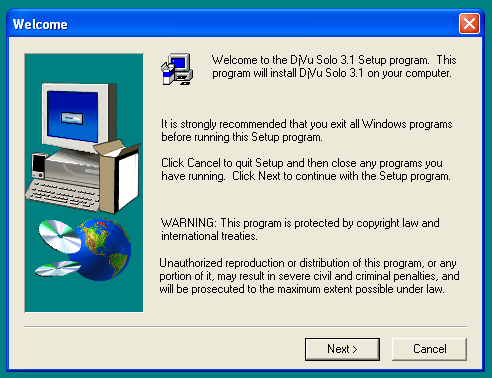
We confirm the license agreement for installing DjVuSolo 3.1 in Windows:

Confirm the installation of the program DjVuSolo 3.1 into the default folder by pressing the button Next:

Confirm the installation of the program DjVuSolo 3.1 push-button Next:
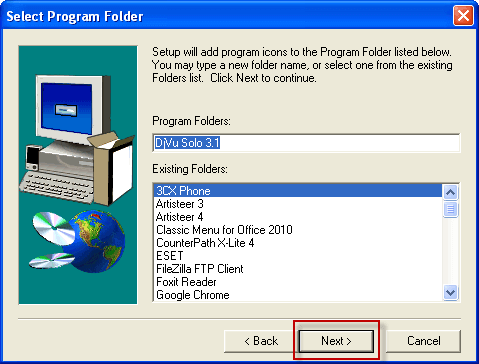
Completed the installation of the program DjVuSolo 3.1 push-button Finish pre-check Review the README file:
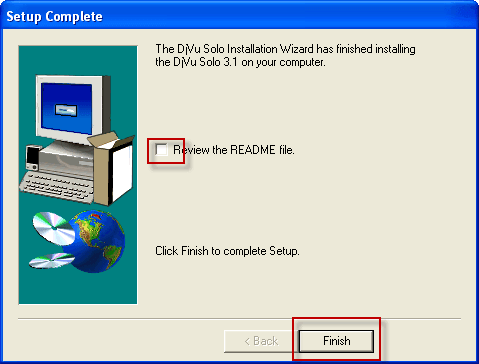
Start the installed program DjVuSolo 3.1 by clicking: PUSK - All programs - LizardTech - DjVu Solo 3.1:

The program window will open DjVuSolo 3.1:
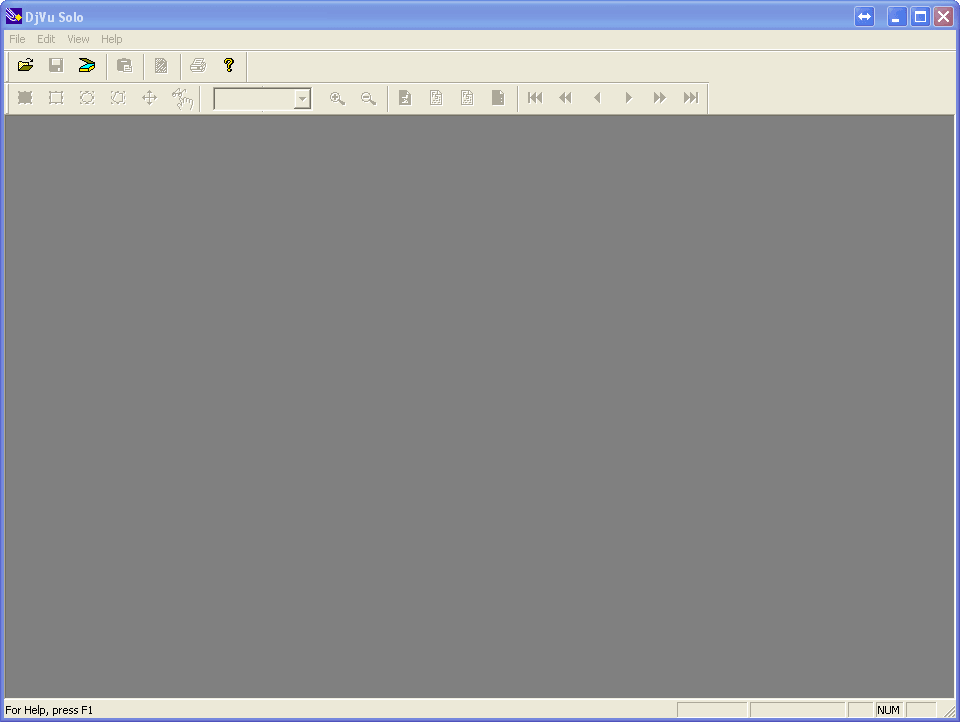
We need jpg files - scanned book reconvert jpg to djvu:
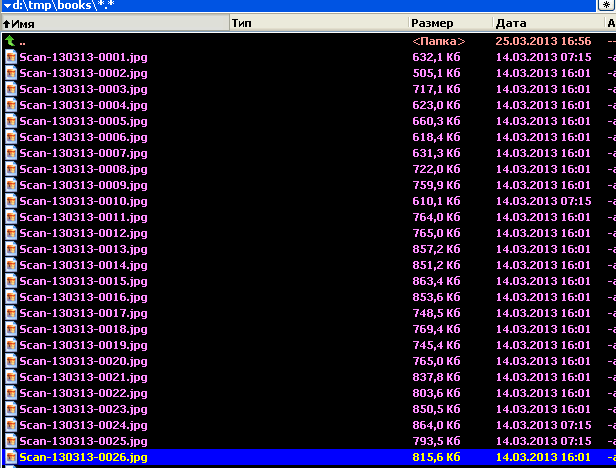
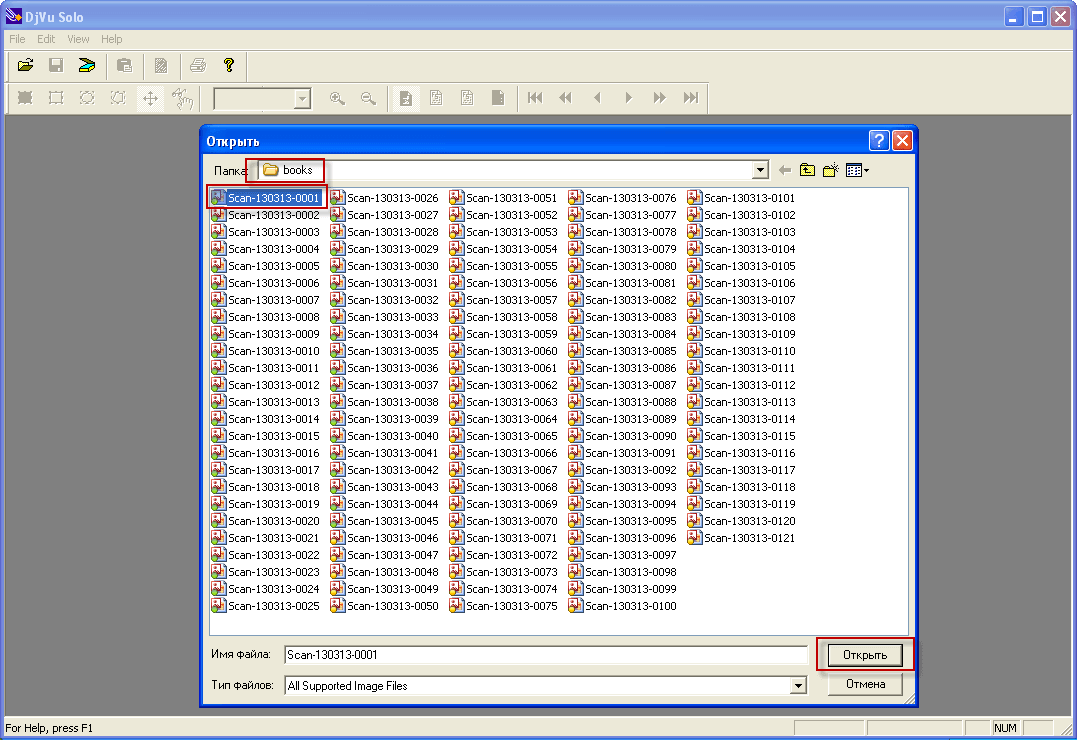
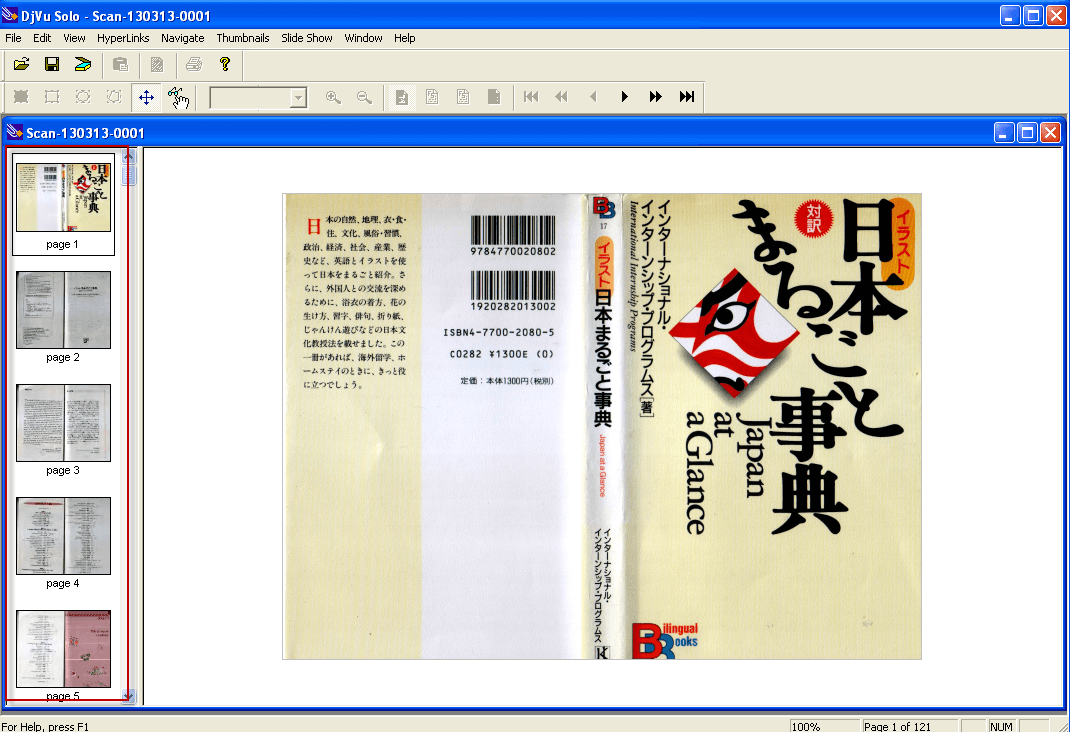
Create a djvu book by clicking the folder button in the window of the installed DjVuSolo 3.1 program, or File - Open Select the first jpg file of the scanned book:
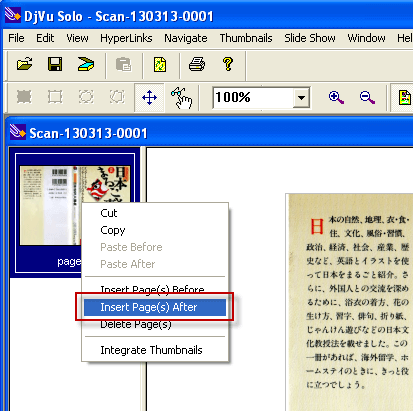
Opened the first file of the scanned jpg to djvu book:

After opening jpg of the scanned file in DjVuSolo 3.1 program, we need to right-click on the open file and click on the drop-down menu on Insert Page(s) After:
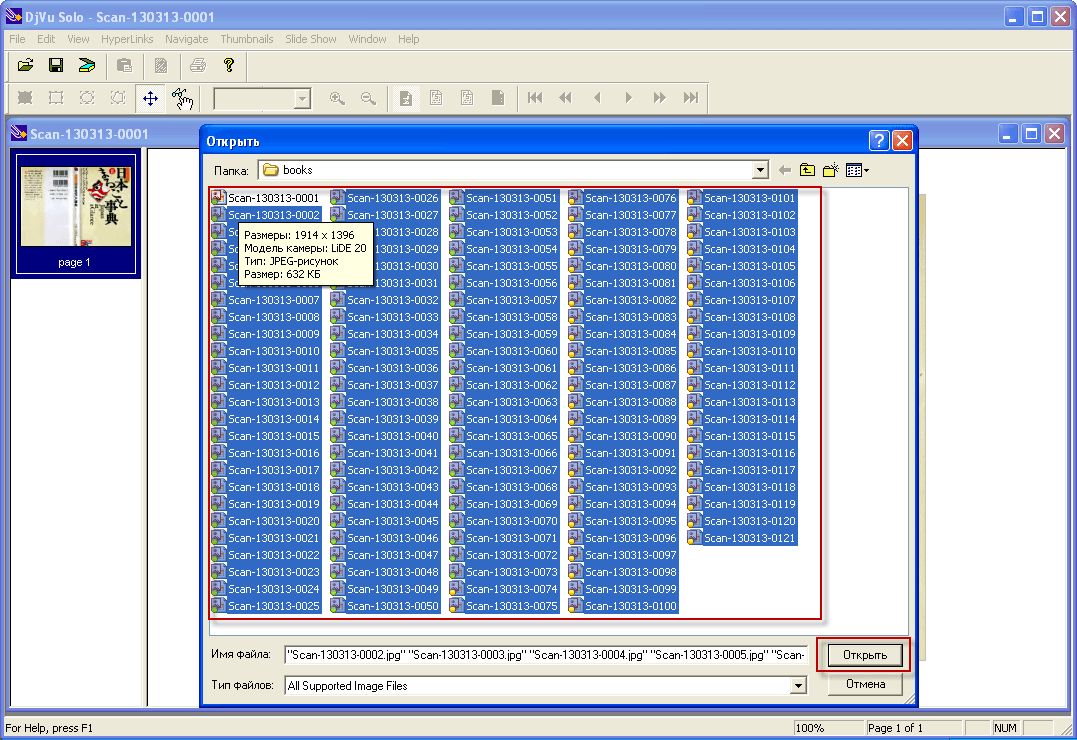
In the window that opens, you need to select all scanned jpg files by pressing the keyboard key combination Ctrl + A, or by highlighting all files with the left mouse button and pressing the button on the keyboard Ctrl with the left mouse button remove the selection from the first file and press the button Open.:
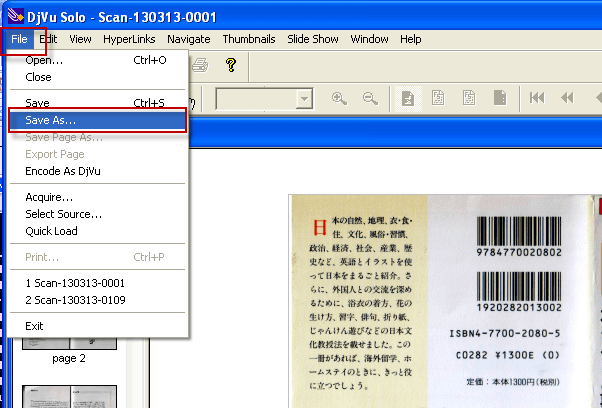
Opening all scanned files, we need to click on the top menu to convert jpg to djvu. File - Save As...:
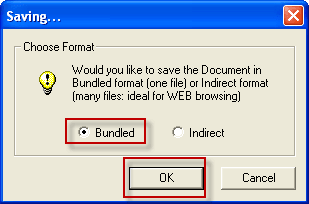
In the window that appears Saving... note Bundled pressed OK:
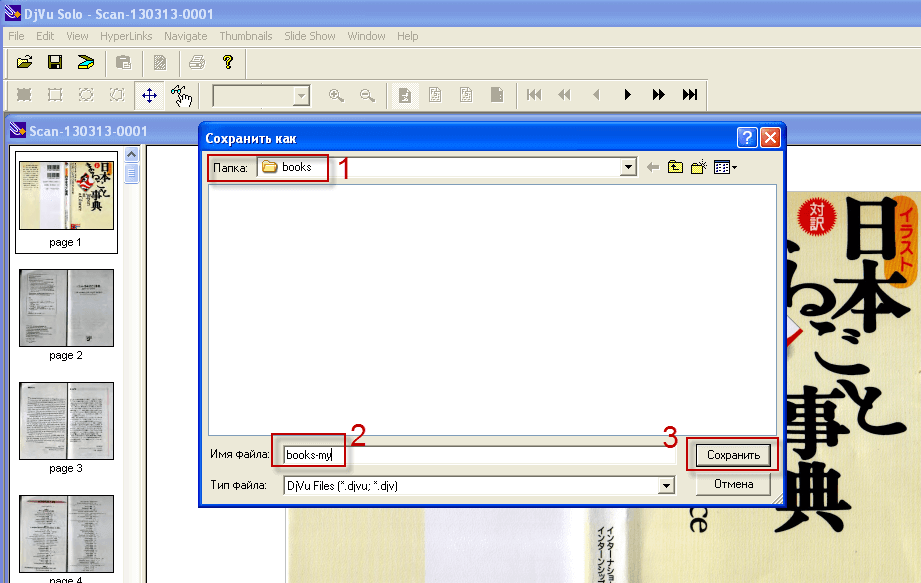
Creating a djvu book - in the window that opens, we need to specify the name of the stored jpg to djvu file:
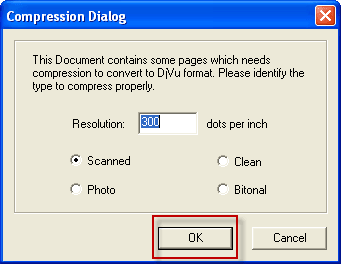
In the open window Compression Dialog We need to note Scanned field Resolution prescribe 300 pressed OK. (Nothing needs to be changed by default):
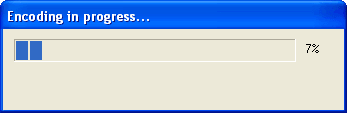
After all the manipulations done, we will see the progress window of the jpg to djvu book conversion:
In this manual, we downloaded and installed a program to create djvu books, reconverted the scanned book from jpg to djvu format.
I was with you. Lazarenko Sergey.
Thank you for your interest in my website.
Now let’s take a break from creating a djvu book by watching a beautiful video:

comment