


Hello, there. Continue configuring the computer with the Linux operating system installed according to the instructions:
Installation of Linux Mint 15 XFCE - Detailed Guide and Installation Kubuntu 13.04 - detailed guide
Today we will set up a multiprotocol messenger for communication qutIM analogue qip but only for Linux.
qutIM It is an open and free multi-protocol (ICQ, Jabber, Mail.Ru, IRC, VKontakte) instant messaging client for Windows, Linux, MacOS X, OS/2, Symbian, Maemo/MeeGo, Solaris and *BSD.
Start the program. qutiM by clicking on a quick start link, or Launch. - Internet - qutiM:

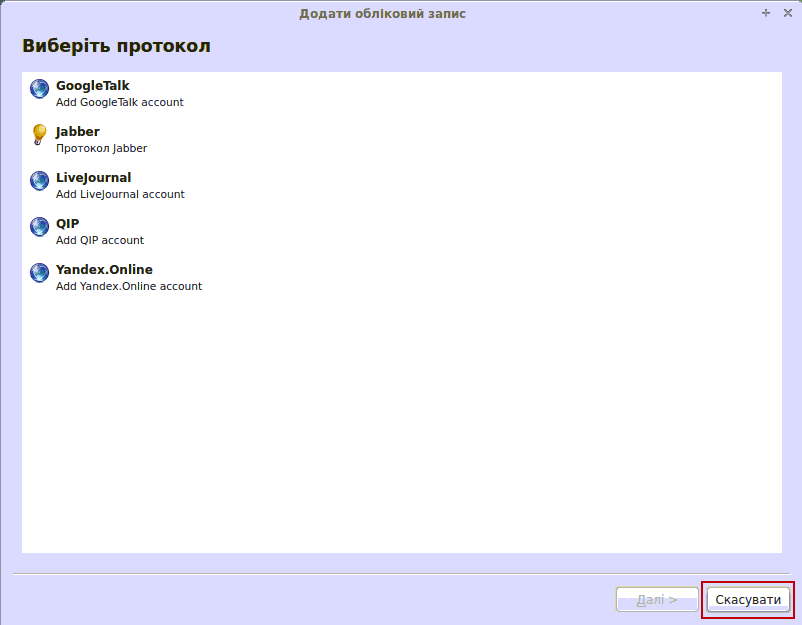
After the first start of the qutiM program, the account creation manager will automatically start with a choice of protocol, you need to close the window by pressing the button. Cancel./Skasuvati:
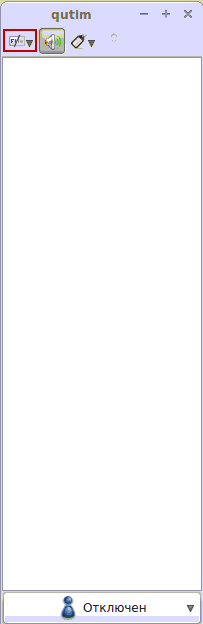
Open the qutiM program setting by clicking on the button highlighted in the screenshot below:
In the drop-down list, press a button. Setting up/Nalashtuvannia:

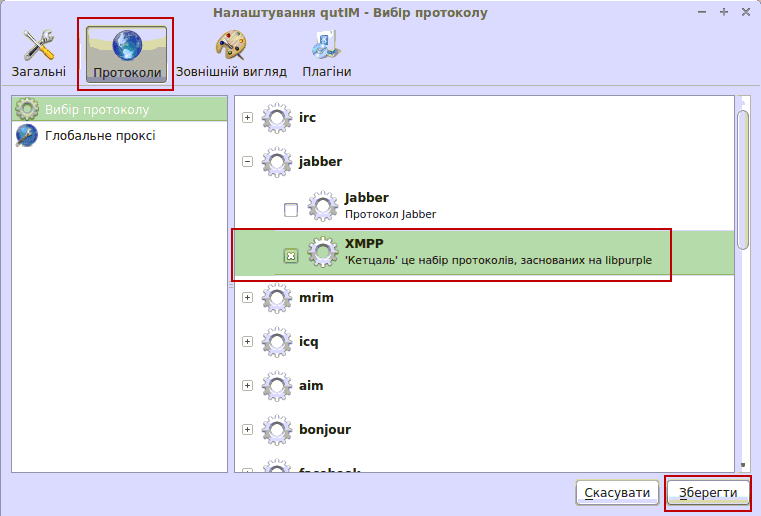
In the opened window settings you need to click on the button Protocols/Protocols In the Jabber tab, you need to remove the tick from Jabber and check the box XMPP. In the Jabber protocol that is set by default, there is no possibility in connection settings to specify the IP address of the server. In the screenshot below, you can see the protocol setup already correctly marked. XMPPTo save settings, press the button. Save/Save.:
In the program settings window qutiM need to go in General/Zagalny settings and clicking on List of contacts tick off the contact list option Show accounts, tags and contactsSave the changes by pressing the button Save/Save.

After changing the settings, we need to restart the program for use. qutiMTo do this, click on the qutiM program icon in tray and press the button. Exit/Exit:

After you start the program, the account add window will automatically open, and you can select Jabber:
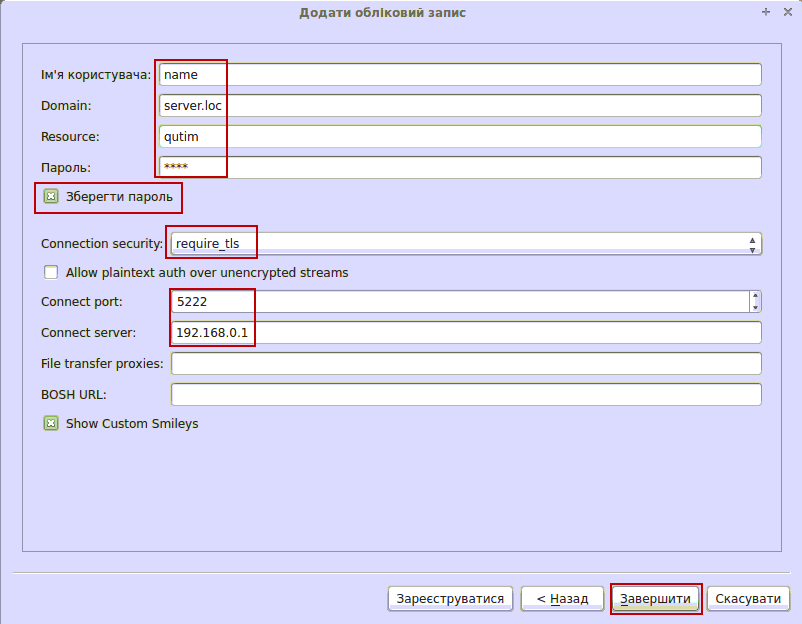
And fill in the fields like the example below, but only by replacing your data
- Name of the user/user: name
- Domain: server.loc
- Resource: qutim
- Password: pass
If you do not want to enter a password every time, then check the box in the field Save the password / Save the password.
If you want all your correspondence between you, the server and your interlocutor to be encrypted, indicate in the drop-down list.
- Connection security: require_tls
If you do not need to encrypt the data (I would not advise you), then you can tick:
- Allow plaintext auth over unencrupted streams
After that, when you connect, you will not be asked to confirm the activation of the certificate.
- Connecct port: 5222
- Connect server: 192.168.0.1
In the field. Connect server You can specify the IP address of the server if you do not have a DNS configured in your corporate network.
After filling in all fields, press the button. Completion/Completion:
When you connect, you will be asked to agree or refuse to accept the server certificate, and since we have a self-signed certificate, you simply agree:

After connecting to the Ejabberd corporate server, you will download a list of groups with users which is already configured through the Ejabberd web interface:
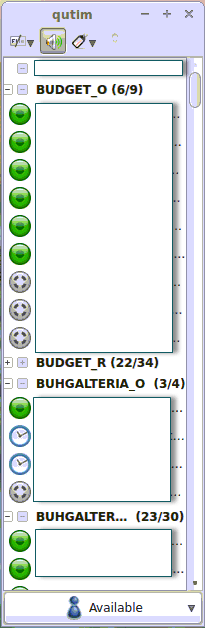
Instant messaging software qutiM Configured to work through the corporate server Ejabberd.
Sergei Lazarenko was with you.
Let’s take a break and watch a beautiful dance.

comment