

They asked how to configure the computer on the Internet through an ADSL modem (similarly configured and with a router) and the work of the computer in the local network through a local router.
We will configure the network in Windows XP, with Windows 7 similarly.
Dano:
1. Local area network 10.10.0.0/24 router 10.10.0.1
2. ADSL modem from the provider configured by a router with IP 192.168.0.1 included in the local network switch, that is, distributes the Internet to the entire subnet 192.168.0.0/24 from whom it will be prescribed by the main gateway.
The task of configuring the work of computers on the Internet while working in a local network through a router 10.10.0.1 and other networks behind the router.
The first thing we do is turn off the DHCP server in the modem. This is to ensure that the modem does not distribute IP in the local network, we will prescribe all IPs with our hands.
Second, we open the network card settings and prescribe:
Open the network settings of your network card:
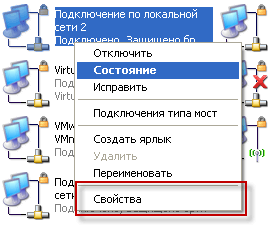
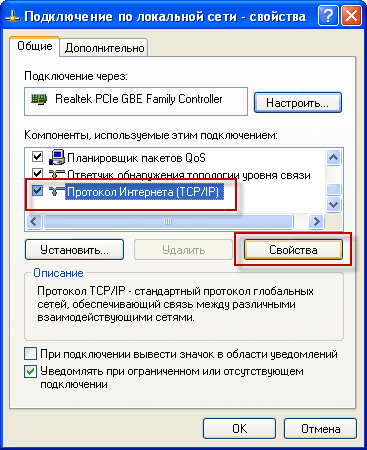
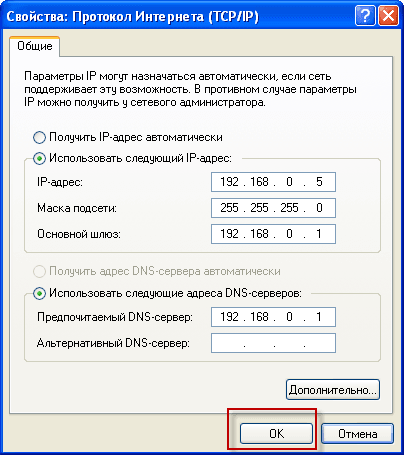
Opens a window to enter parameters, Enter IP address, mask, gateway and DNS in the settings of the network card and proceed to additional settings:
IP: 192.168.0.5
Mask: 255.255.255.0
Main gateway: 192.168.0.1
DNS: 192.168.0.1
For each configurable computer, you must specify a different IP address, for example. 192.168.0.5, 192.168.0.6, 192.168.0.7 etc.
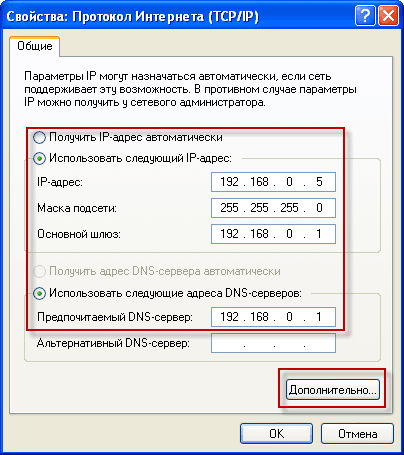
After filling in all fields as in the screenshot, press the button Additionally.:
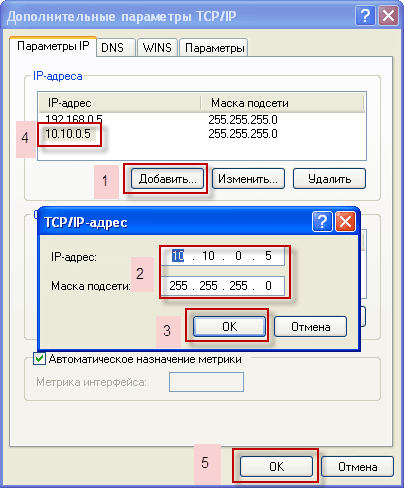
In the open window Additional parameters of TCP/IP press the button №1: AddThis will open a window to enter an additional IP address. Enter the address of our computer in the local network №2: 10.10.0.5 and mask 255.255.255.0To save an additional IP address, press the button. №3: OK
In the field. IP addresses There will be an additional IP. №4: 10.10.0.5To save settings, press the button. №5: OK
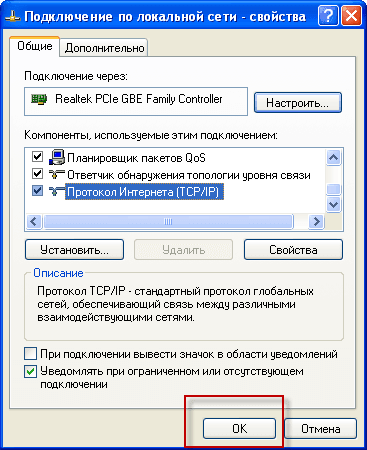
Save the changes made to the TCP/IP settings of the network card by pressing the button OK in both windows :
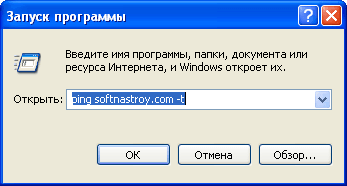
After making changes, we must already have the Internet on the computer, to check you can execute a command and click OK:
Launch - Execute and enter the command:
ping softnastroy.com -t
parameter -tThe ping will go on indefinitely if you don’t use it, then 4 pings will be produced and the program will close.
If a modem or router distributes the Internet, then we have the following system response:
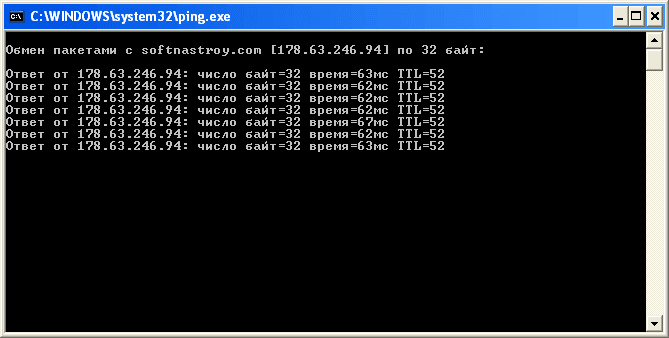
Similarly, since we have added 2 IP addresses to the network, we must ping a local area network, in our case a LAN router. 10.10.0.1
The most important thing we have set up, the Internet we have, ping on the router is also going, now for the operation of the local network and the router you need to add a permanent route.
To do this, we simply add everything that goes on the 10.0.0.0/8 network to go through the local router 10.10.0.1, for this click Launch - Execute and enter the command:
route add -p 10.0.0.0 mask 255.0.0.0 10.10.0.1
To check for static permanent routes, run the command:
route print
In order to ensure that you do not close the console window, we launch a command. Start - Execute - cmdAnd in the window that opens, we are already executing the above commands.
If you have other addresses, just change to yours by analogy.
Network setup complete. I was with you. Sergey Lazarenko.
Let’s take a short break and watch a short video:

comment