

In this instruction, we will install an alternative OpenWRT firmware on the excellent TP-Link TL-WR1043ND router. Why do we need to stitch a wonderful router with this firmware?
This router should be flashed if you need to install some programs, such as OpenVPN.
So if you need to open a small office away from your main city, for example in another city and connect networks via VPN, you do not need to buy a server to install Linux or FreeBSD on it. We’ll do well with a great router TL-WR1043ND instead of a full server.
Pros of this router: a large 8mb flash drive, so there is no need to use an additional USB stick to install the OpenVPN program.
Cons: on the OpenWRT firmware, we will lose 300MB by WIFI, this speed is declared by the manufacturer on the original firmware and we will get a speed of no more than 65MB. This disadvantage as to me is not a minus at all, since for a simple office, for 2-6 people, this speed is quite enough, of course, if employees do not engage in the whole working day watching HD video online. If you need a large load on WIFI, it will be enough to add a simple WIFI router that unloads the main router and takes over the main load of traffic via WIFI.
In this article, we will stitch the OpenWRT firmware and conduct the initial configuration, install OpenVPN in the second article.
Let’s start with OpenWRT firmware on TP-Link TL-WR1043ND v1 Wifi router
First, check ping to the router by opening in Windows cmd To start the ping, press win+R will appear window in which you need to write a command ping 192.168.1.1 and press the button OK:
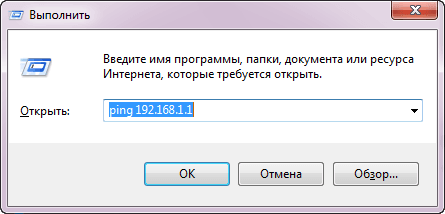
The window will open. cmd and you will see the ping to the router, if there is a ping, you can safely open through the browser in the address bar 192.168.1.1

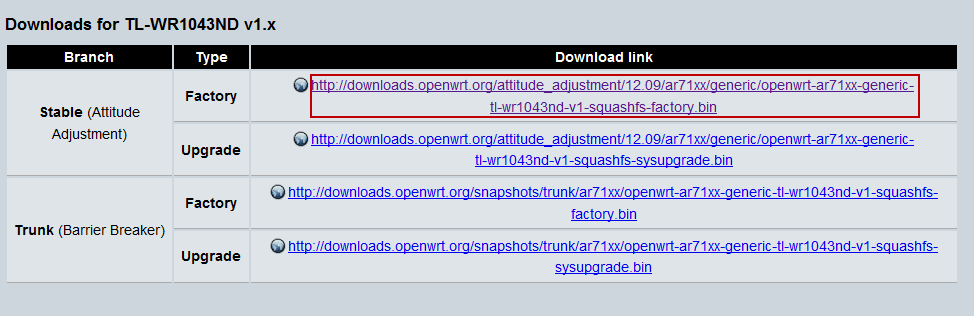
Go in the browser to the download page of OpenWRT firmware referenceDownload the stable firmware OpenWRT openwrt-ar71xx-generic-tl-wr1043nd-v1-squashfs-factory.binin name squashfs-factory means that the embroidery is placed on the factory, if you already have this firmware, and you want to update, then you need to download the file. squashfs-sysupgrade:
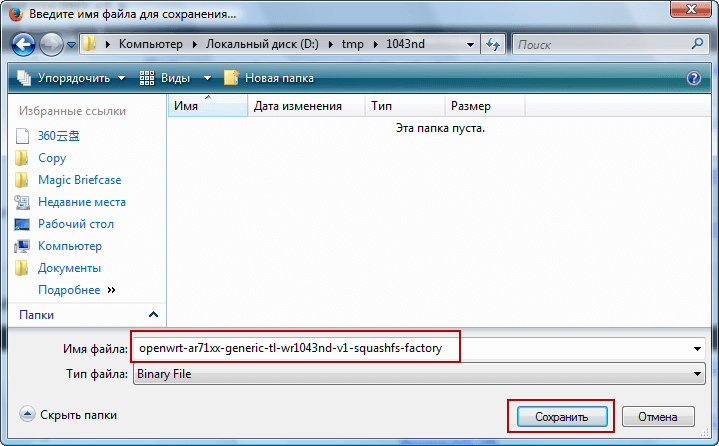
Save the downloadable OpenWRT firmware to the computer disk:
Now before OpenWRT firmware, you need to update the factory firmware to current if you have an outdated one, we open the address in the browser.
http://192.168.1.1/
In the opened window, you must specify the login: admin and password: admin
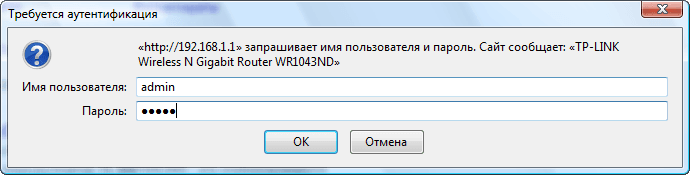
The factory firmware web interface window TL-WR1043ND:
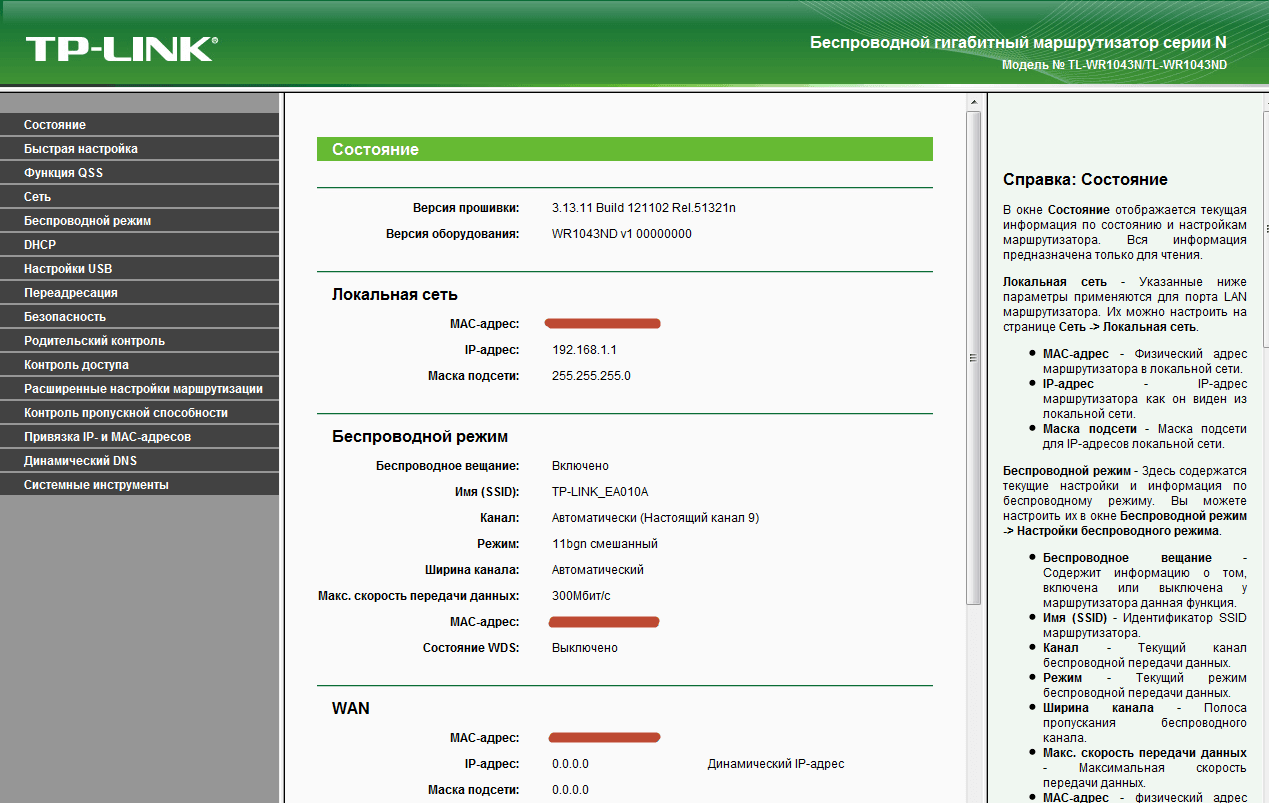
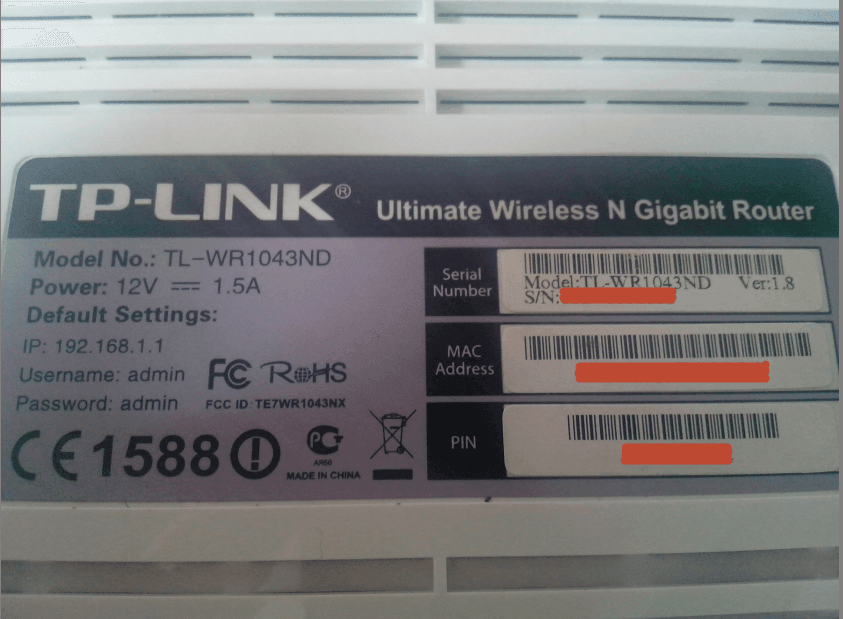
In order to check which version of the firmware you have, let’s look at the router below, there in my case it says Ver: 1.8, so we take the firmware for version 1, here is a photo from my router:
Before the OpenWRT firmware, on the router you need to update the firmware to the most relevant (last), for this we go to the Internet. website and check which site is the last, and what we have on the router, if you need to update download and update:

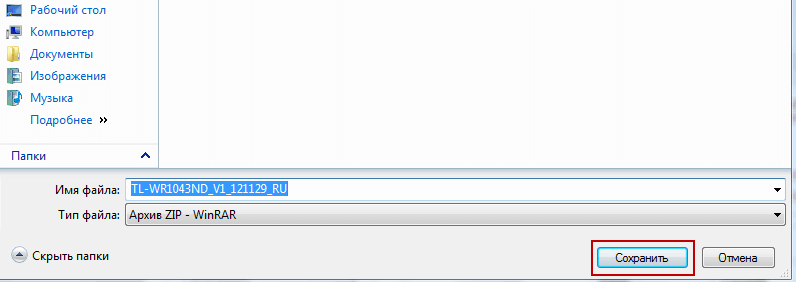
Save the downloadable firmware to the disk in the desired folder:
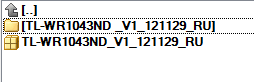
Unpacking the downloaded firmware:
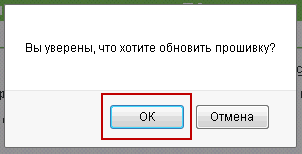
For firmware, it is necessary to open in the web interface System Tools - Update of Built-in Software Select the file of the downloaded and unpacked firmware and flash. After restarting there in the web interface System Tools - Update Embedded Software Select OpenWRT firmware file downloaded earlier and flashed by agreeing to the firmware:
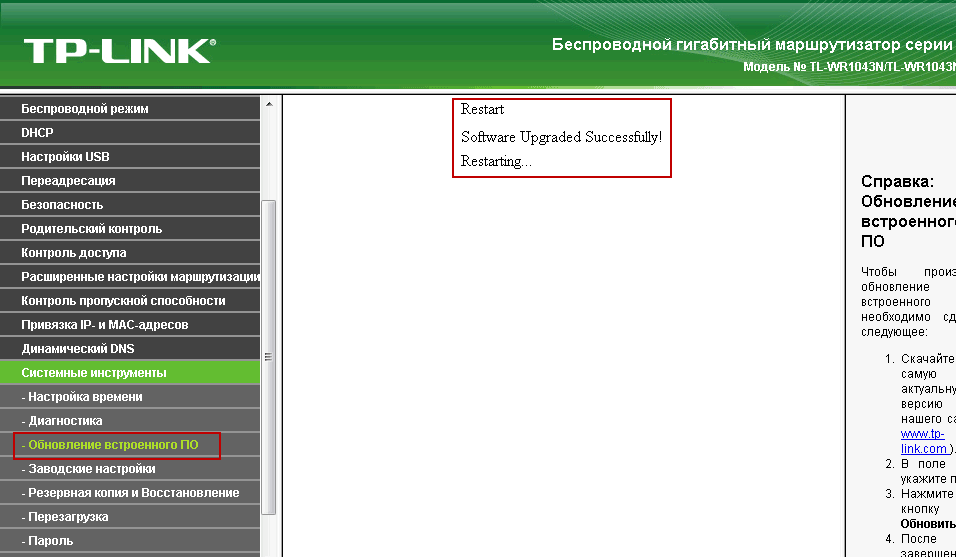
OpenWRT firmware is installed, the router is overloaded to apply the update:
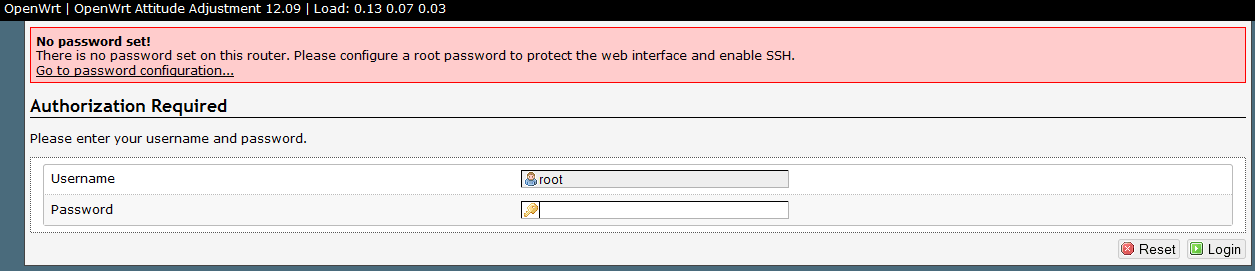
After rebooting at the router address, there will already be another interface, in order to enter a login. root without password:
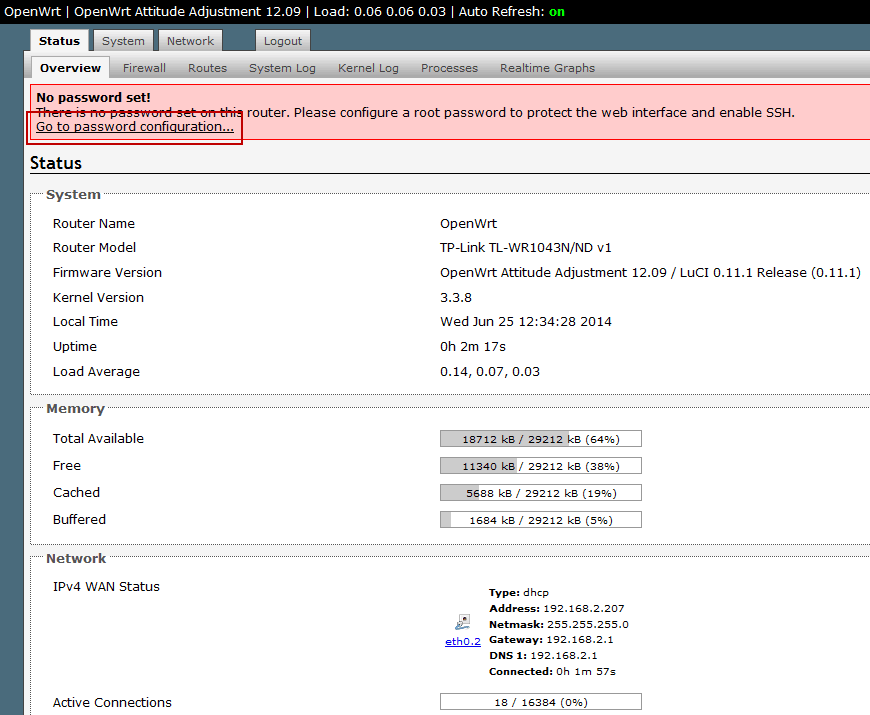
At the first login, and at subsequent ones until you create a password for the user. root The red frame will be displayed, click on the link Go to password configuration And we'll create a password:
In the window that opens, enter a password for the root user and press the button for use. Save & Apply:

Since I have a provider that distributes Internet over DHCP, I do not need to change the WAN connection, as it is set up by default to automatically receive IP over DHCP. Change the standard subnet 192.168.1.0/24 to the subnet of our local network 192.168.100.0/24, click on the tab Network - Interfaces - LAN - Edit:
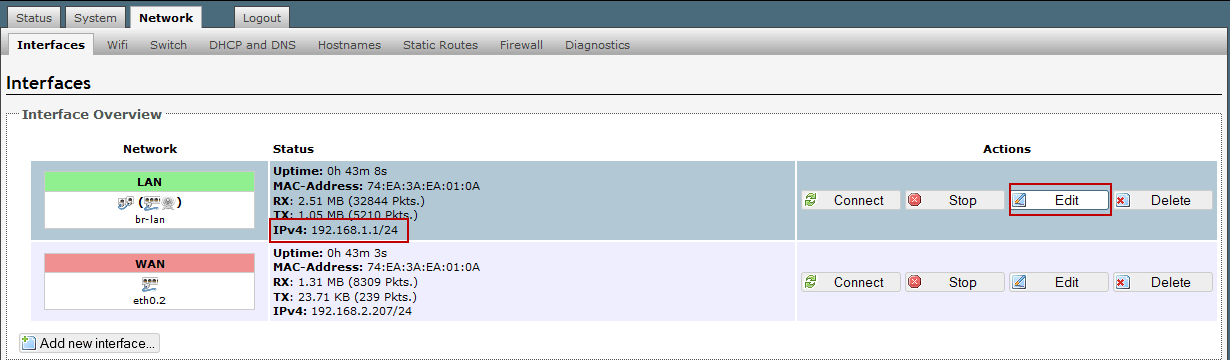
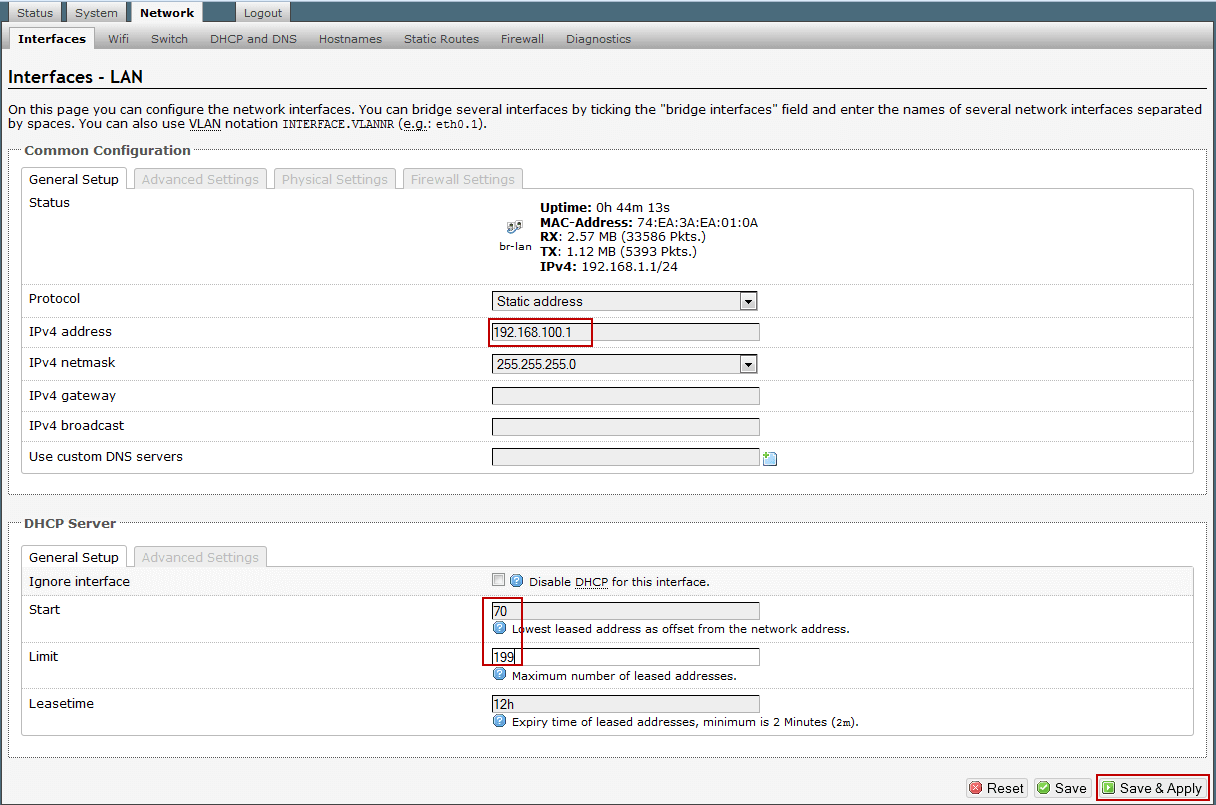
In the open window in the field IPv4 address change IP to 192.168.100.1We also edit the address pool that the router will distribute for connected clients: from 20 to 199. To apply the changes, press the button Save & Apply:
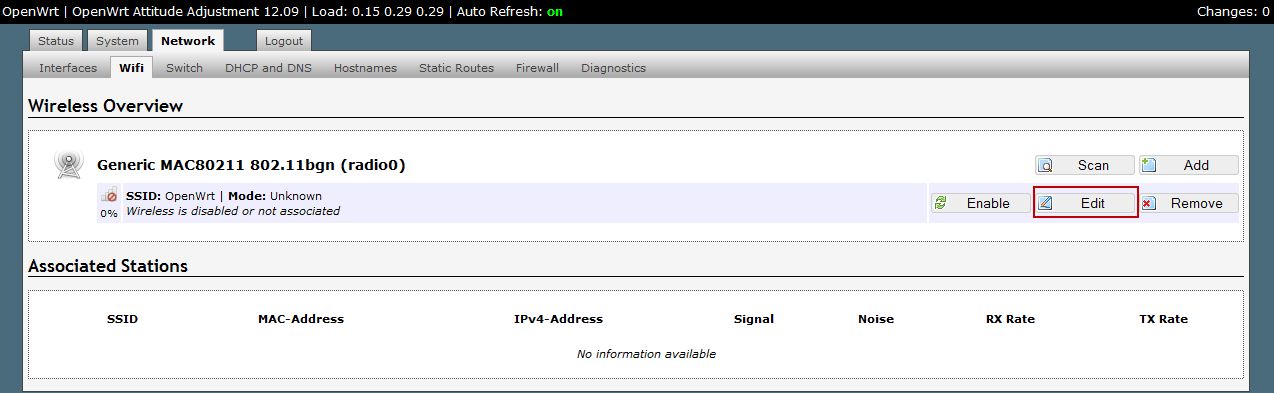
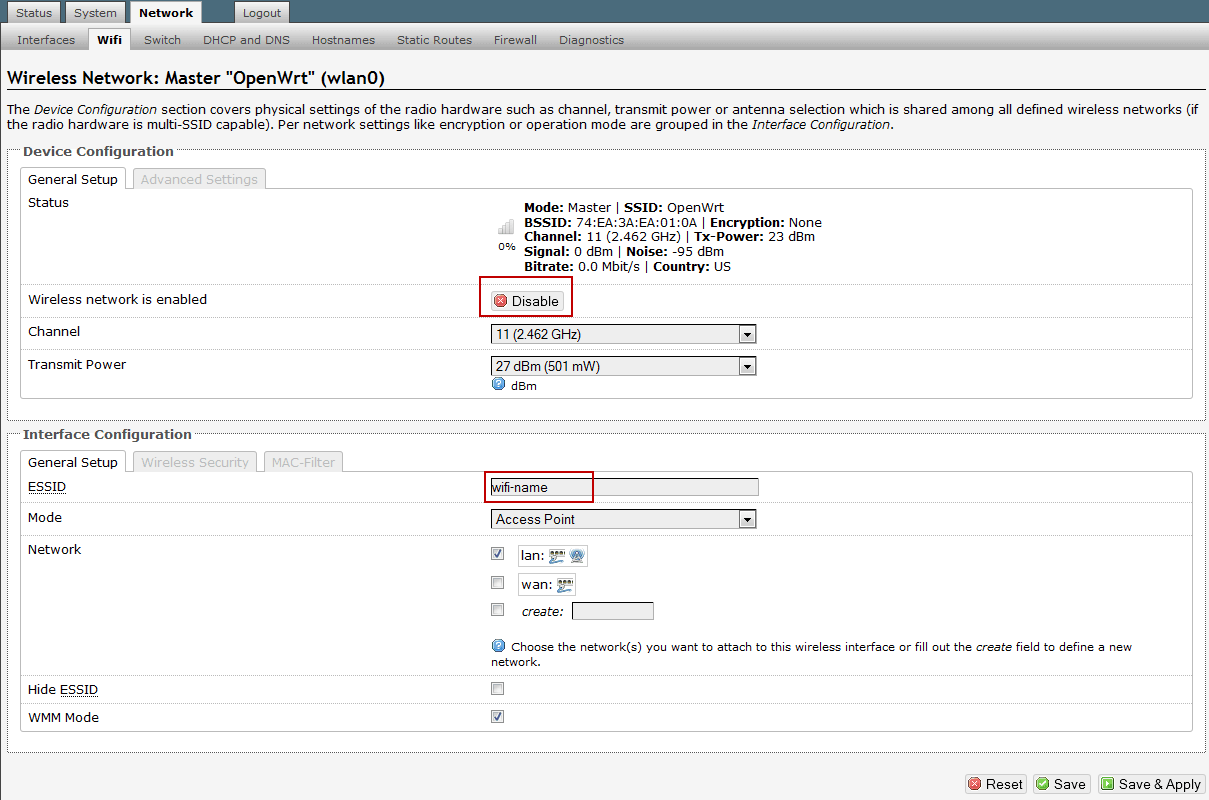
Start setting up WIFI by clicking on the tab Network - WIFIOn the existing wifi connection, click on the button Edit:
We see in the window that opens. Wireless network is disabled WiFi network is disabled, click on the button Enablein the field ESSID The name of the wifi network is: wifi-name (You indicate yours):
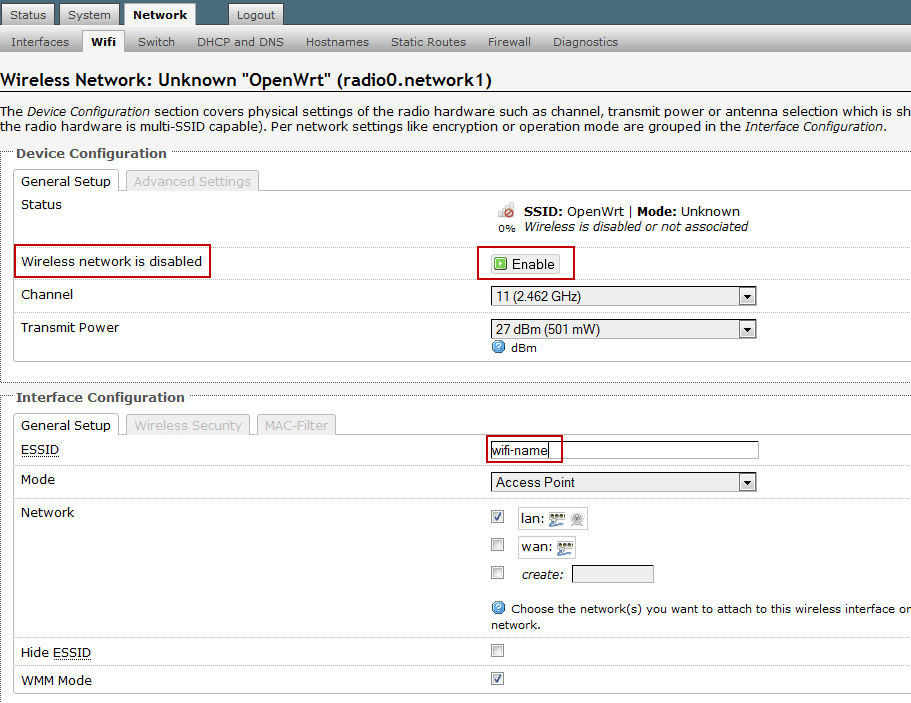
Wifi network enabled:
Clicking on the tab Wireles Security And we put it in the fields:
- Encruption: WPA2-PSK
- Key: Your_WIFI_password
To apply the changes, press the button Save & Apply:

In this guide, we reset the settings of the router TL-WR1043ND to factory, stitched the router with the latest factory firmware, flashed it onto the OpenWRT router and configured the router on OpenWRT.
A little later, we will consider installing OpenVPN and Asterisk on this wifi router.
I was with you. Sergey Lazarenko.
Let’s take a short break and watch a very useful video on how to protect your site from hacking and viruses:

comment