

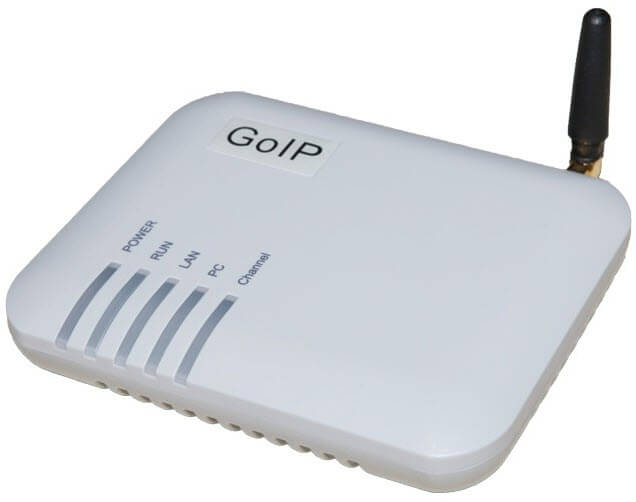
 The other day I encountered the glitches of Huawei E1550 modems, which began to constantly break up the conversation, and this situation arose when customers called, in the evening during test calls calmly kept 5 minutes or more of a conversation. The modems themselves are not new, therefore, maybe from usability with them there were problems, decided not to take modems, but to take a more serious solution - GSM gateway GOIP1 for one SIM. Below we will stitch the gateway, configure it and connect it to ATC Asterisk IP.
The GSM gateway has 2 ports for connecting to the Lan and PC network. Lan port receives IP by DHCP from the router or gateway in the local network of the enterprise, and the PC itself distributes IP from the subnet 192.168.8.0/24, the IP address of the gateway itself 192.168.8.1. So it is made that you can use 1 cable to connect GOIP1 to the network of the enterprise, and by connecting the cable to the PC port and computer, this computer will have access to the Internet and local network through the GSM gateway.
Connect the GSM GOIP1 gateway to the local network in the Lan socket and monitor on the router or gateway which IP the GOIP1 gateway receives, this IP that GOIP1 received we enter into the browser for configuration. We can also connect your computer to the PC port and configure GOIP1 in the browser at:
http://192.168.8.1/
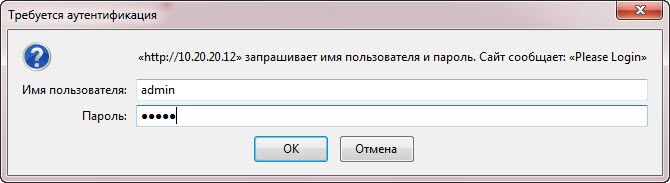
When you open the GOIP web interface, you will be asked to enter a login and password, enter a login and password. admin:
The web interface window will open, here we look at the version number of the gateway firmware, click on the button. Tools:
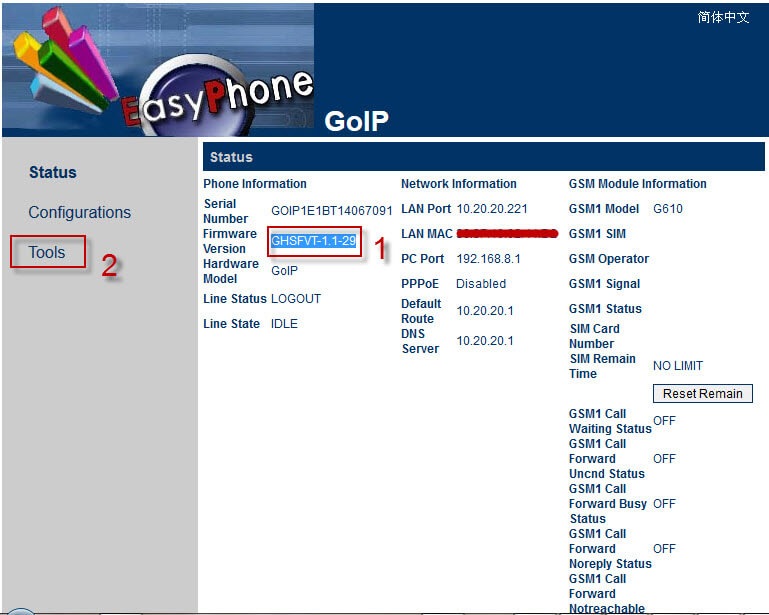
We're running GOIP1.
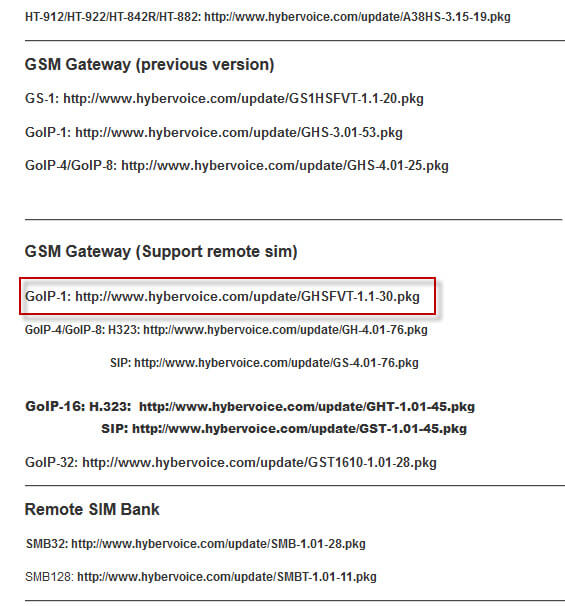
We go to the site by clicking on the link: Firmware site for GSM GOIP gateway. A window will open in which we see the latest firmware for our gateway, copy the full address:
On the page Online Upgrade field Upgrade Site insert the previously copied firmware address and press the button to start the firmware Start:

See the process of downloading and installing firmware on GSM GOIP gateway 1:

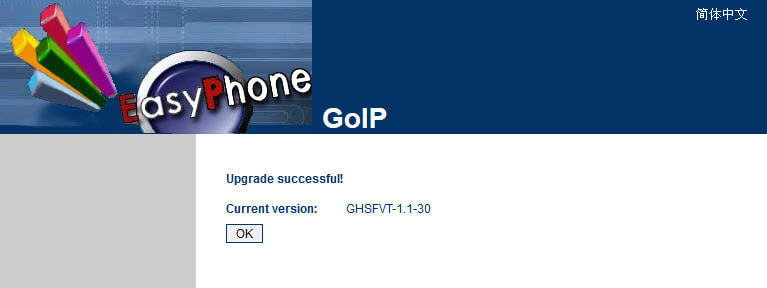
Firmware successfully installed, to complete click the button OK.:
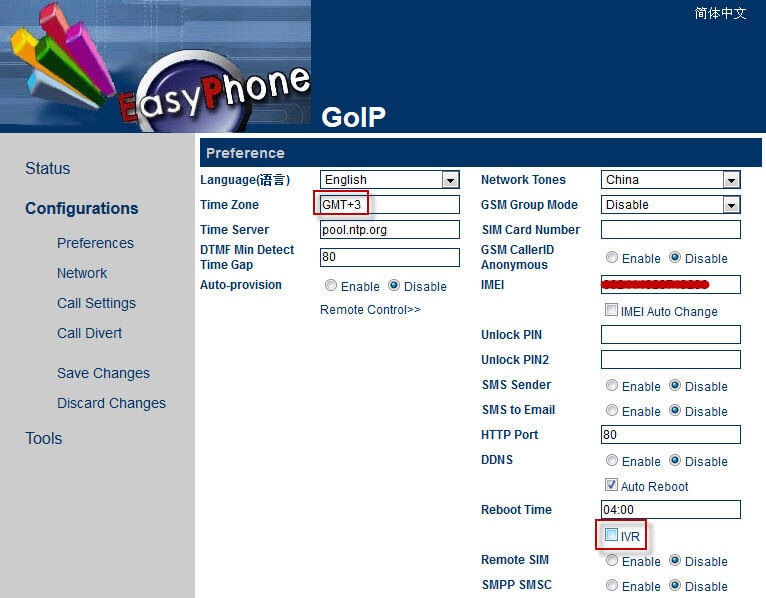
Go to the tab. Configurationclick the button. Preferences. For Ukraine, we change the time zone in the Time Zone field: GSM +3It will be for Moscow. GSM +2. We must remove the checkbox box. IVR.
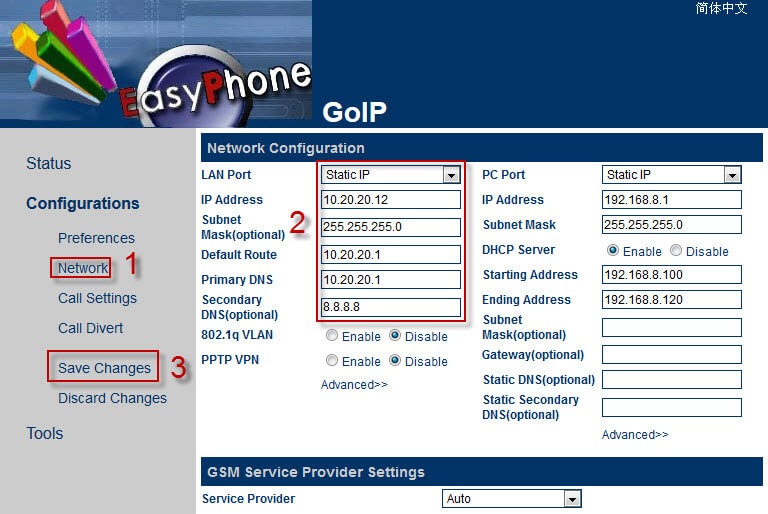
Clicking the button Network The network settings window will open, fill in the example below by replacing it with its values:
- LAN Port: Static IP
- IP Address: 10.20.20.12
- Subnet Mask (optional): 255.255.255.0
- Default Route: 10.20.20.1
- Primary DNS: 10.20.20.1
- Secondary DNS (optional): 8.8.8.8
To save the entered values, click on the button Save Changes:
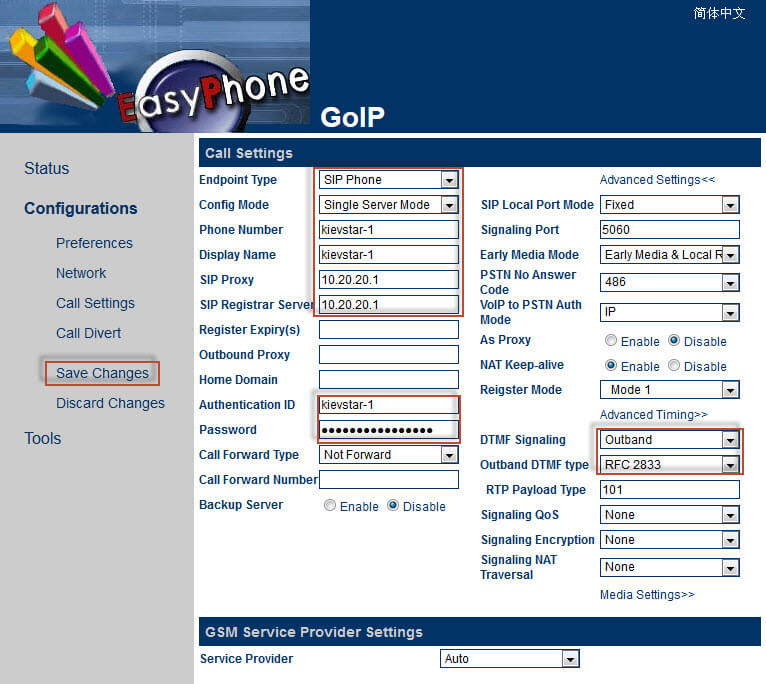
Go to configure the gateway connection to our installed Asterisk server by clicking on the button Call Settings by filling in the fields as below, replacing the connection data with your own:
- Endpoint Type: SIP Phone
- Config Mode: Single Server Mode
- Phone Nymber: kievstar-1
- Display Name: kievstar-1
- SIp Proxy: 10.20.20.1
- SIP Registrar Server: 10.20.20.1
- Authentication ID: kievstar-1
- Password: 45gfaSwvfMet5Fr
Advansed Settings:
- DTMF Signaling: Outband
- Outband DTMF type: RFC 2833
To apply the introduced changes, click on the button Save Changes:
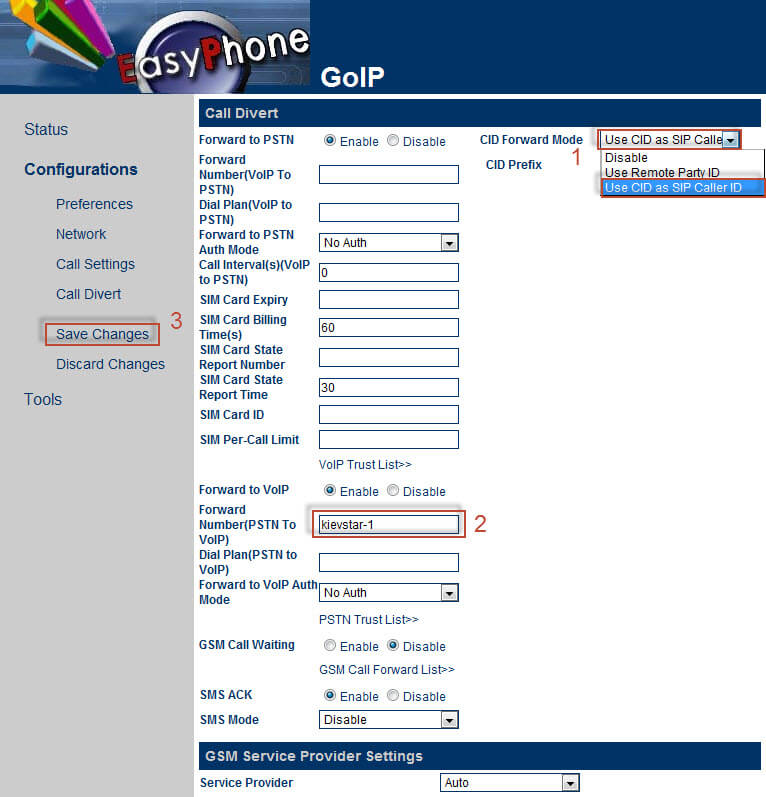
Click on the Call Divert button, you need to configure sending Caller ID from the gateway to Asterisk, for this purpose in the drop-down list of CID Forward Mode select Use CID as SIP Caller ID:
- CID Forward Mode: Use CID as SIP Caller ID
In the Forward Number (PSTN To VoIP) field, we specify the number that will receive a call from the gateway to Asterisk, in my case it is kievstar-1:
- Forward Number (PSTN To VoIP): kievstar-1
To apply the introduced changes, click on the button Save Changes:
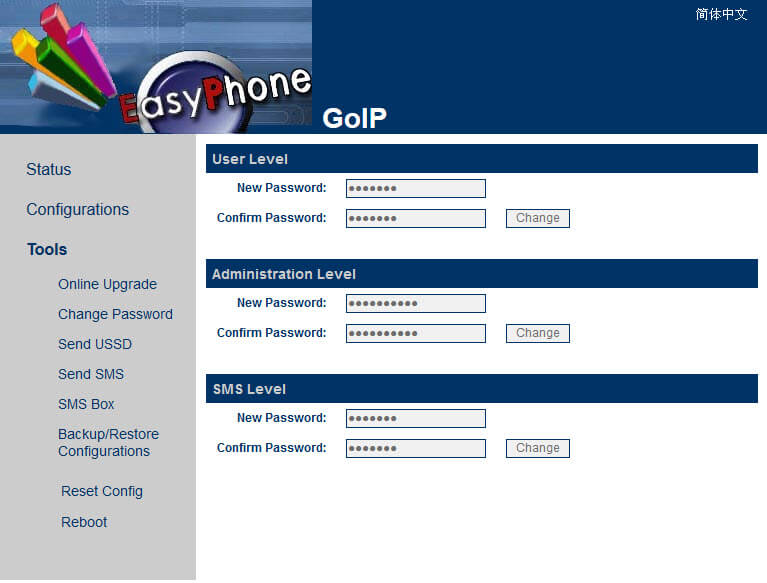
You can change passwords for administrator, user and SMS by going to the section Tools and clicking on the button Chande Password:
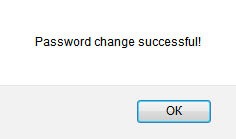
When you change your password, the web interface will notify you that the password has been changed successfully:
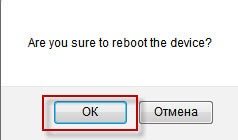
Reboot the GSM GOIP 1 gateway by clicking on the button Reboot and by confirming the system message of consent to reboot the gateway:
Configure GOIP 1 gateway connection on the PBX Asterisk side
Add a feast:
[kievstar-1]
host=dynamic
type=friend
context=incoming-goip
disallow=all
allow=alaw
allow=ulaw
dtmfmode=rfc2833
username=kievstar-1
secret=45gfaSwvfMet5Fr
qualify=yes
nat=no
deny=0.0.0.0/0.0.0.0
permit=10.20.20.12/255.255.255.255
canreinvite=no
insecure=port,invite
Add the context of the incoming call:
[incoming-goip]
exten => _kievstar-1,1,Dial(SIP/101&,120,KTt)
  same => n,Hangup(19)
Add the context of an outgoing call through our gateway for calls only to the operator Kyivstar:
[out]

exten => _0[36][789]XXXXXXX,1,Dial(SIP/kievstar-1/${EXTEN},120,KT)
  same => n,Hangup(${HANGUPCAUSE})

exten => _0[9][678]XXXXXXX,1,Dial(SIP/kievstar-1/${EXTEN},120,KT)
  same => n,Hangup(${HANGUPCAUSE})
After that, you can go to the Asterisk console, dial the command sip show peers and in the list of connected peers see your configured GSM gateway GOIP 1:
voip*CLI> sip show peers
Name/username             Host                                    Dyn Forcerport ACL Port     Status
...
kievstar-1/kievstar-1     10.20.20.12                              D              A  5060     OK (8 ms)
...
In the work, these gateways proved to be excellent, communication is high-quality, much better than using modems such as Huawei E1550. It remains only to decide how convenient it is to remove the balance from the SIM in this gateway and send the received SMS to the telephony server web server for easy viewing.
I was with you. Sergei Lazarenko.
After setting up the GSM gateway GOIP 1 and Asterisk server, we will take a short break and watch a wonderful video:

comment