

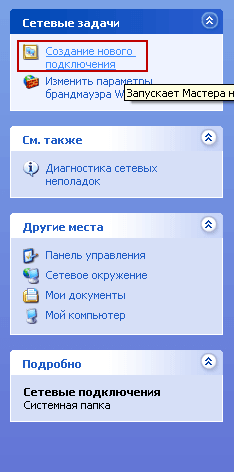
In order to connect to the pptpd server from Windows, you need to open Launch. - Connections - Display all connections
Push it. Creating a new connection:
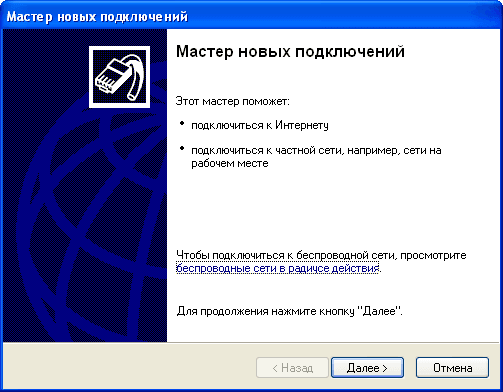
press the button Next:
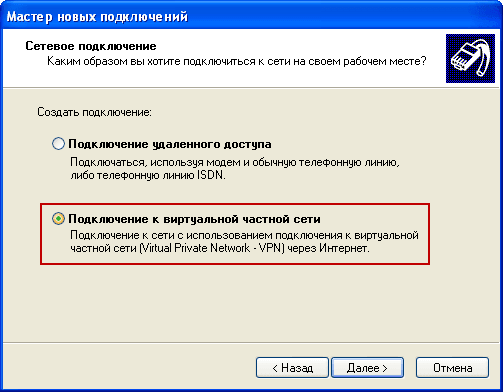
Choose. Connect to the network in the workplace press Next:

Choose. Connecting to a Virtual Private Setand press Next:
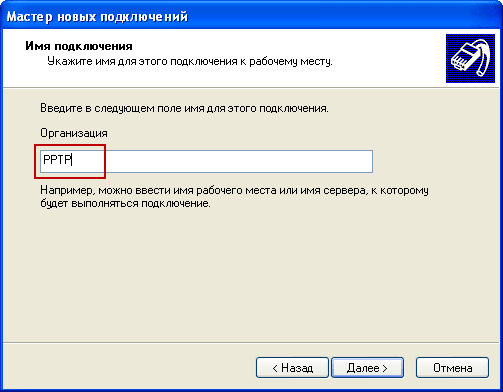
We specify the name of the connection arbitrarily, in the example I indicated PPTP pressed Next:
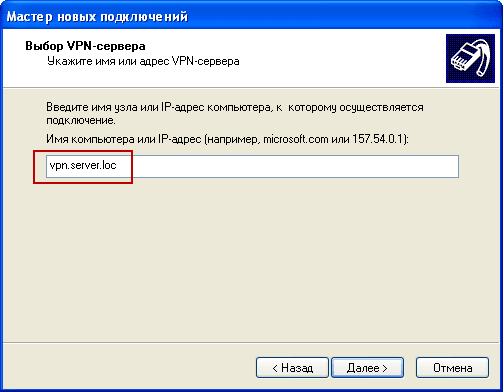
Specify the IP address or domain name of the server to which you connect (in the example I specified the domain name of the server) by clicking Next:
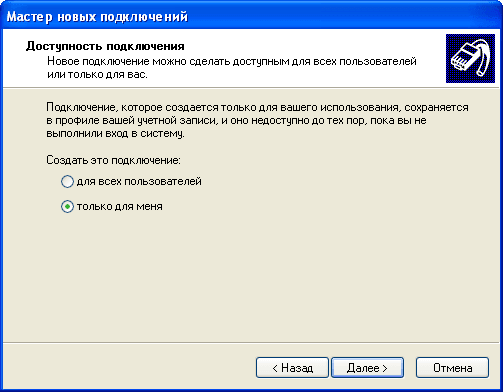
Accessibility of the connection is selected only for change, if you do not need to give access to other users of the system to the VPN and click Next:
Check the box. Add a Connection Label to the Desktop pressed Next:

In network connections appeared the VPN launch icon:
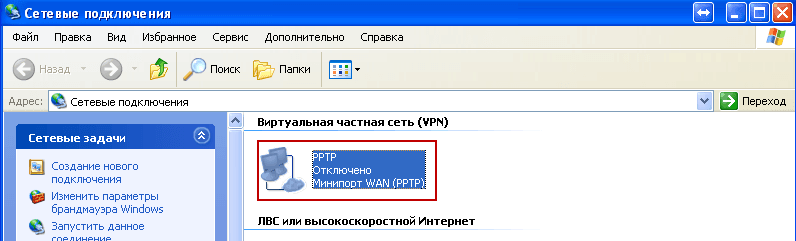
To connect to the VPN, you need to run the icon, or right mouse button to click on the icon and press Connect.

In the field. User and Password You need to prescribe the necessary login and password to access the server:

There is a connection to the server:
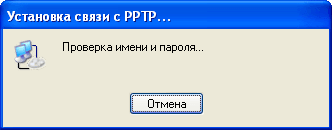
Connection to the PPTP VPN server from Windows is performed:

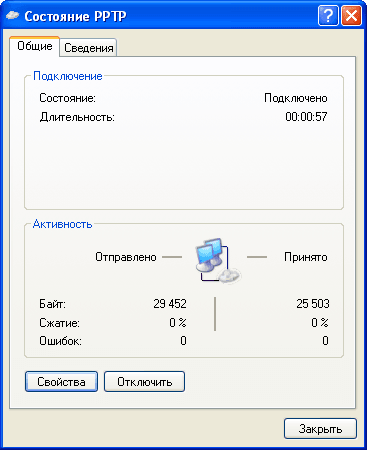
You can view the connection status:
The task of connecting to the VPN server pptpd from Windows is completed.
I was with you. Sergey Lazarenko.

comment