


Let’s say you installed Virtualbox according to the instructions: Install Virtualbox on Debian or Ubuntu server with phpvirtualbox web interface, auto-run and auto-save virtual machines
If you have after installation in the guest system Windows XP,2003 etc. The RDP mouse pointer in the guest system does not work synchronously, you need to install VBox Windows Additions from Virtualbox into the guest system.
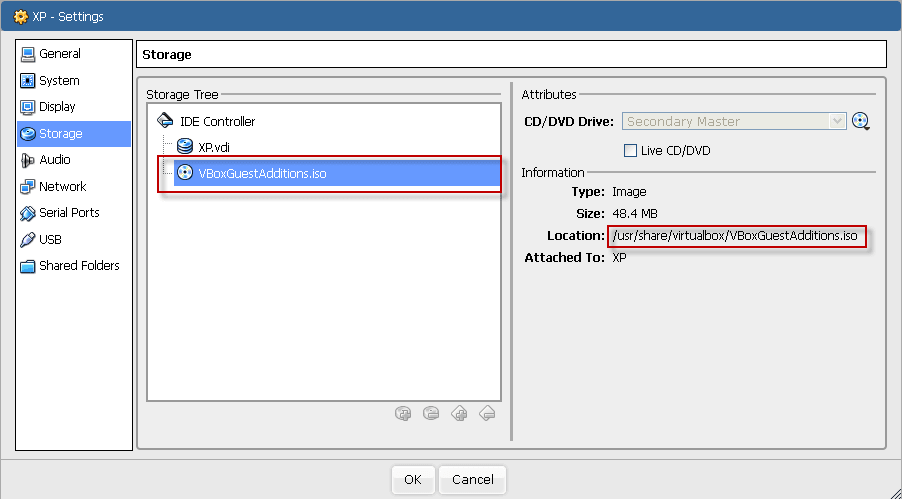
To do this, it is enough to mount a file image with VBox Windows Additions on the path in the CD drive. /usr/share/virtualbox/VBoxGuestAdditions.iso
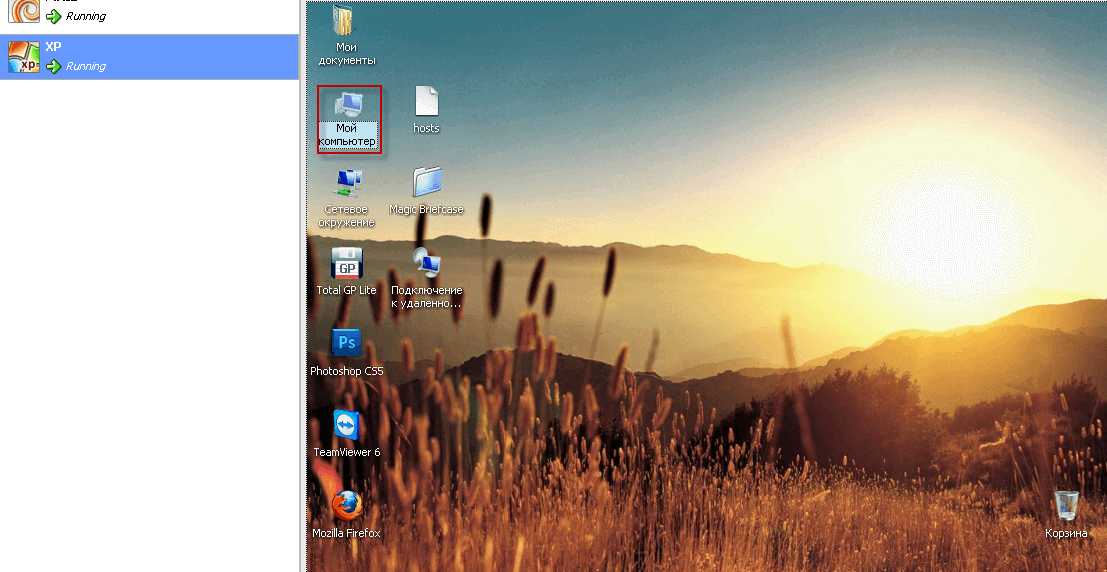
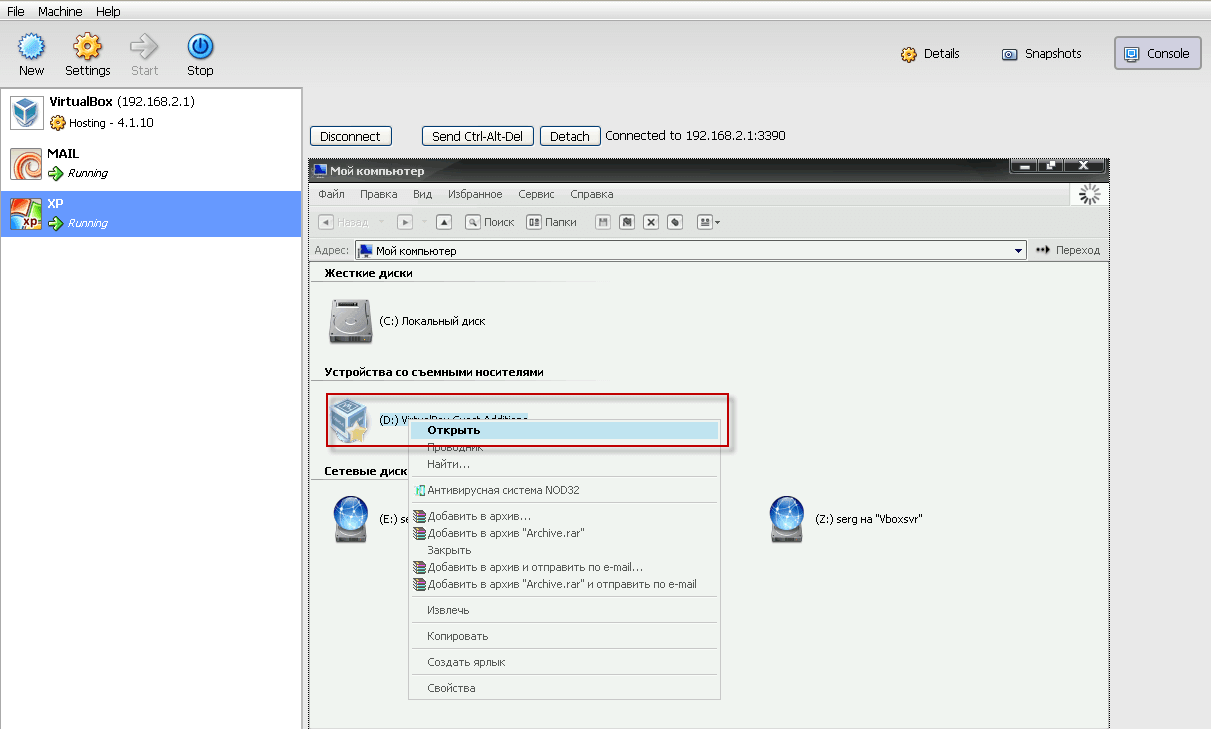
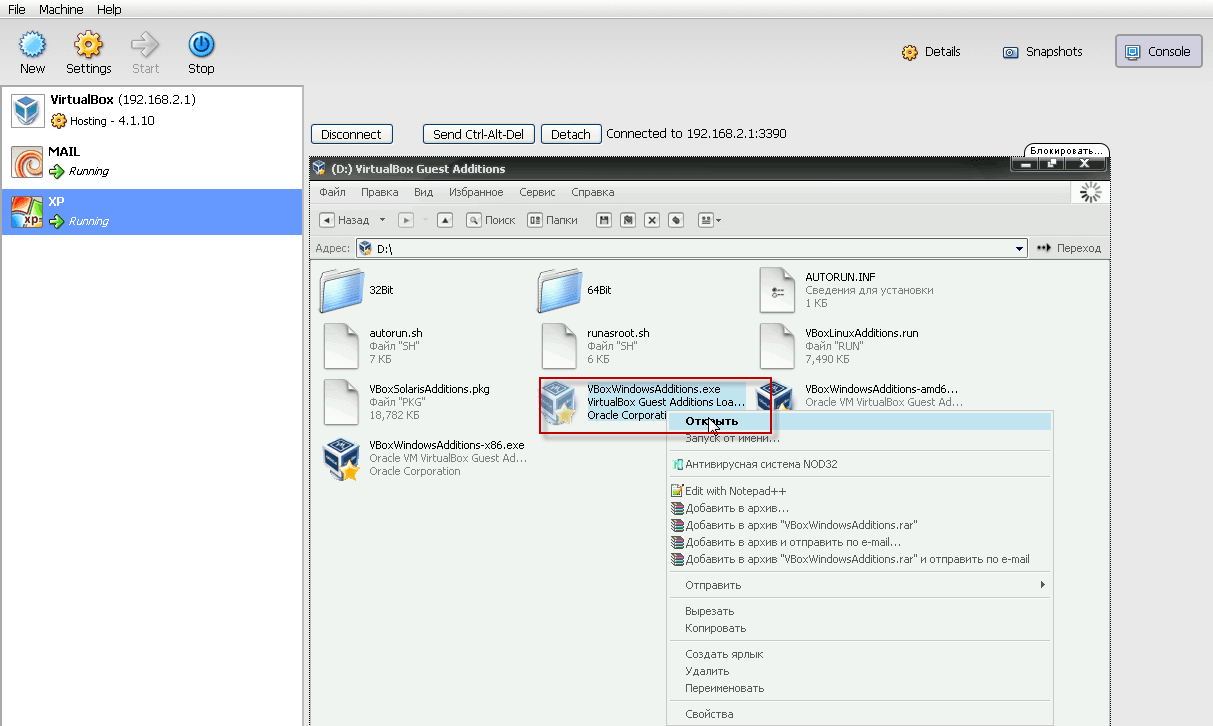
After mounting the image, open in the guest system My computer.Open the cd drive with a mounted image and start the file VBoxGuestAdditions.exe
Step-by-step screenshots can be viewed below:
On the guest system, right-click and select Properties (Settings):
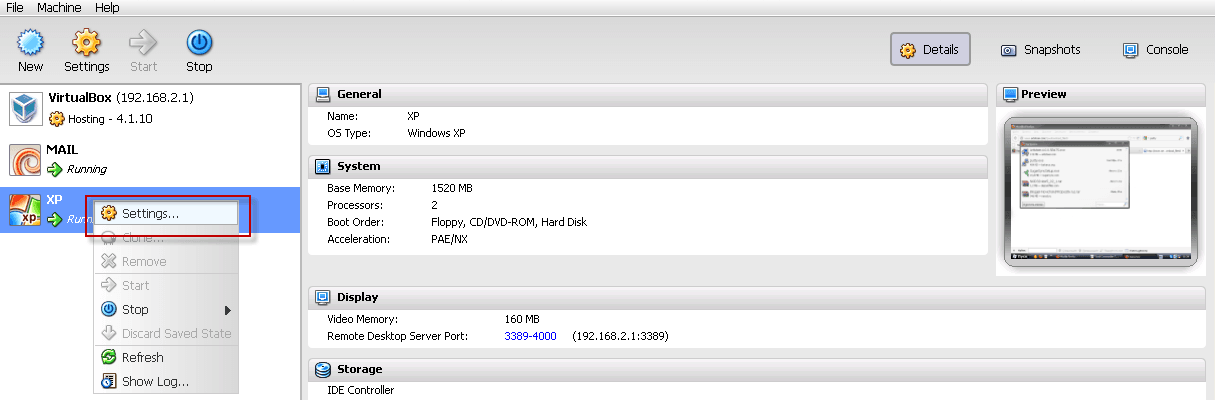
In the opened window, select a tab with screws, select a CD / DVD drive, click on the iso image selection folder.

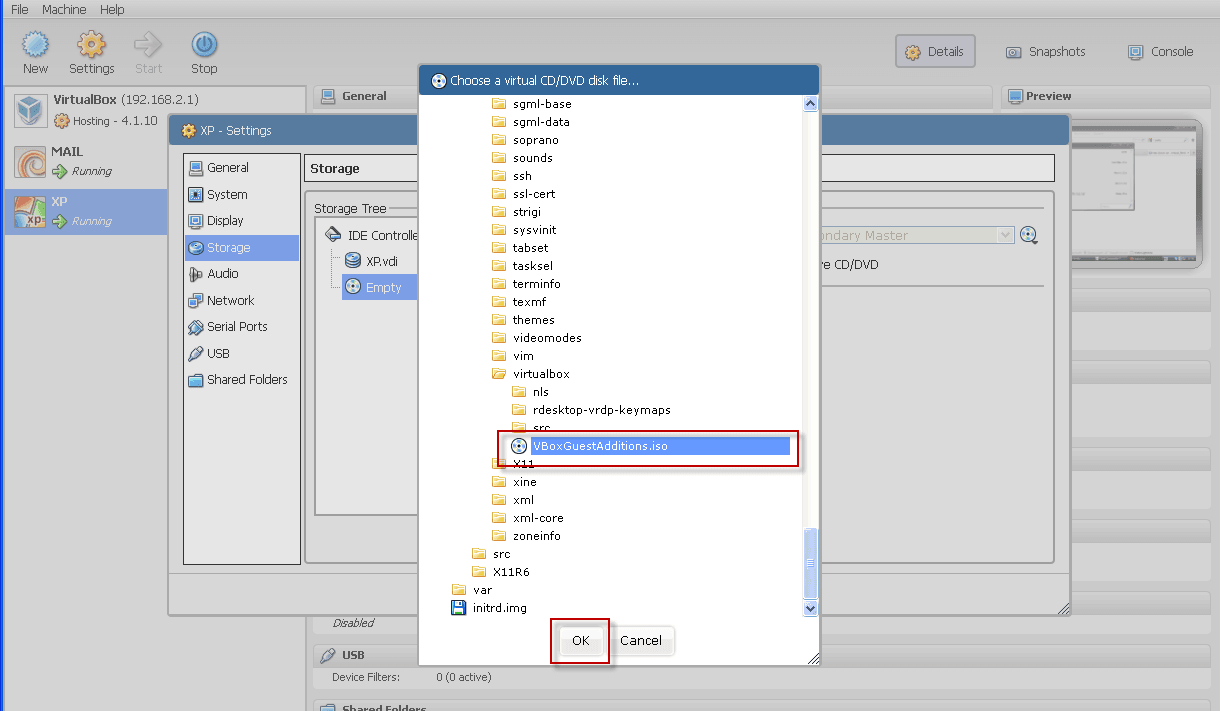
In the open window, we open the way. /usr/share/virtualbox/ and select iso image VBoxGuestAdditions.iso
File. VBoxGuestAdditions.iso mounted:
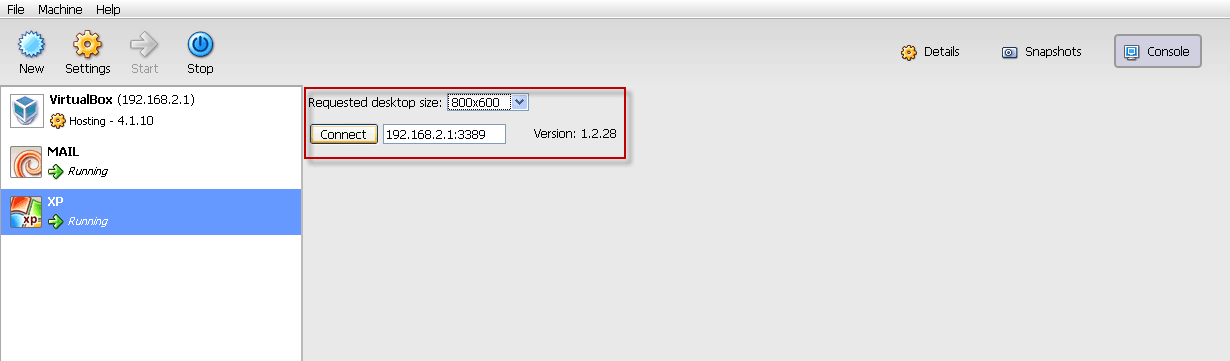
Click on the Console tab of the selected guest system and converge to the virtual machine by selecting a screen resolution of 800x600 or more:
Opening my computer:
Open CD/DVD drive with mounted image VBoxGuestAdditions.iso:
In the open window, run the file VBoxGuestAdditions.exe
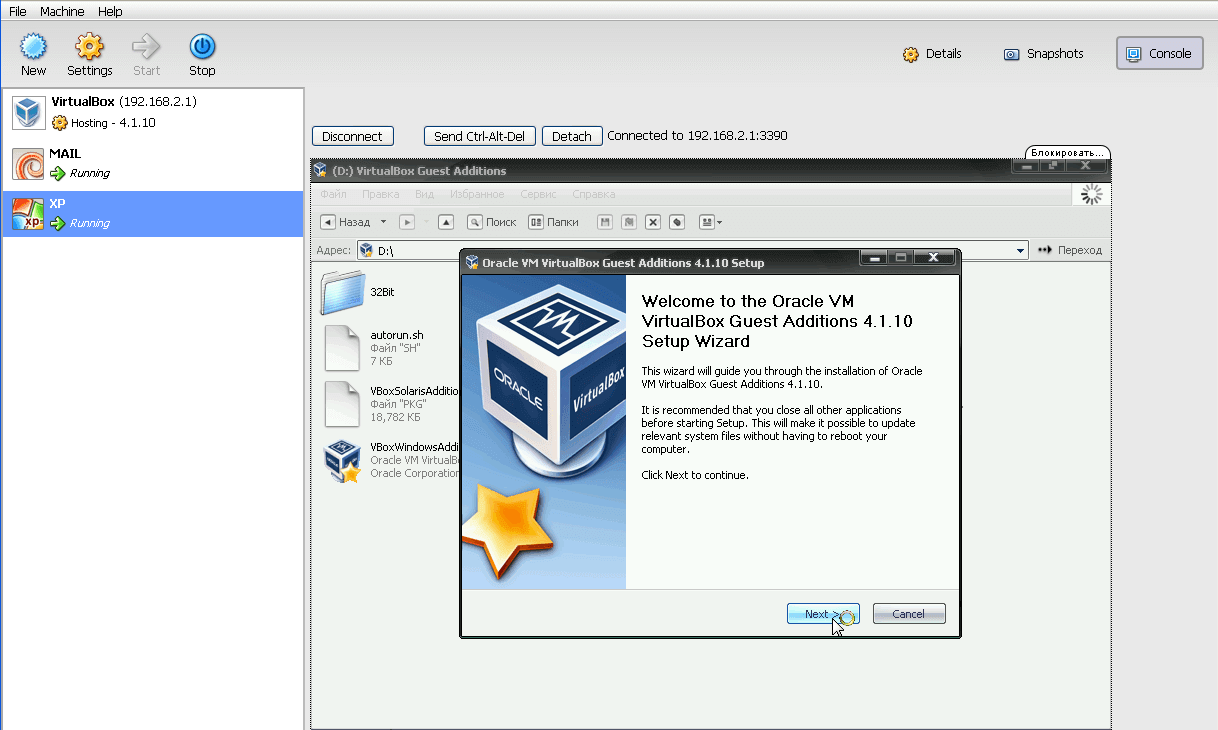
Install the running file as standard with everything agreeing:
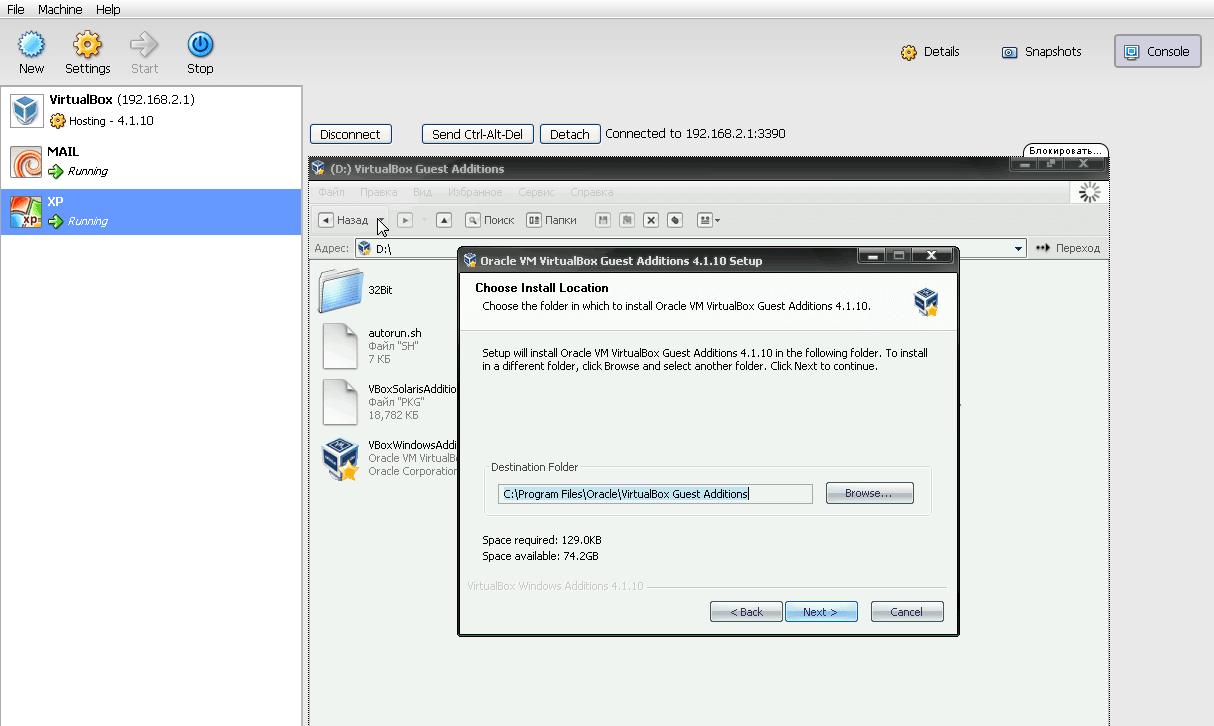
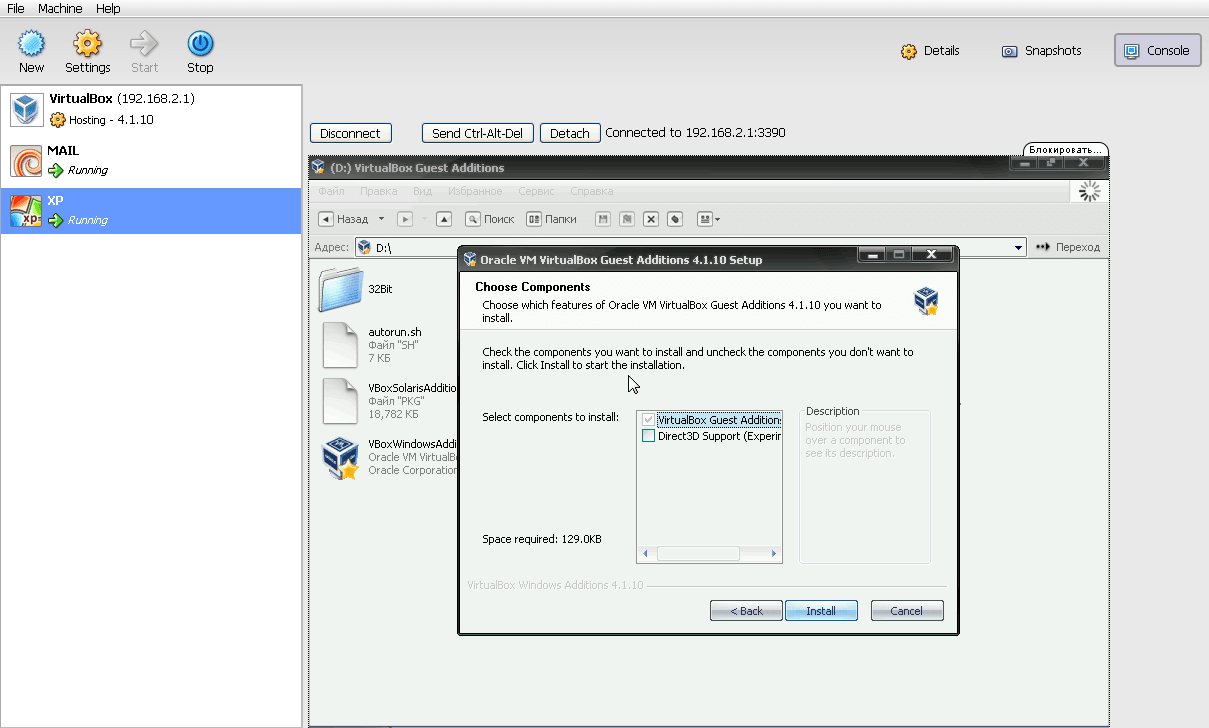
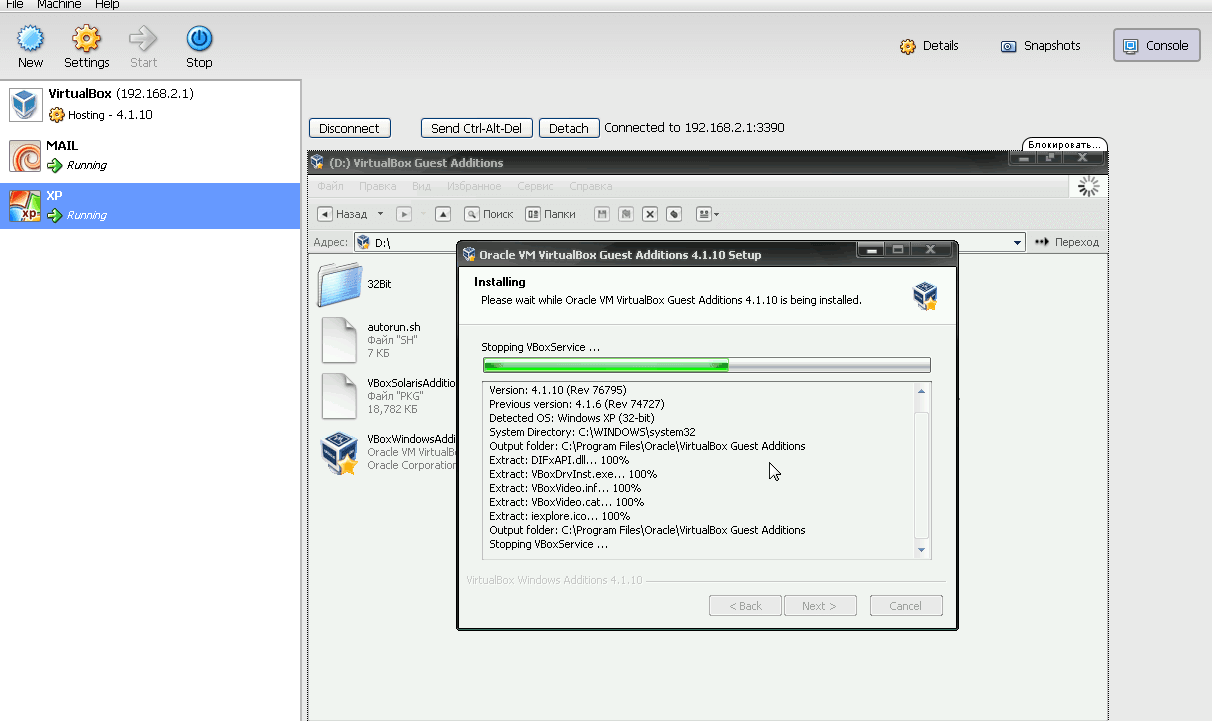
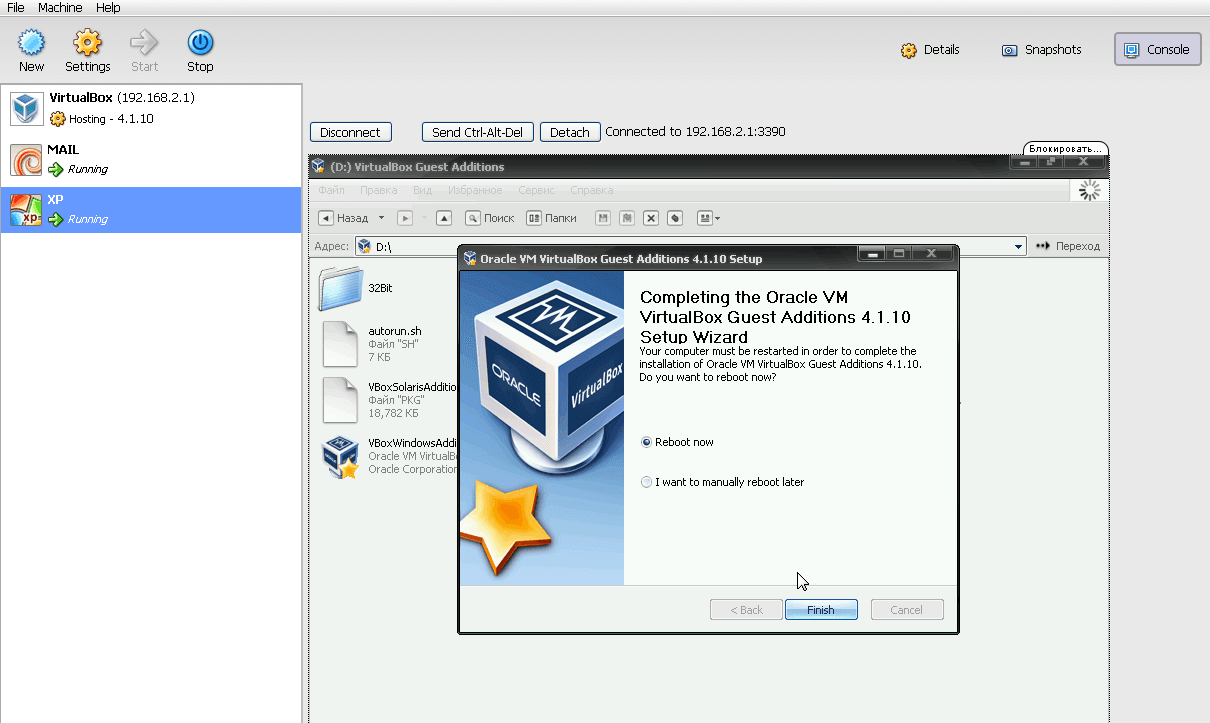
Installation of VBox Guest Additions is completed, after pressing the Finish button, the guest virtual machine will restart.
The task is completed, the mouse cursor in the guest system will work synchronously after the reboot.
I was with you. Sergey Lazarenko.
After work, we will take a short break from work and see how to drink milk for the cat:

comment