

Cron It is a program that performs tasks according to schedule. Allows repeated start of tasks. Ie. The task can be started at a certain time or after a certain period of time. The format and values of the fields for custom crontab files will be given at the end of the article.
When booting the system, a cron demon is launched and checks the queue of at tasks and user tasks in crontab files. At launch, the cron demon first checks the directory. /var/spool/cron if crontab files are available, crontab files have usernames corresponding to the usernames of the /etc/passwd Each user can have only one crontab file, there may be several entries in the file.
In other words, crontab files contain instructions for the cron demon that will run the task(s) described in the crontab file. All crontab files from the directory /var/spool/cron They are loaded into memory, while files from the /etc/cron.d The cron demon then downloads the file contents. /etc/crontab With standard settings, the content /etc/crontab It is as follows:
SHELL=/bin/bash
PATH=/sbin:/bin:/usr/sbin:/usr/bin
MAILTO=root
HOME=/
# run-parts
01 * * * * root run-parts /etc/cron.hourly
02 4 * * * root run-parts /etc/cron.daily
22 4 * * 0 root run-parts /etc/cron.weekly
42 4 1 * * root run-parts /etc/cron.monthly
The file information indicates that:
catalogue /etc/cron.hourly It will be launched every hour in the first minute of the hour.
catalogue /etc/cron.daily It will be launched every day in the second minute of the fourth hour.
catalogue /etc/cron.weekly It will be launched every Sunday in the twenty-second minute. fourth hour.
catalogue /etc/cron.monthly It will start every first day of the month at the forty-second minute of the fourth hour.
SHELL=/bin/bash means to use the commands /bin/bash If a variable is not specified, the value will be taken from /etc/passwd The user is the owner of the file.
HOME=/ Root directory for the user (optional option) If you need access to special properties of the interpreter, the values of the variables SHELL and HOME can be changed, regardless of what is written in /etc/passwd
MAILTO=root It means who to send a message about the results of the work of teams.
All content from these directories will run with root user access rights and files must have "execution" permissions. http://rst.void.ru/texts/chmod.txt) Therefore, before placing files in one of these directories, it is necessary to ensure that scripts do not harm the system.
Once the cron demon is running and has read the contents of all the crontab files, it sits idle, waking up every minute to see if any commands are needed at a given moment, or if a new crontab file has appeared that needs to be processed. The cron demon detects changes in the time of modifying files or directories, this property eliminates the need to restart the demon.
/etc/cron.hourly
/etc/cron.daily
/etc/cron.weekly
/etc/cron.monthly
available only to the root user, for use of crontab files by users, you need to use the crontab command. The command is used to create, modify and add a file for the cron demon.
Example
Consider an example of creating a crontab file for a user, home directory /home/user
Objective: Run every minute of the file /home/user/mailwhich will send the mail
The contents of the mail file (the file must have permission to start!) e.g. -rwxr-xr-x
#!/bin/bash
mess="test cron"
echo "$mess" |mutt -s "subj" -m application/octet-stream
   \n
 [email protected]
1.Create a temporary file /home/user/test The contents of the test file are:
SHELL=/bin/bash
MAILTO=user
0-59 * * * * /home/user/mail
2. Launch the crontab command in the terminal /home/user/test
All. After that in the catalogue /var/spool/cron A “user” file will be created with approximately the following content:
# DO NOT EDIT THIS FILE - edit the master and reinstall.
# (/home/user/test installed on Mon Mar 29 02:31:34 2004)
# (Cron version -- $Id: crontab.c,v 2.13 1994/01/17 03:20:37 vixie Exp $)
SHELL=/bin/bash
MAILTO=user
0-59 * * * * /home/user/mail
File. /home/user/mail The cron demon will be launched every minute.
Catalogue access /var/spool/cron unprivileged user is closed to see the user "user" whether he has a crontab file, just dial the command crontab -l If the file exists, its contents will be shown.
A command is used to delete the file. crontab -r
A team is used for editing crontab -e
To manage crontab files, the user "root" uses a syntax:
crontab -u user_name file Creating a crontab file from the "file" file for the user "user_name", -u means whose crontab will be processed, If the option is not specified, then the crontab of the user who launched the crontab command will be processed.
crontab -u user_name -l View the crontab file of the user "user_name"
crontab -u user_name -r - Delete the crontab file of the user "user_name"
crontab -u user_name -e - editing the crontab file of the user "user_name" using an editor specified by the VISUAL or EDITOR environment variable
Format and values of fields
Each command in a custom crontab file takes up one line and consists of six fields.
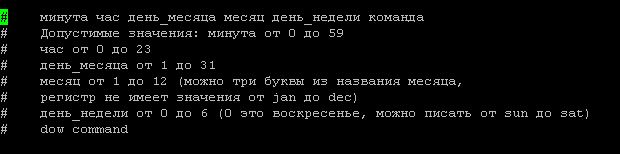
The overall team format. It is advisable to add this text to the beginning of the crontab-e file. Then it will always be visible and used as a cheat sheet:
# ------------------------------------------------
# минута час день_месяца месяц день_недели команда
# ------------------------------------------------
# Допустимые значения:
# минута от 0 до 59
# час от 0 до 23
# день_месяца от 1 до 31
# месяц от 1 до 12 (можно три буквы из названия месяца,
# регистр не имеет значения от jan до dec)
# день_недели от 0 до 6 (0 это воскресенье,
# можно писать от sun до sat)
# Каждое из полей даты и времени может быть обозначено символом * ,будет соответствовать любому возможному
# значению. Для этих полей можно указывать диапазоны значений, разделенных дефисом.
For example:
* 5 4-10 0-3 * echo "HELLO" # печать HELLO в 5:00 на 4,5,6,7,8,9,10 дни января, февраля, марта и апреля
step-by-step recording
* */2 * * sat echo "HELLO" # печать HELLO каждый четный час, каждую субботу
equivalent to the previous example (list):
* 0,2,4,6,8,10,12,14,16,18,20,22 * * sat echo "HELLO" # печать HELLO каждый четный час, каждую субботу
the same with indication of range:
* 0-23/2 * * sat echo "HELLO" # печать HELLO каждый четный час, каждую субботу
59 23 31 dec * echo "Happy new year" # без комментариев :), поздравит с новым годом
To debug the cron task, you can redirect the result to a file
Example:
0-59 * * * * /home/user/mail 2>/tmp/tmp.cron
If at the start of the team /home/user/mail Errors will occur, they will be recorded in the file. /tmp/tmp.cron And you can always find out why. In case of redirecting the output to a file, a letter, the user specified in the MAILTO variable will not be sent.
You can see information about all commands run by the cron demon in the directory /var/log These are called cron, cron1 and so on.
In the file. /var/log/cron Recorded launch time of all cron tasks for the previous day
Mar 29 04:03:00 rst CROND[4434]: (user) CMD (/home/user/mail)
Mar 29 04:03:59 rst CROND[4493]: (user) CMD (/home/user/mail)
Mar 29 04:05:00 rst CROND[4507]: (user) CMD (/home/user/mail)
Mar 29 04:06:00 rst CROND[4549]: (user) CMD (/home/user/mail)
Other cron1,cron2 files contain similar information, but older than cron. Here’s everything you need to know about using cron and crontab.
I was with you. Sergey Lazarenko. If you need this instruction, subscribe to receive updates from the site to your email. Share the link to the instructions by clicking on your social network icon at the bottom of the article.
Now let’s relax in another world by watching a beautiful video about underwater hunting:

comment