

In this instruction, we in the Windows 7 operating system will install a program for batch, in other words, group resizing of photos or other images.
The program to change the image size in Windows will use Image Resizer for WindowsIt is very simple and easy to use.
Download the program: Download Image Resizer for Windows on the official website.
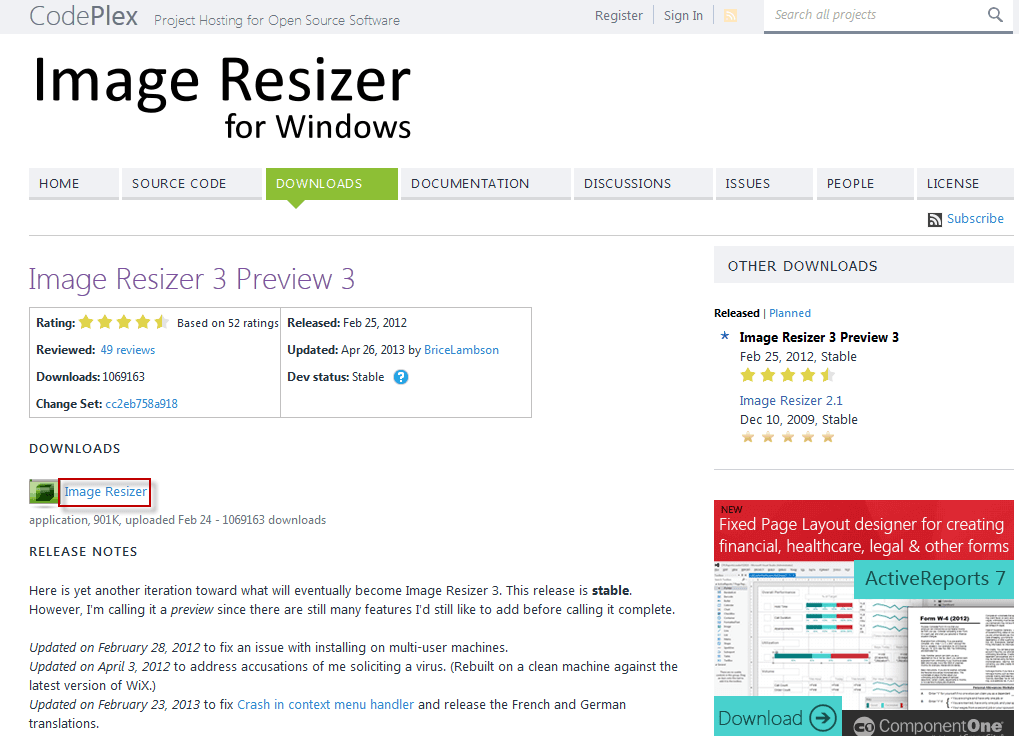
Open the official website of Image Resizer for Windows in the browser at the link above and click on the button DOWNLOADS. In the open window of the official website of the program for batch resizing images in Image Resizer for Windows click the link Image ResizerIt is highlighted in the screenshot below:
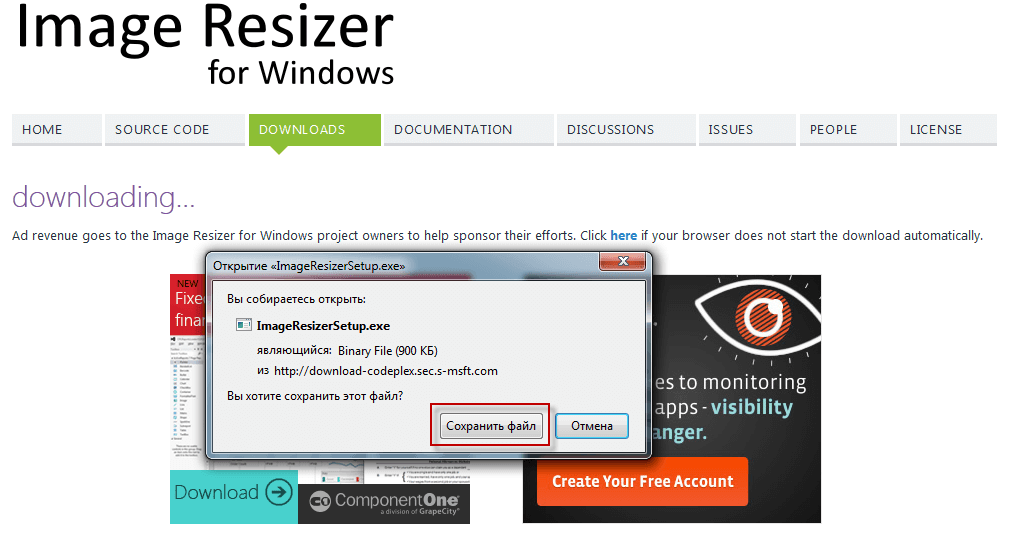
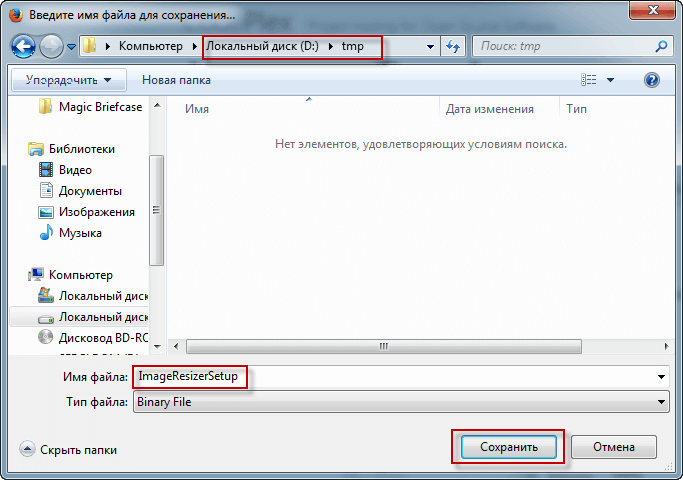
Save the downloadable installation file of the program Image Resizer for Windows For a simple and convenient resizing of the image in a convenient location for you on the hard drive, I download to the tmp folder on disk D:
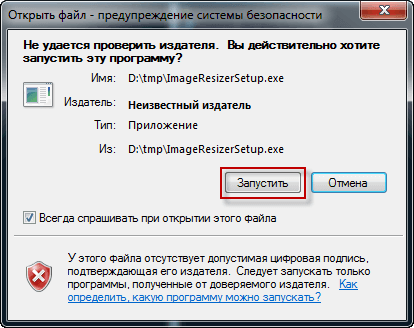
Start the downloaded installation file:

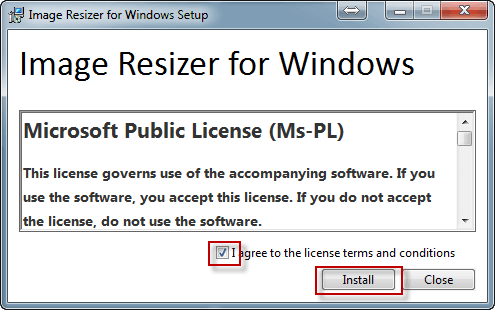
We agree to launch the program:
We tick the agreement with the personal agreement and to start the installation press the button. Install:
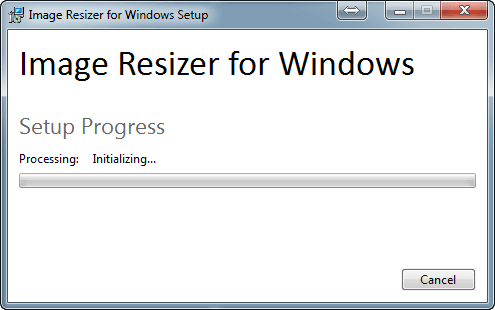
Below you will see the program installation process:
Programme Image Resizer for Windows For its work, it is required to Microsoft .NET Framework 4If you do not have this version installed on your computer. FrameworkIf you have the Internet, it will be automatically downloaded, if there is no Internet on your computer, then you need to download it. Microsoft .NET Framework 4 on linkage:

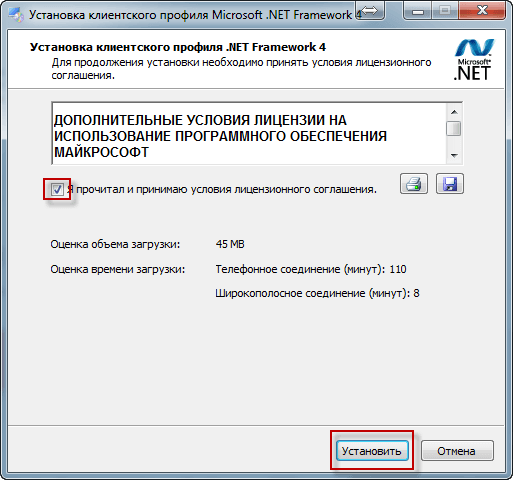
We tick the agreement with the license agreement and to start the installation Microsoft .NET Framework 4 press the button Install:
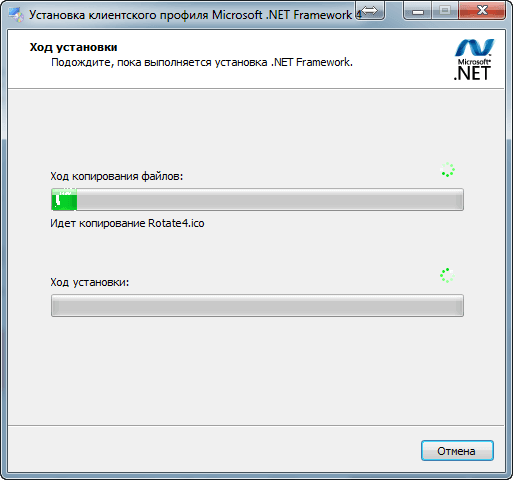
In the screenshots below is the process of downloading and installing Microsoft .NET Framework 4:

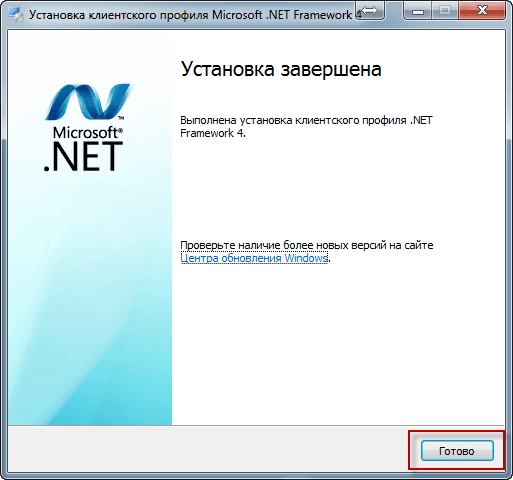
Microsoft .NET Framework 4 packet-size resizing Image Resizer for Windows installed, for the installation work we press the button Ready:
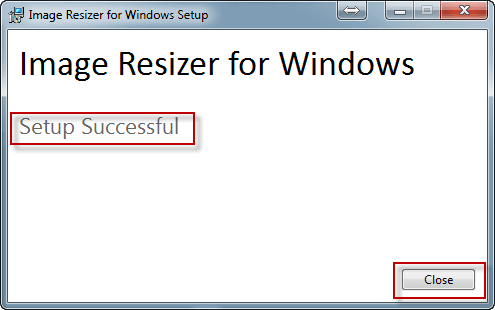
Programme Image Resizer for Windows to resize the image installed, to complete the installation press the button Close:
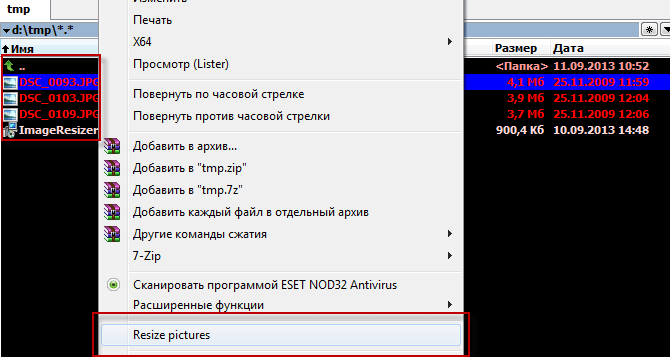
After installation, we proceed to the test resize of images, for this we copy several large photos into a folder. tmp disk D:, necessary to change the size of the image and clicking on them with the right mouse button in the drop-down list Resize pictures:
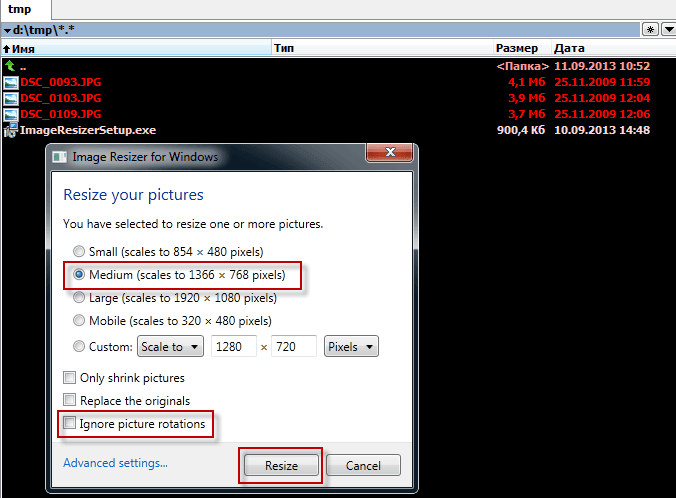
A window will open in which you need to select the size of the desired image, I chose the preset one. Medium and took the box off Ignore picture rotations To change the size of the image, press the button. Resize:
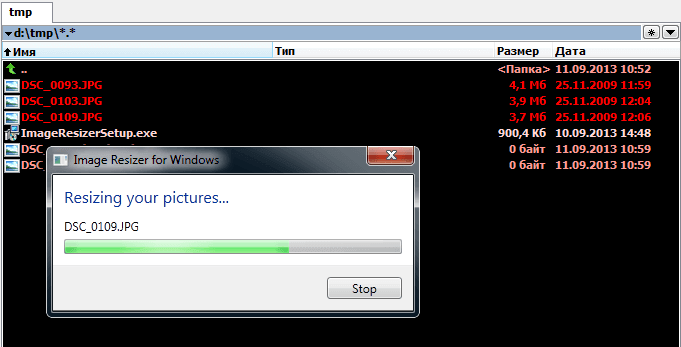
The process of batch size change of images:
Packet size change of the image is executed, program Image Resizer for Windows We do not delete the original images, but create a copy next to the name of the Medium file that we selected from the presets of the program itself. In the screenshot below you can verify the size of the images, the original size was 3.7mb - 4.1 mb, processed respectively 144kb - 229kb:

The task of batch size change of images is completed.
I was with you. Sergey Lazarenko.
After work, we will take a short break and cheer ourselves up by watching a small video about the bullying of a parrot over a cat:

comment